This official feed from the Google Workspace team provides essential information about new features and improvements for Google Workspace customers.


Users can now edit and revise their email drafts in Gmail via the prompt bar, using custom refine instructions in Help me write. Previously the refines were limited to preset options like Polish, Formalize, and Shorten. Now if your first draft isn’t quite perfect, you can provide a precise follow-up prompt in your own words to further refine it, and even undo or redo any edits you make.

Whether you need to add a missing detail to the second line or include a deadline for your request, simply type the instruction and Gmail will instantly update the draft for you.

Getting started

Rollout pace

Availability

  • Business: Business Starter, Standard, and Plus
  • Enterprise: Enterprise Starter, Standard, and Plus
  • Consumer: Google AI Plus, Pro, and Ultra
  • Other Editions: Frontline Plus
  • Education Add-ons: Google AI Pro for Education
  • Other Add-ons: AI Expanded Access

Resources

Maintaining an enterprise-grade video conferencing environment requires visibility into the health of its devices. We're introducing new ways to see Google Meet hardware user-reported feedback directly in the Admin console.

We’ve also updated user-side feedback options to replace generic reporting with structured actionable feedback making it easier and more intuitive for room participants to report problems.

Redesigned user interface

The new feedback menu on Google Meet hardware now features responses that are tailored to the reporting context (In-Call, Out of Call, Live stream). These new feedback options collect better details, making it easier for admins to understand and troubleshoot the issue.

In-Call Feedback: Users are presented with call specific options to report a problem , like “Can’t see others” or “Poor audio or video quality.”


Out-of-Call Feedback: When filing feedback from the touchscreen landing page, users now see a new set of join-related problems, including “Can’t join Meet call” and “Can’t join Teams call.”


Livestream Feedback: Users viewing large-scale livestreams will see dedicated options to report a problem.


Admin console improvements

The Google Meet hardware section of the Admin console now features enhanced monitoring tools. Feedback is no longer proxied as a background telemetry event; it is now a primary, sortable “device information” column within the device list.

Enhancements include two new columns on the device list page, including:

  • Last feedback submitted - A sortable column displaying the exact timestamp of a device’s most recent report, which can be filtered by 1, 3, 7, or 30 days. Clicking the timestamp opens a side panel containing specific feedback details.
  • Feedback in the last 28 days - A cumulative count of reports filed for a specific device over a rolling 28-day period, allowing for the identification of recurring faulty devices.

The Google Meet hardware device list featuring new “Last feedback” and “Feedback in last 28 days” columns

Admins can get more information about a specific “Last feedback” by clicking on the date, a side panel will open providing the specific feedback details:


The feedback side panel on the Admin console now shows the new set of problems customers have reported


In addition, we’re introducing a new "With feedback in last 7 days" filter, which instantly prioritizes devices with recent reports and repositions the feedback columns to sit next to the device name for immediate visibility.


A new filter to glance at devices with feedback filed in the last 7 days.

Getting started

  • Admins: Ensure the “Let users send feedback to Google” checkbox is selected in GMH Settings > Data Sharing > Feedback is ON  at the domain or organizational unit (OU) where the device is enrolled. Visit the Help Center to learn more.
  • End users: Users can report feedback during or after a call or livestream via the “Report a problem” button. Visit the Help Center to learn more.

Rollout pace

Availability

  • Available to all Google Workspace customers with Google Meet hardware devices

Resources

Google Credential Provider for Windows (GCPW) has been updated to support FIDO2-compliant physical security keys as a second factor for authentication. This update helps organizations improve their security posture by enabling administrators to enforce 2-Step Verification (2SV) using hardware security keys at the Windows login screen. Additionally, users can now use passkeys from nearby Bluetooth-connected mobile devices for their second-factor authentication.


Getting started

Rollout pace

Availability

  • Available to all Google Workspace customers

Resources

We are excited to announce the general availability of Google Workspace inbound SCIM APIs to help IT administrators standardize identity lifecycle management. This new capability allows you to sync your Google Workspace directory in real time with any SCIM-compatible Identity Provider (IdP), HR system (HRIS), or custom application.

With inbound SCIM, when a Workspace end user’s account permissions are changed via their organization’s IdP, their access to Workspace data and any downstream apps, such as Gemini Enterprise, will also be updated in real time. Previously, customers would need to build custom integrations using Google directory APIs.

SCIM overview

System for Cross-domain Identity Management (SCIM) is an open protocol that synchronizes directory information between identity systems. With inbound SCIM, Google Workspace acts as a SCIM Service Provider, enabling compatible Identity Providers (IdPs) to automatically provision, update, and deactivate users and groups in real time.

Inbound SCIM offers:

  • Automated lifecycle management: IT teams no longer need to manually create user accounts or update details for Workspace, saving significant time and costs.
  • Seamless onboarding and day-one productivity: New employees have access to all Workspace productivity tools the moment they start, creating a frictionless onboarding experience.
  • Enhanced security with instant deprovisioning: When an employee leaves your organization or changes roles, SCIM instantly pushes an update request to Workspace. This eliminates the security risks associated with orphaned accounts and makes compliance audits significantly easier.
  • Simplified admin experience: Inbound SCIM offers a one-click token generation experience and admin controls to lock synced groups from your external source to prevent manual changes in Workspace that would conflict with your identity provider.

Getting started

  • Admins: This feature will be available by default and can be disabled/enabled at the domain level. Visit the Help Center to learn more.
  • End users: This is an admin-facing feature only.

The Manage external directories page in the Admin console showing Inbound SCIM setup


Configure a new Inbound SCIM connection with external IdP

Rollout pace

Availability

  • Business: Business Starter, Standard, and Plus
  • Enterprise: Enterprise Starter, Standard, and Plus

Resources

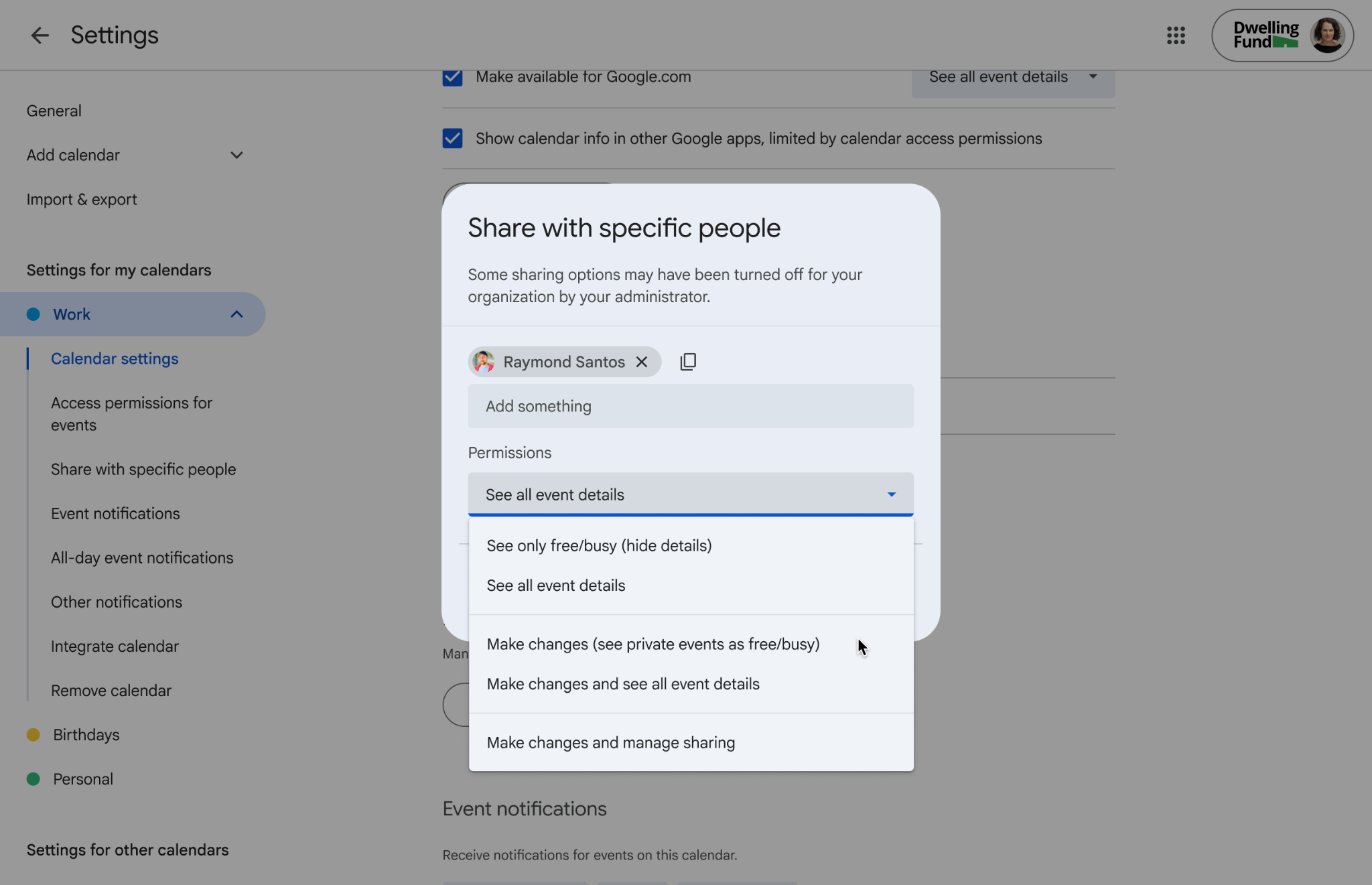
We're introducing a new calendar sharing permission level: “Make changes (see private events as free/busy)”. This allows you to grant someone edit access to your calendar while keeping the details of your private events entirely hidden. This is especially useful for leaders who assign delegates to help them manage their calendars.

Delegates assigned this restricted permission level will only be able to create, delete, and edit non-private events. Private events will appear to delegates as “busy” blocks on the calendar grid, and delegates will not be able to edit or reschedule them. In addition, private events won’t show up in any search results for delegates.

Changes to visibility for recurring events

We’re also introducing changes to the way visibility settings are applied to recurring events.

  • Users can no longer make changes to the visibility of a single event in a recurring series. Any changes to visibility will be applied to all events in the series.
  • Existing events in a recurring series will be updated to match the strictest visibility setting of any event in that series. In other words, if one event in the series is marked private but the others are not, all events in that series will be changed to private.

Getting started

  • Admins: There is no admin control for this feature.
  • End users: Users can grant delegates this new permission level in their Calendar settings. Visit the Help Center to learn more about sharing your calendar.

Rollout pace

Availability

  • Available to all Google Workspace customers, Workspace Individual subscribers, and users with personal Google accounts

Resources

Earlier this year, we announced Fill with Gemini in Google Sheets, a new AI-powered feature designed to make data preparation and manual entry even easier. Leveraging the capabilities of the AI function in Google Sheets, Fill with Gemini eliminates the need for complex formulas, helping you easily generate text, summarize information, categorize data, or analyze sentiment at scale with generated content appearing directly in the cells you choose.

Previously available in English, Spanish, Portuguese, Japanese, Korean, French, Italian, and German, both Fill with Gemini and the AI function are now expanding to users in Mandarin, Dutch, Malay, Hebrew, Polish, Turkish, Czech, Indonesian, Swedish, Danish, and Norwegian.


Getting started

Rollout pace 

Availability

  • Business: Business Standard and Plus
  • Enterprise: Enterprise Standard and Plus
  • Consumer: Google AI Pro and Ultra
  • Education Add-ons: Google AI Pro for Education
  • AI Add-ons: AI Expanded Access*

*Starting July 15, 2026, users with AI Expanded Access licenses will have higher limits on usage of Fill with Gemini and the AI function in Sheets. 

Resources

Occupancy counting is now available for Android-based Neat room hardware to help measure how meeting rooms are used. This feature brings the same occupancy counting capabilities found on ChromeOS devices to Android-based hardware.

Understanding room occupancy helps organizations optimize real estate and room design based on user needs. For instance, organizations can track if rooms with older video hardware are being avoided in favor of rooms equipped with better tracking cameras and audio bars.

Admins can review occupancy data in the Google Admin console and optionally download it as a spreadsheet. This feature does not collect or store any personally identifiable information (PII). Because occupancy detection processes data locally on the device, the camera LED indicator may remain off during counting depending on the hardware vendor. Refer to vendor documentation for device-specific information.


Review room booking and occupancy in the Admin console

Getting started

  • Admins: This feature will be off by default and can be enabled at the domain, organizational unit (OU), or group level. Visit the Help Center to learn more about turning on occupancy detection.
  • End users: There is no end-user setting for this feature.

Rollout pace

Availability

  • Available to all Google Workspace customers with Google Meet on Neat AOSP hardware devices. 

Resources

You can now join video conferences on Google Meet hardware via SIP through a Pexip interop gateway. This brings universal connectivity for users to join meetings hosted on any SIP-compatible platform directly from their Meet rooms. The functionality is available for room hardware based on both Android and ChromeOS.

The SIP functionality for Meet hardware enables critical in-meeting interactions, such as DTMF (Dual-Tone Multi-Frequency) capabilities that allow users to navigate meeting IVRs (interactive voice response systems), e.g., "Press 1 to raise your hand" and entering numeric meeting passcodes.

Distinct administrator settings are provided for managing SIP dial-out functionality separately from other Pexip-based integrations.


Join SIP calls with a single touch from the room agenda

SIP interoperability setting for administrators

Getting started

  • Admins: This feature will be off by default and can be disabled or enabled at the domain, OU, or group level. Visit the Help Center to learn more.
  • End users: There is no end user setting for this feature.

Rollout pace

Availability

  • Available to all Google Workspace customers with Google Meet hardware devices*

*Functionality requires a separate Pexip subscription

Resources

In April, we announced the general availability for Drive AI Overviews in Drive on the web. We’re now bringing this feature to the Drive Android and iOS apps.

Instead of searching through endless files and opening dozens of tabs to find the information you need, you can now get instant answers right at the top of your search results. Gemini does the heavy lifting for you, scanning your documents to provide clear, reliable summaries.

Here is how it helps you work smarter:

  • See the big picture: Get a quick summary of information pulled from multiple files without needing to open each one.
  • Ask naturally: There’s no need to use complicated search tricks. Just ask a question as you would to a colleague, like "What’s in our Spring 2026 catalog?"
  • Get the right answer: Gemini automatically understands what you’re looking for, whether it’s a quick fact, a project summary, or a list of specific documents, and adjusts its response to match.
  • Dig deeper with ease: If you need more information, you can go from a quick summary to a deeper conversation with Ask Gemini in just one click.
  • Control your AI Overviews scope: Use AI Overview search settings to choose which Google Workspace apps Gemini uses to find files and generate AI Overviews.

This feature will roll out in English and an additional 28 languages (the same as those supposed for Gemini in Drive side panel) over the next several weeks.

Getting started

Rollout pace

Availability

  • Business: Business Standard and Plus
  • Enterprise: Enterprise Standard and Plus
  • Consumer: Google AI Pro and Ultra
  • AI Add-ons: Google AI Pro for Education

Resources

Previously, users could only work with delegated Gmail accounts through the web interface. We are updating the Gmail app for iOS and Android to allow delegates to read, manage, and compose emails on behalf of a delegator directly from their mobile devices.

This update removes a significant barrier for employees who rely on mobile devices for their daily productivity. For example, an administrative assistant can seamlessly handle urgent communications for an executive while away from the office, without needing to find a desktop computer.

When using the Gmail mobile app, delegates can now:

  • Switch between their own inbox and delegated accounts.
  • View unread message counts for delegated inboxes from the account menu.
  • See emails intermingled across delegated accounts and their own account using the mobile “All inboxes” view.
  • Send messages that allow recipients to view the specific "sent by" information in the mobile experience. 
Administrators retain full control over delegation settings, including the ability to restrict delegation to specific organizational units. The mobile experience adheres to existing delegation policies and limits, such as supporting up to 1,000 unique delegates per account and 40 concurrent users. Delegators do not need to perform any additional setup to enable mobile access for their existing delegates.

Getting started

  • Admins: There is no admin control for this specific mobile feature; it follows existing delegation settings that you’ve configured for the web experience.
  • End users: To access a delegated account, ensure you have first been granted access via the Gmail web settings. Once granted, tap your profile picture in the Gmail app on Android or iOS and select the delegated account from the list. Visit the Help Center to learn more about delegating and collaborating on email.

Rollout pace

Availability

  • Available in early July to all Google Workspace customers, Workspace Individual subscribers, and users with personal Google accounts

Resources

In April, we announced the general availability of Ask Gemini in Drive on the web. We’re now bringing this feature to the Drive Android and iOS apps.

Ask Gemini in Drive offers you a dedicated, immersive workspace designed for deep focus. You can now engage in high-context, multi-turn conversations to efficiently explore and understand content across Drive, other Workspace apps, and the web.

Key features include:

  • Dedicated conversations: Engage in focused discussions about specific sets of files and folders. By grounding your questions in the relevant content, you get more precise, actionable answers.
  • Persistent conversation history: Easily pick up where you left off. Your past chats are saved, allowing you to quickly revisit previous insights about specific folders or projects without starting over.
  • Secure and compliant: Ask Gemini in Drive is built directly into the Drive architecture, it never copies or replicates your files. It honors your existing data protection and security controls, including access permissions, DLP policies, and IRM, ensuring Gemini only accesses content you are authorized to see.

This feature will roll out in English and an additional 28 languages over the next several weeks.

Getting started

Rollout pace

Availability

  • Business: Business Standard and Plus
  • Enterprise: Enterprise Standard and Plus
  • Consumer: Google AI Pro and Ultra
  • AI Add-ons: Google AI Pro for Education

Resources

You can now create a full, multi-slide presentation using Gemini in Google Slides. With a single prompt, you can ground the presentation in existing content from Google Drive, match the style of another presentation, and build fully editable slides, allowing you to make any necessary adjustments. Gemini will also suggest relevant files, emails, and chats that you can choose to add to enrich your presentation.

Try the following to create more relevant, compelling presentations in less time:

  • Add a prompt: In the Slides side panel, add a prompt to generate a presentation.
  • Ground it in your content: Add as many reference files directly from Drive as you need to provide context.
  • Stay on-brand: Attach an existing deck to use as a style reference to ensure your presentation matches your desired look and feel.
  • Refine the plan for your presentation: Answer any follow-up questions to refine the presentation’s tone, style, content, or audience. You will also have the chance to edit or approve the presentation outline before the actual slides are created.

Note: At launch, this feature will be supported in English only.


Getting started

Note: Through at least August 1, 2026, Workspace customers will get promotional access to higher limits for creating multi-slide presentations using Gemini in Google Slides, allowing users to experiment with this feature. Users will see a notification when they use this feature to inform them of the limited higher promotional access period. Per-user usage limits will apply after that date; we’ll provide more information in the Help Center in advance of updated usage limits going into effect.

Rollout pace

Availability

  • Business: Business Standard and Plus
  • Enterprise: Enterprise Standard and Plus
  • Consumer: Google AI Pro and Ultra
  • Education Add-ons: Google AI Pro for Education
  • Other Add-ons: AI Expanded Access*

*Once promotional limits are no longer in effect, users with AI Expanded Access add-on licenses will have higher limits on usage of Gemini in Slides.

Resources

Beginning today, the Gemini app adheres to your organization’s data regionalization requirements. As with Google Workspace, admins have the flexibility to configure controls for EU storage and processing, US storage and processing, or both, including granular settings down to the organizational unit (OU) level.


Data regions are critical for ensuring many customers can meet their own internal requirements, as well as other legal, regulatory, and data sovereignty requirements by controlling the geographical location of their data at rest. Expanding these controls to the Gemini app allows our customers to adopt Gemini broadly in their organization with confidence that their data is being processed and stored in the location they require. 

Getting started

Rollout pace

Availability

  • Enterprise: Enterprise Plus (provides in-region processing and storage capabilities)
  • Education: Education Plus and Education Standard (provides in-region storage capabilities only)
  • Other Editions: Frontline Plus (provides in-region processing and storage capabilities)

Resources

We’re giving admins more granular control over how mobile device management privileges are delegated. Specifically, admins can be assigned privileges for specific organizational units (OUs), adding another layer of security by scoping access only to necessary OUs.

Previously available in beta, we’re now making this feature generally available, with improvements to the way devices are displayed to help admins view and manage their devices more efficiently.


Example experience for an admin with OU-level permissions

Getting started

Rollout pace

Availability

  • Available to all Google Workspace customers

Resources

Educators and students of all ages can now seamlessly attach Gemini Canvas artifacts, like websites, quizzes, interactive games, infographics, and more, to Google Classroom assignments and posts. Right from Gemini Canvas, users can click on the “Share to to Classroom” button. This update allows users to enrich their classroom communication and coursework by embedding interactive materials directly into their existing workflows.

By removing the friction of exporting or linking external files, this feature helps teachers diversify their lesson materials and enables students to share creative outputs more efficiently. The integration ensures that rich, interactive media is easily accessible to everyone in the class, supporting a more engaging and dynamic digital learning environment.


Getting started

  • Admins:
    • The ability to share Gemini Canvas artifacts will be ON by default and can be managed via a new Admin console setting. Additionally, sharing is governed by your organization’s existing Drive sharing policies. If Drive content is set to be shareable outside the organization, your Gemini assets will be as well. Visit the Help Center to learn more.
    • To share Gemini Canvas artifacts to Google Classroom, students and educators must also be in a group or OU with Gemini set to On. Visit the Help Center to learn more about turning Gemini on or off for users.
  • End users: There is no end user setting for this feature. If enabled by your admin, you can share your Gemini canvases and media to Classroom, select Share > Share to Classroom > select the class and/or assignment you want to share it with. Visit the Help Center to learn more about Gemini.

Rollout pace

Availability

  • Education: Education Fundamentals, Standard, and Plus

Resources

In April 2026, we updated Meet to improve video quality on high-resolution displays. We’re now updating the way the Admin console setting that limits video bandwidth works to reduce data usage and improve call quality.

Previously, the ‘Limit video bandwidth’ setting only limited video bandwidth on the uplink; it now limits bandwidth on the downlink as well. In addition, we’re improving quality for two-person calls by increasing the uplink bandwidth usage in this scenario.


Updated setting for Meet default video quality

Getting started

  • Admins: Your existing settings will remain applied.  Visit the Help Center to learn more about configuring default video quality.
  • End users: There is no end user setting for this feature.

Rollout pace

Availability

  • Available to all Google Workspace customers

Resources

Google Workspace administrators can now utilize incremental exports when backing up organizational data. Instead of re-exporting their entire organization's data, admins can export frequent snapshots of their data into their organization’s own Google Cloud Storage (GCS) bucket.

Key benefits include faster completion times, reduced Google Cloud Storage consumption and costs, and the ability to establish more frequent backup schedules to mitigate the risk of potential data loss. 

Specifically, admins can schedule automated exports for Gmail, Drive, and Chat, with the flexibility to scope data by organizational unit (OU), group, or specific users. They can initiate:

  • Periodic full backups - establishing a baseline snapshot through regular full exports
    • Quarterly (every 3 months)
    • Semi-annually (every 6 months)
    • Annually (every year)
  • Frequent incremental backups - supplementing the baseline with frequent incremental backups, such as backing up data from the "last x days" every "y days"
    • Capture data from the last 5 days, running every 3 days
    • Capture data from the last 7 days, running every 5 days


Getting started

Rollout pace

Availability

Resources

Read Along in Google Classroom, an AI-powered literacy tool that provides in-the-moment support to students as they read aloud, is now available to all Google Workspace for Education users at no cost. We believe this will open access to literacy tools for millions of students, and help educators and education leaders achieve better learning outcomes and progress on foundational literacy.

Read Along is designed to build students' speaking, listening, and decoding skills. It offers flexible learning modes, allowing students to practice aloud with real-time feedback, listen to stories, or enjoy books independently. To help emerging students transition from simply "learning to read" to "reading to learn," Read Along includes questions directly in the material to continuously strengthen comprehension as well as decoding support through word-breakdown.

Educators can use Read Along in Google Classroom to provide personalized reading practice for every student. The insights dashboard showing individual student and class-wide progress can help inform instruction and make it easier to create tailored reading activities based on student needs.

With this update, all Google Workspace for Education users will have access to:

  • A tailored reading experience in Google Classroom: Educators can easily create interactive reading activities right within Classroom, giving students in-the-moment support while getting actionable insights related to their reading skills.
  • Real-time reading support: Learners get help with pronunciation as they read aloud and get word breakdown support.
  • Class and student insights to inform instruction: View information on accuracy, speed, comprehension, phonics skills, and progress for individual students and the entire class.
  • An extensive content library: Choose from over hundreds of books across eight languages: English, Spanish, Portuguese, Urdu, Arabic, Thai, Indonesian, and Malay. This includes content such as Heggerty decodables, ReadWorks articles for higher-grade learners, and localized publisher titles like Turma da Mônica in Brazil. 
  • Multilingual support: For students learning English, the reading buddy can provide real-time support in both English and their native language so they can practice their vocabulary. Native language support is available in Spanish, Portuguese, Urdu, Arabic, Indonesian, and Malay.
  • Story creation with Gemini: With help from Gemini, educators can create differentiated reading activities tailored to phonics skills needing practice, specific topics, and reading levels.
  • Existing content: Add existing class content to better tailor real-time student support and insights with Read Along.
Advanced analytics, like viewing student’s progress over time or across assignments and the ability to extract data via BigQuery, are only available with Education Plus and Teaching & Learning add-on.

Getting started

  • Admins: If you became a Google Workspace for Education customer on or after July 7, 2024, Read Along will be ON by default. If you became a Google Workspace for Education customer before July 7, 2024, you’ll need to enabled Read Along in the Admin console. Read Along can be disabled at the domain and OU level. It can be enabled at the group level even if it is disabled at the OU level. Visit the Help Center to learn more about turning Read Along on or off for users.
  • End users: Visit the Help Center to learn more about Read Along in Classroom.

Rollout pace

Availability

  • Education: Education Fundamentals, Standard, and Plus
  • Education Add-ons: Google AI Pro for Education; Teaching and Learning; Endpoint Education
  • Other Editions: Nonprofits

Resources

Earlier this year, we announced changes to Google Groups to enhance data security and privacy. The changes, which are rolling out now, include:

  • Stricter “internal” and “external” classifications for Groups
  • Clearer visual indicators for whether a group contains external members
  • Changes to how emails are shown within Google Groups
  • Additional settings granularity to control who can add external users (admins only, or admins and end users) 
  • Changes to how admins can add external users via Groups APIs

API changes

While we originally announced that admins would have to change the classification of a group before being able to add external members to Groups marked as internal, we’re updating that behavior to prevent issues with synced groups. When an admin attempts to add an external member to an internal group via the Cloud Identity or Admin SDK Directory API, or when they sync data from a third-party identity provider via API, the group settings will be automatically updated to allow admins to add external members.

Getting started

  • Admins: To ensure a smooth transition, existing groups will be automatically classified based on their current membership, so there will not be any changes in access. You can review and adjust these labels directly in the Admin console or via the Groups Settings API to match your organization's security needs.
  • End users: There is no action required for end users.

Rollout pace

Availability

  • Available to all Google Workspace customers

Resources

We are introducing several updates to the Gemini tab in Google Classroom designed to make its tools even more helpful for teachers. These changes make it easier for educators to collaborate with AI and create visual aids from any device, while expanding options for refining lesson plans.

Mobile availability
We know educators and students use Google Classroom on the go on their mobile devices, so we are excited to announce that the Gemini tab is now available in the Classroom Android and iOS apps, making these features more accessible to teachers and higher education students. For educators, the following features are available in the Classroom mobile app: Generate a quiz, Brainstorm project ideas, Craft a compelling hook, Tackle common misconceptions, and starter prompts for the Gemini app. All Gemini starter prompts and personal class notebooks in the student Gemini tab are available in the Classroom mobile app.

Tools to generate visual resources
Powered by Nano Banana 2, Google’s newest image generation model, these starter prompts help teachers create visuals that illustrate complex topics for students:

  • Create an infographic
  • Draw a comic strip
  • Visualize a concept

Teachers can also personalize three new starter prompts to generate a slide deck for a given concept and grade level using Gemini’s Canvas tool:

  • Create a presentation
  • Create an interactive activity
  • Convert a file to Google slides

Getting started

Rollout pace

Availability

  • Education: Education Fundamentals, Standard, and Plus

Resources