


引言:移动音乐应用的演进与全场景体验
移动互联网的飞速发展,让音乐从一个需要专门设备承载的"重资产"形态,演变为随时随地可触达的"轻量级"数字服务。从早期的本地播放器,到流媒体订阅模式,再到如今面向多终端、全场景的分布式音乐体验,音乐应用的形态始终在迭代。
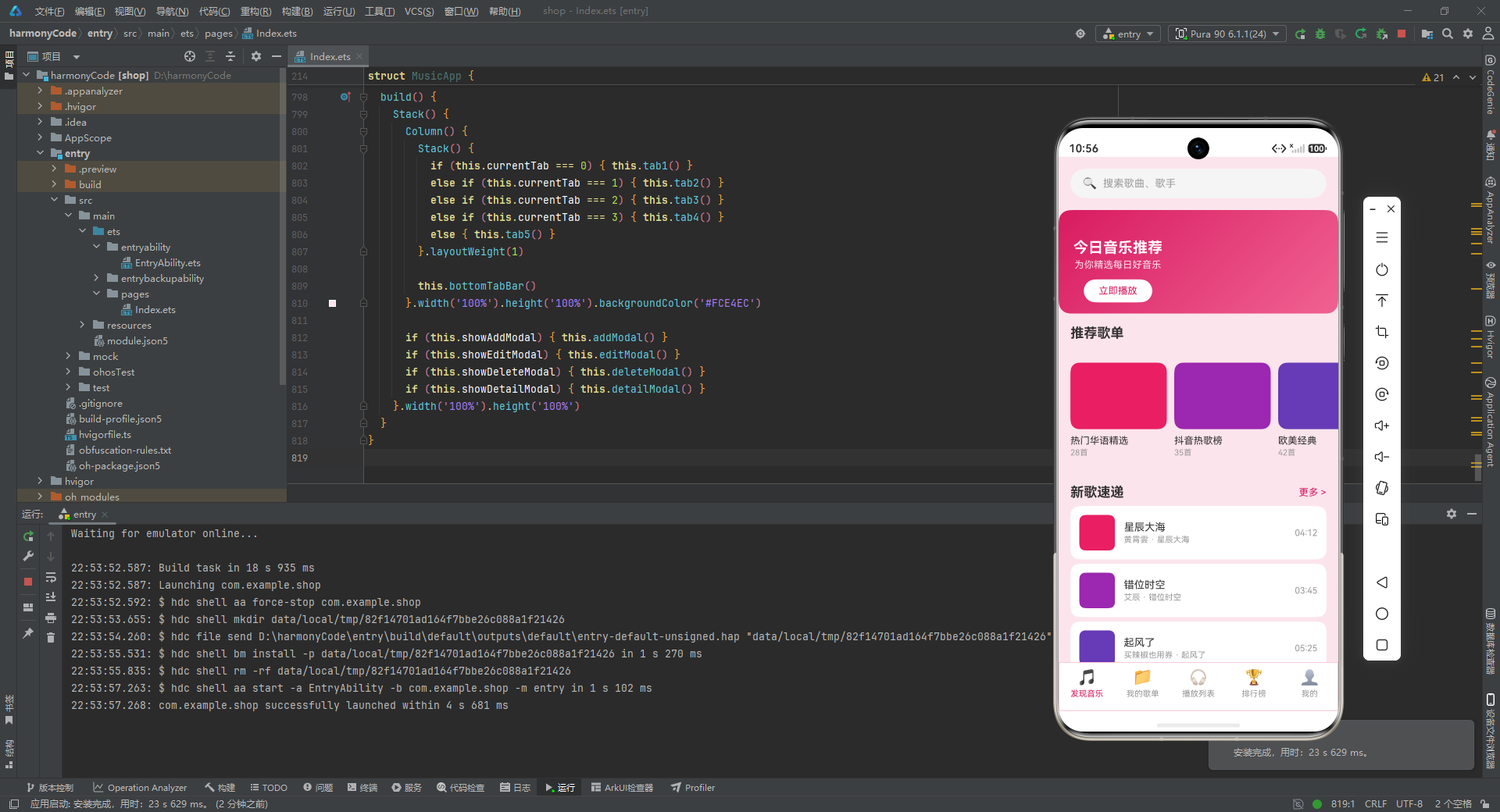
在这个过程中,用户对一款音乐应用的期待早已不止于"能播放音频"。他们希望有沉浸的发现页、个性化的推荐、整洁的歌单管理、有竞争感的排行榜,以及一个能体现自己听歌品味的个人中心。一款优秀的音乐应用,必须在功能完整性与视觉一致性之间找到平衡,同时保证代码的可维护性和扩展性。
本文将深入剖析一个采用 ArkUI 声明式开发范式构建的音乐播放器应用。该应用采用 ArkTS 语言编写,基于鸿蒙生态的声明式 UI 框架,通过结构化的状态管理、组件化的页面构建以及统一的视觉语言,完整呈现了一个具备五个核心模块的移动端音乐应用原型。
应用定位与核心价值
这个音乐播放器应用并非一个孤立的"播放控件",而是一个完整的音乐生态入口。它面向的是希望在一处完成"发现—收藏—播放—排行—个人化"全链路体验的用户。通过精心设计的五个底部导航模块,应用将音乐消费的不同场景进行了清晰的切分,又通过一致的设计语言将它们缝合为一个整体。
从工程角度看,这个项目展示了 ArkUI 声明式范式的几个核心能力:基于 @Entry 与 @Component 的组件化结构、基于 @State 的响应式状态驱动、基于 @Builder 的可复用 UI 构造器、基于 ForEach 的列表渲染、基于 if/else 的条件渲染,以及通过 linearGradient、Stack、Column、Row 等基础组件组合出复杂界面的能力。理解它,就等于掌握了构建一个真实业务级移动应用的"骨架知识"。
本文的阅读路径
本文将按照应用的实际结构,自顶向下、由内到外地展开讲解。先从数据模型与 Mock 数据入手,理解应用处理的对象是什么;再进入主组件的状态管理,理解应用如何驱动 UI 变化;随后逐个剖析五个 Tab 页面的构建方式,理解每个功能模块的设计意图;最后分析弹框、底部导航与主构建函数,理解整体装配逻辑。每个代码片段都会配有逐行解释,帮助读者真正"读懂"每一行的作用。
一、应用整体架构与设计理念
在深入代码之前,有必要先从宏观层面理解这个应用的整体设计思路。只有把握了全局,才能在后续逐段分析时不迷失方向。
1.1 模块划分
应用采用经典的底部多 Tab 导航模式,共划分为五个核心模块:
- 发现音乐:聚合推荐歌单、新歌速递、每日推荐等内容,是用户进入应用后首先接触的"内容入口"。
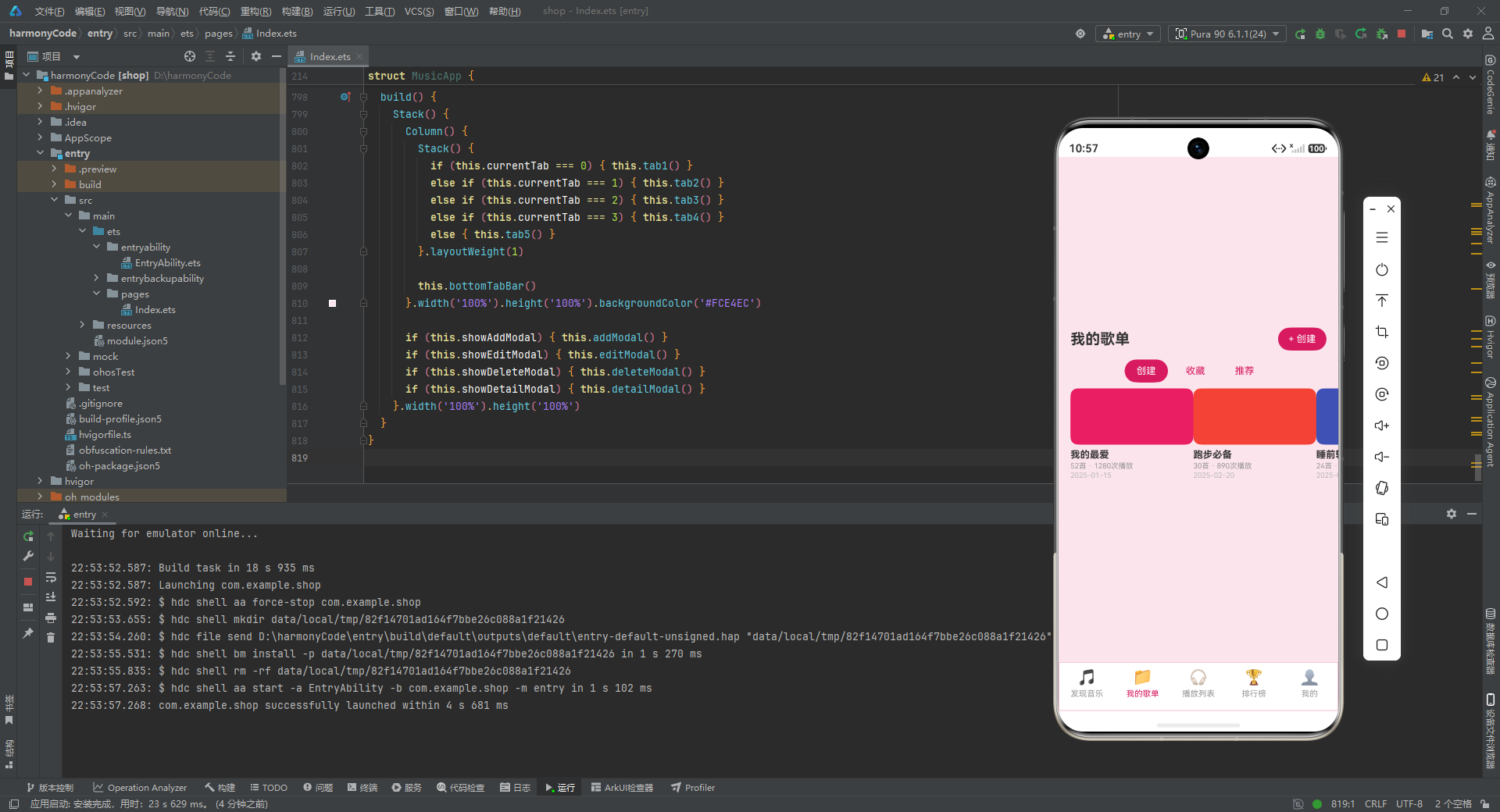
- 我的歌单:管理用户自建与收藏的歌单,支持分类筛选与创建操作。
- 播放列表:展示当前播放队列,并集成一个常驻底部的迷你播放控件。
- 排行榜:以榜单形式呈现热门歌曲,带有升降趋势与播放量等竞争性指标。
- 我的:展示用户画像、听歌统计、最近播放、关注的歌手以及设置入口。
这五个模块覆盖了音乐消费的核心场景,彼此之间通过底部 TabBar 进行切换,状态由主组件统一托管。
1.2 视觉风格
整个应用采用了一套以粉红色(#D81B60 为主色)为基调的视觉体系。背景使用极浅的粉色(#FCE4EC),强调色集中在深粉(#D81B60)与浅粉(#F8BBD0、#F06292)之间,配合白色卡片与灰色辅助文字,形成了温柔而有辨识度的"音乐少女风"视觉风格。这种配色不仅让应用看起来更具亲和力,也在众多偏冷色调的音乐应用中形成了差异化。
1.3 技术范式
应用基于 ArkUI 的声明式范式构建。这一范式的核心思想是"状态即 UI":开发者只需声明界面在不同状态下的样子,框架会自动根据状态变化完成 UI 的差分更新。这种模式相比传统的命令式 UI 编程,大幅降低了心智负担,也让代码更贴近设计稿的描述方式。
应用大量使用了以下声明式能力:
@Entry和@Component装饰器,定义入口组件与可复用组件。@State装饰器,定义组件内部响应式状态。@Builder装饰器,定义可复用的 UI 构造函数。ForEach接口,进行数组驱动的列表渲染。if/else控制流,进行条件渲染。- 链式属性方法,如
.fontSize()、.padding()、.borderRadius()等,对组件样式进行声明式配置。
理解这些范式后,阅读下面的代码就会变得非常自然。
二、数据模型层:接口定义详解
应用的第一部分是接口定义区。在 ArkTS 中,interface 用于声明数据结构的形状(shape),它本身不产生运行时代码,但为 TypeScript 风格的类型检查提供了依据,也极大地提升了代码的可读性。每一个接口都对应应用中的一种数据实体,理解它们就是理解应用的数据骨架。
2.1 推荐歌单项:RecommendPlaylistItem
interface RecommendPlaylistItem {
  name: string
  songCount: number
  color: string
}
这个接口描述了"推荐歌单"这种数据。逐字段来看:
name:歌单名称,是一个字符串类型,例如"热门华语精选"。songCount:歌单中包含的歌曲数量,用数字表示,便于在卡片上显示"28首"这样的信息。color:歌单封面占位色,由于这是原型应用,没有真实的图片资源,所以用颜色块来模拟封面,营造视觉差异。
这里值得注意的是,应用将"视觉样式"数据(color)与"业务数据"(name、songCount)放在同一个数据结构中。这是一种在原型阶段常见的做法,可以快速产生视觉差异;在生产环境中,封面颜色通常会由真实的图片 URL 取代。
2.2 新歌项:NewSongItem
interface NewSongItem {
  name: string
  artist: string
  album: string
  duration: string
  color: string
}
这个接口描述了"新歌速递"列表中的歌曲。逐字段来看:
name:歌曲名,如"星辰大海"。artist:歌手名,如"黄霄雲"。album:所属专辑名,如"星辰大海"。duration:歌曲时长,用形如"04:12"的字符串表示,这是音乐应用中最常见的时长展示格式,避免了前端再做时间格式化。color:封面占位色。
这个结构相对完整地描述了一首歌在列表中需要展示的全部信息。值得注意的是,时长用字符串而非秒数存储,意味着这些数据是为了"直接展示"而准备的,并非用于实际的播放控制逻辑。
2.3 用户歌单项:PlaylistItem
interface PlaylistItem {
  name: string
  songCount: number
  createTime: string
  playCount: number
  color: string
  category: number
}
这是"我的歌单"页面使用的歌单数据结构,比推荐歌单更为复杂:
name:歌单名称。songCount:歌曲数量。createTime:创建时间,用形如"2025-01-15"的字符串表示。playCount:累计播放次数,用于体现歌单的活跃度。color:封面占位色。category:分类索引,用数字表示,对应"创建/收藏/推荐"三类分类 Tab。
这里用数字索引而非字符串表示分类,是一种常见的性能优化做法——数字比较比字符串比较更快,也便于在数组中通过下标定位。这种设计体现了"数据为视图服务"的思想。
2.4 播放列表歌曲项:SongItem
interface SongItem {
  name: string
  artist: string
  album: string
  duration: string
  isPlayed: boolean
}
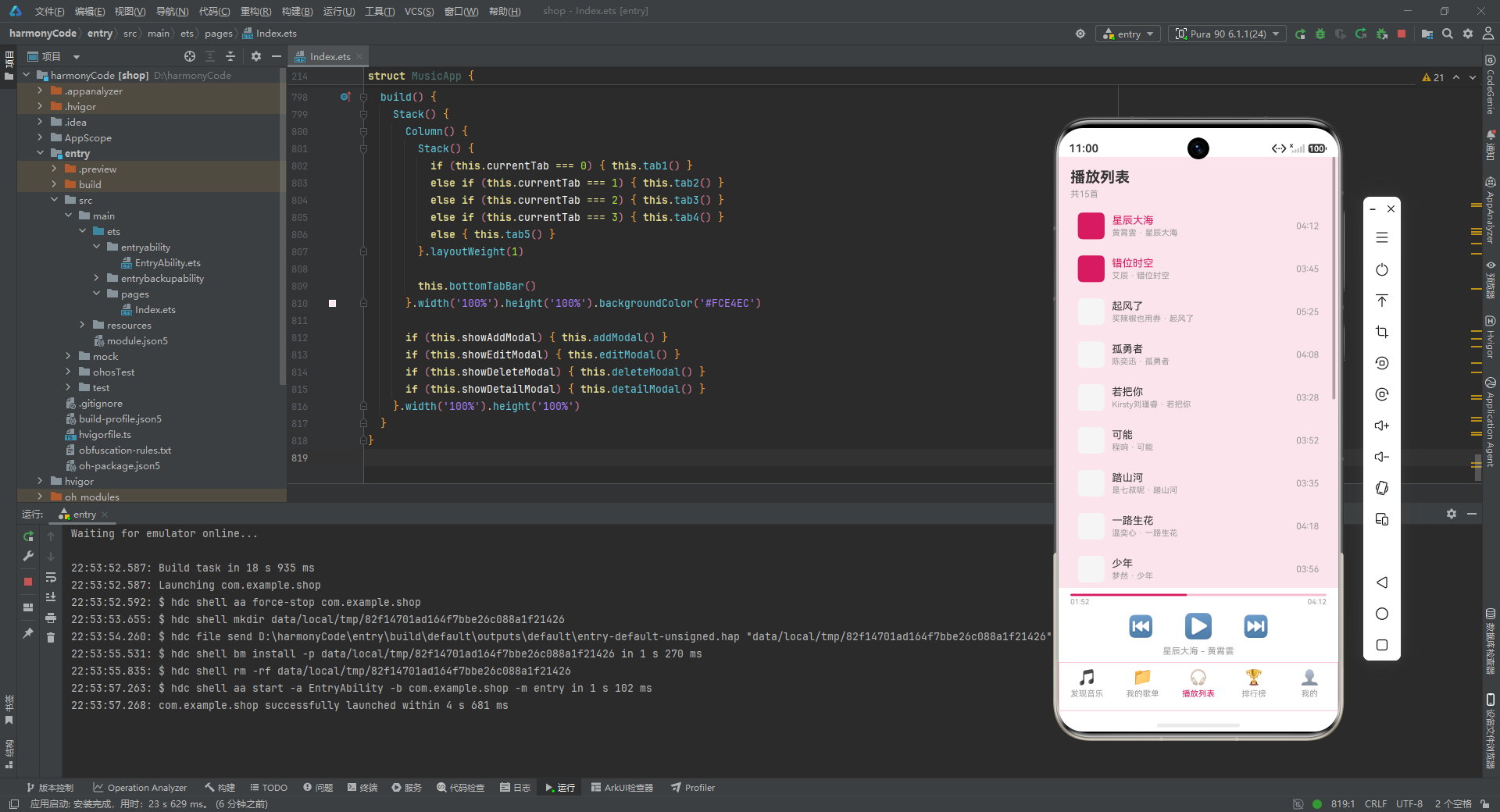
这个接口描述了播放列表中的歌曲:
name、artist、album、duration:与 NewSongItem 一致的元信息字段。isPlayed:布尔值,标记该歌曲是否为"当前正在播放"的歌曲。
isPlayed 字段的存在,使应用能够高亮显示当前播放的歌曲,是播放列表与普通歌曲列表的关键区别。这种"在数据中嵌入 UI 状态"的做法,在原型阶段非常高效;在大型工程中,可能更倾向于将"当前播放歌曲"作为单独的状态变量来管理,避免每首歌都携带一个状态字段。
2.5 排行榜歌曲项:RankSongItem
interface RankSongItem {
  rank: number
  name: string
  artist: string
  playCount: number
  change: number
}
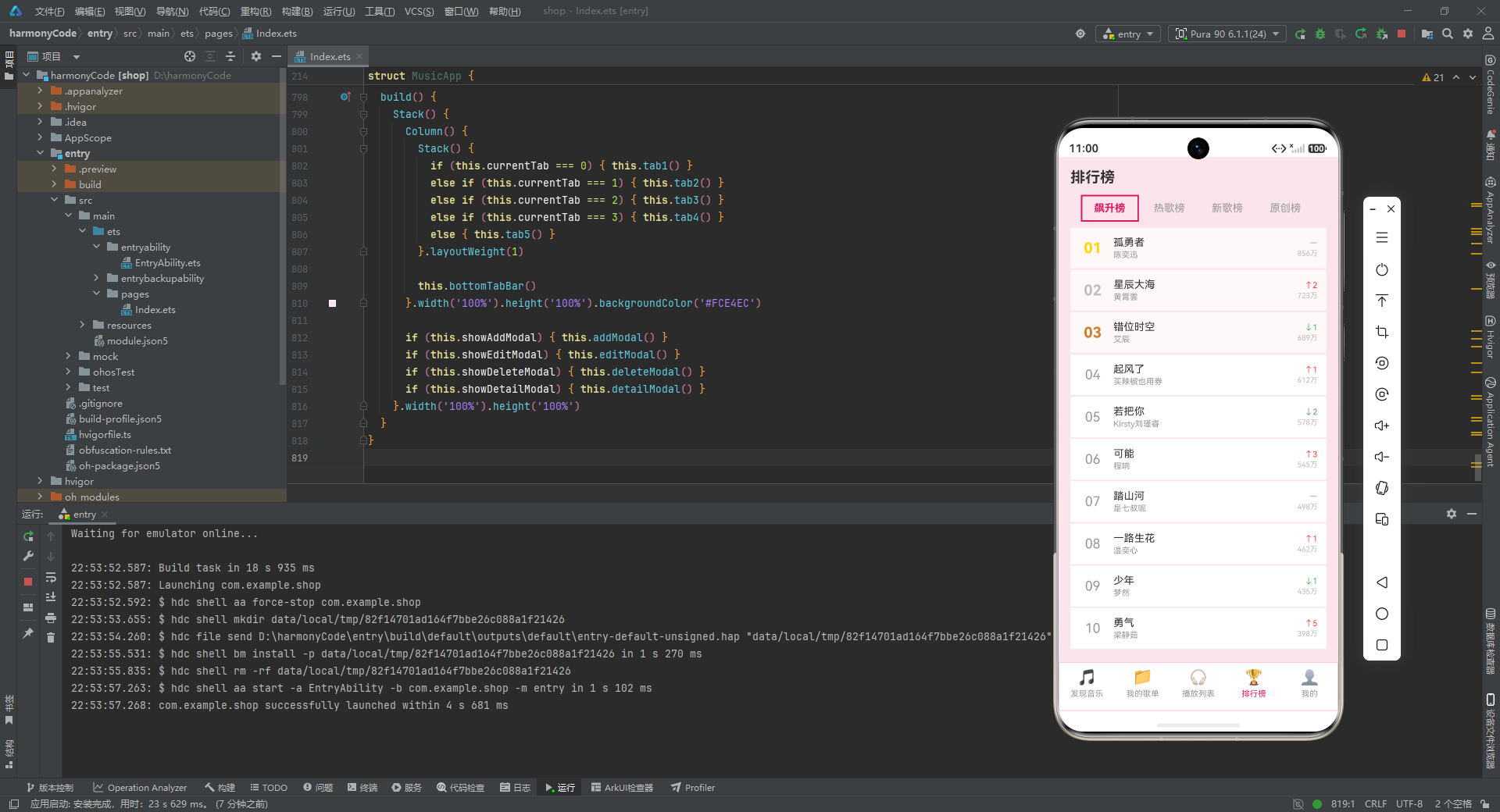
排行榜歌曲的数据结构有其独特性:
rank:排名序号,1 表示第一名。name:歌曲名。artist:歌手名。playCount:播放次数,用数字表示,数值可能非常大(如 8560000),后续会通过格式化函数转换为"856万"这样的可读文本。change:排名变化,正数表示上升,负数表示下降,0 表示持平。
这个结构设计得很巧妙——change 字段为带符号整数,天然就能表达"上升/下降/持平"三种状态,配合条件渲染可以非常优雅地展示趋势箭头。这是数据结构服务于视图表达的一个范例。
2.6 歌手项:ArtistItem
interface ArtistItem {
  name: string
  fans: string
  color: string
}
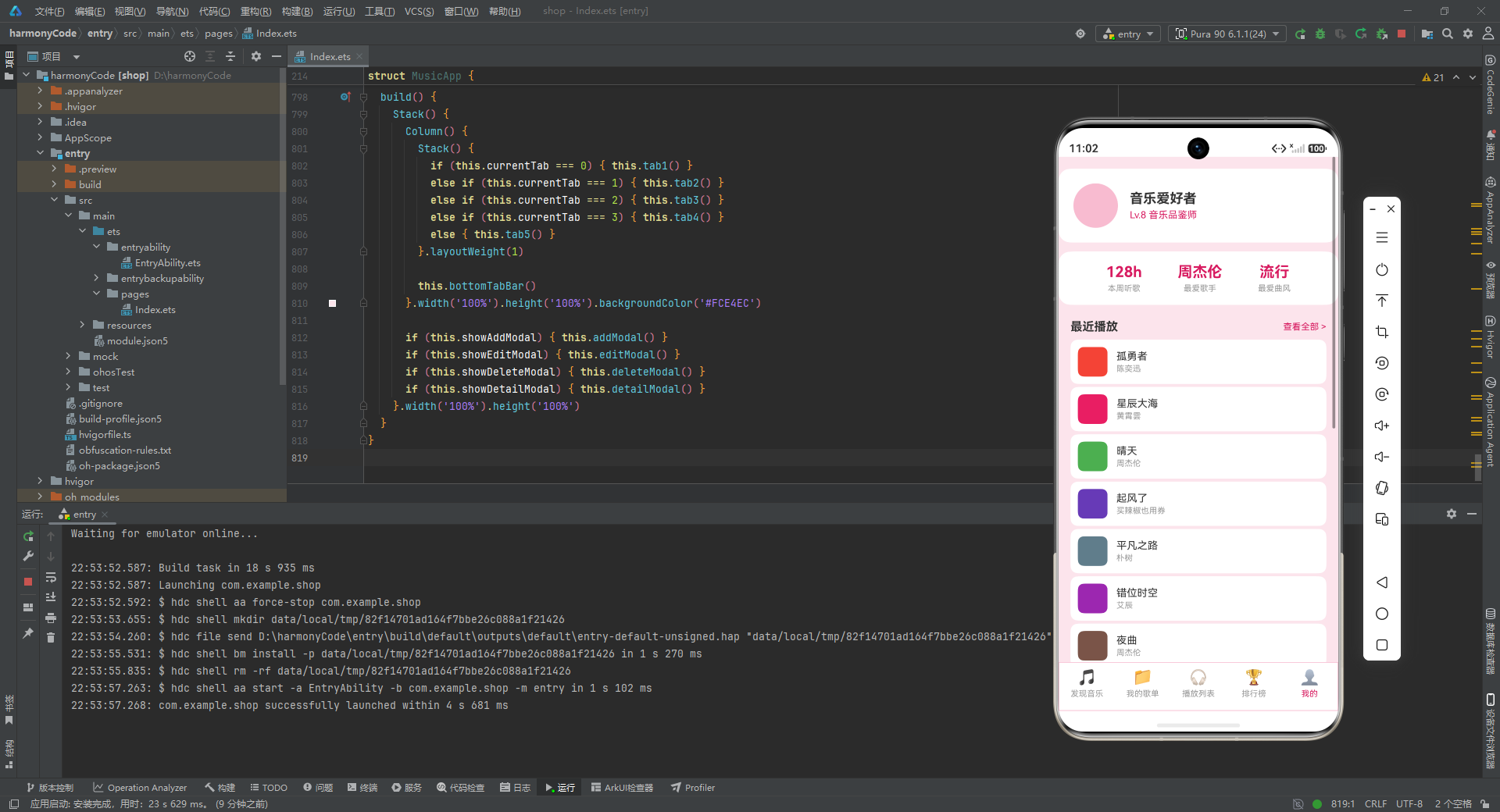
歌手信息接口:
name:歌手名。fans:粉丝数,注意这里用的是字符串而非数字,例如"2860万"。这是为了直接展示而做的预格式化。color:头像占位色。
将粉丝数存为字符串,省去了前端的单位转换逻辑,但也丧失了对数值进行排序或比较的能力。这是一种典型的"展示优先"的设计权衡。
2.7 最近播放项:RecentPlayItem
interface RecentPlayItem {
  name: string
  artist: string
  color: string
}
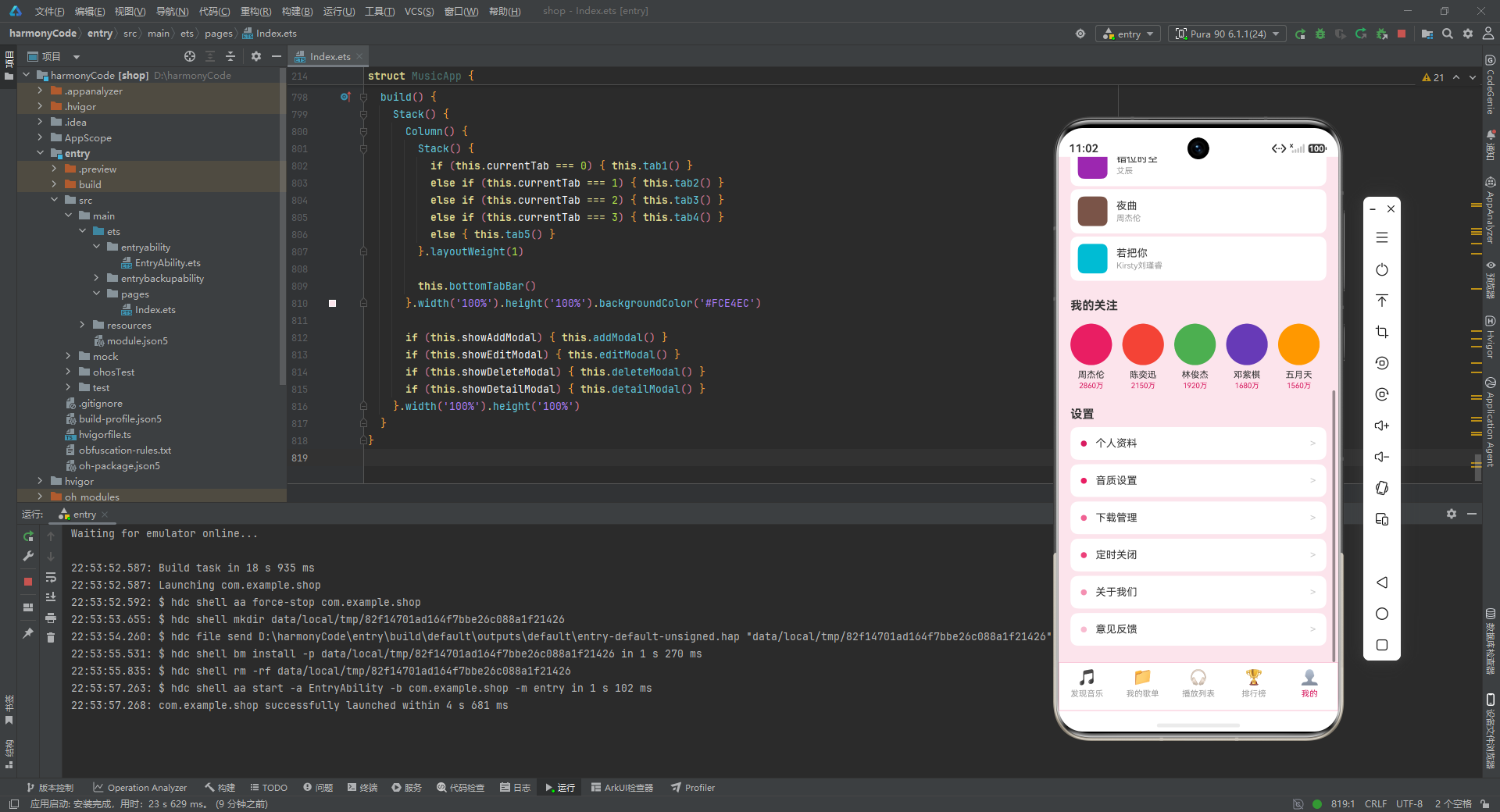
最近播放的歌曲信息,字段非常精简,只保留展示所需的最小集合:歌曲名、歌手名、封面色。这种"按需定义接口"的做法,避免了不必要的字段传递,也降低了阅读成本。
2.8 设置项:SetItem
interface SetItem {
  label: string
  iconColor: string
}
设置项接口:
label:设置项的文本标签,如"个人资料"。iconColor:图标颜色,用不同的颜色来区分不同的设置项,形成视觉节奏感。
这里没有真正的图标资源,而是用一个小色块加文字的形式来模拟设置项,是原型阶段的常见简化手段。
2.9 Tab 与子 Tab 项:TabItem 与 RankTab
interface TabItem {
  label: string
  icon: string
}

interface RankTab {
  label: string
}
这两个接口分别描述了底部导航 Tab 与排行榜子 Tab:
TabItem:包含文字标签与 emoji 图标,图标用 emoji 字符表示,无需引入图片资源。RankTab:只包含文字标签,用于排行榜页面内部的子分类切换。
用 emoji 作为图标是一种非常聪明的原型设计——既不需要美术资源,又能在跨平台时保持一致的显示效果。当然,在生产环境中,通常会替换为更可控的矢量图标或字体图标。
2.10 歌词与相似歌曲项:LyricLine 与 SimilarSongItem
interface LyricLine {
  text: string
}

interface SimilarSongItem {
  name: string
  artist: string
  color: string
}
这两个接口服务于"歌单详情弹框":
LyricLine:单行歌词,只包含文本内容。这是一个被极度简化的结构——真实的歌词通常还包含时间戳,用于实现卡拉OK式的逐行高亮。这里只保留了展示所需的最小字段。SimilarSongItem:相似歌曲项,包含歌曲名、歌手名、封面色。
2.11 歌单分类项:PlaylistCategory
interface PlaylistCategory {
  label: string
}
最后是歌单分类的接口,只有一个 label 字段。这是一个非常"轻量"的接口,因为分类项本身只需要展示文字。它的存在,更多是为了与"将来可能增加的分类图标或选中态颜色"等字段解耦,为未来的扩展留出空间。
通过这一组接口定义,我们可以看到应用在数据建模上的几个特点:按视图需求定义字段、原型阶段预格式化字符串、用颜色占位封面、用数字索引表达分类。这些设计共同构成了应用的数据底座。
三、Mock 数据层:模拟真实业务数据
接口定义只是声明了数据的"形状",而 Mock 数据则填充了数据的"内容"。这部分数据虽然不是真实的服务端返回值,但它们精心编排了足够丰富的条目,使得应用在运行时能呈现出接近真实的视觉效果。
3.1 推荐歌单数据
const MOCK_RECOMMEND_PLAYLISTS: RecommendPlaylistItem[] = [
  { name: '热门华语精选', songCount: 28, color: '#E91E63' },
  { name: '抖音热歌榜', songCount: 35, color: '#9C27B0' },
  { name: '欧美经典', songCount: 42, color: '#673AB7' },
  { name: '轻音乐放松', songCount: 20, color: '#3F51B5' },
  { name: '摇滚力量', songCount: 30, color: '#F44336' },
  { name: '电子音浪', songCount: 25, color: '#00BCD4' }
]
这段代码定义了六个推荐歌单。几个值得注意的细节:
- 命名使用了
MOCK_前缀,明确标识这是 Mock 数据,便于后续替换为真实接口。 - 类型显式标注为
RecommendPlaylistItem[],利用了前面定义的接口,保证数据形状正确。 - 每个歌单的
color都取自 Material Design 色板,色相分布广泛,能在横向滚动列表中形成强烈的视觉区分。 - 歌曲数量从 20 到 42 不等,分布合理,不会让所有卡片看起来千篇一律。
3.2 新歌速递数据
const MOCK_NEW_SONGS: NewSongItem[] = [
  { name: '星辰大海', artist: '黄霄雲', album: '星辰大海', duration: '04:12', color: '#E91E63' },
  { name: '错位时空', artist: '艾辰', album: '错位时空', duration: '03:45', color: '#9C27B0' },
  { name: '起风了', artist: '买辣椒也用券', album: '起风了', duration: '05:25', color: '#673AB7' },
  { name: '孤勇者', artist: '陈奕迅', album: '孤勇者', duration: '04:08', color: '#F44336' },
  { name: '若把你', artist: 'Kirsty刘瑾睿', album: '若把你', duration: '03:28', color: '#00BCD4' },
  { name: '可能', artist: '程响', album: '可能', duration: '03:52', color: '#4CAF50' },
  { name: '踏山河', artist: '是七叔呢', album: '踏山河', duration: '03:35', color: '#FF9800' },
  { name: '一路生花', artist: '温奕心', album: '一路生花', duration: '04:18', color: '#795548' },
  { name: '少年', artist: '梦然', album: '少年', duration: '03:56', color: '#607D8B' },
  { name: '勇气', artist: '梁静茹', album: '勇气', duration: '04:22', color: '#E040FB' }
]
新歌列表共十首,覆盖了近年流行、经典翻红、独立音乐等多种类型:
- 时长在 3:28 到 5:25 之间,符合主流流行歌曲的时长分布。
- 歌手既有华语流行天王天后(如陈奕迅、梁静茹),也有新生代网络歌手,体现了"新歌"这一主题的多样性。
- 颜色同样丰富多彩,让每个列表项的封面色块都有区分度。
3.3 歌单分类与歌单数据
const MOCK_PLAYLIST_CATEGORIES: PlaylistCategory[] = [
  { label: '创建' }, { label: '收藏' }, { label: '推荐' }
]
歌单分为三类:创建、收藏、推荐。这种分类方式是音乐应用中非常典型的歌单管理维度——“我主动建的”、“我收藏别人的”、“系统推荐给我的”。
const MOCK_PLAYLISTS: PlaylistItem[] = [
  { name: '我的最爱', songCount: 52, createTime: '2025-01-15', playCount: 1280, color: '#E91E63', category: 0 },
  { name: '跑步必备', songCount: 30, createTime: '2025-02-20', playCount: 890, color: '#F44336', category: 0 },
  { name: '睡前轻音乐', songCount: 24, createTime: '2025-03-10', playCount: 1560, color: '#3F51B5', category: 0 },
  { name: '开车兜风', songCount: 45, createTime: '2025-04-05', playCount: 720, color: '#4CAF50', category: 0 },
  { name: '怀旧金曲', songCount: 38, createTime: '2025-05-18', playCount: 980, color: '#FF9800', category: 1 },
  { name: '欧美热单', songCount: 60, createTime: '2025-06-01', playCount: 2100, color: '#673AB7', category: 1 },
  { name: '华语经典', songCount: 55, createTime: '2025-06-15', playCount: 1860, color: '#00BCD4', category: 1 },
  { name: '电音派对', songCount: 32, createTime: '2025-07-01', playCount: 650, color: '#9C27B0', category: 2 },
  { name: '雨天专属', songCount: 18, createTime: '2025-07-20', playCount: 430, color: '#607D8B', category: 2 },
  { name: 'KTV必点', songCount: 40, createTime: '2025-08-01', playCount: 1100, color: '#E040FB', category: 2 },
  { name: '学习背景音', songCount: 26, createTime: '2025-08-10', playCount: 580, color: '#795548', category: 0 },
  { name: '民谣时光', songCount: 22, createTime: '2025-08-15', playCount: 360, color: '#26A69A', category: 1 }
]
这是整个应用中最丰富的一组 Mock 数据,共 12 个歌单,分布在三个分类下:
category: 0(创建):我的最爱、跑步必备、睡前轻音乐、开车兜风、学习背景音。category: 1(收藏):怀旧金曲、欧美热单、华语经典、民谣时光。category: 2(推荐):电音派对、雨天专属、KTV必点。
注意这里的分类并不平均分布,而是模拟真实场景中"用户自己创建的歌单最多、收藏次之、推荐最少"的分布特征。时间从 2025 年 1 月延续到 8 月,播放次数从 360 到 2100 不等,这些数据的多样性让"我的歌单"页面呈现出真实的丰富感。
3.4 播放列表歌曲数据
const MOCK_SONGS: SongItem[] = [
  { name: '星辰大海', artist: '黄霄雲', album: '星辰大海', duration: '04:12', isPlayed: true },
  { name: '错位时空', artist: '艾辰', album: '错位时空', duration: '03:45', isPlayed: true },
  { name: '起风了', artist: '买辣椒也用券', album: '起风了', duration: '05:25', isPlayed: false },
  { name: '孤勇者', artist: '陈奕迅', album: '孤勇者', duration: '04:08', isPlayed: false },
  // ...更多歌曲
  { name: '好久不见', artist: '陈奕迅', album: '认了吧', duration: '04:10', isPlayed: false }
]
播放列表共 15 首歌,其中前两首的 isPlayed 为 true。这其实是一个略微特殊的设定——通常一个播放列表中只有一首歌正在播放,但这里将前两首标记为已播放,可能是为了在原型中同时展示"已播放态"与"未播放态"两种视觉。这种"为了演示而刻意制造差异"的做法,在原型设计中是常见的。
3.5 排行榜数据
const MOCK_RANK_TABS: RankTab[] = [
  { label: '飙升榜' }, { label: '热歌榜' }, { label: '新歌榜' }, { label: '原创榜' }
]

const MOCK_RANK_SONGS: RankSongItem[] = [
  { rank: 1, name: '孤勇者', artist: '陈奕迅', playCount: 8560000, change: 0 },
  { rank: 2, name: '星辰大海', artist: '黄霄雲', playCount: 7230000, change: 2 },
  { rank: 3, name: '错位时空', artist: '艾辰', playCount: 6890000, change: -1 },
  // ...更多
  { rank: 10, name: '勇气', artist: '梁静茹', playCount: 3980000, change: 5 }
]
排行榜数据包含 4 个子榜与 10 首歌:
- 子榜类型涵盖飙升、热歌、新歌、原创,是音乐应用中最常见的四种榜单维度。
- 排名从 1 到 10,播放量从近 400 万到 850 万,数据规模接近真实榜单。
change字段有正、负、零三种取值,能够完整展示上升、下降、持平三种趋势。
3.6 其他辅助数据
const MOCK_RECENT_PLAYS: RecentPlayItem[] = [
  { name: '孤勇者', artist: '陈奕迅', color: '#F44336' },
  { name: '星辰大海', artist: '黄霄雲', color: '#E91E63' },
  // ...共8首
]

const MOCK_ARTISTS: ArtistItem[] = [
  { name: '周杰伦', fans: '2860万', color: '#E91E63' },
  { name: '陈奕迅', fans: '2150万', color: '#F44336' },
  { name: '林俊杰', fans: '1920万', color: '#4CAF50' },
  { name: '邓紫棋', fans: '1680万', color: '#673AB7' },
  { name: '五月天', fans: '1560万', color: '#FF9800' }
]

const MOCK_MUSIC_SETTINGS: SetItem[] = [
  { label: '个人资料', iconColor: '#D81B60' },
  { label: '音质设置', iconColor: '#E91E63' },
  { label: '下载管理', iconColor: '#F06292' },
  { label: '定时关闭', iconColor: '#EC407A' },
  { label: '关于我们', iconColor: '#F48FB1' },
  { label: '意见反馈', iconColor: '#F8BBD0' }
]

const MOCK_MUSIC_TABS: TabItem[] = [
  { label: '发现音乐', icon: '🎵' },
  { label: '我的歌单', icon: '📁' },
  { label: '播放列表', icon: '🎧' },
  { label: '排行榜', icon: '🏆' },
  { label: '我的', icon: '👤' }
]

const MOCK_LYRICS: LyricLine[] = [
  { text: '我吹过你吹过的晚风' },
  { text: '那我们算不算相拥' },
  { text: '可如梦初醒般的两手空空' },
  { text: '心也空' },
  { text: '我吹过你吹过的晚风' }
]

const MOCK_SIMILAR_SONGS: SimilarSongItem[] = [
  { name: '我曾遇到一束光', artist: '叶斯淳', color: '#E91E63' },
  { name: '落在生命里的光', artist: '尹昔眠', color: '#9C27B0' },
  { name: '一荤一素', artist: '毛不易', color: '#3F51B5' }
]
这一批数据服务于"我的"页面与"歌单详情弹框":
- 最近播放:8 首歌,覆盖不同风格。
- 关注歌手:5 位华语顶级歌手,粉丝数以"万"为单位预格式化。
- 设置项:6 项,颜色从深到浅渐变,形成视觉节奏。
- 底部 Tab:5 项,使用 emoji 图标。
- 歌词:5 行,节选自流行歌曲片段。
- 相似歌曲:3 首,与详情页主歌单形成关联。
至此,应用的数据层已经完整呈现。所有 Mock 数据都以 const 常量声明,类型严格,命名清晰,为后续的 UI 渲染提供了坚实的基础。
四、主组件状态管理:响应式驱动核心
进入主组件 MusicApp 后,首先映入眼帘的是一组状态变量。在 ArkUI 中,@State 装饰器声明的变量是组件内部的响应式状态——一旦它们的值发生变化,框架会自动重新渲染依赖这些状态的 UI 部分。
@Entry
@Component
struct MusicApp {
  @State currentTab: number = 0
  @State showAddModal: boolean = false
  @State showEditModal: boolean = false
  @State showDeleteModal: boolean = false
  @State showDetailModal: boolean = false
  @State playlistCategoryIndex: number = 0
  @State rankTabIndex: number = 0
  @State selectedPlaylist: PlaylistItem = MOCK_PLAYLISTS[0]
  @State isPlaying: boolean = false
逐行分析:
@Entry:标记此组件为应用入口。一个应用只能有一个入口组件,它会被框架自动加载并渲染。@Component:标记此结构体为一个自定义组件,可以被复用。struct MusicApp:ArkTS 使用struct而非class来定义组件,这是声明式范式的一个特点。@State currentTab: number = 0:当前选中的底部 Tab 索引,初始为 0(发现音乐)。改变它会触发整个页面内容的切换。@State showAddModal: boolean = false:是否显示"创建歌单"弹框,初始为隐藏。@State showEditModal: boolean = false:是否显示"编辑歌单"弹框。@State showDeleteModal: boolean = false:是否显示"删除歌单"弹框。@State showDetailModal: boolean = false:是否显示"歌单详情"弹框。@State playlistCategoryIndex: number = 0:歌单分类当前选中的索引,对应"创建/收藏/推荐"。@State rankTabIndex: number = 0:排行榜子 Tab 当前选中的索引。@State selectedPlaylist: PlaylistItem = MOCK_PLAYLISTS[0]:当前选中的歌单,初始为第一个歌单"我的最爱"。这个状态用于在弹框中展示歌单详情。@State isPlaying: boolean = false:是否正在播放,控制播放列表底部控件的播放/暂停按钮。
可以看到,这组状态变量精确地覆盖了应用所有需要响应式更新的场景:Tab 切换、弹框显隐、分类切换、当前选中项、播放状态。状态变量的设计,本质上就是"找出所有可能变化的 UI 状态",这正是声明式 UI 设计的核心思考路径。
4.1 通用遮罩 Builder
@Builder modalOverlay(onClose: () => void) {
  Column().width('100%').height('100%').backgroundColor('rgba(0,0,0,0.5)').onClick(onClose)
}
这是一个用于生成弹框背景遮罩的 Builder:
@Builder装饰器标记此方法为 UI 构造器,可以被多次复用。modalOverlay(onClose: () => void):接受一个回调函数作为参数,当遮罩被点击时调用。Column().width('100%').height('100%'):创建一个铺满整个屏幕的列容器。.backgroundColor('rgba(0,0,0,0.5)'):背景为半透明黑色,形成"暗化"效果,突出前景弹框。.onClick(onClose):点击遮罩区域时触发关闭回调。
虽然这个 Builder 在后续代码中并未被直接使用(每个弹框都内联了自己的遮罩),但它体现了"复用通用 UI 片段"的良好设计意识。
五、发现音乐页(Tab1):内容聚合的入口
发现音乐页是用户进入应用后看到的第一屏,承担着"内容入口"与"氛围营造"的双重职责。它的设计直接影响用户对应用的第一印象。
@Builder tab1() {
  Scroll() {
    Column() {
      // 1. 搜索栏
      Row() {
        Row() {
          Text('🔍').fontSize(16).margin({ right: 8 })
          Text('搜索歌曲、歌手').fontSize(14).fontColor('#9E9E9E')
        }.layoutWeight(1).height(40).backgroundColor('#F5F5F5').borderRadius(20).padding({ left: 16 })
      }.width('100%').padding({ left: 16, right: 16, top: 16, bottom: 8 })
逐行分析:
@Builder tab1():定义发现音乐页的 UI 构造器。Scroll() { Column() { ... } }:最外层是一个可滚动容器,内部是一个垂直排列的列。这种"Scroll + Column"是构建可滚动长页面的标准模式。- 第一个
Row是搜索栏的外层容器,宽度占满,左右各留 16 的内边距,顶部留 16、底部留 8。 - 内层
Row是实际的搜索框样式:Text('🔍'):放大镜 emoji 作为搜索图标。Text('搜索歌曲、歌手'):灰色占位提示文字。.layoutWeight(1):让搜索框占据剩余宽度。.height(40):高度 40vp。.backgroundColor('#F5F5F5'):浅灰色背景。.borderRadius(20):圆角 20,让搜索框呈胶囊状。.padding({ left: 16 }):左侧留出 16 的内边距,让内容不贴边。
这个搜索栏虽然不真正响应输入(它只是一个静态展示),但其样式设计符合主流音乐应用的视觉习惯,给用户以"可以搜索"的暗示。
5.1 今日推荐 Banner
Row() {
  Column() {
    Text('今日音乐推荐').fontSize(20).fontWeight(FontWeight.Bold).fontColor('#FFFFFF')
    Text('为你精选每日好音乐').fontSize(13).fontColor('rgba(255,255,255,0.85)').margin({ top: 4 })
    Row() {
      Text('立即播放').fontSize(13).fontColor('#D81B60')
    }.padding({ left: 20, right: 20, top: 8, bottom: 8 })
    .backgroundColor('#FFFFFF').borderRadius(16).margin({ top: 12 })
  }
}
.width('100%').height(140).borderRadius(16)
.padding({ left: 20, top: 24 })
.linearGradient({
  angle: 135,
  colors: [['#D81B60', 0.0], ['#F06292', 1.0]]
})
.margin({ left: 16, right: 16, top: 8 })
这是发现页的视觉焦点——一个带渐变背景的推荐 Banner:
- 外层
Row包含一个Column,宽度占满,高度 140,圆角 16。 - 内部
Column包含三部分内容:- 主标题"今日音乐推荐":字号 20,粗体,白色。
- 副标题"为你精选每日好音乐":字号 13,半透明白色(透明度 0.85),与主标题间距 4。
- "立即播放"按钮:白底粉字,圆角 16,与上方间距 12。
.linearGradient({ angle: 135, colors: [['#D81B60', 0.0], ['#F06292', 1.0]] }):这是整个 Banner 的视觉灵魂——一个 135 度角的线性渐变,从深粉(#D81B60)过渡到浅粉(#F06292)。135 度意味着从左上到右下,这种方向感让 Banner 看起来更有动势。- 外层
.margin({ left: 16, right: 16, top: 8 }):与页面边缘留出 16 的间距,与上方搜索栏留 8 的间距。
渐变背景 + 白色文字 + 白色按钮的组合,是 Banner 设计中非常经典的高对比度方案,能在视觉上立刻抓住用户注意力。
5.2 推荐歌单横滑列表
Row() {
  Text('推荐歌单').fontSize(18).fontWeight(FontWeight.Bold).fontColor('#333')
}.width('100%').padding({ left: 16, right: 16, top: 16, bottom: 8 })

Row() {
  Scroll() {
    Row() {
      ForEach(MOCK_RECOMMEND_PLAYLISTS, (item: RecommendPlaylistItem) => {
        Column() {
          Row().width(130).height(90).backgroundColor(item.color).borderRadius(12)
          Column() {
            Text(item.name).fontSize(13).fontColor('#333').maxLines(1).textOverflow({ overflow: TextOverflow.Ellipsis }).width(130)
            Text(item.songCount.toString() + '首').fontSize(11).fontColor('#999').margin({ top: 2 }).width(130)
          }.padding({ top: 8 }).alignItems(HorizontalAlign.Start)
        }.width(130).margin({ right: 10 })
      })
    }.padding({ left: 16, right: 16 })
  }.scrollable(ScrollDirection.Horizontal).scrollBar(BarState.Off)
  .height(170)
}
这是一个可横向滚动的歌单卡片列表。逐段分析:
- 第一段是标题"推荐歌单",字号 18,粗体,深灰色,左右留 16 内边距。
- 第二段是列表容器:
Scroll()包裹一个Row(),形成横向滚动结构。ForEach(MOCK_RECOMMEND_PLAYLISTS, ...):遍历 6 个推荐歌单,为每个生成一张卡片。- 每张卡片是一个
Column,宽度 130:- 顶部一个色块作为封面:宽 130、高 90、圆角 12、背景为歌单的颜色。
- 下方一个
Column包含歌单名与歌曲数:Text(item.name):歌单名,字号 13,深灰色。.maxLines(1):最多显示 1 行。.textOverflow({ overflow: TextOverflow.Ellipsis }):超出部分用省略号表示,防止长标题撑破布局。.width(130):与封面同宽,保证对齐。Text(item.songCount.toString() + '首'):歌曲数,字号 11,浅灰色,与上方间距 2。
.scrollable(ScrollDirection.Horizontal):声明为横向可滚动。.scrollBar(BarState.Off):隐藏滚动条,让滚动效果更干净。.height(170):整个横滑区域高度 170,恰好容纳封面(90)+ 文字内容(约 50)+ 内边距。
这段代码展示了"横滑卡片列表"这一移动端最常见的设计模式的实现方式,是非常值得收藏的模板代码。
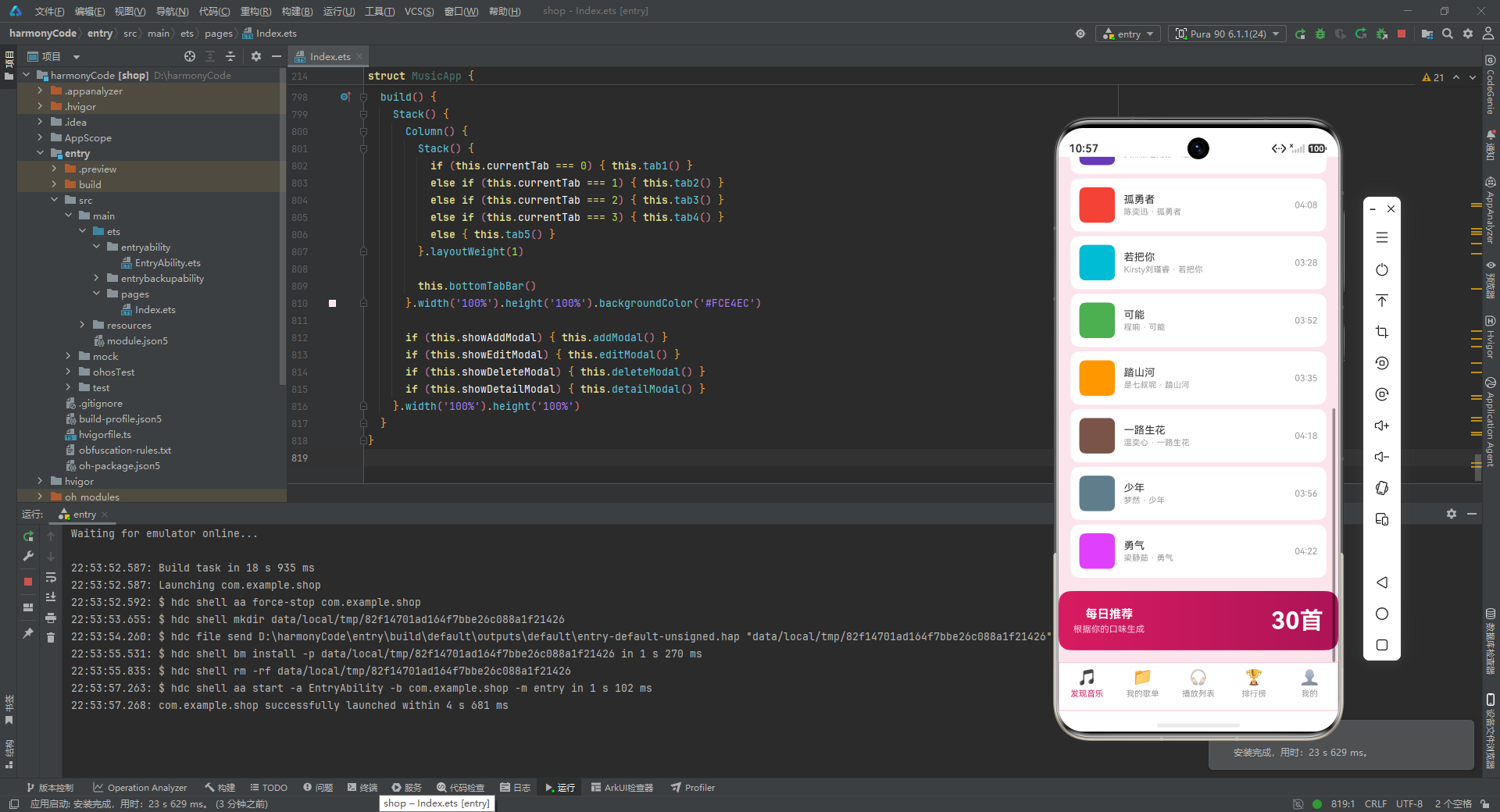
5.3 新歌速递列表
Row() {
  Text('新歌速递').fontSize(18).fontWeight(FontWeight.Bold).fontColor('#333')
  Column().layoutWeight(1)
  Text('更多 >').fontSize(13).fontColor('#D81B60')
}.width('100%').padding({ left: 16, right: 16, top: 16, bottom: 8 })

Column() {
  ForEach(MOCK_NEW_SONGS, (item: NewSongItem) => {
    Row() {
      Row().width(48).height(48).backgroundColor(item.color).borderRadius(8)
      Column() {
        Text(item.name).fontSize(14).fontColor('#333')
        Text(item.artist + ' · ' + item.album).fontSize(11).fontColor('#999').margin({ top: 2 })
      }.margin({ left: 12 }).alignItems(HorizontalAlign.Start)
      Column().layoutWeight(1)
      Text(item.duration).fontSize(12).fontColor('#999')
    }.width('100%').padding(12).backgroundColor('#FFFFFF').borderRadius(12).margin({ bottom: 6 })
  })
}.padding({ left: 16, right: 16 })
新歌速递是一个垂直列表,每首歌一行。逐段分析:
- 标题行:左侧"新歌速递"标题,中间用
Column().layoutWeight(1)占位撑开,右侧"更多 >"链接。这是非常典型的"标题+更多"布局模式。 - 列表主体:
ForEach遍历 10 首新歌,每首生成一个Row:- 左侧封面色块:48x48,圆角 8,背景为歌曲颜色。
- 中间
Column:歌曲名(字号 14、深灰)+ 歌手与专辑拼接(字号 11、浅灰、间距 2)。注意这里用' · '拼接歌手与专辑,是音乐应用中常见的分隔符约定。 Column().layoutWeight(1):撑开剩余空间,将时长推到右侧。- 右侧
Text(item.duration):时长,字号 12,浅灰色。 - 整行:白底、圆角 12、内边距 12、底部外边距 6,形成卡片化的列表项。
5.4 每日推荐 Banner
Row() {
  Column() {
    Text('每日推荐').fontSize(16).fontWeight(FontWeight.Bold).fontColor('#FFFFFF')
    Text('根据你的口味生成').fontSize(12).fontColor('rgba(255,255,255,0.8)').margin({ top: 4 })
  }
  Column().layoutWeight(1)
  Text('30首').fontSize(32).fontWeight(FontWeight.Bold).fontColor('#FFFFFF')
}.width('100%').height(80).borderRadius(16)
.padding({ left: 20, right: 20 })
.linearGradient({
  angle: 90,
  colors: [['#D81B60', 0.0], ['#AD1457', 1.0]]
})
.margin({ left: 16, right: 16, top: 12, bottom: 16 })
.onClick(() => {})
这是发现页的第二个 Banner,与第一个的 135 度渐变不同,这里使用 90 度渐变(从左到右),从 #D81B60 过渡到更深的 #AD1457,营造出更沉静的氛围:
- 左侧是主标题"每日推荐"与副标题"根据你的口味生成"。
- 中间用
Column().layoutWeight(1)撑开。 - 右侧是"30首",字号 32,是整个 Banner 中字号最大的元素,起到数字强调的作用。
.onClick(() => {}):绑定了空回调,预留了点击跳转的扩展点。
这种"左文右数字"的 Banner 布局,是音乐应用中常见的"今日推荐"模式,数字越大越能传递"内容很多"的信息。
六、我的歌单页(Tab2):歌单管理中枢
我的歌单页是用户管理自己音乐收藏的核心场所。它需要同时满足"分类浏览"与"快速创建"两个需求。
@Builder tab2() {
  Scroll() {
    Column() {
      Row() {
        Text('我的歌单').fontSize(20).fontWeight(FontWeight.Bold).fontColor('#333')
        Column().layoutWeight(1)
        Row() {
          Text('+ 创建').fontSize(13).fontColor('#FFFFFF')
        }.padding({ left: 14, right: 14, top: 8, bottom: 8 })
        .backgroundColor('#D81B60').borderRadius(16)
        .onClick(() => { this.showAddModal = true })
      }.width('100%').padding({ left: 16, right: 16, top: 16, bottom: 4 })
逐段分析:
- 页面顶部是一个标题行:
- 左侧"我的歌单"标题:字号 20,粗体,深灰色。
- 中间
Column().layoutWeight(1)撑开。 - 右侧"+ 创建"按钮:白字粉底,圆角 16,是一个胶囊形按钮。
.onClick(() => { this.showAddModal = true }):点击按钮将showAddModal设为true,触发"创建歌单"弹框显示。这正是声明式 UI 的精髓——状态改变,UI 自动响应。
6.1 分类 Tab 横滑
Scroll() {
  Row() {
    ForEach(MOCK_PLAYLIST_CATEGORIES, (item: PlaylistCategory, index: number) => {
      Text(item.label).fontSize(13)
        .fontColor(this.playlistCategoryIndex === index ? '#FFFFFF' : '#D81B60')
        .padding({ left: 16, right: 16, top: 8, bottom: 8 })
        .backgroundColor(this.playlistCategoryIndex === index ? '#D81B60' : '#FCE4EC')
        .borderRadius(16).margin({ right: 8 })
        .onClick(() => { this.playlistCategoryIndex = index })
    })
  }.padding({ left: 16, right: 16, top: 8, bottom: 8 })
}.scrollable(ScrollDirection.Horizontal).scrollBar(BarState.Off)
这是一个可横滑的分类选择条:
ForEach遍历三个分类(创建、收藏、推荐),index是当前项的索引。- 每个
Text的样式根据是否为当前选中项动态变化:- 选中时:白字、深粉底。
- 未选中时:粉字、浅粉底。
- 这是通过三元运算符
this.playlistCategoryIndex === index ? A : B实现的,是声明式 UI 实现"选中态"的常用手法。
.onClick(() => { this.playlistCategoryIndex = index }):点击分类项时,更新当前选中索引,UI 自动重新渲染。
值得注意的一个细节是:虽然分类 Tab 切换会改变 playlistCategoryIndex,但后续的歌单列表 ForEach 并未根据这个索引过滤数据。这意味着当前原型中,分类 Tab 的切换更多是视觉演示,并未真正实现数据过滤逻辑。这种"先有交互、后补逻辑"的做法在原型迭代中很常见。
6.2 歌单网格
Row() {
  ForEach(MOCK_PLAYLISTS, (item: PlaylistItem, index: number) => {
    Column() {
      Row().width('100%').height(76).backgroundColor(item.color).borderRadius(10)
      Column() {
        Text(item.name).fontSize(13).fontWeight(FontWeight.Bold).fontColor('#333')
          .maxLines(1).textOverflow({ overflow: TextOverflow.Ellipsis })
        Text(item.songCount.toString() + '首 · ' + item.playCount.toString() + '次播放').fontSize(10).fontColor('#999').margin({ top: 2 })
        Text(item.createTime).fontSize(10).fontColor('#BBB').margin({ top: 1 })
      }.width('100%').padding({ top: 6, bottom: 4 }).alignItems(HorizontalAlign.Start)
    }.width('48%').margin({ bottom: 12 })
    .onClick(() => {
      this.selectedPlaylist = item
      this.showDetailModal = true
    })
  })
}.width('100%').justifyContent(FlexAlign.SpaceBetween)
.padding({ left: 16, right: 16, bottom: 16 })
歌单以两列网格的形式展示:
Row作为网格容器,.justifyContent(FlexAlign.SpaceBetween)让子项在主轴上两端对齐、中间均分,自动形成两列布局。- 每个
Column宽度为'48%',恰好让两个卡片在一行内并排且留出间距。 - 卡片内容:
- 顶部封面色块:宽 100%、高 76、圆角 10。
- 下方信息列:
- 歌单名:粗体,最多 1 行,超出省略。
- 歌曲数与播放次数拼接:“52首 · 1280次播放”,字号 10,浅灰。
- 创建时间:字号 10,更浅的灰色,形成信息层级。
.onClick(() => { this.selectedPlaylist = item; this.showDetailModal = true }):点击歌单卡片时,将当前歌单存入selectedPlaylist状态,并显示详情弹框。这是"点击列表项进入详情"这一最常见交互的实现。
这里的"两列网格"是通过 justifyContent(FlexAlign.SpaceBetween) + 固定百分比宽度实现的,是一种简单但有效的网格布局技巧,无需依赖专门的 Grid 组件。
七、播放列表页(Tab3):当前播放队列
播放列表页与其它页有一个显著区别:它不仅有可滚动的内容区,还在底部集成一个常驻的迷你播放控件。这种"上列表下控件"的布局是音乐应用播放页的经典形态。
@Builder tab3() {
  Column() {
    Scroll() {
      Column() {
        Text('播放列表').fontSize(20).fontWeight(FontWeight.Bold).fontColor('#333')
          .width('100%').padding({ left: 16, top: 16, bottom: 4 })
        Text('共' + MOCK_SONGS.length.toString() + '首').fontSize(12).fontColor('#999')
          .width('100%').padding({ left: 16, bottom: 8 })
逐段分析:
- 最外层是一个
Column,它将分为上下两部分:上部分是可滚动的列表,下部分是常驻的播放控件。 - 列表区在
Scroll内:- 标题"播放列表":字号 20,粗体。
- 副标题"共15首":通过
MOCK_SONGS.length.toString()动态计算歌曲数量,再拼接"首"字。这种"动态计算+拼接"是显示总数的标准做法。
7.1 播放列表项
Column() {
  ForEach(MOCK_SONGS, (item: SongItem) => {
    Row() {
      Row().width(36).height(36).backgroundColor(item.isPlayed ? '#D81B60' : '#F5F5F5').borderRadius(6)
        .justifyContent(FlexAlign.Center)
      Column() {
        Text(item.name).fontSize(14).fontColor(item.isPlayed ? '#D81B60' : '#333')
        Text(item.artist + ' · ' + item.album).fontSize(11).fontColor('#999').margin({ top: 2 })
      }.margin({ left: 10 }).alignItems(HorizontalAlign.Start)
      Column().layoutWeight(1)
      Text(item.duration).fontSize(12).fontColor('#999')
    }.width('100%').padding(10).margin({ bottom: 2 })
  })
}.padding({ left: 16, right: 16, bottom: 100 })
播放列表项的设计有几个亮点:
- 左侧封面色块的颜色根据
isPlayed动态变化:已播放为深粉(#D81B60),未播放为浅灰(#F5F5F5)。这通过三元运算符实现,让"当前播放"状态在视觉上立刻可辨。 - 歌曲名字体颜色也根据
isPlayed变化:已播放为粉色,未播放为深灰。双重视觉强调让"正在播放"的歌格外突出。 - 底部
padding设置为 100,是为了给常驻播放控件留出空间,避免最后一首歌被遮挡。
7.2 常驻迷你播放控件
Column() {
  Row() {
    Progress({ value: 45, total: 100, type: ProgressType.Linear })
      .width('100%').height(3)
      .color('#D81B60')
      .backgroundColor('#F8BBD0')
      .style({ strokeWidth: 3, strokeRadius: 1.5 })
  }.width('100%').padding({ left: 16, right: 16, top: 8 })

  Row() {
    Text('01:52').fontSize(10).fontColor('#999')
    Column().layoutWeight(1)
    Text('04:12').fontSize(10).fontColor('#999')
  }.width('100%').padding({ left: 16, right: 16, top: 2 })

  Row() {
    Text('⏮').fontSize(28).fontColor('#333')
    Column().width(40)
    Text(this.isPlaying ? '⏸' : '▶️').fontSize(32).fontColor('#D81B60')
      .onClick(() => { this.isPlaying = !this.isPlaying })
    Column().width(40)
    Text('⏭').fontSize(28).fontColor('#333')
  }.width('100%').justifyContent(FlexAlign.Center).padding({ top: 8, bottom: 8 })

  Text('星辰大海 - 黄霄雲').fontSize(12).fontColor('#999').padding({ bottom: 8 })
}.width('100%').backgroundColor('#FFFFFF')
这是整个播放列表页最复杂的部分,逐段分析:
- 进度条:使用
Progress组件,类型为线性(ProgressType.Linear)。当前值 45、总值 100,表示播放进度 45%。前景色为深粉,背景色为浅粉,线宽 3,圆角 1.5,形成一个细而精致的进度条。 - 时间标签行:左侧当前时间"01:52",右侧总时长"04:12",中间用
layoutWeight(1)撑开。这种布局让时间标签精确对齐进度条的两端。 - 控制按钮行:
- 左侧"上一首"按钮(⏮):字号 28,深灰色。
- 中间播放/暂停按钮:根据
isPlaying状态切换图标(暂停⏸ 或播放▶️),字号 32,深粉色。点击时执行this.isPlaying = !this.isPlaying,实现状态切换。这是应用中唯一一个真正有交互逻辑的状态切换——点击按钮,图标立即响应变化,这就是声明式 UI 的力量。 - 右侧"下一首"按钮(⏭):字号 28,深灰色。
- 按钮之间用
Column().width(40)作为间隔,实现等距分布。 .justifyContent(FlexAlign.Center)让整行居中对齐。
- 当前歌曲信息:底部一行"星辰大海 - 黄霄雲",字号 12,浅灰色,告诉用户当前正在播放什么。
这个迷你控件的设计非常完整:进度条+时间+三按钮+歌曲信息,构成了一个功能完备的迷你播放器,是整个应用中最具"产品感"的部分。
八、排行榜页(Tab4):竞争性内容呈现
排行榜页与其它内容页有一个本质区别:它通过"排名"和"变化趋势"两个维度,为内容赋予了竞争性。这种竞争性是音乐应用中非常有效的用户黏性设计。
@Builder tab4() {
  Scroll() {
    Column() {
      Text('排行榜').fontSize(20).fontWeight(FontWeight.Bold).fontColor('#333')
        .width('100%').padding({ left: 16, top: 16, bottom: 4 })

      Scroll() {
        Row() {
          ForEach(MOCK_RANK_TABS, (item: RankTab, index: number) => {
            Text(item.label).fontSize(14)
              .fontColor(this.rankTabIndex === index ? '#D81B60' : '#999')
              .fontWeight(this.rankTabIndex === index ? FontWeight.Bold : FontWeight.Normal)
              .padding({ left: 16, right: 16, top: 8, bottom: 8 })
              .border({ width: this.rankTabIndex === index ? 2 : 0, color: '#D81B60' })
              .margin({ right: 4 })
              .onClick(() => { this.rankTabIndex = index })
          })
        }.padding({ left: 16, right: 16, top: 8, bottom: 8 })
      }.scrollable(ScrollDirection.Horizontal).scrollBar(BarState.Off)
逐段分析:
- 顶部"排行榜"标题,样式与前几个页面一致。
- 下方是子 Tab 横滑条,与"我的歌单"页的分类 Tab 类似,但样式不同:
- 选中时:粉色文字、粗体、带 2 像素粉色边框。
- 未选中时:灰色文字、正常字重、无边框。
- 这种"边框+颜色"双重选中态,比单纯的背景色变化更有"标签"的感觉,非常适合排行榜这种"分类鲜明"的场景。
- 点击切换
rankTabIndex状态。
8.1 排行榜列表与排名样式
Column() {
  ForEach(MOCK_RANK_SONGS, (item: RankSongItem) => {
    Row() {
      if (item.rank === 1) {
        Text('01').fontSize(20).fontWeight(FontWeight.Bold)
          .fontColor('#FFD700')
          .width(36).textAlign(TextAlign.Center)
      } else if (item.rank === 2) {
        Text('02').fontSize(20).fontWeight(FontWeight.Bold)
          .fontColor('#C0C0C0')
          .width(36).textAlign(TextAlign.Center)
      } else if (item.rank === 3) {
        Text('03').fontSize(20).fontWeight(FontWeight.Bold)
          .fontColor('#CD7F32')
          .width(36).textAlign(TextAlign.Center)
      } else {
        Text(item.rank < 10 ? '0' + item.rank.toString() : item.rank.toString())
          .fontSize(18).fontColor('#999')
          .width(36).textAlign(TextAlign.Center)
      }
排行榜的核心视觉就是"前三名特殊处理"。这段代码通过 if/else if 链式判断,为前三名赋予特殊颜色:
- 第一名:金色(
#FFD700),象征金牌。 - 第二名:银色(
#C0C0C0),象征银牌。 - 第三名:铜色(
#CD7F32),象征铜牌。 - 第四名及以后:灰色(
#999),字号略小。
这种"金银铜"配色是排行榜设计中约定俗成的视觉语言,用户一眼就能识别名次。同时,所有排名都进行了两位数格式化('0' + item.rank.toString()),让数字宽度一致,避免布局抖动。
8.2 歌曲信息与趋势变化
      Column() {
        Text(item.name).fontSize(14).fontColor('#333')
        Text(item.artist).fontSize(11).fontColor('#999').margin({ top: 2 })
      }.margin({ left: 10 }).alignItems(HorizontalAlign.Start)
      Column().layoutWeight(1)

      Column() {
        if (item.change > 0) {
          Text('↑' + item.change.toString()).fontSize(11).fontColor('#F44336')
        } else if (item.change < 0) {
          Text('↓' + Math.abs(item.change).toString()).fontSize(11).fontColor('#4CAF50')
        } else {
          Text('—').fontSize(11).fontColor('#999')
        }
        Text(this.formatPlayCount(item.playCount)).fontSize(10).fontColor('#BBB').margin({ top: 2 })
      }.alignItems(HorizontalAlign.End)
    }.width('100%').padding(12)
    .backgroundColor(item.rank <= 3 ? '#FFF8F8' : '#FFFFFF')
    .margin({ bottom: 2 })
  })
}.padding({ left: 16, right: 16, bottom: 16 })
逐段分析:
- 排名右侧是歌曲信息列:歌曲名(字号 14)+ 歌手名(字号 11),左对齐。
Column().layoutWeight(1)撑开剩余空间,将右侧内容推到边缘。- 右侧
Column包含两部分:- 趋势箭头:根据
change值动态显示:change > 0(上升):红色↑箭头 + 上升位数。change < 0(下降):绿色↓箭头 + 下降位数(用Math.abs取绝对值)。change === 0(持平):灰色"—"符号。
- 播放量:通过
this.formatPlayCount(item.playCount)格式化后的播放次数。
- 趋势箭头:根据
- 整行背景色也根据排名动态变化:前三名为极浅粉色(
#FFF8F8),其余为白色。这是对前三名的第三重视觉强调(颜色数字+特殊背景)。
值得注意的是颜色与趋势的对应关系:上升为红色、下降为绿色。这与国内股市的"红涨绿跌"惯例一致,符合中文用户的认知习惯。如果是面向欧美用户,可能需要反过来(绿涨红跌)。
8.3 播放量格式化函数
formatPlayCount(count: number): string {
  if (count >= 10000) {
    return (count / 10000).toFixed(0) + '万'
  }
  return count.toString()
}
这是组件内部定义的一个普通方法(非 @Builder),用于将数字播放量转换为中文友好的"万"单位:
- 当播放量大于等于 10000 时,除以 10000 并取整,拼接"万"字。例如 8560000 会变成 “856万”。
- 否则直接转为字符串。
这种"万"单位转换是中文应用的标配,因为中文用户对"856万"这种表达的认知速度远快于"8560000"。这是一个小而重要的本地化细节。
九、我的页(Tab5):用户画像与个性化
"我的"页面是用户的个人中心,承担着"展示用户身份"与"提供个性化入口"的双重职责。它是用户与自身数据交互的枢纽。
@Builder tab5() {
  Scroll() {
    Column() {
      Row() {
        Row().width(60).height(60).backgroundColor('#F8BBD0').borderRadius(30)
        Column() {
          Text('音乐爱好者').fontSize(18).fontWeight(FontWeight.Bold).fontColor('#333')
          Text('Lv.8 音乐品鉴师').fontSize(13).fontColor('#D81B60').margin({ top: 4 })
        }.margin({ left: 16 }).alignItems(HorizontalAlign.Start)
      }.width('100%').padding(20).backgroundColor('#FFFFFF').borderRadius(16)
      .margin({ left: 16, right: 16, top: 16 })
逐段分析:
- 最外层是
Scroll+Column,构成可滚动的长页面。 - 第一张卡片是用户信息卡:
- 左侧头像:60x60 的圆形色块,浅粉色背景(
#F8BBD0),模拟用户头像。 - 右侧用户信息列:
- 用户名"音乐爱好者":字号 18,粗体,深灰色。
- 等级标签"Lv.8 音乐品鉴师":字号 13,深粉色,与用户名间距 4。这种"等级+称号"的设计,是音乐应用中常见的用户激励体系展示方式。
- 整张卡片白底、圆角 16,左右各留 16 外边距,顶部留 16。
- 左侧头像:60x60 的圆形色块,浅粉色背景(
9.1 听歌统计卡片
Row() {
  Column() {
    Text('128h').fontSize(20).fontWeight(FontWeight.Bold).fontColor('#D81B60')
    Text('本周听歌').fontSize(11).fontColor('#999').margin({ top: 4 })
  }
  Column() {
    Text('周杰伦').fontSize(20).fontWeight(FontWeight.Bold).fontColor('#D81B60')
    Text('最爱歌手').fontSize(11).fontColor('#999').margin({ top: 4 })
  }
  Column() {
    Text('流行').fontSize(20).fontWeight(FontWeight.Bold).fontColor('#D81B60')
    Text('最爱曲风').fontSize(11).fontColor('#999').margin({ top: 4 })
  }
}.width('100%').justifyContent(FlexAlign.SpaceEvenly).padding(16)
.backgroundColor('#FFFFFF').borderRadius(16).margin({ left: 16, right: 16, top: 12 })
这是一个三等分的统计卡片:
- 三个
Column分别展示"本周听歌时长"、“最爱歌手”、“最爱曲风”。 - 每个统计项都是上下结构:大字号的数值(字号 20、粗体、深粉)+ 小字号的标签(字号 11、浅灰)。
.justifyContent(FlexAlign.SpaceEvenly)让三个统计项在行内均匀分布,间距相等。- 这种"关键指标卡片"是个人中心页面的常见设计,能让用户一眼看到自己的"听歌画像"。
9.2 最近播放列表
Row() {
  Text('最近播放').fontSize(16).fontWeight(FontWeight.Bold).fontColor('#333')
  Column().layoutWeight(1)
  Text('查看全部 >').fontSize(12).fontColor('#D81B60')
}.width('100%').padding({ left: 16, right: 16, top: 20, bottom: 8 })

Column() {
  ForEach(MOCK_RECENT_PLAYS, (item: RecentPlayItem) => {
    Row() {
      Row().width(40).height(40).backgroundColor(item.color).borderRadius(8)
      Column() {
        Text(item.name).fontSize(14).fontColor('#333')
        Text(item.artist).fontSize(11).fontColor('#999').margin({ top: 2 })
      }.margin({ left: 12 }).alignItems(HorizontalAlign.Start)
    }.width('100%').padding(10).backgroundColor('#FFFFFF').borderRadius(10).margin({ bottom: 4 })
  })
}.padding({ left: 16, right: 16 })
最近播放区块:
- 标题行采用"标题+更多"的经典布局,与发现页的"新歌速递"标题行一致。
- 列表项是简单的"色块+歌曲名+歌手名"结构,左对齐。色块 40x40,圆角 8,与文字间距 12。
- 整体设计简洁,符合"最近播放"这一功能的快速回顾定位。
9.3 关注的歌手横滑
Row() {
  Text('我的关注').fontSize(16).fontWeight(FontWeight.Bold).fontColor('#333')
}.width('100%').padding({ left: 16, right: 16, top: 20, bottom: 8 })

Row() {
  Scroll() {
    Row() {
      ForEach(MOCK_ARTISTS, (item: ArtistItem) => {
        Column() {
          Row().width(56).height(56).backgroundColor(item.color).borderRadius(28)
          Text(item.name).fontSize(12).fontColor('#333').margin({ top: 6 })
          Text(item.fans).fontSize(10).fontColor('#D81B60').margin({ top: 2 })
        }.margin({ right: 14 })
      })
    }.padding({ left: 16, right: 16 })
  }.scrollable(ScrollDirection.Horizontal).scrollBar(BarState.Off)
  .height(104)
}
关注的歌手以横向滚动的圆形头像列表呈现:
- 每个歌手是一个
Column:- 圆形头像:56x56,圆角 28(恰好为半径,形成正圆),背景色为歌手颜色。
- 歌手名:字号 12,与头像间距 6。
- 粉丝数:字号 10,深粉色,与歌手名间距 2。
- 整个横滑区域高度 104,恰好容纳头像(56)+ 歌手名(约 16)+ 粉丝数(约 14)+ 间距。
圆形头像是歌手展示的常用形态,与歌单方形的封面色块形成视觉区分,体现了"用形状区分内容类型"的设计智慧。
9.4 设置列表
Row() {
  Text('设置').fontSize(16).fontWeight(FontWeight.Bold).fontColor('#333')
}.width('100%').padding({ left: 16, right: 16, top: 16, bottom: 8 })

Column() {
  ForEach(MOCK_MUSIC_SETTINGS, (item: SetItem) => {
    Row() {
      Row().width(8).height(8).backgroundColor(item.iconColor).borderRadius(4)
      Text(item.label).fontSize(14).fontColor('#333').margin({ left: 12 })
      Column().layoutWeight(1)
      Text('>').fontSize(14).fontColor('#CCC')
    }.width('100%').padding(14).backgroundColor('#FFFFFF').borderRadius(10).margin({ bottom: 6 })
  })
}.padding({ left: 16, right: 16, bottom: 16 })
设置列表的设计有几个细节:
- 每个设置项是一个
Row:- 最左侧一个小色块:8x8,圆角 4,背景为该项的
iconColor。这是一个简化的"图标",用颜色区分不同设置项。 - 中间设置项文字:字号 14,深灰色,与色块间距 12。
Column().layoutWeight(1)撑开剩余空间。- 最右侧">“箭头:字号 14,浅灰色,暗示"可点击进入”。
- 最左侧一个小色块:8x8,圆角 4,背景为该项的
- 整行白底、圆角 10、内边距 14、底部外边距 6,形成卡片化的列表项。
这种"色块+文字+箭头"的设置项结构,是移动端设置页面的通用模式,用户一看就知道这是可点击的列表项。
十、底部 TabBar:全局导航枢纽
底部 TabBar 是应用的导航中枢,它让用户能在五个核心模块间快速切换。它的设计必须既醒目又克制——醒目到用户能立刻找到它,克制到不喧宾夺主。
@Builder bottomTabBar() {
  Row() {
    ForEach(MOCK_MUSIC_TABS, (item: TabItem, index: number) => {
      Column() {
        Text(item.icon).fontSize(20)
        Text(item.label).fontSize(11)
          .fontColor(this.currentTab === index ? '#D81B60' : '#999')
          .margin({ top: 4 })
      }.layoutWeight(1).padding({ top: 8, bottom: 8 })
      .onClick(() => { this.currentTab = index })
    })
  }.width('100%').padding({ bottom: 8 })
  .backgroundColor('#FFFFFF')
  .border({ width: 1, color: '#F8BBD0' })
}
逐行分析:
@Builder bottomTabBar():定义底部导航栏的 UI 构造器。- 外层
Row包含 5 个 Tab 项,通过ForEach遍历MOCK_MUSIC_TABS生成。 - 每个 Tab 项是一个
Column:- 上方 emoji 图标:字号 20。
- 下方文字标签:字号 11,颜色根据是否为当前 Tab 动态变化——选中为深粉(
#D81B60),未选中为浅灰(#999)。 .layoutWeight(1):让 5 个 Tab 项在行内等宽分布。.padding({ top: 8, bottom: 8 }):上下各留 8 的内边距,保证点击区域足够大。.onClick(() => { this.currentTab = index }):点击 Tab 时,更新currentTab状态,触发主页面内容切换。
- 整个 TabBar:白底、底部留 8 外边距,顶部有 1 像素的浅粉色边框(
#F8BBD0),与上方内容形成分隔。
这是一个非常经典的底部 TabBar 实现。通过 layoutWeight(1) 实现等宽分布,通过状态驱动的颜色变化实现选中态,通过 emoji 实现无资源图标,整体设计简洁高效。
十一、弹框组件:交互的补充层
应用包含四个弹框:创建歌单、编辑歌单、删除歌单、歌单详情。它们覆盖了歌单的增删改查(CRUD)操作,是列表页交互的重要补充。
11.1 创建歌单弹框
@Builder addModal() {
  Column() {
    Column() {
      Row() {
        Text('创建歌单').fontSize(18).fontWeight(FontWeight.Bold).fontColor('#333')
        Column().layoutWeight(1)
        Text('✕').fontSize(20).fontColor('#999')
          .onClick(() => { this.showAddModal = false })
      }.width('100%').padding({ left: 20, right: 20, top: 20 })

      Column() {
        Text('歌单名称').fontSize(14).fontColor('#666')
        Row() {
          Text('请输入歌单名称').fontSize(14).fontColor('#CCC')
        }.width('100%').height(40).backgroundColor('#F5F5F5').borderRadius(8)
        .padding({ left: 12 }).margin({ top: 6 })

        Text('歌单描述').fontSize(14).fontColor('#666').margin({ top: 16 })
        Row() {
          Text('请输入歌单描述').fontSize(14).fontColor('#CCC')
        }.width('100%').height(60).backgroundColor('#F5F5F5').borderRadius(8)
        .padding({ left: 12, top: 12 }).margin({ top: 6 })

        Text('封面选择').fontSize(14).fontColor('#666').margin({ top: 16 })
        Row() {
          Row().width(48).height(48).backgroundColor('#D81B60').borderRadius(8)
          Column().width(12)
          Row().width(48).height(48).backgroundColor('#E91E63').borderRadius(8)
          Column().width(12)
          Row().width(48).height(48).backgroundColor('#F06292').borderRadius(8)
          Column().width(12)
          Row().width(48).height(48).backgroundColor('#EC407A').borderRadius(8)
        }.width('100%').margin({ top: 8 })
      }.padding({ left: 20, right: 20 })

      Row() {
        Row() {
          Text('取消').fontSize(14).fontColor('#999')
        }.layoutWeight(1).height(44).backgroundColor('#F5F5F5').borderRadius(22)
        .justifyContent(FlexAlign.Center)
        .onClick(() => { this.showAddModal = false })
        Column().width(16)
        Row() {
          Text('确认创建').fontSize(14).fontColor('#FFFFFF')
        }.layoutWeight(1).height(44).backgroundColor('#D81B60').borderRadius(22)
        .justifyContent(FlexAlign.Center)
        .onClick(() => { this.showAddModal = false })
      }.width('100%').padding({ left: 20, right: 20, top: 24, bottom: 20 })
    }.width('85%').constraintSize({ maxHeight: '80%' })
    .backgroundColor('#FFFFFF').borderRadius(16)
  }.width('100%').height('100%')
  .backgroundColor('rgba(0,0,0,0.5)')
  .justifyContent(FlexAlign.Center)
  .onClick(() => { this.showAddModal = false })
}
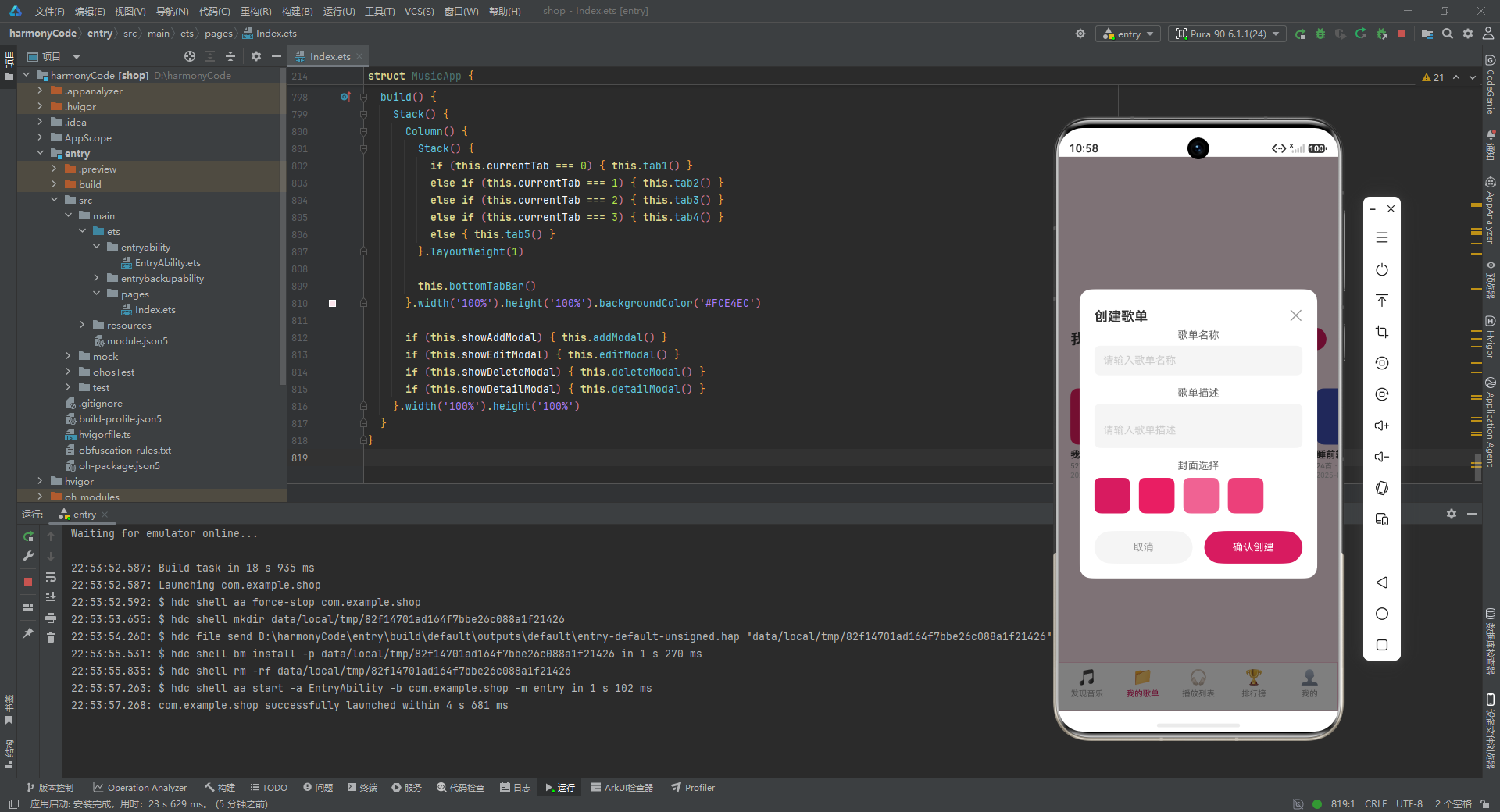
这是一个完整的表单弹框,结构相当复杂。逐段分析:
- 最外层
Column:宽度高度都占满整个屏幕,背景为半透明黑色(rgba(0,0,0,0.5))形成遮罩。.justifyContent(FlexAlign.Center)让内部弹框居中显示。.onClick(() => { this.showAddModal = false })实现点击遮罩关闭弹框。 - 内层
Column(实际弹框卡片):宽度 85%,.constraintSize({ maxHeight: '80%' })限制最大高度为屏幕的 80%,白底,圆角 16。 - 标题行:左侧"创建歌单"标题,中间
layoutWeight(1)撑开,右侧"✕"关闭按钮,点击关闭弹框。 - 表单区:
- 歌单名称:标签 + 灰底圆角输入框(占位文字"请输入歌单名称"),高度 40。
- 歌单描述:标签 + 灰底圆角多行输入框,高度 60。
- 封面选择:标签 + 4 个并排的色块(48x48,圆角 8),用
Column().width(12)作为间隔。色块颜色从深粉到浅粉渐变,给用户提供了封面色选择。
- 底部按钮行:
- 左侧"取消"按钮:灰底灰字,圆角 22,高度 44,点击关闭弹框。
- 中间
Column().width(16)作为间隔。 - 右侧"确认创建"按钮:粉底白字,圆角 22,高度 44,点击关闭弹框。
- 两个按钮都用
layoutWeight(1)等宽分布,.justifyContent(FlexAlign.Center)让文字居中。
这是一个非常标准的"表单弹框"模板,包含了标题、表单字段、操作按钮的完整结构。值得注意的是,所有按钮的点击行为目前都是关闭弹框,没有真正的提交逻辑——这是原型阶段的常见状态,预留了扩展点。
11.2 编辑歌单弹框
@Builder editModal() {
  Column() {
    Column() {
      Row() {
        Text('编辑歌单').fontSize(18).fontWeight(FontWeight.Bold).fontColor('#333')
        Column().layoutWeight(1)
        Text('✕').fontSize(20).fontColor('#999')
          .onClick(() => { this.showEditModal = false })
      }.width('100%').padding({ left: 20, right: 20, top: 20 })

      Column() {
        Text('歌单名称').fontSize(14).fontColor('#666')
        Row() {
          Text(this.selectedPlaylist.name).fontSize(14).fontColor('#333')
        }.width('100%').height(40).backgroundColor('#F5F5F5').borderRadius(8)
        .padding({ left: 12 }).margin({ top: 6 })

        Text('歌单描述').fontSize(14).fontColor('#666').margin({ top: 16 })
        Row() {
          Text('音乐收藏,记录美好').fontSize(14).fontColor('#CCC')
        }.width('100%').height(60).backgroundColor('#F5F5F5').borderRadius(8)
        .padding({ left: 12, top: 12 }).margin({ top: 6 })
      }.padding({ left: 20, right: 20 })

      Row() {
        Row() {
          Text('取消').fontSize(14).fontColor('#999')
        }.layoutWeight(1).height(44).backgroundColor('#F5F5F5').borderRadius(22)
        .justifyContent(FlexAlign.Center)
        .onClick(() => { this.showEditModal = false })
        Column().width(16)
        Row() {
          Text('保存修改').fontSize(14).fontColor('#FFFFFF')
        }.layoutWeight(1).height(44).backgroundColor('#D81B60').borderRadius(22)
        .justifyContent(FlexAlign.Center)
        .onClick(() => { this.showEditModal = false })
      }.width('100%').padding({ left: 20, right: 20, top: 24, bottom: 20 })
    }.width('85%').constraintSize({ maxHeight: '80%' })
    .backgroundColor('#FFFFFF').borderRadius(16)
  }.width('100%').height('100%')
  .backgroundColor('rgba(0,0,0,0.5)')
  .justifyContent(FlexAlign.Center)
  .onClick(() => { this.showEditModal = false })
}
编辑弹框与创建弹框结构几乎一致,关键区别在于:
- 标题改为"编辑歌单"。
- 歌单名称输入框中显示的是
this.selectedPlaylist.name——当前选中歌单的名称。这是"将状态注入到 UI"的典型实现:用户点击某个歌单后,selectedPlaylist被更新为该歌单,编辑弹框就能展示对应的歌单名。 - 描述输入框预填了"音乐收藏,记录美好"作为占位。
- 底部按钮文字改为"保存修改"。
- 没有"封面选择"部分(编辑场景下封面通常不变)。
这个弹框展示了"同一套 UI 模板,通过状态注入实现不同数据展示"的设计思想。
11.3 删除歌单弹框
@Builder deleteModal() {
  Column() {
    Column() {
      Text('🗑️').fontSize(40).margin({ top: 24 })
      Text('确认删除').fontSize(18).fontWeight(FontWeight.Bold).fontColor('#333').margin({ top: 12 })
      Text('删除后无法恢复,确定要删除"' + this.selectedPlaylist.name + '"吗?')
        .fontSize(14).fontColor('#999').margin({ top: 8 })
        .padding({ left: 24, right: 24 }).textAlign(TextAlign.Center)

      Row() {
        Row() {
          Text('取消').fontSize(14).fontColor('#999')
        }.layoutWeight(1).height(44).backgroundColor('#F5F5F5').borderRadius(22)
        .justifyContent(FlexAlign.Center)
        .onClick(() => { this.showDeleteModal = false })
        Column().width(16)
        Row() {
          Text('确认删除').fontSize(14).fontColor('#FFFFFF')
        }.layoutWeight(1).height(44).backgroundColor('#EF5350').borderRadius(22)
        .justifyContent(FlexAlign.Center)
        .onClick(() => { this.showDeleteModal = false })
      }.width('100%').padding({ left: 20, right: 20, top: 20, bottom: 24 })
    }.width('80%').backgroundColor('#FFFFFF').borderRadius(16)
  }.width('100%').height('100%')
  .backgroundColor('rgba(0,0,0,0.5)')
  .justifyContent(FlexAlign.Center)
  .onClick(() => { this.showDeleteModal = false })
}
删除弹框是一个"确认对话框",比表单弹框更简洁:
- 顶部一个垃圾桶 emoji(🗑️),字号 40,作为视觉警示。
- "确认删除"标题:字号 18,粗体。
- 危险提示文字:通过字符串拼接
this.selectedPlaylist.name,动态显示"删除后无法恢复,确定要删除’XXX’吗?"。.textAlign(TextAlign.Center)让多行文字居中对齐。 - 底部按钮:
- “取消”:灰底灰字。
- “确认删除”:红底白字(
#EF5350),与其它弹框的粉色按钮形成颜色对比,红色传达"危险操作"的语义。
这个弹框的设计有几个亮点:用红色按钮暗示危险操作、用动态拼接的歌单名让警告更具体、用居中对齐的多行文字提升可读性。这是一个非常成熟的"危险确认对话框"实现。
11.4 歌单详情弹框
@Builder detailModal() {
  Column() {
    Column() {
      Scroll() {
        Column() {
          Row() {
            Text('歌单详情').fontSize(18).fontWeight(FontWeight.Bold).fontColor('#333')
            Column().layoutWeight(1)
            Text('✕').fontSize(20).fontColor('#999')
              .onClick(() => { this.showDetailModal = false })
          }.width('100%').padding({ left: 20, right: 20, top: 20, bottom: 8 })

          Column() {
            Row().width(120).height(120).backgroundColor(this.selectedPlaylist.color).borderRadius(16)
            Text(this.selectedPlaylist.name).fontSize(20).fontWeight(FontWeight.Bold).fontColor('#333').margin({ top: 14 })
            Text(this.selectedPlaylist.songCount.toString() + '首 · ' + this.selectedPlaylist.playCount.toString() + '次播放')
              .fontSize(13).fontColor('#999').margin({ top: 4 })
            Text('创建于 ' + this.selectedPlaylist.createTime).fontSize(12).fontColor('#BBB').margin({ top: 2 })

            Row() {
              Text('歌词预览').fontSize(16).fontWeight(FontWeight.Bold).fontColor('#333')
            }.width('100%').margin({ top: 18 })

            Column() {
              ForEach(MOCK_LYRICS, (line: LyricLine) => {
                Text(line.text).fontSize(14).fontColor('#666').margin({ bottom: 8 }).width('100%').textAlign(TextAlign.Center)
              })
            }.width('100%').padding({ top: 12, bottom: 4 }).backgroundColor('#FCE4EC').borderRadius(12).margin({ top: 8 })

            Row() {
              Text('相似歌曲').fontSize(16).fontWeight(FontWeight.Bold).fontColor('#333')
            }.width('100%').margin({ top: 18 })

            Column() {
              ForEach(MOCK_SIMILAR_SONGS, (song: SimilarSongItem) => {
                Row() {
                  Row().width(40).height(40).backgroundColor(song.color).borderRadius(8)
                  Column() {
                    Text(song.name).fontSize(13).fontColor('#333')
                    Text(song.artist).fontSize(11).fontColor('#999').margin({ top: 2 })
                  }.margin({ left: 10 }).alignItems(HorizontalAlign.Start)
                  Column().layoutWeight(1)
                  Text('▶️').fontSize(14).fontColor('#D81B60')
                }.width('100%').padding(10).backgroundColor('#FFF').borderRadius(10).margin({ bottom: 6 })
              })
            }.width('100%').margin({ top: 6 })
          }.width('100%').padding({ left: 20, right: 20 })

          Row() {
            Row() {
              Text('关闭').fontSize(14).fontColor('#FFFFFF')
            }.width('100%').height(44).backgroundColor('#D81B60').borderRadius(22)
            .justifyContent(FlexAlign.Center)
            .onClick(() => { this.showDetailModal = false })
          }.width('100%').padding({ left: 20, right: 20, top: 16, bottom: 20 })
        }
      }
    }.width('90%').constraintSize({ maxHeight: '80%' })
    .backgroundColor('#FFFFFF').borderRadius(16)
  }.width('100%').height('100%')
  .backgroundColor('rgba(0,0,0,0.5)')
  .justifyContent(FlexAlign.Center)
  .onClick(() => { this.showDetailModal = false })
}
这是应用中最复杂的弹框,包含丰富的内容。逐段分析:
- 外层结构:与其它弹框一致——全屏遮罩 + 居中卡片。但卡片宽度为 90%(比创建/编辑弹框的 85% 略宽),因为内容更多。
- 标题行:“歌单详情” + 关闭按钮。
- 歌单信息区:
- 大封面色块:120x120,圆角 16,颜色取自
this.selectedPlaylist.color。 - 歌单名:字号 20,粗体。
- 歌曲数与播放次数拼接:“52首 · 1280次播放”。
- 创建时间:“创建于 2025-01-15”。
- 这四个元素共同构成了歌单的"身份信息"。
- 大封面色块:120x120,圆角 16,颜色取自
- 歌词预览区:
- 小标题"歌词预览"。
- 下方
ForEach渲染 5 行歌词,每行居中对齐,浅粉色背景容器,圆角 12。这种"歌词卡片"设计让歌词区域有明显的视觉边界,与上下内容区分。
- 相似歌曲区:
- 小标题"相似歌曲"。
- 下方
ForEach渲染 3 首相似歌曲,每首是一个Row:色块封面 + 歌曲名与歌手名 + 右侧播放按钮(▶️)。
- 底部关闭按钮:粉色全宽按钮,与创建/编辑弹框的"确认"按钮风格一致。
这个弹框展示了"信息密度高但层次清晰"的设计能力——通过分区标题与背景色区分,将封面、元信息、歌词、相似歌曲四类内容有序地组织在一个弹框内,且每个区域都有明确的视觉边界。
十二、主构建函数:整体装配
最后是整个应用的装配中心——build 函数。它将所有分散的 Tab 页面、底部导航与弹框组装为一个完整的应用界面。
build() {
  Stack() {
    Column() {
      Stack() {
        if (this.currentTab === 0) { this.tab1() }
        else if (this.currentTab === 1) { this.tab2() }
        else if (this.currentTab === 2) { this.tab3() }
        else if (this.currentTab === 3) { this.tab4() }
        else { this.tab5() }
      }.layoutWeight(1)

      this.bottomTabBar()
    }.width('100%').height('100%').backgroundColor('#FCE4EC')

    if (this.showAddModal) { this.addModal() }
    if (this.showEditModal) { this.editModal() }
    if (this.showDeleteModal) { this.deleteModal() }
    if (this.showDetailModal) { this.detailModal() }
  }.width('100%').height('100%')
}
逐段分析:
- 最外层
Stack:宽高占满整个屏幕。Stack是堆叠容器,允许子元素层叠显示——这是实现弹框覆盖在主页之上的关键。 - 内层
Column(主内容区):- 宽高占满,背景色为浅粉(
#FCE4EC),这是应用的基调背景色。 - 内部又是一个
Stack,通过if/else if链根据currentTab的值渲染对应的 Tab 页面。这种"条件渲染切换页面"的实现简洁直接,每次 Tab 切换时,旧的页面会被卸载,新的页面会被挂载。 .layoutWeight(1)让内容区占据除底部 TabBar 之外的所有剩余高度。- 下方是
this.bottomTabBar(),固定在底部。
- 宽高占满,背景色为浅粉(
- 弹框层:在
Stack的最外层,通过四个独立的if判断,根据四个状态变量决定是否渲染对应的弹框。由于Stack的堆叠特性,这些弹框会自然覆盖在主内容之上。
这种"主内容 + 弹框层"的双层结构,是声明式 UI 实现"页面 + 弹框"的标准模式。它的精妙之处在于:
- 弹框的状态由独立的布尔变量控制,互不干扰。
- 弹框的渲染条件直接写在
build函数中,无需手动调用show/hide方法。 - 通过
Stack的层叠特性,弹框天然覆盖在主内容之上,无需额外的 z-index 管理。
这就是声明式 UI 的力量——开发者只需声明"在什么状态下显示什么",框架负责所有的渲染细节。
十三、关键特性对比表
为了更清晰地总结这个应用的核心特性,下表从多个维度进行了对比与归纳:
| 特性维度 | 实现方式 | 设计意图 | 代码亮点 |
|---|---|---|---|
| 导航模式 | 底部 5 Tab + 子 Tab 横滑 | 覆盖核心场景,分类清晰 | layoutWeight(1) 等宽分布 |
| 状态管理 | 9 个 @State 变量 | 精确覆盖所有响应式场景 | 状态与 UI 一一对应 |
| 视觉风格 | 粉色系(#D81B60 主色) | 形成差异化品牌识别 | linearGradient 渐变 Banner |
| 列表渲染 | ForEach 遍历 Mock 数据 | 数据驱动 UI 生成 | 类型严格,命名清晰 |
| 选中态 | 三元运算符动态切换样式 | 即时反馈用户选择 | 文字/背景/边框三重变化 |
| 弹框系统 | 4 个独立布尔状态控制 | 完整 CRUD 操作支持 | Stack 层叠 + 遮罩点击关闭 |
| 排行榜 | 金银铜配色 + 趋势箭头 | 营造竞争性氛围 | if/else if 分级渲染 |
| 播放控件 | 常驻底部 + 进度条 + 三按钮 | 模拟真实播放器体验 | isPlaying 状态切换图标 |
| 数据格式化 | formatPlayCount 方法 | 中文本地化"万"单位 | 组件内方法,逻辑内聚 |
| 封面占位 | 颜色块替代图片 | 原型阶段快速出效果 | 数据中嵌入 color 字段 |
| 图标方案 | emoji 字符 | 无需美术资源 | 跨平台一致显示 |
| 布局技巧 | layoutWeight + justifyContent | 灵活实现等宽与两端对齐 | 无需 Grid 组件即可实现网格 |
| 卡片化设计 | 白底圆角 + 外边距 | 形成视觉层次与呼吸感 | 统一的 borderRadius 体系 |
| 文本溢出 | maxLines + textOverflow | 防止长文本破坏布局 | 省略号优雅截断 |
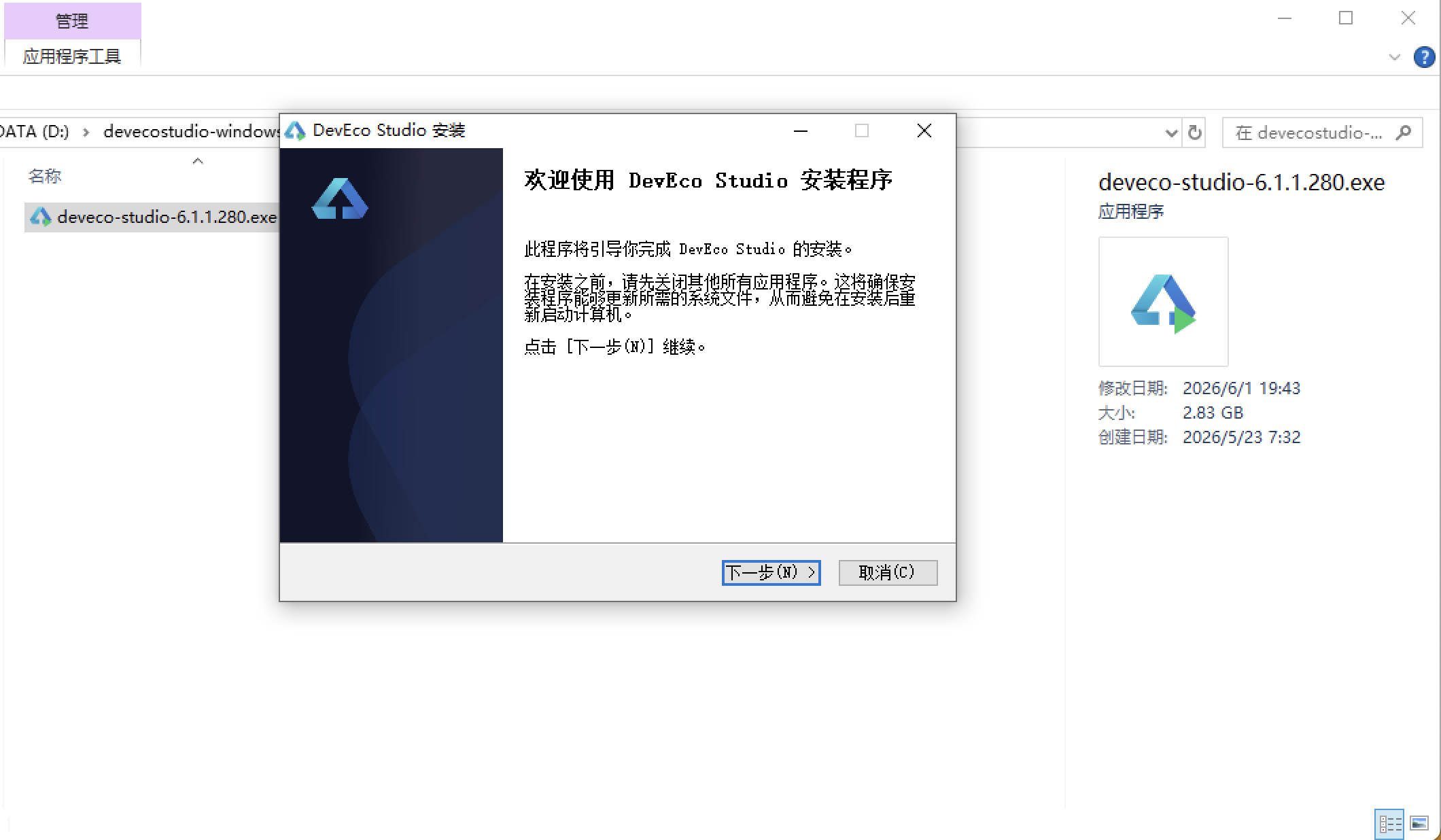
安装DevEco Studio程序
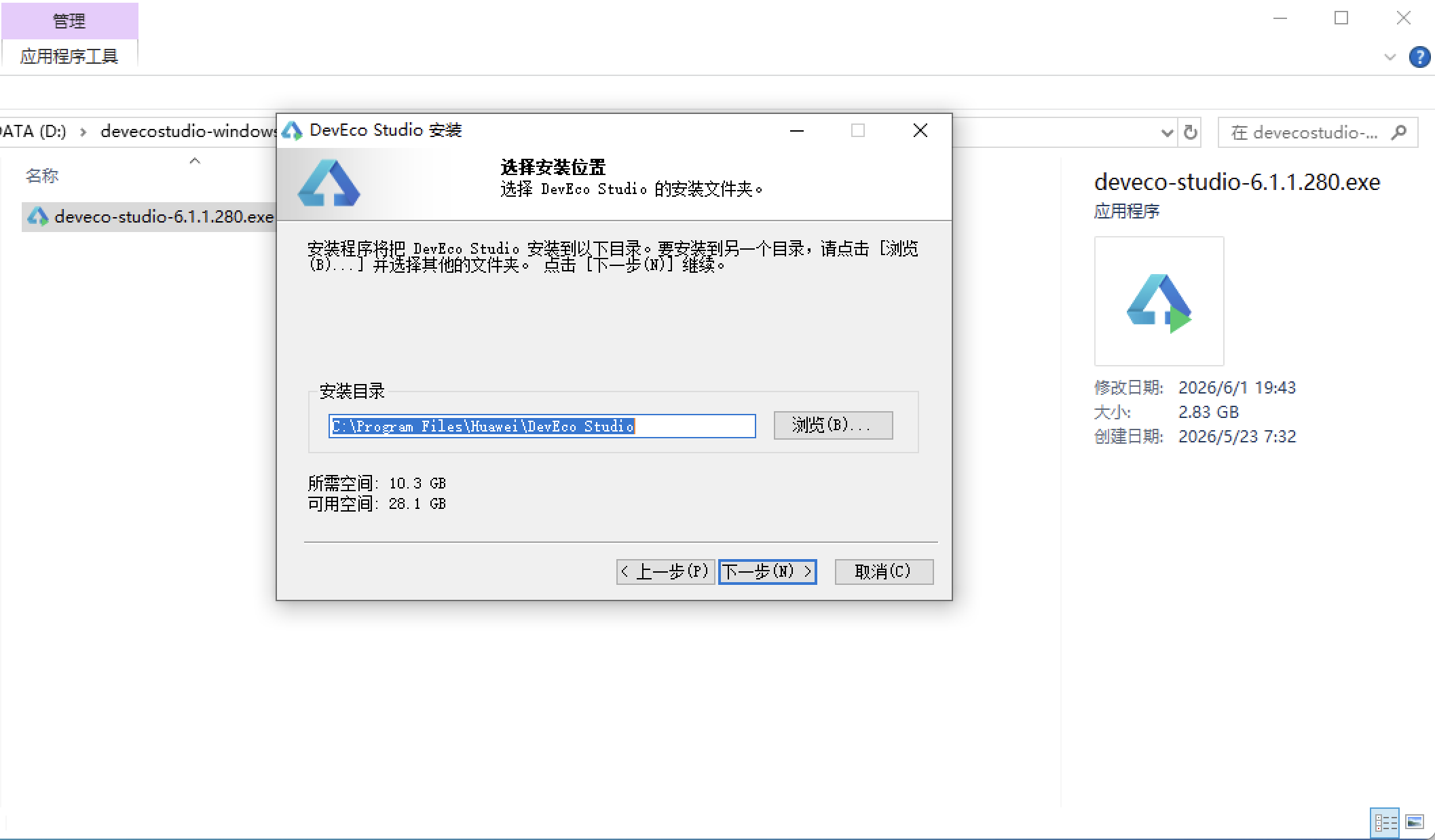
选择目标安装目录:
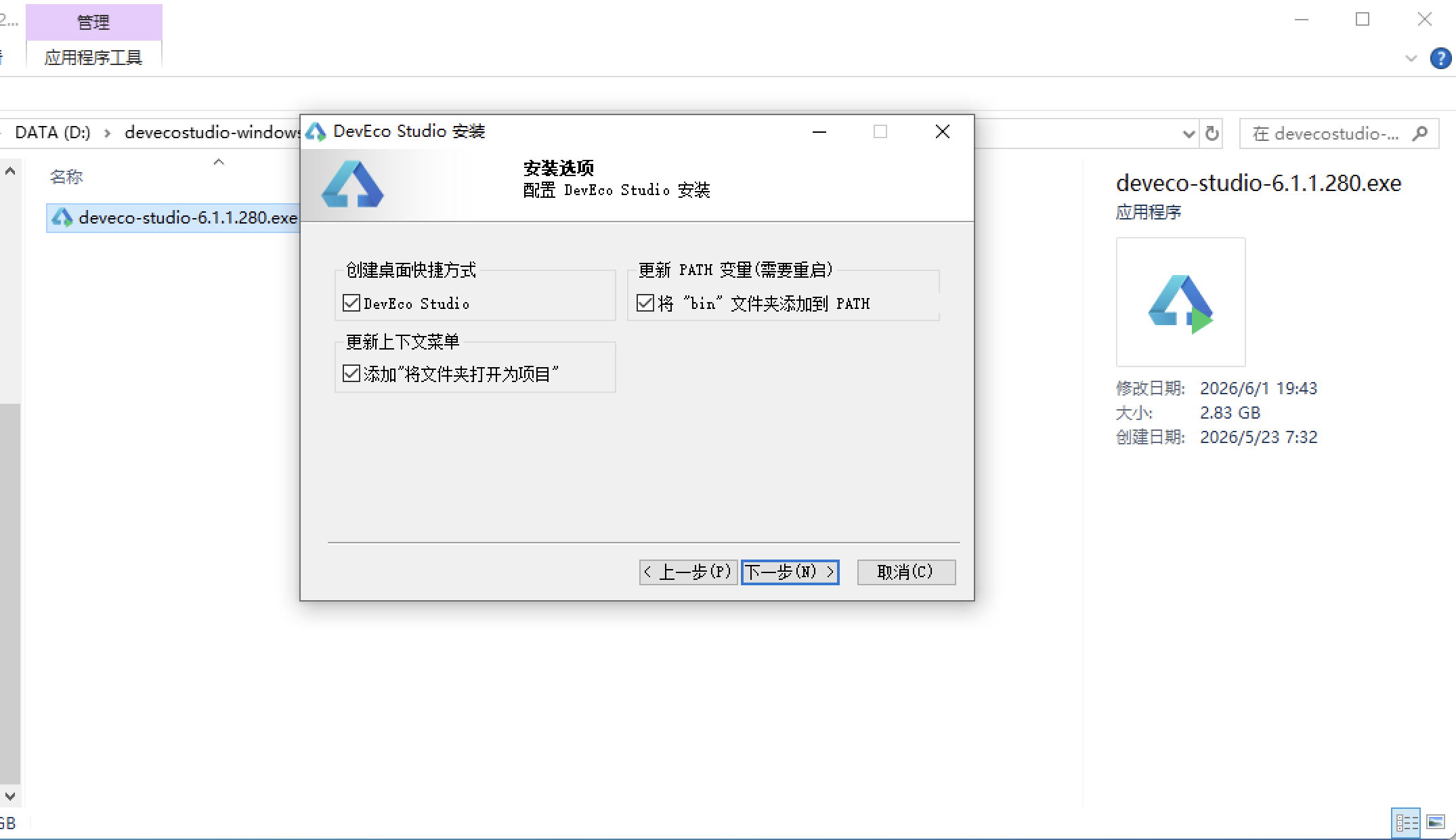
设置环境变量,但是需要重启一下:
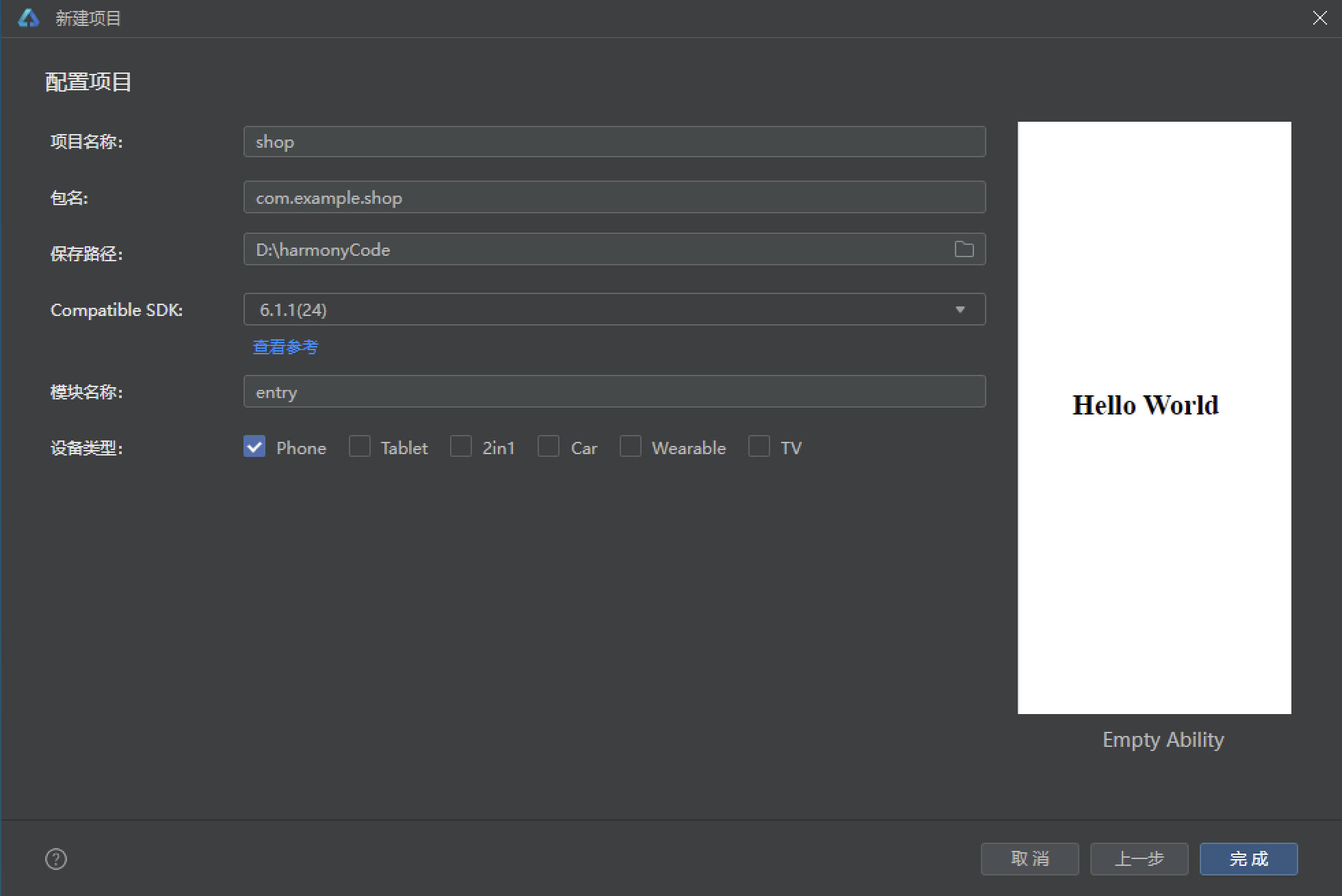
新建一个空白模板:
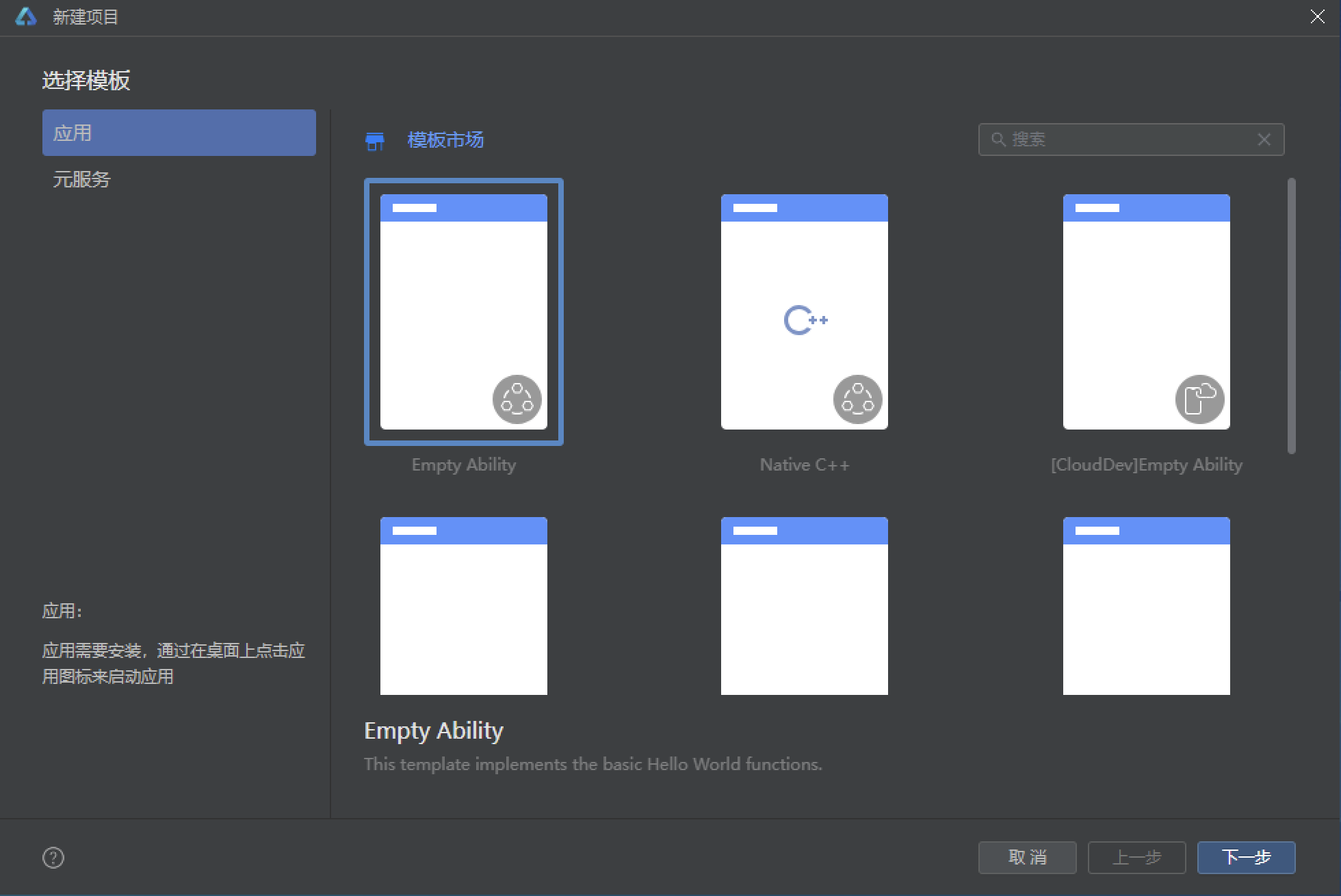
设置API为24的模板项目:
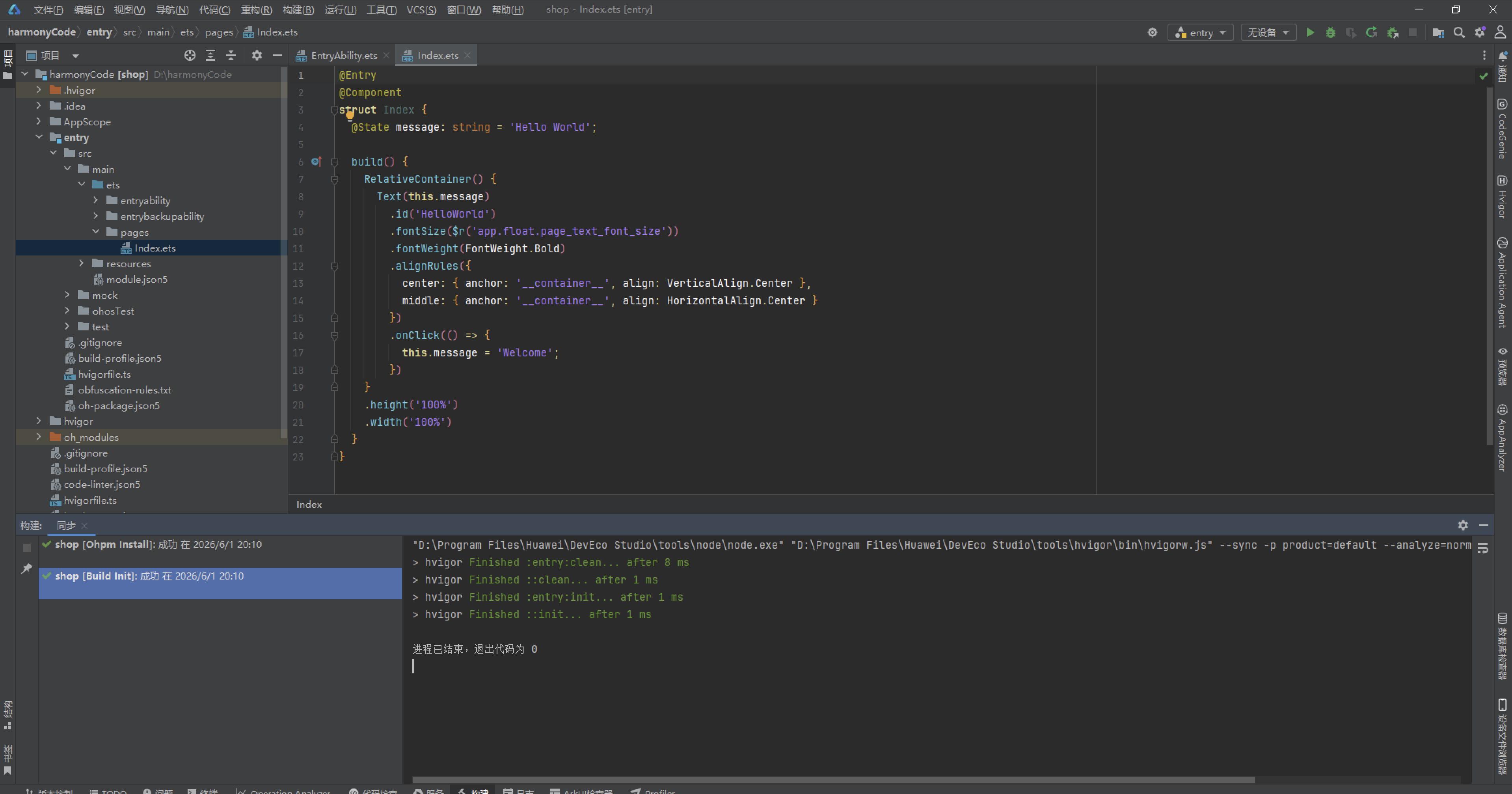
初始化项目,自动下载相关依赖:
完整代码:
// 音乐播放器 App
// 5个底部tab:发现音乐、我的歌单、播放列表、排行榜、我的
// ==================== 接口定义 ====================
interface RecommendPlaylistItem {
name: string
songCount: number
color: string
}
interface NewSongItem {
name: string
artist: string
album: string
duration: string
color: string
}
interface PlaylistItem {
name: string
songCount: number
createTime: string
playCount: number
color: string
category: number
}
interface SongItem {
name: string
artist: string
album: string
duration: string
isPlayed: boolean
}
interface RankSongItem {
rank: number
name: string
artist: string
playCount: number
change: number
}
interface ArtistItem {
name: string
fans: string
color: string
}
interface RecentPlayItem {
name: string
artist: string
color: string
}
interface SetItem {
label: string
iconColor: string
}
interface TabItem {
label: string
icon: string
}
interface RankTab {
label: string
}
interface LyricLine {
text: string
}
interface SimilarSongItem {
name: string
artist: string
color: string
}
interface PlaylistCategory {
label: string
}
// ==================== Mock 数据 ====================
const MOCK_RECOMMEND_PLAYLISTS: RecommendPlaylistItem[] = [
{ name: '热门华语精选', songCount: 28, color: '#E91E63' },
{ name: '抖音热歌榜', songCount: 35, color: '#9C27B0' },
{ name: '欧美经典', songCount: 42, color: '#673AB7' },
{ name: '轻音乐放松', songCount: 20, color: '#3F51B5' },
{ name: '摇滚力量', songCount: 30, color: '#F44336' },
{ name: '电子音浪', songCount: 25, color: '#00BCD4' }
]
const MOCK_NEW_SONGS: NewSongItem[] = [
{ name: '星辰大海', artist: '黄霄雲', album: '星辰大海', duration: '04:12', color: '#E91E63' },
{ name: '错位时空', artist: '艾辰', album: '错位时空', duration: '03:45', color: '#9C27B0' },
{ name: '起风了', artist: '买辣椒也用券', album: '起风了', duration: '05:25', color: '#673AB7' },
{ name: '孤勇者', artist: '陈奕迅', album: '孤勇者', duration: '04:08', color: '#F44336' },
{ name: '若把你', artist: 'Kirsty刘瑾睿', album: '若把你', duration: '03:28', color: '#00BCD4' },
{ name: '可能', artist: '程响', album: '可能', duration: '03:52', color: '#4CAF50' },
{ name: '踏山河', artist: '是七叔呢', album: '踏山河', duration: '03:35', color: '#FF9800' },
{ name: '一路生花', artist: '温奕心', album: '一路生花', duration: '04:18', color: '#795548' },
{ name: '少年', artist: '梦然', album: '少年', duration: '03:56', color: '#607D8B' },
{ name: '勇气', artist: '梁静茹', album: '勇气', duration: '04:22', color: '#E040FB' }
]
const MOCK_PLAYLIST_CATEGORIES: PlaylistCategory[] = [
{ label: '创建' }, { label: '收藏' }, { label: '推荐' }
]
const MOCK_PLAYLISTS: PlaylistItem[] = [
{ name: '我的最爱', songCount: 52, createTime: '2025-01-15', playCount: 1280, color: '#E91E63', category: 0 },
{ name: '跑步必备', songCount: 30, createTime: '2025-02-20', playCount: 890, color: '#F44336', category: 0 },
{ name: '睡前轻音乐', songCount: 24, createTime: '2025-03-10', playCount: 1560, color: '#3F51B5', category: 0 },
{ name: '开车兜风', songCount: 45, createTime: '2025-04-05', playCount: 720, color: '#4CAF50', category: 0 },
{ name: '怀旧金曲', songCount: 38, createTime: '2025-05-18', playCount: 980, color: '#FF9800', category: 1 },
{ name: '欧美热单', songCount: 60, createTime: '2025-06-01', playCount: 2100, color: '#673AB7', category: 1 },
{ name: '华语经典', songCount: 55, createTime: '2025-06-15', playCount: 1860, color: '#00BCD4', category: 1 },
{ name: '电音派对', songCount: 32, createTime: '2025-07-01', playCount: 650, color: '#9C27B0', category: 2 },
{ name: '雨天专属', songCount: 18, createTime: '2025-07-20', playCount: 430, color: '#607D8B', category: 2 },
{ name: 'KTV必点', songCount: 40, createTime: '2025-08-01', playCount: 1100, color: '#E040FB', category: 2 },
{ name: '学习背景音', songCount: 26, createTime: '2025-08-10', playCount: 580, color: '#795548', category: 0 },
{ name: '民谣时光', songCount: 22, createTime: '2025-08-15', playCount: 360, color: '#26A69A', category: 1 }
]
const MOCK_SONGS: SongItem[] = [
{ name: '星辰大海', artist: '黄霄雲', album: '星辰大海', duration: '04:12', isPlayed: true },
{ name: '错位时空', artist: '艾辰', album: '错位时空', duration: '03:45', isPlayed: true },
{ name: '起风了', artist: '买辣椒也用券', album: '起风了', duration: '05:25', isPlayed: false },
{ name: '孤勇者', artist: '陈奕迅', album: '孤勇者', duration: '04:08', isPlayed: false },
{ name: '若把你', artist: 'Kirsty刘瑾睿', album: '若把你', duration: '03:28', isPlayed: false },
{ name: '可能', artist: '程响', album: '可能', duration: '03:52', isPlayed: false },
{ name: '踏山河', artist: '是七叔呢', album: '踏山河', duration: '03:35', isPlayed: false },
{ name: '一路生花', artist: '温奕心', album: '一路生花', duration: '04:18', isPlayed: false },
{ name: '少年', artist: '梦然', album: '少年', duration: '03:56', isPlayed: false },
{ name: '勇气', artist: '梁静茹', album: '勇气', duration: '04:22', isPlayed: false },
{ name: '后来', artist: '刘若英', album: '我等你', duration: '05:41', isPlayed: false },
{ name: '晴天', artist: '周杰伦', album: '叶惠美', duration: '04:29', isPlayed: false },
{ name: '平凡之路', artist: '朴树', album: '平凡之路', duration: '05:02', isPlayed: false },
{ name: '夜曲', artist: '周杰伦', album: '十一月的肖邦', duration: '03:48', isPlayed: false },
{ name: '好久不见', artist: '陈奕迅', album: '认了吧', duration: '04:10', isPlayed: false }
]
const MOCK_RANK_TABS: RankTab[] = [
{ label: '飙升榜' }, { label: '热歌榜' }, { label: '新歌榜' }, { label: '原创榜' }
]
const MOCK_RANK_SONGS: RankSongItem[] = [
{ rank: 1, name: '孤勇者', artist: '陈奕迅', playCount: 8560000, change: 0 },
{ rank: 2, name: '星辰大海', artist: '黄霄雲', playCount: 7230000, change: 2 },
{ rank: 3, name: '错位时空', artist: '艾辰', playCount: 6890000, change: -1 },
{ rank: 4, name: '起风了', artist: '买辣椒也用券', playCount: 6120000, change: 1 },
{ rank: 5, name: '若把你', artist: 'Kirsty刘瑾睿', playCount: 5780000, change: -2 },
{ rank: 6, name: '可能', artist: '程响', playCount: 5450000, change: 3 },
{ rank: 7, name: '踏山河', artist: '是七叔呢', playCount: 4980000, change: 0 },
{ rank: 8, name: '一路生花', artist: '温奕心', playCount: 4620000, change: 1 },
{ rank: 9, name: '少年', artist: '梦然', playCount: 4350000, change: -1 },
{ rank: 10, name: '勇气', artist: '梁静茹', playCount: 3980000, change: 5 }
]
const MOCK_RECENT_PLAYS: RecentPlayItem[] = [
{ name: '孤勇者', artist: '陈奕迅', color: '#F44336' },
{ name: '星辰大海', artist: '黄霄雲', color: '#E91E63' },
{ name: '晴天', artist: '周杰伦', color: '#4CAF50' },
{ name: '起风了', artist: '买辣椒也用券', color: '#673AB7' },
{ name: '平凡之路', artist: '朴树', color: '#607D8B' },
{ name: '错位时空', artist: '艾辰', color: '#9C27B0' },
{ name: '夜曲', artist: '周杰伦', color: '#795548' },
{ name: '若把你', artist: 'Kirsty刘瑾睿', color: '#00BCD4' }
]
const MOCK_ARTISTS: ArtistItem[] = [
{ name: '周杰伦', fans: '2860万', color: '#E91E63' },
{ name: '陈奕迅', fans: '2150万', color: '#F44336' },
{ name: '林俊杰', fans: '1920万', color: '#4CAF50' },
{ name: '邓紫棋', fans: '1680万', color: '#673AB7' },
{ name: '五月天', fans: '1560万', color: '#FF9800' }
]
const MOCK_MUSIC_SETTINGS: SetItem[] = [
{ label: '个人资料', iconColor: '#D81B60' },
{ label: '音质设置', iconColor: '#E91E63' },
{ label: '下载管理', iconColor: '#F06292' },
{ label: '定时关闭', iconColor: '#EC407A' },
{ label: '关于我们', iconColor: '#F48FB1' },
{ label: '意见反馈', iconColor: '#F8BBD0' }
]
const MOCK_MUSIC_TABS: TabItem[] = [
{ label: '发现音乐', icon: '🎵' },
{ label: '我的歌单', icon: '📁' },
{ label: '播放列表', icon: '🎧' },
{ label: '排行榜', icon: '🏆' },
{ label: '我的', icon: '👤' }
]
const MOCK_LYRICS: LyricLine[] = [
{ text: '我吹过你吹过的晚风' },
{ text: '那我们算不算相拥' },
{ text: '可如梦初醒般的两手空空' },
{ text: '心也空' },
{ text: '我吹过你吹过的晚风' }
]
const MOCK_SIMILAR_SONGS: SimilarSongItem[] = [
{ name: '我曾遇到一束光', artist: '叶斯淳', color: '#E91E63' },
{ name: '落在生命里的光', artist: '尹昔眠', color: '#9C27B0' },
{ name: '一荤一素', artist: '毛不易', color: '#3F51B5' }
]
// ==================== 主组件 ====================
@Entry
@Component
struct MusicApp {
@State currentTab: number = 0
@State showAddModal: boolean = false
@State showEditModal: boolean = false
@State showDeleteModal: boolean = false
@State showDetailModal: boolean = false
@State playlistCategoryIndex: number = 0
@State rankTabIndex: number = 0
@State selectedPlaylist: PlaylistItem = MOCK_PLAYLISTS[0]
@State isPlaying: boolean = false
@Builder modalOverlay(onClose: () => void) {
Column().width('100%').height('100%').backgroundColor('rgba(0,0,0,0.5)').onClick(onClose)
}
// ==================== Tab1: 发现音乐 ====================
@Builder tab1() {
Scroll() {
Column() {
Row() {
Row() {
Text('🔍').fontSize(16).margin({ right: 8 })
Text('搜索歌曲、歌手').fontSize(14).fontColor('#9E9E9E')
}.layoutWeight(1).height(40).backgroundColor('#F5F5F5').borderRadius(20).padding({ left: 16 })
}.width('100%').padding({ left: 16, right: 16, top: 16, bottom: 8 })
Row() {
Column() {
Text('今日音乐推荐').fontSize(20).fontWeight(FontWeight.Bold).fontColor('#FFFFFF')
Text('为你精选每日好音乐').fontSize(13).fontColor('rgba(255,255,255,0.85)').margin({ top: 4 })
Row() {
Text('立即播放').fontSize(13).fontColor('#D81B60')
}.padding({ left: 20, right: 20, top: 8, bottom: 8 })
.backgroundColor('#FFFFFF').borderRadius(16).margin({ top: 12 })
}
}
.width('100%').height(140).borderRadius(16)
.padding({ left: 20, top: 24 })
.linearGradient({
angle: 135,
colors: [['#D81B60', 0.0], ['#F06292', 1.0]]
})
.margin({ left: 16, right: 16, top: 8 })
Row() {
Text('推荐歌单').fontSize(18).fontWeight(FontWeight.Bold).fontColor('#333')
}.width('100%').padding({ left: 16, right: 16, top: 16, bottom: 8 })
Row() {
Scroll() {
Row() {
ForEach(MOCK_RECOMMEND_PLAYLISTS, (item: RecommendPlaylistItem) => {
Column() {
Row().width(130).height(90).backgroundColor(item.color).borderRadius(12)
Column() {
Text(item.name).fontSize(13).fontColor('#333').maxLines(1).textOverflow({ overflow: TextOverflow.Ellipsis }).width(130)
Text(item.songCount.toString() + '首').fontSize(11).fontColor('#999').margin({ top: 2 }).width(130)
}.padding({ top: 8 }).alignItems(HorizontalAlign.Start)
}.width(130).margin({ right: 10 })
})
}.padding({ left: 16, right: 16 })
}.scrollable(ScrollDirection.Horizontal).scrollBar(BarState.Off)
.height(170)
}
Row() {
Text('新歌速递').fontSize(18).fontWeight(FontWeight.Bold).fontColor('#333')
Column().layoutWeight(1)
Text('更多 >').fontSize(13).fontColor('#D81B60')
}.width('100%').padding({ left: 16, right: 16, top: 16, bottom: 8 })
Column() {
ForEach(MOCK_NEW_SONGS, (item: NewSongItem) => {
Row() {
Row().width(48).height(48).backgroundColor(item.color).borderRadius(8)
Column() {
Text(item.name).fontSize(14).fontColor('#333')
Text(item.artist + ' · ' + item.album).fontSize(11).fontColor('#999').margin({ top: 2 })
}.margin({ left: 12 }).alignItems(HorizontalAlign.Start)
Column().layoutWeight(1)
Text(item.duration).fontSize(12).fontColor('#999')
}.width('100%').padding(12).backgroundColor('#FFFFFF').borderRadius(12).margin({ bottom: 6 })
})
}.padding({ left: 16, right: 16 })
Row() {
Column() {
Text('每日推荐').fontSize(16).fontWeight(FontWeight.Bold).fontColor('#FFFFFF')
Text('根据你的口味生成').fontSize(12).fontColor('rgba(255,255,255,0.8)').margin({ top: 4 })
}
Column().layoutWeight(1)
Text('30首').fontSize(32).fontWeight(FontWeight.Bold).fontColor('#FFFFFF')
}.width('100%').height(80).borderRadius(16)
.padding({ left: 20, right: 20 })
.linearGradient({
angle: 90,
colors: [['#D81B60', 0.0], ['#AD1457', 1.0]]
})
.margin({ left: 16, right: 16, top: 12, bottom: 16 })
.onClick(() => {})
}
}
}
// ==================== Tab2: 我的歌单 ====================
@Builder tab2() {
Scroll() {
Column() {
Row() {
Text('我的歌单').fontSize(20).fontWeight(FontWeight.Bold).fontColor('#333')
Column().layoutWeight(1)
Row() {
Text('+ 创建').fontSize(13).fontColor('#FFFFFF')
}.padding({ left: 14, right: 14, top: 8, bottom: 8 })
.backgroundColor('#D81B60').borderRadius(16)
.onClick(() => { this.showAddModal = true })
}.width('100%').padding({ left: 16, right: 16, top: 16, bottom: 4 })
Scroll() {
Row() {
ForEach(MOCK_PLAYLIST_CATEGORIES, (item: PlaylistCategory, index: number) => {
Text(item.label).fontSize(13)
.fontColor(this.playlistCategoryIndex === index ? '#FFFFFF' : '#D81B60')
.padding({ left: 16, right: 16, top: 8, bottom: 8 })
.backgroundColor(this.playlistCategoryIndex === index ? '#D81B60' : '#FCE4EC')
.borderRadius(16).margin({ right: 8 })
.onClick(() => { this.playlistCategoryIndex = index })
})
}.padding({ left: 16, right: 16, top: 8, bottom: 8 })
}.scrollable(ScrollDirection.Horizontal).scrollBar(BarState.Off)
Row() {
ForEach(MOCK_PLAYLISTS, (item: PlaylistItem, index: number) => {
Column() {
Row().width('100%').height(76).backgroundColor(item.color).borderRadius(10)
Column() {
Text(item.name).fontSize(13).fontWeight(FontWeight.Bold).fontColor('#333')
.maxLines(1).textOverflow({ overflow: TextOverflow.Ellipsis })
Text(item.songCount.toString() + '首 · ' + item.playCount.toString() + '次播放').fontSize(10).fontColor('#999').margin({ top: 2 })
Text(item.createTime).fontSize(10).fontColor('#BBB').margin({ top: 1 })
}.width('100%').padding({ top: 6, bottom: 4 }).alignItems(HorizontalAlign.Start)
}.width('48%').margin({ bottom: 12 })
.onClick(() => {
this.selectedPlaylist = item
this.showDetailModal = true
})
})
}.width('100%').justifyContent(FlexAlign.SpaceBetween)
.padding({ left: 16, right: 16, bottom: 16 })
}
}
}
// ==================== Tab3: 播放列表 ====================
@Builder tab3() {
Column() {
Scroll() {
Column() {
Text('播放列表').fontSize(20).fontWeight(FontWeight.Bold).fontColor('#333')
.width('100%').padding({ left: 16, top: 16, bottom: 4 })
Text('共' + MOCK_SONGS.length.toString() + '首').fontSize(12).fontColor('#999')
.width('100%').padding({ left: 16, bottom: 8 })
Column() {
ForEach(MOCK_SONGS, (item: SongItem) => {
Row() {
Row().width(36).height(36).backgroundColor(item.isPlayed ? '#D81B60' : '#F5F5F5').borderRadius(6)
.justifyContent(FlexAlign.Center)
Column() {
Text(item.name).fontSize(14).fontColor(item.isPlayed ? '#D81B60' : '#333')
Text(item.artist + ' · ' + item.album).fontSize(11).fontColor('#999').margin({ top: 2 })
}.margin({ left: 10 }).alignItems(HorizontalAlign.Start)
Column().layoutWeight(1)
Text(item.duration).fontSize(12).fontColor('#999')
}.width('100%').padding(10).margin({ bottom: 2 })
})
}.padding({ left: 16, right: 16, bottom: 100 })
}
}.layoutWeight(1)
Column() {
Row() {
Progress({ value: 45, total: 100, type: ProgressType.Linear })
.width('100%').height(3)
.color('#D81B60')
.backgroundColor('#F8BBD0')
.style({ strokeWidth: 3, strokeRadius: 1.5 })
}.width('100%').padding({ left: 16, right: 16, top: 8 })
Row() {
Text('01:52').fontSize(10).fontColor('#999')
Column().layoutWeight(1)
Text('04:12').fontSize(10).fontColor('#999')
}.width('100%').padding({ left: 16, right: 16, top: 2 })
Row() {
Text('⏮').fontSize(28).fontColor('#333')
Column().width(40)
Text(this.isPlaying ? '⏸' : '▶️').fontSize(32).fontColor('#D81B60')
.onClick(() => { this.isPlaying = !this.isPlaying })
Column().width(40)
Text('⏭').fontSize(28).fontColor('#333')
}.width('100%').justifyContent(FlexAlign.Center).padding({ top: 8, bottom: 8 })
Text('星辰大海 - 黄霄雲').fontSize(12).fontColor('#999').padding({ bottom: 8 })
}.width('100%').backgroundColor('#FFFFFF')
}
}
// ==================== Tab4: 排行榜 ====================
@Builder tab4() {
Scroll() {
Column() {
Text('排行榜').fontSize(20).fontWeight(FontWeight.Bold).fontColor('#333')
.width('100%').padding({ left: 16, top: 16, bottom: 4 })
Scroll() {
Row() {
ForEach(MOCK_RANK_TABS, (item: RankTab, index: number) => {
Text(item.label).fontSize(14)
.fontColor(this.rankTabIndex === index ? '#D81B60' : '#999')
.fontWeight(this.rankTabIndex === index ? FontWeight.Bold : FontWeight.Normal)
.padding({ left: 16, right: 16, top: 8, bottom: 8 })
.border({ width: this.rankTabIndex === index ? 2 : 0, color: '#D81B60' })
.margin({ right: 4 })
.onClick(() => { this.rankTabIndex = index })
})
}.padding({ left: 16, right: 16, top: 8, bottom: 8 })
}.scrollable(ScrollDirection.Horizontal).scrollBar(BarState.Off)
Column() {
ForEach(MOCK_RANK_SONGS, (item: RankSongItem) => {
Row() {
if (item.rank === 1) {
Text('01').fontSize(20).fontWeight(FontWeight.Bold)
.fontColor('#FFD700')
.width(36).textAlign(TextAlign.Center)
} else if (item.rank === 2) {
Text('02').fontSize(20).fontWeight(FontWeight.Bold)
.fontColor('#C0C0C0')
.width(36).textAlign(TextAlign.Center)
} else if (item.rank === 3) {
Text('03').fontSize(20).fontWeight(FontWeight.Bold)
.fontColor('#CD7F32')
.width(36).textAlign(TextAlign.Center)
} else {
Text(item.rank < 10 ? '0' + item.rank.toString() : item.rank.toString())
.fontSize(18).fontColor('#999')
.width(36).textAlign(TextAlign.Center)
}
Column() {
Text(item.name).fontSize(14).fontColor('#333')
Text(item.artist).fontSize(11).fontColor('#999').margin({ top: 2 })
}.margin({ left: 10 }).alignItems(HorizontalAlign.Start)
Column().layoutWeight(1)
Column() {
if (item.change > 0) {
Text('↑' + item.change.toString()).fontSize(11).fontColor('#F44336')
} else if (item.change < 0) {
Text('↓' + Math.abs(item.change).toString()).fontSize(11).fontColor('#4CAF50')
} else {
Text('—').fontSize(11).fontColor('#999')
}
Text(this.formatPlayCount(item.playCount)).fontSize(10).fontColor('#BBB').margin({ top: 2 })
}.alignItems(HorizontalAlign.End)
}.width('100%').padding(12)
.backgroundColor(item.rank <= 3 ? '#FFF8F8' : '#FFFFFF')
.margin({ bottom: 2 })
})
}.padding({ left: 16, right: 16, bottom: 16 })
}
}
}
formatPlayCount(count: number): string {
if (count >= 10000) {
return (count / 10000).toFixed(0) + '万'
}
return count.toString()
}
// ==================== Tab5: 我的 ====================
@Builder tab5() {
Scroll() {
Column() {
Row() {
Row().width(60).height(60).backgroundColor('#F8BBD0').borderRadius(30)
Column() {
Text('音乐爱好者').fontSize(18).fontWeight(FontWeight.Bold).fontColor('#333')
Text('Lv.8 音乐品鉴师').fontSize(13).fontColor('#D81B60').margin({ top: 4 })
}.margin({ left: 16 }).alignItems(HorizontalAlign.Start)
}.width('100%').padding(20).backgroundColor('#FFFFFF').borderRadius(16)
.margin({ left: 16, right: 16, top: 16 })
Row() {
Column() {
Text('128h').fontSize(20).fontWeight(FontWeight.Bold).fontColor('#D81B60')
Text('本周听歌').fontSize(11).fontColor('#999').margin({ top: 4 })
}
Column() {
Text('周杰伦').fontSize(20).fontWeight(FontWeight.Bold).fontColor('#D81B60')
Text('最爱歌手').fontSize(11).fontColor('#999').margin({ top: 4 })
}
Column() {
Text('流行').fontSize(20).fontWeight(FontWeight.Bold).fontColor('#D81B60')
Text('最爱曲风').fontSize(11).fontColor('#999').margin({ top: 4 })
}
}.width('100%').justifyContent(FlexAlign.SpaceEvenly).padding(16)
.backgroundColor('#FFFFFF').borderRadius(16).margin({ left: 16, right: 16, top: 12 })
Row() {
Text('最近播放').fontSize(16).fontWeight(FontWeight.Bold).fontColor('#333')
Column().layoutWeight(1)
Text('查看全部 >').fontSize(12).fontColor('#D81B60')
}.width('100%').padding({ left: 16, right: 16, top: 20, bottom: 8 })
Column() {
ForEach(MOCK_RECENT_PLAYS, (item: RecentPlayItem) => {
Row() {
Row().width(40).height(40).backgroundColor(item.color).borderRadius(8)
Column() {
Text(item.name).fontSize(14).fontColor('#333')
Text(item.artist).fontSize(11).fontColor('#999').margin({ top: 2 })
}.margin({ left: 12 }).alignItems(HorizontalAlign.Start)
}.width('100%').padding(10).backgroundColor('#FFFFFF').borderRadius(10).margin({ bottom: 4 })
})
}.padding({ left: 16, right: 16 })
Row() {
Text('我的关注').fontSize(16).fontWeight(FontWeight.Bold).fontColor('#333')
}.width('100%').padding({ left: 16, right: 16, top: 20, bottom: 8 })
Row() {
Scroll() {
Row() {
ForEach(MOCK_ARTISTS, (item: ArtistItem) => {
Column() {
Row().width(56).height(56).backgroundColor(item.color).borderRadius(28)
Text(item.name).fontSize(12).fontColor('#333').margin({ top: 6 })
Text(item.fans).fontSize(10).fontColor('#D81B60').margin({ top: 2 })
}.margin({ right: 14 })
})
}.padding({ left: 16, right: 16 })
}.scrollable(ScrollDirection.Horizontal).scrollBar(BarState.Off)
.height(104)
}
Row() {
Text('设置').fontSize(16).fontWeight(FontWeight.Bold).fontColor('#333')
}.width('100%').padding({ left: 16, right: 16, top: 16, bottom: 8 })
Column() {
ForEach(MOCK_MUSIC_SETTINGS, (item: SetItem) => {
Row() {
Row().width(8).height(8).backgroundColor(item.iconColor).borderRadius(4)
Text(item.label).fontSize(14).fontColor('#333').margin({ left: 12 })
Column().layoutWeight(1)
Text('>').fontSize(14).fontColor('#CCC')
}.width('100%').padding(14).backgroundColor('#FFFFFF').borderRadius(10).margin({ bottom: 6 })
})
}.padding({ left: 16, right: 16, bottom: 16 })
}
}
}
// ==================== 底部TabBar ====================
@Builder bottomTabBar() {
Row() {
ForEach(MOCK_MUSIC_TABS, (item: TabItem, index: number) => {
Column() {
Text(item.icon).fontSize(20)
Text(item.label).fontSize(11)
.fontColor(this.currentTab === index ? '#D81B60' : '#999')
.margin({ top: 4 })
}.layoutWeight(1).padding({ top: 8, bottom: 8 })
.onClick(() => { this.currentTab = index })
})
}.width('100%').padding({ bottom: 8 })
.backgroundColor('#FFFFFF')
.border({ width: 1, color: '#F8BBD0' })
}
// ==================== 创建歌单弹框 ====================
@Builder addModal() {
Column() {
Column() {
Row() {
Text('创建歌单').fontSize(18).fontWeight(FontWeight.Bold).fontColor('#333')
Column().layoutWeight(1)
Text('✕').fontSize(20).fontColor('#999')
.onClick(() => { this.showAddModal = false })
}.width('100%').padding({ left: 20, right: 20, top: 20 })
Column() {
Text('歌单名称').fontSize(14).fontColor('#666')
Row() {
Text('请输入歌单名称').fontSize(14).fontColor('#CCC')
}.width('100%').height(40).backgroundColor('#F5F5F5').borderRadius(8)
.padding({ left: 12 }).margin({ top: 6 })
Text('歌单描述').fontSize(14).fontColor('#666').margin({ top: 16 })
Row() {
Text('请输入歌单描述').fontSize(14).fontColor('#CCC')
}.width('100%').height(60).backgroundColor('#F5F5F5').borderRadius(8)
.padding({ left: 12, top: 12 }).margin({ top: 6 })
Text('封面选择').fontSize(14).fontColor('#666').margin({ top: 16 })
Row() {
Row().width(48).height(48).backgroundColor('#D81B60').borderRadius(8)
Column().width(12)
Row().width(48).height(48).backgroundColor('#E91E63').borderRadius(8)
Column().width(12)
Row().width(48).height(48).backgroundColor('#F06292').borderRadius(8)
Column().width(12)
Row().width(48).height(48).backgroundColor('#EC407A').borderRadius(8)
}.width('100%').margin({ top: 8 })
}.padding({ left: 20, right: 20 })
Row() {
Row() {
Text('取消').fontSize(14).fontColor('#999')
}.layoutWeight(1).height(44).backgroundColor('#F5F5F5').borderRadius(22)
.justifyContent(FlexAlign.Center)
.onClick(() => { this.showAddModal = false })
Column().width(16)
Row() {
Text('确认创建').fontSize(14).fontColor('#FFFFFF')
}.layoutWeight(1).height(44).backgroundColor('#D81B60').borderRadius(22)
.justifyContent(FlexAlign.Center)
.onClick(() => { this.showAddModal = false })
}.width('100%').padding({ left: 20, right: 20, top: 24, bottom: 20 })
}.width('85%').constraintSize({ maxHeight: '80%' })
.backgroundColor('#FFFFFF').borderRadius(16)
}.width('100%').height('100%')
.backgroundColor('rgba(0,0,0,0.5)')
.justifyContent(FlexAlign.Center)
.onClick(() => { this.showAddModal = false })
}
// ==================== 编辑歌单弹框 ====================
@Builder editModal() {
Column() {
Column() {
Row() {
Text('编辑歌单').fontSize(18).fontWeight(FontWeight.Bold).fontColor('#333')
Column().layoutWeight(1)
Text('✕').fontSize(20).fontColor('#999')
.onClick(() => { this.showEditModal = false })
}.width('100%').padding({ left: 20, right: 20, top: 20 })
Column() {
Text('歌单名称').fontSize(14).fontColor('#666')
Row() {
Text(this.selectedPlaylist.name).fontSize(14).fontColor('#333')
}.width('100%').height(40).backgroundColor('#F5F5F5').borderRadius(8)
.padding({ left: 12 }).margin({ top: 6 })
Text('歌单描述').fontSize(14).fontColor('#666').margin({ top: 16 })
Row() {
Text('音乐收藏,记录美好').fontSize(14).fontColor('#CCC')
}.width('100%').height(60).backgroundColor('#F5F5F5').borderRadius(8)
.padding({ left: 12, top: 12 }).margin({ top: 6 })
}.padding({ left: 20, right: 20 })
Row() {
Row() {
Text('取消').fontSize(14).fontColor('#999')
}.layoutWeight(1).height(44).backgroundColor('#F5F5F5').borderRadius(22)
.justifyContent(FlexAlign.Center)
.onClick(() => { this.showEditModal = false })
Column().width(16)
Row() {
Text('保存修改').fontSize(14).fontColor('#FFFFFF')
}.layoutWeight(1).height(44).backgroundColor('#D81B60').borderRadius(22)
.justifyContent(FlexAlign.Center)
.onClick(() => { this.showEditModal = false })
}.width('100%').padding({ left: 20, right: 20, top: 24, bottom: 20 })
}.width('85%').constraintSize({ maxHeight: '80%' })
.backgroundColor('#FFFFFF').borderRadius(16)
}.width('100%').height('100%')
.backgroundColor('rgba(0,0,0,0.5)')
.justifyContent(FlexAlign.Center)
.onClick(() => { this.showEditModal = false })
}
// ==================== 删除歌单弹框 ====================
@Builder deleteModal() {
Column() {
Column() {
Text('🗑️').fontSize(40).margin({ top: 24 })
Text('确认删除').fontSize(18).fontWeight(FontWeight.Bold).fontColor('#333').margin({ top: 12 })
Text('删除后无法恢复,确定要删除"' + this.selectedPlaylist.name + '"吗?')
.fontSize(14).fontColor('#999').margin({ top: 8 })
.padding({ left: 24, right: 24 }).textAlign(TextAlign.Center)
Row() {
Row() {
Text('取消').fontSize(14).fontColor('#999')
}.layoutWeight(1).height(44).backgroundColor('#F5F5F5').borderRadius(22)
.justifyContent(FlexAlign.Center)
.onClick(() => { this.showDeleteModal = false })
Column().width(16)
Row() {
Text('确认删除').fontSize(14).fontColor('#FFFFFF')
}.layoutWeight(1).height(44).backgroundColor('#EF5350').borderRadius(22)
.justifyContent(FlexAlign.Center)
.onClick(() => { this.showDeleteModal = false })
}.width('100%').padding({ left: 20, right: 20, top: 20, bottom: 24 })
}.width('80%').backgroundColor('#FFFFFF').borderRadius(16)
}.width('100%').height('100%')
.backgroundColor('rgba(0,0,0,0.5)')
.justifyContent(FlexAlign.Center)
.onClick(() => { this.showDeleteModal = false })
}
// ==================== 歌曲/歌单详情弹框 ====================
@Builder detailModal() {
Column() {
Column() {
Scroll() {
Column() {
Row() {
Text('歌单详情').fontSize(18).fontWeight(FontWeight.Bold).fontColor('#333')
Column().layoutWeight(1)
Text('✕').fontSize(20).fontColor('#999')
.onClick(() => { this.showDetailModal = false })
}.width('100%').padding({ left: 20, right: 20, top: 20, bottom: 8 })
Column() {
Row().width(120).height(120).backgroundColor(this.selectedPlaylist.color).borderRadius(16)
Text(this.selectedPlaylist.name).fontSize(20).fontWeight(FontWeight.Bold).fontColor('#333').margin({ top: 14 })
Text(this.selectedPlaylist.songCount.toString() + '首 · ' + this.selectedPlaylist.playCount.toString() + '次播放')
.fontSize(13).fontColor('#999').margin({ top: 4 })
Text('创建于 ' + this.selectedPlaylist.createTime).fontSize(12).fontColor('#BBB').margin({ top: 2 })
Row() {
Text('歌词预览').fontSize(16).fontWeight(FontWeight.Bold).fontColor('#333')
}.width('100%').margin({ top: 18 })
Column() {
ForEach(MOCK_LYRICS, (line: LyricLine) => {
Text(line.text).fontSize(14).fontColor('#666').margin({ bottom: 8 }).width('100%').textAlign(TextAlign.Center)
})
}.width('100%').padding({ top: 12, bottom: 4 }).backgroundColor('#FCE4EC').borderRadius(12).margin({ top: 8 })
Row() {
Text('相似歌曲').fontSize(16).fontWeight(FontWeight.Bold).fontColor('#333')
}.width('100%').margin({ top: 18 })
Column() {
ForEach(MOCK_SIMILAR_SONGS, (song: SimilarSongItem) => {
Row() {
Row().width(40).height(40).backgroundColor(song.color).borderRadius(8)
Column() {
Text(song.name).fontSize(13).fontColor('#333')
Text(song.artist).fontSize(11).fontColor('#999').margin({ top: 2 })
}.margin({ left: 10 }).alignItems(HorizontalAlign.Start)
Column().layoutWeight(1)
Text('▶️').fontSize(14).fontColor('#D81B60')
}.width('100%').padding(10).backgroundColor('#FFF').borderRadius(10).margin({ bottom: 6 })
})
}.width('100%').margin({ top: 6 })
}.width('100%').padding({ left: 20, right: 20 })
Row() {
Row() {
Text('关闭').fontSize(14).fontColor('#FFFFFF')
}.width('100%').height(44).backgroundColor('#D81B60').borderRadius(22)
.justifyContent(FlexAlign.Center)
.onClick(() => { this.showDetailModal = false })
}.width('100%').padding({ left: 20, right: 20, top: 16, bottom: 20 })
}
}
}.width('90%').constraintSize({ maxHeight: '80%' })
.backgroundColor('#FFFFFF').borderRadius(16)
}.width('100%').height('100%')
.backgroundColor('rgba(0,0,0,0.5)')
.justifyContent(FlexAlign.Center)
.onClick(() => { this.showDetailModal = false })
}
// ==================== 主构建 ====================
build() {
Stack() {
Column() {
Stack() {
if (this.currentTab === 0) { this.tab1() }
else if (this.currentTab === 1) { this.tab2() }
else if (this.currentTab === 2) { this.tab3() }
else if (this.currentTab === 3) { this.tab4() }
else { this.tab5() }
}.layoutWeight(1)
this.bottomTabBar()
}.width('100%').height('100%').backgroundColor('#FCE4EC')
if (this.showAddModal) { this.addModal() }
if (this.showEditModal) { this.editModal() }
if (this.showDeleteModal) { this.deleteModal() }
if (this.showDetailModal) { this.detailModal() }
}.width('100%').height('100%')
}
}
十四、总结
通过对这个音乐播放器应用的逐行剖析,我们可以清晰地看到,一个看似简单的移动应用原型,背后蕴含着大量的工程思考与设计智慧。
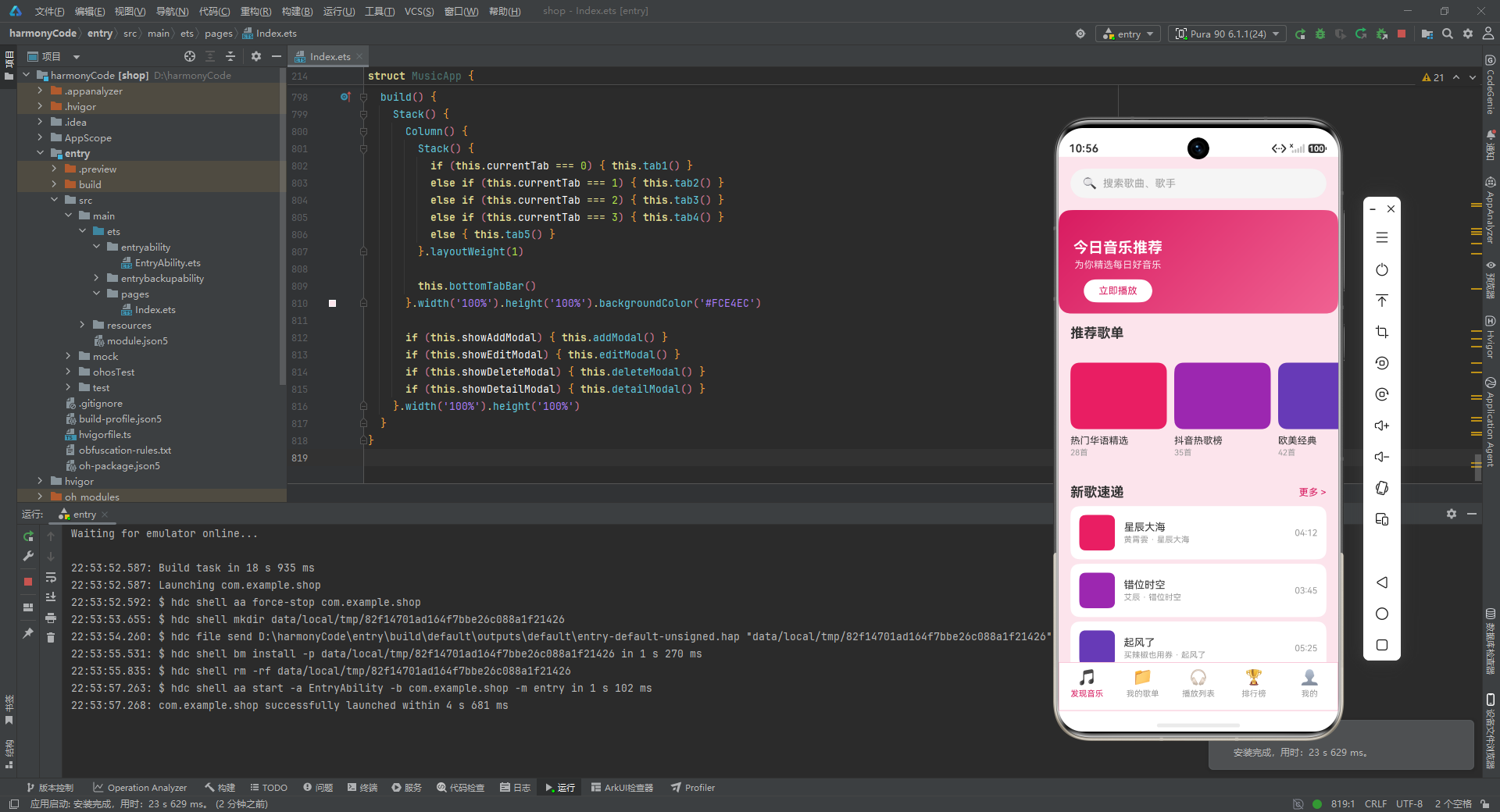
从架构层面看,应用采用了"数据模型—Mock 数据—状态管理—UI 构造器—主装配"的分层结构。每一层职责清晰:接口定义约束数据形状,Mock 数据填充内容,状态变量驱动响应式更新,@Builder 构造器封装可复用 UI,build 函数完成整体装配。这种分层让代码可读、可维护、可扩展,即使是原型也能保持工程级的整洁度。
从交互层面看,应用覆盖了音乐消费的完整链路。发现音乐页用 Banner 与横滑卡片营造内容氛围;我的歌单页用分类 Tab 与网格布局管理收藏;播放列表页用常驻控件模拟真实播放器;排行榜页用金银铜配色与趋势箭头制造竞争感;我的页用统计卡片与横滑歌手列表呈现用户画像。五个页面各司其职,又通过统一的视觉语言融为一体。
从技术层面看,应用充分展现了 ArkUI 声明式范式的核心能力。@State 让状态与 UI 自动同步,@Builder 让 UI 片段可复用,ForEach 让列表渲染变得简洁,if/else 让条件渲染直观可读,Stack 让弹框层叠自然实现。这些能力的组合,让开发者能够以接近"描述设计稿"的方式编写代码,大幅降低了从设计到实现的翻译成本。
从细节层面看,应用充满了值得品味的小设计。用 emoji 替代图标资源、用颜色块替代封面图片、用"万"单位格式化播放量、用红色按钮暗示危险操作、用 layoutWeight 实现等宽分布、用 maxLines 防止文本溢出——每一个细节都体现了对用户体验与代码质量的关注。这些细节单独看不显眼,组合在一起就构成了应用的"质感"。
当然,作为一个原型,应用也有其局限。Mock 数据无法真实反映服务端数据的变化;分类 Tab 的切换尚未真正过滤歌单列表;播放控件只是一个视觉模拟,没有真实的音频播放逻辑;弹框的按钮目前只做关闭,没有真正的提交与持久化。但这些"未完成"恰恰是原型的价值所在——它用最小的成本验证了交互设计与视觉风格,为后续的真实开发铺平了道路。
展示了如何用声明式范式构建一个功能完整的移动应用,也展示了如何在原型阶段平衡"快速出效果"与"代码可维护"两个目标。无论是初学者学习声明式 UI 的基本用法,还是有经验的开发者研究移动应用的架构组织,都能从这个项目中获得有价值的参考。理解了这个应用,就等于掌握了用 ArkUI 构建真实业务级移动应用的核心方法论。

 544


 扫一扫


 被折叠的 条评论
为什么被折叠?
 到【灌水乐园】发言


