

 本文详细介绍了Python图形开发库PyQt5的基础使用,包括安装、设置应用程序图标、显示提示语、关闭窗口、消息框及窗口居中显示的方法。通过实例代码展示了面向对象编程在PyQt5中的应用。
@本文来源于公众号:csdn2299,喜欢可以关注公众号 程序员学府
一:安装PyQt5
pip install pyqt5
二:PyQt5简单使用
#!/usr/bin/python3
# -*- coding: utf-8 -*-

"""
Py40.com PyQt5 tutorial

In this example, we create a simple
window in PyQt5.

author: Jan Bodnar
website: py40.com
last edited: January 2015
"""

import sys

#这里我们提供必要的引用。基本控件位于pyqt5.qtwidgets模块中。
from PyQt5.QtWidgets import QApplication, QWidget


if __name__ == '__main__':
 #每一pyqt5应用程序必须创建一个应用程序对象。sys.argv参数是一个列表,从命令行输入参数。
 app = QApplication(sys.argv)
 #QWidget部件是pyqt5所有用户界面对象的基类。他为QWidget提供默认构造函数。默认构造函数没有父类。
 w = QWidget()
 #resize()方法调整窗口的大小。这离是250px宽150px高
 w.resize(250, 150)
 #move()方法移动窗口在屏幕上的位置到x = 300,y = 300坐标。
 w.move(300, 300)
 #设置窗口的标题
 w.setWindowTitle('Simple')
 #显示在屏幕上
 w.show()

 #系统exit()方法确保应用程序干净的退出
 #的exec_()方法有下划线。因为执行是一个Python关键词。因此,exec_()代替
 sys.exit(app.exec_())
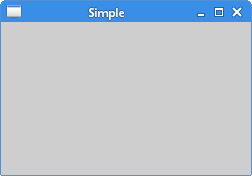
上面的示例代码在屏幕上显示一个小窗口。
1.应用程序的图标
应用程序图标是一个小的图像,通常在标题栏的左上角显示。在下面的例子中我们将介绍如何做pyqt5的图标。同时我们也将介绍一些新方法
#!/usr/bin/python3
# -*- coding: utf-8 -*-

"""
py40 PyQt5 tutorial

This example shows an icon
in the titlebar of the window.

author: Jan Bodnar
website: py40.com
last edited: January 2015
"""

import sys
from PyQt5.QtWidgets import QApplication, QWidget
from PyQt5.QtGui import QIcon


class Example(QWidget):

 def __init__(self):
  super().__init__()

  self.initUI() #界面绘制交给InitUi方法


 def initUI(self):
  #设置窗口的位置和大小
  self.setGeometry(300, 300, 300, 220)
  #设置窗口的标题
  self.setWindowTitle('Icon'





 扫一扫
扫一扫


 被折叠的 条评论
为什么被折叠?
被折叠的 条评论
为什么被折叠?
 到【灌水乐园】发言