IOS 自定义导航栏和标签栏

iOS小技能:自定义导航栏控制器 代码UI综合练习-网易彩票1、自定义UITarBarController TabBar1)如何自定义TarBar-- 为了减小iOS系统版本间的风格差异 首先要自定义UITabBarController:新建一个类,继承自UITabBarController自定义TabBar新建一个类,继承自UIView,用来做TabBar,封装内部的按钮 在自定义的UITabBarController中创建自定 阅读详情
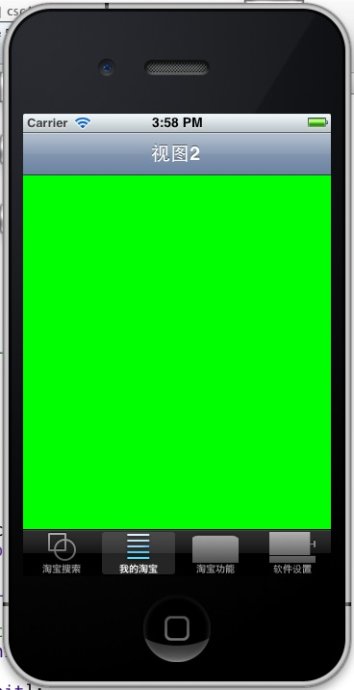
大多数ios应用都是以标签栏加导航栏的形式呈现,一般根控制器都是UIToolbar,然后再以UINavigationController为子控制器,然后再加入UIViewController。为什么要这样?因为不同的标签栏的项一般对应不 同的功能,那么导航栏的标题一般就不同。如果所有导航栏都一样,那你就随便设置根控制器。
主要代码: AppDelegate.h中
@class cscControllerOne;
@class cscControllerTwo;
@class cscControllerThree;
@class cscControllerFour;
@interface cscAppDelegate : UIResponder {
       cscControllerOne *oneRootView;
       cscControllerTwo *twoRootView;
       cscControllerThree *threeRootView;
       cscControllerFour   *fourRootView;
       UITabBarController *tabBarController;
       UINavigationController *unc1;
       UINavigationController *unc2;
       UINavigationController *unc3;
       UINavigationController *unc4;
}

AppDelegate.m中
- (BOOL)application:(UIApplication *)application didFinishLaunchingWithOp tions:(NSDictionary *)launchOptions
{
       self.window = [[[UIWindow alloc] initWithFrame:[[UIScreen mainScreen] bounds]] autorelease];
       // Override point for customization after application launch.
       oneRootView=[[cscControllerOne alloc]init];
       oneRootView.title=@"视图1";
       twoRootView=[[cscControllerTwo alloc]init];
       twoRootView.title=@"视图2";
       threeRootView=[[cscControllerThree alloc]init];
       threeRootView.title=@"视图3";
       fourRootView=[[cscControllerFour alloc]init];
       fourRootView.title=@"视图4";
       unc1=[[UINavigationController alloc]initWithRootViewControll er:oneRootView];
       unc2=[[UINavigationController alloc]initWithRootViewControll er:twoRootView];
       unc3=[[UINavigationController alloc]initWithRootViewControll er:threeRootView];
       unc4=[[UINavigationController alloc]initWithRootViewControll er:fourRootView];
       unc1.tabBarItem = [[UITabBarItem alloc] initWithTitle:@"淘宝搜索" image:[UIImage imageNamed:@"Area.png"]   tag:2];
       unc2.tabBarItem = [[UITabBarItem alloc] initWithTitle:@"我的淘宝" image:[UIImage imageNamed:@"Summary.png"]   tag:3];
       unc3.tabBarItem = [[UITabBarItem alloc] initWithTitle:@"淘宝功能" image:[UIImage imageNamed:@"Apple.png"]   tag:4];
       unc4.tabBarItem = [[UITabBarItem alloc] initWithTitle:@"软件设置" image:[UIImage imageNamed:@"BoxVolume.png"]   tag:5];
       NSArray *viewsArray=[[NSArray alloc]initWithObjects:unc1,unc2,unc3,unc4, nil];
       tabBarController=[[UITabBarController alloc]init];
       tabBarController.viewControllers=viewsArray;
     
       self.window.rootViewController = tabBarController;
       [self.window makeKeyAndVisible];
       return YES;
}
可能这段代码并不难,刚入门的新手都能轻松做出来,但是一个新手与一个有多年开发经验的高手,区别之一在于代码的积累,所以大量的案例,是一个高手的必备,是二次开发的利器。
下载地址http://www.kuaipan.cn/file/id_30491149655343756.htm
有时候可能会遇到在push之后隐藏标签栏,其实很简单,只要一条语句:
self.hidesBottomBarWhenPushed    =NO;
下载一个push隐藏的例子
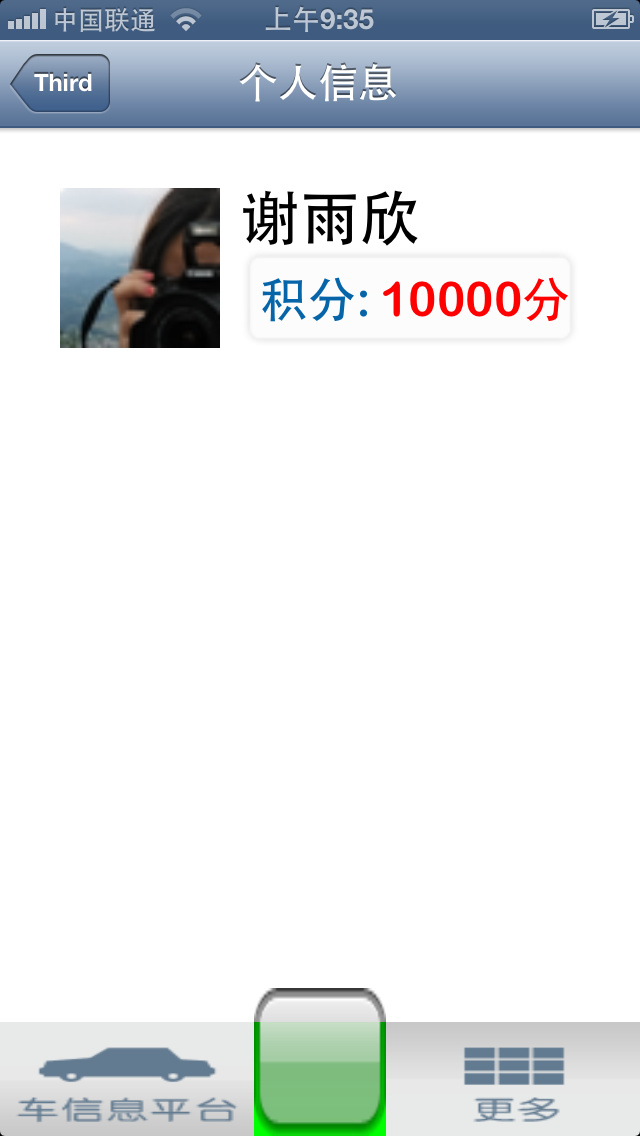
效果图:
IOS开发随意定制标签栏任意设计自己特色的导航栏总结 IOS开发随意定制标签栏任意设计自己特色的导航栏总结

IOS开发随意定制标签栏任意设计自己特色的导航栏总结 IOS开发随意定制标签栏任意设计自己特色的导航栏总结 IOS开发随意定制标签栏任意设计自己特色的导航栏总结


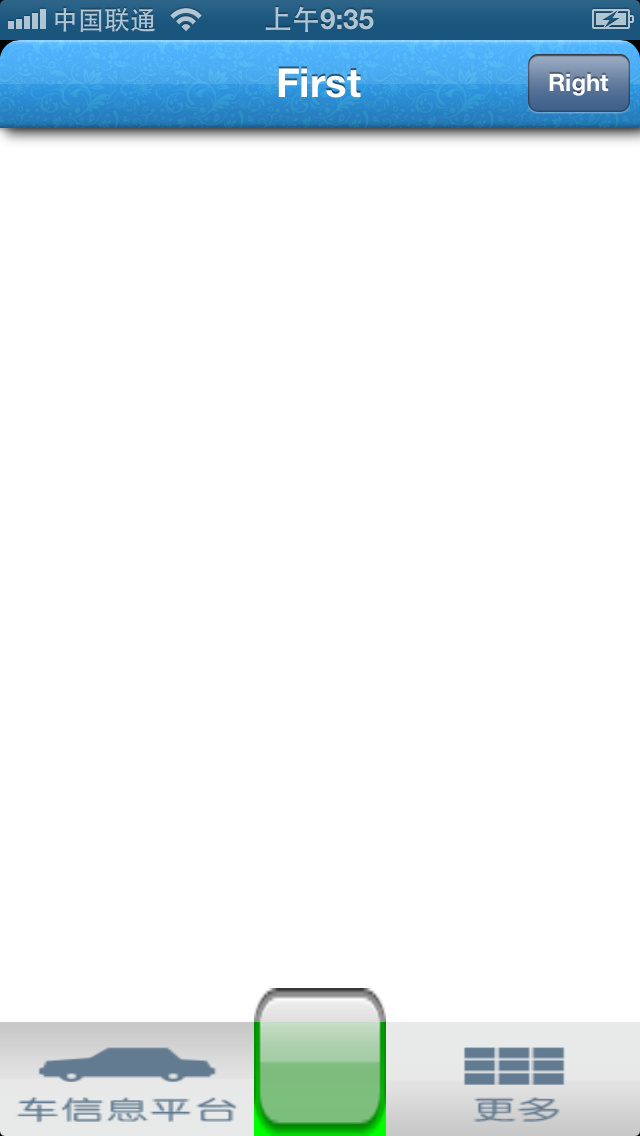
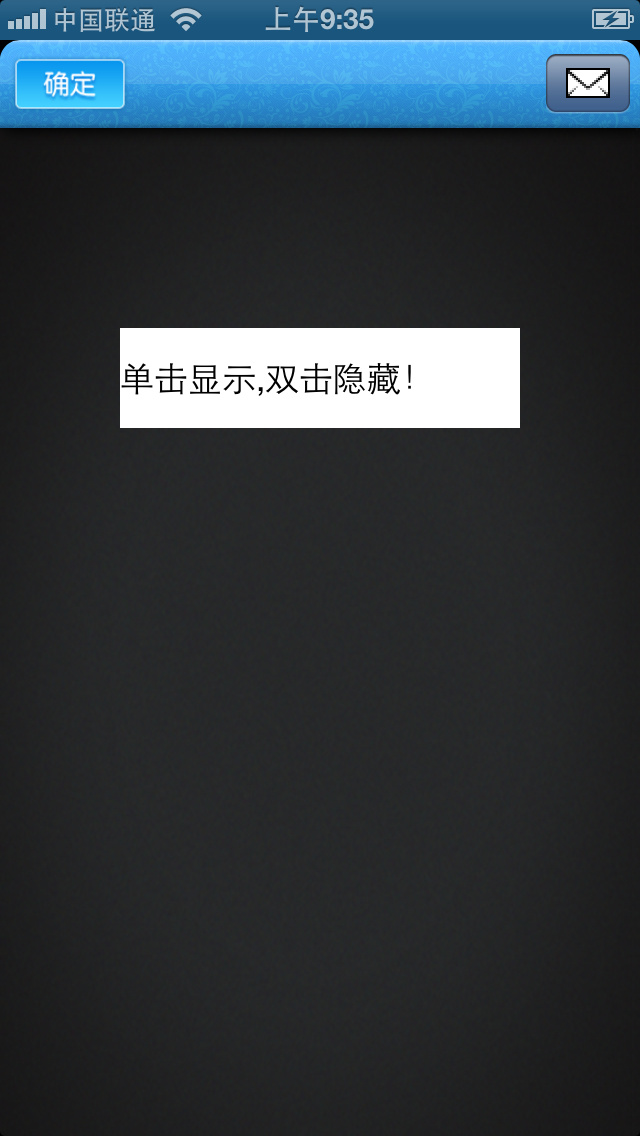
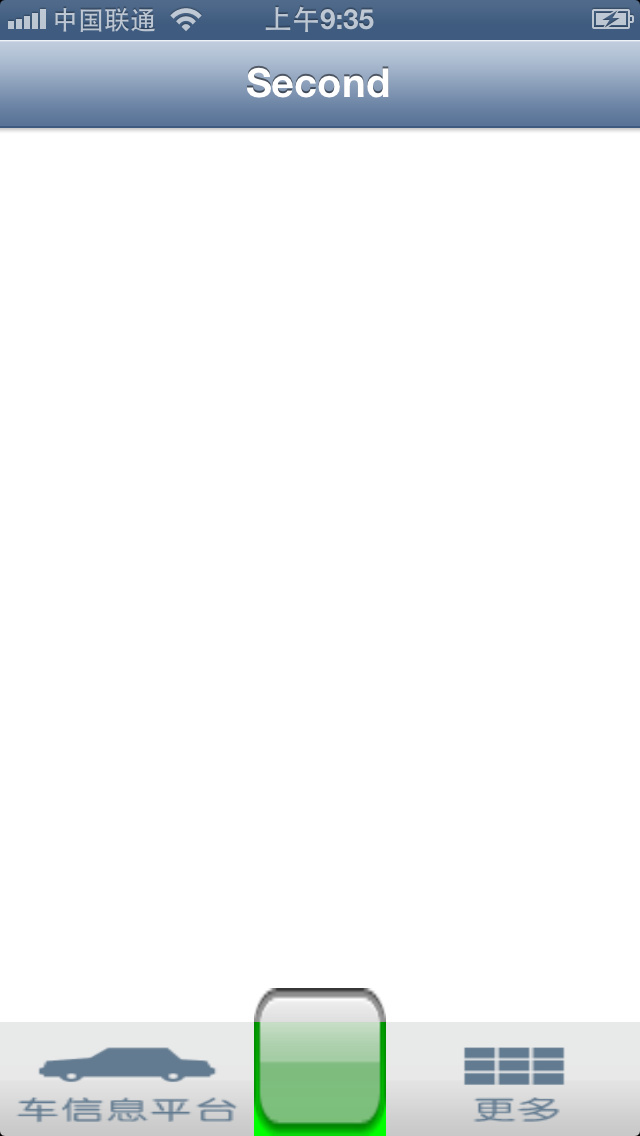
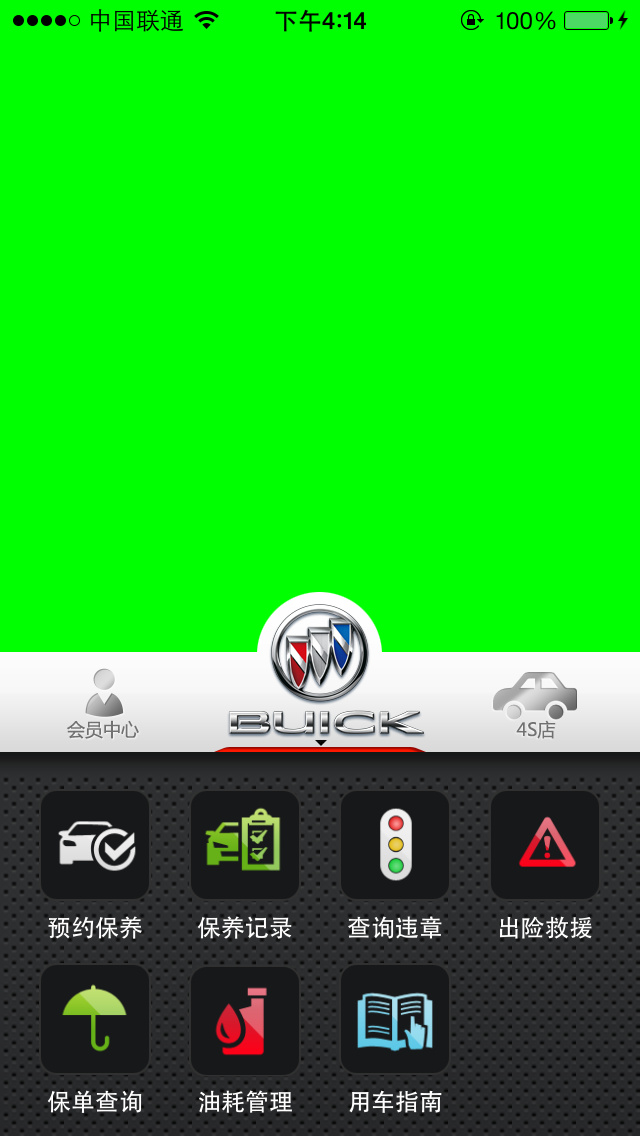
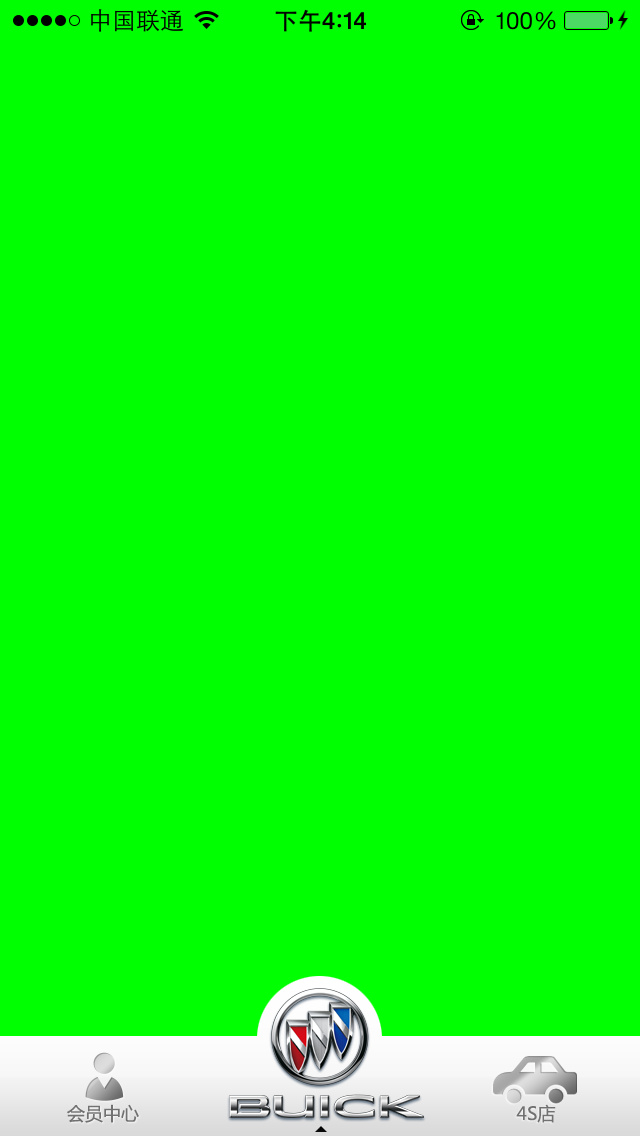
效果图二:图中第二到第五张图是iphone5真机中的效果,自定义标签栏,万能的方法。
有自定义的标签栏,自定义的导航栏,隐藏标签栏,隐藏导航栏,并且不阻塞viewWillAppear,自定义导航栏的返回按钮
        具体办法是隐藏系统自带的标签栏,绘制自己的标签栏,然后为每个标签设置点击事件。

       self.customTabBar = [[[CustomTabBar alloc] init] autorelease];
       self.customTabBar.tabBarController = self.viewController;
       [self.customTabBar custom];
       [self.viewController.tabBarController.tabBar setHidden:YES];
自定义一个按钮,然后加到导航栏中,可以是替换系统的返回按钮
UIButton *btn=[UIButton buttonWithType:UIButtonTypeCustom];
       btn.frame=CGRectMake(0, 0, 60, 30);
       [btn setBackgroundImage:[UIImage imageNamed:@"按钮p.png"] forState:UIControlStateNormal];
//       [btn setTitle:@"aaaaaa" forState:UIControlStateNormal];
       [btn setBackgroundImage:[UIImage imageNamed:@"按钮n.png"] forState:UIControlStateHighlighte d];   // highlighted
       [btn addTarget:self action:@selector(pushAction) forControlEvents:UIControlEventTouchUpIns ide];
       UIBarButtonItem *BarBtn = [[UIBarButtonItem alloc] initWithCustomView:btn ];
       self.navigationItem.leftBarButtonItem=BarBtn;
       [BarBtn release];
       [btn release];
设置系统样式UIBarButtonItem按钮
UIBarButtonItem *addButton = [[[UIBarButtonItem alloc] initWithTitle:@"button" style:UIBarButtonItemStyleBord ered target:self action:@selector(Action)] autorelease];
       self.navigationItem.rightBarButtonItem = addButton;
设置一个包含自定义图标的UIBarButtonItem按钮
UIBarButtonItem *addButton = [[UIBarButtonItem alloc] initWithImage:[UIImage imageNamed:@"email.png"] style:UIBarButtonItemStyleBord ered target:self action:@selector(action:)];
self.navigationItem.rightBarButtonItem = addButton;
设置一个分段控件替换导航栏上的按钮
UISegmentedControl *segmentedControl = [[UISegmentedControl alloc] initWithItems: [NSArray arrayWithObjects: [UIImage imageNamed:@"up.png"], [UIImage imageNamed:@"down.png"], nil]];
       [segmentedControl addTarget:self action:@selector(segmentAction:) forControlEvents:UIControlEventValueChang ed];
       segmentedControl.frame = CGRectMake(0, 0, 90, kCustomButtonHeight);
       segmentedControl.segmentedControlStyle = UISegmentedControlStyleB ar;
       segmentedControl.momentary = YES;
       UIBarButtonItem *segmentBarItem = [[UIBarButtonItem alloc] initWithCustomView:segmentedControl];
       [segmentedControl release];
       self.navigationItem.rightBarButtonItem = segmentBarItem;
       [segmentBarItem release];
中间第二个标签有一个远较,是因为那部分图片是透明的,根据需要可以设置标签栏的样式。
点击下载http://www.kuaipan.cn/file/id_30491149655345680.htm
设置导航栏为半透明
[UIApplication sharedApplication].statusBarStyle = UIStatusBarStyleBlackTra nslucent;
self.navigationController.navigationBar.barStyle = UIBarStyleBlackTransluce nt;
设置导航栏为透明
[UIApplication sharedApplication].statusBarStyle = UIStatusBarStyleBlackOpa que;
self.navigationController.navigationBar.barStyle = UIBarStyleBlackOpaque;
设置导航栏为默认
[UIApplication sharedApplication].statusBarStyle = UIStatusBarStyleDefault;
self.navigationController.navigationBar.barStyle = UIBarStyleDefault;
设置一个分段控件替换标题视图
NSArray *segmentTextContent = [NSArray arrayWithObjects: NSLocalizedString(@"Image", @""), NSLocalizedString(@"Text", @""), NSLocalizedString(@"Video", @""), nil];
       UISegmentedControl *segmentedControl = [[UISegmentedControl alloc] initWithItems:segmentTextContent];
       segmentedControl.selectedSegmentIndex = 0;
       segmentedControl.autoresizingMask = UIViewAutoresizingFlexib leWidth;
       segmentedControl.segmentedControlStyle = UISegmentedControlStyleB ar;
       segmentedControl.frame = CGRectMake(0, 0, 400, kCustomButtonHeight);
       [segmentedControl addTarget:self action:@selector(segmentAction:) forControlEvents:UIControlEventValueChang ed];
       self.navigationItem.titleView = segmentedControl;
       [segmentedControl release];
判断选中事件
UISegmentedControl *segmentedControl = (UISegmentedControl *)sender;
       NSLog(@"Segment clicked: %d", segmentedControl.selectedSegmentIndex);
在导航栏上显示一行字
self.navigationItem.prompt = NSLocalizedString(@"Please select the appropriate media type:", @"Page Five Prompt");


IOS开发随意定制标签栏任意设计自己特色的导航栏总结                IOS开发随意定制标签栏任意设计自己特色的导航栏总结

弹出式菜单栏的做法,其实就是自定义view;然后以某一个视图为根视图,进行其它操作。首先是uiview,uiview中加入scrollview,一般情况下是 scrollview无法滑动,但是加入一个方法之后就可以了

- (BOOL)pointInside:(CGPoint)point withEvent:(UIEvent *)event {
    //所点击的位置在view的范围

    if (point.y < 0) {

        [self showFullAppBar];

        [_selectedButton setSelected:NO];

        return NO;

    }

    return YES;

iOS应用开发:自定义Tab Bar实战指南 本文还有配套的精品资源,点击获取 简介:在iOS应用中,Tab Bar提供了一种直观的用户界面导航方式,用于在多个视图控制器之间切换。本项目'ios-tabbar.zip'提供了一个名为'tabBarDome'的示例,展示了如何实现定制Tab Bar。教程涵盖了从基本的Tab Bar Controller使用、Tab Bar Item的定制,到自定义Tab Bar的设计,... 阅读详情

相关推荐

IOS 自定义标签栏

用UIView仿制标签栏,本质上还是用UIKit的UITabBarController类管理多个View Controller。使用方便灵活,能根据实际情况进行更细致的自定义

ionic2中ion-segment用法

segment是一组按钮,有时称为分段控件,允许用户与许多控件的紧凑组进行交互。 分段提供与标签相似的功能,选择一个将取消选择所有其他选项。 当您希望让用户在应用程序的不同页面之间来回移动时,应使用选项卡栏而不是分段控件。 您可以使用Angular的ngModel或FormBuilder API。效果看图看代码:&lt;!-- Segment 在头部使用 --&gt; &lt;ion-header...

涂涂 9547

iOS自定义导航栏

苹果开发中,对自定义导航栏的封装,可在控制器中控制导航栏的颜色、是否透明、偏移量等

用ionic做一个仿京东商品详情页的过程记录

原本只有一个详情页,老板说改成京东一样的0.o 效果图: 1.导航栏 ionic2-super-tabs 原本打算导航用“ionic2-super-tabs”做,但是这个super-tabs是一个整体 ,tab内容页连在一起, 不能同时满足在tab上加东西让内容页占满屏幕。 &amp;amp;amp;amp;amp;lt;ion-row style=&amp;amp;amp;amp;quot;height:100%;background:#fff;&amp;amp;amp;a

kikyou_csdn的博客 1844

iOS 自定义导航栏 简单好使用

自定义导航栏,就是隐藏系统的导航栏,自己添加一个view。 系统的导航栏可以在 父类的 NavViewController中一次设置: self.navigationBarHidden=YES; 也可以在每一个controller中设置: [self.navigationController setNavigationBarHidden:YESanimated:ani...

huanglinxiao的博客 7540

React Native学习笔记之--常用App框架的搭建(标签栏+导航栏

React Native学习笔记之–常用App框架的搭建(标签栏+导航栏)市面上面很多APP的框架都是使用标签栏加上导航栏的架构,今天就利用React Native框架来搭建适配iOSAndroid双端的框架结构。第一步进入项目工程引入标签栏的框架 npm i react-native-tab-navigator --save出现如下图所示表示引入成功,并且在项目工程中可以看到对应文件 第二步就是

WJ的博客 1066

【亲测免费】 探索FloatingTabBarController:打造炫酷的iOS应用底部导航栏

探索FloatingTabBarController:打造炫酷的iOS应用底部导航栏 项目介绍 FloatingTabBarController 是一个专为iOS应用设计的底部导航栏控制器,它不仅提供了传统的标签栏功能,还通过滑动标签自定义标签栏的设计,为用户带来了全新的交互体验。该项目灵感来源于Dribbble上的一个设计,旨在为开发者提供一个既美观又实用的导航栏解决方案。 项目技术分析 Fl...

gitblog_00962的博客 1001

iOS -- 导航栏标签栏的一些设置

UINavigationBar && UITabbarItem相关 设置导航栏字体的大小以及颜色[[UINavigationBar appearance] setTitleTextAttributes:@{NSForegroundColorAttributeName:[UIColor whiteColor],NSFontAttributeName:[UIFont boldSystemFontOfS

C_Lluckying的博客 2111

导航栏+状态栏+标签栏高度获取方法

导航栏高度获取 1 self.navigationController.navigationBar.frame.size.height 状态栏高度获取 1 [UIApplication sharedApplication].statusBarFrame.size.height 标签栏高度获取 1 tabViewController.tabBar....

weixin_30802273的博客 449

iOS开发 设置整个导航栏背景图、字体及标签栏更改选中背景图的颜色

[[UINavigationBar appearance] setBackgroundImage:[UIImage imageNamed:@"topmenu"] forBarMetrics:UIBarMetricsDefault];

chess512的专栏 724

ios-简易app整体框架自定义底部标签栏.zip

这是一个App Store中大部分app用到的app简易框架 ,易上手,自定义导航栏自定义的底部标签栏 下载即可整合到你的工程中。适合初学新司机。(我也是新司机哈哈)

iOS自定义导航栏

iOS自定义导航栏三方库,让你的APP可以快速的实现各种导航栏效果,完全自定义话,简单易用,新手必备。。。

iOS去除导航栏tabbar的1px横线

1.在自己定义的导航栏中或者设计稿中经常需要去除导航栏的1px横线,主要是颜色太不协调了 去除之前的图片 要去除这1px的横线,首先应该知道它是什么,在Xcode的界面调试中可以看到,它其实是UIImageView来的 找到横线是什么了··· 其实这是navigationBar的shadowImage,所以只要设置它为空即可,但是设置它为空之前应该先

args_的博客 734

iOS6下自定义UI控件外观效果

尽管iOS原生的UI控件就已经有很不错的显示效果,但是App开发者仍然希望自己的产品与众不同,所以自定义UI外观成了每个App产品开发必做之事。今天就来做一个在iOS6下实现自定义UI的demo,内容及Demo来源于国外iOS博客raywenderlich,先看看美化前后效果差别(左边为美化前,右边为美化后):                                    整个D...

dcj3sjt126com的专栏 279

iOS 笔记

///下面这个属性设置为NO的时候(不透明的导航栏),没有高斯模糊效果,此时会向下方移动64的距离 self.navigationController.navigationBar.translucent = YES; ///下面这个属性,当设置为不透明的导航栏的时候,需要把属性设置成为YES,充满全屏 self.extendedLayoutIncludesOpaqueBar

why_not_的专栏 386

Iphone界面设计中的小知识点整理

一、NavigationBar(导航栏) 1、修改导航栏文字颜色。 默认的文字颜色为白色,可以通过方法修改为自己想要的颜色:  //设置一个label UILabel *label = [[UILabel alloc] initWithFrame:CGRectMake(0

snowbirdfly的专栏 2412

iOS菜鸟成长笔记(2)——网易彩票练习

距离上一篇《第一个iOS应用》已经有一个多月了,今天来大家一起学习分享一下一个小练习《网易彩票》首先我们向storyboard中拖入一个TabBarController5个NavigationController,如下:我们先来看看什么是导航控制器1、导航控制器“如果应用程序有多个内容视图层次,就需要能够在它们之间进行切换。为此,可以使用专门的视图控制器:导航控制器 (UINavigatio

水寒 2121
上一篇: IOS 中viewDidLoad和loadView的关系,个人认为比较容易理解的
下一篇: IOS 自定义tabbar
love_Coders
博客等级 码龄11年 3粉丝 4原创
评论
成就一亿技术人!
拼手气红包6.0元
还能输入1000个字符
 
 条评论被折叠 查看
添加红包

请填写红包祝福语或标题

红包个数最小为10个

红包金额最低5元

当前余额3.43前往充值 >
需支付:10.00
成就一亿技术人!
领取后你会自动成为博主和红包主的粉丝 规则
hope_wisdom
发出的红包
实付
使用余额支付
点击重新获取
扫码支付
钱包余额 0

抵扣说明:

1.余额是钱包充值的虚拟货币,按照1:1的比例进行支付金额的抵扣。
2.余额无法直接购买下载,可以购买VIP、付费专栏及课程。

余额充值