


目录:
1.应用场景
2.RadioButton一些重要属性
3.RadioButton简单使用
4.动态添加RadioButton选项
5.RadioButton自定义
1.应用场景
应用于在多项中只能选取单项的情况,例如性别,但必须与RadioGroup结合使用,如果单独使用的话无法达到单选的结果
2.RadioButton一些重要属性
1.RadioGroup常用属性
指定选项横向排列:android:orientation="horizontal"
指定选项纵向排列:android:orientation="vertical"
2.设置RadioButton颜色(API level> = 21):android:buttonTint="@color/your_color"
3.在自定义背景的时候设置android:button="@null",盖掉原背景
4.设置文字在左,图片在右(下面属性一起设置)
android:button="@null"
android:drawableRight="@android:drawable/btn_radio"
ps:RadioButton与Checkbox的区别在于RadioButton选择后不能再点击取消选择,只能选择其他项,取消前一项的选择
3.RadioButton简单使用
1.xml布局
2. Java实现代码
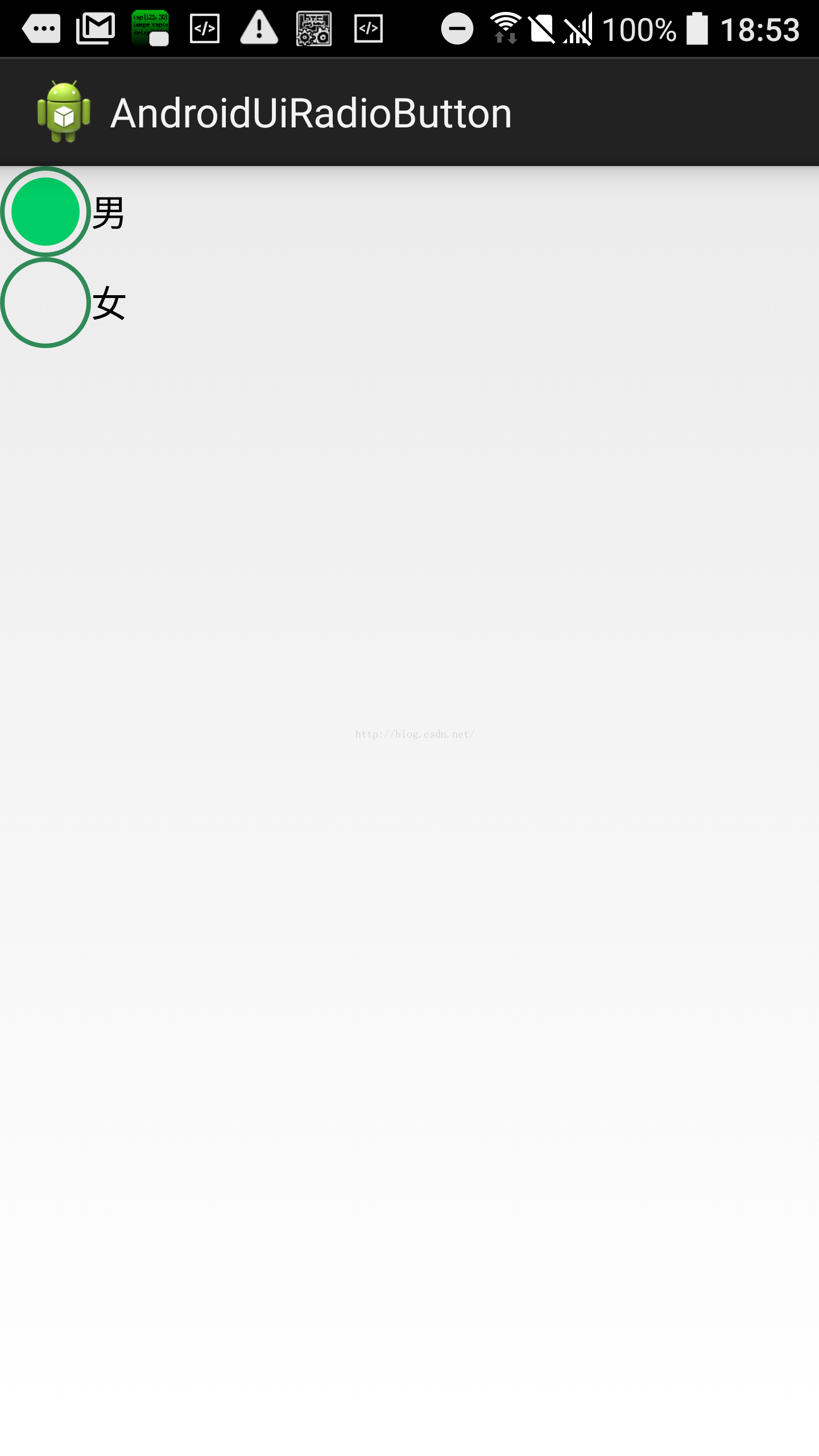
3.效果截图

4.动态添加RadioButton选项
1. 布局文件
2. Java实现代码
(1)定义selector radio_buttonbg.xml
(2)主布局文件
注:android:background="@drawable/radio_buttonbg"设置的图片在文本底部,android:drawablePadding="10dp"设置图片在文字的右边,android:button="@null" 隐藏原来的图标
(3)Java实现代码
(1) radio_checked_shape.xml
(2) radio_unchecked_shape.xml
(3) radio_selector_shape.xml
(4) 主布局xml
(5) Java实现代码
(1) RadioButton的样式就采用2中的xml radio_checked_shape.xml,radio_unchecked_shape.xml,radio_selector_shape.xml与2一致
(2)styles.xml
(3) 主布局文件
(4)Java实现代码(与2一致)
(5)效果截图
1.应用场景
2.RadioButton一些重要属性
3.RadioButton简单使用
4.动态添加RadioButton选项
5.RadioButton自定义
1.应用场景
应用于在多项中只能选取单项的情况,例如性别,但必须与RadioGroup结合使用,如果单独使用的话无法达到单选的结果
2.RadioButton一些重要属性
1.RadioGroup常用属性
指定选项横向排列:android:orientation="horizontal"
指定选项纵向排列:android:orientation="vertical"
2.设置RadioButton颜色(API level> = 21):android:buttonTint="@color/your_color"
3.在自定义背景的时候设置android:button="@null",盖掉原背景
4.设置文字在左,图片在右(下面属性一起设置)
android:button="@null"
android:drawableRight="@android:drawable/btn_radio"
ps:RadioButton与Checkbox的区别在于RadioButton选择后不能再点击取消选择,只能选择其他项,取消前一项的选择
3.RadioButton简单使用
1.xml布局
<RelativeLayout xmlns:android="http://schemas.android.com/apk/res/android"
    xmlns:tools="http://schemas.android.com/tools"
    android:layout_width="match_parent"
    android:layout_height="match_parent"
    tools:context="com.andy.androiduiradiobutton.MainActivity" >


    <TextView
        android:id="@+id/tv"
        android:layout_width="wrap_content"
        android:layout_height="wrap_content"
        android:text="@string/sex" />
    <RadioGroup
        android:layout_width="wrap_content"
        android:layout_height="wrap_content"
        android:orientation="horizontal"
        android:layout_toRightOf="@id/tv"
        >
        <RadioButton
            android:id="@+id/radio_boy"
            android:layout_width="wrap_content"
            android:layout_height="wrap_content"
            android:text="@string/boy"
            />
        <RadioButton
            android:id="@+id/radio_girl"
            android:layout_width="wrap_content"
            android:layout_height="wrap_content"
            android:text="@string/girl"
            />


    </RadioGroup>


</RelativeLayout>
2. Java实现代码
package com.andy.androiduiradiobutton;


import android.app.Activity;
import android.os.Bundle;
import android.widget.CompoundButton;
import android.widget.CompoundButton.OnCheckedChangeListener;
import android.widget.RadioButton;
import android.widget.Toast;


public class MainActivity extends Activity {
	private RadioButton radioboy,radiogirl;
	@Override
	protected void onCreate(Bundle savedInstanceState) {
		super.onCreate(savedInstanceState);
		setContentView(R.layout.activity_main);
		//初始化
		radioboy = (RadioButton) findViewById(R.id.radio_boy);
		radiogirl = (RadioButton) findViewById(R.id.radio_girl);
		//radioboy设置监听
		radioboy.setOnCheckedChangeListener(new OnCheckedChangeListener() {

			@Override
			public void onCheckedChanged(CompoundButton buttonView, boolean isChecked) {
				if(isChecked){
					Toast.makeText(MainActivity.this, "男",Toast.LENGTH_SHORT).show();
				}
			}
		});
		//radiogirl设置监听
		radiogirl.setOnCheckedChangeListener(new OnCheckedChangeListener() {

			@Override
			public void onCheckedChanged(CompoundButton buttonView, boolean isChecked) {
				Toast.makeText(MainActivity.this, "女",Toast.LENGTH_SHORT).show();
			}
		});
	}
}
3.效果截图
4.动态添加RadioButton选项
1. 布局文件
<RelativeLayout xmlns:android="http://schemas.android.com/apk/res/android"
    xmlns:tools="http://schemas.android.com/tools"
    android:layout_width="match_parent"
    android:layout_height="match_parent"
    android:id="@+id/rl"
    tools:context="com.andy.androiduiradiobutton.MainActivity" >


    <RadioGroup
        android:id="@+id/mRadioGroup"
        android:layout_width="wrap_content"
        android:layout_height="wrap_content"
        android:orientation="vertical"
        >


    </RadioGroup>


</RelativeLayout>
2. Java实现代码
package com.andy.androiduiradiobutton;


import android.accounts.Account;
import android.accounts.OnAccountsUpdateListener;
import android.app.Activity;
import android.os.Bundle;
import android.widget.CompoundButton;
import android.widget.RadioButton;
import android.widget.RadioGroup;
import android.widget.RadioGroup.OnCheckedChangeListener;
import android.widget.RelativeLayout;
import android.widget.Toast;


public class MainActivity extends Activity {
	private RadioGroup mRadioGroup;
	private RelativeLayout mRelativeLayout;
	@Override
	protected void onCreate(Bundle savedInstanceState) {
		super.onCreate(savedInstanceState);
		setContentView(R.layout.activity_main);
		//初始化RadioGroup RelativeLayout
		mRadioGroup = (RadioGroup) findViewById(R.id.mRadioGroup);
		mRelativeLayout = (RelativeLayout) findViewById(R.id.rl);
		//先删除已经存在的RadioGroup,否则会报错:The specified child already has a parent.
		mRelativeLayout.removeView(mRadioGroup);
		//动态添加RadioButton
		for(int i=1;i<4;i++){
			RadioButton mRadioButton = new RadioButton(this);
			mRadioButton.setText("mRadioButton"+i);
			//选项添加到RadioGroup
			mRadioGroup.addView(mRadioButton);
		}

		//RadioGroup添加到布局
		mRelativeLayout.addView(mRadioGroup);
		//设置监听
		mRadioGroup.setOnCheckedChangeListener(new OnCheckedChangeListener() {

			@Override
			public void onCheckedChanged(RadioGroup group, int checkedId) {
				RadioButton mRadioButton1 = (RadioButton) findViewById(checkedId);
				Toast.makeText(MainActivity.this, mRadioButton1.getText(), Toast.LENGTH_SHORT).show();
	}
			});
	}

}
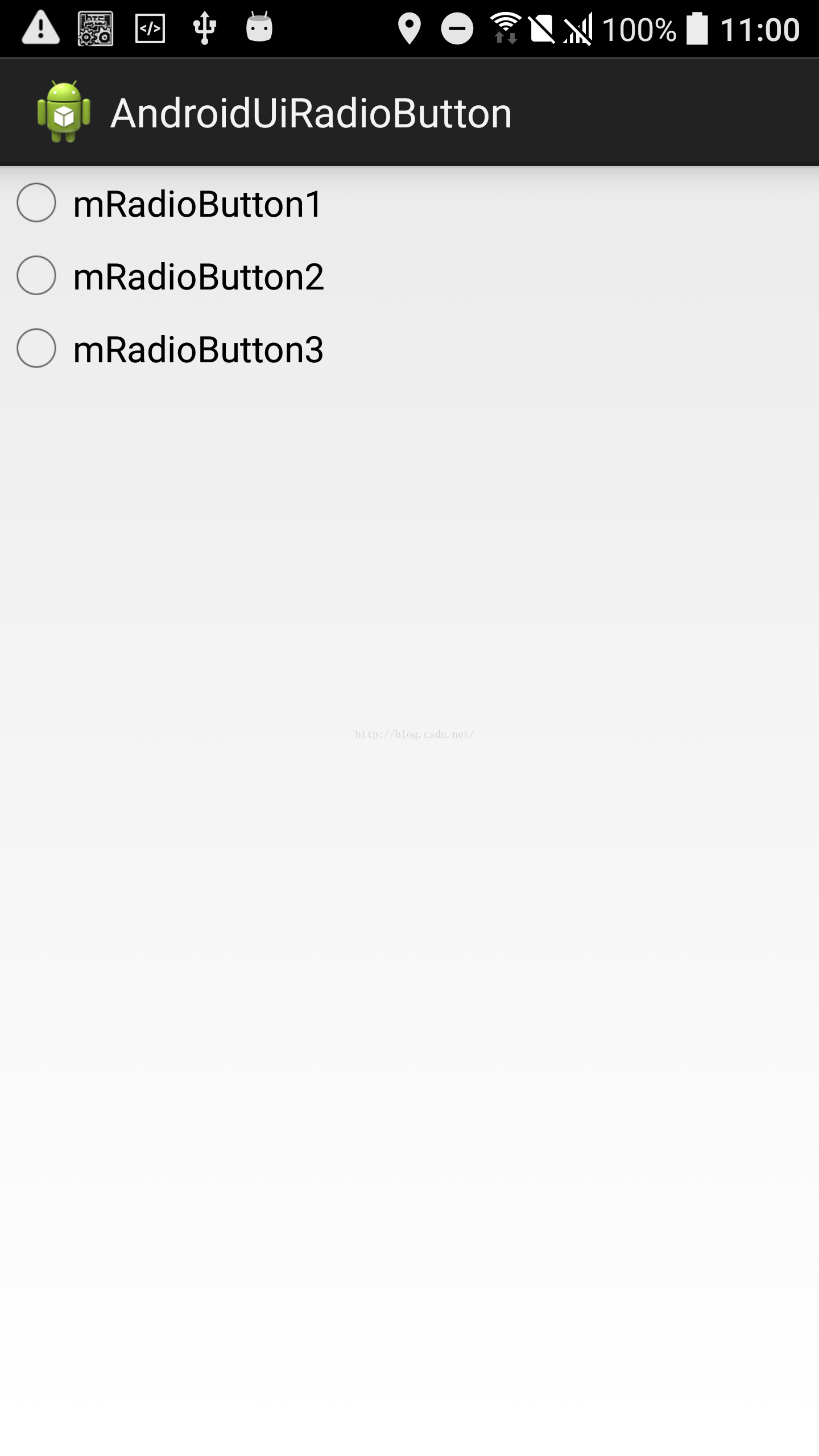
3. 效果截图
5.RadioButton自定义
1. 通过图片背景+selector自定义(1)定义selector radio_buttonbg.xml
<?xml version="1.0" encoding="utf-8"?>
<selector xmlns:android="http://schemas.android.com/apk/res/android">

    <item android:state_checked="true" android:drawable="@drawable/checked"></item>
	<item android:state_checked="false" android:drawable="@drawable/unchecked"></item>

</selector>
(2)主布局文件
<LinearLayout xmlns:android="http://schemas.android.com/apk/res/android"
    xmlns:tools="http://schemas.android.com/tools"
    android:layout_width="match_parent"
    android:layout_height="match_parent"
    android:id="@+id/rl"
    tools:context="com.andy.androiduiradiobutton.MainActivity" >


    <RadioGroup
        android:id="@+id/mRadioGroup"
        android:layout_width="match_parent"
        android:layout_height="wrap_content"
        android:orientation="vertical"
        >
        <RadioButton
            android:id="@+id/radio_boy"
            android:layout_width="wrap_content"
            android:layout_height="wrap_content"
            android:drawableRight="@drawable/radio_buttonbg"
            android:drawablePadding="10dp"
            android:button="@null"
            android:text="@string/boy"
            />
		   <!--  android:background="@drawable/radio_buttonbg" -->
        <RadioButton
            android:id="@+id/radio_girl"
            android:button="@null"
            android:drawableRight="@drawable/radio_buttonbg"
            android:drawablePadding="10dp"
            android:layout_width="wrap_content"
            android:layout_height="wrap_content"
            android:text="@string/girl"
            />
       <!--  android:background="@drawable/radio_buttonbg"  -->
    </RadioGroup>


</LinearLayout>
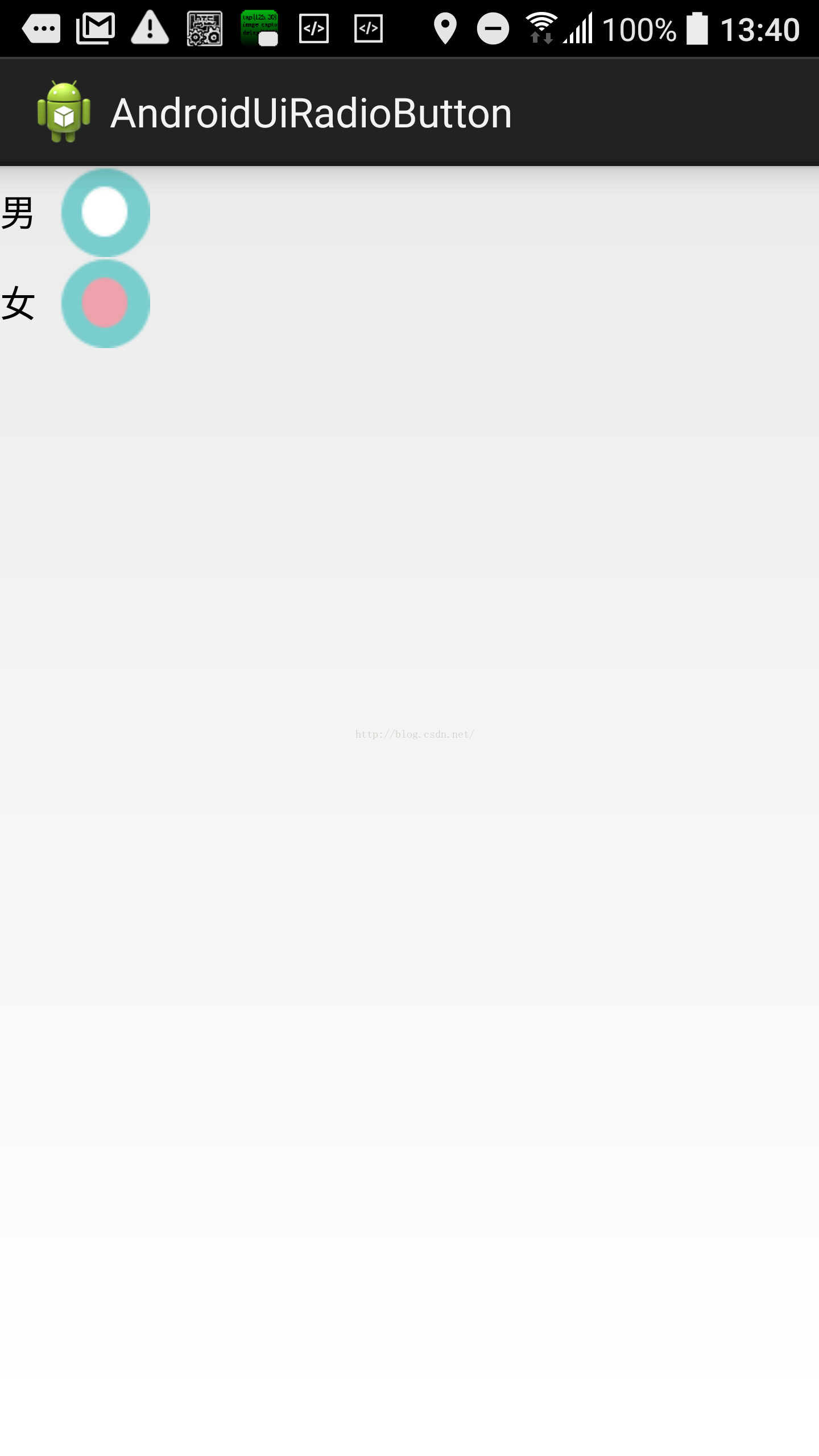
注:android:background="@drawable/radio_buttonbg"设置的图片在文本底部,android:drawablePadding="10dp"设置图片在文字的右边,android:button="@null" 隐藏原来的图标
(3)Java实现代码
package com.andy.androiduiradiobutton;


import android.app.Activity;
import android.os.Bundle;
import android.widget.CompoundButton;
import android.widget.CompoundButton.OnCheckedChangeListener;
import android.widget.RadioButton;
import android.widget.Toast;


public class MainActivity extends Activity {
	private RadioButton radioboy,radiogirl;
	@Override
	protected void onCreate(Bundle savedInstanceState) {
		super.onCreate(savedInstanceState);
		setContentView(R.layout.activity_main);
		//初始化
		radioboy = (RadioButton) findViewById(R.id.radio_boy);
		radiogirl = (RadioButton) findViewById(R.id.radio_girl);
		//radioboy设置监听
		radioboy.setOnCheckedChangeListener(new OnCheckedChangeListener() {

			@Override
			public void onCheckedChanged(CompoundButton buttonView, boolean isChecked) {
				if(isChecked){
					Toast.makeText(MainActivity.this, "男",Toast.LENGTH_SHORT).show();
				}
			}
		});
		//radiogirl设置监听
		radiogirl.setOnCheckedChangeListener(new OnCheckedChangeListener() {

			@Override
			public void onCheckedChanged(CompoundButton buttonView, boolean isChecked) {
				Toast.makeText(MainActivity.this, "女",Toast.LENGTH_SHORT).show();
			}
		});
	}
}
(4)效果截图
(1) radio_checked_shape.xml
<?xml version="1.0" encoding="utf-8"?>
<layer-list xmlns:android="http://schemas.android.com/apk/res/android">
  <item>
	<shape xmlns:android="http://schemas.android.com/apk/res/android"
	    android:shape="oval">

	    <!--设置圆环大小  -->
	    <size android:width="40dp" android:height="40dp"></size>
	    <!-- 边线颜色和宽度 -->
	    <stroke android:width="2dp" android:color="#2E8B57"></stroke>
	</shape>
  </item>
  <item android:top="5dp" android:bottom="5dp" android:left="5dp" android:right="5dp">
	<shape xmlns:android="http://schemas.android.com/apk/res/android"
	    android:shape="oval" >

	    <!--设置圆环大小  -->
	    <size android:width="30dp" android:height="30dp"></size>
	    <!-- 边线颜色和宽度 -->
	    <stroke android:width="2dp" android:color="#00CD66"></stroke>
	    <!-- 填充 -->
	    <solid android:color="#00CD66"></solid>
	</shape>
  </item>
</layer-list>
(2) radio_unchecked_shape.xml
<?xml version="1.0" encoding="utf-8"?>
<shape xmlns:android="http://schemas.android.com/apk/res/android"
    android:shape="oval">
    <!--设置圆环大小  -->
    <size android:width="40dp" android:height="40dp"></size>
    <!-- 边线颜色和宽度 -->
    <stroke android:width="2dp" android:color="#2E8B57"></stroke>
</shape>
(3) radio_selector_shape.xml
<?xml version="1.0" encoding="utf-8"?>
<selector xmlns:android="http://schemas.android.com/apk/res/android" >
    <!-- 选中状态 -->
    <item android:drawable="@drawable/radio_checked_shape" android:state_checked="true"></item>
    <!-- 未选中状态 -->
	<item android:drawable="@drawable/radio_unchecked_shape" android:state_checked="false"></item>
</selector>
(4) 主布局xml
<LinearLayout xmlns:android="http://schemas.android.com/apk/res/android"
    xmlns:tools="http://schemas.android.com/tools"
    android:layout_width="match_parent"
    android:layout_height="match_parent"
    android:id="@+id/rl"
    tools:context="com.andy.androiduiradiobutton.MainActivity" >


    <RadioGroup
        android:id="@+id/mRadioGroup"
        android:layout_width="match_parent"
        android:layout_height="wrap_content"
        android:orientation="vertical"
        >
        <RadioButton
            android:id="@+id/radio_boy"
            android:layout_width="wrap_content"
            android:layout_height="wrap_content"
            android:drawableRight="@drawable/radio_selector_shape"
            android:drawablePadding="10dp"
            android:button="@null"
            android:text="@string/boy"
            />


        <RadioButton
            android:id="@+id/radio_girl"
            android:button="@null"
            android:drawableRight="@drawable/radio_selector_shape"
            android:drawablePadding="10dp"
            android:layout_width="wrap_content"
            android:layout_height="wrap_content"
            android:text="@string/girl"
            />
    </RadioGroup>


</LinearLayout>
(5) Java实现代码
package com.andy.androiduiradiobutton;


import android.app.Activity;
import android.os.Bundle;
import android.widget.CompoundButton;
import android.widget.CompoundButton.OnCheckedChangeListener;
import android.widget.RadioButton;
import android.widget.Toast;


public class MainActivity extends Activity {
	private RadioButton radioboy,radiogirl;
	@Override
	protected void onCreate(Bundle savedInstanceState) {
		super.onCreate(savedInstanceState);
		setContentView(R.layout.activity_main);
		//初始化
		radioboy = (RadioButton) findViewById(R.id.radio_boy);
		radiogirl = (RadioButton) findViewById(R.id.radio_girl);
		//radioboy设置监听
		radioboy.setOnCheckedChangeListener(new OnCheckedChangeListener() {

			@Override
			public void onCheckedChanged(CompoundButton buttonView, boolean isChecked) {
				if(isChecked){
					Toast.makeText(MainActivity.this, "男",Toast.LENGTH_SHORT).show();
				}
			}
		});
		//radiogirl设置监听
		radiogirl.setOnCheckedChangeListener(new OnCheckedChangeListener() {

			@Override
			public void onCheckedChanged(CompoundButton buttonView, boolean isChecked) {
				Toast.makeText(MainActivity.this, "女",Toast.LENGTH_SHORT).show();
			}
		});
	}
}
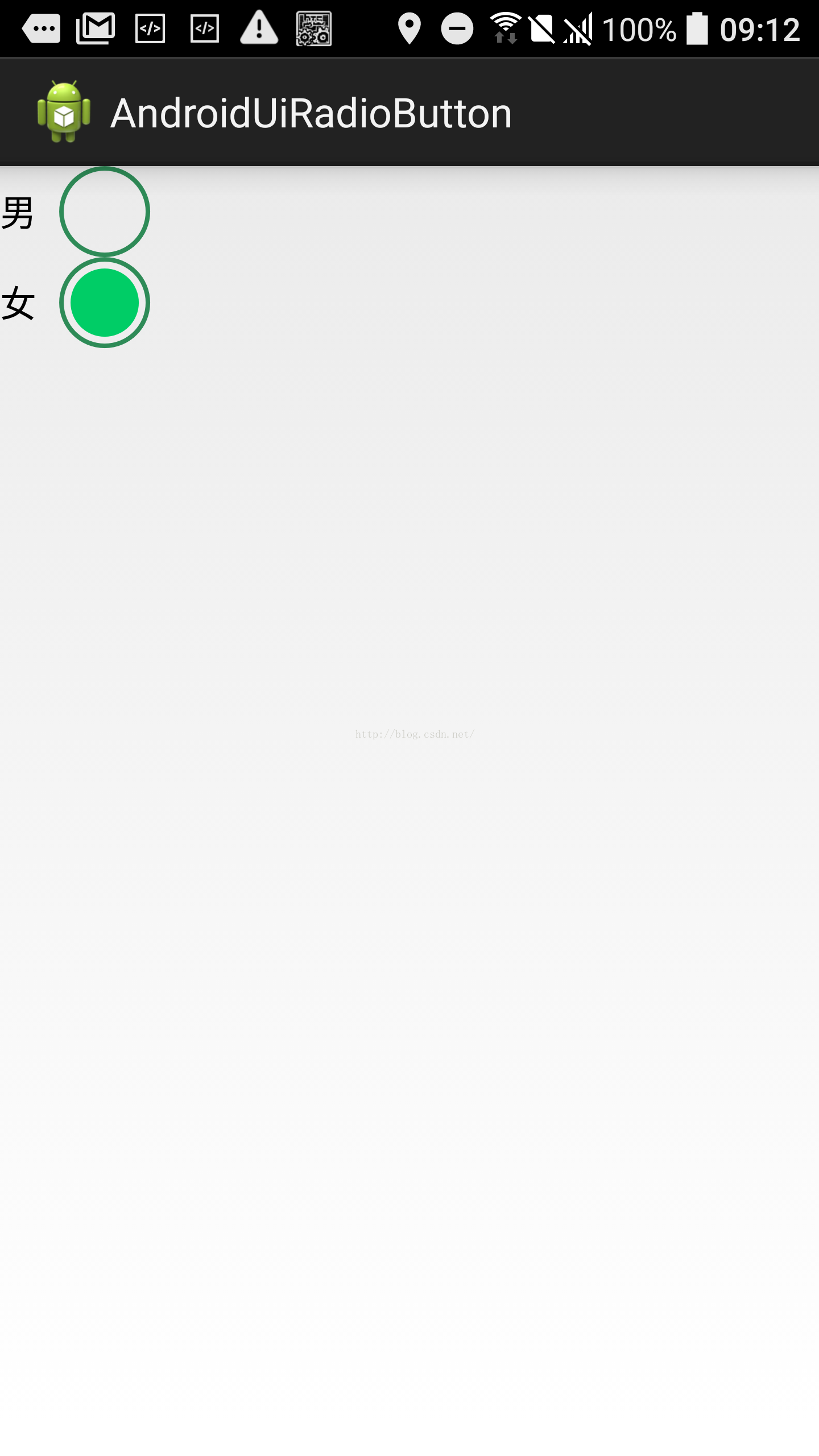
6.效果截图
(1) RadioButton的样式就采用2中的xml radio_checked_shape.xml,radio_unchecked_shape.xml,radio_selector_shape.xml与2一致
(2)styles.xml
<resources xmlns:android="http://schemas.android.com/apk/res/android">


    <!--
        Base application theme, dependent on API level. This theme is replaced
        by AppBaseTheme from res/values-vXX/styles.xml on newer devices.
    -->
    <style name="AppBaseTheme" parent="android:Theme.Light">
        <!--
            Theme customizations available in newer API levels can go in
            res/values-vXX/styles.xml, while customizations related to
            backward-compatibility can go here.
        -->
    </style>


    <!-- Application theme. -->
    <style name="AppTheme" parent="AppBaseTheme">
        <!-- All customizations that are NOT specific to a particular API-level can go here. -->
    </style>

    <!-- 自定义的RadioButton风格 -->
    <style name="myradiostyle" parent="@android:style/Widget.CompoundButton.RadioButton">
        <item name="android:button">@drawable/radio_selector_shape</item>
    </style>


</resources>
(3) 主布局文件
<LinearLayout xmlns:android="http://schemas.android.com/apk/res/android"
    xmlns:tools="http://schemas.android.com/tools"
    android:layout_width="match_parent"
    android:layout_height="match_parent"
    android:id="@+id/rl"
    tools:context="com.andy.androiduiradiobutton.MainActivity" >


    <RadioGroup
        android:id="@+id/mRadioGroup"
        android:layout_width="match_parent"
        android:layout_height="wrap_content"
        android:orientation="vertical"
        >
        <RadioButton
            android:id="@+id/radio_boy"
            android:layout_width="wrap_content"
            android:layout_height="wrap_content"
            style="@style/myradiostyle"
            android:drawablePadding="10dp"
            android:text="@string/boy"
            />

        <RadioButton
            android:id="@+id/radio_girl"
			style="@style/myradiostyle"
            android:drawablePadding="10dp"
            android:layout_width="wrap_content"
            android:layout_height="wrap_content"
            android:text="@string/girl"
            />
    </RadioGroup>


</LinearLayout>
(4)Java实现代码(与2一致)
(5)效果截图

 2162
2162


 扫一扫
扫一扫


 被折叠的 条评论
为什么被折叠?
被折叠的 条评论
为什么被折叠?
 到【灌水乐园】发言


