







1. 用什么操作 Excel 表
Qt 的官网库中是不包含 Microsoft Excel 的操作库,关于对 Microsoft Excel 的操作库可选的有很多,包含基于 Windows 系统本身的 ActiveX、Qt Xlsx、xlsLib、LibXL、qtXLS、BasicExcel、Number Duck。
| 库 | .xls | .xlsx | 读 | 写 | 平台 |
|---|---|---|---|---|---|
| Qt Xlsx | ❌ | ✔️ | ✔️ | ✔️ | 跨平台 |
| xls | ✔️ | ❌ | ❌ | ✔️ | 跨平台 |
| libxls | ✔️ | ❌ | ❌ | ✔️ | 跨平台 |
| libXL | ✔️ | ✔️ | ✔️ | ✔️ | 跨平台 |
| ActiveX | ✔️ | ✔️ | ✔️ | ✔️ | Windows原生 |
| qtXLS | ✔️ | ❌ | ✔️ | ✔️ | Windows |
| BasicExcel | ✔️ | ❌ | ✔️ | ✔️ | Windows |
| Number Duck | ✔️ | ❌ | ✔️ | ✔️ | Windows,Linux |
本文采用基于 Windows 的 ActiveX 对象,在 Qt 中也就是 QAxObjcet 实现读写 Excel 表。
2. QAxObject 简介
在介绍 QAxObject 之前,首先简单了解一下 Windows 上的 COM 组件对象模型,COM 是一个独立于平台的分布式面向对象的系统,用于创建可以交互的二进制软件组件。 COM 是 Microsoft 的 OLE (复合文档的基础技术,) 和 ActiveX (支持 Internet 的组件) 技术。可以使用各种编程语言创建 COM 对象。 面向对象的语言(如 C++)提供了简化 COM 对象的实现的编程机制。 这些对象可以位于单个进程中、其他进程中,甚至在远程计算机上也是如此。
COM 组件模型对象相信介绍可查看:https://download.csdn.net/download/qq_36393978/88268235
而在 Qt 中的 QAxObject 是对 COM 组件模型对象的封装,QAxObject 派生自QAxBase,QAxBase 提供了一组 API 通过 IUnknown 指针直接访问 COM 对象,具体结构如下图。

而在 Windows 上的 Excel 也是一个这样的 COM 对象,因此,可以采用在 Qt 中使用 QAxObjcet 实现对 Excel 的操作,其基本的操作流程如下:

如上图描述了 Excel 的层次结构,Excel.Application 对象 → WorkBooks 对象 → WorkBook 对象 → WorkSheet 对象 → Range 对象,1 个 excel 有一个 Application 对象,1 个 Application 对象有多个 Workbook 对象组成,这些 Workbook 对象由 Workbooks 对象统一管理,Workbook 对象下包含若干个 WorkSheet,这些 WorkSheet 对象由 WorkSheets 对象统一管理,WorkSheet 下面的 Range 对象,对应这 WorkSheet 里面的表格单元了。箭头表示获取其子对象,获取方式需调用 querySubObject() 函数获取子对象实例,各个子对象调用 dynamicCall() 函数执行对各自的具体操作。
3. 基本使用方法
3.1. 包含相关文件
要使用 QAxObject 首先要在 .pro 文件中添加其模块名称 axcontainer,这样工程文件在编译的时候就会加载该模块。
// project.pro
QT       += axcontainer
在头文件中需要包含如下几个头文件
#include <QString>
#include <QFileDialog>
#include <QAxObject>
#include <QVariant>
#include <QVariantList>
3.2. 创建 Excel 进程,获取 Excel 工作簿集
打开文件夹选择 Excel 文件,创建 Excel 进程:
// 打开文件夹
QString strFilePathName = QFileDialog::getOpenFileName(this, QStringLiteral("选择Excel文件"),"", tr("Exel file(*.xls *.xlsx)"));
if(strFilePathName.isNull()) {
	return ;
}
QAxObject *excel = new QAxObject(this);

if (excel->setControl("Excel.Application")) {	// 加载 Microsoft Excel 控件
} else {
	excel->setControl("ket.Application");  // 加载 WPS Excel 控件
}

excel->setProperty("Visible", false);  // 不显示 Excel 窗体
QAxObject* workBooks = excel->querySubObject("WorkBooks");  //获取工作簿集合
workBooks->dynamicCall("Open(const QString&)", strFilePathName); //打开打开已存在的工作簿
QAxObject* workBook = excel->querySubObject("ActiveWorkBook"); //获取当前工作簿
3.3. 获取电子表格集
每个 Excel 工作簿中都可以包含若干电子表格 Sheet:
QAxObject* sheets = workBook->querySubObject("Sheets"); //获取工作表集合,Sheets也可换用WorkSheets
获取需要操作的工作表:
QAxObject* sheet = workBook->querySubObject("WorkSheets(int)", 1);//获取工作表集合的工作表1,即sheet1
3.4. 选取需要操作的单元格范围
每页电子表格包含多个单元格,在操作之前需要选取所要操作的单元格范围:
选取当前页面所有已使用单元格:
//获取该sheet的使用范围对象(一般读取 Excel 时会选取全部范围)
QAxObject* usedRange = sheet->querySubObject("UsedRange");
选取指定范围的单元格:
//获取 sheet 的指定范围(一般写入数据时,会选取指定范围)
QAxObject* usedRange = sheet->querySubObject("Range(const QString)", "A1:C12");
这里的 A1:C12 则表示选取,A 到 C 列的 1~12 行单元格;若写成 A1:A12 则表示选取,A 列的 1~12 行单元格;当然你也可以写成 A1:A1 则表示只选取 A1 这一个单元格。
选择指定单元格:
//获取 sheet 的指定范围(一般修改数据时,会选取指定单元格)
QAxObject* usedRange = sheet->querySubObject("Range(QVariant,QVariant)", "A6");
这里的 A6,则表示选取 A6 这个单元格。
[注]:获取 UsedRange 操作将会得到一个动态创建 (new) 出来的对象。
3.5. 读取单元格范围内容
当选取好要操作的单元各范围后,那么这里介绍如何读取选取范围内所有的单元格内容:
QVariant var = usedRange->dynamicCall("Value");
delete usedRange;
需要注意的是上文代码中除了获取单元格范围 (UsedRange) 操作之外,其余得到的都是该对象的引用,不会占用内存空间,不需要释放,而获取单元格适用范围 (UsedRange) 则得到一个 new 出来新分配的对象,因此在读取或写入操作结束后需要手动释放该对象。
QVariant 类是一个数据联合体,用来存放读取到的 Excel 数据。而事实上通过调用 dynamicCall("Value") 读到的数据类型是 QList<QList<QVariant>> 类型的,因此要将读到的 var 转换为该类型的数据。
QList<QList<QVariant>> xls_data;

QVariantList varRows = var.toList();
if (varRows.isEmpty()) {
    return;
}

const int rowCount = varRows.size();
this->excel.rowCount = rowCount;

QVariantList rowData;

for (int i = 0; i < rowCount; i++){
    rowData = varRows[i].toList();
    if (rowData.count() > this->excel.columnCount) {
    this->excel.columnCount = rowData.count();
    }
    this->xls_data.push_back(rowData);
}
3.6. 将读取到的数据用 QTableView 展示出来
这里的 TbleView_table1 是在 Forms 中的直接拖拽的 QTableView 控件。
QStandardItemModel *tab_model;
for (int i = 0; i < xls_data.count(); i++) {
    for (int j = 0; j < xls_data.at(i).count(); j++) {
    QStandardItem *item = new QStandardItem(QString(xls_data.at(i).at(j).toByteArray()));
    tab_model->setItem(i, j, item);

    //delete item;
    }
}
this->ui->TbleView_table1->setModel(tab_model);
3.7. 向选取的单元格范围写入数据
想必各位也注意到了,在 Excel 中横轴坐标都是用 A~Z 字母表示为了与纵轴的表示方式区别开来,而我们在操作是常用的则是以数字形式,或者说在设置循环中用数字方式更为方便,因此这里需要实现一个数字转 Excel 横坐标的函数,如下。
QString ExcelProcess::to26AlphabetString(int data)
{
    QChar ch = (QChar)(data + 0x40);//A对应0x41
    return QString(ch);
}


void ExcelProcess::convertToColName(int data, QString &res)
{
    Q_ASSERT(data > 0 && data < 65535);
    int tempData = data / 26;
    if (tempData > 0) {
        int mode = data % 26;
        convertToColName(mode, res);
        convertToColName(tempData, res);
    } else {
        res=(to26AlphabetString(data) + res);
    }
}
按照指定行、列,一行一行的添加要写入的数据。
QList<QList<QVariant>> data_total;

int row = 50 - 30, col = 100 - 10;	// 表示:选取范围为,30~50 行,10~100 列

for (int i = 0; i < row; i++) {
	QList<QVariant> data_row;
	for (int j = 0; j < col; j++) {
		data_row.append("ImagineMiracle");
	}
	data_total.append(QVariant(data_row));
}
QString row_s, row_e, col_s, col_e, targetRange;
convertToColName(30, row_s);
convertToColName(50, row_e);
convertToColName(10, col_s);
convertToColName(100, col_e);
targetRange= col_s + row_s + ":" + col_e + row_e ;

QAxObject* sheet = workBook->querySubObject("WorkSheets(int)", 1);//获取工作表集合的工作表1,即sheet1

QAxObject* usedRange = sheet->querySubObject("Range(const QString)", target);
usedRange->setProperty("NumberFormat", "@");    //  设置所有单元格为文本属性
usedRange->dynamicCall("SetValue(const QVariant&", QVariant(data_total));
workBook->dynamicCall("Save()");	// 保存文件
delete usedRange;
3.8. 退出操作
当执行完所有操作后,需要关闭并退出 Excel,代码如下:
workBook->dynamicCall("Close()"); //关闭工作簿
excel->dynamicCall("Quit()"); //退出进程

delete excel;
4. 示例演示
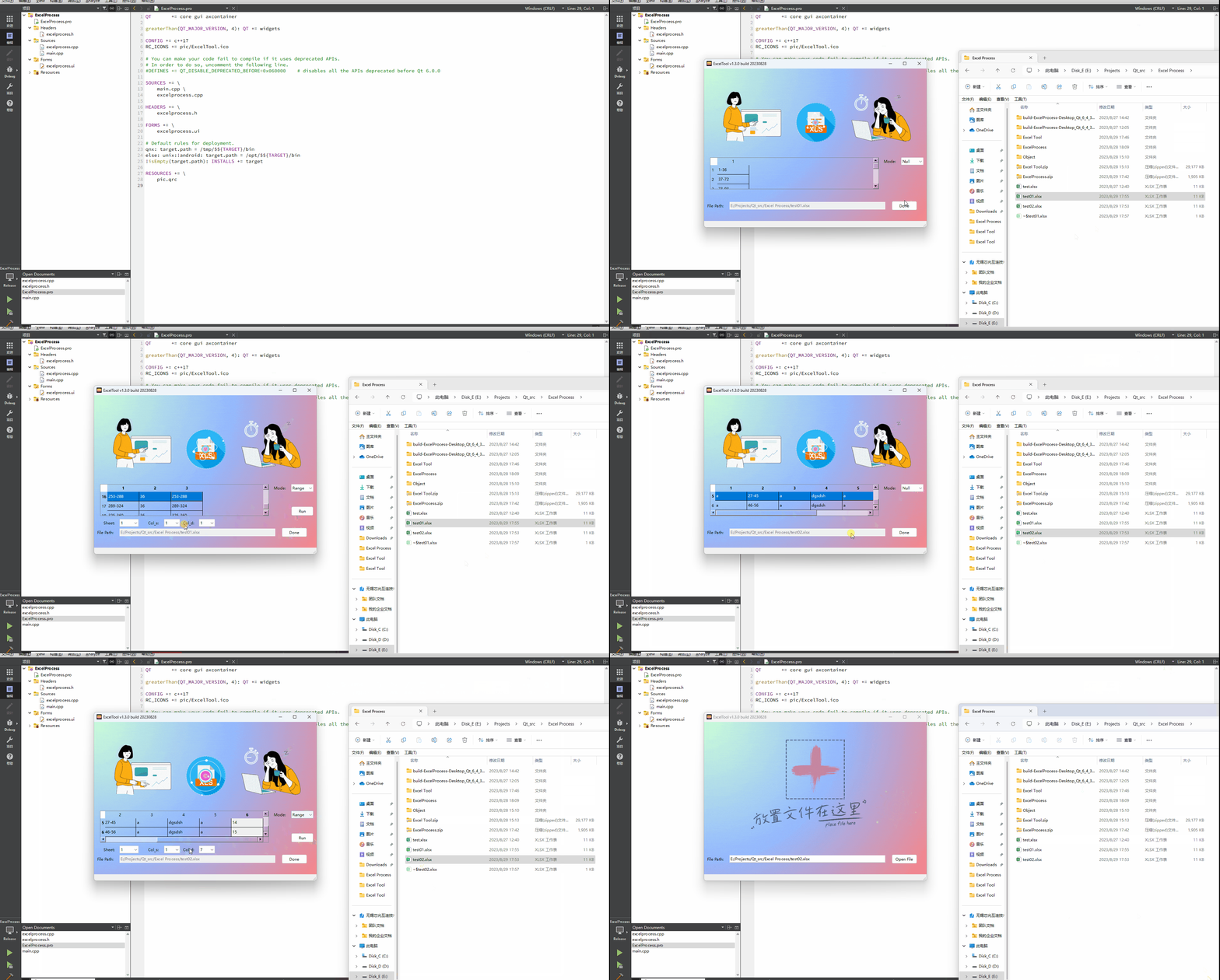
下面是笔者写的一个简单的 Excel 表操作的代码,其功能包含
1.打开并读取 Excel 表内容;
2.根据指定表格中数据的范围计算范围内数据量并写入表格;
3.根据数据量计算数据的所在范围。
完成工程下载链接:ExcelProcess.zip
文件列表如下:

运行效果演示。
5. 附
这里贴出所有源文件的代码:
5.1. ExcelPrecess.pro
QT       += core gui axcontainer

greaterThan(QT_MAJOR_VERSION, 4): QT += widgets

CONFIG += c++17
RC_ICONS += pic/ExcelTool.ico

# You can make your code fail to compile if it uses deprecated APIs.
# In order to do so, uncomment the following line.
#DEFINES += QT_DISABLE_DEPRECATED_BEFORE=0x060000    # disables all the APIs deprecated before Qt 6.0.0

SOURCES += \
    main.cpp \
    excelprocess.cpp

HEADERS += \
    excelprocess.h

FORMS += \
    excelprocess.ui

# Default rules for deployment.
qnx: target.path = /tmp/$${TARGET}/bin
else: unix:!android: target.path = /opt/$${TARGET}/bin
!isEmpty(target.path): INSTALLS += target

RESOURCES += \
    pic.qrc
5.2. excelprocess.h
#ifndef EXCELPROCESS_H
#define EXCELPROCESS_H

#include "ui_excelprocess.h"
#include <QMainWindow>
#include <QLineEdit>
#include <QPushButton>
#include <QString>
#include <QLabel>
#include <QFileDialog>
#include <QStandardPaths>
#include <QDebug>
#include <QDragEnterEvent>
#include <QDropEvent>
#include <QMimeData>
#include <QMovie>
#include <QScopedPointer>
#include <QList>
#include <QAxObject>
#include <QVariant>
#include <QVariantList>
#include <QStandardItemModel>
#include <QThread>
#include <QIcon>

QT_BEGIN_NAMESPACE
namespace Ui { class ExcelProcess; }
QT_END_NAMESPACE

#define APPNAME ("ExcelTool v1.3.0 build 20230828")

typedef struct {
    QAxObject *excel;
    QAxObject *workBooks;
    QAxObject *current_workBook;
    QAxObject *workSheets;
    QAxObject *current_workSheet;

    QAxObject *usedRange;
    QAxObject *rows;
    QAxObject *columns;

    int sheetCount, rowCount, columnCount;


}ExcelFile;

#define MODECOUNT (3)
static QString excel_mode[MODECOUNT] = {"Null", "Calc", "Range"};

typedef struct {
    int sheet;
    int col_src;
    //int col;
    int col_dest;
} CalcMode;

class ExcelProcess : public QMainWindow
{
    Q_OBJECT

private slots:
    void showFiles(void);

    void on_PBtn_View_clicked();

    void on_ComBox_Mode_currentIndexChanged(int index);

    void on_Btn_CalcRun_clicked();

    void on_LEdit_FilePath_textChanged(const QString &arg1);

    void on_Btn_RangeRun_clicked();

protected:
    void dragEnterEvent(QDragEnterEvent *event);    // 拖动进入事件

    void dropEvent(QDropEvent *event);      // 放下事件

public:
    ExcelProcess(QWidget *parent = nullptr);
    ~ExcelProcess();

    void openExcelFile();

    void closeExcelFile();

    void readExcel_OneSheet(int sheet_num);

    void showOneSheet(int sheet_num);

    void excelModeDisplay_00(void);

    void excelModeDisplay_01(void);

    void excelModeDisplay_02(void);

    void convertToColName(int data, QString &res);

    QString to26AlphabetString(int data);

    void castListListVariant2Variant(const QList<QList<QVariant> > &cells, QVariant &res);

private:
    Ui::ExcelProcess *ui;

    QString *fileName;

    QMovie *movie_01;

    ExcelFile excel;


    QList<QList<QVariant>> xls_data;    // excel 表数据

    CalcMode calcMode;

    QStandardItemModel *tab_model;

    void initUi(void);

    void initExcel(void);

};
#endif // EXCELPROCESS_H
5.3. excelprocess.cpp
#include "excelprocess.h"
#include "ui_excelprocess.h"

void ExcelProcess::showFiles()
{
    QString str = QFileDialog::getOpenFileName(this, "File Explorer", QStandardPaths::writableLocation(QStandardPaths::DocumentsLocation),"Excel 文件(*.xls *.xlsx);;All file(*.*)");
    this->ui->LEdit_FilePath->setText(str.toUtf8());
    *this->fileName = this->ui->LEdit_FilePath->text();

    qDebug() << *this->fileName << "\n";

    return ;
}

void ExcelProcess::dragEnterEvent(QDragEnterEvent *event)
{
    if ((!event->mimeData()->urls()[0].fileName().right(3).compare("xls")) || (!event->mimeData()->urls()[0].fileName().right(4).compare("xlsx"))) {
        event->acceptProposedAction();
    } else {
        event->ignore();
    }

    return ;
}

void ExcelProcess::dropEvent(QDropEvent *event)
{
    const QMimeData *qm = event->mimeData();
    *this->fileName = qm->urls()[0].toLocalFile();  // 获取拖入的文件名
    this->ui->LEdit_FilePath->clear();
    this->ui->LEdit_FilePath->setText(*this->fileName);

    return ;
}

ExcelProcess::ExcelProcess(QWidget *parent)
    : QMainWindow(parent)
    , ui(new Ui::ExcelProcess)
{
    ui->setupUi(this);
    this->fileName = new QString;
    this->tab_model = new QStandardItemModel();
    this->setAcceptDrops(true);     // 设置主界面接收拖动进来的文件
    this->initUi();

    this->initExcel();


    return ;
}

ExcelProcess::~ExcelProcess()
{
    delete ui;
    delete fileName;

    this->tab_model->clear();
    delete this->tab_model;

    if (this->excel.current_workBook != nullptr) {
        this->excel.current_workBook->dynamicCall("Save()");
        this->excel.current_workBook->dynamicCall("Close()"); //关闭文件
    }

    if (this->excel.workBooks != nullptr) {
        this->excel.workBooks->dynamicCall("Close()"); //关闭文件
    }


    this->excel.excel->dynamicCall("Quit(void)");   // 退出


    delete this->excel.workBooks;
    delete this->excel.excel;

    return ;
}

void ExcelProcess::openExcelFile()
{

    //this->initExcel();
    if (this->excel.excel == nullptr) {
        return ;
    }

    this->excel.workBooks->dynamicCall("Open (const QString&)", *this->fileName);
    this->excel.current_workBook = this->excel.excel->querySubObject("ActiveWorkBook");
    this->excel.workSheets = this->excel.current_workBook->querySubObject("Sheets");

    this->excel.rowCount = 0;
    this->excel.columnCount = 0;

    this->excel.sheetCount = this->excel.workSheets->property("Count").toInt();

    qDebug() << "Sheet num: " << this->excel.sheetCount << "\n";

}

void ExcelProcess::closeExcelFile()
{
    if (this->excel.current_workBook != nullptr) {
        this->excel.current_workBook->dynamicCall("Save()");
        this->excel.current_workBook->dynamicCall("Close()"); //关闭文件
    }

    if (this->excel.workBooks != nullptr) {
        this->excel.workBooks->dynamicCall("Close()"); //关闭文件
    }


    this->excel.excel->dynamicCall("Quit(void)");   // 退出


    delete this->excel.workBooks;
    delete this->excel.excel;
    this->initExcel();


    return ;
}

void ExcelProcess::readExcel_OneSheet(int sheet_num)
{
    if (sheet_num > this->excel.sheetCount) {
        return;
    }


    // 读取一个 sheet
    this->excel.current_workSheet = this->excel.current_workBook->querySubObject("Sheets(int)", sheet_num);
    this->excel.usedRange = this->excel.current_workSheet->querySubObject("UsedRange");

    if (nullptr == this->excel.usedRange || this->excel.usedRange->isNull()) {
        return;
    }


    QVariant var = this->excel.usedRange->dynamicCall("Value");
    delete this->excel.usedRange;
    this->excel.usedRange = nullptr;


    // 读取一个 sheet 结束
    for (int i = 0; i < this->xls_data.count(); i++) {
        this->xls_data.value(i).clear();
    }

    this->xls_data.clear();

    QVariantList varRows = var.toList();
    if (varRows.isEmpty()) {
        return;
    }

    const int rowCount = varRows.size();
    this->excel.rowCount = rowCount;


    QVariantList rowData;

    for (int i = 0; i < rowCount; i++){
        rowData = varRows[i].toList();
        if (rowData.count() > this->excel.columnCount) {
            this->excel.columnCount = rowData.count();
        }
        this->xls_data.push_back(rowData);
    }

    //this->excel.current_workBook->dynamicCall("Close()");
    qDebug() << "Sheet:: row:" << this->excel.rowCount << "colum:" << this->excel.columnCount << "\n";

    this->ui->ComBox_Sheet->clear();
    for (int i = 1; i <= this->excel.sheetCount; i++) {
        this->ui->ComBox_Sheet->addItem(QString::number(i));
    }

    this->ui->ComBox_Row->clear();
    for (int i = 1; i <= this->excel.rowCount; i++) {
        this->ui->ComBox_Row->addItem(QString::number(i));
    }

    this->ui->ComBox_Column->clear();
    for (int i = 1; i <= this->excel.columnCount; i++) {
        this->ui->ComBox_Column->addItem(QString::number(i));
    }

}

void ExcelProcess::showOneSheet(int sheet_num)
{
    this->readExcel_OneSheet(sheet_num);


    this->tab_model->clear();
    for (int i = 0; i < this->xls_data.count(); i++) {
        for (int j = 0; j < this->xls_data.at(i).count(); j++) {
            QStandardItem *item = new QStandardItem(QString(this->xls_data.at(i).at(j).toByteArray()));
            this->tab_model->setItem(i, j, item);

            //delete item;
        }
    }

    this->ui->TbleView_table1->setModel(this->tab_model);
    //this->ui->TbleView_table1->setSectionResizeMode(QHeaderView::Stretch);
    //delete model;
}

void ExcelProcess::excelModeDisplay_00()
{
    this->ui->Lab_Row->setText("Row:");
    this->ui->Lab_Column->setText("Row:");

    this->ui->ComBox_Column->clear();

    for (int i = 1; i <= this->excel.columnCount; i++) {
        this->ui->ComBox_Column->addItem(QString::number(i));
    }

    this->ui->TbleView_table1->show();
    this->ui->Lab_Sheet->hide();
    this->ui->Lab_Row->hide();
    this->ui->Lab_Column->hide();
    this->ui->ComBox_Sheet->hide();
    this->ui->ComBox_Row->hide();
    this->ui->ComBox_Column->hide();
    this->ui->Btn_CalcRun->hide();
    this->ui->Btn_RangeRun->hide();

    this->ui->ComBox_Mode->setCurrentIndex(0);
}

void ExcelProcess::excelModeDisplay_01()
{

    this->ui->Lab_Row->setText("Col_s:");
    this->ui->Lab_Column->setText("Col_d:");
    this->ui->ComBox_Mode->setCurrentIndex(1);

    this->ui->ComBox_Row->clear();
    this->ui->ComBox_Column->clear();

    for (int i = 1; i <= this->excel.columnCount; i++) {
        this->ui->ComBox_Row->addItem(QString::number(i));
    }

    for (int i = 1; i <= this->excel.columnCount + 1; i++) {
        this->ui->ComBox_Column->addItem(QString::number(i));
    }

    this->ui->ComBox_Column->setCurrentIndex(this->ui->ComBox_Column->count() - 1);

    this->ui->Lab_Sheet->show();
    this->ui->Lab_Row->show();
    this->ui->Lab_Column->show();
    this->ui->TbleView_table1->show();
    this->ui->ComBox_Sheet->show();
    this->ui->ComBox_Row->show();
    this->ui->ComBox_Column->show();
    this->ui->Btn_CalcRun->show();
    this->ui->Btn_RangeRun->hide();
}

void ExcelProcess::excelModeDisplay_02()
{
    this->ui->Lab_Row->setText("Col_s:");
    this->ui->Lab_Column->setText("Col_d:");
    this->ui->ComBox_Mode->setCurrentIndex(2);

    this->ui->ComBox_Row->clear();
    this->ui->ComBox_Column->clear();

    for (int i = 1; i <= this->excel.columnCount; i++) {
        this->ui->ComBox_Row->addItem(QString::number(i));
    }

    for (int i = 1; i <= this->excel.columnCount + 1; i++) {
        this->ui->ComBox_Column->addItem(QString::number(i));
    }

    this->ui->ComBox_Column->setCurrentIndex(this->ui->ComBox_Column->count() - 1);

    this->ui->Lab_Sheet->show();
    this->ui->Lab_Row->show();
    this->ui->Lab_Column->show();
    this->ui->TbleView_table1->show();
    this->ui->ComBox_Sheet->show();
    this->ui->ComBox_Row->show();
    this->ui->ComBox_Column->show();
    this->ui->Btn_CalcRun->hide();
    this->ui->Btn_RangeRun->show();
}

void ExcelProcess::convertToColName(int data, QString &res)
{
    Q_ASSERT(data>0 && data<65535);
    int tempData = data / 26;
    if(tempData > 0) {
        int mode = data % 26;
        convertToColName(mode,res);
        convertToColName(tempData,res);
    } else {
        res=(to26AlphabetString(data)+res);
    }
}

QString ExcelProcess::to26AlphabetString(int data)
{
    QChar ch = (QChar)(data + 0x40);//A对应0x41
    return QString(ch);
}

void ExcelProcess::castListListVariant2Variant(const QList<QList<QVariant> > &cells, QVariant &res)
{
    QVariantList vars;
    const int rows = cells.size();      //获取行数
    for(int i = 0; i < rows; ++i)
    {
        vars.append(QVariant(cells[i]));    //将list(i)添加到QVariantList中 QVariant(cells[i])强制转换
    }
    res = QVariant(vars);   //强制转换
}

void ExcelProcess::initUi()
{
    this->setWindowTitle(APPNAME);
    this->setWindowIcon(QIcon(":/bk/pic/ExcelTool.ico"));
    this->ui->Lab_FilePath->setText("File Path:");
    this->ui->PBtn_View->setText("Open File");
    //this->ui->Lab_BottomBar->setText("");

    this->ui->Lab_Background->setText("");

    movie_01 = new QMovie(":/bk/pic/bk_01.gif");
    this->ui->Lab_Background->setGeometry(0, 0, 700, 500);
    this->ui->Lab_Background->setMovie(movie_01);
    movie_01->setScaledSize(this->ui->Lab_Background->size());
    movie_01->start();

    this->ui->Lab_Sheet->hide();
    this->ui->Lab_Row->hide();
    this->ui->Lab_Column->hide();
    this->ui->ComBox_Sheet->hide();
    this->ui->ComBox_Row->hide();
    this->ui->ComBox_Column->hide();
    this->ui->Lab_Mode->hide();
    this->ui->ComBox_Mode->hide();
    this->ui->Btn_CalcRun->hide();
    this->ui->Btn_RangeRun->hide();


    for (int i = 0; i < MODECOUNT; i++) {
        this->ui->ComBox_Mode->addItem(excel_mode[i]);
    }
    this->ui->ComBox_Mode->setCurrentIndex(0);
    this->ui->TbleView_table1->hide();


    return ;

}

void ExcelProcess::initExcel()
{
    this->excel.excel = new QAxObject("Excel.Application");   // 加载 excel 驱动
    this->excel.excel->setProperty("Visible", false);//不显示Excel界面,如果为true会看到启动的Excel界面
    //this->excel.excel->setProperty("Visible", true);
    this->excel.workBooks = this->excel.excel->querySubObject("WorkBooks");
}


void ExcelProcess::on_PBtn_View_clicked()
{
    *this->fileName = this->ui->LEdit_FilePath->text();
    if ((0 == this->fileName->right(3).compare("xls")) || (0 == this->fileName->right(4).compare("xlsx")) || this->fileName->isEmpty()) {
        ;
    } else {
        this->movie_01->stop();
        this->movie_01->setFileName(":/bk/pic/bk_04.gif");
        this->ui->Lab_Background->setMovie(movie_01);
        movie_01->setScaledSize(this->ui->Lab_Background->size());
        movie_01->start();

        return ;
    }

    if ("Done" == this->ui->PBtn_View->text()) {
        //QThread::usleep(5);
        this->ui->LEdit_FilePath->setEnabled(true);
        this->ui->PBtn_View->setText("Open File");
        this->tab_model->clear();


        this->ui->Lab_Sheet->hide();
        this->ui->Lab_Row->hide();
        this->ui->Lab_Column->hide();
        this->ui->ComBox_Sheet->hide();
        this->ui->ComBox_Row->hide();
        this->ui->ComBox_Column->hide();
        this->ui->Lab_Mode->hide();
        this->ui->ComBox_Mode->hide();
        this->ui->Btn_CalcRun->hide();
        this->ui->Btn_RangeRun->hide();
        this->ui->TbleView_table1->hide();
        this->movie_01->stop();
        this->movie_01->setFileName(":/bk/pic/bk_01.gif");
        this->ui->Lab_Background->setMovie(movie_01);
        movie_01->setScaledSize(this->ui->Lab_Background->size());
        movie_01->start();
        this->closeExcelFile();


    } else {
        if (this->ui->LEdit_FilePath->text().isEmpty()) {
            this->showFiles();
        } else {
            //QThread::usleep(5);
            this->excelModeDisplay_00();
            this->ui->LEdit_FilePath->setEnabled(false);
            this->ui->PBtn_View->setText("Done");
            this->movie_01->stop();
            this->movie_01->setFileName(":/bk/pic/bk_02.gif");
            this->ui->Lab_Background->setMovie(movie_01);
            movie_01->setScaledSize(this->ui->Lab_Background->size());
            movie_01->start();

            this->openExcelFile();
            this->showOneSheet(1);
            this->ui->TbleView_table1->setStyleSheet("background-color:transparent");
            this->ui->TbleView_table1->horizontalHeader()->setStyleSheet("QHeaderView::section{background:transparent},QHeaderView::Stretch");
            this->ui->TbleView_table1->verticalHeader()->setStyleSheet("QHeaderView::section{background:transparent}");

            this->ui->TbleView_table1->setCornerButtonEnabled(false);

            this->ui->Lab_Mode->show();
            this->ui->ComBox_Mode->show();
            this->ui->TbleView_table1->show();
        }

    }

}


void ExcelProcess::on_ComBox_Mode_currentIndexChanged(int index)
{
    switch(index) {
    case 0: {
        this->excelModeDisplay_00();
        break;
    }
    case 1: {
        this->excelModeDisplay_01();
        break;
    }
    case 2: {
        this->excelModeDisplay_02();
        break;
    }
    default: {
        break;
    }
    }

    return ;
}


void ExcelProcess::on_Btn_CalcRun_clicked()
{
    this->calcMode.sheet = this->ui->ComBox_Sheet->currentText().toInt();
    this->calcMode.col_src = this->ui->ComBox_Row->currentText().toInt();
    this->calcMode.col_dest = this->ui->ComBox_Column->currentText().toInt();

    QString data, num1, num2, result;

    qDebug() << "Sheet::" << this->calcMode.sheet;


    this->showOneSheet(this->calcMode.sheet);

    QList<QVariant> data_total;

    for (int i = 0; i < this->excel.rowCount; i++) {
        data = this->xls_data.at(i).at(this->calcMode.col_src - 1).toByteArray();
        bool flag = true;
        num1.clear();
        num2.clear();
        for (int i_d = 0; i_d < data.length(); i_d++) {
            if ('-' == data.at(i_d)) {
                flag = false;
                continue;
            }
            if (flag) {
                num1 += data.at(i_d);
            } else {
                num2 += data.at(i_d);
            }
        }

        QList<QVariant> data_row;

        result = QString::number(num2.toInt() - num1.toInt());

        qDebug() << "num1:" << num1 << "num2:" << num2 << "res:" << result << "\n";

        data_row.append(QString::number(num2.toInt() - num1.toInt() + 1));
        data_total.append(QVariant(data_row));


    }

    QString col_num, target;
    this->convertToColName(this->calcMode.col_dest, col_num);
    qDebug() << "Col:" << col_num << "\n";

    target = col_num + "1:" + col_num + QString::number(this->excel.rowCount);
    qDebug() << target ;
    this->excel.current_workSheet = this->excel.current_workBook->querySubObject("Sheets(int)", this->calcMode.sheet);
    this->excel.usedRange = this->excel.current_workSheet->querySubObject("Range(const QString)", target);
    this->excel.usedRange->setProperty("NumberFormat", "@");    //  设置所有单元格为文本属性
    this->excel.usedRange->dynamicCall("SetValue(const QVariant&", QVariant(data_total));
    this->excel.current_workBook->dynamicCall("Save()");
    //this->excel.current_workBook->dynamicCall("Close()");
    this->showOneSheet(this->calcMode.sheet);
    delete this->excel.usedRange;


}


void ExcelProcess::on_LEdit_FilePath_textChanged(const QString &arg1)
{
    if (arg1.isEmpty()) {
        this->movie_01->stop();
        this->movie_01->setFileName(":/bk/pic/bk_01.gif");
        this->ui->Lab_Background->setMovie(movie_01);
        movie_01->setScaledSize(this->ui->Lab_Background->size());
        movie_01->start();

        *this->fileName = "";
    } else if ((0 == arg1.right(3).compare("xls")) || (0 == arg1.right(4).compare("xlsx"))) {
        this->movie_01->stop();
        this->movie_01->setFileName(":/bk/pic/bk_03.gif");
        this->ui->Lab_Background->setMovie(movie_01);
        movie_01->setScaledSize(this->ui->Lab_Background->size());
        movie_01->start();

        *this->fileName = this->ui->LEdit_FilePath->text();
    } else {
        this->movie_01->stop();
        this->movie_01->setFileName(":/bk/pic/bk_04.gif");
        this->ui->Lab_Background->setMovie(movie_01);
        movie_01->setScaledSize(this->ui->Lab_Background->size());
        movie_01->start();
    }

    return ;
}


void ExcelProcess::on_Btn_RangeRun_clicked()
{
    this->calcMode.sheet = this->ui->ComBox_Sheet->currentText().toInt();
    this->calcMode.col_src = this->ui->ComBox_Row->currentText().toInt();
    this->calcMode.col_dest = this->ui->ComBox_Column->currentText().toInt();

    QString data;
    int num_src = 0, num1 = 0, num2 = 0;

    qDebug() << "Sheet::" << this->calcMode.sheet;


    this->showOneSheet(this->calcMode.sheet);

    QList<QVariant> data_total;

    for (int i = 0; i < this->excel.rowCount; i++) {
        data = this->xls_data.at(i).at(this->calcMode.col_src - 1).toByteArray();

        num_src = data.toInt();
        num1 = num2 + 1;
        num2 = num_src + num1 - 1;

        QList<QVariant> data_row;


        qDebug() << "src:" << num_src << "num1:" << num1 << "num2:" << num2 << "\n";
        qDebug() << "range:" << (QString::number(num1) + "-" + QString::number(num2)) << "\n";

        data_row.append(QString::number(num1) + "-" + QString::number(num2));
        data_total.append(QVariant(data_row));


    }

    QString col_num, target;
    this->convertToColName(this->calcMode.col_dest, col_num);
    qDebug() << "Col:" << col_num << "\n";

    target = col_num + "1:" + col_num + QString::number(this->excel.rowCount);
    qDebug() << target ;
    this->excel.current_workSheet = this->excel.current_workBook->querySubObject("Sheets(int)", this->calcMode.sheet);
    this->excel.usedRange = this->excel.current_workSheet->querySubObject("Range(const QString)", target);
    this->excel.usedRange->setProperty("NumberFormat", "@");    //  设置所有单元格为文本属性
    this->excel.usedRange->dynamicCall("SetValue(const QVariant&", QVariant(data_total));
    this->excel.current_workBook->dynamicCall("Save()");
    //this->excel.current_workBook->dynamicCall("Close()");
    this->showOneSheet(this->calcMode.sheet);
    delete this->excel.usedRange;

}
5.4. main.cpp
#include "excelprocess.h"

#include <QApplication>

int main(int argc, char *argv[])
{
    QApplication a(argc, argv);
    ExcelProcess w;
    w.show();
    return a.exec();
}
5.5. excelprocess.ui
<?xml version="1.0" encoding="UTF-8"?>
<ui version="4.0">
 <class>ExcelProcess</class>
 <widget class="QMainWindow" name="ExcelProcess">
  <property name="geometry">
   <rect>
    <x>0</x>
    <y>0</y>
    <width>700</width>
    <height>500</height>
   </rect>
  </property>
  <property name="windowTitle">
   <string>ExcelProcess</string>
  </property>
  <widget class="QWidget" name="centralwidget">
   <widget class="QLineEdit" name="LEdit_FilePath">
    <property name="geometry">
     <rect>
      <x>80</x>
      <y>420</y>
      <width>490</width>
      <height>24</height>
     </rect>
    </property>
   </widget>
   <widget class="QPushButton" name="PBtn_View">
    <property name="geometry">
     <rect>
      <x>590</x>
      <y>417</y>
      <width>80</width>
      <height>30</height>
     </rect>
    </property>
    <property name="text">
     <string>Open File</string>
    </property>
   </widget>
   <widget class="QLabel" name="Lab_FilePath">
    <property name="geometry">
     <rect>
      <x>10</x>
      <y>420</y>
      <width>60</width>
      <height>24</height>
     </rect>
    </property>
    <property name="text">
     <string>File Path:</string>
    </property>
   </widget>
   <widget class="QLabel" name="Lab_Background">
    <property name="geometry">
     <rect>
      <x>700</x>
      <y>500</y>
      <width>53</width>
      <height>16</height>
     </rect>
    </property>
    <property name="text">
     <string>TextLabel</string>
    </property>
   </widget>
   <widget class="QTableView" name="TbleView_table1">
    <property name="geometry">
     <rect>
      <x>19</x>
      <y>280</y>
      <width>531</width>
      <height>100</height>
     </rect>
    </property>
   </widget>
   <widget class="QComboBox" name="ComBox_Sheet">
    <property name="geometry">
     <rect>
      <x>80</x>
      <y>390</y>
      <width>60</width>
      <height>24</height>
     </rect>
    </property>
   </widget>
   <widget class="QLabel" name="Lab_Sheet">
    <property name="geometry">
     <rect>
      <x>30</x>
      <y>390</y>
      <width>50</width>
      <height>24</height>
     </rect>
    </property>
    <property name="text">
     <string>Sheet:</string>
    </property>
   </widget>
   <widget class="QLabel" name="Lab_Row">
    <property name="geometry">
     <rect>
      <x>170</x>
      <y>390</y>
      <width>50</width>
      <height>24</height>
     </rect>
    </property>
    <property name="text">
     <string>Row_s:</string>
    </property>
   </widget>
   <widget class="QComboBox" name="ComBox_Row">
    <property name="geometry">
     <rect>
      <x>220</x>
      <y>390</y>
      <width>50</width>
      <height>24</height>
     </rect>
    </property>
   </widget>
   <widget class="QLabel" name="Lab_Column">
    <property name="geometry">
     <rect>
      <x>280</x>
      <y>390</y>
      <width>50</width>
      <height>24</height>
     </rect>
    </property>
    <property name="text">
     <string>Col_d:</string>
    </property>
   </widget>
   <widget class="QComboBox" name="ComBox_Column">
    <property name="geometry">
     <rect>
      <x>330</x>
      <y>390</y>
      <width>50</width>
      <height>24</height>
     </rect>
    </property>
   </widget>
   <widget class="QComboBox" name="ComBox_Mode">
    <property name="geometry">
     <rect>
      <x>620</x>
      <y>280</y>
      <width>70</width>
      <height>24</height>
     </rect>
    </property>
   </widget>
   <widget class="QLabel" name="Lab_Mode">
    <property name="geometry">
     <rect>
      <x>565</x>
      <y>280</y>
      <width>50</width>
      <height>24</height>
     </rect>
    </property>
    <property name="text">
     <string>Mode:</string>
    </property>
   </widget>
   <widget class="QPushButton" name="Btn_CalcRun">
    <property name="geometry">
     <rect>
      <x>620</x>
      <y>350</y>
      <width>70</width>
      <height>30</height>
     </rect>
    </property>
    <property name="text">
     <string>Run</string>
    </property>
   </widget>
   <widget class="QPushButton" name="Btn_RangeRun">
    <property name="geometry">
     <rect>
      <x>620</x>
      <y>350</y>
      <width>70</width>
      <height>30</height>
     </rect>
    </property>
    <property name="text">
     <string>Run</string>
    </property>
   </widget>
   <zorder>Lab_Background</zorder>
   <zorder>Lab_FilePath</zorder>
   <zorder>PBtn_View</zorder>
   <zorder>LEdit_FilePath</zorder>
   <zorder>TbleView_table1</zorder>
   <zorder>ComBox_Sheet</zorder>
   <zorder>Lab_Sheet</zorder>
   <zorder>Lab_Row</zorder>
   <zorder>ComBox_Row</zorder>
   <zorder>Lab_Column</zorder>
   <zorder>ComBox_Column</zorder>
   <zorder>ComBox_Mode</zorder>
   <zorder>Lab_Mode</zorder>
   <zorder>Btn_CalcRun</zorder>
   <zorder>Btn_RangeRun</zorder>
  </widget>
  <widget class="QMenuBar" name="menubar">
   <property name="geometry">
    <rect>
     <x>0</x>
     <y>0</y>
     <width>700</width>
     <height>26</height>
    </rect>
   </property>
  </widget>
  <widget class="QStatusBar" name="statusbar"/>
 </widget>
 <resources/>
 <connections/>
</ui>
 2563


 扫一扫


 被折叠的 条评论
为什么被折叠?
 到【灌水乐园】发言


