
 本文介绍了使用Visual Basic进行图形设计的基本方法,包括利用图形控件、图片显示方式、持久化绘图、裁剪区域设定等。此外,还讲解了如何通过属性设置实现图形层叠效果,动态调整控件位置及大小,以及创建简单的动画效果。
来自MSDN-2001-OCT: Visual Tools and Languages/Visual Studio 6.0 Documentation/Visual Basic Documentation/Using Visual Basic/Programmer’s Guide/Part 2: What Can You Do With Visual Basic/Working with Text and Graphics/
1. Using Graphical Controls
(1) The image, line, and shape controls are very useful for creating graphics at design time, and they require fewer system resources than other Visual Basic controls.
(2) Pictures can be displayed in three places in Visual Basic applications: On a form; In a picture box; In an image control.
(3) 设计时插图的话,图会被直接编到exe里;而运行时插图的话,自己要负责把图打包到exe里。
(4)
| Category | Properties |
| Display processing | AutoRedraw, ClipControls |
| Current drawing location | CurrentX, CurrentY |
| Drawing techniques | DrawMode, DrawStyle, DrawWidth, BorderStyle, BorderWidth |
| Filling techniques | FillColor, FillStyle |
| Colors | BackColor, ForeColor, BorderColor, FillColor |
2. Creating Persistent Graphics with AutoRedraw
(1) AutoRedraw is a Boolean property that, when set to True, causes graphics output to be saved in memory. You can use the AutoRedraw property to create persistent graphics.
(2) You can include code in the Paint event for a form or picture box that redraws all lines, circles, and points as appropriate. This approach usually works best when you have a limited amount of graphics that you can reconstruct easily.
(3) A Paint event procedure is called whenever part of a form or picture box needs to be redrawn — for example, when a window that covered the object moves away, or when resizing causes graphics to come back into view. If AutoRedraw is set to True, the object’s Paint procedure is never called unless your application calls it explicitly. The visible contents of the object are stored in the memory canvas, so the Paint event isn’t needed.
(4) You can change the setting of AutoRedraw at run time. If AutoRedraw is False, graphics and output from the Print method are written only to the screen, not to memory. If you clear the object with the Cls method, any output written when AutoRedraw was set to True does not get cleared. This output is retained in memory, and you must set AutoRedraw to True again and then use the Cls method to clear it.
3. Clipping Regions with ClipControls
(1) Clipping is the process of determining which parts of a form or container are painted when the form or container is displayed.
(2) When the ClipControls property is True, Windows defines a clipping region for the background of the form or container before a Paint event. This clipping region surrounds all nongraphical controls.
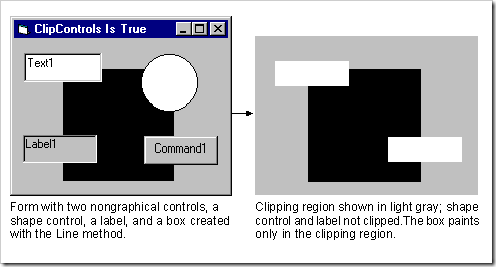
(4) Since calculating and managing a clipping region takes time, setting ClipControls to False may cause forms with many nonoverlapping controls (such as complex dialog boxes) to display faster.
4. Layering Graphics with AutoRedraw and ClipControls
(1) As you create graphics, keep in mind that graphical controls and labels, nongraphical controls, and graphics methods appear on different layers in a container.
(2) Combining settings for AutoRedraw and ClipControls and placing graphics methods inside or outside the Paint event affects layering and the performance of the application..
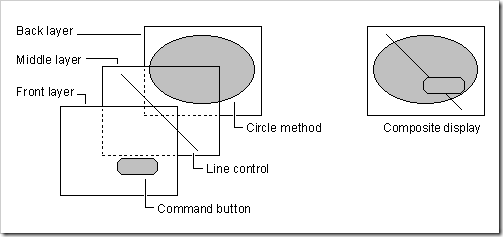
(4) Confining graphics methods to the Paint event causes those methods to paint in a predictable sequence.
5. Moving Controls Dynamically
(1) You can either directly change the properties that define the position of a control or use the Move method.
(2) Using the Left and Top Properties
(3) Moving a Line Control using X1, X2, Y1, Y2 properties
(4) Using the Move Method可以控制movement的速度(从而平滑度)和距离。
6. Resizing Controls Dynamically
Align, Height, Width, AutoSize, Stretch,
7. Creating Simple Animation
(1) Toggling Between Two Pictures
(2) Rotating Through Several Pictures





 扫一扫
扫一扫


:Using Graphical Controls&spm=1001.2101.3001.5002&articleId=4244013&d=1&t=3&u=1620d87471ad4eec8e1bec3031bcc8fa)

 被折叠的 条评论
为什么被折叠?
被折叠的 条评论
为什么被折叠?
 到【灌水乐园】发言