

claude agents, is one screen for all your background sessions: what’s running, what needs your input, and what’s done. Dispatch new sessions, watch their state at a glance instead of scrolling through transcripts, and step in only when one needs you. Each background session is a full Claude Code conversation that keeps running without a terminal attached, so you can open it, reply, and leave whenever you want.
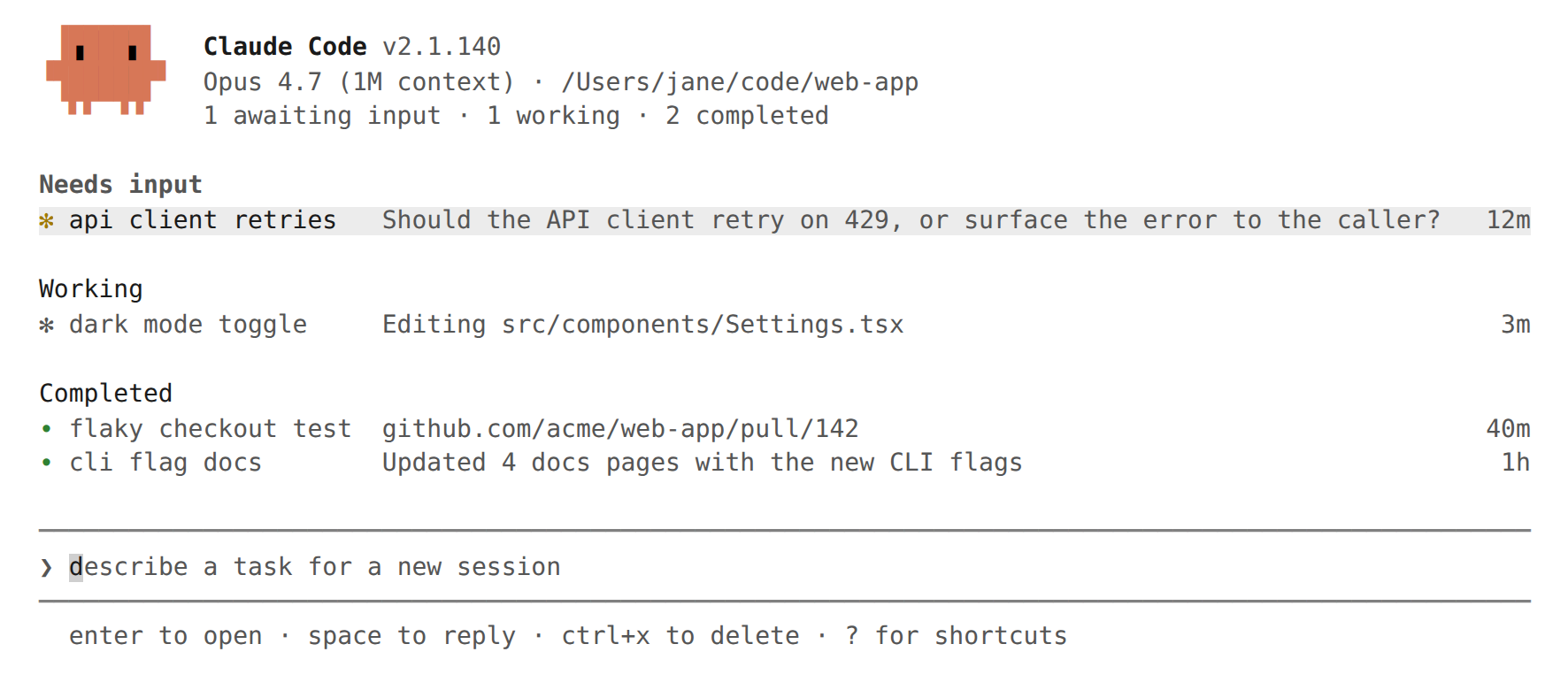
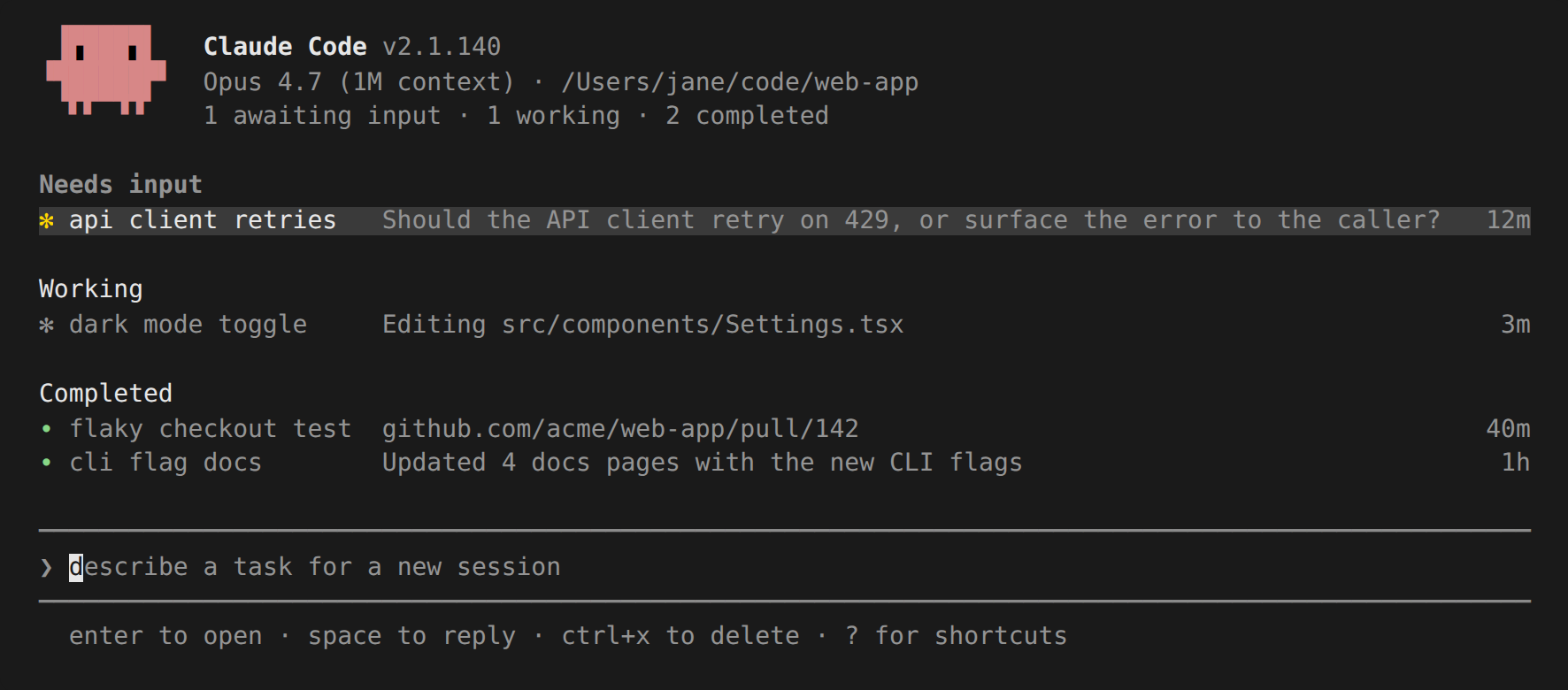
Agent view is in research preview and requires Claude Code v2.1.139 or later. Check your version with
claude --version. The interface and keyboard shortcuts may change as the feature evolves.- Quick start: give Claude a task to work on in the background, check on it, and step in when needed
- Monitor sessions with agent view, including state icons, peeking and replying, attaching, organizing, and keyboard shortcuts
- Dispatch new agents from agent view, from inside a session, or from your shell
- Manage sessions from the shell with
claude agents,claude attach, and related commands - How background sessions are hosted by the supervisor process
Quick start
This walkthrough covers the core agent view loop: dispatch a task, watch its row update as Claude works, peek to check on it and reply, and attach for the full conversation. The session you dispatch keeps running after you close agent view, so you can leave and come back to it.1
Open agent view
From your shell, run:Agent view opens with an input at the bottom and a table that fills in as sessions start. Press
Esc at any time to return to your shell. Your sessions keep running while you’re away and reappear the next time you open agent view.2
Dispatch a session
Type a prompt describing a task and press
Enter. A new background session starts on that task and appears as a row showing whether it’s working, waiting on you, or done. The new session uses the model shown in the agent view header and the same permission mode you’d get running claude in that directory.Every prompt you enter here starts its own new session. Typing another prompt and pressing Enter launches a second session alongside the first rather than sending a follow-up to it. You can run several in parallel this way.Each session uses your subscription quota independently, so see Limitations before dispatching many at once.3
Peek and reply
Select a row with the arrow keys and press
Space to open the peek panel. It shows the session’s most recent output, or the question it’s waiting on, rather than the full transcript. Type a reply and press Enter to send it without leaving agent view.4
Attach and detach
Press
Enter or → on a row to attach when you want the full conversation. The session takes over the terminal as a full interactive Claude Code session. Press ← on an empty prompt to detach and return to the table.5
Bring an existing session in
This step needs a running session. If you followed the earlier steps you don’t have one open in this terminal, so open a regular
claude session in another terminal and send it a message first.To move a session you already have open into agent view, run /bg inside it, or press ← on an empty prompt to background it and open agent view in one step. In a fresh session with no messages yet, /bg asks you to send a message first, while ← works right away. The session keeps running and appears as a row alongside the ones you dispatched.claude agents as your primary entry point instead of claude: dispatch every task from agent view, attach when you want the full conversation, and press ← to return to the table.
Inside a regular claude session, the prompt footer’s ← hint counts the background agents that are waiting on you, such as ← 2 agents, and returns to ← for agents when none need input. Counts above 99 show as 99+. The count refreshes about every ten seconds while the terminal is focused and immediately when focus returns. It briefly changes color when it moves and when an agent completes, unless the prefersReducedMotion setting is on, and it is hidden in screen reader mode. Requires Claude Code v2.1.205 or later.
The count appears on every provider, including Amazon Bedrock, Google Cloud’s Agent Platform, and Microsoft Foundry.
Monitor sessions with agent view
Runclaude agents to open agent view. It takes over the full terminal and lists every session grouped by state, with pinned sessions and the ones that need you at the top. Each row shows the session’s name, current activity, and its age, counted from when the session was created; a finished session’s age freezes at how long the run took.
The name is tinted with the color set by /color in that session. As of v2.1.199 the color carries over when you background a session with ← or /background.
By default the list shows every background session you’ve started, across all your projects. A session working in one repository and another in a different worktree both appear here, regardless of which directory you opened agent view from. To narrow the list to one project, pass --cwd:
~/projects/my-app/.claude/worktrees/ still counts as belonging to ~/projects/my-app.
Interactive sessions you have open in other terminals don’t appear until you background them. Subagents and teammates a session spawns aren’t listed as separate rows.
Read session state
Each row starts with an icon whose color and animation show the session’s state:
Separately, the icon’s shape shows whether the underlying process is running:
The
#N label that can appear at the right edge of a row is a pull request the session is linked to, not part of the state icon.
The terminal tab title shows the awaiting-input count while agent view is open: 2 awaiting input · claude agents when sessions need input, or claude agents when none do.
As of v2.1.198, while agent view is open, Claude Code also sends a notification through your configured terminal notification channel when a local background session starts needing your input, finishes, or fails. Sessions that run on a schedule, such as /loop sessions, notify only when they need your input. Notifications use the same preferredNotifChannel setting as the rest of Claude Code and fire the Notification hook with the agent_needs_input or agent_completed type.
Background sessions don’t need any terminal open to keep working. A separate supervisor process runs them, so you can close agent view, close your shell, or start a new interactive session and your dispatched work keeps going.
Session state persists on disk through auto-updates and supervisor restarts. Sessions are also preserved when your machine sleeps. Their processes resume on wake and the supervisor reconnects to them instead of treating the time gap as idle. Shutting down still stops running sessions; see Sessions show as failed after shutdown for how to recover them.
When you open a session that has stopped responding, the supervisor restarts its process and the session continues the interrupted response from where it left off. A session can end up in that state when the machine sleeps while it’s mid-response. Requires Claude Code v2.1.200 or later.
Row summaries
The one-line summary in each row is generated by a Haiku-class model so the row can tell you what the session is doing, what it needs, or what it produced without opening the transcript. While a session is actively working, the row text updates at most once every 15 seconds from the session’s own recent output without sending a model request, and the model writes a fresh summary when each turn ends. A working row shows what the session says it’s doing, and a blocked row shows the question it’s asking. During a long turn, the model also rewrites the summary about once a minute, waiting twice as long after each rewrite up to four minutes, so a busy row doesn’t keep showing an outdated summary. Before v2.1.205, a working row could show a raw tool invocation instead of a report, and a session running parallel work items showed adone/total count such as 2/5 before the text.
The summary text fills the row’s remaining width and truncates only at the terminal’s right edge; open the peek panel to read a sentence the edge clips. Before v2.1.206, the text was cut at 64 columns regardless of terminal width.
When the list is grouped by directory, the summary opens with the session’s state as a colored word, such as Needs input · double jump or wall climb?. In the default state grouping, the group header already names the state, so the row shows only the summary. Before v2.1.205, directory-grouped rows carried no state word.
A turn whose entire output contains no letters or digits, such as a /loop session that prints a lone symbol on a quiet iteration, keeps the row’s previous summary and state. Before v2.1.205, that turn was reclassified and could flip a session that was waiting on your input back to Working.
The end-of-turn summary and each mid-turn rewrite are one short Haiku-class request through your normal provider, billed and handled under the same data usage terms as the session itself. The 15-second updates between model rewrites reuse the session’s own output and don’t send a request. On third-party providers such as Amazon Bedrock, Google Cloud’s Agent Platform, Microsoft Foundry, and custom gateways, the request falls back to the session’s main model when no Haiku model is configured. Set ANTHROPIC_DEFAULT_HAIKU_MODEL to choose the model for these summaries on those providers.
Pull request status
When a session opens a pull request, a#1234 label appears at the right edge of the row, linked to the pull request in terminals that support hyperlinks. The label persists when you send a follow-up to the session, so the pull request remains visible while the row reverts to live progress. Background sessions that isolated their changes in a worktree open these pull requests themselves; How file edits are isolated covers when that happens and what a session never does without asking.
A session that works on an existing pull request is linked to it the same way. Editing, commenting on, closing, or marking a pull request ready with gh links the pull request that the command’s own output names, so a gh command whose captured output names no pull request doesn’t create a link; gh pr merge is the common case, because it prints its result only to an interactive terminal. Checking a pull request out with gh pr checkout, or pushing to a branch that has an open pull request, links it by looking up that branch with gh pr view instead. Before v2.1.205, only pull requests the session created or checked out were linked, and a push linked one only when the local branch name matched.
Claude Code reads the pull request from the full command output, including the part saved to a file when a command’s output exceeds the inline limit. Before v2.1.205, a pull request created in a Bash call whose output exceeded about 30,000 characters wasn’t linked.
When a session is linked to more than one pull request, the label shows a count instead, such as 3 PRs, colored by the open pull request that most needs attention. Open the peek panel to see them all.
The pull request number is colored by its status:
For most tasks this column is where you pick up the result: review and merge the pull request when its number turns green.
Peek and reply
PressSpace on a selected row to open the peek panel. It opens with the sentence the row truncates at the terminal edge, and which sentence that is depends on the session’s state:
- A session that’s waiting on you: the exact question it’s asking, above the reply input
- A finished session: its result
- A working session: its full status sentence
waiting 3m below them shows how long it has been waiting, and it’s the only time shown in the panel. The age at the right edge of the row is a different number: it counts from when the session started.
Most of the time the peek panel is enough and you don’t need to open the full transcript.
Before v2.1.207, every peek opened with the status sentence and a bare timestamp, and a blocked session’s question appeared below them prefixed with the same timestamp a second time.
Type a reply in the peek panel and press Enter to send it to that session. When the session asks a question with predefined choices, the peek panel shows them as a numbered list and you can press a number key to pick one. A permission prompt shows as text describing what the session wants to run, without numbered options. Type a reply to answer it, or attach to answer with the standard prompt. For other blocked sessions, press Tab to fill the input with a suggested reply you can edit before sending. Prefix a reply with ! to send a Bash command instead.
A reply that can’t be delivered, because the background service is unreachable or the send fails, is saved and sent to the session as its next prompt when its process starts again, and the error message says the reply was saved. A reply prefixed with ! isn’t saved, because the saved text would reach the session as a plain prompt rather than run as a Bash command.
With voice dictation enabled, hold or tap your push-to-talk key while the reply input is focused to dictate a reply instead of typing it. The same works in the dispatch input at the bottom of agent view.
Use ↑ and ↓ to peek at adjacent sessions without closing the panel, or → to attach.
Attach to a session
PressEnter or → on a selected row to attach. Agent view is replaced by the full interactive session. When you attach, Claude posts a short recap of what happened while you were away.
While attached, the session behaves like any other Claude Code session: commands, keyboard shortcuts, and features all work, with the exceptions below.
A background session refuses /install-github-app and the /mcp settings list, including its authentication actions, whether you’re attached or replying from the peek panel. The message directs you to a regular claude session, and /mcp reconnect <server>, /mcp enable, and /mcp disable still work.
Attached sessions always render in fullscreen mode, regardless of your tui setting, because a background session has no terminal scrollback to append to. Scroll with PgUp, PgDn, or the mouse wheel, and press Ctrl+O for transcript mode. Your terminal’s native scroll and tmux copy mode show only the current viewport, the same as when you run any fullscreen application.
Press ← on an empty prompt, or run /exit, to detach and return to agent view. As of v2.1.198 this works the same way whether you opened the session from agent view or with claude attach <id> from your shell.
Ctrl+Z also detaches but goes back to where you started instead: agent view if you attached from there, or your shell if you ran claude attach. Use Ctrl+Z when a dialog has focus and isn’t responding to ←.
Ctrl+C keeps its standard interrupt behavior while attached: it cancels a running response or ! shell command rather than detaching. Pressing Ctrl+C twice on an empty prompt detaches, the same as in any session.
Detaching never stops a background session: ←, Ctrl+Z, /exit, and double Ctrl+C or double Ctrl+D all leave it running. To end a session from inside it, run /stop.
In a session running in the foreground, one you started in the terminal rather than attached to from agent view, pressing ← on an empty prompt backgrounds it and opens agent view with that row selected, so you can switch sessions without leaving the terminal. The same single press detaches an attached session.
Claude’s task list moves to the background session with the conversation, so the checklist is intact when you return to that row.
The row you pressed ← from also keeps a bold, undimmed name after you move the selection with the arrow keys or the mouse, so you can tell which session you came from.
If a tool is running when you press ←, Claude Code waits up to about ten seconds for it to finish before backgrounding, and the response continues in the background session. Press ← again to background immediately instead of waiting. When in-flight work can’t carry over to the background session, the Background this session? dialog appears first, the same as with /background.
The ten-second limit doesn’t apply while subagents are running. Claude Code keeps waiting so their work carries over, and shows a Still backgrounding after the current tool notice while it waits; press ← again to background without waiting, which restarts the subagents from the beginning. Before v2.1.203, the wait ended after ten seconds and the running subagents were restarted from the beginning without warning.
The row is created even from a fresh session with no conversation history, so → returns to it. Before v2.1.203, agent view showed an onboarding hint below that row when it was the only one.
You can turn this shortcut off with the leftArrowOpensAgents setting in /config.
Organize the list
Agent view groups sessions so the ones that need input are at the top, withReady for review and Needs input above Working and Completed. These group names don’t map one-to-one to the states above: a session moves to Ready for review when it has an open pull request, and Completed collects finished, failed, and stopped sessions together.
Press Ctrl+S to group by directory instead. Your choice persists across runs.
Within a group:
- Press
Ctrl+Tto pin a session to the top and keep its process running while idle - Press
Shift+↑orShift+↓to reorder sessions - Press
Ctrl+Rto rename a session - Press
Enteron a group header to collapse it
Ctrl+X to stop it and Ctrl+X again within two seconds to delete it. Pressing Ctrl+X on a group header deletes every session in that group after confirmation.
Deleting removes the session from agent view. If Claude created a worktree for the session, deleting removes that worktree too, including any uncommitted changes in it, so commit work you want to keep first. A worktree you created yourself and started the session inside is left in place. The conversation transcript stays on your local machine and remains available through claude --resume.
Deleting never removes a worktree with commits that aren’t pushed anywhere, or one that another running session claims or has locked. Claude Code keeps the worktree and the session, and the footer names the kept path and the reason. Push the commits, or close the other session, then delete again.
When a delete is refused, the session’s row shows not deleted with the reason, and a worktree that couldn’t be removed is reported with the underlying git error. A worktree that git no longer recognizes, for example one removed from git’s records by git worktree prune, doesn’t block deletion: the session is deleted, the worktree directory is left untouched on disk, and the footer names its path. Before v2.1.211, a session whose worktree git no longer recognized could never be deleted: every attempt was refused without the underlying error, and the row reappeared with no notice.
Deleting also clears the session from the supervisor’s session list, whether you delete with Ctrl+X or with claude rm from the shell, so the removal persists across supervisor restarts. Before v2.1.206, removing a session while the supervisor was restarting or unreachable left it in that list, and the next supervisor restarted its process and showed the row again.
Completed sessions that don’t fit on screen fold into a … N more row. Failures and sessions with an open pull request always stay visible. The Completed group fills the vertical space left after the live groups, and on a short terminal the header compacts to a single summary line so sessions that are working or need input stay visible.
Filter sessions
Type in the dispatch input to filter instead of dispatching:Keyboard shortcuts
Press? in agent view to see every shortcut in context. The table below summarizes them.
Dispatch new agents
You can dispatch new background sessions from agent view, send an existing interactive session to the background, or start one directly from the shell.From agent view
Type a prompt in the input at the bottom of agent view and pressEnter to start a new background session. The session is named automatically from the prompt; rename it later with Ctrl+R.
The automatic name is a short label written by a Haiku-class model. When the model’s reply answers or refuses the prompt instead of labeling it, which a prompt that’s mostly a link can provoke, Claude Code discards the reply, keeps a name taken from the prompt text on the row, and retries the naming later. Before v2.1.211, Claude Code could save such a reply as the session’s name, so a row could show a refusal such as i don't have access to… as its title.
A name the session gets later also appears on its row, including the name Claude derives when you accept a plan in that session. Before v2.1.207, a background session named by accepting a plan showed that name in /status but not on its agent-view row until you renamed it yourself.
Paste an image into the prompt to include a screenshot or diagram with the task.
Pasted text longer than 800 characters or more than two lines collapses to a [Pasted text #N] placeholder so the input stays on one line; the full text is sent when you dispatch. To review or edit the collapsed text before dispatching, paste the same text again and the placeholder expands back into the input. A paste again to expand reminder appears below the input for a few seconds after the paste on terminals at least 90 columns wide. Before v2.1.207, pasting the same text again added a second placeholder instead of expanding the first.
Prefix or mention parts of the prompt to control how the session starts:
A small set of commands run in agent view itself instead of dispatching:
/exitand/quitclose agent view/logoutsigns you out/modelsets the dispatch model- As of v2.1.198,
/loginopens the sign-in dialog so you can sign in again without attaching to a session
/init are sent to a new background session as their first prompt. Other built-in commands show an attach to a session to run it hint instead. Everything you typed stays in the input next to the hint so you can edit it. Before v2.1.203, the hint cleared the input and the typed text was lost.
Packaging a recurring task as a skill lets you start the same workflow from agent view repeatedly without retyping the prompt.
When the same @name matches both a subagent and a sibling repository, the subagent takes precedence. The bare first-word match also applies, so a prompt that happens to begin with one of your subagent names dispatches that subagent rather than treating the word as plain text. Use the @ form when you want to be explicit, or start the prompt with a different word to avoid the match.
Dispatch to a specific directory
A new session runs in the directory you opened agent view from. To target a different directory, use any of these:-
Open
claude agentsin that directory. -
Open
claude agentsin a parent directory and mention a child repository with@<repo>in the prompt. Typing@lists these targets:- Git repositories one level below the launch directory
- The registered git worktrees of the repository you launched from that live inside its directory tree, such as the ones Claude creates under
.claude/worktrees/, labeled with their checked-out branch. Worktrees added outside the repository, such as withgit worktree add ../feature, aren’t listed - Any directory that already has a session in the list
claude --bgfrom that worktree’s directory. -
From the shell,
cdinto the directory and runclaude --bg "<prompt>".
From inside a session
Run/background or its alias /bg to move the current conversation into a background session. Pass a prompt such as /bg run the test suite and fix any failures to give one more instruction first. If Claude is responding when you run /bg, the response continues in the background session.
Exiting an interactive session that still has background work running, such as subagents, background shell commands, workflows, or monitors, shows a Background work is running dialog instead of quitting immediately. As of v2.1.198 the dialog offers Move to background and exit alongside Exit anyway and Stay. Choosing it moves the session to the background the same way /background does, then returns you to your shell, so work that can carry over keeps running and the session appears in agent view. The option isn’t shown when agent view is turned off.
Backgrounding from an interactive session starts a fresh process that resumes from the saved conversation, and in-flight work moves to it: running background shell commands, backgrounded subagents, dynamic workflows, and scheduled tasks you created with /loop carry over to the background session and keep running there. A subagent moves together with everything it started, so it carries over only when all of that work can move too, including on Windows. To stop in-flight work instead of carrying it over, set the CLAUDE_DISABLE_ADOPT=1 environment variable; Claude Code then asks you to confirm before backgrounding.
Work that can’t carry over, such as a running monitor, is stopped. A backgrounded subagent that owns a monitor is stopped along with it. When any such work is running, Claude Code shows a Background this session? dialog so you can confirm before it’s stopped.
Once in the background, the session can start new subagents, monitors, and background commands, and those keep running across later detach and reattach.
Configuration flags from the original launch carry through to the backgrounded session, so its MCP servers, settings, and fallback model remain in effect:
--mcp-configand--strict-mcp-config--settings--add-dir--plugin-dir--fallback-model--allow-dangerously-skip-permissions
/add-dir also carry through.
Carrying --allow-dangerously-skip-permissions through keeps bypassPermissions reachable in the backgrounded session, but it doesn’t grant anything new. The mode still requires the same one-time interactive acceptance described in Permission mode, model, and effort before any session can use it.
From your shell
Pass--bg or its long form --background to start a session that goes straight to the background:
-p value. As of v2.1.198, combining --bg with -p or --print is rejected with an error before any session is created, because --print never starts the interactive session that claude agents attaches to.
To run a specific subagent you have defined, such as a code-reviewer, as the session’s main agent, combine --bg with --agent:
warning: no agent named '<name>' — spawning with default template, and runs the session with the default agent.
Pass --name to set the session’s display name in agent view instead of the auto-generated one:
--bg may first print Starting background service… above this output. When you pass --name, the name appears after the short ID:
Run a shell command
To run a shell command as a background job instead of a Claude session, type! as the first character of the agent view dispatch input. The ! shows as a prefix and everything you type after it is the command. The following example dispatches pytest -x from the agent view input box:
Enter to start the job. The same job can also be launched directly from your shell with --exec:
Space to peek without attaching, or run claude logs <id> from your shell. The captured output stays in memory and isn’t written to disk. The row and its output clean up automatically about five minutes after the command exits, so read it before then if you need the result.
How file edits are isolated
Every background session, whether started from agent view,/bg, or claude --bg, starts in your working directory. Before editing files, Claude moves the session into an isolated git worktree under .claude/worktrees/, so parallel sessions can read the same checkout but each writes to its own.
Claude skips the worktree when:
- The session is already inside a linked git worktree, whether Claude created it under
.claude/worktrees/or you created it withgit worktree addsomewhere else - The working directory isn’t a git repository and no
WorktreeCreatehook is configured - The write is outside the working directory
worktree.bgIsolation to "none". Background sessions then edit your working copy directly without moving into a worktree first. Add the setting to the project’s .claude/settings.json:
WorktreeCreate hook and Claude isolates edits the same way it does for git.
When the hook fails in a directory that isn’t a git repository, the session skips isolation for that directory and edits the working directory in place. Inside a git repository, writes stay blocked until the session isolates. Before v2.1.203, a background session in that state couldn’t edit any file: every write was rejected until it isolated, and the hook could never isolate that directory.
Deleting a session removes or keeps the worktree Claude created for it, depending on how you delete it and what the worktree holds:
- Deleting in agent view with
Ctrl+Xtwice removes the worktree, including any uncommitted changes, so commit the changes you want to keep first. - Deleting from the shell with
claude rmkeeps a worktree that has uncommitted changes, along with its session row. - Neither path removes a worktree with commits that aren’t pushed anywhere: the worktree is kept together with its session and the output names the kept path and the reason.
- A worktree you created yourself and started the session inside is left in place either way.
isolation: worktree in its frontmatter or pass isolation: "worktree" when spawning it.
As of v2.1.198, a background session that isolated its code changes in a worktree also commits, pushes its own branch, and opens a draft pull request without stopping to ask. The #N label appears on its row when the pull request opens. It never pushes to main or master, never force-pushes or merges, and it skips the pull request when you told it not to open one or the repository has no remote.
A session editing a checkout it didn’t isolate itself still asks before committing or switching branches. This applies when isolation is set to "none", when the worktree move failed, or when the session started inside a worktree that already existed.
Set the model
The model name shown in the agent view header is the dispatch default. New sessions you start from the input use this model, which comes from themodel setting in your user settings. Set it by selecting a model in the /model picker, or edit the setting directly.
To override the dispatch default for the whole agent view session, pass --model when opening agent view. See Permission mode, model, and effort.
To change the dispatch default from inside agent view, type /model followed by a model name in the dispatch input and press Enter. The header updates to show that model with a (session) marker, and sessions you dispatch afterward use it. Type /model default to clear the override and return to the dispatch default. This override lasts for the rest of the current claude agents run and doesn’t write to your settings file. The following example dispatches one session on Opus and the next on Sonnet:
- From the shell, pass
--modelwithclaude --bg. - Attach to a running session and run
/modelto switch: a pick from the picker, or a typed/model <name>, saves as your default for new sessions unless you presssin the picker for a session-only switch. A session-only switch persists if the session is respawned. - Dispatch a subagent whose frontmatter sets a
modelfield.
Permission mode, model, and effort
A background session reads its settings from the directory it runs in, the same as if you had startedclaude there. This includes env values in project settings, so an ANTHROPIC_MODEL or provider variable set there applies to background sessions in that directory.
Cloud provider selection, such as CLAUDE_CODE_USE_BEDROCK or CLAUDE_CODE_USE_VERTEX, and ANTHROPIC_DEFAULT_*_MODEL aliases follow the shell that dispatched the session. If you export a CLAUDE_CODE_EXTRA_BODY request-body override in that shell, it reaches the session the same way. Before v2.1.206, background workers ignored a shell-exported CLAUDE_CODE_EXTRA_BODY.
If you export a gateway ANTHROPIC_BASE_URL in the dispatching shell, it reaches the session too, together with ANTHROPIC_CUSTOM_HEADERS, when the supervisor runs with the same gateway environment and the session runs in the directory you dispatch from or is your own session backgrounded with ← or /background. That is the normal case when the first shell to open agent view or dispatch a background session is the gateway shell. Dispatching into a different directory with @repo or --cwd doesn’t carry the shell’s gateway; that project’s settings supply the endpoint. See the supervisor process for how background sessions source provider settings and credentials.
The permission mode depends on how you started the session. Backgrounding an existing session with /bg or ← keeps the current permission mode, so a session you switched to acceptEdits or auto stays in that mode after detaching. Dispatching from the agent view input or running claude --bg from your shell uses the defaultMode from that directory’s settings, or the permissionMode from the dispatched subagent’s frontmatter.
The permission mode, model, and effort you chose for a background session, along with the configuration flags it carries, all persist when the supervisor later stops and restarts its process. A session you launched with claude --bg --dangerously-skip-permissions or claude --bg --permission-mode bypassPermissions stays in bypassPermissions after that restart instead of falling back to the directory’s defaultMode, and a model or effort you changed mid-session with /model or /effort is kept.
An effort the session took from the effortLevel setting rather than from --effort or /effort isn’t fixed at dispatch: each process started for the session reads the setting again, so editing effortLevel in settings.json reaches sessions you background with ← or /bg and their later restarts. Before v2.1.203, backgrounding a session recorded its settings-derived effort as if you had passed --effort, so later effortLevel edits never reached it.
A name you set with /rename or Ctrl+R also persists across that restart, so claude --resume <name> still resolves the session. Before v2.1.202, the restart reverted the session to the name it was dispatched with and the new name stopped resolving.
To set defaults for every session you dispatch from agent view, pass any of --permission-mode, --model, --effort, or --agent when opening it:
--effort here accepts the same values as the top-level --effort flag, including ultracode.
--agent sets the subagent used when a dispatch prompt doesn’t name one, either with @name or as the first word. It defaults to the agent setting if one is set, otherwise the built-in catch-all claude agent. Naming a subagent in the dispatch input overrides both.
claude agents also accepts --dangerously-skip-permissions as shorthand for --permission-mode bypassPermissions, and --allow-dangerously-skip-permissions to make bypassPermissions available in each dispatched session’s Shift+Tab cycle without starting in that mode. Both match the top-level CLI flags.
The active defaults appear in the footer below the dispatch input.
Without these flags, the session uses the defaultMode from that directory’s settings or the permissionMode from the dispatched subagent’s frontmatter, and the model shown in the agent view header.
Using bypassPermissions with claude --bg --permission-mode is refused until you have accepted the bypass disclaimer by running claude --dangerously-skip-permissions once interactively, since that mode lets a session you aren’t watching act without approval. Passing --dangerously-skip-permissions or --permission-mode bypassPermissions to claude agents shows the same disclaimer when you haven’t accepted it before, and accepting applies bypassPermissions to the sessions you launch from the view. Passing --allow-dangerously-skip-permissions shows the same disclaimer too, and accepting makes bypassPermissions available in the Shift+Tab cycle of those sessions without starting them in it.
Settings, plugins, and MCP servers
Agent view accepts the same configuration flags asclaude for loading settings, plugins, MCP servers, and additional directories. Each flag applies to agent view itself and is passed through to every session you dispatch from it, so a plugin or MCP server you load this way is available in those sessions too.
Repeat
--add-dir, --plugin-dir, or --mcp-config once per value. The space-separated form, such as --add-dir a b c, isn’t supported with claude agents.
The following example opens agent view with a settings override and one extra directory:
--settings accepts a file path or an inline JSON string. A file path must point to an existing file; Claude Code exits with a Settings file not found error if it doesn’t.
Manage sessions from the shell
Every background session has a short ID you can use from the shell. The ID is printed when you start a session withclaude --bg, and each session’s ID is its directory name under ~/.claude/jobs/. These commands are useful for scripting or when you don’t want to open agent view.
How background sessions are hosted
Every session listed in agent view is considered a background session, whether or not you’re currently attached to it. By contrast, a session started by runningclaude directly is tied to that terminal and ends when it closes, unless you send it to the background.
The supervisor process
Background sessions are hosted by a per-user supervisor process, separate from your terminal and from agent view. The supervisor starts automatically the first time you background a session or open agent view, and you don’t manage it directly. When an update has replaced or removed the binary a running Claude Code process was launched from, that process starts the supervisor from another installed copy, such as the installedclaude launcher or the newest version on disk.
The supervisor keeps one pre-warmed worker process ready so a dispatch from agent view or claude --bg starts without the delay of a cold launch. When you dispatch, the supervisor assigns the pre-warmed worker to your session, applies that session’s directory, settings, and credentials to it, and then starts a replacement for the next dispatch. If no healthy pre-warmed worker is available, the supervisor launches a fresh process instead.
The supervisor and its sessions authenticate with the same stored credentials as your interactive sessions and make no additional network connections beyond the model API. Provider selection variables such as CLAUDE_CODE_USE_BEDROCK and ANTHROPIC_DEFAULT_*_MODEL aliases are read from the shell that dispatched each session and are applied to its worker.
The dispatching shell’s PATH is applied to the worker the same way, so shell commands the session runs find the same tools your terminal does. Before v2.1.203, a background session kept the PATH of the shell that first started the supervisor, so tools added to your PATH since then could be missing, most often on Windows.
A background session doesn’t inherit gateway endpoint variables such as ANTHROPIC_BASE_URL or the equivalent Amazon Bedrock, Google Cloud’s Agent Platform, and Microsoft Foundry base URL variables from the shell that started the supervisor. Without a gateway exported in the shell you dispatch from, the session uses your stored credentials and any env values in the project directory’s settings. To point every session in a project at an LLM gateway, set ANTHROPIC_BASE_URL in that project’s .claude/settings.json env block.
If you export a gateway ANTHROPIC_BASE_URL in the shell you dispatch from, it reaches that session’s worker. ANTHROPIC_CUSTOM_HEADERS and the credential exported alongside them are forwarded with it. This happens when the supervisor was started from an environment with the same gateway. The supervisor captures its environment from the first shell that opens agent view or dispatches a background session, so starting from the gateway shell gives it that environment. The forward also applies only to sessions dispatched into the directory you’re dispatching from, or backgrounded from your own session with ← or /background: dispatching into a different directory with @repo or --cwd doesn’t carry the shell’s gateway, and that project’s settings.json env block supplies the endpoint instead. When the supervisor’s environment carries a different gateway or none, the worker keeps your stored credentials against the default endpoint instead of mixing one environment’s credential with another’s endpoint. Before v2.1.203, the dispatching shell’s ANTHROPIC_BASE_URL was dropped while the ANTHROPIC_API_KEY exported alongside it was kept, so the gateway’s key was sent to the default endpoint and every request failed with a 401.
The forwarded endpoint applies only to that live process and is never written to disk.
When the supervisor stops an idle session and you later wake it by attaching, peeking, or replying, your environment’s gateway is forwarded again under the same conditions as a fresh dispatch: the session runs in the directory you wake it from and the supervisor shares that gateway environment. Waking a session from a shell without the gateway restarts it against your settings and stored credentials instead. Before v2.1.211, a wake never carried the gateway: a session authenticated through a gateway ANTHROPIC_AUTH_TOKEN restarted onto your stored credentials, or reported Not logged in when there were none, and a gateway-issued ANTHROPIC_API_KEY could fail to authenticate until the gateway was set in settings.
Each background session is its own Claude Code process, managed by the supervisor rather than tied to your terminal. A session that’s actively working, waiting for your input, or has a terminal attached keeps its process running. A running background shell command, subagent, dynamic workflow, or monitor counts as active work, so a long-running process such as a dev server keeps the session alive.
Once a session finishes and sits unattached for about an hour, the supervisor stops its process to free resources. A session you have pinned with Ctrl+T is exempt and keeps its process running while idle. The transcript and state stay on disk either way, and the next time you attach, peek, or reply to a stopped session, the supervisor starts a fresh process from where it left off. When every session has finished and no terminal is connected, the supervisor itself exits and starts again the next time you need it.
The supervisor also restarts a session whose process exits unexpectedly, with three safeguards so a restart never overrides a stop or acts on stale input:
- A session whose state on disk already shows it as done, failed, or stopped isn’t restarted, unless a reply you sent is still waiting to be delivered.
- Ending the process of a session you backgrounded with
←or/backgroundyourself, for example withkill, marks the session stopped instead of restarting it. A session dispatched with a task, from the agent view input orclaude --bg, is still restarted so the dispatched work completes. - A session the supervisor restarts is told it was restarted and that you haven’t sent a new message since, so it can re-verify time-sensitive context such as branch state before continuing. A restarted
←or/backgroundsession also doesn’t resume an interrupted response older than about an hour; it waits for your next message instead.
- A background shell command that finished in the meantime is reported as completed with its output
- A dynamic workflow resumes from where it left off
- A background subagent resumes from its own transcript
CLAUDE_CODE_DISABLE_BG_EXIT_HANDOFF environment variable to 1.
A restarted process finds the conversation of a session that moved into a worktree mid-task: when the transcript isn’t where the session started, Claude Code also looks under the repository’s registered worktrees. Before v2.1.207, reopening that session from agent view after its process had stopped could show an empty conversation with only its original prompt, with the transcript still intact on disk; opening the session again on v2.1.207 or later recovers it.
If a restarted session comes back showing only its original prompt because Claude Code misread its transcript as empty, the conversation transcript is renamed with an .orphaned- suffix instead of deleted, so it stays on your machine.
An empty row left over from pressing ← that was never given a prompt is removed entirely after about five minutes so the list clears on its own. Sessions started with claude --bg and sessions waiting on a setup prompt such as a trust dialog aren’t removed this way.
When the host runs low on memory, the supervisor stops idle non-pinned sessions first and stops idle pinned ones only if that freed nothing.
The supervisor watches the installed Claude Code binary on disk and restarts into the new version after the regular auto-updater replaces it. This is a local file watch, not a network check. Background sessions are detached processes, so they keep running through the restart and the new supervisor reconnects to them. An idle pinned session is also restarted in place onto the new version so it picks up the update without you reattaching.
Once the new supervisor takes over, it also restarts the remaining idle sessions onto the new version, a few at a time in the background, after a short delay that lets terminals attached across the restart reconnect first. A session that is working, waiting on your input, or has a terminal attached isn’t interrupted; it moves to the new version the next time its process restarts. Before v2.1.206, the supervisor moved only a few idle sessions per minute onto a new version, so sessions could keep running the old one for a while after an update.
These restarts only ever move a session onto a newer version. A supervisor running an older Claude Code version than the one a session’s process was started with leaves that process alone; the session keeps running the newer version until a newer supervisor takes over.
Running claude attach while the supervisor is restarting a session, whether for an update, a stall, or a migration, waits for the replacement process instead of failing. A status line such as Agent is updating to the new Claude Code… names what it’s waiting for and counts the elapsed seconds, and the command connects as soon as the session is ready. After about 60 seconds it stops waiting and reports an error. Before v2.1.205, claude attach stopped retrying after a few seconds and printed an error while the session was still restarting.
claude attach also waits while the background service itself is starting or reconnecting, and a session that finished during that wait is reported as exited rather than as an error. A terminal resize you make during a slow attach is applied when the attach completes.
Where state is stored
Session state is stored under your Claude Code config directory. If you setCLAUDE_CONFIG_DIR, the supervisor uses that directory instead of ~/.claude and runs as a separate instance with its own sessions.
Each background session has the
CLAUDE_JOB_DIR environment variable set to its ~/.claude/jobs/<id> directory, so shell commands the session runs can write temporary files to $CLAUDE_JOB_DIR/tmp without colliding with parallel sessions.
To inspect this state without reading the files directly, run claude daemon status. It reports whether the supervisor is reachable, its process ID and version, the socket directory, and how many background sessions are live.
The command also warns when the running supervisor is on a different version than the claude you invoked, which happens after an update the supervisor hasn’t restarted into yet. The warning shows both versions and tells you to run claude daemon stop --any to pick up the new version. When Claude Code is installed as an OS service, the suggested command is claude daemon stop without the flag.
Sessions survive that version mismatch intact: an older Claude Code version that updates a session’s state.json preserves fields it doesn’t recognize and keeps the session listed. The session list in roster.json follows the same rule: an older version that rewrites it preserves fields a newer version wrote, so sessions started by the newer version stay reachable and keep accepting input after the supervisor restarts. Before v2.1.200, older versions could drop those fields on rewrite.
On Windows, claude daemon status surfaces the underlying file error when the daemon’s pipe-key file is locked or unreadable instead of reporting a generic connection failure.
Turn off agent view
To turn off background agents and agent view entirely, set thedisableAgentView setting to true or set the CLAUDE_CODE_DISABLE_AGENT_VIEW environment variable. Administrators can enforce this through managed settings.
Troubleshooting
claude agents lists subagents instead of opening agent view
If claude agents prints a count followed by your configured subagents and then exits, agent view is unavailable in your environment. Run claude update to install the latest version.
If agent view still doesn’t open after updating, check whether it has been turned off by a setting or environment variable.
Agent view opens with no sessions
Before you dispatch your first session, agent view shows the empty section headers with a description under each, plus a one-line explanation above the input, in place of the session list. Type a prompt in the input at the bottom and pressEnter to dispatch your first session.
Backgrounding shows a Background this session? dialog
If pressing ← to background the current session shows a Background this session? dialog, the session has in-flight work that can’t move to the background session, such as a running monitor, and Claude Code won’t silently stop it. The dialog names the work that will be stopped and, separately, counts the tasks that carry over. Run /tasks to see everything that’s running, then confirm to background anyway or choose Stay to let the work finish first. See From inside a session for which task kinds carry over and which are stopped.
Prompt rejected as too short
The dispatch input expects a task description, not a conversational opener. A prompt shorter than four characters is rejected with aToo short hint so a stray keystroke doesn’t start a session. Describe what you want the session to do, such as investigate the flaky checkout test.
Sessions show as failed after shutdown
Shutting down or restarting your machine stops running background sessions, so they show as failed when you next open agent view. Attach, peek, or reply to any of them and the session restarts from where it left off. Sleep alone doesn’t cause this. Sessions are preserved across sleep and the supervisor reconnects to them on wake.Opening a session says the conversation is already open
Opening a stopped row whose conversation is also held open by another running non-interactive Claude Code process, for example a background worker for the same conversation that is still winding down, showsThis conversation is already open in another running Claude session instead of starting the row’s process, because two processes can’t write to the same transcript. Reply in the session that already has the conversation open, or exit it and open the row again. A reply you typed with the refused attempt isn’t lost; it’s sent the next time the session starts.
Before v2.1.203, this state started a second process anyway. That process exited with a currently running as a background agent error and the row showed as failed.
Opening a session says it has no saved transcript
Opening a stopped session that was backgrounded from another conversation and stopped before its first response finished showsThis session has no saved transcript instead of starting the session. Until that first response finishes, the conversation still lives only in the session it was backgrounded from, so there’s nothing for the stopped row to resume.
The original conversation is intact; resume it with claude --resume or keep working in it. To start the row’s session fresh anyway, run claude respawn <id>.
Before v2.1.211, opening the row silently started a blank conversation under the same session id. See the error reference for details.
A session fails before starting with a possibly low memory note
As of v2.1.199, when a background session’s process exits before it finishes starting and the host is low on memory, the row’s status names the exit and adds possibly low memory — free some up and retry. Earlier versions showed only the bare exit reason for this failure.
The note is a hypothesis, not a confirmed cause. Claude Code adds it only when the process exited silently, without writing an error and without being stopped by a signal, and the host reported low memory at that moment. When the process did write an error before exiting, the row shows that error instead.
Free up memory on the machine, then attach, peek, or reply to the row and the supervisor starts a fresh process for the session. When memory stays low, the supervisor also stops idle sessions to free resources on its own.
Agent view says the background service did not respond
If attaching, peeking, orclaude logs reports that the background service did not respond, the supervisor process has likely stalled. Stop it and let the next claude agents start a fresh one. To keep your background sessions running through the restart, pass --keep-workers:
--keep-workers, the command ends the background sessions too. The --any flag confirms you want to stop a supervisor that started on demand rather than as an installed service, which is the default.
A supervisor that starts but can’t accept connections exits and releases its lock on its own, so the next claude agents starts a fresh one without this manual stop. The steps above apply when a running supervisor stalls.
On Windows, if the supervisor doesn’t respond to the stop request, the command prints its process ID. End that process with taskkill /PID <pid> to finish the recovery. Background sessions are still preserved when you passed --keep-workers.
Dispatch fails with Could not resolve authentication method
If a background dispatch fails with Could not resolve authentication method while interactive sessions authenticate normally, the worker that received the dispatch didn’t pick up credentials. The supervisor supplies a fresh credential snapshot when it assigns a pre-warmed worker, so this error means no stored credential was available to the supervisor process itself. Confirm you have run /login or configured an API key, then stop the supervisor:
claude agents or claude --bg starts a fresh supervisor that reads your stored credentials. If you authenticate with an environment variable such as ANTHROPIC_API_KEY rather than /login, run that next command from a shell where the variable is set.
See the error reference for the full list of causes and fixes.
Background sessions can’t read Desktop, Documents, or Downloads on macOS
On macOS, the background session host runs as its own process and requests access to protected folders separately from your terminal. If a background session reportsOperation not permitted when reading ~/Desktop, ~/Documents, ~/Downloads, or another protected location, grant access in System Settings under Privacy & Security > Files and Folders, or enable Full Disk Access for the entry.
With the native installer, the entry appears as Claude Code and the grant persists across updates. With other install methods such as Homebrew or npm, the entry shows the binary path and may need to be granted again after updating.
Background sessions can’t reach local-network hosts on macOS
On macOS 15 and later, the system blocks a process from reaching devices on your local network until you grant Local Network permission. Before v2.1.198 the background session host never requested that permission, so commands targeting a LAN address failed withconnect: no route to host even though the same command worked in a foreground terminal. As of v2.1.198, the first command in a background session that connects to a local-network address triggers the macOS Local Network permission prompt for Claude Code. Grant it once and those commands reach LAN hosts the same way they do in a foreground terminal.
A session is slow to respond after attaching
Once a session has finished and sat unattached for about an hour, the supervisor stops its process to free resources. Attaching starts a fresh process from where it left off and switches to the session immediately while the process restarts. Sessions that are working, waiting on you, or pinned aren’t stopped this way, so pin a session withCtrl+T to keep it responsive.
While the process starts, the last screenful of the session’s transcript is shown with a Session is starting note below it, and the live session replaces it as soon as it’s ready.
.claude/worktrees/ is filling up
Deleting a session in agent view removes the worktree Claude created for it, and a worktree that can’t be removed safely keeps its session row so it isn’t orphaned. A worktree directory that git no longer recognizes is left on disk when its session is deleted, so remove leftover directories you don’t need by hand.
claude rm keeps a worktree that has uncommitted changes, and its session row, and prints the kept path.
List leftover entries with git worktree list in the project directory and remove each with git worktree remove <path>. See Clean up worktrees.
Limitations
Agent view is in research preview with the following limitations:- Rate limits apply: background sessions consume your subscription usage the same as interactive sessions, so running ten agents in parallel uses quota roughly ten times as fast as running one.
- Sessions are local: background sessions run on your machine. They are preserved across sleep but stop if the machine shuts down.
- Claude-created worktrees are deleted with the session in agent view: commit changes before deleting a session that edited files in its own worktree. A worktree with commits that aren’t pushed anywhere is kept along with the session.
claude rmalso keeps a worktree that has uncommitted changes together with its session, and a worktree you created yourself is left in place.
Related resources
For other ways to run Claude in parallel, see:- Run agents in parallel: compare agent view with subagents, agent teams, and worktrees
- Agent teams: coordinate multiple sessions that message each other
- Claude Code on the web: run sessions in a managed cloud environment instead of locally
Version history
Agent view has evolved quickly during research preview. If you are on an older Claude Code version, some behavior on this page may differ; in particular,claude agents rejects flags it doesn’t yet support with an unknown option error. The table below lists when each flag and behavior was added.
