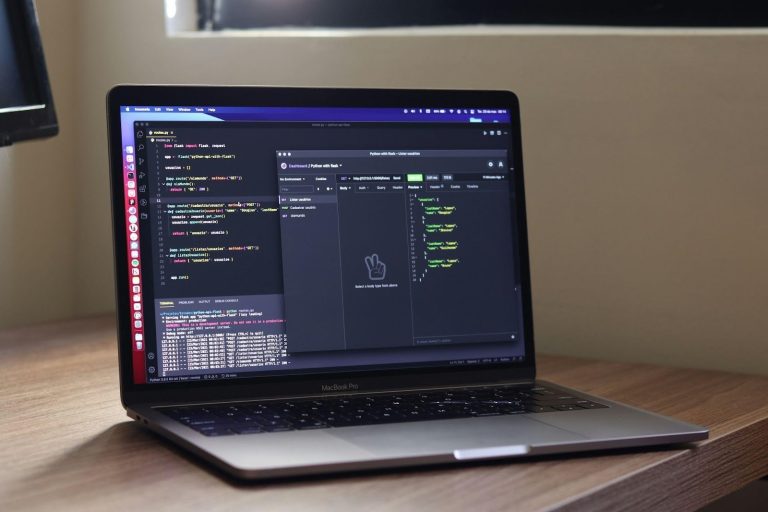
Choosing the best PC for Blue Iris starts with a question most buyers skip: how many cameras will you decode, and at what resolution? With substreams on, Blue Iris decodes a small preview stream for motion detection. The full-resolution main stream goes straight to disk without being decoded. That is why a small Intel business PC handles far more cameras than its spec sheet suggests, and why your money is better spent on what runs out first: RAM, AI headroom and drive bays.
AI is the other change. Blue Iris 6 ships built-in object detection, so you no longer need CodeProject.AI running beside it. CodeProject.AI Server itself has not published a release since December 2024. That changes the GPU question, so settle it before you buy. Below you will find two renewed Dell and HP business PCs, a new Dell tower for big systems, a low-profile Nvidia card for AI, and the surveillance drives to record on, sorted by camera count. Prices and stock below were checked in October 2026.
Best PC for Blue Iris: the quick picks
For most homes with 8 to 30 cameras, we’d buy a renewed Dell OptiPlex 7020 SFF and put a surveillance drive in its 3.5-inch bay. It has Quick Sync, two DDR5 slots that take 64 GB and a half-height PCIe slot, and renewed units run about $550 to $600. Here is where each pick wins, with rough price bands because these move weekly:
- Best overall, 8 to 30 cameras: Dell OptiPlex 7020 SFF, Core i5-14500 (renewed), about $550 to $600. Quick Sync, a 3.5-inch bay and a half-height PCIe slot in one small case.
- Best value, up to 16 cameras: HP Elite Mini 800 G9, Core i5-12500T (renewed), about $320 to $360. Three times the CPU of an N150 mini PC for about the same money, in a one-litre case.
- Best for 30+ cameras: Dell Tower, Core Ultra 7 265, about $1,200 to $1,300. 20 cores, a full-height x16 slot and Dell-supported Nvidia cards.
- Best AI GPU: MSI GeForce RTX 3050 LP 6G OC, about $270 to $300. A low-profile Nvidia card for the tower, where Dell supports Nvidia cards and a 360 W supply is an option.
- Best recording drives: Seagate SkyHawk 8TB (about $420 to $440) or WD Purple 4TB (about $220 to $240). CMR surveillance drives rated for constant writes.
Every pick is an Intel machine on purpose. Blue Iris decodes in hardware on Intel Quick Sync and Nvidia NVDEC, and its requirements page lists “Intel Core or Ultra processor” and an optional Nvidia card. AMD boxes do run Blue Iris. The help file only says its DirectX decoders may be able to use AMD decoding acceleration, though, so Intel is the safer bet for you.
How we picked these
This is a spec-based guide. We did not run these machines in our lab, so you won’t find our own frame-rate or CPU numbers here. Each pick was checked against three sources instead: the maker’s spec sheet or Intel ARK, the live Amazon listing for the exact SKU, and Blue Iris’s own help file and requirements page. Camera-count sizing uses the megapixels-per-second method from the ipcamtalk community wiki. We work it through below so you can redo it for your own cameras.
We ruled out three kinds of machine. Intel CPUs with an F suffix have no integrated graphics, so they have no Quick Sync, and the wiki says plainly not to buy them for Blue Iris. Intel N100 and N150 mini PCs went too, which surprised us. PassMark rates the N150 at a CPU Mark of 5,334 and the N100 at 5,306, both under the wiki’s 6,000 floor for a Blue Iris box. The renewed HP’s Core i5-12500T scores 16,314 for about the same price. We also skipped new premium mini PCs such as the ASUS NUC 14 Pro. Its Core Ultra 7 version listed at around $1,300 on Amazon this month, so it costs more than the tower pick and has nowhere to put a 3.5-inch drive.
How much PC does Blue Iris need per camera?
Less than you’d think, as long as every camera sends a substream. Blue Iris uses the main stream for audio, recording and playback, and the substream for everything else, including motion detection and the live camera grid. Recording runs direct to disk, which saves the video without re-encoding it. So the CPU mostly decodes small substreams, until someone views one camera on its own or plays a clip. Blue Iris then decodes that camera’s main stream, which is why the wiki keeps a 6,000 CPU Mark floor whatever the camera count. The ipcamtalk wiki sizes a system in megapixels per second (MP/s), multiplies that by 10 to get a PassMark CPU Mark target, and adds about 40% when the CPU has no Quick Sync.
That method gives these numbers for 4MP cameras at 15 fps, the most common setup, with and without substreams. The substream column assumes a D1-class stream at 15 fps, which the wiki’s table puts at 5 MP/s per camera:
| Cameras (4MP, 15 fps) | Load with substreams | Load without substreams | RAM (Blue Iris guidance) | Our pick |
|---|---|---|---|---|
| 4 to 8 | 20 to 40 MP/s | 244 to 488 MP/s | 8 to 16 GB | HP Elite Mini 800 G9 |
| 8 to 16 | 40 to 80 MP/s | 488 to 976 MP/s | 16 GB (more with AI) | HP Elite Mini 800 G9 |
| 16 to 30 | 80 to 150 MP/s | 976 to 1,830 MP/s | 16 to 32 GB | Dell OptiPlex 7020 SFF |
| 30 to 64 | 150 to 320 MP/s | Past what the wiki will size | 32 to 64 GB (the tower’s ceiling) | Dell Tower (Core Ultra 7 265) |
Those two columns hold the whole buying decision. Sixteen 4MP cameras on substreams come to about 80 MP/s, a light load for any recent Core i5. The same sixteen cameras decoded at full resolution come to nearly 1,000 MP/s, and the wiki warns that “for loads greater than 1500 MP/s, all bets are off”. If a camera cannot send a usable substream, budget for it as a full-resolution camera. Turn substreams on everywhere else before you buy more CPU.
RAM is the line people undershoot. The Blue Iris help file says 1 GB per camera with an 8 GB minimum, and the built-in AI adds up to 1 GB per concurrent analysis session. A 16-camera system running AI on four cameras at once can therefore want 20 GB. That is why we’d move any box past 16 cameras to 32 GB. Treat the help file’s figure as the safe ceiling rather than a floor: the ipcamtalk wiki says even 20+ camera systems benefit from 16 GB, and the tower’s 64 GB limit meets the help-file rule at about 60 cameras. The help file also targets an average CPU load of no more than 60 to 75% over time, so size your PC for headroom, not for the hour it sits idle.
The picks at a glance
Five things decide whether a PC suits Blue Iris. You want an integrated GPU for Quick Sync and the built-in AI, room for enough RAM, a 3.5-inch bay for a surveillance drive, a slot for a GPU, and a decent wired port. The GPU and drives get their own sections below, and this table covers the three PCs:
| PC | CPU and Intel GPU | RAM | 3.5-inch bay | GPU slot and PSU | Wired LAN | Price band |
|---|---|---|---|---|---|---|
| Dell OptiPlex 7020 SFF (renewed) | Core i5-14500, 14 cores, UHD 770 | 2 DDR5 slots, 64 GB max | One | Half-height Gen3 x16; 180 W or 300 W PSU | 1 GbE (Intel I219-LM) | About $550 to $600 |
| HP Elite Mini 800 G9 (renewed) | Core i5-12500T, 6 cores, UHD 770 | 2 DDR5 SODIMM, 64 GB max | None (one 2.5-inch bay, two M.2) | None | RJ45; 2.5 GbE via optional Flex Port | About $320 to $360 |
| Dell Tower ECT1250 (new) | Core Ultra 7 265, 20 cores, Intel Graphics | 2 DDR5 slots, 64 GB max | One | Full-height x16; 180 W or 360 W PSU | 1 GbE (Realtek RTL8111KD) | About $1,200 to $1,300 |
Read the bay column first. Two of the three take exactly one 3.5-inch drive, and the HP takes none. Past one drive’s worth of footage, every pick needs a NAS for the Stored folder. The PSU column only matters if you plan a GPU, and on both Dells the listing does not say which supply is fitted.
1. Dell OptiPlex 7020 SFF (best overall)
Dell’s OptiPlex 7020 SFF wins because it is the smallest box on this list that takes a real 3.5-inch surveillance drive inside the case. Dell’s manual lists one 3.5-inch SATA bay next to an M.2 slot for the system SSD. It also lists two DDR5 slots that go to 64 GB and a half-height Gen3 PCIe x16 slot. The renewed unit linked here carries a 14th-gen Core i5-14500 with Intel UHD 770 graphics, so you get Quick Sync for decoding and an Intel GPU for the built-in AI.

That layout matches how Blue Iris wants storage split. The help file says to keep the database and the New folder on a fast local drive and to push older clips to a Stored folder, which can live on a NAS. In this box the NVMe SSD holds Windows and the database. With continuous recording, point New at the 3.5-inch drive too: the ipcamtalk wiki puts all recording folders on the hard drives, and 16 continuous cameras write about 690 GB a day, more than the whole 512 GB SSD. Past about 11 continuous cameras, spread recording across drives or a NAS, as the drive section explains. On 16 to 30 cameras with substreams you’re sizing for 80 to 150 MP/s. That sits well inside a 14-core desktop i5, and the spare cores leave room for the built-in AI.
Where it falls short is the GPU slot. Dell ships this chassis with either a 180 W or a 300 W power supply, and the renewed listing does not say which one you get. The only discrete cards in Dell’s spec table are the AMD Radeon RX 6300 and RX 6500. So treat the slot as a bonus, not a plan, because a 70 W Nvidia card on the 180 W unit is a gamble we wouldn’t take, and Dell doesn’t validate a dual-slot low-profile Nvidia card in this chassis at all. The other limits are one gigabit port (Intel I219-LM) and one 3.5-inch bay, so recordings past one drive go to a NAS.
- Who it’s for: 8 to 30 cameras on substreams, AI on the Intel GPU, and one recording drive inside plus a NAS once you pass about 11 continuously recorded cameras (the drive section explains that ceiling).
- Skip it if: you need two or more internal 3.5-inch drives, a full-size GPU, or both a GPU and a second network card, since a dual-slot card covers the x1 slot a low-profile NIC would use.
- Before you buy: ask the seller for the 3.5-inch drive bracket and SATA cable, since units sold with only an M.2 SSD often lack them. Ask which power supply is fitted if a GPU is on your list, and whether the 16 GB is one stick or two before you plan a RAM upgrade past 16 cameras.
Renewed units sit around $550 to $600 with 16 GB and a 512 GB SSD; check the live price on Amazon, since renewed stock moves fast.
2. HP Elite Mini 800 G9 (best value)
HP’s Elite Mini 800 G9 is the best value here because renewed business PCs are where your Blue Iris money goes furthest. The ipcamtalk wiki’s hardware advice is simply “Buy refurbished”. This one carries a 12th-gen Core i5-12500T with UHD 770 graphics. PassMark puts that chip at a CPU Mark of 16,314, about three times an Intel N150 mini PC, for roughly the same price. HP’s QuickSpecs list two M.2 2280 slots, one 2.5-inch SATA bay and two DDR5 SODIMM slots that take up to 64 GB. The optional Flex Port can add an Intel 2.5 GbE port.

On 8 to 16 cameras with substreams the decode load is 40 to 80 MP/s, so most of the six cores stay free for the built-in AI on the Intel GPU. The trade is storage and the GPU. There is no 3.5-inch bay and no PCIe slot, so long retention goes to a NAS or a 2.5-inch drive, and AI stays on the Intel GPU.
- Who it’s for: 8 to 16 cameras, a NAS already on the network for the Stored folder, and a box you can hide behind a TV or on a shelf.
- Skip it if: you want the recordings inside the PC, plan to add an Nvidia card, or would rather buy new. The wiki also prefers a normal desktop chip over a 35 W T-series part like this one unless you are short on space, so pick the OptiPlex if the shelf allows.
- Before you buy: the listing ships 16 GB and a 256 GB SSD; 256 GB holds Windows and the database easily, but at about 43 GB a day per continuously recorded 4MP camera, point New at the NAS or a 2.5-inch drive, or cap it at a few hours. At 16 cameras with AI on several at once, plan on more than the 16 GB it ships with.
Renewed units sell for about $320 to $360, and the buy box was a used offer from a third-party seller when we checked; check the current HP Elite Mini listing, which names the exact CPU, RAM and SSD, before you order.
3. Dell Tower with Core Ultra 7 265 (30+ cameras)
Past about 30 cameras, or when AI runs on most of them, the tower earns its price with a full-height PCIe x16 slot that Dell supports Nvidia cards in. Dell’s manual for the Tower (model ECT1250) lists the GeForce RTX 3050, 4060, 5050 and 5060 as discrete options. It also has two full-height x1 slots for a second network card. The Core Ultra 7 265 inside has 20 cores and an Intel GPU with AV1 decode, and the Blue Iris requirements page names this family directly (“Intel Core or Ultra processor”).

Storage is where it disappoints, and that surprises people. The manual lists one SATA slot for a 3.5-inch drive and one M.2 slot, the same drive count as the OptiPlex SFF. Memory tops out at 64 GB across two DDR5 slots. The power supply is either 180 W Bronze or 360 W Platinum, and the listing does not say which, so check before you order a GPU for it. At 30 to 64 cameras on substreams you’re sizing for 150 to 320 MP/s before AI, and you’ll want to double the 16 GB this configuration ships with on day one.
- Who it’s for: 30+ cameras, AI on most of them, cameras that can’t send a usable substream, or anyone who wants a Dell-supported Nvidia card.
- Skip it if: you’re under 30 cameras, because the OptiPlex SFF does the same job for less than half the price, or you need several internal recording drives.
- Before you buy: confirm the 360 W supply if a GPU is planned, budget for 32 GB of DDR5 (check whether the 16 GB ships as one stick or two), and ask for the 3.5-inch drive bracket and cable if the unit ships with only an SSD.
The 16 GB, 1 TB configuration runs about $1,200 to $1,300; see the Dell Tower listing for today’s price and stock.
4. MSI GeForce RTX 3050 LP 6G (best AI GPU)
Most Blue Iris 6 owners won’t need this card, and that is why it sits fourth. The built-in AI runs YOLO models through Microsoft’s ONNX runtime. The 6.1.2 release notes headline Windows ML replacing DirectML, plus OpenVINO and Tensor core support, so an Intel iGPU or an Nvidia card can both carry the work. You add a GPU when AI starts queueing: many cameras triggering at once, the medium-size YOLO models, or an external AI server you still run on the same box.

When you do need one, the MSI GeForce RTX 3050 LP 6G OC is the card we’d fit. MSI rates it at 70 W with a 300 W recommended power supply. That is why it belongs in the tower with the 360 W supply, and why the 180 W OptiPlex is out. The 174 mm card carries 6 GB of GDDR6 and 2,304 CUDA cores, and it sits in a x16 slot while using eight lanes. It is an Ampere card with Tensor cores, the hardware the 6.1.2 notes name. If you keep CodeProject.AI around, its GPU FAQ recommends CUDA 11.8 on Windows, which supports Ampere.
- Who it’s for: the Dell Tower pick with the 360 W supply, once AI on the Intel GPU can’t keep up with your trigger rate. In an SFF, check the 300 W supply and the dual-slot low-profile fit first, because Dell doesn’t validate it there.
- Skip it if: you run fewer than about 16 cameras with AI on a few of them, or your box has the 180 W OptiPlex supply. Spend the money on RAM first.
- Watch out for: the low-profile cooler covers the slot next to it, so check that you don’t need that slot for a second network card.
Expect about $270 to $300; see the current RTX 3050 LP price before you order.
5. Seagate SkyHawk and WD Purple (recording drives)
Put your recordings on a surveillance drive, not a desktop drive. Blue Iris writes every camera around the clock, and the ipcamtalk wiki recommends a mechanical drive from the WD Purple or Seagate SkyHawk lines. It also says to keep each drive as its own volume rather than in RAID. Both picks are CMR drives on their makers’ datasheets, rated for a 180 TB/yr workload and up to 64 cameras, with a three-year warranty. That workload counts reads as well as writes, and it sets a ceiling most guides skip: 180 TB a year is about 493 GB a day, so one drive covers about 11 cameras recording continuously at 4 Mbps. The “up to 64 cameras” rating assumes low-bitrate streams: 180 TB a year shared by 64 cameras is about 0.7 Mbps each.

The WD Purple 4TB (WD43PURZ), about $220 to $240, suits up to 8 cameras or alerts-only recording. WD lists it at 5,400 RPM, and Seagate’s datasheet gives no speed for the SkyHawk, so treat neither as the 7,200 RPM drive the Blue Iris requirements page recommends. That is fine here because the database lives on the SSD, and recording is steady sequential writing, the job these drives were built for.

For 8 to 11 continuously recorded cameras, or about three weeks of footage from 8, the Seagate SkyHawk 8TB (ST8000VX010) is the drive we’d buy, at about $420 to $440. Per terabyte it was the cheaper of the two on the day we checked (about $53 against $57 for the 4 TB WD). It doubles the retention of the single 3.5-inch bay in either Dell. Dell’s manuals list 3.5-inch drives only up to 2 TB, so an 8 TB drive is unvalidated there, though Windows handles it on a GPT disk.
Size the drive from bitrate, not from camera count. One megabit per second written for a day is 10.8 GB (86,400 seconds divided by 8). A 4MP camera recording continuously at 4 Mbps therefore fills about 43 GB a day. Eight of those cameras need roughly 350 GB a day, which the 8 TB SkyHawk holds for about 23 days and the 4 TB WD for about 11 to 12.
Camera count is where one drive runs out. At 16 continuous cameras the load is about 690 GB a day, roughly 252 TB a year, which is past one drive’s rating and fills 8 TB in under 12 days; at 30 cameras it is about 1.3 TB a day and 6 days. Past 11 continuous cameras, record on motion or alerts, lower the main-stream bitrate, or spread recording across more drives with the Stored folder on a NAS. Formatted capacity and the free space Blue Iris keeps make every retention figure a little shorter, and motion-only recording stretches them, often by a lot on quiet cameras.
Keep the database off the hard drive too: the wiki puts it at about 1 GB per 35,000 clips, so the SSD in every PC above has room for it.
What to look for in a Blue Iris PC
Specs that matter for Blue Iris aren’t the ones a gaming or office review leads with. Clock speed and core count matter least once substreams are on. The integrated GPU, the memory ceiling and where the drives go decide whether your box still works at camera 20. Check these before you buy anything, including a machine not on this list:
- An Intel CPU without the F suffix: the F parts have no integrated GPU, so no Quick Sync and no iGPU for the built-in AI. The ipcamtalk wiki says not to buy them for Blue Iris.
- Substream support on every camera: it cuts decode load more than tenfold in the table above, more than any CPU upgrade will. Check the camera, not the PC, first.
- Two memory slots: Blue Iris wants 1 GB per camera with 8 GB minimum, plus up to 1 GB per concurrent AI session, so a single soldered 8 GB stick caps the system early.
- Somewhere for a 3.5-inch drive: inside the case, or a NAS for the Stored folder. USB drives work, but a cable knocked loose means silent gaps in recording.
- A second network port, or a managed switch: keeping cameras on their own network stops them phoning home. A PoE switch with VLANs does this on any single-port box; our PoE switch picks for cameras cover the options.
- Windows 11 that is licensed: Blue Iris is Windows-only, and the official recommendation is Windows 11 64-bit. Check that a renewed listing includes the Windows licence before you buy, and plan to run Blue Iris as a Windows service so it starts before anyone logs in.
If you’re not set on Windows, the same hardware runs a Linux NVR just as well. Frigate does object detection on an Intel iGPU or a Hailo accelerator, and our Frigate NVR appliance build runs on an Intel mini PC. The cameras matter as much as the box. Blue Iris and Frigate both want a clean, configurable substream, which is what our PoE camera picks were chosen for.
Where each pick falls short
No box here is right for every system, and the weak spot is usually the thing you will want to add in a year. Read this before you pick on price alone:
| Pick | Falls short on | What it costs you later |
|---|---|---|
| Dell OptiPlex 7020 SFF | One 3.5-inch bay; PSU not stated on the listing; Dell lists only AMD cards for the slot | A NAS once one drive fills; check the PSU before buying a GPU |
| HP Elite Mini 800 G9 | No 3.5-inch bay and no PCIe slot | Footage on a NAS from day one; AI stays on the Intel GPU |
| Dell Tower ECT1250 | Still one 3.5-inch bay; ships with 16 GB | A RAM upgrade right away; a NAS for long retention |
| MSI RTX 3050 LP 6G | 70 W card, 300 W PSU recommended | Wasted money under about 16 cameras, or on a 180 W Dell |
| WD Purple 4TB | 5,400 RPM and about 11 to 12 days of retention at 8 continuous cameras | A second drive or a NAS sooner than you think |
| Seagate SkyHawk 8TB | Highest upfront cost; still one drive’s workload rating, about 11 continuous cameras | A second drive or a NAS past that camera count |
For most people, the OptiPlex 7020 SFF with a WD Purple or SkyHawk inside is the one to buy. It covers the camera counts most homes reach, keeps the recordings in the same case, and leaves room in RAM for the built-in AI. Go smaller only if you are sure you will stay under 16 cameras, and go to the tower only when the count or the AI load demands it. If you’d rather run the whole stack on Linux, our Frigate install guide is the place to start.