Do you need a separate box just for Proxmox backups? If the backups live on the same host as the VMs, one dead disk controller or one bad upgrade takes both with it. A small dedicated Proxmox Backup Server box fixes that for the price of a mini PC and two drives, and the hard part is sizing it so you do not buy twice.
You get the hardware, the datastore sizing math and a tested setup here, with every number taken from a lab run. We built a PBS box, backed up three guests from a Proxmox host three times, pruned, garbage-collected, verified and restored, then sized the hardware from what the datastore actually stored. We built and broke this on Proxmox Backup Server 4.2 with a Proxmox VE 9.2 client in October 2026.
Quick picks for a PBS box
If you want the short answer, these are the parts we would order today, checked against the maker spec sheets and the live Amazon listings on October 21, 2026:
| Part | Pick | Why | Price band |
|---|---|---|---|
| Small box | Minisforum MS-01 (i5-12600H barebone) | 3x M.2, 2x 10G SFP+, 2x 2.5GbE | $400 to $500 |
| 4-bay box | UGREEN DXP4800 Plus | 4 SATA bays + 2 M.2, 10GbE | $630 to $700 |
| Budget box | Lenovo ThinkCentre M920q (renewed) | Cheap, quiet, one 2.5-inch bay | $220 to $260 |
| HDD | WD Red Plus 10TB | CMR, sold by Amazon | $440 to $480 |
| Special or all-flash SSD | Micron 7450 PRO 960GB M.2 | Power-loss protection | $750 to $850 |
Prices moved a lot in 2026 because of the flash and DRAM shortage, so check the current price before you order. An enterprise SSD with power-loss protection now costs more than the box it goes in, which changes the build: a mirror of hard drives with a small SSD mirror for metadata is the sensible middle ground.
How we tested
We ran everything on one of our Proxmox nodes, so the hardware picks are spec-checked, not bought and benchmarked. The lab had two VMs, and every output in this guide comes from their logs. The few commands we did not run there (the special device and ARC limit lines) are marked as coming from the PBS docs:
- pbs01: Debian 13 with PBS 4.2, 2 vCPU, 4 GiB RAM, two 24 GiB disks in a ZFS mirror
- pve-mini: a nested Proxmox VE 9.2 host with three guests
- web01: container with nginx and WordPress
- db01: container with PostgreSQL and a pgbench database
- app01: VM with an 8 GiB disk
Both VMs shared one host bridge and SSD-backed virtual disks, so the network and disk speeds below are not 1 GbE, 2.5 GbE or hard drive numbers. The PBS behavior is real: chunk counts, dedup, retention, garbage collection and restore all ran exactly as they would on a physical box.

Why split the jobs like this? The Proxmox host gets a token that can write backups but not delete them, so a compromised host cannot wipe its own history. Retention, garbage collection and verify all run on the PBS box, where you control them, and that keeps your oldest restore points safe even if the host is the thing that got attacked.
Step 1: Size the datastore before you buy
Size the box from used data and change rate, not from the size of your VM disks. Our three guests had about 5.1 GiB of real data spread over disks that added up to much more. Here is what the datastore held after each backup run, read from the garbage collection output:
| After | Snapshots | On disk | Dedup factor shown |
|---|---|---|---|
| Run 1 (first full) | 3 | 1.378 GiB | 7.94 |
| Run 2 | 6 | 1.569 GiB | 14.05 |
| Run 3 | 9 | 1.725 GiB | 19.18 |
| Prune to 2 per guest | 6 | 1.693 GiB | 13.07 |
The first full backup stored 5.1 GiB of data in 1.378 GiB, about 3.7 to 1. Part of that is compression, since WordPress files and PostgreSQL pages compress well, and part is dedup inside the first backup, because web01 held four copies of the same WordPress tree. Each later run added only what changed: 0.191 GiB, then 0.156 GiB. Do not plan with the dedup factor PBS shows. It counts every zero block and every repeated snapshot, so it climbs with each run and says nothing about how much disk you need.
Use this formula instead:
- First full (F): used guest data divided by compression; plan 1.3 to 2 to 1 for mixed homelab data, 1 to 1 for media
- Daily change (D): what each backup adds after compression
- Stored: F plus D times the number of days your oldest snapshot reaches back
- Pool size: stored divided by 0.8, so ZFS stays under 80% full
Take 1.5 TB of used guest data at 1.5 to 1, so F is about 1.0 TB. With 20 GB of stored change a day and a policy of 7 daily plus 4 weekly snapshots, the oldest snapshot reaches back about 34 days. The worst case is 1.0 TB plus 34 times 20 GB, about 1.7 TB, and blocks that change every day count only once, so real use lands lower. Divide 1.7 TB by 0.8 and you need about 2.1 TB of usable space. Two 4 TB drives in a mirror already cover that, and two 10 TB drives leave years of room.
Step 2: Pick the box
Start with the PBS system requirements: they ask for a 4-core 64-bit CPU, 32 GiB for the OS, and fast storage for the datastore. Almost any modern mini PC passes the CPU test, so the drive slots and network ports decide the box.
Minisforum MS-01: the small box with room for NVMe
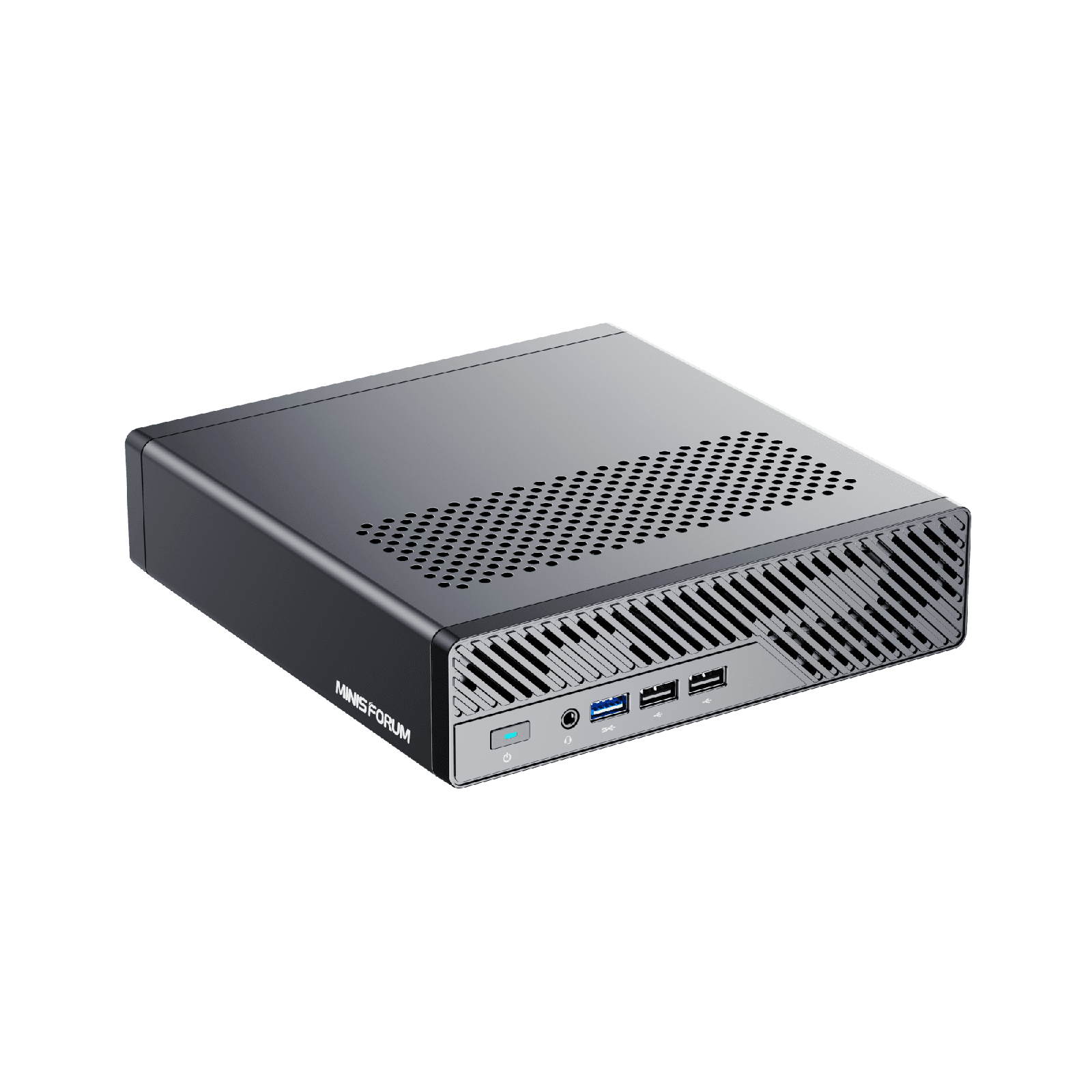
The MS-01 i5-12600H barebone has three M.2 slots (one PCIe 4.0 x4, one 3.0 x4, one 3.0 x2), two 10G SFP+ ports and two 2.5GbE ports. That makes an all-NVMe mirror plus a boot drive possible in a mini PC. It takes DDR5 SODIMMs up to 96 GB, non-ECC, and has no 3.5-inch bays, so it suits datastores up to a few terabytes.
UGREEN DXP4800 Plus: four bays for a hard drive mirror
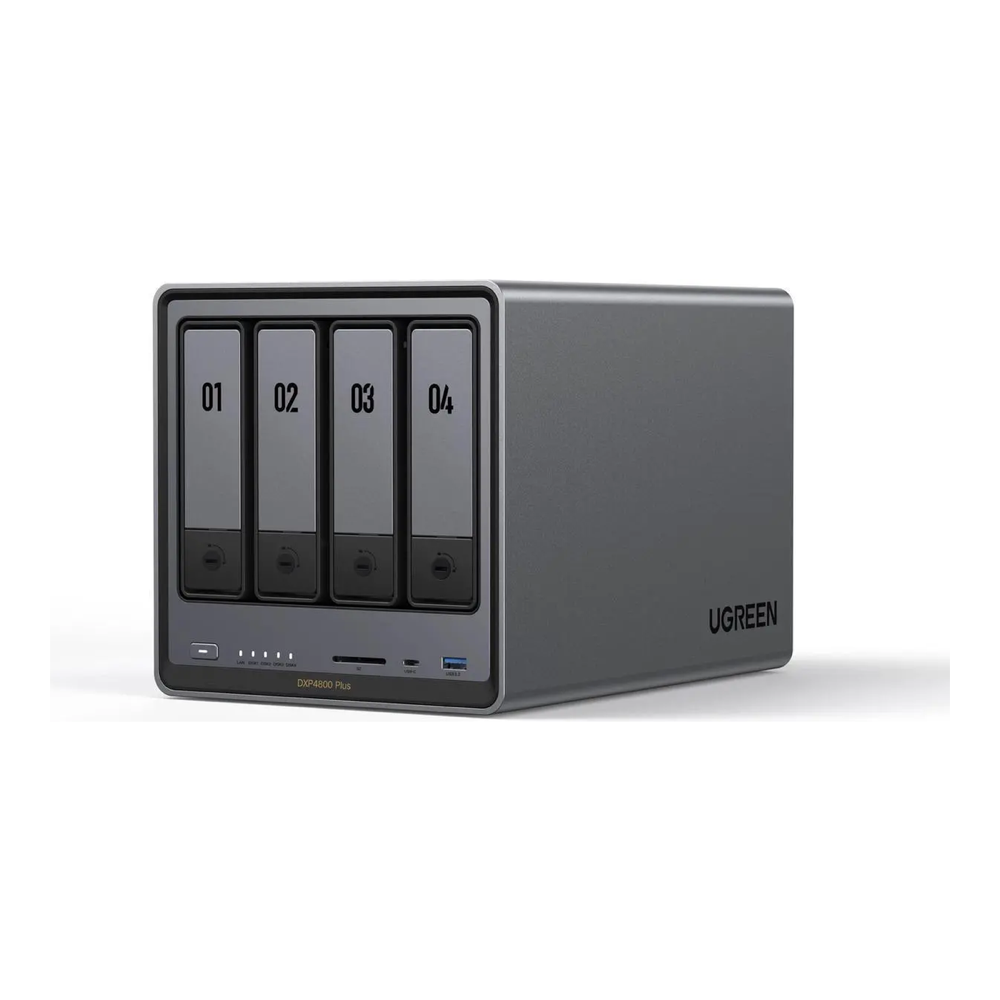
Want hard drives with an SSD metadata mirror? The DXP4800 Plus has four SATA bays and two M.2 slots, which is exactly that layout, plus one 10GbE and one 2.5GbE port. It ships with 8 GB of DDR5 and takes up to 64 GB. Owners who replaced UGREEN OS with Proxmox VE report pressing Ctrl+F5 for the BIOS, turning off the hardware watchdog and installing to a spare NVMe drive; PBS installs the same way. If the OS takes one M.2 slot, only one is left, so put the OS on the internal system SSD or a SATA bay when you want both M.2 slots for a special mirror.
Lenovo ThinkCentre M920q: the budget box

You can pick up the M920q as a renewed unit, quiet and cheap, and our used tiny PC guide covers buying one. Read the Lenovo spec sheet before you plan a mirror, though: the 2.5-inch bay and the PCIe slot are mutually exclusive. You get one M.2 drive plus either a second drive or a 10GbE card, never both, on onboard 1GbE and up to 32 GB of DDR4.
| Box | Datastore drives | Network | Max RAM | Best for |
|---|---|---|---|---|
| MS-01 | 3x M.2 | 2x 10G SFP+, 2x 2.5GbE | 96 GB DDR5 | All-NVMe, up to a few TB |
| DXP4800 Plus | 4x SATA + 2x M.2 | 10GbE + 2.5GbE | 64 GB DDR5 | HDD mirror with SSD special mirror |
| M920q | 1x M.2 + 1x 2.5-inch, or M.2 + NIC | 1GbE | 32 GB DDR4 | Small labs, second copy |
Step 3: Pick the disks
PBS docs are blunt about storage: “use only enterprise SSDs for best results”, and if you use hard drives, add a ZFS special device mirror for metadata. The reason is garbage collection and verify. Both touch every chunk, which on a real datastore means hundreds of thousands of small files and random I/O that hard drives handle slowly. We could not measure HDD timings in our lab, so treat that as the docs speaking, not us.
Hard drives: CMR only

For most builds you want the WD Red Plus 10TB: CMR, 7200 RPM and was sold by Amazon itself on the check date. For more capacity, the Seagate IronWolf Pro 20TB ran about $850 to $900 from a third-party seller. Never put SMR drives in a ZFS datastore; our CMR vs SMR guide explains why resilvers stall on them.
SSDs: power-loss protection for metadata

A special device holds the pool metadata, so its redundancy must match the pool, and on a pool with RAIDZ vdevs it cannot be removed once added. The Micron 7450 PRO has power-loss protection on its M.2 2280 model, which keeps metadata safe through a power cut. On a tight budget, the Samsung 990 PRO 2TB at about $390 to $430 is fast but has no power-loss protection, so pair it with a UPS.
A special device can also be added to an existing pool with zpool add, but only metadata written after that lands on it, so plan it up front. This layout comes from the PBS docs; we did not run it in our lab. The -f flag wipes the named disks, and /dev/disk/by-id/ names are safer than sdb or nvme0n1, which can be renumbered:
sudo zpool create -f -o ashift=12 backups mirror sdb sdc special mirror nvme0n1 nvme1n1A pool built this way is not a datastore yet, so add it afterwards under Datastore, Add Datastore in the web UI, pointing at the pool mount point.
Our ZFS RAID levels guide compares mirror and RAIDZ layouts if you plan more than two hard drives.
Step 4: Give it enough RAM
PBS wants 4 GiB for itself plus at least 1 GiB per TiB of datastore, and the ZFS section of the docs recommends 8 GiB to start and ECC memory. The docs also say the ZFS cache (ARC) defaults to 50% of RAM. Our 4 GiB lab box showed something else:
awk '/^size|^c_max/{printf "%s %.0f MiB\n",$1,$3/1048576}' /proc/spl/kstat/zfs/arcstatsOur ARC was allowed to grow to 2890 MiB of 3914 MiB, which is RAM minus 1 GiB:
c_max 2890 MiB
size 1970 MiB
On a small box, set the limit yourself so PBS and the OS keep their share. These lines follow the PBS docs (we did not run them in the lab) and cap the ARC at 4 GiB on an 8 GiB box. The tee overwrites any existing zfs.conf, and the limit applies after a reboot:
echo "options zfs zfs_arc_max=4294967296" | sudo tee /etc/modprobe.d/zfs.conf
sudo update-initramfs -u
For the MS-01 or DXP4800 Plus, a Crucial 32 GB DDR5 SODIMM kit ran about $560 to $600 on the check date; for the M920q, a PNY 32 GB DDR4 kit ran about $200 to $240. Our Proxmox RAM guide covers the host side of the same question.
Step 5: Match the network to the first backup
Your first full backup is the only one that moves all your data, so it sets the network you need. At about 117 MB/s usable, 1 GbE moves 1 TB in roughly 2.4 hours; 2.5 GbE at about 290 MB/s does it in about an hour. Past that, other limits take over: in our lab the Proxmox client compressed at about 244 MB/s per stream and TLS upload topped out at 375 MB/s.
After the first full, VMs send only changed blocks through the QEMU dirty bitmap. Our app01 VM sent 200 MiB in 11 seconds on the second run instead of the full 8 GiB. The bitmap is lost when the VM stops, the host reboots or the VM is migrated offline, and the next backup then reads the whole disk again, though it still uploads only new chunks. So 2.5 GbE is enough for most homelabs, and 10 GbE pays off for big restores and sync jobs. Our 25GbE NIC guide covers going faster.
Step 6: Install PBS and build the ZFS mirror
Our Proxmox Backup Server install guide walks through the ISO and the Debian install, so we only show the parts that differ here. On Debian 13, add the Proxmox keyring and the no-subscription repository first:
sudo wget -q https://enterprise.proxmox.com/debian/proxmox-archive-keyring-trixie.gpg -O /usr/share/keyrings/proxmox-archive-keyring.gpg
printf "Types: deb\nURIs: http://download.proxmox.com/debian/pbs\nSuites: trixie\nComponents: pbs-no-subscription\nSigned-By: /usr/share/keyrings/proxmox-archive-keyring.gpg\n" | sudo tee /etc/apt/sources.list.d/proxmox.sources
Then install the full stack rather than just the server package, because it brings the Proxmox kernel with ZFS, and reboot into that kernel:
sudo apt update
sudo apt install proxmox-backup
sudo reboot
After the reboot, confirm the running kernel ends in -pve; without it there is no ZFS module and the pool step fails:
sudo proxmox-backup-manager versions --verbose | head -2Our box reported the Proxmox kernel and PBS 4.2.8:
proxmox-backup                      4.2.0         running kernel: 7.0.14-25-pve
proxmox-backup-server               4.2.8-1       running version: 4.2.8
Before you build the pool, confirm that both blank disks show up in the PBS disk list:
sudo proxmox-backup-manager disk listBoth are unused and have no partition table yet:
┌──────┬─────────┬─────┬───────────┬─────────────┬───────────────┬─────────┬────────┐
│ name │ used    │ gpt │ disk-type │        size │ model         │ wearout │ status │
╞══════╪═════════╪═════╪═══════════╪═════════════╪═══════════════╪═════════╪════════╡
│ sda  │ mounted │   1 │ hdd       │ 17179869184 │ QEMU_HARDDISK │       - │ passed │
├──────┼─────────┼─────┼───────────┼─────────────┼───────────────┼─────────┼────────┤
│ sdb  │ unused  │   0 │ ssd       │ 25769803776 │ QEMU_HARDDISK │       - │ passed │
├──────┼─────────┼─────┼───────────┼─────────────┼───────────────┼─────────┼────────┤
│ sdc  │ unused  │   0 │ ssd       │ 25769803776 │ QEMU_HARDDISK │       - │ passed │
└──────┴─────────┴─────┴───────────┴─────────────┴───────────────┴─────────┴────────┘
One command builds the mirror, mounts it under /mnt/datastore and registers it as a datastore. It took 3.2 seconds:
sudo proxmox-backup-manager disk zpool create backups --devices sdb,sdc --raidlevel mirror --compression lz4 --add-datastore trueCheck the pool before you send anything to it:
sudo zpool status backupsBoth disks should read ONLINE under mirror-0:
  pool: backups
 state: ONLINE
config:

	NAME        STATE     READ WRITE CKSUM
	backups     ONLINE       0     0     0
	  mirror-0  ONLINE       0     0     0
	    sdb     ONLINE       0     0     0
	    sdc     ONLINE       0     0     0

errors: No known data errors
You can see the same pool in the web UI under Storage / Disks, with both members online:

Leave the dataset compression on lz4. Our pool reported a compressratio of only 1.04x, because PBS already compresses every chunk with zstd before it reaches ZFS.
Step 7: Connect Proxmox VE with a backup-only token
Do not connect Proxmox VE as root. Create a PBS user and an API token for the host instead:
sudo proxmox-backup-manager user create pve-backup@pbs --comment "PVE backup user"
sudo proxmox-backup-manager user generate-token pve-backup@pbs pve-mini
You see the token secret only once, when the second command prints it, so copy it now (our log kept the token, not the secret). Then grant the DatastoreBackup role to both the token and the user, because the PBS docs intersect token permissions with the permissions of the user that owns it:
sudo proxmox-backup-manager acl update /datastore/backups DatastoreBackup --auth-id 'pve-backup@pbs!pve-mini'
sudo proxmox-backup-manager acl update /datastore/backups DatastoreBackup --auth-id pve-backup@pbs
Copy the certificate fingerprint from the PBS dashboard (Show Fingerprint), then add the storage on the Proxmox host. Read the secret without echoing it, so it stays out of your shell history, and set the fingerprint once:
read -rs PBS_TOKEN_SECRET
export PBS_FINGERPRINT="paste-the-fingerprint"
pvesm add pbs pbs-backups --server 10.0.1.50 --datastore backups --username 'pve-backup@pbs!pve-mini' --password "${PBS_TOKEN_SECRET}" --fingerprint "${PBS_FINGERPRINT}" --content backup
Our host ended up with this entry in /etc/pve/storage.cfg (the add command itself was not captured in our log):
pbs: pbs-backups
	datastore backups
	server 10.0.1.50
	content backup
	fingerprint <pbs-cert-fingerprint>
	username pve-backup@pbs!pve-mini
If you skip the user ACL and grant only the token, the storage add fails with “Cannot find datastore ‘backups’, check permissions and existence!”. The error points at the datastore, but the cause is the missing user permission.
Step 8: Run the first backups and read the numbers
Back up the guests to the new storage. We ran all three in one job:
vzdump 201 202 301 --mode snapshot --storage pbs-backupsWatch the mode lines for the containers. Ours sat on a dir storage, which cannot snapshot, so vzdump fell back to suspend mode (log trimmed to the key lines):
INFO: Starting Backup of VM 202 (lxc)
INFO: mode failure - some volumes do not support snapshots
INFO: trying 'suspend' mode instead
INFO: backup mode: suspend
INFO: root.pxar: backup was done incrementally, reused 3.554 MiB (0.2%)
INFO: Finished Backup of VM 202 (00:01:14)
INFO: Starting Backup of VM 301 (qemu)
INFO: backup was done incrementally, reused 6.11 GiB (76%)
INFO: transferred 8.00 GiB in 59 seconds (138.8 MiB/s)
INFO: Finished Backup of VM 301 (00:01:01)
Suspend mode froze db01 for 29 seconds on the second run and 43 seconds on the third. Put container volumes on ZFS or LVM-thin so vzdump can snapshot them instead. The VM did far better: the dirty bitmap cut its backup from 61 seconds to 15 and then 11.
| Run | Whole job | web01 reused | db01 reused | app01 sent |
|---|---|---|---|---|
| 1 | 2 m 55 s | 19.2% | 0.2% | 8.00 GiB |
| 2 | 1 m 56 s | 94.2% | 88.5% | 200 MiB |
| 3 | 1 m 49 s | 96.2% | 74.5% | 144 MiB |
Open the third VM backup in the PBS task list and you can see how little an incremental sends:

On the datastore summary page you get the backup counts and the dedup factor from the last garbage collection:

Step 9: Schedule GC, prune and verify
Check the datastore jobs right after creating it. Our datastore came out of the disk tool with no garbage collection schedule at all:

Without a GC schedule, pruned chunks never leave the disk. Run prune on the PBS box, so the Proxmox token never needs delete rights, then add GC and a weekly verify:
sudo proxmox-backup-manager prune create keep-last-2 --store backups --schedule "daily" --keep-last 2
sudo proxmox-backup-manager datastore update backups --gc-schedule "daily"
sudo proxmox-backup-manager verify-job create weekly-verify --store backups --schedule "sat 03:00" --ignore-verified true --outdated-after 30
Our lab used keep-last 2 to see pruning quickly. For real data, use a daily and weekly mix such as –keep-daily 7 –keep-weekly 4. The config files then held all three jobs:
datastore: backups
	gc-schedule daily
	path /mnt/datastore/backups
prune: keep-last-2
	keep-last 2
	schedule daily
	store backups
verification: weekly-verify
	ignore-verified true
	outdated-after 30
	schedule sat 03:00
	store backups
Do not expect space back the moment a prune finishes. The GC docs keep chunks for 24 hours and 5 minutes after the last access. Run a GC by hand to see it:
sudo proxmox-backup-manager garbage-collection start backupsThe run right after our prune freed nothing (output trimmed):
Using access time cutoff 1d 5m, minimum access time is 2026-10-20T16:26:41Z
Removed garbage: 0 B
Removed chunks: 0
Pending removals: 32.663 MiB (in 35 chunks)
On-Disk usage: 1.693 GiB (7.65%)
Deduplication factor: 13.07
That pending 32.663 MiB is all the three oldest snapshots held that newer ones did not share. It leaves the disk on the first GC that runs after the grace window. Leave the cutoff at its default in production, because it protects chunks that a running backup still needs.

You can also verify the whole datastore on demand with sudo proxmox-backup-manager verify backups. A full verify of six snapshots took 6.04 seconds with 0 errors in the lab. On hard drives it will take much longer, which is one more reason to schedule it weekly at night.
Step 10: Test a restore
A backup you have never restored is a guess. List the snapshots on the Proxmox host to find the one you want:
pvesm list pbs-backupsThen restore it to a new VM ID. Our nested host stored VM disks on local; on a default Proxmox install use local-lvm or local-zfs instead:
qmrestore pbs-backups:backup/vm/301/2026-10-21T16:30:52Z 302 --storage local --unique 1Our 8 GiB disk image came back in 5.51 seconds, and the whole command, including config and volume rescan, took 31.7 seconds (output trimmed):
restore proxmox backup image: /usr/bin/pbs-restore --repository pve-backup@[email protected]:backups vm/301/2026-10-21T16:30:52Z drive-scsi0.img.fidx /var/lib/vz/images/302/vm-302-disk-0.qcow2 --verbose --format qcow2 --skip-zero
connecting to repository 'pve-backup@[email protected]:backups'
using up to 4 threads
starting to restore snapshot 'vm/301/2026-10-21T16:30:52Z'
download and verify backup index
restore image complete (bytes=8589934592, duration=5.51s, speed=1485.91MB/s)
Most of that disk was zeros, which PBS skips, so a full disk restores slower. Boot the restored VM, check the service inside it, then delete it with qm destroy 302 --purge 1.
What broke in the lab
Seven things went wrong or surprised us during the build:
- GRUB prompt: on a Debian cloud image, apt stopped at “You must correct your GRUB install devices”; the PBS ISO avoids it
- Token ACL: “Cannot find datastore” until the user also had DatastoreBackup
- Prune from PVE: fails with the backup role, by design; prune on PBS
- No GC schedule: the disk tool created the datastore without one
- Prune frees nothing: until the 24 h 5 min grace window passes
- Frozen containers: dir storage forces suspend mode
- ARC size: RAM minus 1 GiB on a 4 GiB box; set zfs_arc_max
If you hit the GRUB prompt, the fix is one debconf answer: echo "grub-pc grub-pc/install_devices multiselect /dev/sda" | sudo debconf-set-selections, then sudo dpkg --configure -a. Point it at the disk your system boots from.
What we would change for production
One PBS box protects you from a dead Proxmox host, not from a fire or a ransomware hit on your LAN. For a real homelab we would add a few things on top of the lab build:
- Second copy: a sync job to a second PBS box offsite, even an M920q
- Special mirror: two PLP SSDs in front of any hard drive pool
- UPS: on the PBS box and the switch
- Encryption keys: stored somewhere other than the PBS box
If you would rather keep backups on a NAS you already own, our NAS for Proxmox guide compares NFS and iSCSI targets. For a dedicated box, though, two mirrored drives and an hour of setup buy you restores that took 32 seconds in our lab, and the low-power server build shows how to cut its idle power.