










Drifting in blue
A few translucent forms, a little light and a steady camera. Keep the motion delicate for a quiet underwater film.
Create social media content, UGC, ads, and viral AI videos.Every top AI video and image model, all in one place.
Your imagination, in motion. Start with a prompt or make a sample your own.
Bring its motion to your own characters, scenes, and products—or replace selected elements while keeping the rest familiar.
A closer look at cinematic motion, expressive characters and striking detail.
Explore the visual possibilities. Use a prompt with any available video model in the studio.
From product ads to animated stories. Find your next direction.
A world of styles for products, portraits, illustrations and more.
Create an image, direct a video scene or compose a song. Everygen AI brings text-to-video, image-to-video, AI image generation and music into one workspace. Choose a model, set its controls and develop a visual or musical idea you can save and revisit.
Turn a written scene into motion. Shape the camera, light and mood, then generate a short clip for a story, a reel or your next creative experiment.
Start with a vertical prompt for UGC, product shots or YouTube Shorts. Replace the subject, refine the scene and take the result into your own edit.
Create a portrait, a product concept or an illustration. Add a reference image when you want to guide the composition, subject or visual style.
Pick one, or compare the models by the inputs your idea needs.
Browse all models Video
VideoShort scenes with expressive movement and sound.
 Video
VideoGuide a video with text or a first-frame image.
 Video
VideoCombine visual references into a cinematic sequence.
 Image
ImageExplore detailed compositions, then refine the image.
 Image
ImageDevelop a visual direction with flexible references.
 Music
MusicTurn a musical brief into a complete song.
Bring atmosphere, movement and a clear subject to your next film. Explore cinematic AI video with Grok Imagine, Kling, Seedance or another model in the studio. Each example starts with a reusable prompt; open it, change the direction and make a new scene of your own.
Try this promptA few translucent forms, a little light and a steady camera. Keep the motion delicate for a quiet underwater film.
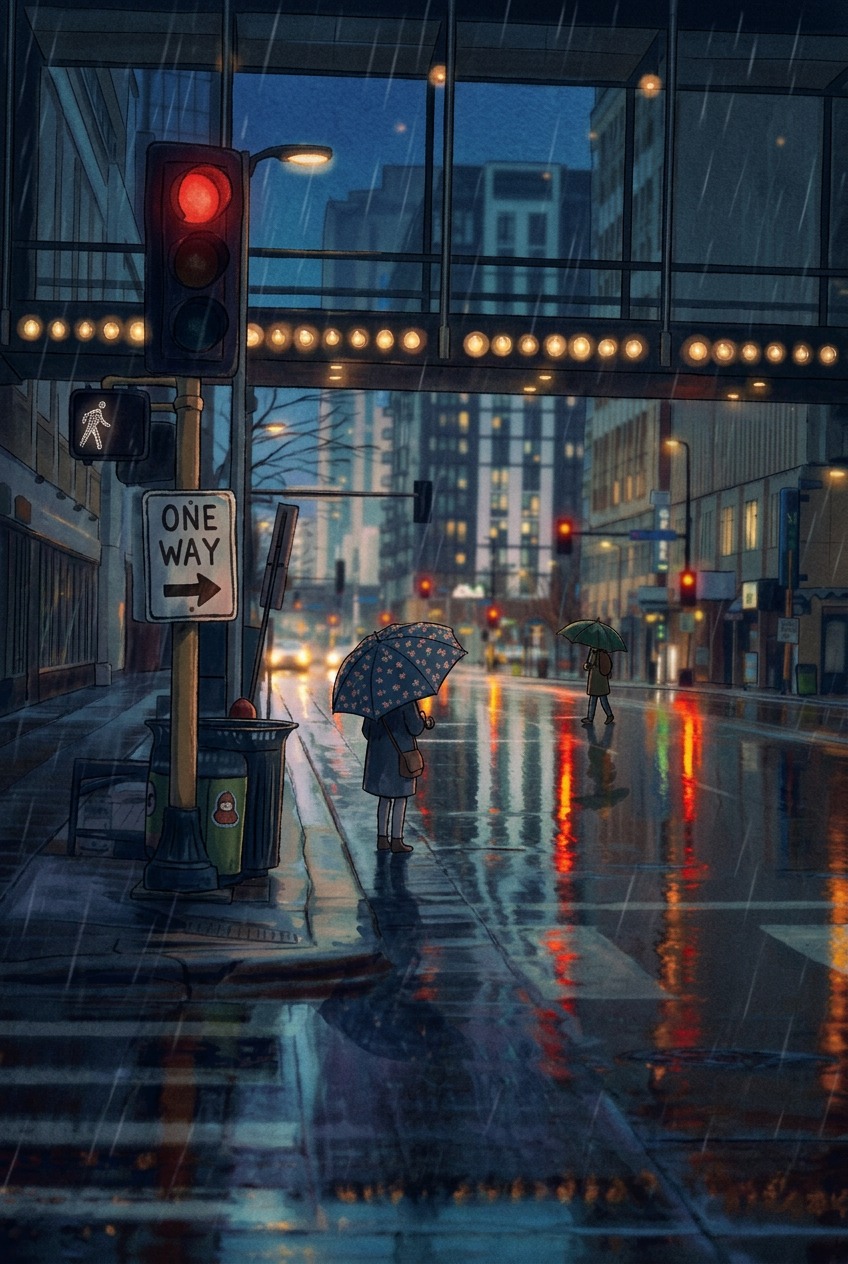
Follow a red tram through warm city streets. Reflections and a single tracking move give a travel scene its own rhythm.
Build a handmade world around an original character. Describe the materials as carefully as the action for a tactile animated scene.
Small silhouettes against a vast landscape create an immediate sense of scale. Keep the camera smooth and the desert light warm.
Give a craft film one precise action. A glowing material, a focused pair of hands and close framing can carry the entire scene.
Build a vertical short around a nature moment, original character or cinematic opening. These editable AI video templates give you a starting point for your own story.
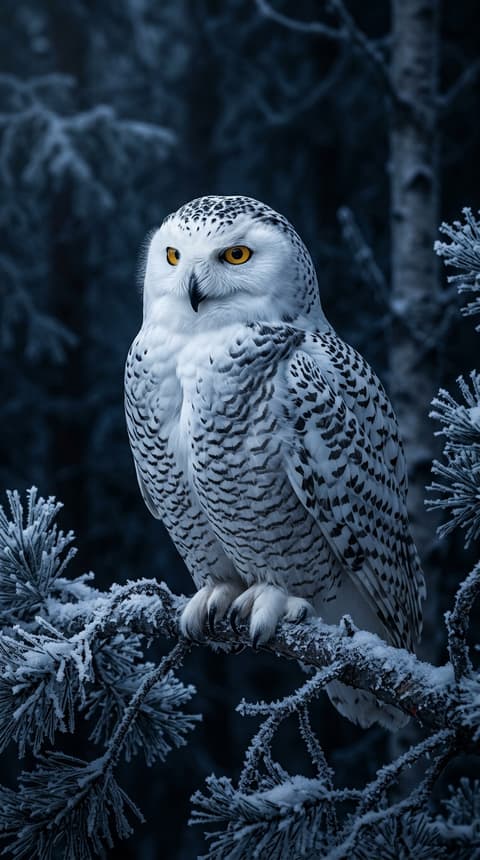
Start a nature short with a recognizable subject and a gentle reveal. Fine feather detail and soft snowfall make the frame feel inviting.
Use a reflection to make a vertical landscape feel expansive. Let the sky move slowly while the cabin gives viewers a point of focus.
Keep the camera close to the action for a short sports edit. One clear turn and bright water create a strong opening beat.
A moving sail and a trail across still water tell a compact travel story. Adapt the weather, location and camera angle to your brief.
An original little robot adds character to a social clip. Choose one expressive action, a playful palette and a simple setting for the story.
Explore AI UGC scenes and product video concepts before you plan a shoot. Describe a natural setting, a believable action and the atmosphere you want. These are generated creative examples, not real customer reviews, endorsements or footage of your product.
Show the shape and finish before adding a sales message. A controlled orbit and a warm light accent give this audio product room to stand out.
Explore a beauty campaign with a restrained palette and tactile materials. Change the container, flower or surface to match a product concept.
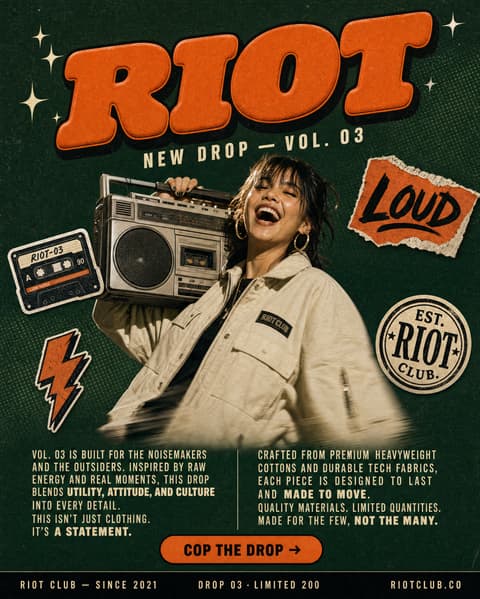
A bold product silhouette makes a useful opening shot for a vertical ad. Describe fabric, color and lighting before choosing the movement.
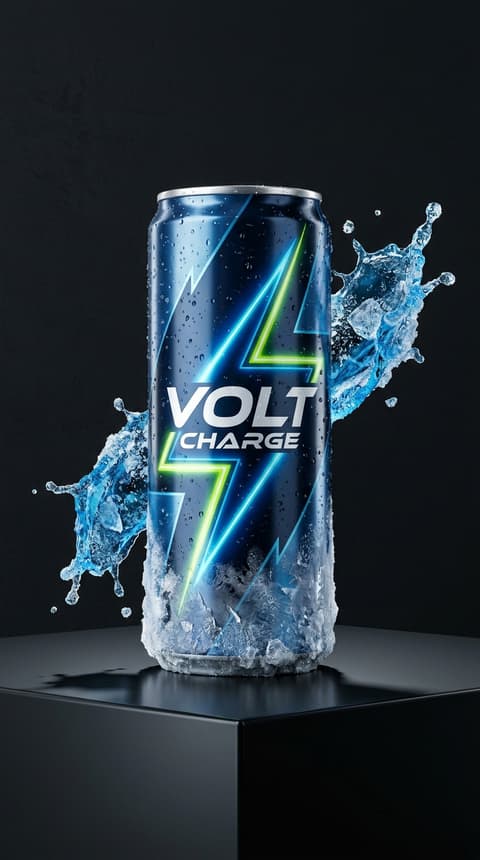
Pair a simple can with fresh ingredients and a splash of movement. Leave space in your final edit for the message and brand assets.
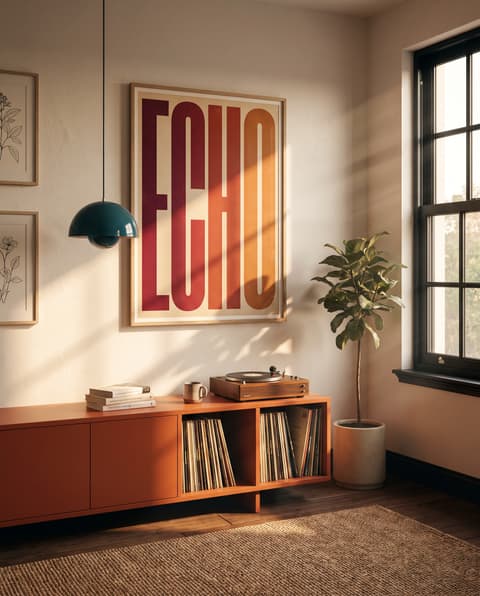
Bring a home design idea to life with a slow camera move and soft light. Small environmental details can give a room a calm, lived-in atmosphere.
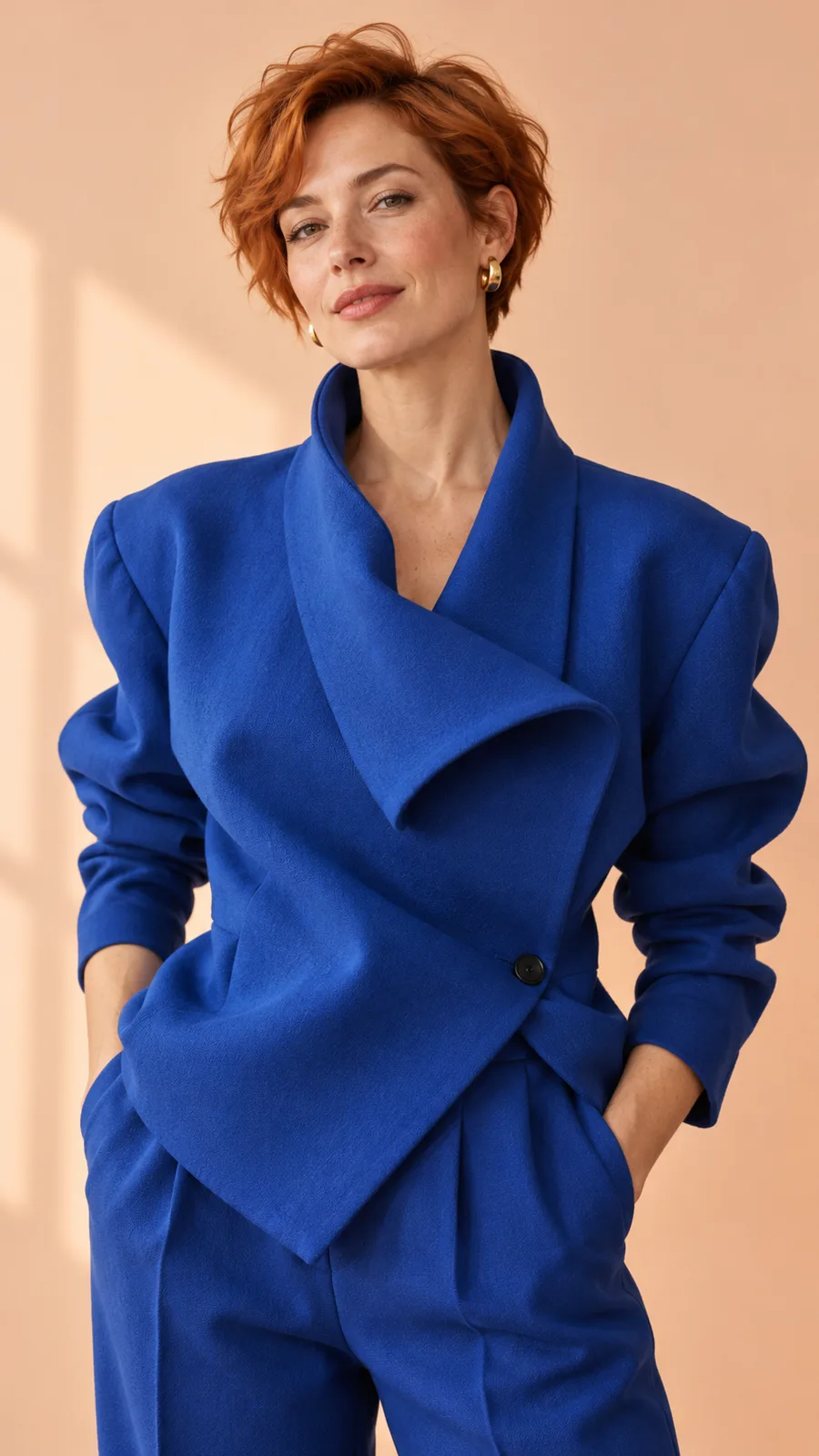

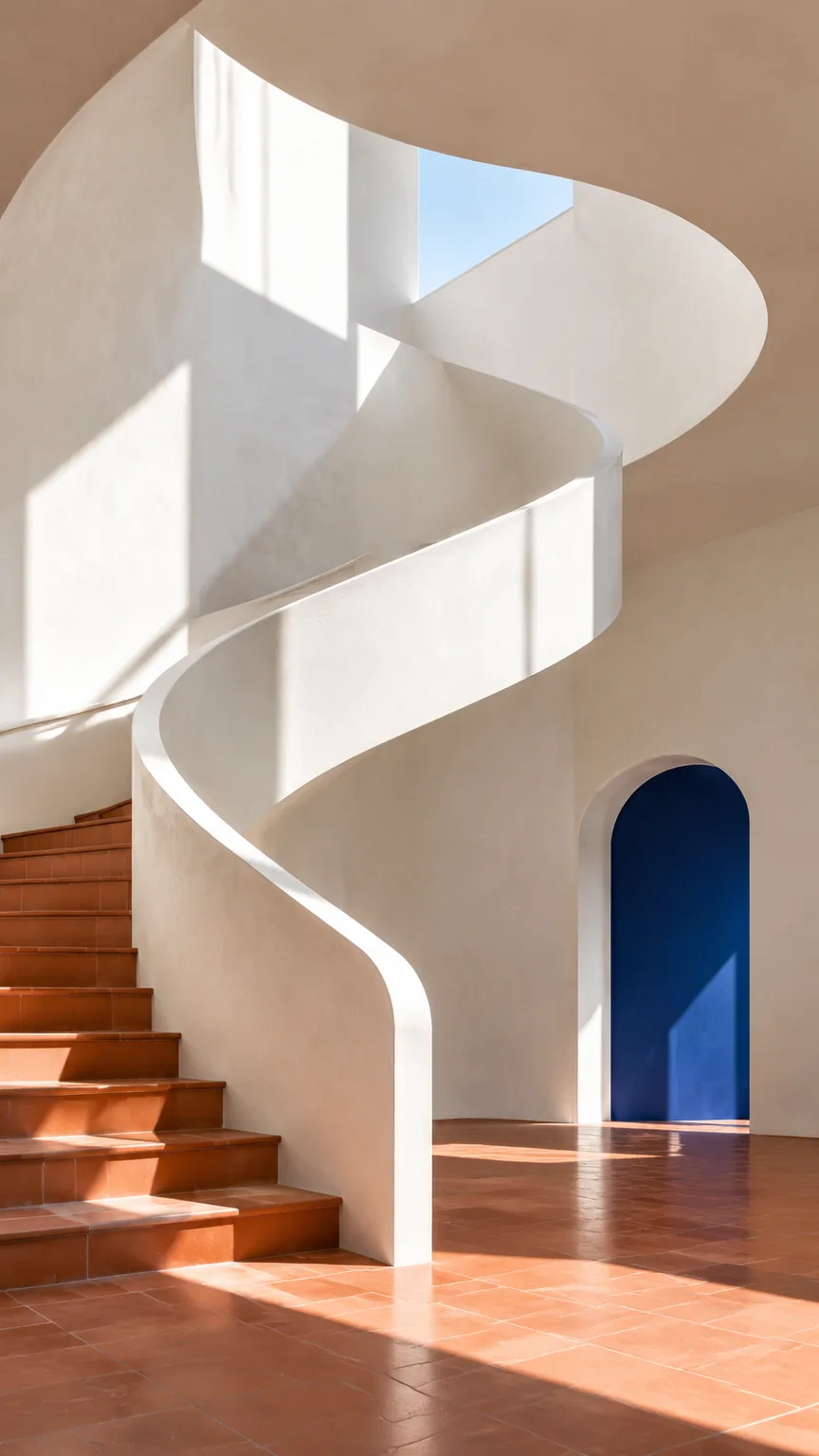
Explore GPT Image, Grok Imagine, Qwen Image, Nano Banana and Seedream for portraits, illustrations and product concepts. Set your composition and aspect ratio, or guide the result with a reference.
Create an imageStart with a clear idea, choose your media and refine one detail at a time. A small experiment can become the opening of a longer project.
Select a template to load its prompt, model and settings. Adjust the draft before generating; selecting a template never submits a request.
Describe the subject, setting and style. For video, add one action and camera movement. A reference image can guide the look. See how to write a video prompt for examples you can adapt.
Sign in to get credits, then choose an image, video or music model. Preview and download the result, then return through your history or reuse the prompt.
Looking for Viewmax AI? The product at everygen.ai was formerly called Viewmax. This independent studio gives you a browser workspace for generating your own media, alongside a practical resource for understanding similar names, model choices and free access.
Search results can mix different products. Check the domain and account provider when following a tutorial, comparing pricing or connecting a tool. The names below describe the models listed by Everygen.ai; the studio’s live model choices are shown above and may use different versions.
For more on the rebrand and where returning users should go, read the Viewmax AI guide.
Kling 3.0Video with deliberate movement
MiniMax H3 MaxGenerated video scenes
Veo 3.1Video creation
Nano Banana ProStill-image creation
Gemini Omni 1.1 FlashVideo generation and editing
GPT Image 2Image generation
Grok ImagineImage and video creation
We’re offering free access early on to grow our community and help more people discover the studio.
As we grow, we plan to support the service through Google ads, sponsored partnerships and optional premium services. Free generation uses daily credits and remains subject to shared capacity.
Check Is Everygen AI free? before you start.
Use your free creationsMCP connects an AI assistant to external tools. This browser studio does not currently expose an MCP connection. For the Everygen.ai integration, follow its official instructions, check the server address and use credentials belonging to that service.
Keep private API keys out of public prompts and shared configuration files.
Everygen AI MCP setupeverygenai.io is an independent creation studio and resource. The product at everygen.ai, formerly Viewmax, is operated by Viewmax LLC. This studio has its own accounts, generation limits and model access. Accounts or credits from another Everygen service do not transfer here.
Sign in to get credits before generating images, videos or music. Eligible accounts receive 15 credits on first verified sign-in, then 5 credits when they return after each later 24-hour wait. First-sign-in and daily grants do not stack. Missed days do not accumulate. Free rewards expire 24 hours after each grant; transferred guest credits retain their original expiry. Free rewards are subject to eligibility and shared capacity; signing in does not bypass those conditions. Images, videos and music share one wallet, with the cost shown before submission. Optional memberships are listed on this studio’s pricing page. The product at everygen.ai has its own pricing and credit system; check that product directly for its current offers.
We’re offering free access early on to grow our community and help more people discover the studio. As we grow, we plan to support the service through Google ads, sponsored partnerships and optional premium services. Free generation uses daily credits and remains subject to shared capacity.
Yes. Sign in before generating a video, then choose Video and a 9:16 aspect ratio to create a vertical clip, then download the result for your edit. Our templates help with the visual starting point. Add your own narration, captions, music and final cuts in your editing software before uploading a complete YouTube Short.
You can explore product scenes and advertising concepts here. Before publishing commercially, review the selected model’s terms and the rights to your reference images, likenesses, logos and soundtrack. Generated scenes need human review, and this studio does not guarantee clearance, factual product claims or a particular advertising result.
Upload PNG, JPEG or WebP images, and add MP4 or MOV video and MP3 or WAV audio when the selected model supports them. Reference counts, first and last frames, duration and output controls follow the model. Use the reference panel to assign inputs, and upload only media you have permission to use.
The product at everygen.ai was formerly Viewmax. Similar names can refer to separate services, including everygen-ai.com and mobile apps. Check the domain, developer and billing provider before creating an account or buying anything. This domain, everygenai.io, operates independently and does not share their subscriptions.
Confirmed failed generations return reserved credits. Purchased credits keep their no-expiry status; daily and promotional rewards receive 24 hours of validity from the return. Refunds do not change the next free-claim time. A request rejected before acceptance releases any still-valid original credits. An uncertain submission keeps its reservation while checked; do not submit it again. Refresh the studio to resume checking. Download completed creations before their storage period ends.
This release works in your browser and does not provide an MCP server. If you are looking for an MCP integration for the product at everygen.ai, use that product’s published setup guide and credentials. Never paste a private API key into a template prompt or into a configuration copied from an unverified website.
Genjutsu 1.0 + Lite
Transfer a performance or replace a subject using a source video and your reference images. Explore a template, then make the inputs your own.
Everygen AI brings several kinds of creative work into one workspace. Start with the result you need: a still image to explain an idea, a moving scene for a short video, or a music track to establish a mood. Choosing that starting point makes the next decisions easier. You can prepare the right input, compare the settings that matter and judge the output against a clear brief instead of exploring every control at once.
For images, families such as GPT Image, Nano Banana, Seedream and Qwen offer different routes into a visual concept. A product team might explore a tabletop composition, while a storyteller might begin with a character or location. Describe the important subject and framing, then add a reference when the selected model supports it. Review details such as lettering, reflections and object edges before using the image in a larger design or turning it into a video reference.
Video work in Everygen Studio can begin with text, an image or a compatible source clip. The available families include Seedance, Grok, Kling, Veo, Wan, Hailuo, MiniMax and Gemini-Omni. Their controls vary, so select the input method before planning a long sequence. A product reveal needs a different starting brief from a landscape shot or a character action. The video generation workflow explains how to move from those choices to a reviewed download.
Think about where the clip will appear before choosing its shape. A vertical scene may suit a phone screen, while a wider frame can leave room for a landscape or several subjects. Some image-led models inherit the reference shape, making the starting composition especially important. Use a short first attempt to assess movement, then decide whether a longer version adds anything useful. A higher setting should serve the finished project rather than replace a clear idea of what should happen on screen.
Music adds another layer to the same creative process. Describe the intended mood, instruments and vocal direction, then listen to each returned track before choosing one. A background for a quiet product scene may need space and restraint; a lively montage may need a stronger rhythmic feel. In Everygen AI, the music result lives alongside your other creations, so you can return to the available tracks and download the one that fits the sequence you are assembling.
Keep your experiments deliberate. Everygen AI shows a credit quote for the current settings before generation. Changing models may change the available controls. Review your settings and the amount after a change. When reference media is incompatible, confirm whether to remove it from the draft or keep working with the current model. Completed results can be reviewed in the workspace and found again in your library. Build on the useful attempts, adjust one clear problem at a time and download the files you want to keep for your final edit.
