


Tutorial #18 - Wesley Gibson & Tutorial #19 - Zanessa
Tutorial #18 - Wesley Gibson..
Learn how to many the following icon.
from this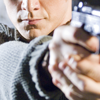 to this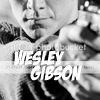
In 3 easy steps . Done in Photoshop, using Brightness/Contrast and Channel Mixer .
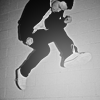
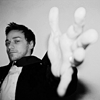
Other icons made with same coloring but tweaked abit
Tutorial #19 - Zanessa
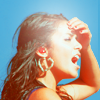
Learn how to make the following icon.
from this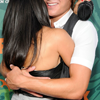 to this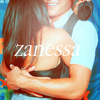
Done in Photoshop, using Selective Coloring, Curves, Channel Mixer +more
Other icons made with same coloring but tweaked abit
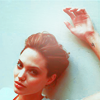
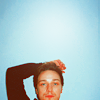
If you could direct your comments to the original post which is here
Learn how to many the following icon.
from this
to thisIn 3 easy steps . Done in Photoshop, using Brightness/Contrast and Channel Mixer .
Step 1 [a] : I'm using this screen cap from Wanted . Crop and resize the image 100x100.
[b]: And then you desaturate the icon ( shift+ctrl+U)
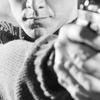
Step 2: Brightness/Contract
Brightness: -23
Contrast: +2
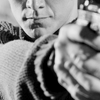
Step 3: Channel Mixer
Click on the box where it says Monochrome [ bottom left corner ]
Red: +66%
Green: +22%
Blue: +20%
Constant: -6
& your done , you can add text or texture up to you. :)
[b]: And then you desaturate the icon ( shift+ctrl+U)
Step 2: Brightness/Contract
Brightness: -23
Contrast: +2
Step 3: Channel Mixer
Click on the box where it says Monochrome [ bottom left corner ]
Red: +66%
Green: +22%
Blue: +20%
Constant: -6
& your done , you can add text or texture up to you. :)
Other icons made with same coloring but tweaked abit
Tutorial #19 - Zanessa
Learn how to make the following icon.
from this
to thisDone in Photoshop, using Selective Coloring, Curves, Channel Mixer +more
Step 1: Crop and resize image 100x100.
Step 2: Channel Mixer
Output channel: Red
Source channels
RED: +100%
GREEN: -20%
BLUE: -40%
CONSTANT: +20%
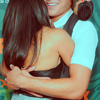
Step 3: Color Balance
Midtones: -32,+5,+8
Hightlights: +11, -18, -17
Shadows: +11, +10, -6
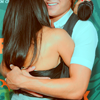
Step 4: Selective Coloring
Reds: -100, 0, +79, +78
Whites: -100, -100, -100, 0
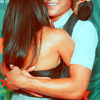
Step 5: Curves
Input : 116 Output : 139
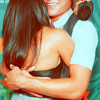
Step 6: Selective Coloring
Greens: +100, 0, 0, 0
Cyans: +93, +100, -97, 0
and your finished. i added some text and a Soft Round 70 pixels brush and then Gaussian Blur it.
Step 2: Channel Mixer
Output channel: Red
Source channels
RED: +100%
GREEN: -20%
BLUE: -40%
CONSTANT: +20%
Step 3: Color Balance
Midtones: -32,+5,+8
Hightlights: +11, -18, -17
Shadows: +11, +10, -6
Step 4: Selective Coloring
Reds: -100, 0, +79, +78
Whites: -100, -100, -100, 0
Step 5: Curves
Input : 116 Output : 139
Step 6: Selective Coloring
Greens: +100, 0, 0, 0
Cyans: +93, +100, -97, 0
and your finished. i added some text and a Soft Round 70 pixels brush and then Gaussian Blur it.
Other icons made with same coloring but tweaked abit
If you could direct your comments to the original post which is here

