


To use AI in Outlook, start with Copilot, the Outlook AI that drafts, summarizes and coaches your writing. It is included in Microsoft 365 Personal, Family and Premium, and business plans get Copilot Chat in Outlook at no extra cost, while the full Microsoft 365 Copilot add-on costs $21 per user per month for Copilot Business ($18 on promo until December 31, 2026) or $30 for enterprise. Add an add-in like MailMaestro or Grammarly for extra writing help. If you want AI to handle the email itself, connect an AI agent like eesel: it starts when a new email arrives, answers from your docs, and drafts or sends the reply.
What do you need to get started with AI for Outlook email?
Before we jump in, here’s a quick list of what you'll need to follow along:
- An active Microsoft Outlook account. Copilot comes with Microsoft 365 Personal ($99.99/year), Family ($129.99/year) or Premium ($199.99/year), but not with Microsoft 365 Basic. Business plans (Business Basic $7, Business Standard $14, Business Premium $22 per user per month, paid yearly) include Copilot Chat in Outlook, and the full Copilot is an add-on.
- Admin permissions for your Microsoft 365 setup if you plan on installing third-party add-ins for your whole team.
- An account for any third-party tool you want to try. Many offer free trials, so you can test them out before committing.
How do you set up and use AI for Outlook email, step by step?
Putting AI to work in Outlook is a process. We'll start with the simple, built-in features that give you a quick win, then move on to more advanced tools that can automate work from start to finish.
Step 1: Use Outlook’s built-in AI assistant for AI for outlook email (Microsoft Copilot)
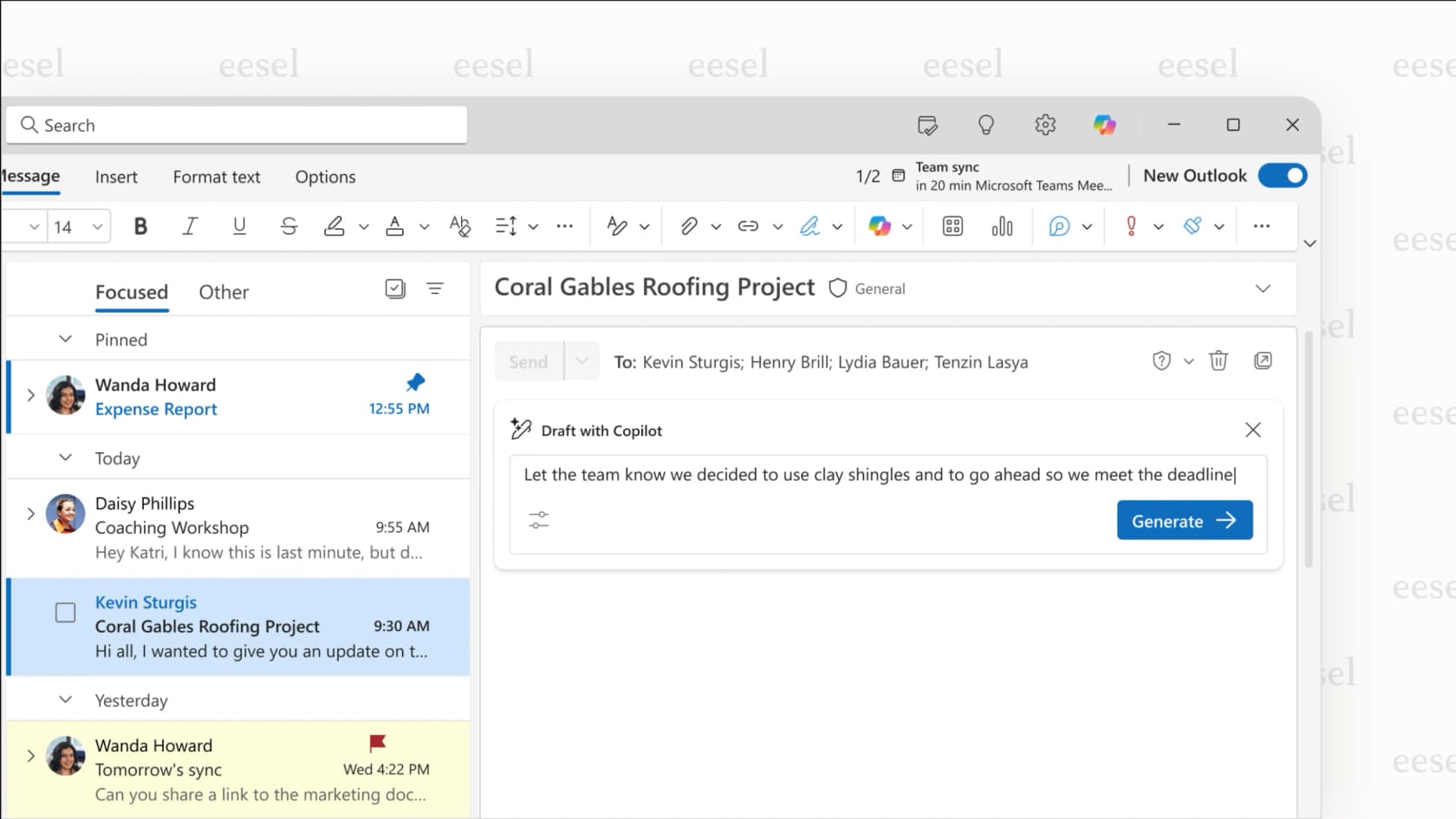
Microsoft Copilot is the AI assistant that's already part of Outlook for Microsoft 365 Personal, Family and Premium subscribers, and for work accounts through Copilot Chat. It’s built to help you with individual tasks like drafting emails, summarizing long conversations, and offering feedback on your writing. For work accounts, the full Microsoft 365 Copilot add-on is $30 per user per month paid yearly ($31.50 paid monthly) for enterprise plans, or $21 for Copilot Business ($18 on a promo that runs to December 31, 2026).
How to get it running
For most people with a Microsoft 365 subscription, there’s nothing you need to do. Copilot is probably already waiting for you in Outlook. Just look for the Copilot icon in the toolbar when you’re writing a new email or reading a thread. If you're using a company account and don't see it, your IT admin might need to switch it on or assign you a Copilot licence.
How to use it for everyday tasks
- Drafting emails: When you need to compose an email, select "Draft" in the Copilot menu in new Outlook, or "Draft with Copilot" in classic Outlook. Give it a simple instruction, like, "Write a follow-up to this email, agree to their timeline, and ask for the project brief." The AI will generate a draft for you to edit and send.
- Summarizing threads: If you're lost in a long email chain, click "Summary by Copilot" at the top of the thread (in classic Outlook, select "Summarize"). It will give you a quick rundown of the key points so you don't have to read every single reply.
- Getting feedback on your tone: Before you send an important email, try the "Coaching by Copilot" feature. It looks at your draft and gives you tips on its tone, clarity, and overall sentiment, helping you make sure your message comes across the right way.
Where it falls short
Copilot is great for personal productivity, but it has its boundaries. It works mainly on your Microsoft 365 data. Business tools like Zendesk, Freshdesk, or Jira Service Management reach it through Copilot connectors and agents your admin sets up, not through a switch in Outlook. In Outlook, Copilot drafts, summarizes and can triage your inbox when you ask, but it never sends a reply on its own: you select Send. To answer incoming email without a person, you either build an agent in Copilot Studio, which can start when a new email arrives and is billed in Copilot Credits ($200 a month for 25,000), or you need a different type of tool.
Step 2: Install a third-party AI writing add-in for AI for outlook email
Third-party add-ins are a good way to add specialized AI features to Outlook. They often focus on things like advanced grammar checks, better tone control, or smarter email management.
How to install an add-in
Adding one is pretty easy.
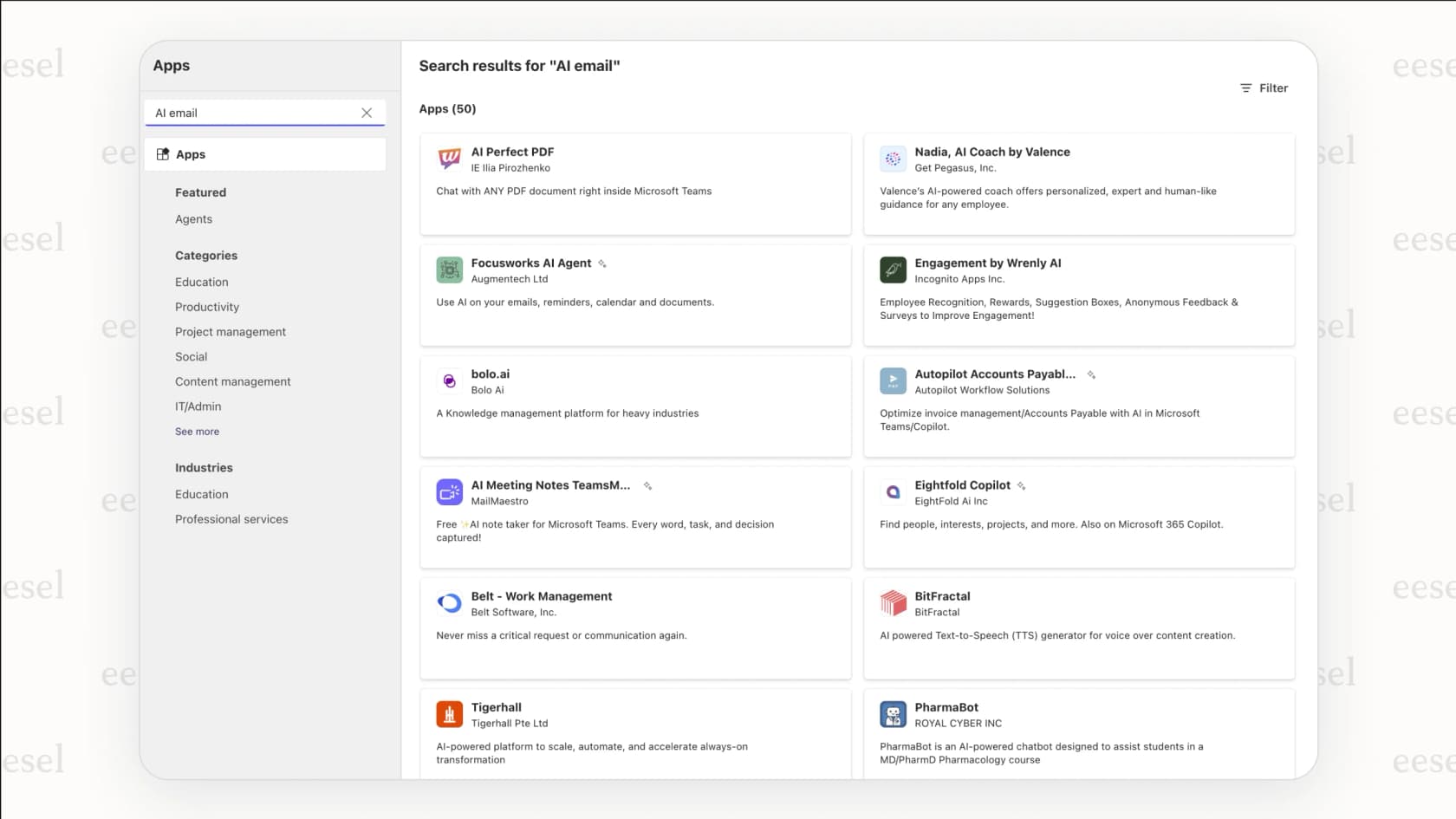
- In classic Outlook for Windows, go to the Home tab and click All Apps (older versions call it "Get Add-ins"). In new Outlook and Outlook on the web, select More apps > Add apps.
- Use the search bar in the store to find an AI tool you're interested in. You could search for something like Grammarly for grammar or MailMaestro for tone suggestions.
- Click "Add" to install the add-in and follow the prompts to connect your account.
When to use one
These tools come in handy when you need something more specific than what Copilot offers. For example, Grammarly is excellent for deep grammar and plagiarism checks (plagiarism checks are on its $12 Pro plan), while a tool like MailMaestro gives you very specific control over your writing tone, which is useful for things like formal executive emails. MailMaestro also works in Gmail, and its free plan gives you 3 AI requests a week. Its Pro plan, at $12 per seat per month billed annually, adds auto labels and auto drafts.
Pro Tip: Most add-ins have free versions or free trials. It's smart to try a couple to see which one feels right for your writing style before you decide to pay for a subscription.
Looking at the bigger picture
While these writing tools are helpful, they only solve part of the problem. They help you write emails faster, but they do little about the business processes that lead to those emails. Fixing that is where you can find some serious efficiency gains, and that requires a different kind of AI.
Step 3: Use an AI workflow assistant for actual AI for outlook email automation
Now it's time to talk about the next step for AI for Outlook email: moving from writing help to an AI that handles the email. A writing assistant helps you craft a message. An AI agent works the email itself: it reads it, finds the answer, and replies or files it. This matters most for support, IT, and ops teams, where every email in a shared inbox is a task that needs to be done.
eesel AI is an AI teammate you connect to Outlook with your Microsoft account. It starts work when a new email arrives in the connected inbox, so nobody has to open it first. The Outlook integration page lists everything it can do.
How it’s different
- It answers from your company’s knowledge: Instead of general information, eesel AI answers from your own documents. That can be your public help center, internal wikis in Confluence or Google Docs, and past tickets from your help desk.
- It acts in the inbox: It replies in the thread or leaves a draft reply for a person to review. It can also move the email to a folder, add or remove a category, flag it, or mark it read. Each action can run on its own or wait for someone to approve it.
- It works where your team already is: The same agent can work in help desks like Zendesk, and answer questions in Slack or Microsoft Teams.
- You stay in control: You decide how it works. You can set up rules in plain English to define the AI's tone, decide when it should pass a question to a human, and tell it exactly what actions it's allowed to take.
| Feature | Microsoft Copilot | Third-Party Writing Add-ins | AI email agent (e.g., eesel AI) |
|---|---|---|---|
| Primary Use | Personal productivity (drafting, summarizing, triage) | Specialized writing help (grammar, tone) | Handling incoming email for a team |
| Integration | Microsoft 365, plus connectors your admin sets up | Outlook (some, like MailMaestro, also Gmail) | Outlook, Gmail, help desks, wikis, Slack, Teams |
| Knowledge Source | Your Microsoft 365 work data | Mostly general AI models | Your company's docs and past tickets |
| Automation | Drafts and triages on request, never sends on its own | Writing help; some add auto drafts and labels | Starts on each new email; drafts or sends, files it |
| Best For | Individuals needing quick writing help | Users needing advanced grammar/tone control | Support, IT, and Ops teams in shared inboxes |
How to get started (a general overview)
Setting up an AI email agent like eesel AI is all about connecting it to your tools.
- Sign up for eesel AI for free and create your agent.
- Connect your knowledge sources, like your help center URL, a Confluence space, or a folder in Google Drive.
- Connect Outlook from Integrations with your Microsoft account. If your email already lands in a help desk as tickets, you can connect that instead.
- Write its instructions in plain English and choose which actions run on their own and which wait for approval. Start with drafts, then let it send once you trust the replies.
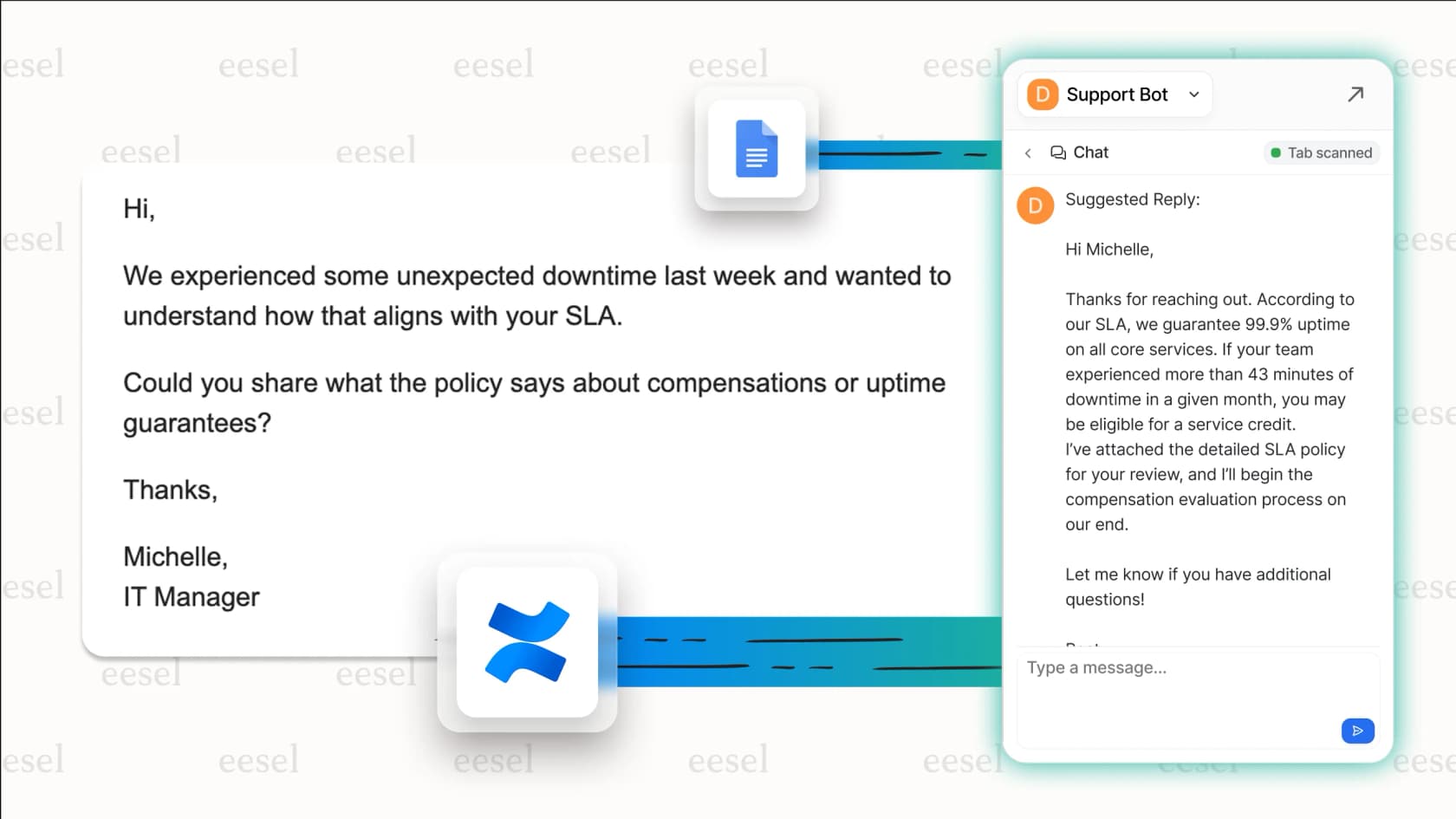
The point is this: while a tool like Copilot helps you work faster as an individual, an agent like eesel AI handles the email for your team. The free plan gives you 100 credits with no card, and paid plans start at $299 a month for 500 credits (1 credit per ticket or chat, however long). I cover the full setup in AI email agent for Outlook.
Tips for getting the most out of AI for Outlook email
Using AI well is a skill you build over time. Here are a few tips to make sure you're getting helpful and accurate results.
- Be specific with your instructions: The more context you give the AI, the better its response will be. Instead of just saying "write a reply," try something more detailed: "Write a polite reply confirming we got the request and letting them know our standard response time is 24 hours."
- Always review before you send: Think of AI as your assistant, not your replacement. Always take a few seconds to read through any AI-generated text to check for accuracy, tone, and any weird phrasing.
- Know the privacy details: Be aware of what data your AI tool can see. For business use, it's important to pick a platform like eesel AI that is built with security in mind, offers features like EU data residency (an add-on), and promises that your private data won't be used to train other models.
- Start small and grow from there: When you start automating workflows, don't try to boil the ocean. Roll out the AI on one specific email queue or with a single team first. See how it does, get some feedback, and then expand its duties as you get more comfortable with it.
Go beyond a smarter inbox with AI for outlook email
You can start using AI for Outlook email right now. Built-in tools like Copilot give you an easy productivity bump for your personal inbox, and third-party add-ins are a great next step for more specific writing help.
But if your goal is to cut down on manual work for your whole team and automate the tasks that fill your inbox, you need an AI that handles the email itself. eesel AI connects to Outlook and the rest of your tools, and turns your team's knowledge into an agent that answers and sorts email on its own.
Ready to see how AI can do more than just write emails? Book a demo of eesel AI to learn how you can automate your support and IT workflows.
Frequently asked questions
What's the real difference between a basic writing assistant and a full automation AI for outlook email?
A writing assistant like Microsoft Copilot helps you draft, summarize, or improve a single email. A full automation tool connects to your other business apps to handle the entire process behind the email, like triaging a support ticket or finding answers in your company wiki.
I'm worried about security, so how can I be sure it's safe to use an AI for outlook email with sensitive information?
This is a critical concern, so you should always verify a tool's security policies. Enterprise-grade platforms are built with security first, guaranteeing your data stays private and isn't used to train other AI models. Avoid any tool that isn't transparent about its data handling practices.
Do I need advanced technical skills to set up a useful AI for outlook email system?
Not at all. Copilot is built into Outlook and comes with your Microsoft 365 plan or a licence your admin assigns, and third-party add-ins install from the Outlook store in a few clicks. Even powerful workflow platforms are designed to be set up using plain English commands, so you don't need to know how to code.
How can I get an AI for outlook email to sound like my company and follow our specific rules?
The best tools allow for deep customization. You should look for a platform that can train securely on your own knowledge base and documentation, and lets you set specific rules in plain language to guide the AI's tone, voice, and behavior.
Can AI reply to Outlook emails automatically?
Not with the built-in Copilot: it drafts, and you select Send. Copilot Studio agents can start when a new email arrives, billed in Copilot Credits. An AI agent like eesel connects to Outlook, starts on each new email, and either leaves a draft for review or sends the reply itself, depending on how you set it up.
