


- Gmail Summarize This Email gives you a Gemini "AI Overview" of a long thread, and since January 2026 it's free for every Gmail user, in 8 languages.
- On desktop you click Summarize this email at the top of a thread. On the iOS and Android apps, summary cards can appear by themselves on longer threads.
- You can't switch summaries off alone. Turning off the smart features settings also removes Smart Compose, Smart Reply, inbox tabs and AI writing help.
- If you want AI to act on the email (answer it, draft it, label it), not just summarize it, an AI email agent like eesel connects to Gmail and does that.
What is the Gmail Summarize This Email feature?
Google is pushing its Gemini AI into Gmail, and "Summarize this email" is the part most people notice first.
Basically, the "Summarize this email" feature uses Google's Gemini AI to read through long email threads and boil them down to a few bullet points. Google now calls the result an "AI Overview conversation summary", and it can also suggest a reminder for a task with a due date. The goal is to give you the gist of a conversation in seconds, saving you from slogging through every single reply just to catch up.
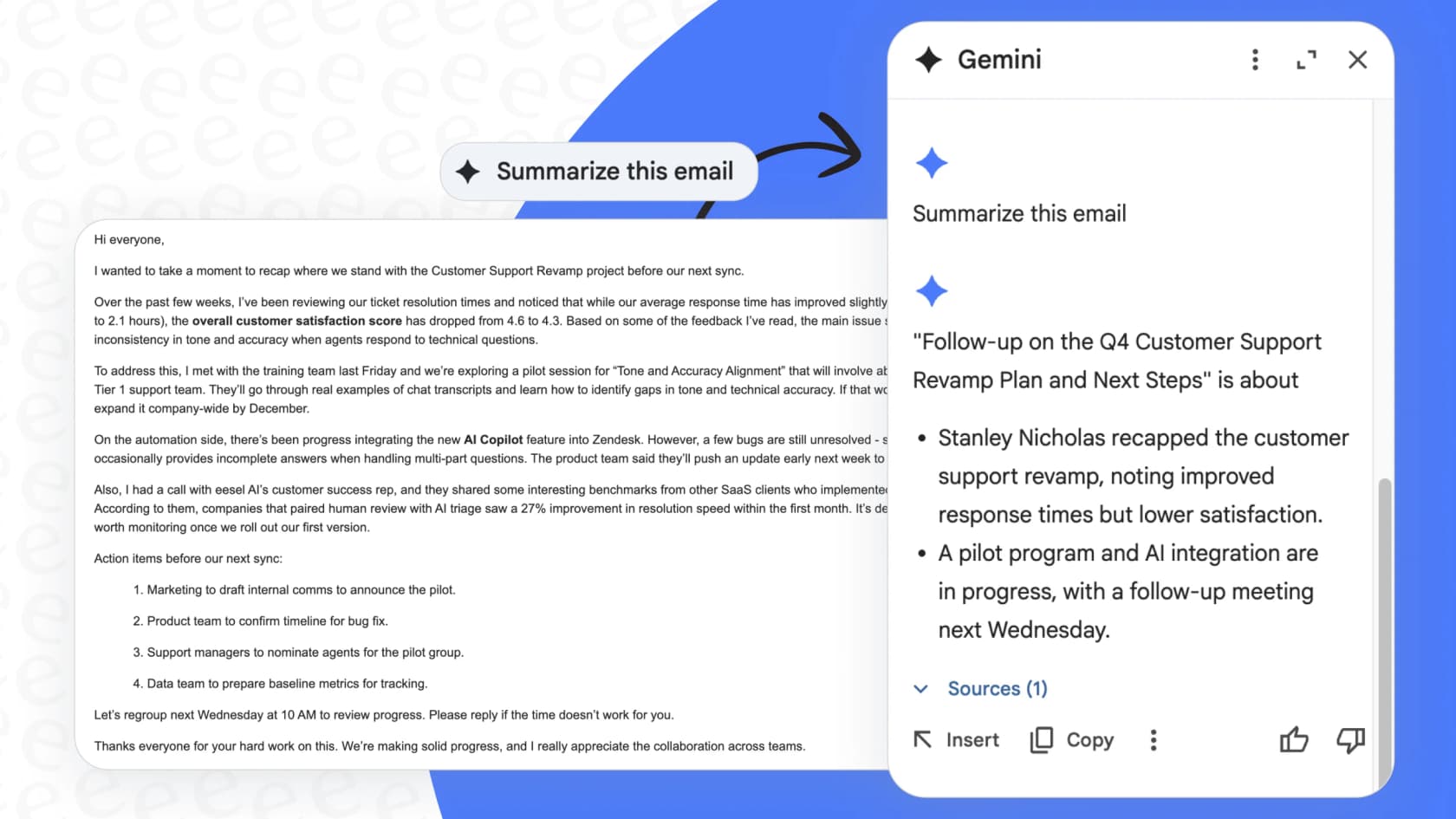
This isn't just some random experiment; it’s part of Google's bigger plan to weave AI into everything in its Workspace suite, from Docs and Sheets to Meet. The summary might appear automatically at the top of an email, or you can click a button to trigger it yourself. It's meant to be a seamless experience, but as a lot of us are finding out, sometimes that seamlessness just feels like an interruption.
Who can use Gmail Summarize This Email, and how does it work?
Anyone with Gmail can use it now. When the automatic summaries first reached the Gmail app in May 2025, they were a paid feature for Workspace and Google One AI Premium users. On January 8, 2026, Google started rolling out AI Overview summaries for everyone at no cost, beginning in the US and in English. Google's help page now says it's "available to all Gmail users globally" in supported languages.
If you’re trying to figure out if you have access, here’s a quick rundown of where you can find it and which plans include it.
Platform availability
The automatic summaries show up on the Gmail mobile apps for iOS and Android, as cards at the top of longer threads. If you're a desktop user, the feature is a bit less in-your-face. You click Summarize this email at the top of a thread, or you can open the Gemini side panel and ask it to summarize the email thread you have open. It’s a bit more work, which, honestly, some people might prefer.
Eligible Google Workspace plans
Thread summaries no longer need a paid plan, but the rest of Gemini still depends on your plan. For work accounts, that means one of the Google Workspace tiers. For personal accounts, the paid options are Google AI Plus ($4.99/month), Google AI Pro ($19.99/month, formerly Google One AI Premium) and Google AI Ultra (from $99.99/month). Here’s how the plans break down:
| Plan | Gemini Availability | Who It's For |
|---|---|---|
| Free Gmail account | Thread summaries (global); Help me write and Suggested Replies (US only) | Anyone with a personal Google account. |
| Business Starter | Limited (Gemini in Gmail & the Gemini App) | Individuals and small teams just starting. |
| Business Standard | Full (Gemini in Gmail, Docs, Meet, Sheets & more) | Growing teams that need more tools. |
| Business Plus | Full (Same as Standard, plus better security) | Businesses that need more advanced controls. |
| Enterprise | Full (Same as Plus, with enterprise-level stuff) | Large companies with complex setups. |
| Google AI Plus, Pro, Ultra | Full (For personal Google accounts; Pro and Ultra add AI search overviews and Help me schedule) | Individuals who want the fancy AI features. |
What are the pros and cons of Gmail Summarize This Email?
It saves time on long threads, but it costs screen space, accuracy and some control. The idea of an AI summary sounds pretty good, but in reality, the feature has some serious trade-offs. It’s this tension between convenience and control that’s causing such a fuss.
Benefits: Getting up to speed fast
Let’s start with the good parts. When it works, the summary feature can genuinely make your day a little easier.
-
Catch up in a flash: It’s great for those long, messy threads that have been bouncing around all day. Instead of reading twenty different replies, you get the highlights in a few seconds.
-
A helping hand for managers: If you're a manager who gets cc'd on everything, this can help you get the high-level picture without getting bogged down in every little detail.
-
Sift through the noise: It's also pretty useful for digesting newsletters, promotional emails, or internal updates that you need to know about but don’t need to reply to right away.
Drawbacks: Loss of control, mistakes, and privacy worries
Now for the other side of the story. For many people, especially in a work setting, the downsides are hard to ignore.
-
It’s a space hog: As plenty of users on Reddit have complained, the summary card can be huge. It shoves the actual email down the page, which is really frustrating when you just want to read the message yourself. On mobile, you can at least collapse a card.
-
It can get things wrong: AI isn't perfect. It can make mistakes, miss important context, or completely misread the tone of an email. Trusting an AI summary for important information without checking the original emails is a bit of a gamble.
-
Privacy questions: For the AI to summarize your emails, it has to read them. If your business deals with sensitive customer information or confidential details, this naturally brings up some valid privacy and security concerns.
-
You can't opt out of it alone: Summaries are free now, so cost isn't the issue anymore. Control is. The only off switch also takes away other features you may want to keep (more on that below).
How do you disable Gmail Summarize This Email?
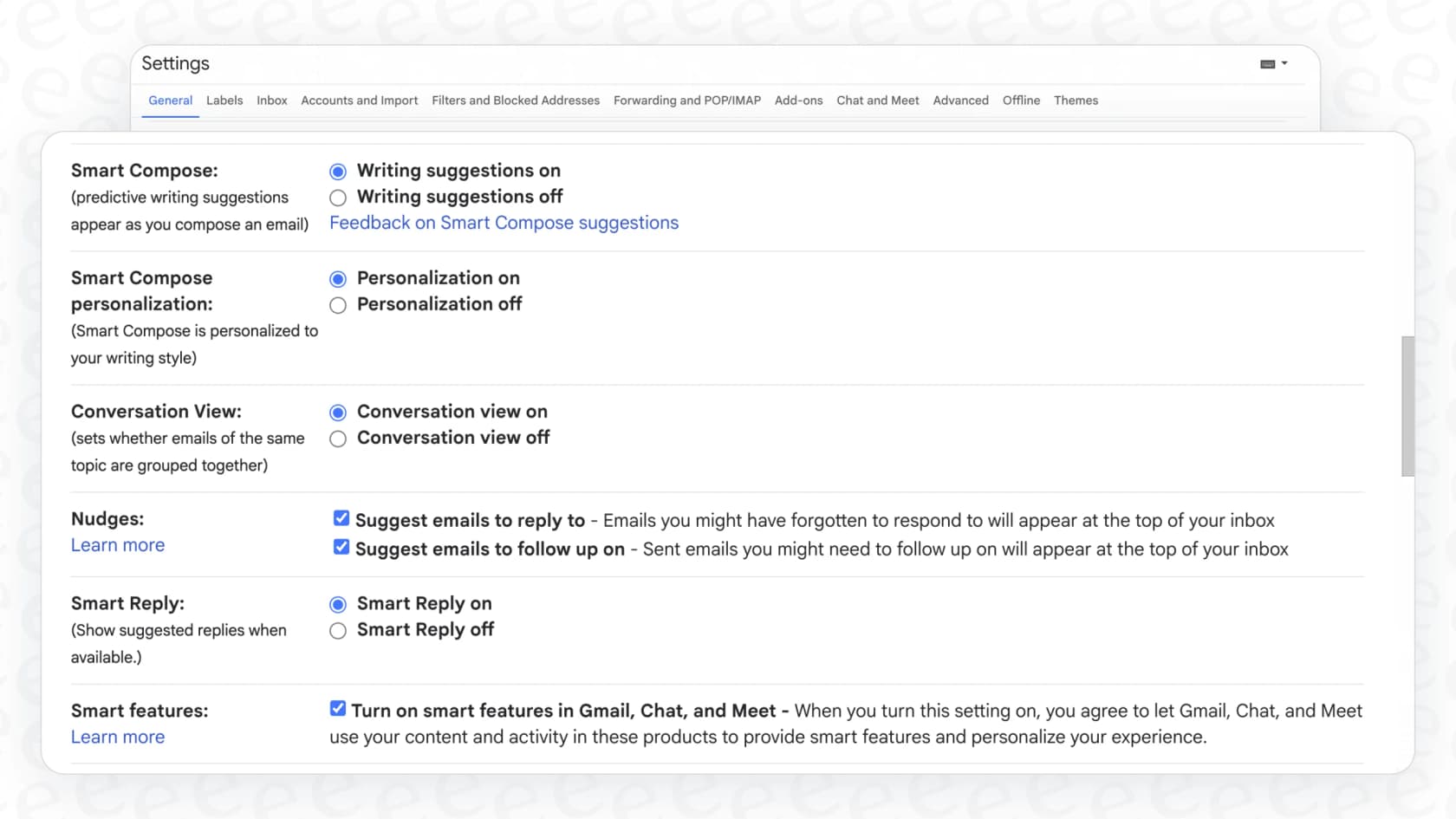
You turn off Gmail's smart features settings. If you've had enough of the summary feature, the good news is you can turn it off. The bad news? There’s a catch. You can't just turn off the email summaries; you have to disable all "smart features" in Gmail.
The all-or-nothing problem
Yep, it’s a classic case of throwing the baby out with the bathwater. When you turn off "smart features" to kill the summaries, you also lose a bunch of other tools that are actually pretty useful. Google's own page says it "also disables other tools, such as AI-assisted writing and proofreading". This includes stuff like:
-
High-priority notifications
-
Package tracking updates
-
Smart Compose (the text predictions that help you write emails)
-
Smart Reply (the quick one-click reply buttons)
This puts you in a tough spot: either live with the annoying summaries or give up the helpful features you've gotten used to.
Step-by-step instructions
If you're ready to pull the plug, here’s how to do it:
-
On Desktop: Go to "Settings" > "See all settings" > "General" tab. Scroll down to "Smart features" and uncheck "Turn on smart features in Gmail, Chat, and Meet". Then, under "Google Workspace smart features", click "Manage Workspace smart feature settings" and turn off "Smart features in Google Workspace".
-
On Mobile (Android/iOS): Open the menu > "Settings" > tap your account. Under the "General" section (or "Data Privacy" on iOS), find "Smart features" and toggle it off.
What if you need more than Gmail Summarize This Email?
Then you want AI that handles the email, not one that only summarizes it. A summary tells you what a customer wants. It doesn't sort the ticket, tag it by urgency, or write the answer. That's the job of a dedicated AI agent.
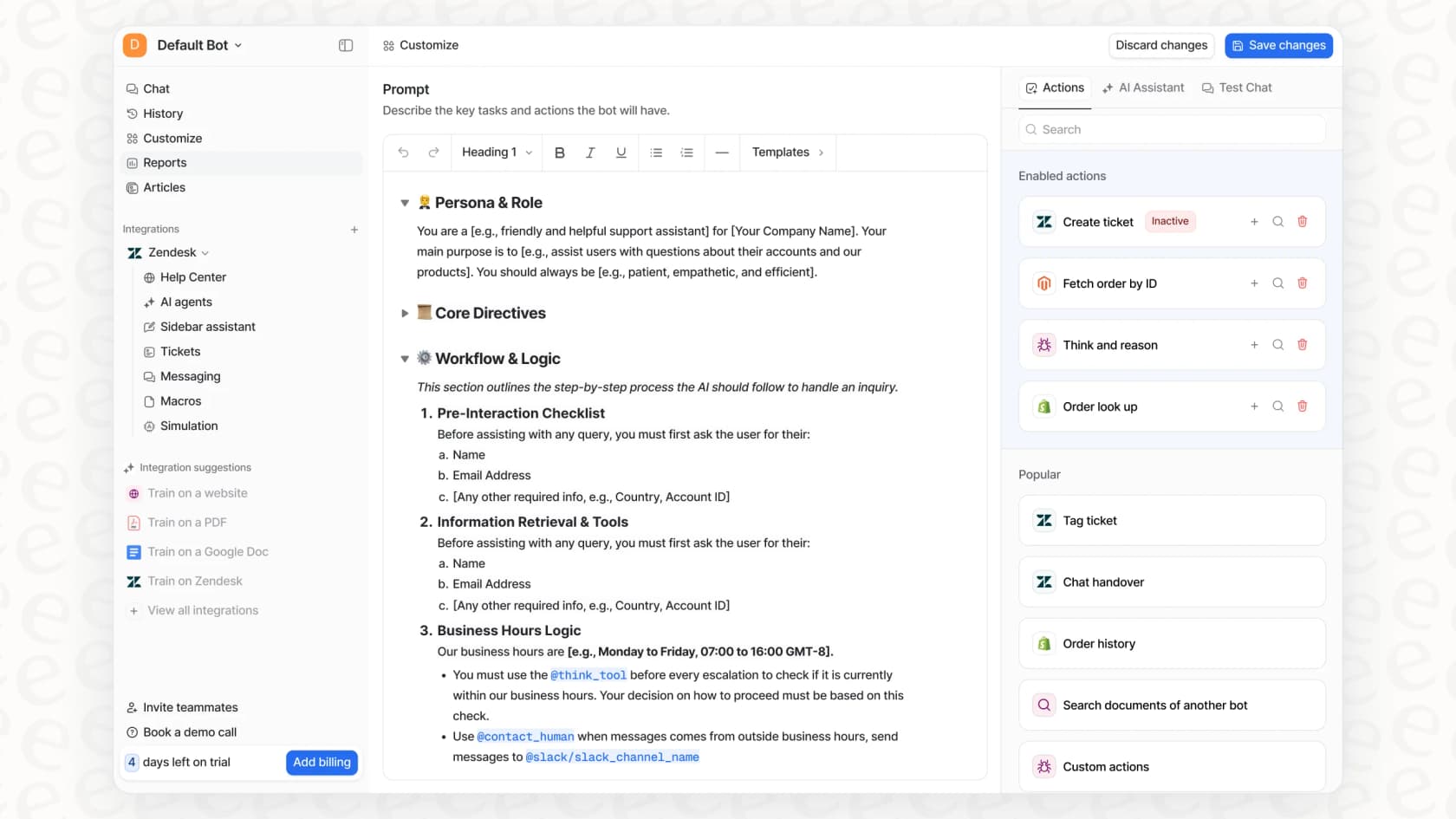
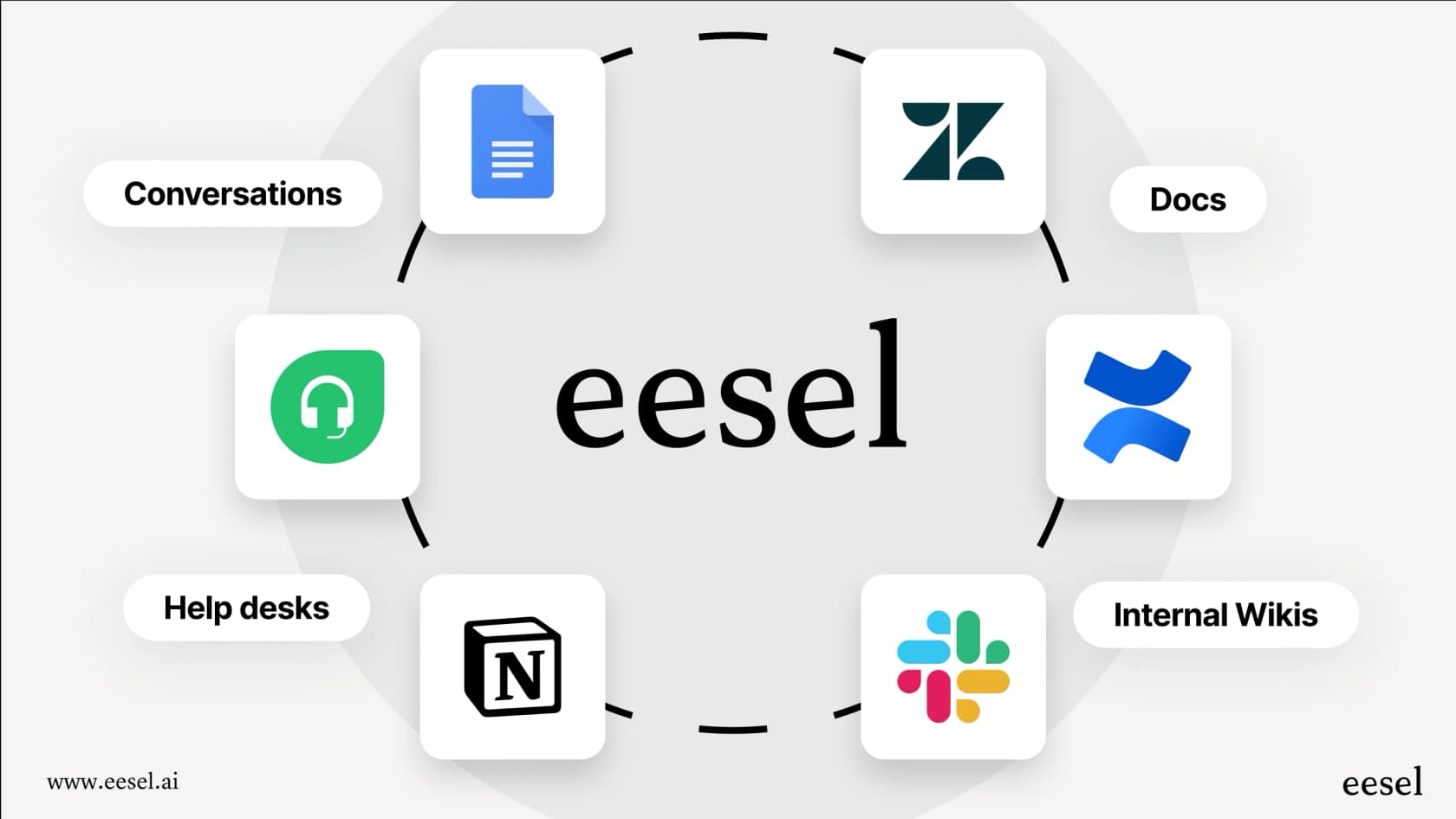
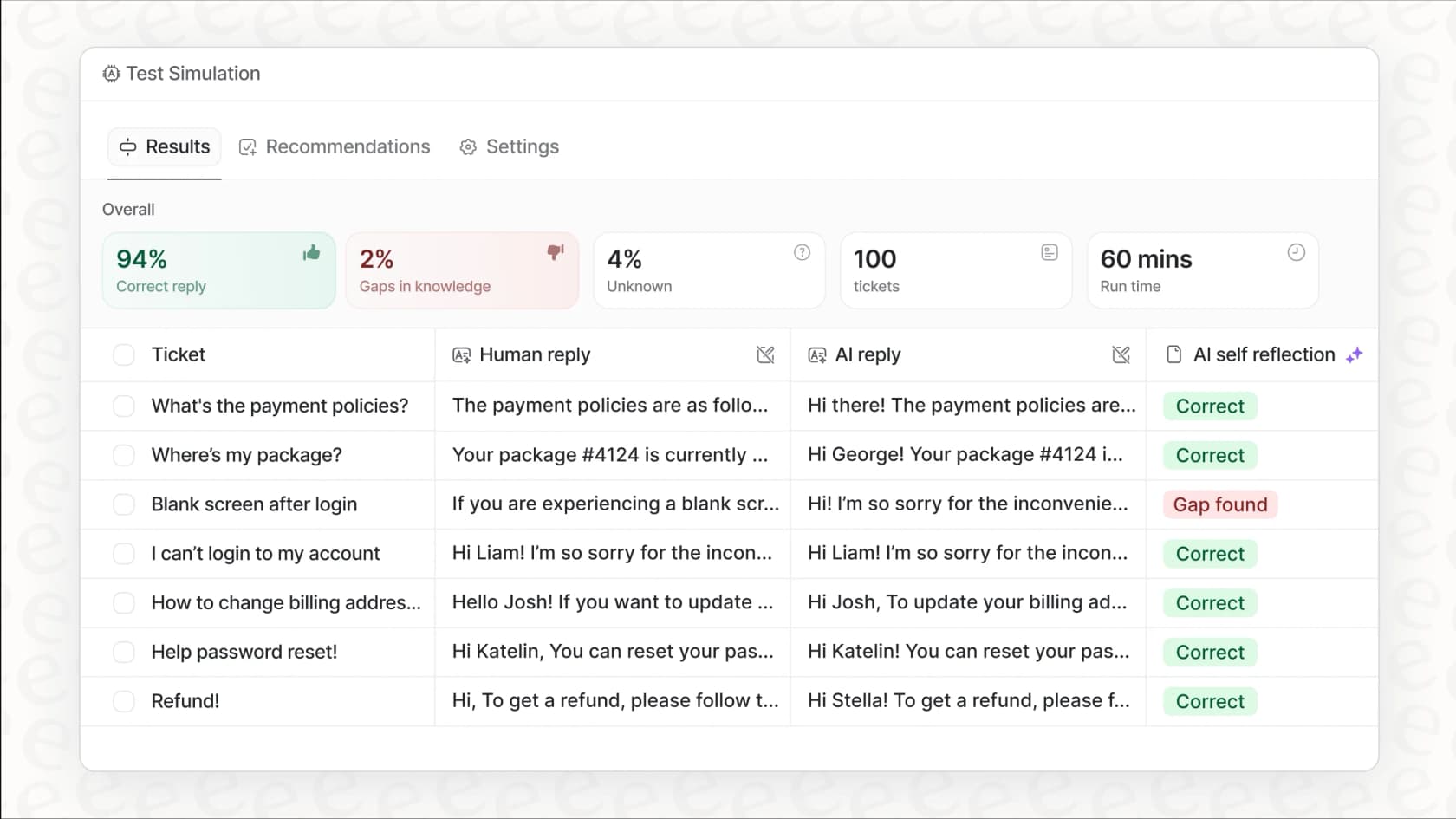
eesel AI is the one I'd look at. Through its Gmail integration, it starts work when a new email arrives. It reads the whole thread and answers from your knowledge in Confluence, Google Docs and other sources. Then it leaves a draft for review or sends the reply, and labels or archives the mail. You decide which actions wait for your approval.
It also works with Outlook, a forwarding inbox, Slack, Teams, and helpdesks like Zendesk or Freshdesk. My guide to an AI email agent for Gmail covers the setup.
You get 100 free credits, no card. Paid plans start at $299/month for 500 credits (pricing).
Is Gmail Summarize This Email the right tool for the job?
The "Gmail Summarize This Email" feature is a fine little tool for personal use. It can help you catch up on a long email chain with family or friends. But its lack of control, all-or-nothing settings, and narrow focus make it a bad fit for most businesses, especially for anyone in a customer-facing role.
For teams that need reliable, secure, and customizable AI that actually helps with their support workflow, a specialized platform is the way to go.
Stop letting a generic AI dictate how you work. Take control with an AI that's actually built for support. Try eesel AI for free and see how easy it is to set up an AI agent that answers your email.
Frequently asked questions
What exactly is the Gmail Summarize This Email feature and how does it function?
The Gmail Summarize This Email feature uses Google's Gemini AI to analyze long email threads and condense them into a few key bullet points. It aims to provide the main points of a conversation quickly, saving you time from reading every message.
Who is eligible to use the Gmail Summarize This Email feature?
Since January 2026, AI Overview thread summaries are free for all Gmail users, including free personal accounts, in English, French, German, Italian, Japanese, Korean, Portuguese and Spanish. The rollout started in the US and in English. Paid plans (Google Workspace for business, or Google AI Plus, Pro or Ultra for personal accounts) add more Gemini features on top.
What are the main benefits I can expect from using the Gmail Summarize This Email feature?
The primary benefits include quickly catching up on long email chains, helping managers get a high-level overview without getting into every detail, and sifting through less critical emails like newsletters efficiently. It's designed to save time by providing instant summaries.
Are there any significant drawbacks or potential privacy concerns associated with the Gmail Summarize This Email feature?
Yes, some drawbacks include the summary card taking up a lot of screen space, the AI potentially making errors or missing critical context, and privacy concerns due to the AI reading your emails. Additionally, you can't turn summaries off on their own, and some users find them more annoying than helpful.
How can I disable the Gmail Summarize This Email feature if I find it disruptive?
You can turn off the Gmail Summarize This Email feature by turning off "Smart features in Gmail, Chat, and Meet" and "Smart features in Google Workspace" in your Gmail settings (desktop) or "Smart features" in your account settings (mobile). However, be aware this will also disable other useful smart features like Smart Compose and Smart Reply.
Does the Gmail Summarize This Email feature work equally well on both desktop and mobile devices?
The automatic summary cards appear on the Gmail mobile apps for iOS and Android, on longer threads. On desktop, you click Summarize this email at the top of a thread to get the AI Overview, or ask for a summary in the Gemini side panel.
For businesses, why might a specialized AI solution be preferable over the generic Gmail Summarize This Email for customer support tasks?
While Gmail Summarize This Email can provide a summary, it lacks the ability to integrate into workflows, tag tickets, draft replies from a knowledge base, or route issues. A purpose-built AI platform, like eesel AI, offers control, understands business-specific context, and can automate complex support tasks more effectively.
