
The Browser Object Model (BOM) allows JavaScript to interact with the browser itself, beyond just the webpage content. It provides control over browser features like windows, navigation, and history.
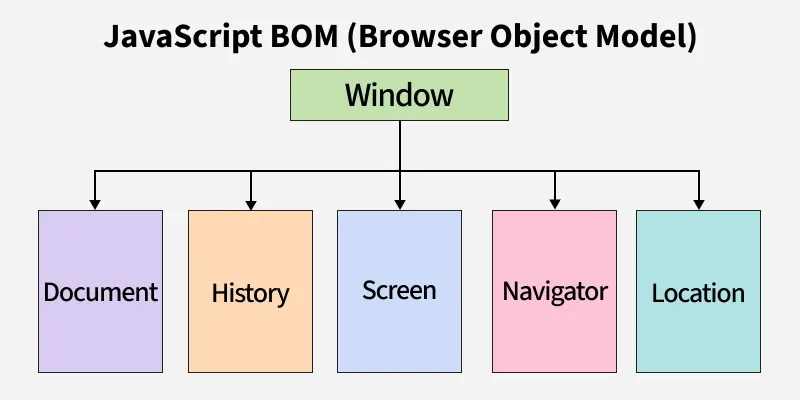
- Helps manage browser window properties (resize, open, close).
- Allows navigation control using location and history objects.
- Provides information about the browser via the navigator object.
Features of the BOM
- Browser Control: Allows opening, closing, and resizing browser windows.
- URL Management: Enables reading and modifying the current URL using the location object.
- Browser Information: Provides browser and device details through the navigator object.
- Responsive Design: Gives access to screen properties like width and height to build responsive web pages.
- History Navigation: Allows moving through the browser's session history using the history object.
- Timers: Supports scheduling tasks using setTimeout and setInterval.
Browser Object Model Types
Here are the main parts of the Browser Object Model (BOM)
1. Window Object
window is the global object in browsers, but not everything (like developer tools or browser UI) is part of it.
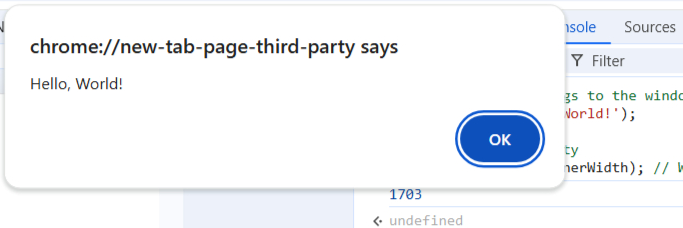
window.alert('Hello, World!');
console.log(window.innerWidth);
- The window object provides methods like alert(), confirm(), and prompt().
- It also gives you access to other important objects, such as document, navigator, screen, location, and history.
2. Navigator Object
The navigator object provides information about the browser and the user's environment. It is often used to detect the browser type or features.
console.log(navigator.userAgent);
console.log(navigator.language);
- navigator.userAgent can be used to identify the browser and its version, but it's not always reliable.
- navigator.language tells you the user's preferred language.
3. Location Object
The location object allows you to interact with the URL of the current document. It can be used to retrieve or manipulate parts of the URL and navigate to different pages.
console.log(location.href);
location.href = 'https://www.google.com/'
- location.href gives you the full URL.
- You can change location.href to load a different page.

location object Properties
- location.href: Returns the full URL of the current page, including the protocol, domain, path, and query string.
- location.protocol: Returns the protocol part of the URL (e.g., https: or http:).
- location.hostname: Returns the domain name or IP address of the URL (e.g., www.example.com).
- location.pathname: Returns the path part of the URL after the domain (e.g., /path/to/page).
4. Screen Object
The screen object provides information about the user’s screen, such as its resolution.
console.log(screen.width);
console.log(screen.height);
- screen.width and screen.height give you the screen's dimensions.
- This can be useful for adapting your website's layout to different screen sizes.

5. History Object
The history object allows you to navigate through the browser's session history. It provides methods to move forward, backward, or to specific pages in the history stack. To see how the history object works, run this code in the browser:
history.back();
history.forward();
- history.back() goes back one page.
- history.forward() goes forward one page.
6. Using window.resizeTo
The window.resizeTo() method is used to resize the browser window to a specific width and height. This can be useful for controlling window dimensions in a web application.
let newWindow = window.open("https://www.example.com/", "NewWindow", "width=500,height=500");
newWindow.resizeTo(300, 300);

- window.open("https://www.example.com/", "NewWindow", "width=500,height=500") opens a new browser window with the URL https://www.example.com/ The window is named "NewWindow", and its size is set to 500px by 500px.
- newWindow.resizeTo(300, 300) resizes the newly opened window to 300px by 300px. This resizing happens after the window is opened.
