

The Command Line Interface (CLI) is an essential part of Kali Linux because many security and penetration testing tools are designed to run through commands rather than a graphical interface. Some key points about the CLI are:
- It allows users to interact with the operating system by entering commands in the terminal.
- It provides greater control over system administration and security tasks.
- Many Kali Linux tools are command-line based, making the CLI an important skill for ethical hackers and cybersecurity professionals.
The following are some of the most commonly used command-line commands in Kali Linux. These commands help users navigate the file system, manage files and directories, configure the system, and perform basic administrative tasks.
1. Display the Current Working Directory
The pwd command displays the full path of the current working directory.
Command:
pwd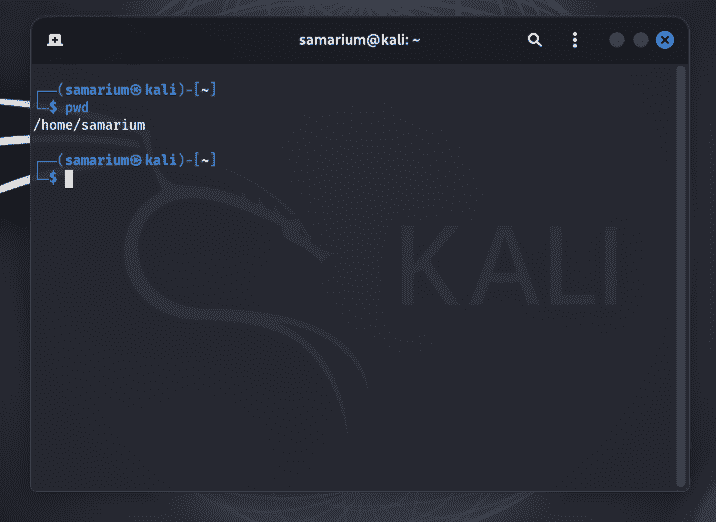
Output: Displays the current working directory.
2. List Files and Directories
The ls command lists all files and directories in the current location.
Command:
ls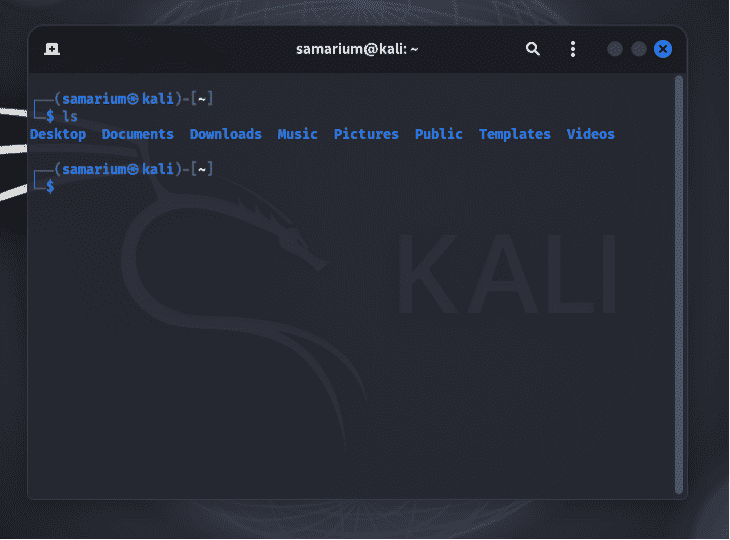
Output: Displays all files and folders in the current directory.
3. Change the Current Directory
The cd command changes the current working directory.
Command:
cd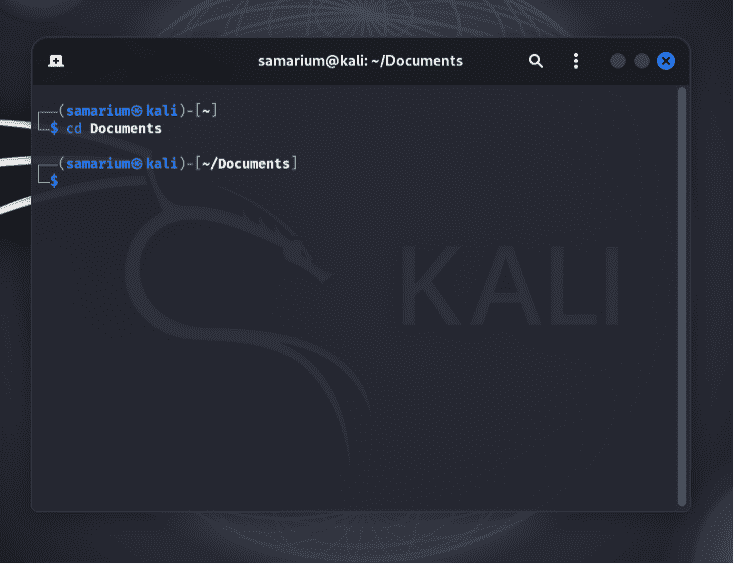
Output: Changes the current directory to Documents.
4. Search for a Word in a File
The grep command searches for a specific keyword or pattern in a file.
Command:
grep keyword filename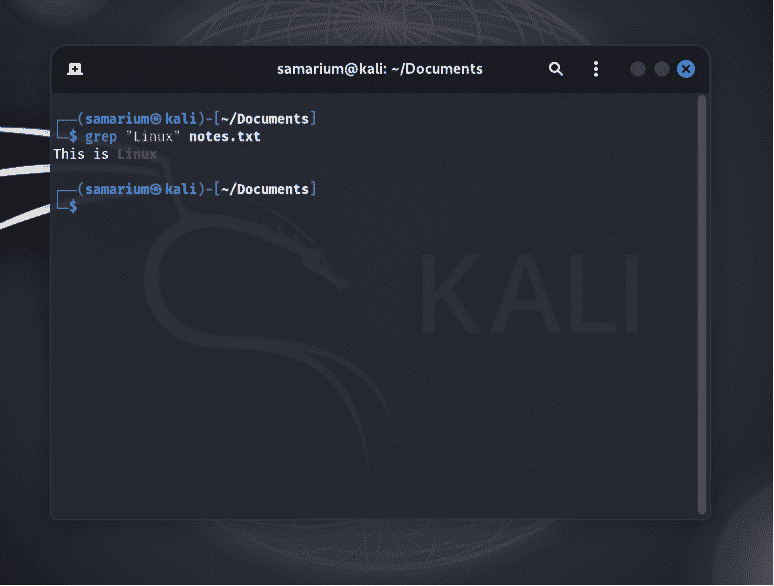
Output: Displays all lines containing the word Linux.
5. Create a New Directory
The mkdir command creates a new directory.
Command:
mkdir directory_name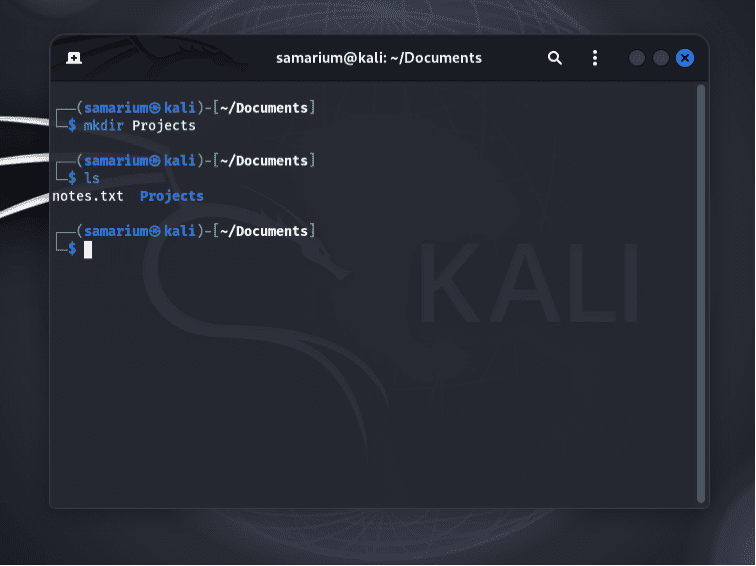
Output: Creates a directory named Projects.
6. Remove a Directory
The rmdir command removes an empty directory.
Command:
rmdir directory_name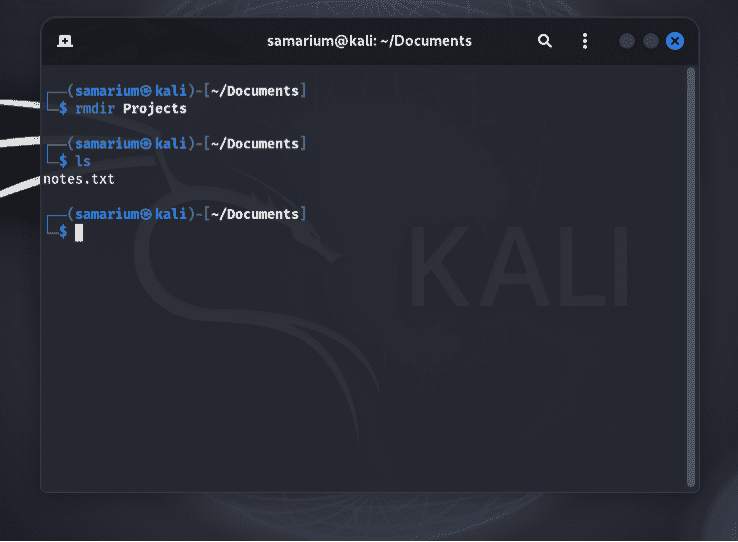
Output: Deletes the specified empty directory.
7. Move a File
The mv command moves a file or directory to another location.
Command:
mv source destination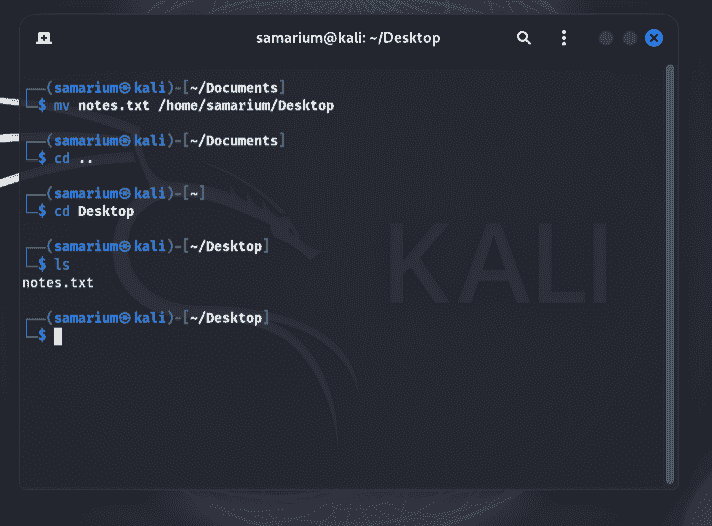
Output: Moves the file to the Documents directory.
8. Copy a File
The cp command copies a file or directory.
Command:
cp source destination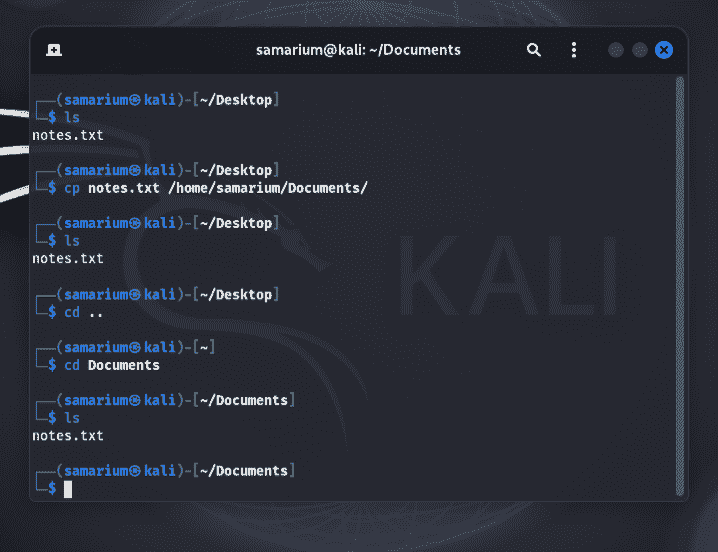
Output: Creates a copy of notes.txt named backup.txt.
9. Create a New File
The touch command creates an empty file.
Command:
touch filename 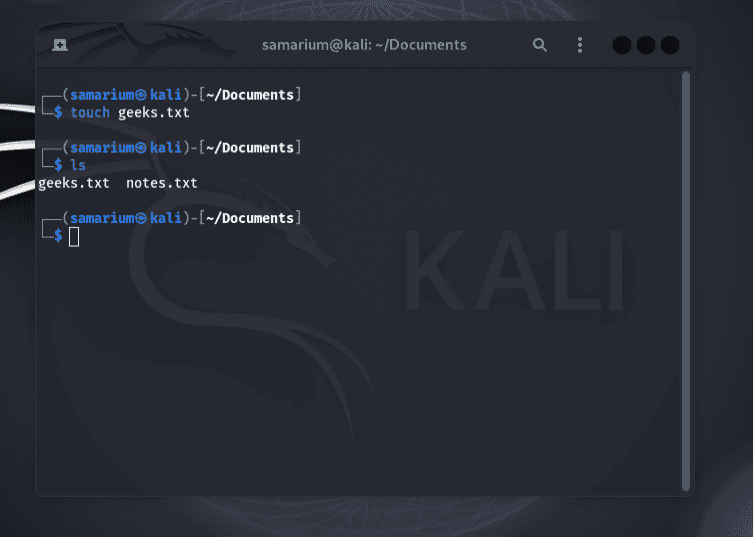
Output: Creates a file named geeks.txt
10. View the Manual Page
The man command displays the manual page for a command.
Command:
man ls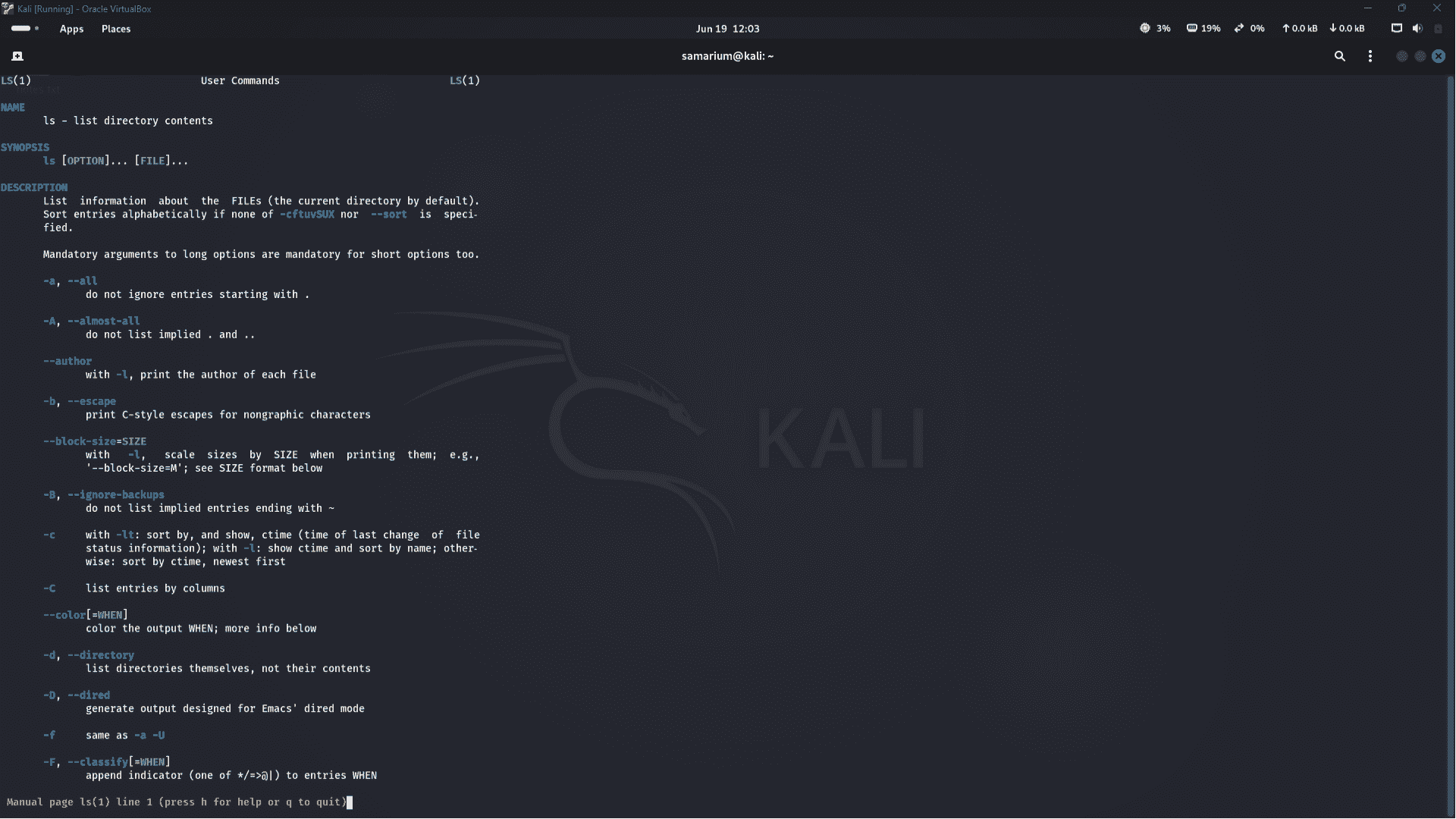
Output: Displays the user manual for the ls command.
11. Check Network Connectivity
The ping command checks whether a host is reachable.
Command:
ping google.com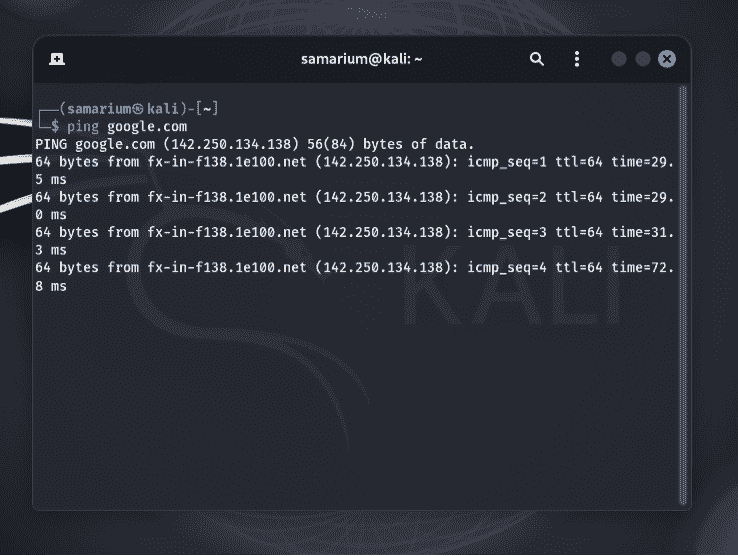
Output: Displays the response time and packet statistics.
12. Display Network Interface Details
The ifconfig command displays network interface information.
Command:
ifconfig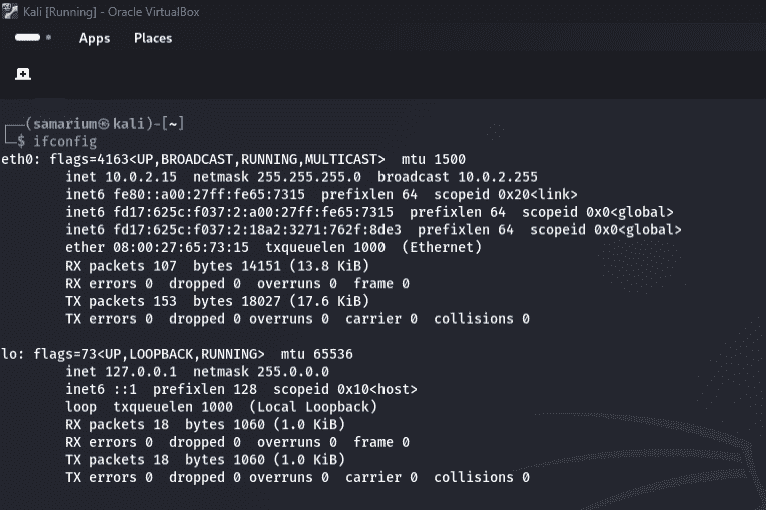
Output: Shows the IP address and network interface details.
13. Download a File
The wget command downloads a file from a URL.
Command:
wget link_to_file 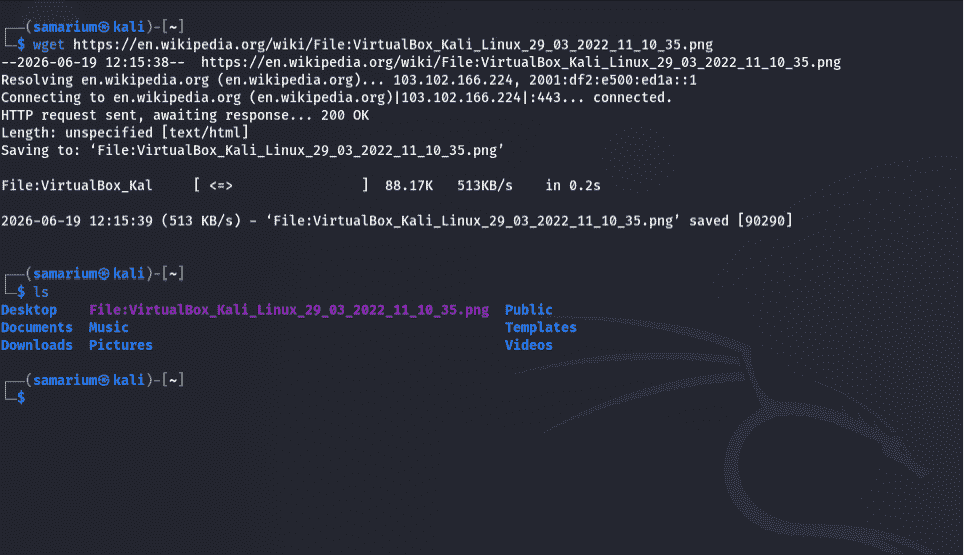
Output: Downloads the specified file to the current directory.
14. Install a Package
Use the apt package manager to install software.
Command:
sudo apt install package_name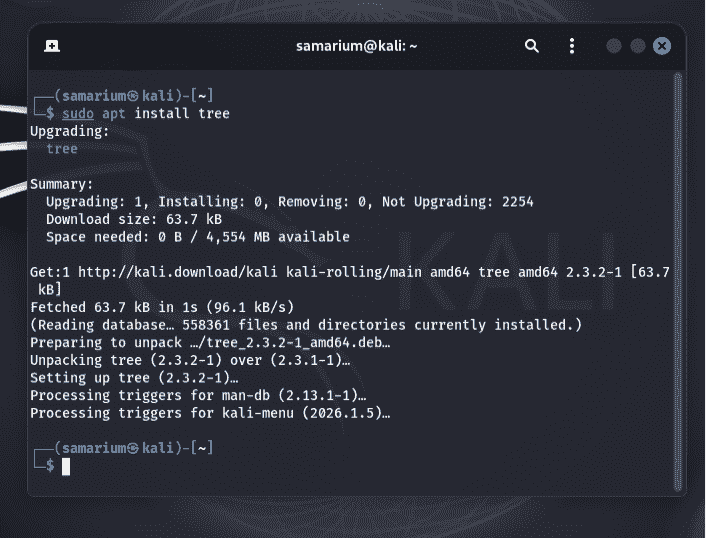
Output: Installs the Tree package.
15. Remove a Package
The apt remove command uninstalls a package.
Command:
sudo apt remove package_name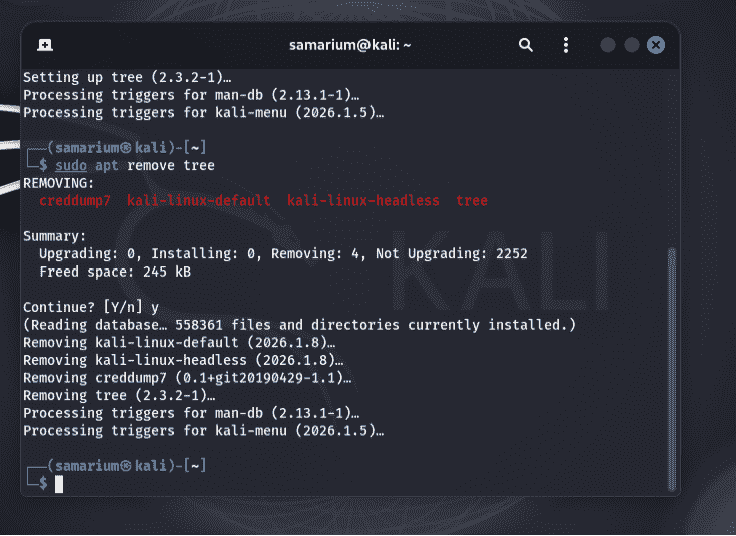
Output: Removes the Tree package.
16. Upgrade Installed Packages
The apt upgrade command upgrades installed packages.
Command:
sudo apt upgradeOutput: Upgrades installed packages to their latest versions.
17. Update Package Lists
The apt update command updates the package index.
Command:
sudo apt updateOutput: Retrieves the latest package information from configured repositories.
18. Display the Current Username
The whoami command prints the username of the current user.
Command:
whoami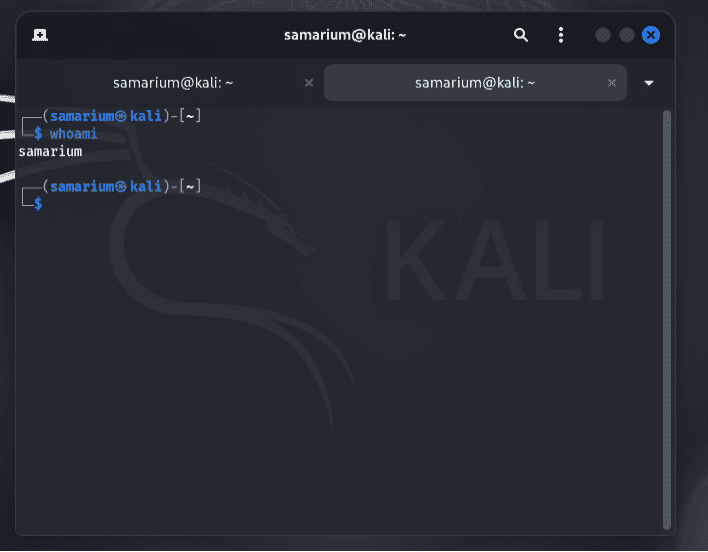
Output: Displays the current logged-in username.
19. Switch to the Root User
The sudo su command switches to the root user.
Command:
sudo su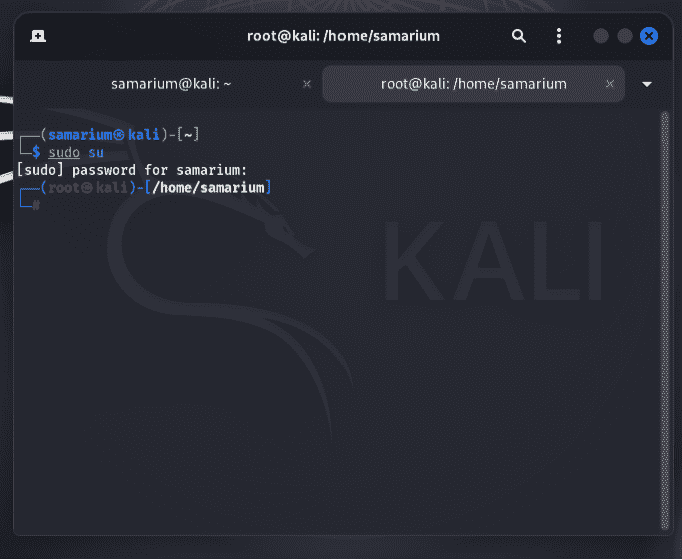
Output: Prompts for the user's password and opens a root shell.
20. Print Text on the Terminal
The echo command prints text to the terminal.
Command:
echo " To print something on terminal"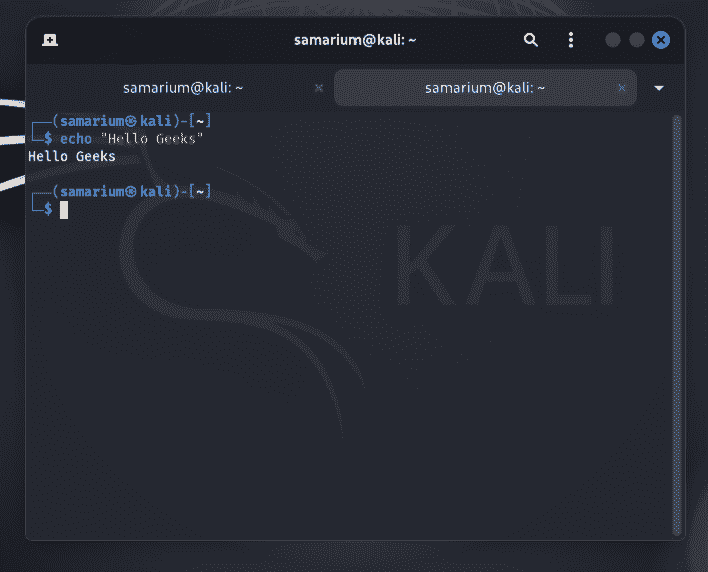
Output: Displays the specified text on the terminal.
