In Kali Linux, most of the operations are performed on files. To handle these files, Kali Linux has directories also known as folders which are maintained in a tree-like structure. Though these directories are also a type of file themselves. Kali Linux has 3 basic types of files:
1. Regular Files
Regular files are the most common type of files in Kali Linux. They are used to store user data such as text documents, images, videos, scripts, executable programs, and binary files. You can create a new regular file using the touch command.
Examples:
- Text files (
notes.txt) - Images (
image.png) - Shell scripts (
script.sh) - Executable files
2. Directories
Directories, also known as folders, are used to organize files and other directories in a hierarchical structure. They help users manage and locate files efficiently within the file system.
Some commonly used directories in Kali Linux include:
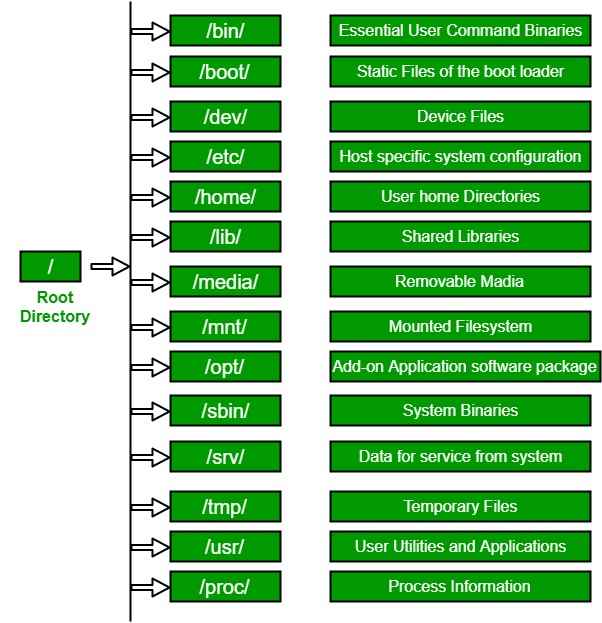
/:Root directory/home:User home directories/bin:Essential user commands/boot:Boot loader files/etc:System configuration files
New directories can be created using the mkdir command.
3. Special Files
- Special files represent hardware devices and allow Kali Linux to communicate with components such as hard disks, USB drives, keyboards, terminals, and printers. Unlike regular files, they do not store user data but act as interfaces between the operating system and hardware during input and output (I/O) operations.
- Most special files are located in the
/devdirectory of the Kali Linux file system.
File Hierarchy Structure
Kali Linux follows a specific File hierarchy structure which is just a way of organizing files, filesystems, directories, installed packages, and external devices connected to the system. It basically sets a standard or a base for defining the directory structure.
Managing and Working with Files
Kali Linux provides several command-line utilities for creating, viewing, editing, copying, moving, and deleting files. Below are some of the most commonly used file management commands.
1. List Files and Directories
- Use the
lscommand to display the files and directories in the current working directory.
ls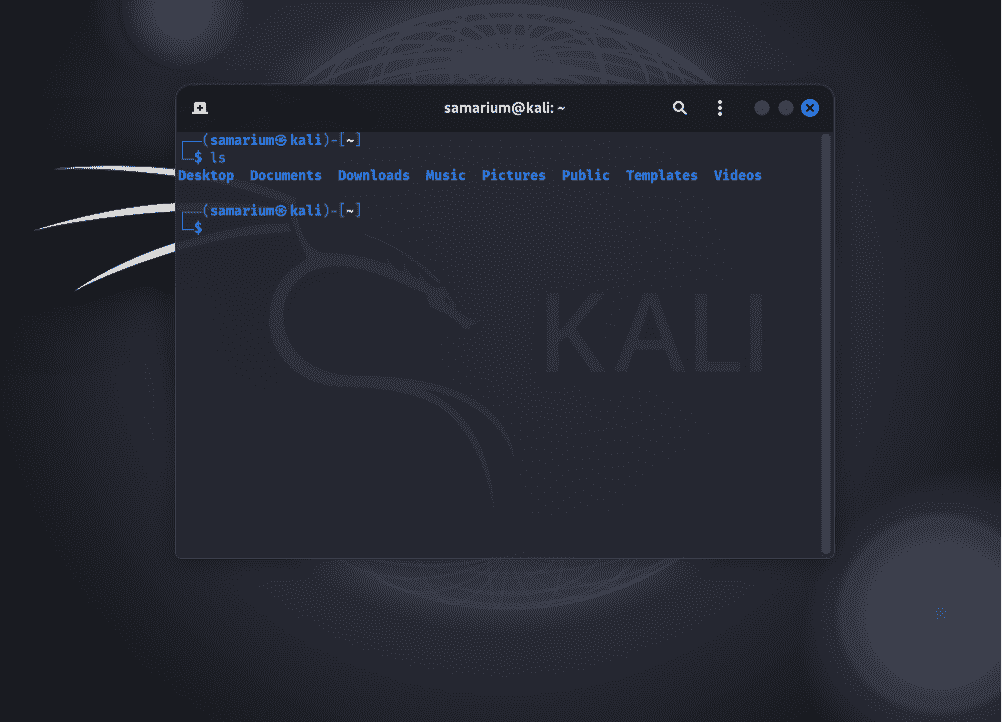
2. Create a New File
Use the touch command to create an empty file.
touch filename.extensionExample:
touch hello.text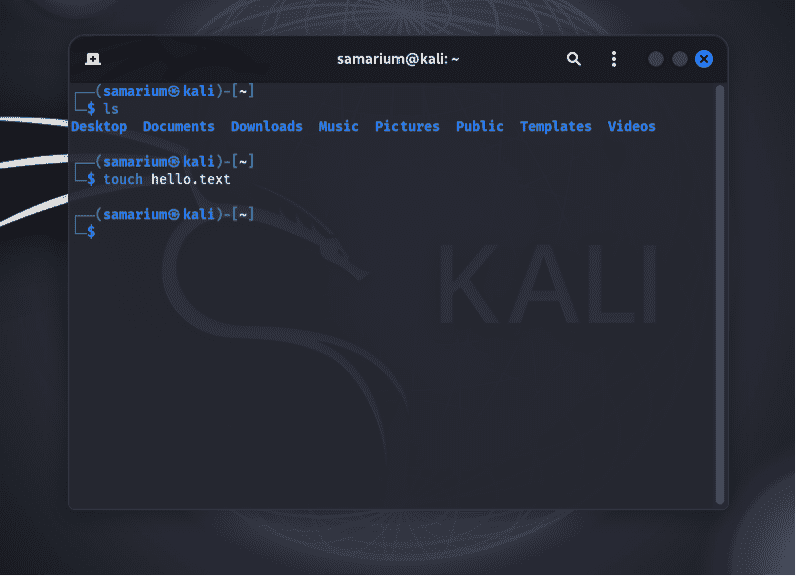
3. View the Contents of a File
Use the cat command to display the contents of a file.
cat filename.extensionExample:
cat hello.text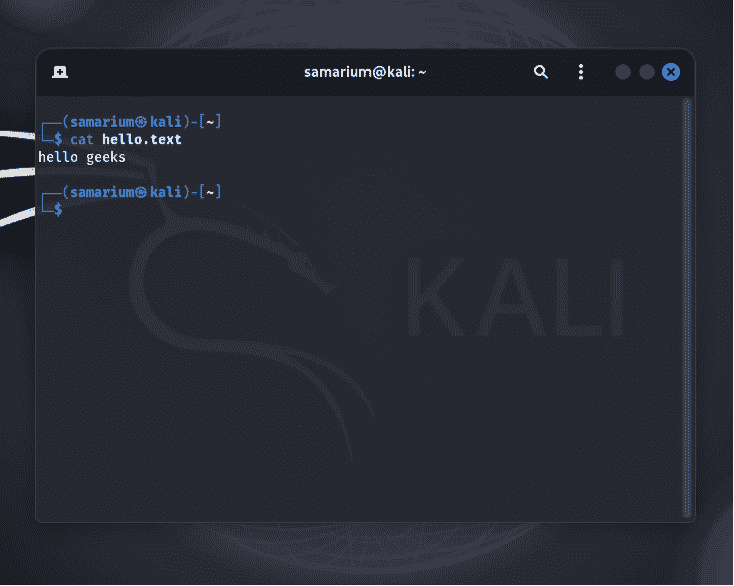
4. Copy a File
Use the cp command to copy a file from one location to another.
cp source_file destinationExample:
cp hello.text /home/samarium/Documents/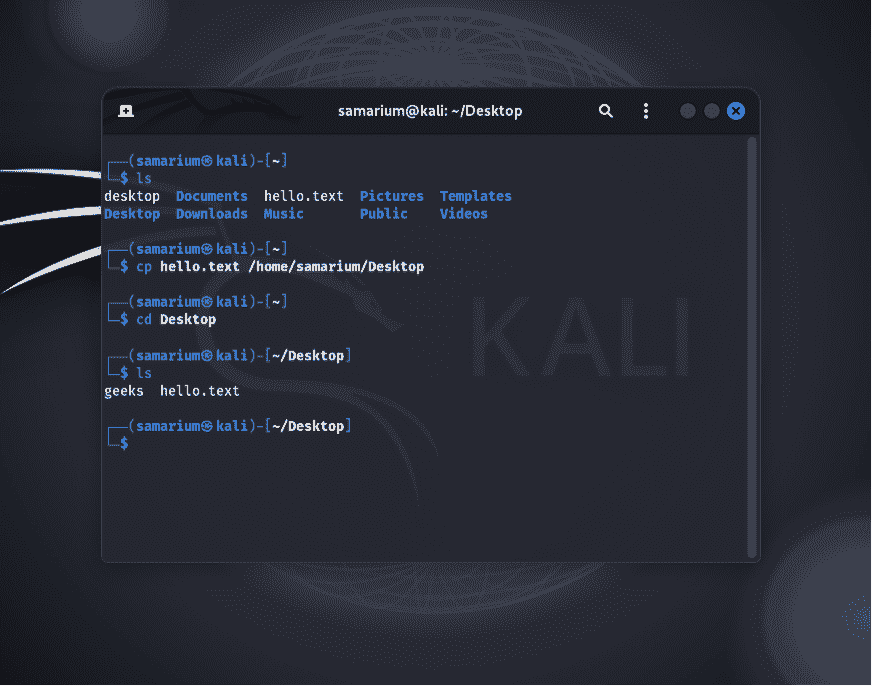
5. Move a File
Use the mv command to move a file or directory to a different location.
mv source_file destinationExample:
mv hello.text /home/samarium/Documents/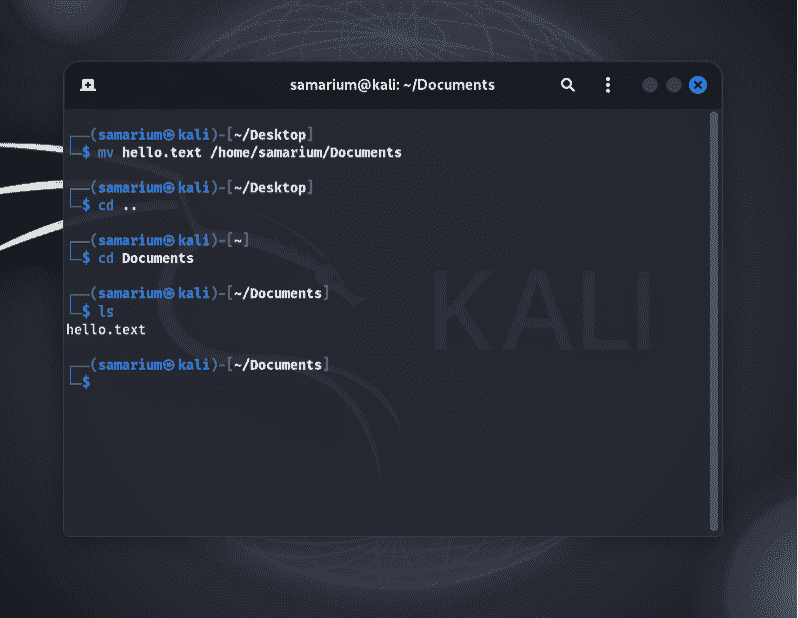
6. Rename a File
The mv command can also be used to rename a file.
mv old_filename new_filenameExample:
mv hello.text Hello.txt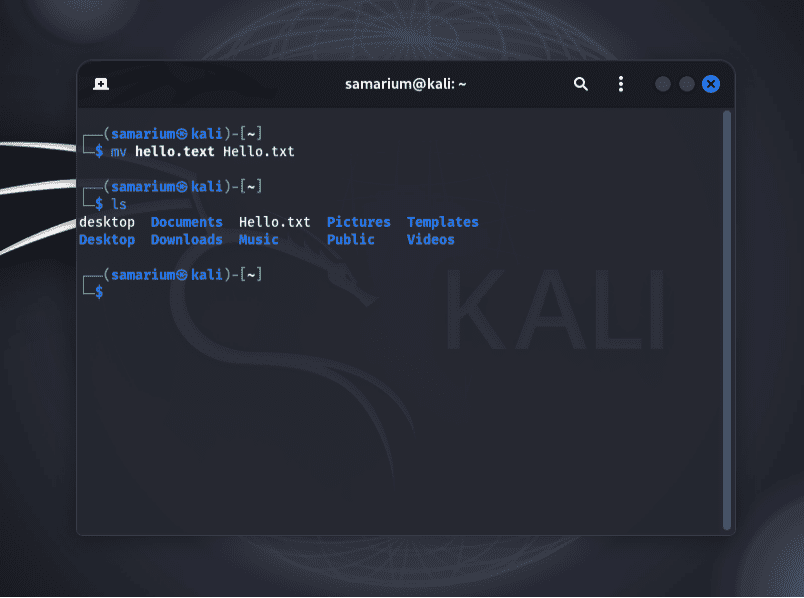
7. Delete a File
Use the rm command to permanently delete a file.
rm filename.extensionExample:
rm hello.text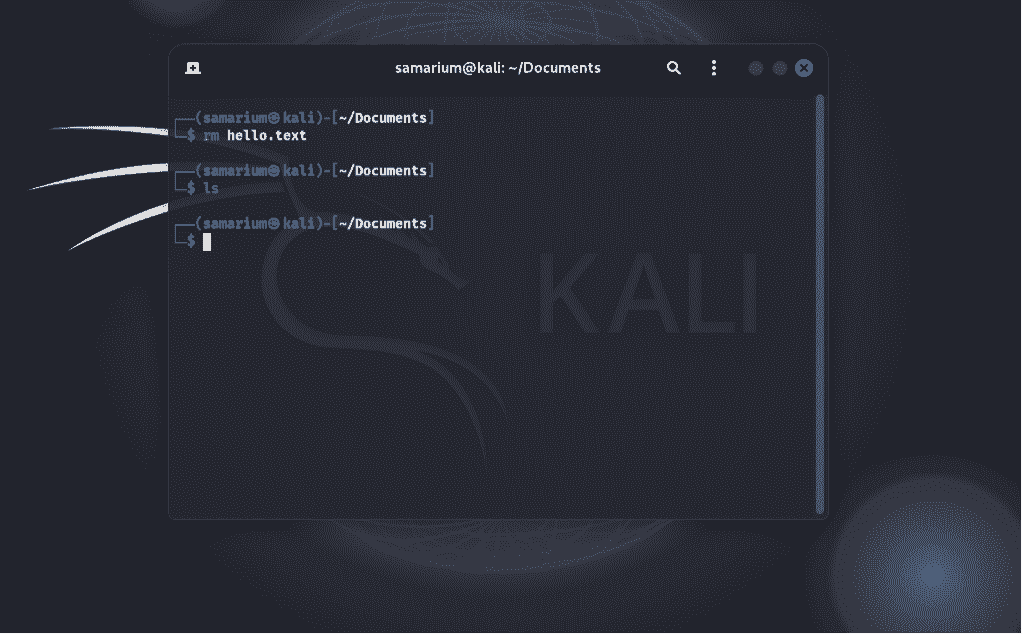
Note: Files deleted using the
rmcommand cannot be recovered from the Trash.
8. Edit a File
Use the nano text editor to create or edit a file directly from the terminal.
nano filename.extensionExample:
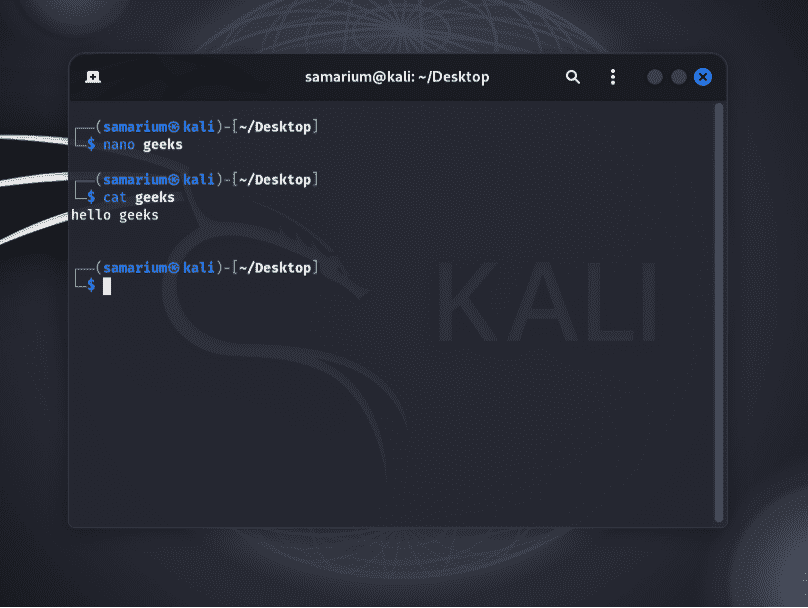
nano geeks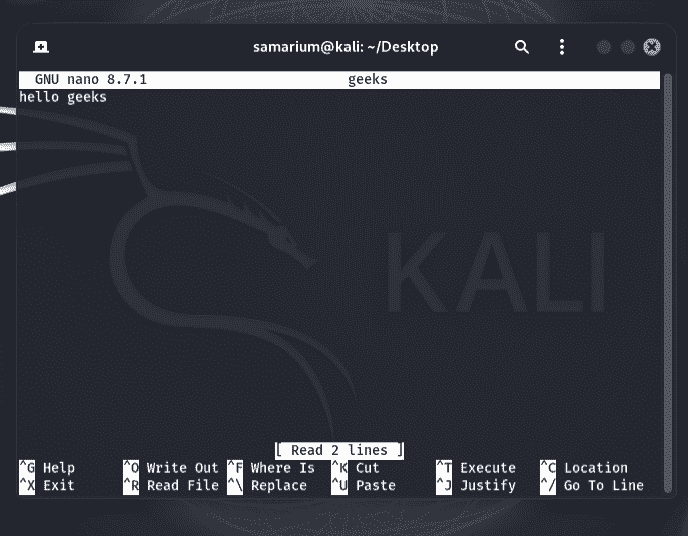
After editing the file:
- Press Ctrl + O to save the changes.
- Press Enter to confirm the filename.
- Press Ctrl + X to exit the editor.