

You can easily convert a PowerPoint presentation (.pptx or .ppt) into an editable Google Slides file. The most reliable method uses Google Drive.
Method 1: Convert via Google Drive
Step 1: Go to drive.google.com and sign in to your Google account.
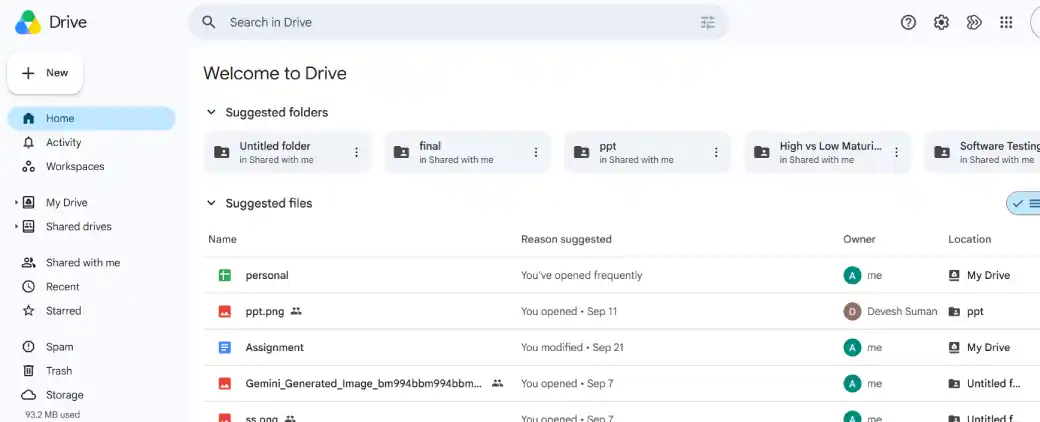
Step 2: Click + New and select File upload.
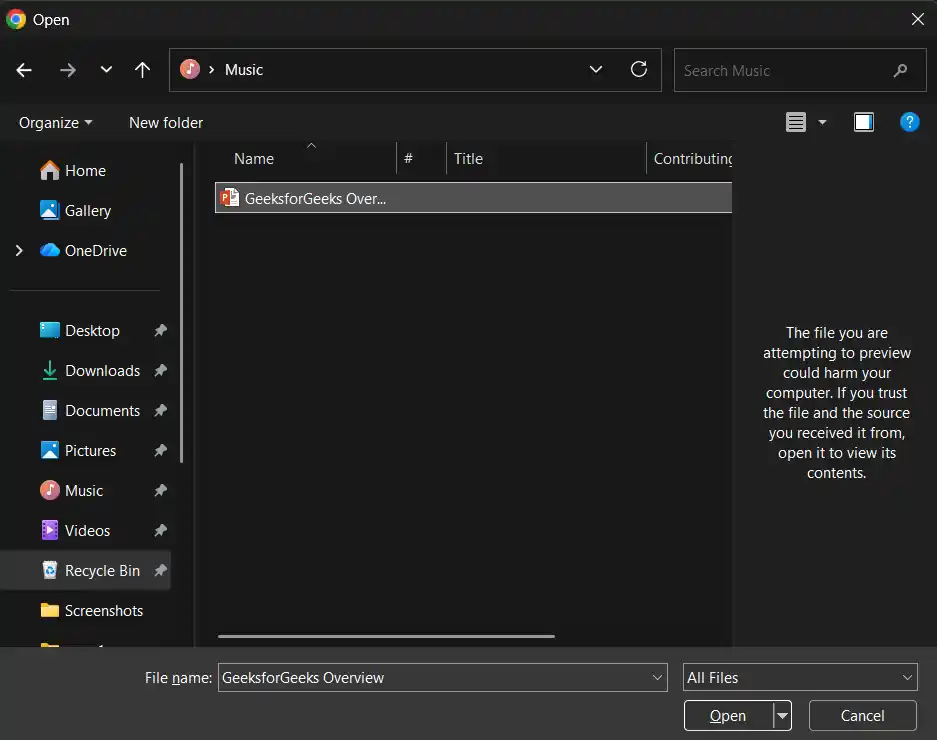
Step 3: Select your PowerPoint file (.pptx or .ppt) and upload it.
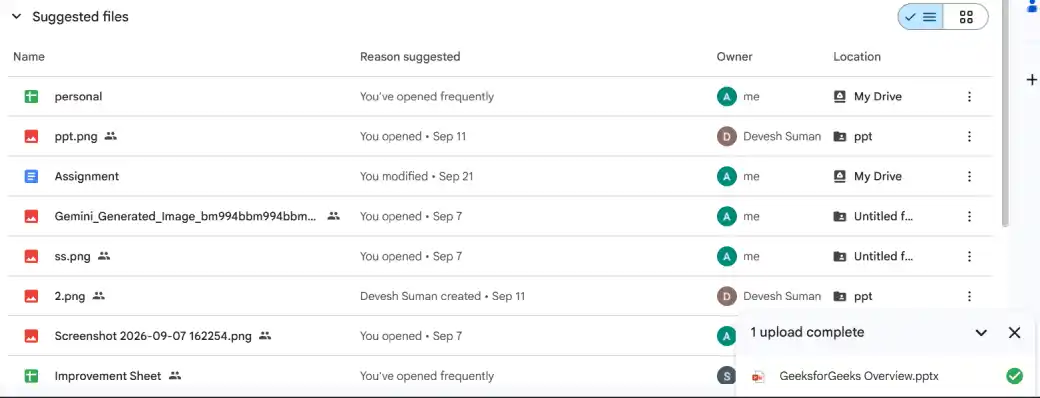
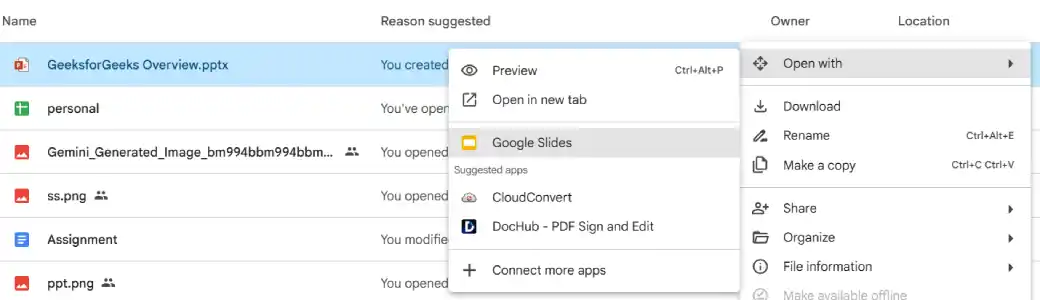
Step 4: Once the upload is complete, right-click the file in Google Drive.
Step 5: Select Open with option Google Slides.
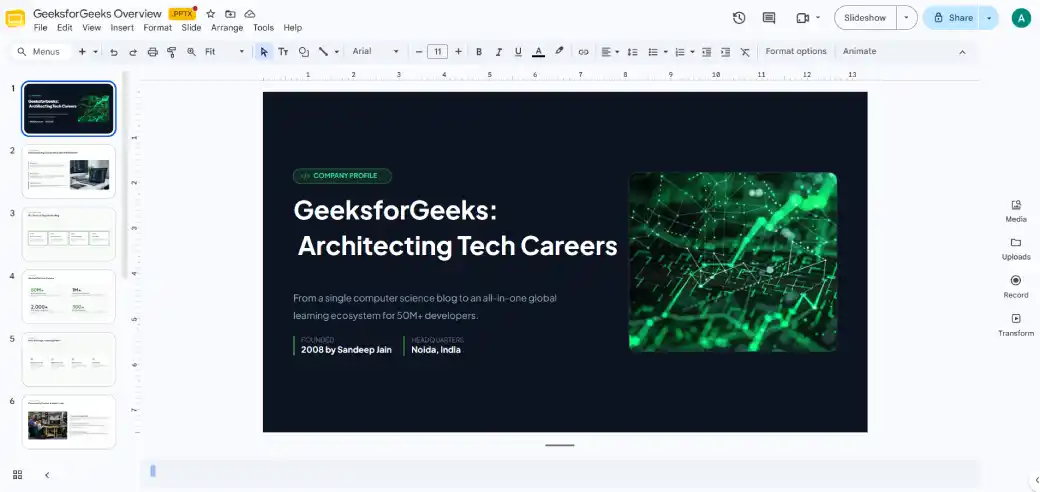
Step 6: The presentation opens in Google Slides (in compatibility mode).
Step 7: Go to File and select Save as Google Slides.
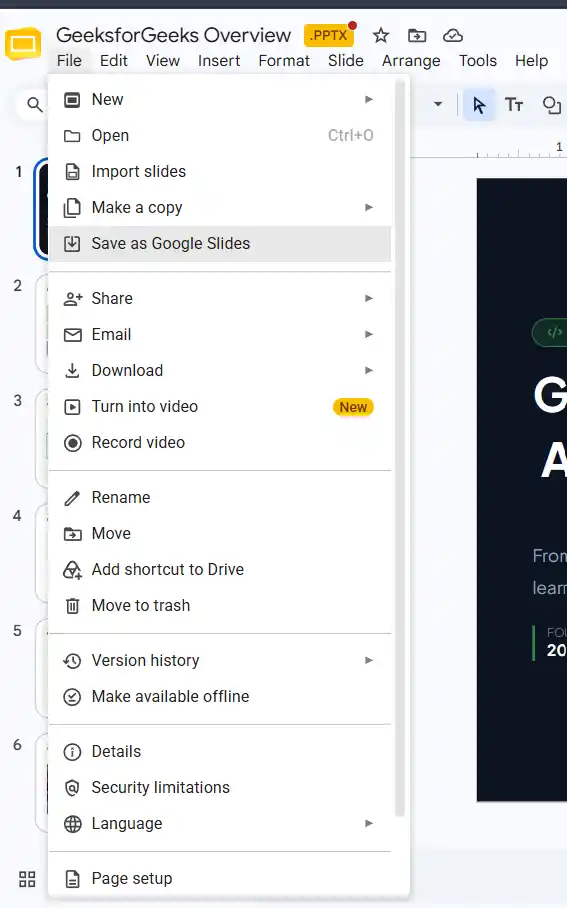
Note: A new native Google Slides version is created, while the original PowerPoint file remains unchanged in your Drive.
Method 2: Import Slides into an Existing Google Slides Presentation
Step 1: Open Google Slides and create a new blank presentation (or open an existing one).

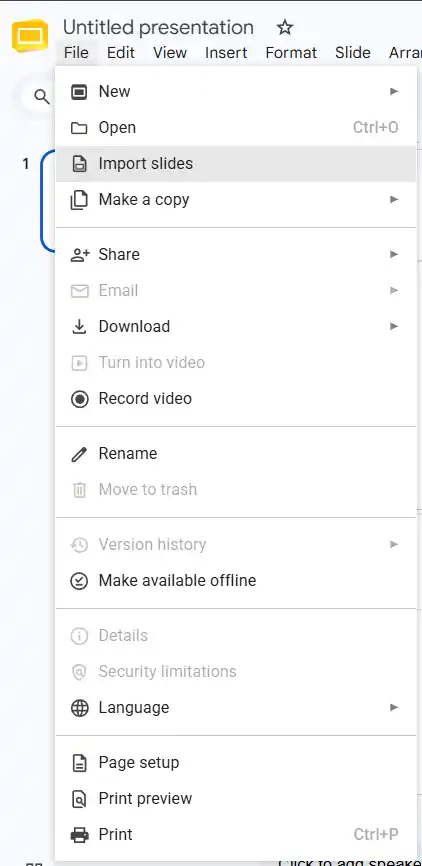
Step 2: Go to File → Import slides.
Step 3: Click the Upload tab.
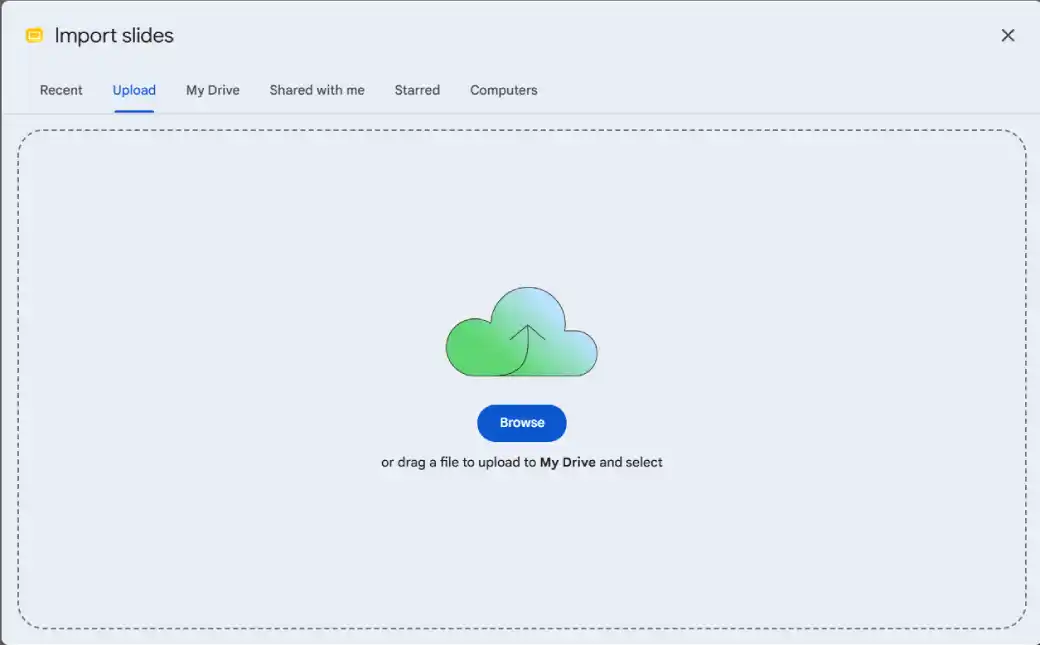
Step 4: Select your PowerPoint file from your computer (or choose it from Google Drive).
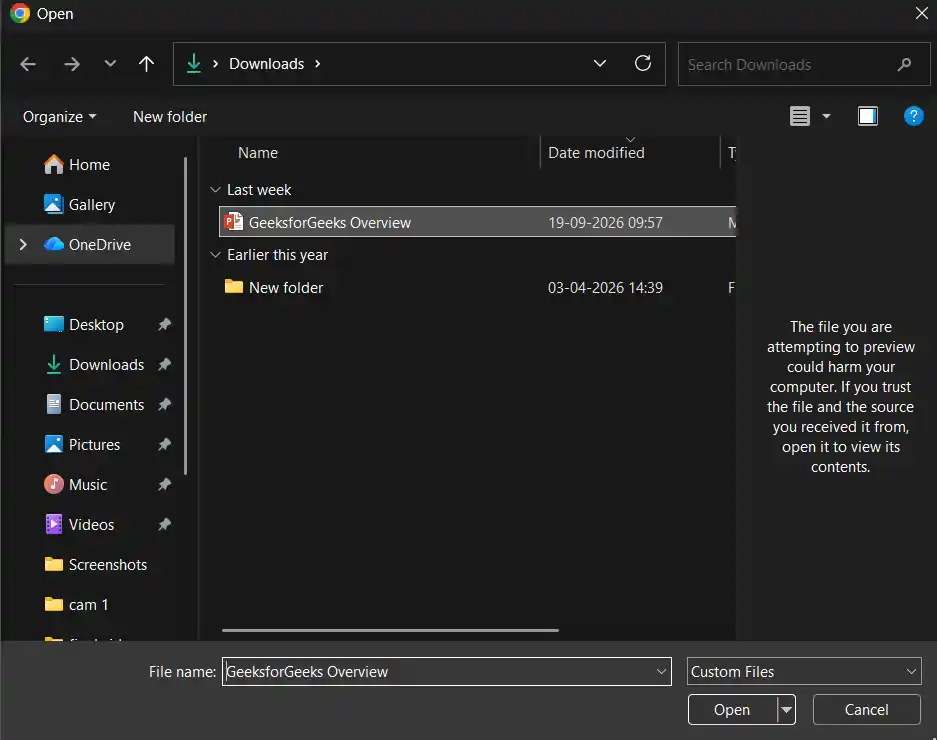
Step 5: After the file uploads, select the slides you want to import (or click Select all).
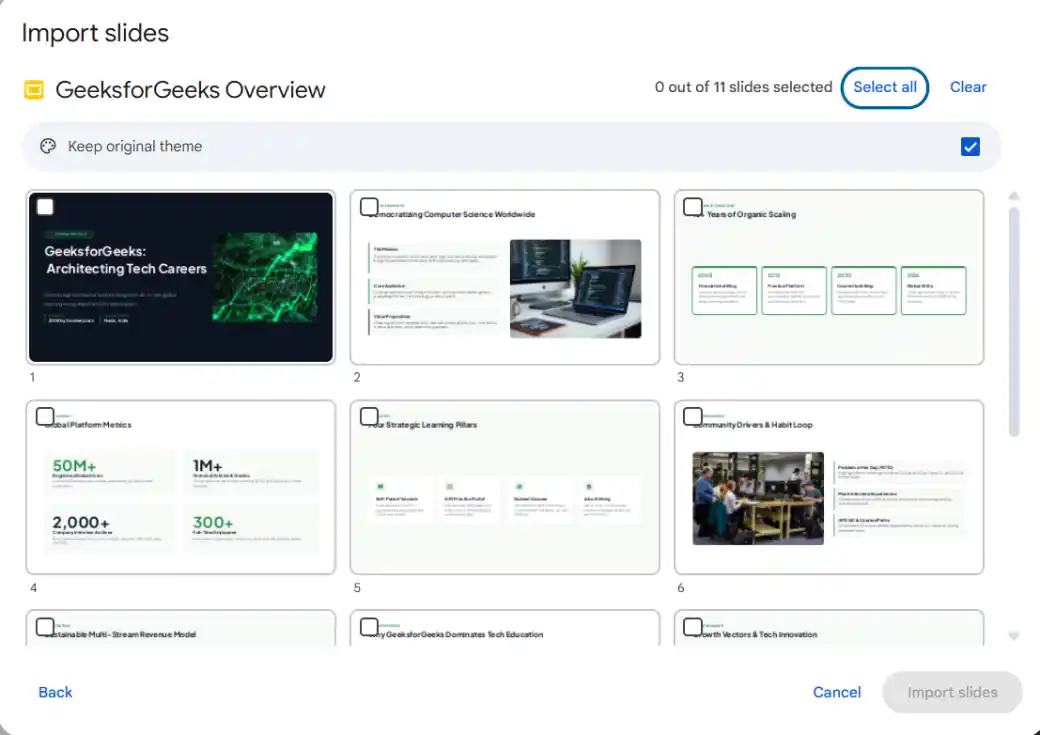
Step 6: Choose whether to keep the original theme or match the destination theme.
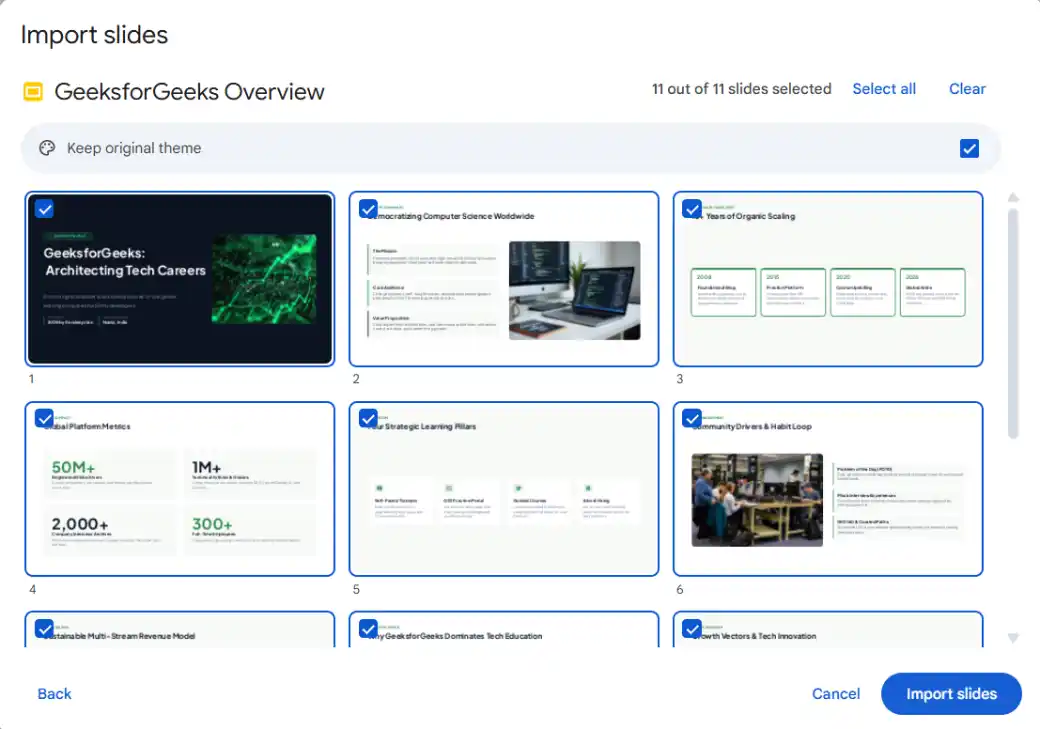
Step 7: Click Import slides.

Method 3: Open Directly from Google Slides
Step 1: Go to slides.google.com.
Step 2: Click the folder icon (Open file picker) or go to File → Open.
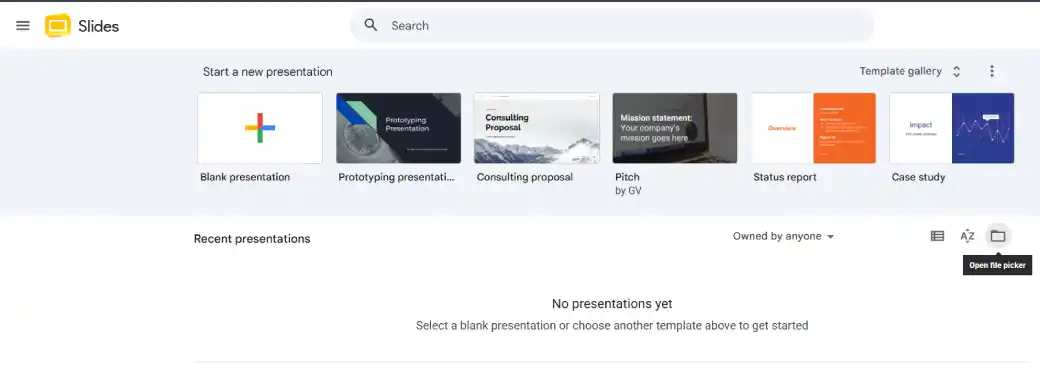
Step 3: Select the Upload tab and choose your PowerPoint file.
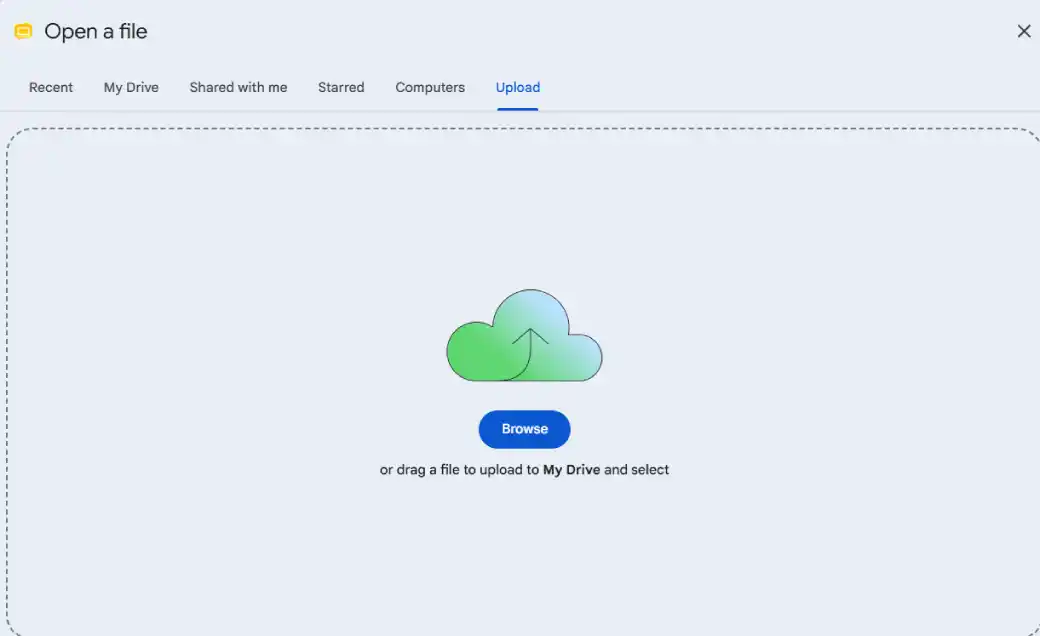
Step 4: Edit the presentation as needed; Google Slides automatically saves your changes to Google Drive.
Important Notes After Conversion
- Most text, images, shapes, and basic formatting transfer well.
- Complex animations, transitions, embedded fonts, SmartArt, and some charts may need adjustments.
- Speaker notes usually transfer.
- Always review the converted presentation slide by slide.
- Keep the original PowerPoint file as a backup.
