

The onChange event is a built-in React event that enables components to detect and process changes made to form elements. It passes an event object containing information about the interaction, allowing React to track updated values and manage data flow within the application.
- Follows React's synthetic event system for consistent behavior across browsers.
- Uses camelCase naming (
onChange) instead of the lowercase HTML attribute (onchange). - Can be attached to form elements through JSX event binding.
Syntax
<Element onChange={handlerFunction} />Where,
- Element: The form element on which the event is attached, such as
input,textarea, orselect. - onChange: React event attribute that listens for value changes.
- handlerFunction: The function that executes when the event is triggered.
Return Value: Does not return a value; it invokes the specified event handler and passes an event object containing details about the change.
Example 1: Updating state using onChange Event
import React, { useState } from "react";
function App() {
    const [value, setValue] = useState("");
    function handleChange(e) {
        setValue(e.target.value);
    }
    return (
        <div
            style={{ textAlign: "center", margin: "auto" }}
        >
            <h1 style={{ color: "Green" }}>
                GeeksforGeeks
            </h1>
            <h3>
                Exemple for React onChange Event Handler
            </h3>
            <input value={value} onChange={handleChange} />
            <br />
            <div>User Input:- {value}</div>
        </div>
    );
}

export default App;
In this code,
useState("")creates a state variablevalueto store the input field's current value.- The
handleChangefunction runs whenever the input value changes and updates the state usingsetValue(e.target.value). - The
onChange={handleChange}event handler is attached to the input field to detect user input. - The input's value is controlled by React state through
value={value}. - The updated input value is displayed below the input field using
{value}
Output:
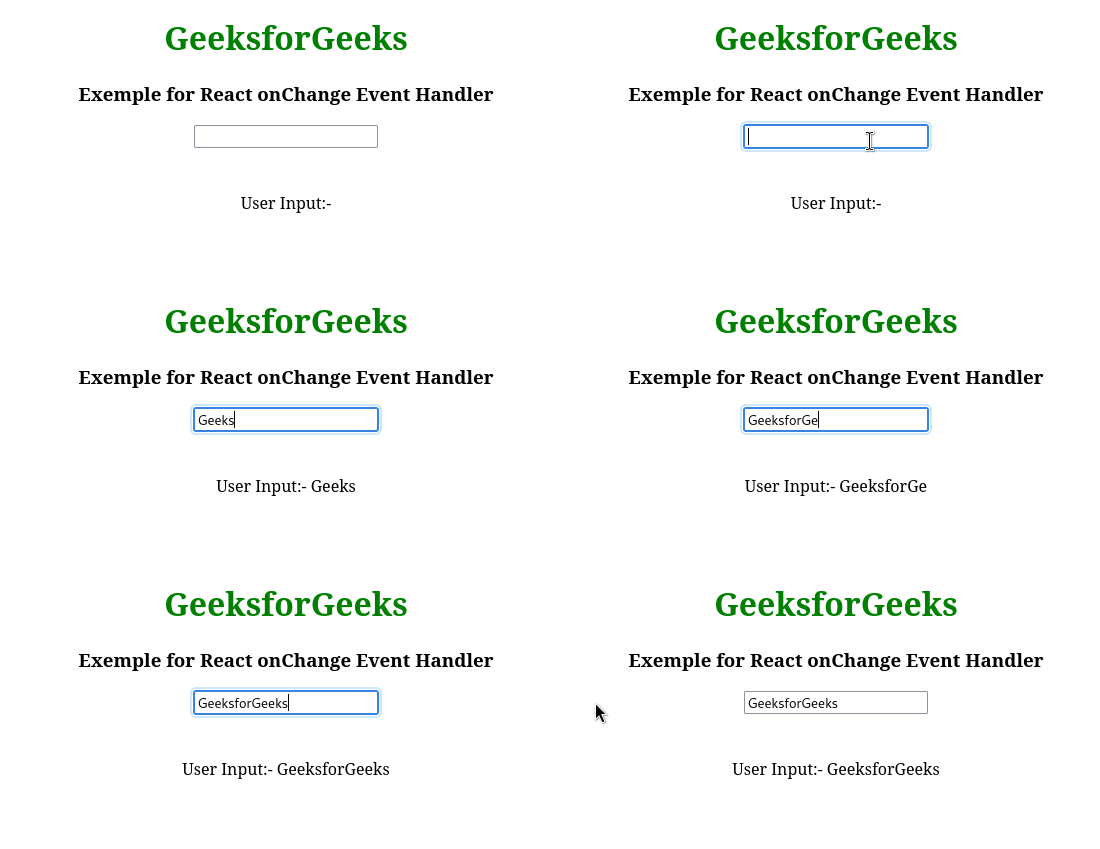
Example 2: Handlling select input using React onChange Event
import React, { useState } from "react";

function App() {
    const [value, setValue] = useState("HTML");
    function handleChange(e) {
        setValue(e.target.value);
    }
    return (
        <div
            style={{ textAlign: "center", margin: "auto" }}
        >
            <h1 style={{ color: "Green" }}>
                GeeksforGeeks
            </h1>
            <h3>
                Exemple for React onChange Event Handler
            </h3>
            <select value={value} onChange={handleChange}>
                <option value={"HTML"}>HTML</option>
                <option value={"CSS"}>CSS</option>
                <option value={"JavaScript"}>
                    JavaScript
                </option>
            </select>
            <br />
            <div>User Input:- {value}</div>
        </div>
    );
}

export default App;
In this code,
useState("HTML")initializes the selected option with"HTML"as the default value.- The
<select>element is controlled by React state usingvalue={value}. - The
handleChangefunction updates the state whenever a different option is selected. - The
onChange={handleChange}event listens for changes in the selected dropdown option. - The currently selected value is displayed below the dropdown using
{value}.
Output: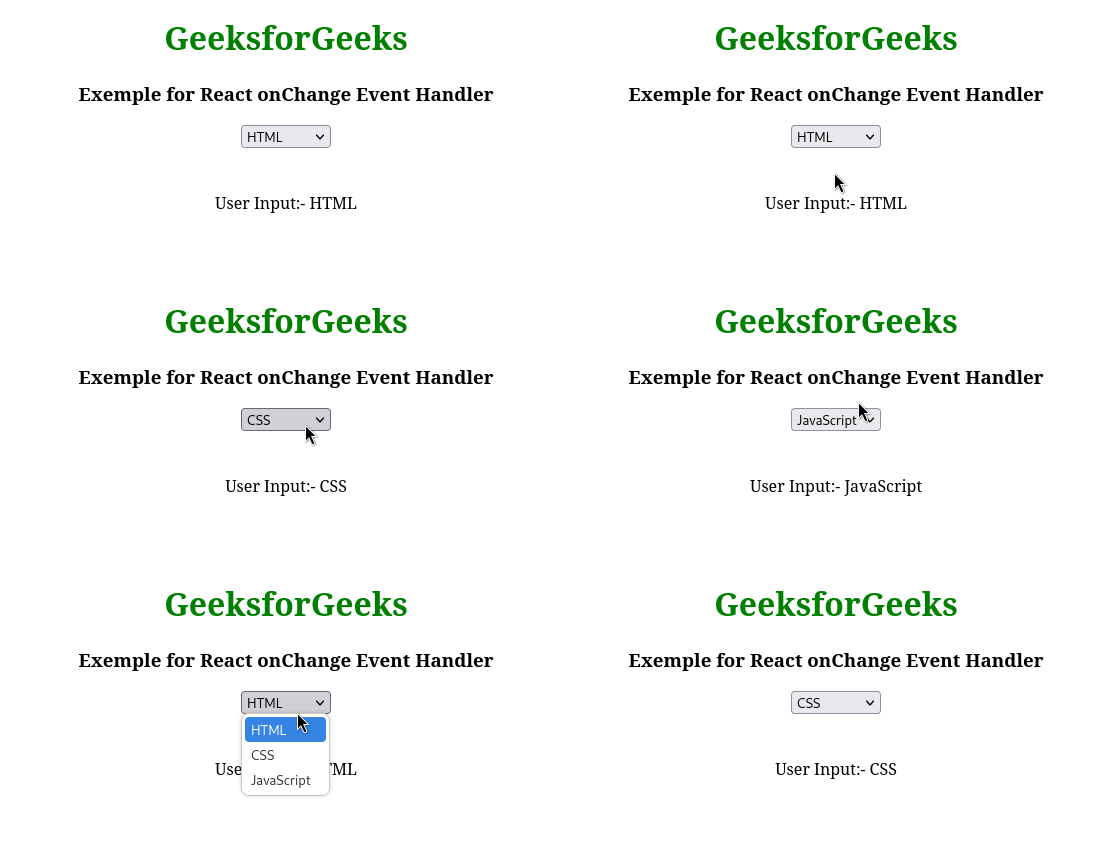
Use cases of onChange Event
The onChange event is widely used for handling user interactions with form elements.
- Form Input Handling: Captures and updates user-entered data in text fields, textareas, and other form controls.
- Dropdown Selection: Detects changes in selected options and updates the application state accordingly.
- Real-Time Validation: Validates user input instantly and provides immediate feedback.
- Dynamic UI Updates: Changes displayed content based on user interactions without requiring a page refresh.
