


Summary
- Set up Do Not Disturb to cut clutter during productivity hours, including exceptions for important apps like Outlook.
- Create a schedule for Night Light to block harmful blue light and customize its strength and timing for night work sessions.
- Utilize Focus sessions with To-Do integration to check off daily tasks, disable notifications, and track your progress easily.
Apart from a UI makeover, the transition from Windows 10 to Windows 11 also brought many new features that can streamline your workflow and boost productivity. Microsoft offers some practical, easy-to-implement tips that will transform your PC or laptop into a lean, mean productivity machine in minutes. Whether you are a busy professional juggling multiple responsibilities, a student with dozens of research tabs and apps open in the background, or a tech enthusiast, these Windows productivity tips will help you get the most out of your PC.
10 Set up Do Not Disturb mode
Setting up a DND schedule is the first thing you should do on your Windows PC. After all, you won’t want to receive constant alerts from colleagues or friends when you need to focus. While most work apps like Teams and Slack offer a DND mode, we recommend using a system-wide option to cut the clutter during productivity hours.
- Simply press the Windows + I keys to open Settings and head to System > Notifications menu.
- Expand Do not disturb and set specific hours and frequency.
-
You can also set DND to auto-enable during specific tasks, like when duplicating your display, playing a game, using an app in full-screen mode, or for the first hour after a Windows feature update.


As expected, you can always set exceptions for important apps like Outlook, Snipping Tool, Notion, and others.
9 Create a schedule for Night Light
If you frequently work long hours at night, enable Night Light to use warmer colors that help block harmful blue light. Like DND, you can set a schedule for night light and even tweak its strength to your preferences.
- Open Windows Settings and go to the System > Display > Night light menu.
-
Enable warmer colors, use the slider to tweak its strength, and schedule it per your preference and work hours.


8 Utilize Focus sessions in the Clock app
Focus session is an interesting add-on from Microsoft. It’s integrated right into the default Clock app and lets you create different sessions for tasks. It also has a Microsoft To-Do integration to check and mark off your daily tasks, and a Spotify add-on to listen to your favorite playlists and podcasts.

You can add short breaks for your longer sessions and check your daily progress from the same menu. Once you start a Focus session, the system disables notifications and app alerts. You can even minimize the Focus session and check live progress from a small window at the top.
7 Use and customize Windows widgets


Windows supports a dedicated widgets panel with first-party apps and a news feed. It’s totally customizable and supports widgets from OneDrive, Weather, Phone Link, To-Do, Traffic, Outlook, and more. You can also tweak the news feed menu based on your preferences. It also supports widgets from third-party apps like Facebook, Spotify, Messenger, and more from the Microsoft Store on Windows.
You can either access it from the Taskbar or press the Windows + W keys.
6 Customize taskbar
The Windows taskbar can be quite crowded with different items and system tray icons. You can disable unnecessary buttons and icons, and also rearrange quick toggles to keep your frequently used items at the top.
- Right-click on the Windows taskbar and open Settings.
-
Disable or enable Search, Task view, Widgets, and glance over the system tray icons.

-
Select the connectivity icon in the bottom right corner, and drag and drop quick toggles to place them exactly the way you want.


5 Enable Storage Sense
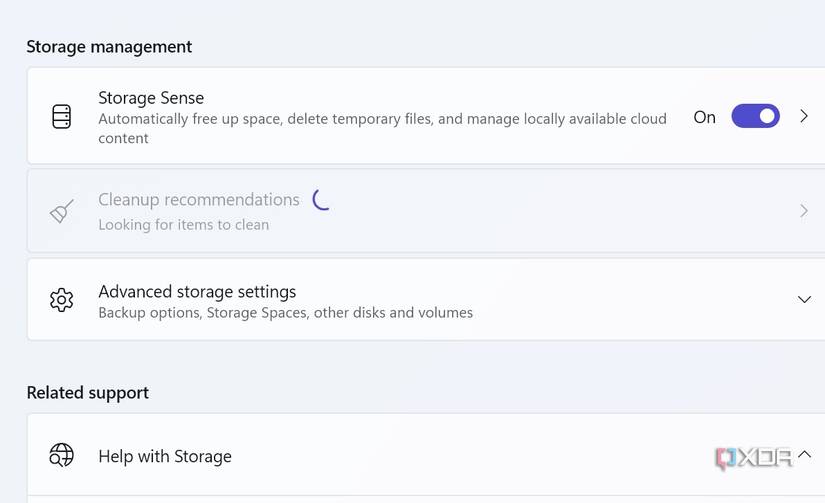
Running a Windows PC with low storage is never a good idea. It creates performance issues and affects your productivity when you have to deal with a lagging system. Instead of deleting files manually, enable Storage Sense to automatically free up space, delete temporary files, and manage locally available cloud content like a pro.
- Navigate to Windows Settings > System > Storage menu.
-
Enable the Storage Sense toggle.
-
You can also click on the feature to check its other options. For example, when you don’t open a specific OneDrive or iCloud folder for a specific time frame, the system could set it to online-only. You could also have it auto-delete files in the Downloads folder if they haven’t been opened for a set number of days. This is a must-have feature to keep Windows running smoothly.


4 Jot down a quick note
Microsoft recently revamped the OneNote-powered quick note function. Now, when you press the Windows + Alt + N keys, the system opens a quick note window to jot down notes with writing, inking, and screen clipping controls.
Remember this key combination, and you will never miss a chance to capture a thought instantly. Check our separate guide if you want to learn more about useful OneNote tips.

3 Try voice typing
Windows supports voice typing, and surprisingly, it’s quite accurate if you speak clearly and work in a quiet environment. Press the Windows + H keys to summon the voice typing tool, then press the microphone icon to start speaking.
You should just keep a few things in mind when using it. Sometimes, you may notice a delay between your speech and live typing. If you don’t see words instantly, don’t repeat yourself. If you do, you may end up with duplicate sentences and words. Also, it doesn’t support punctuation by default. You need to enable this from the Settings menu. Once you enable it, use words like period and comma to insert them into sentences.

2 Use virtual desktops
Do you frequently keep dozens of apps open in the background? Even with Windows 11’s excellent Snap Layouts, sometimes you can’t (or shouldn't) fit everything on a single desktop. Here is where virtual desktops come into play.
You can create various virtual desktops from the taskbar, give each one a relevant name, and arrange your apps efficiently. For instance, you could keep your work apps open on Desktop 1, messaging apps on Desktop 2, and browser tabs on Desktop 3. The possibilities are endless here.

1 Lock your private documents in the Personal Vault
Thanks to a OneDrive-powered Private Vault, you don’t need to rely on questionable third-party tools to password-protect your confidential files and media. This add-on is built right into the File Explorer app. Open File Explorer, go to your OneDrive account, then select Private Vault.

If you haven’t used it before, go through the initial setup and check it out in action. You can now move your files into your Personal Vault and lock it using the OneDrive menu in the system tray. It syncs your data across all of your devices, so you can access things via the OneDrive mobile and web apps too.

Elevate your workflow in no time
These are just some of the built-in tricks to turn your PC into a productivity workhorse. If you want to further tune and optimize your PC, check our dedicated guide to learn the top productivity apps for Windows. Microsoft also offers one app called PowerToys, which enables dozens of useful add-ons throughout Windows OS and system apps like File Explorer.
