


Networking hardware is the backbone of smart homes, gaming PCs, and the average modern home or workplace. However, I'm repeatedly appalled by the nonchalance of users telling me their Wi-Fi is perfect right after initial setup, sometimes performed by their ISP's technician. I'm equally infuriated by brands upselling routers with the gaming tag as though that magically waives legally mandated caps on radio frequency (RF) power outputs. Sure, setting up a new router is usually a plug-and-play affair that takes minutes, but that lures us into a false sense of mastery and safety.
Network speed and security are far more nuanced, but debunking well-meaning yet ultimately incorrect advice, outdated tips, and marketing jargon that only serves to befuddle users is important too. Spending a few minutes prodding around your Wi-Fi configuration could help cut through the noise, and the cross-band interference that's taxing your connection speed. Here are a few myths to get you started.
5 Antenna direction matters
Not as much as router placement, though

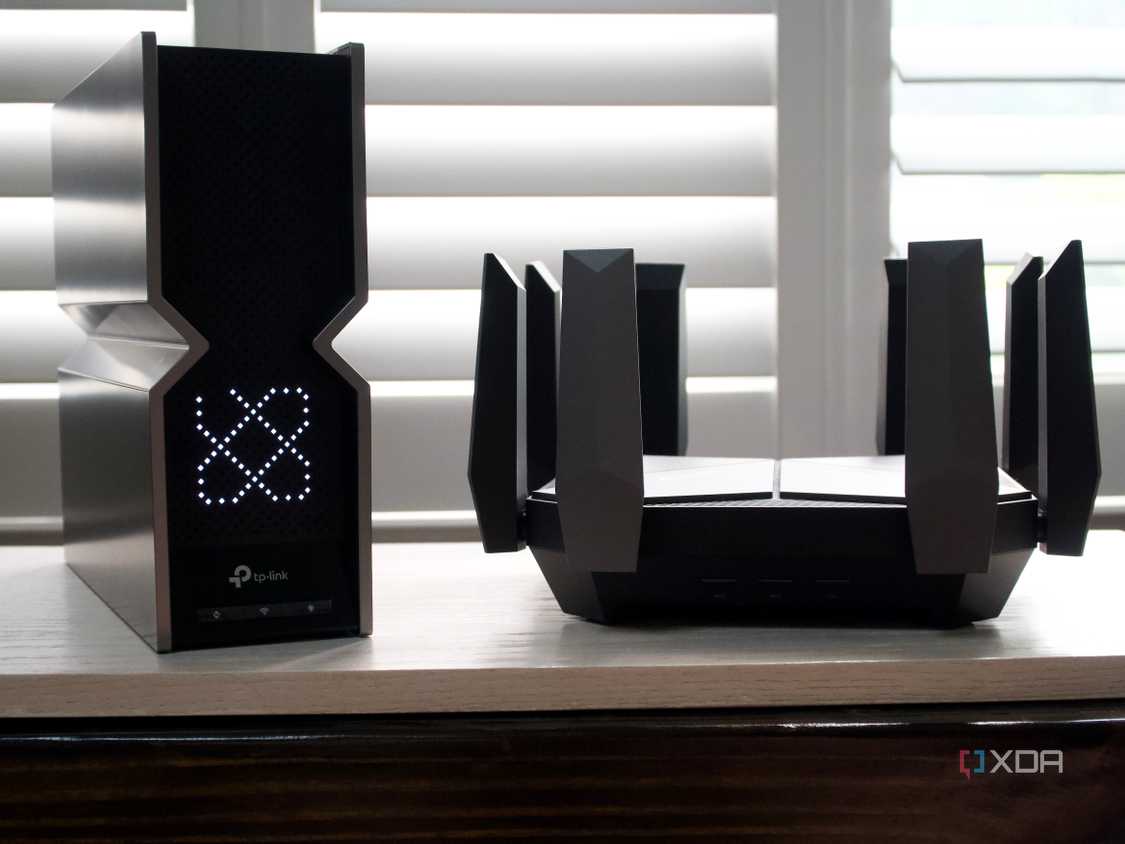
TP-Link Archer BE800 next to Archer AXE300 



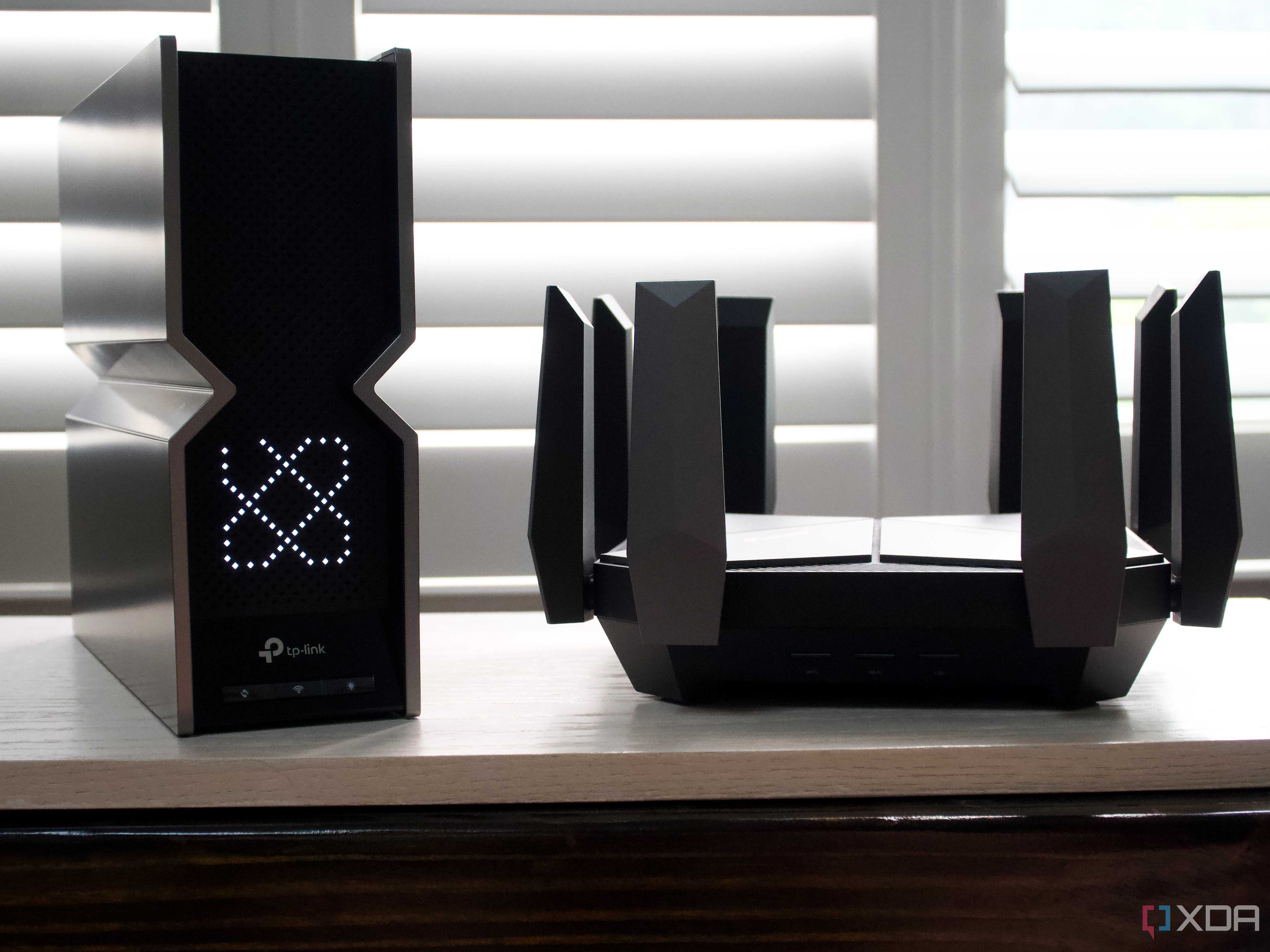
TP-Link Archer BE800 next to Archer AXE300 
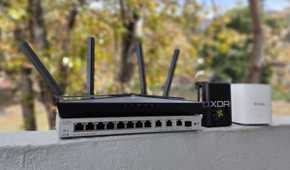
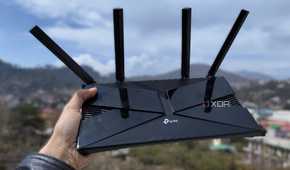
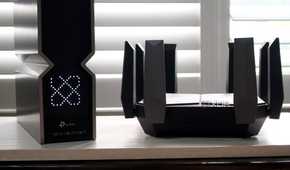

A common sight in any tech enthusiast's home is a router with its antennas contorted into some specific, deliberate arrangement. The prevailing belief is that these antennas are like tiny spotlights, and you must point them directly at your devices to beam the signal their way. I'd be lying if I didn't admit I tried to fiddle with the antennae to help cut dead zones in some rooms, but router antennae are largely omnidirectional now.
So long as you have them installed, they radiate the signal outward in all directions perpendicular to the antenna's orientation, creating a signal pattern shaped roughly like a flattened doughnut or a sphere. When an antenna is vertical, it pushes the signal out horizontally, covering a single floor well. For the vast majority of consumer routers, you can turn an antenna horizontal at best, pushing the signal up and down, which can be better for multi-story homes.
However, antenna alignment is trivial compared to the physical placement of the router itself. One tucked away in a closet, at the far end of the house, or surrounded by metal objects will deliver a poor signal regardless of how you angle its antennae. Optimally, you'll want to place a router centrally in your home, free from visual obstructions including walls, and you'll eliminate more dead zones than antenna adjustment ever would.
4 Basic setup is good enough
Band interference needs manual intervention

Out of the box, your router is designed for convenience. The setup process defaults to specific RF channels for the 2.4GHz and 5GHz bands, promising to find the least-congested airwaves for optimal performance. However, this doesn't mean you can set it and forget it, especially in commercial complexes or apartments where several Wi-Fi networks are bunched close together.
Unfortunately, your router's automatic band selection isn't smarter than your neighbor's, and most routers set the same defaults—channels one, six, and 11 for the 2.4GHz band. With multiple networks using the same RF, devices on your network will have to battle crosstalk and wait for clean transmission. Sure, it happens fast and the interference is manageable, but you're better off optimizing your settings instead.
Moreover, the 2.4GHz band is especially susceptible, as it's also used by Bluetooth devices, cordless phones, and even microwave ovens, smart bulbs, and other appliances, all of which add to the noise. A simple Wi-Fi analyzer app on your phone will tell the cluttered RF channels apart from the clear ones, which you can then select manually in your router settings. I suggest using the 5GHz band with more channels and less interference for critical devices with newer radios, such as gaming consoles and smartphones, while your smart TV and home appliances can continue hogging the 2.4GHz band since speed isn't as important for them.
3 Running Ethernet from an extender is a true wired connection
Chains are only as strong as their weakest links

Wi-Fi extenders and mesh nodes seem like a simple solution to dead zones, and their marketing often highlights a key feature—an Ethernet port. Marketing often implies that you can place the extender in a room with weak signal and run Ethernet to your PC or console for a rock-solid, wired connection. Your computer will even display the Ethernet icon, reinforcing this belief. However, if that extender is connecting to your main AP wirelessly, you are still on glorified Wi-Fi and not a true Ethernet connection.
The final link might be an Ethernet cable from your PC to the mesh node, but the previous link is wireless, and chains are only as strong as the weakest link. Some high-end tri-band mesh systems mitigate the wireless issue by having a third, dedicated radio just for the backhaul communication between nodes. This is a significant improvement over a standard extender, but it's still not as fast or reliable as a physical cable running between nodes and clients.
2 Wi-Fi can substitute for a wired connection
Wired always edges ahead

Tying into the wired vs wireless debate, the superior connection is hotly debated. With each new generation, Wi-Fi gets faster and more capable. The speeds offered by Wi-Fi 6 and 7 can even exceed that of a standard gigabit Ethernet port, leading many to declare that wired connections are obsolete. For casual browsing and streaming video, that stands true and more convenient too. A ruggedized Wi-Fi connection won't suffer from noticeable packet loss and will feel instantaneous for most tasks. However, for mission-critical tools like gaming and remote operations, split-second latency creeps in and can prove detrimental.
The fundamental weakness of Wi-Fi is that it's a shared, half-duplex medium. In simple terms, only one device can "talk" on a given channel at any time. Your console, your partner's phone, and your smart TV are all competing for airtime. Your device inevitably has to wait its turn, and this waiting introduces jitter. It's often confused with packet loss, but it is just a fluctuation in the interval between consecutive received packets. This is especially vital in games that use peer-to-peer networking, and Wi-Fi's inherent jitter can render some titles frustrating or unplayable. Where performance matters, Ethernet still reigns supreme.
1 Hiding your SSID secures your network
It doesn't do as much as you'd hope

One of the oldest pieces of Wi-Fi security advice is to hide your network's name, or SSID. At first glance, the logic seems sound: if hackers can't see your network, they can't attack it. It may demonstrate the principle of security through obscurity, but there's no real protection to gain on modern Wi-Fi that's worth the convenience you're trading.
An SSID is the name your Wi-Fi AP is constantly broadcasting to remain discoverable. If you remove that, your network dips out of most basic public beacon frames, but the network is still on the airwaves. Any Wi-Fi analysis tool can still see the traffic on your network. Moreover, your client devices, like your phone, send out a probe request containing the network name when they try to connect, like a person shouting in a dark room to be heard. Any attacker desperate enough to target your network just needs to listen for these probe requests to discover your hidden SSID easily.
True network security doesn't come from hiding. It comes from strong modern encryption and a robust password. Ensure your router is using WPA3 or, at the very least, WPA2-AES security. Then, create a long, complex, and unique password that isn't an easily guessable phrase. Router firmware updates install security patches that also go a long way in keeping your network safe. Hiding your SSID falsifies a sense of security that cannot stand up to the actual protections of encrypted network traffic. Broadcasting your SSID at least makes connecting new devices easier.
See through the myths for a better connection
Ultimately, a good Wi-Fi experience isn't in buying the most expensive gear or believing in secret tricks. It’s about understanding the fundamentals of RF interference, encryption, and router placement. Falling for these common myths degrades your user experience, causes frustration, and often leads to needless expenditure on extenders or mesh networks that don't solve the root problem. With a few informed steps, your home Wi-Fi can be a fuss-free provider.
