


PCIe add-in cards used to be a necessity. Decades ago, motherboards only came with very basic features, and you'd have to fill in the gaps with various PCIe devices. As time has gone on, though, that's changed. Most motherboards incorporate those features into the board itself, leaving a bunch of empty PCIe slots sitting below your GPU.
Although you can accomplish a lot with modern USB standards and on-board features, there are still a few reasons to give your dusty spare PCIe port some love.
6 Expand your storage with an M.2 card
Who could argue with more storage?


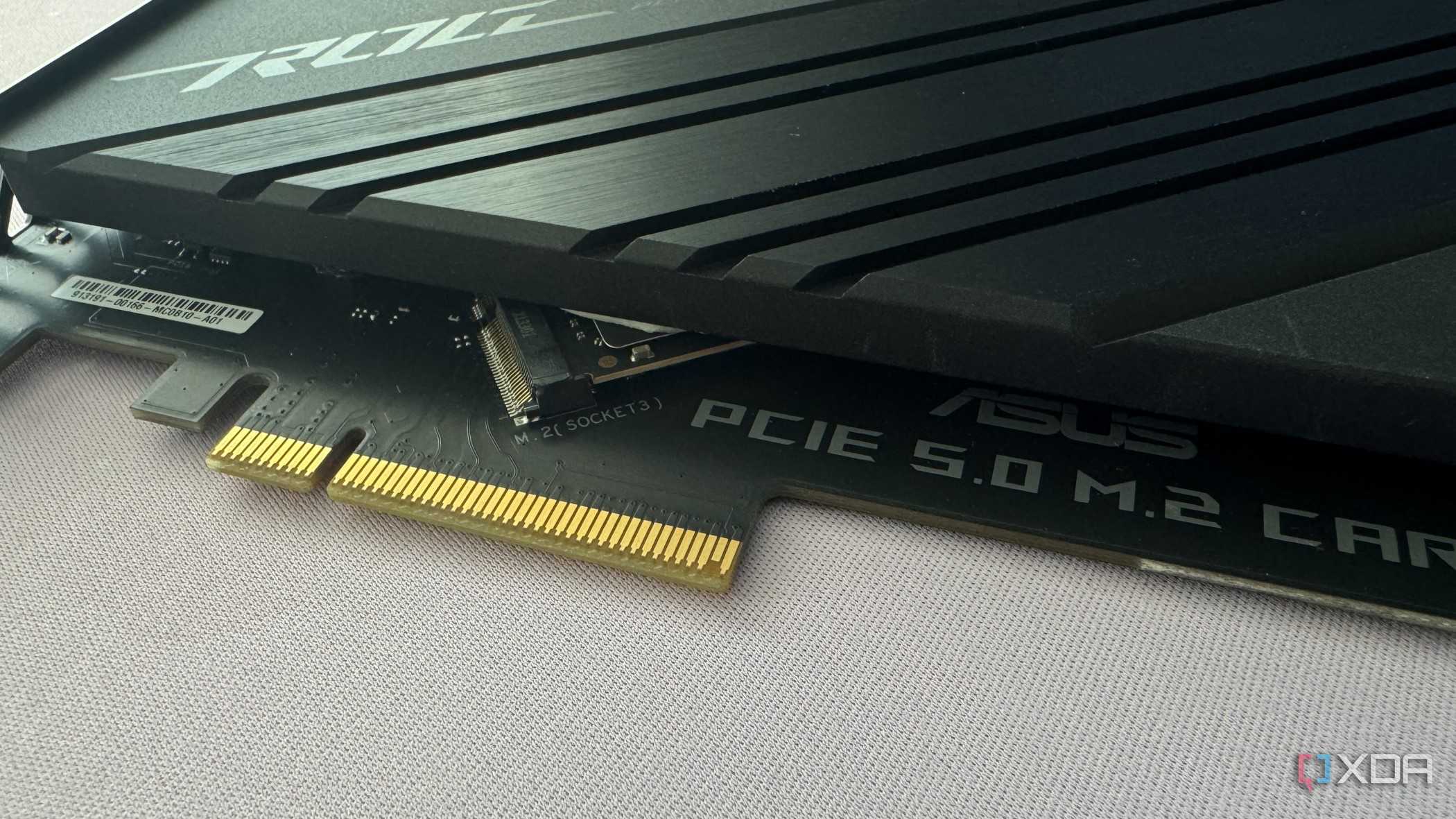
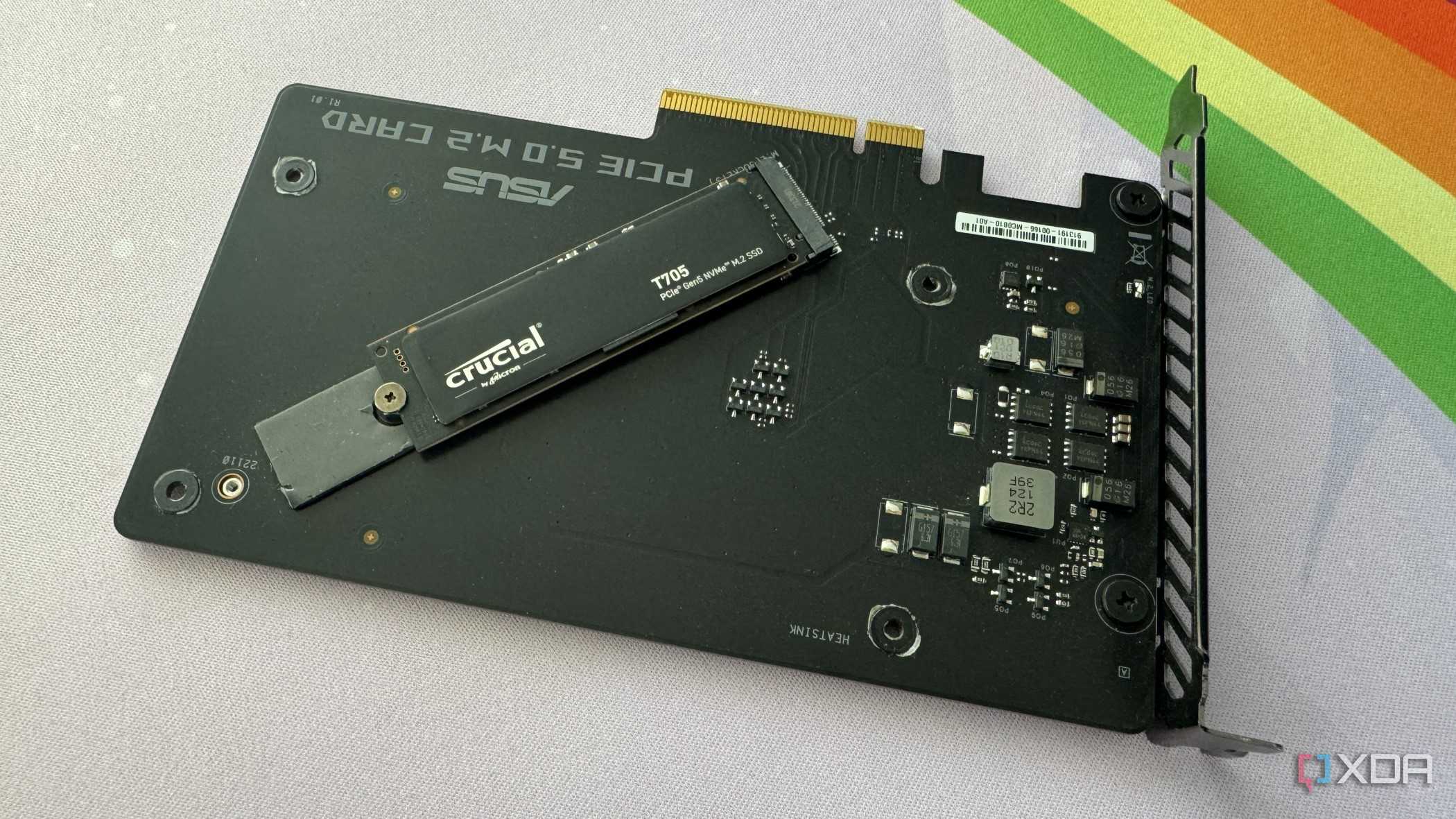


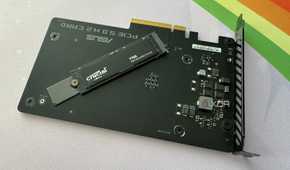

A lot of motherboards only have a few M.2 slots. Most motherboards have at least two, some nicer boards have three, but you'll need to shell out for a high-end board if you want four or more. Or, you can give up a little speed and add a ton of M.2 slots to your PC with an add-on card.
Our very own Joe Rice-Jones actually tested out one of these cards and found that speeds are basically identical between PCIe and raw M.2. And it makes sense, given that both use PCIe lanes available from your board and CPU. You don't want to slap your fastest, most expensive SSD into a PCIe adapter, but for spare drives that otherwise don't have space in your PC? I couldn't think of a better place to put them.

5 Give yourself more USB ports
Give hubs the boot

I'm always running out of USB ports, and I'm sure I'm not alone. If you're always running out, don't continue buying a string of cheap USB hubs that sprawl out on your desk; buy an internal USB card. Not only can you get a ton of extra ports for about $20 to $30, you also get much better performance out of your USB devices.
When you plug in a USB hub, there are two problems. First is power, as your PC only supplies a small amount of wattage to your USB ports, necessitating the use of an external power source if you want to, for instance, charge your phone at a decent rate. The other issue is bandwidth. When you plug in a USB hub, you're adding more devices to a USB controller, and they all have to share the bandwidth. Even a single high-speed device beyond your controller's capabilities will cut the bandwidth for all the USB ports on that controller.
An internal USB card solves both those issues, gathering power from the PCIe slot and sporting a separate controller that doesn't take away from your other USB ports. And, let's be honest, having more USB ports on the back of your PC looks a lot tidier than a bunch of hubs lying around.

4 Add Thunderbolt to your PC
For specialized accessories

You can always add more USB ports to your PC, but what about adding ports that your PC doesn't natively support? You can pick up Thunderbolt add-in cards, as well. Both Intel and AMD CPUs support Thunderbolt today, but it was originally an Intel technology exclusive to its chipsets. You can find Thunderbolt on AMD boards now, but the lack of support in the past means that support today is still spotty. That's more and more true the older your hardware is.
Particularly on AM4 boards, there aren't a ton that support Thunderbolt at all, much less Thunderbolt 4. And although you can more commonly find USB4 support on newer AMD boarders, it's much more difficult to find Thunderbolt 5. Thunderbolt add-in cards are pretty expensive, but they're a heck of a lot cheaper than buying a new motherboard or switching to a completely different platform.

3 Upgrade your networking
Multi-gig internet is here


Standard Gigabit Ethernet was all you needed for a long time, at least for those of us not undertaking big home networking or server projects. But today, multi-gig internet is available in a ton of regions, and if you upgrade, there's a decent chance you'll need to upgrade your motherboard to unlock the fastest speeds. Even on modern platforms, 2.5G Ethernet isn't standard, and a lot of brands reserve more capable networking for more expensive boards.
Upgrading your networking makes sense to unlock faster internet speeds, but you can also undertake one of those aforementioned server projects, as well. One of the best ways to repurpose old PC hardware is to turn it into a home server, and that starts with a fast local network.

2 Turn your old PC into a game console or media center
For the lazy

Outside of building a home server, one of the best things you can do with old PC hardware is build a home theater PC, or HTPC. That's especially true today, with Linux distros like SteamOS and Bazzite that offer a controller-first interface, and access to the vast majority of games you'd want to play. The only real issue is turning the thing on. Without an easy way to just kick on the power with a controller, you have to get up and walk a few steps to turn it on with the power button. Imagine.
Let technology do the work for you with a PCIe card with a remote. You need a motherboard that supports resume via PCIe, but for about $30, you can save yourself the steps and power on your machine with a remote. I'm undermining my own PCIe list here a bit, but you can actually do the same thing with a spare USB 2.0 header, which is definitely the way to go if you need to save space.
1 Add a capture card to your PC

If you want to keep your desk clean, you can also install an internal capture card in your spare PCIe slot. If you want to record basic gameplay from a console or stream online, an external capture card is probably better. They're much cheaper, and bandwidth and latency concerns aren't as present as they once were. However, if you need the highest quality and lowest latency possible, an internal capture card is still the way to go.
Lossless gameplay capture for analysis, direct video recording at high bitrates, and synchronizing multiple video sources on one PC all call for an internal capture card. There are the Elgatos of the world targeting gamers, but you can also add something more targeted at professional video workloads like the Blackmagic Design DeckLink 4K Extreme.

