


A Raspberry Pi comes with an HDMI output (or outputs with the Pi 4 and Pi 5). This makes connecting it to a modern display straightforward, and comparatively trivial. But what if the display isn’t modern?
Incredibly, pretty much all Raspberry Pi models can be connected to non-HDMI displays. I discovered this when exploring options for a retro gaming system built on Raspberry Pi and RetroPie.
What sort of old TV?
Not just cathode ray tubes

Thanks to various under-appreciated ports and hidden interfaces, standard and custom-made cables can output video from a Raspberry Pi to TVs of all generations.
Old CRT TVs and monitors, flat screens and plasmas – if it works, there should be a way to use it with a Raspberry Pi.
TVs with RCA ports are particularly ideal, but old systems with a single antenna input can also be used with a Raspberry Pi, providing you can find an RCA to RF modulator.
With a composite signal over RCA, you can also connect to a TV's SCART port, with a suitable adapter.
Which Raspberry Pi model is best for this?
Any suitable port in a storm


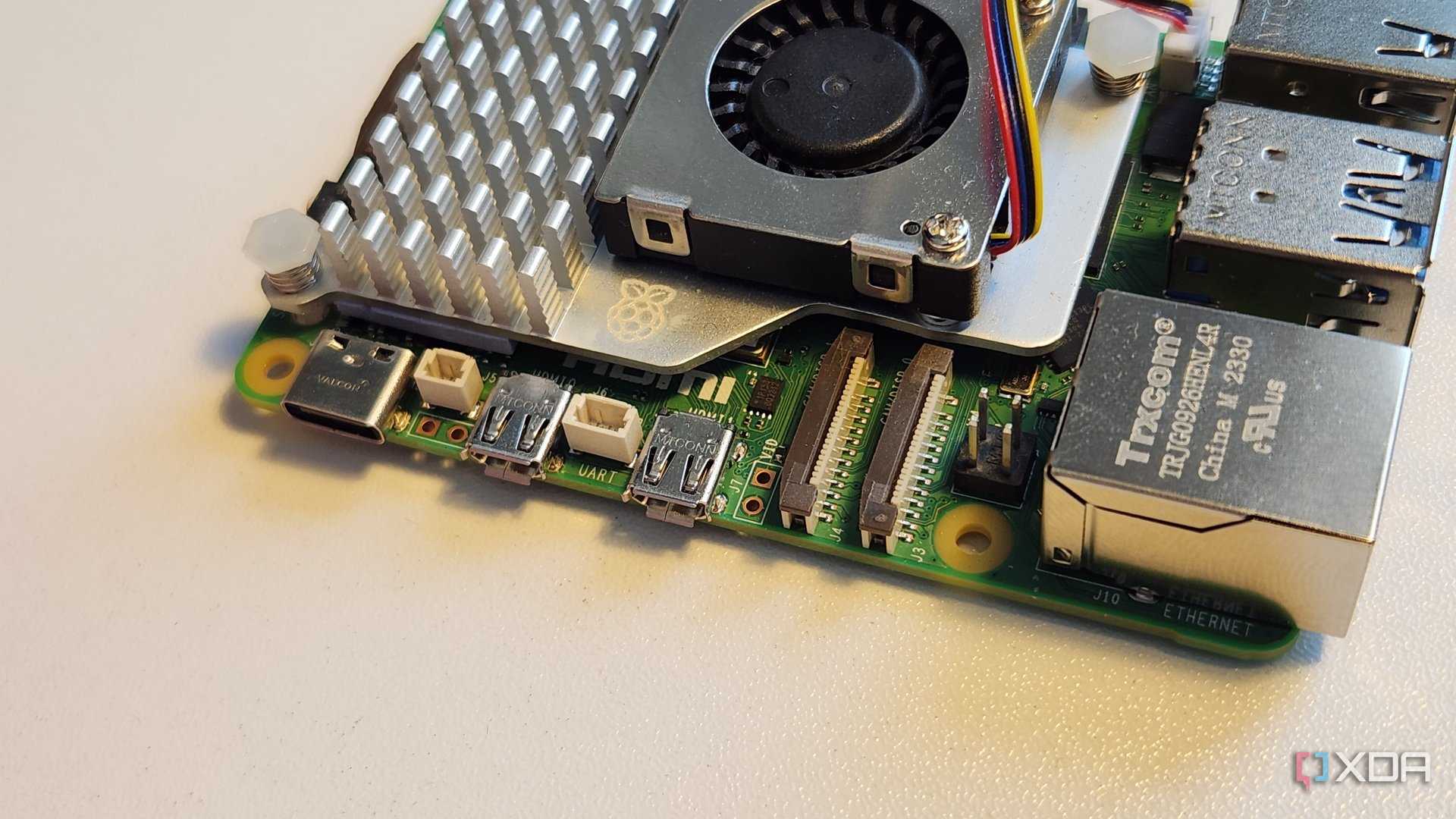
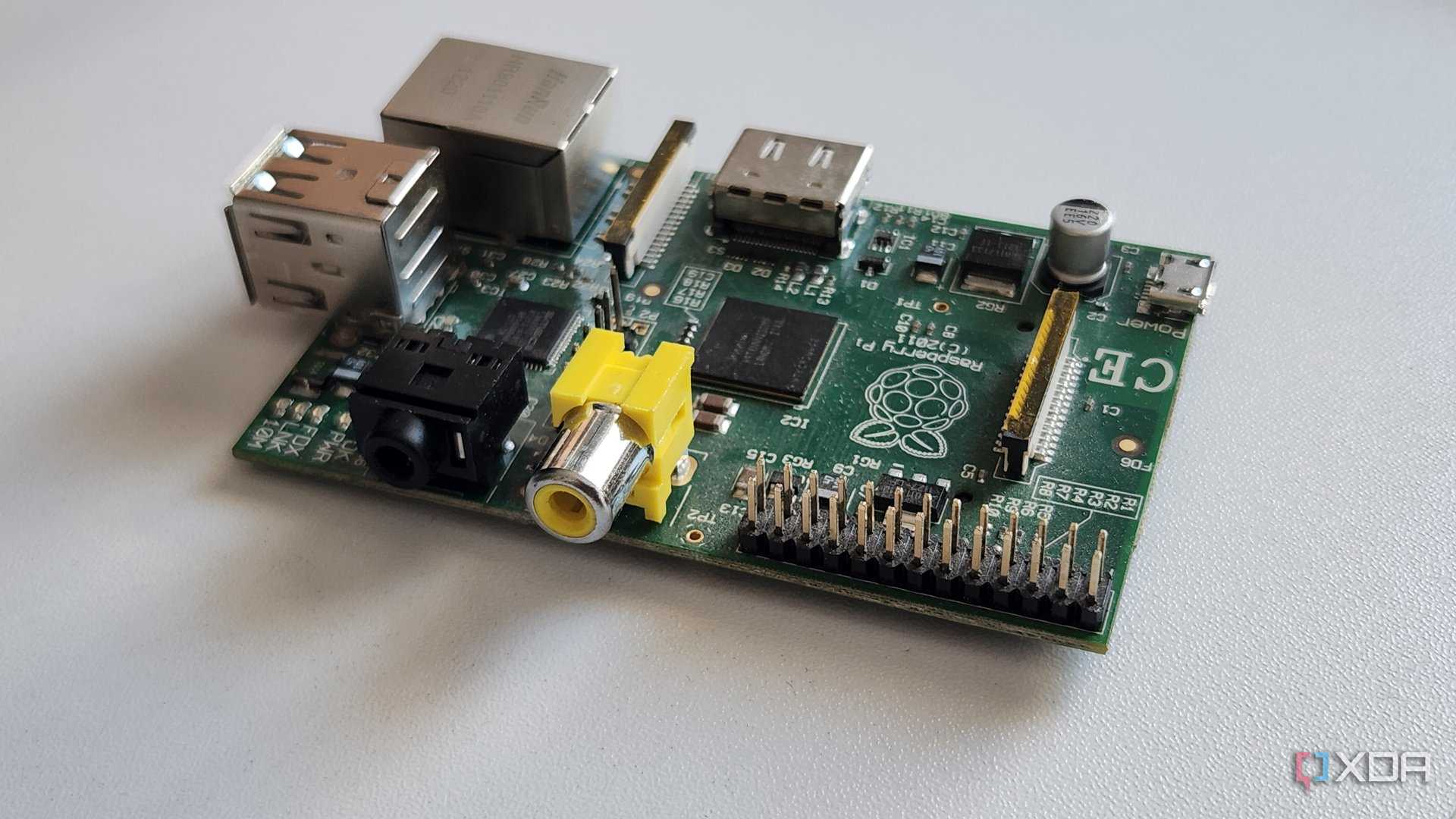
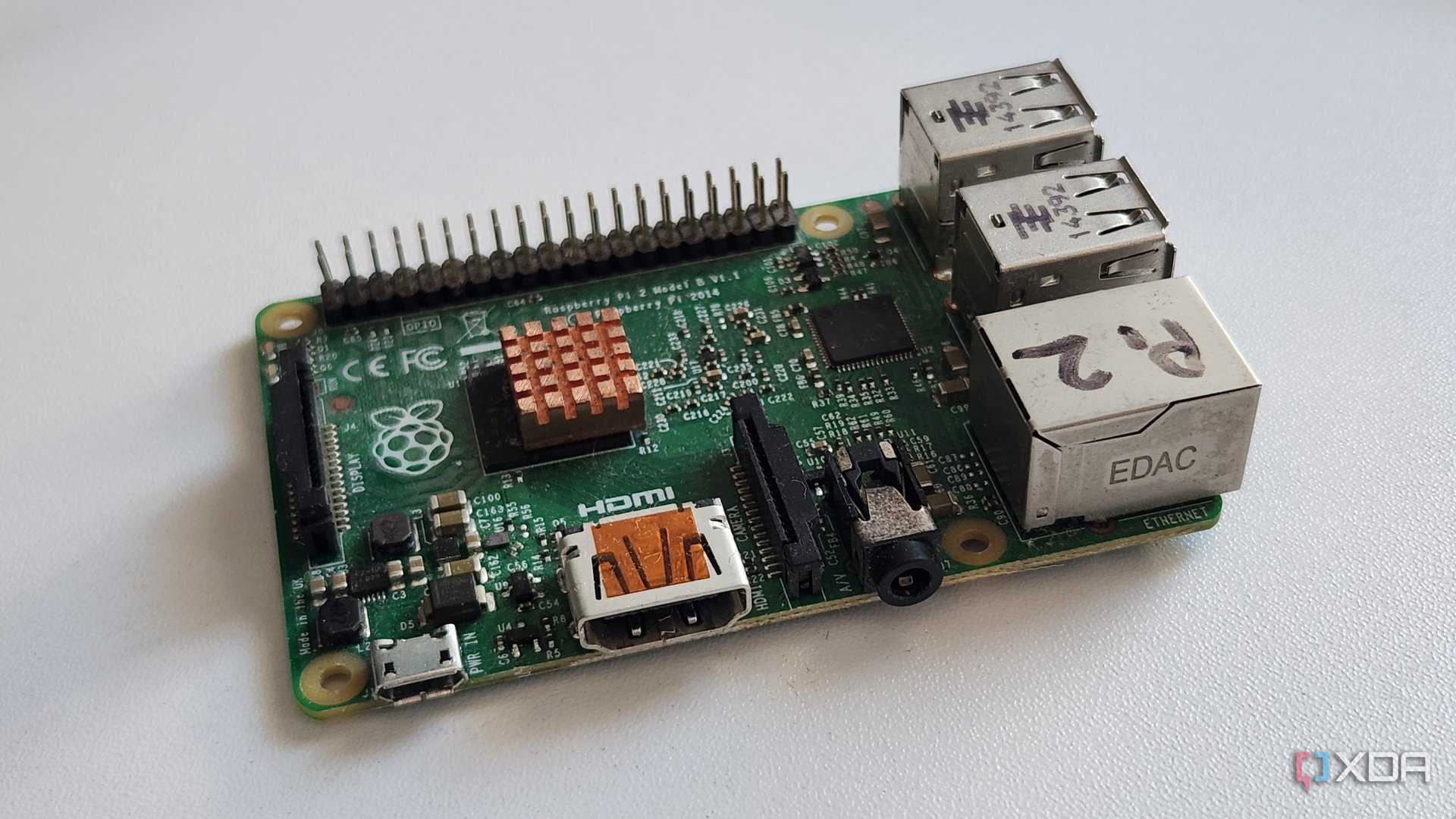
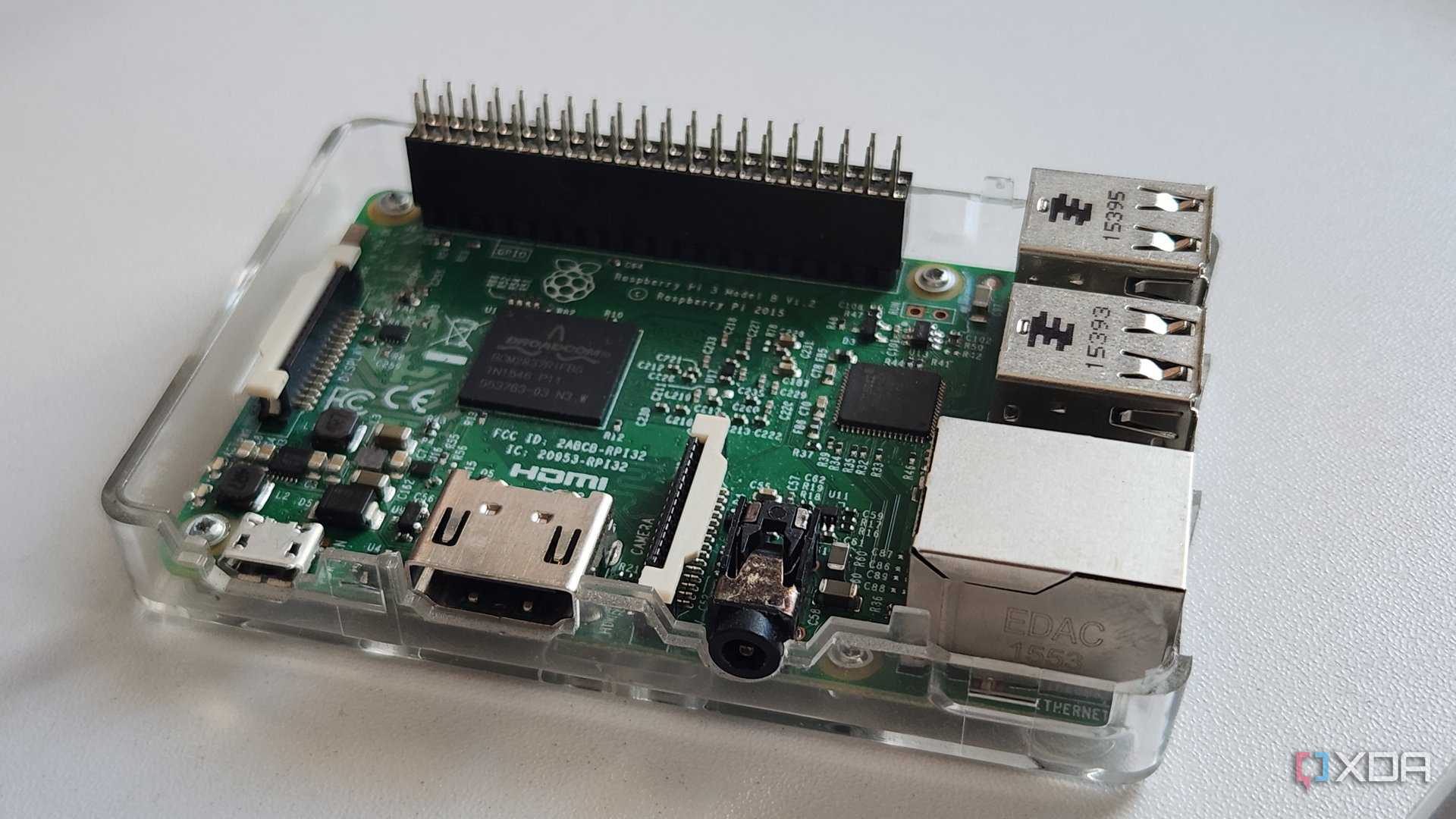

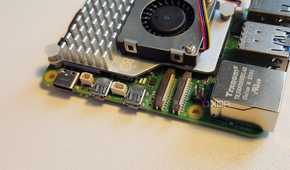
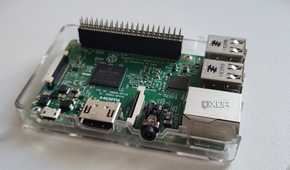
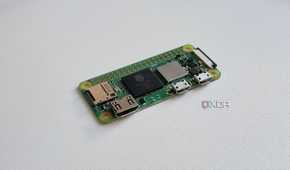
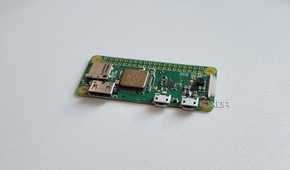
Let’s start with the most current model, the Raspberry Pi 5. The credit card-sized SBC (formerly known as the Model B, to distinguish it from the slightly smaller Model A) has abandoned the TRRS port seen in Raspberry Pi B+ through to Raspberry Pi 4 models. Instead, it has a pair of dual-purpose camera/display (CSI/DSI) ports and two through-holes labeled "VID."
So, why no dedicated port?
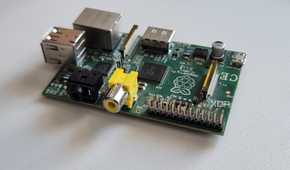
As the Raspberry Pi evolved, it has seen slight changes in configuration. But all models have a composite/RCA style output – it’s just a matter of finding it.
This isn’t a problem with older models. Here’s how I’d connect one of those to an old TV:
- Raspberry Pi: The yellow RCA port
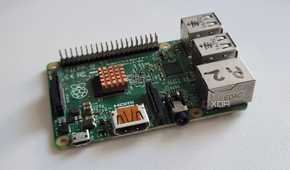
- Raspberry Pi B+ through to Raspberry Pi 4: TRRS port (it looks like a headphone port)
Some people use the contact points on the underside of Raspberry Pi B models, but this is not a good idea. These aren’t dedicated like those on the back of the Pi Zero models, so that strategy is best avoided, as it can break your Raspberry Pi.
How I hooked up an old TV to the Raspberry Pi Zero
This also works with the Raspberry Pi 5


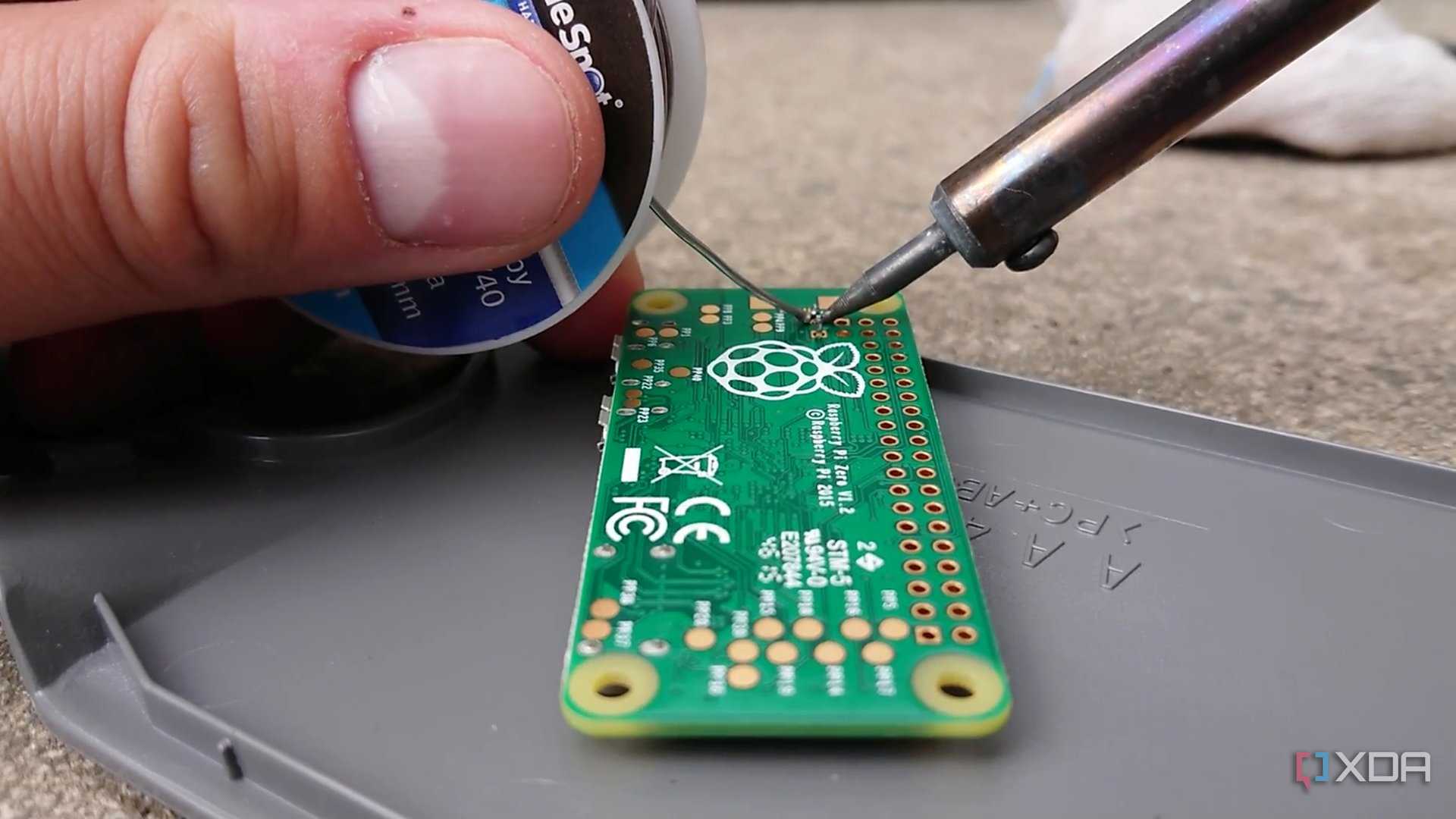
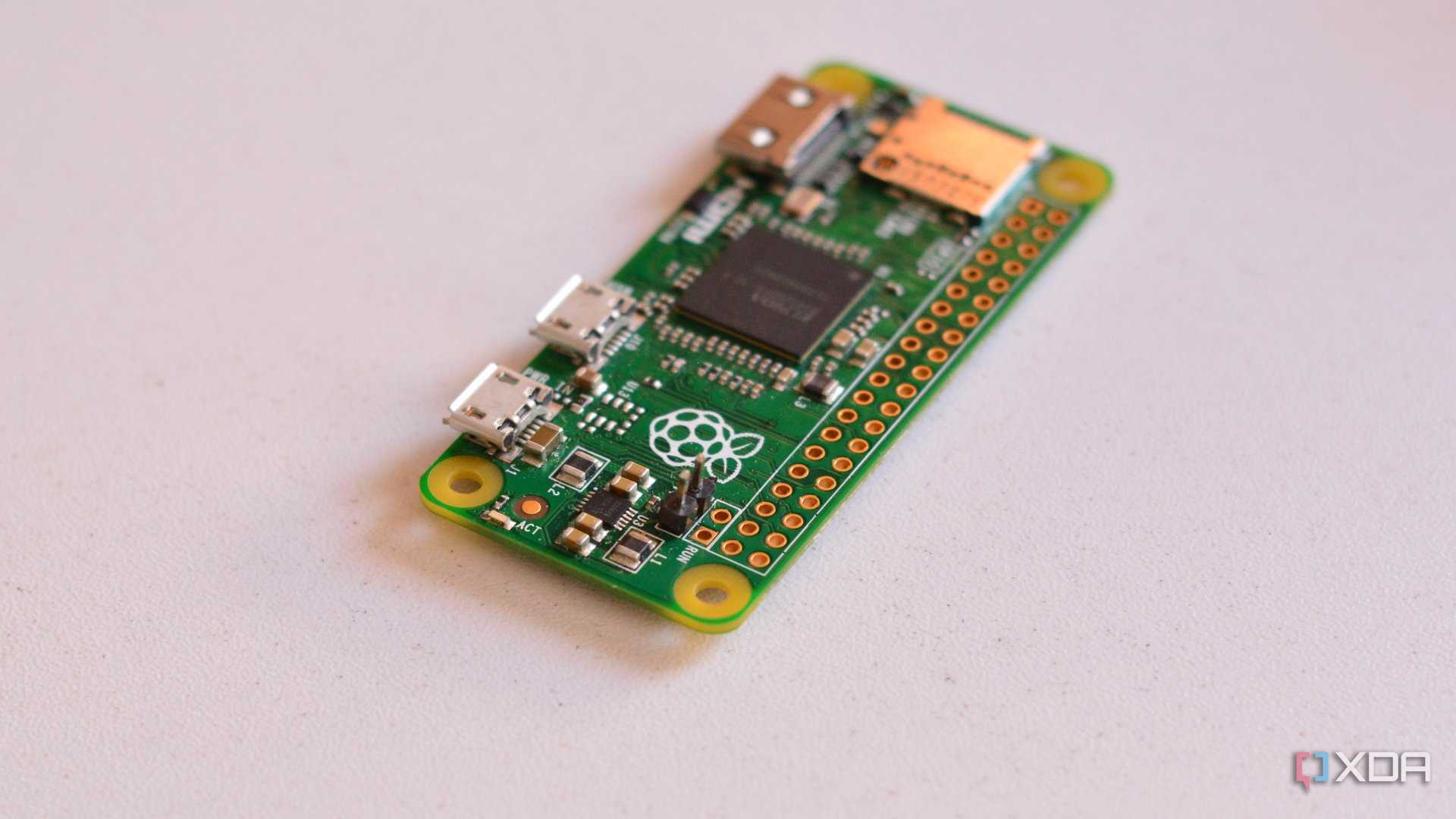




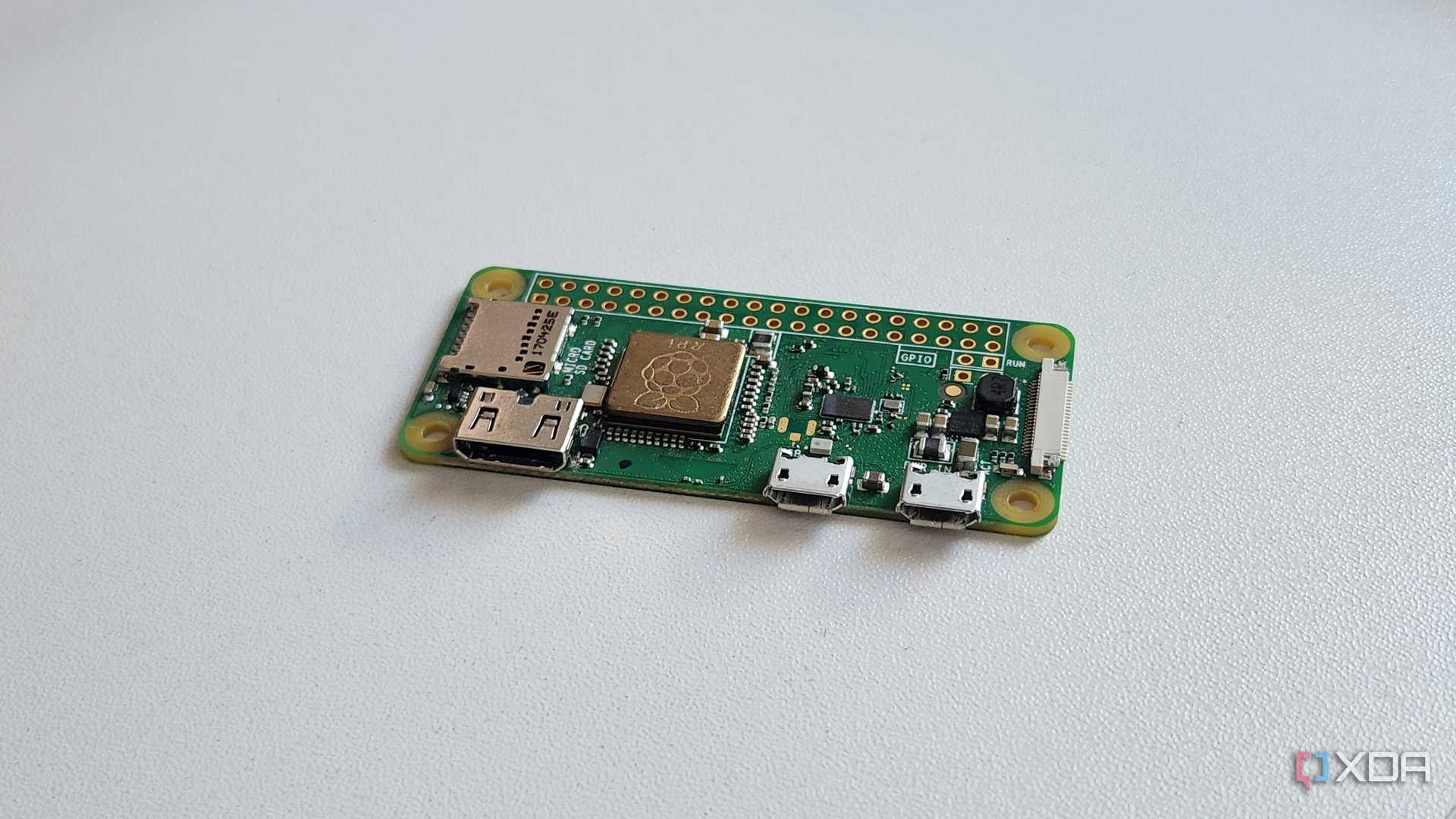
I’ve done this with an older Raspberry Pi Zero, specifically the older 1.2 model from 2015. The same method works with the Pi Zero 1.3, its W and WH variants, as well as the Raspberry Pi 5.
Positioned next to the GPIO holes, two 2x1 hole interfaces can be found, and one of these is labeled TV.
To connect my Raspberry Pi to a TV with an RCA cable, I started with a single 2x1 pin header for the Raspberry Pi Zero.
I also had a screw terminal RCA connector, rather than cannibalize an existing cable.
For jumper wires, I used a reset switch from an old PC.
Putting this together, I soldered the 2x1 pin headers to the TV out interface on the Pi Zero. Then, I soldered the corresponding TV out cable to the live terminal on the RCA connector, and the ground cable to the ground terminal.
With the Raspberry Pi’s microSD card inserted into my PC, I opened the file browser and browsed to the boot/config.txt file to make an edit. By default, the Pi will output to HDMI, and while it should use an alternative if the HDMI is not detected, this doesn’t always happen. In config.txt I added the line
enable_tvout=1
This usually works on its own, but you should also edit
dtoverlay=vc4-kms-v3d
to read
dtoverlay=vc4-kms-v3d, composite
You can find the full list of options and flags for the config.txt file in the official Raspberry Pi configuration documentation.
On other occasions, I’ve done this more quickly by running sudo raspi-config in the terminal and browsing to Display Options, then toggling Composite.)
With this done, I saved the file and safely ejected the microSD card. When I finished, I connected the cable to the pins on the Raspberry Pi, plugged it into the video port on the TV, and powered on both devices, selecting the correct channel on the TV.
This is a video-only thing
You can keep your HAT on

There is one thing to note here. This is a video-only signal, so there is no audio. On a Raspberry Pi Zero, you’ll need a USB soundcard with a headphone/audio port to connect to the display’s audio. An alternative is a mini-HDMI to VGA adapter with audio out, connecting directly to the RCA audio jacks, or any other audio interface the display might have. Failing that, use an external speaker.
On a Raspberry Pi 5, the best option is to use an audio HAT, which sits on the GPIO pins. This offers standard audio output options.
What about connecting an old TV to a Pi Zero 2 W?
Just solder on

This is also one of the many projects suitable for a Raspberry Pi Zero 2W, although in this case, you don’t need the pins.
Which is just as well, as the Pi Zero 2W doesn’t have any additional holes.
But if I flip the Pi Zero 2 W over, I can see the two contact pads on the reverse of the mini-HDMI port. These are labeled TV and GND (ground).
So, rather than using pins, I can solder the wires in the composite cable directly to the Pi Zero.
Here, the wire for the video signal is soldered to the TV pad, while the adjacent GND should also be used. As with the Raspberry Pi 5 and older Pi Zero method above, the tweaks to the config.txt file are required.
What about really old TVs?
Are you from the past?
While TVs with RGB/RCA ports are particularly ideal, old “boxes” with a single RF antenna input can also be used with a Raspberry Pi, providing you can find an RCA to RF modulator.
The video above demonstrates how an original Raspberry Pi can be used with an old analog TV and radio combi device, using an RF modulator to convert the RCA output. Here, the RCA from the Raspberry Pi is input into the RF modulator, which is then connected to the antenna screws. For newer TVs with RF, you should simply plug the cable from the modulator into the back of the TV.
While some modern TVs have RF inputs (although these are being phased out), this doesn’t mean they will be suitable for older game consoles and computers. Latency issues will quickly become a frustration.
You can get the same results from later Raspberry Pis with TRRS ports, or by hardwiring the RCA cable as I did.
It’s not all about HD, 2K, and 4K
HDMI ports are great, but the Raspberry Pi platform has far more to offer. When I discovered that you could connect an old-style TV to the computer, it really changed how I viewed it.
After all, the Pi is very popular with retro enthusiasts like me, whether gaming or exploring old software.
Some people prefer to run old software purely on modern hardware, but I prefer to have some authentic hardware where available. It gives a more complete retro experience, I think. Older LCDs and plasma displays are great, but composite signals output to cathode ray tube-based TVs is the ultimate step.
If you’re happy to use an RCA or TRRS cable to hook up your old TV, it’s all good. But if you suspect you might need to wield a soldering iron, make sure you’re familiar with soldering before unleashing it on your tasty SBC.
