


Thanks to their affordable price tags, low energy consumption, and compact size, Single Board Computers are great for projects where you don’t need the latest and greatest pixel-pushing hardware. Building a NAS is one such project, and with enough external drives, you can have a reliable file-sharing and backup server running on top of your tiny SBC. So, here’s a guide to help you put together a budget-friendly NAS server using an SBC, some USB drives, and the lightweight OpenMediaVault package.
What you’ll need for this project
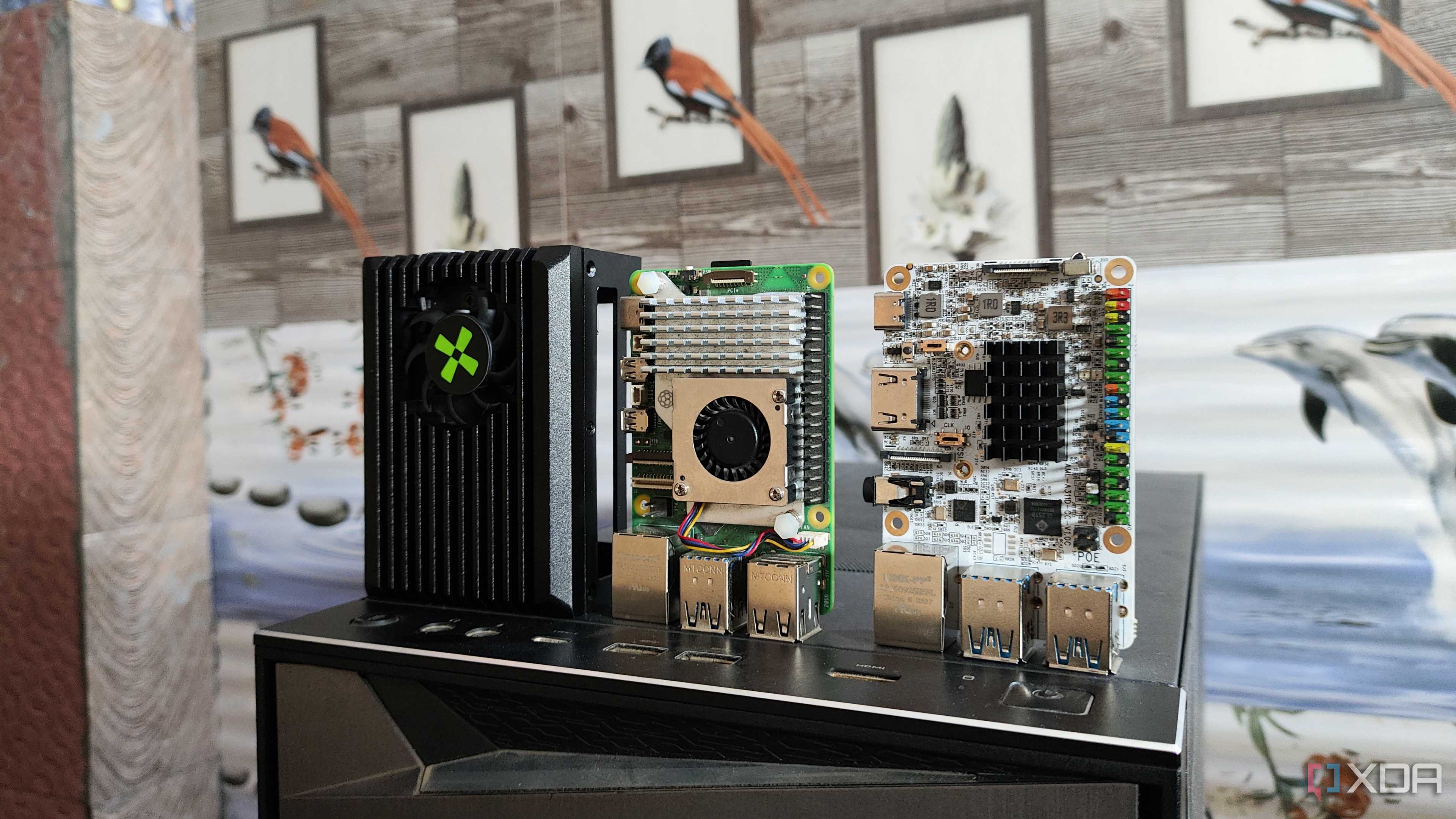
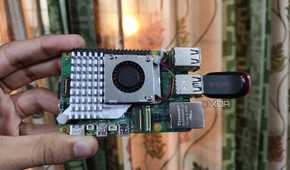
Given that OpenMediaVault doesn’t require too many resources, most modern SBCs will work as long as they have extra USB ports and an Ethernet jack. However, you’ll need a pre-installed operating system that will act as the base for the OMV packages.
OS-wise, you’re free to go with any Debian-based distro. Since I’ve used the RPi5, I’ve based this tutorial on the Raspberry Pi OS Lite, but you’re free to go with other CLI distros for your SBC. Just ensure you have SSH enabled on the OS, as we’ll use PuTTY to execute commands on the SBC. If you’ve already built multiple projects on the OS, I recommend setting it aside and reinstalling an OS on another microSD card, as the OpenMediaVault packages may conflict with the existing project files and prevent the web UI from working later on.
Finally, a NAS is incomplete with any storage drives. Assuming you’ve installed the OS on a microSD card, you can plug external HDDs, SSDs, or flash drives into the USB port of your SBC.
Setting up an SSH connection
Once you’ve gathered all the required paraphernalia, it’s time to SSH into your SBC. While you can use the Windows Terminal to establish an SSH connection, we’ll go with the beginner-friendly PuTTY utility instead.
- Download the setup.exe file for PuTTY from the official link and use it to install the tool on your PC.
- Run PuTTY.exe with administrator previliges.
-
Enter the IP address of your SBC under Host name, type 22 into the SSH field, and hit OK.

-
Accept the Fingerprint when PuTTY asks you for confirmation.

-
Sign in to your SBC with your Username and Password.


Installing the OpenMediaVault packages
Now that you can access your SBC over the SSH protocol, you can execute the commands to configure OMV.
-
If your OS doesn’t include the wget tool, install it using the apt package manager.
sudo apt install wget -y

-
Download and run the OpenMediaVault pre-install script with this command:
wget -O - https://github.com/OpenMediaVault-Plugin-Developers/installScript/raw/master/preinstall | sudo bash

-
Once the script has finished its execution, reboot your SBC.
sudo reboot

-
Create a Duplicate session on PuTTY once the SBC has finished rebooting.

-
Finally, run the OMV installation script.
wget -O - https://github.com/OpenMediaVault-Plugin-Developers/installScript/raw/master/install | sudo bash


Configuring the OpenMediaVault web UI
When the script has worked its magic, your miniature system will restart yet again. However, your SBC’s IP address may change during this process. The new IP address will appear if you connect a monitor to the board, or you can use a network-scanning utility like Fing to easily check the IP address of the OMV interface.
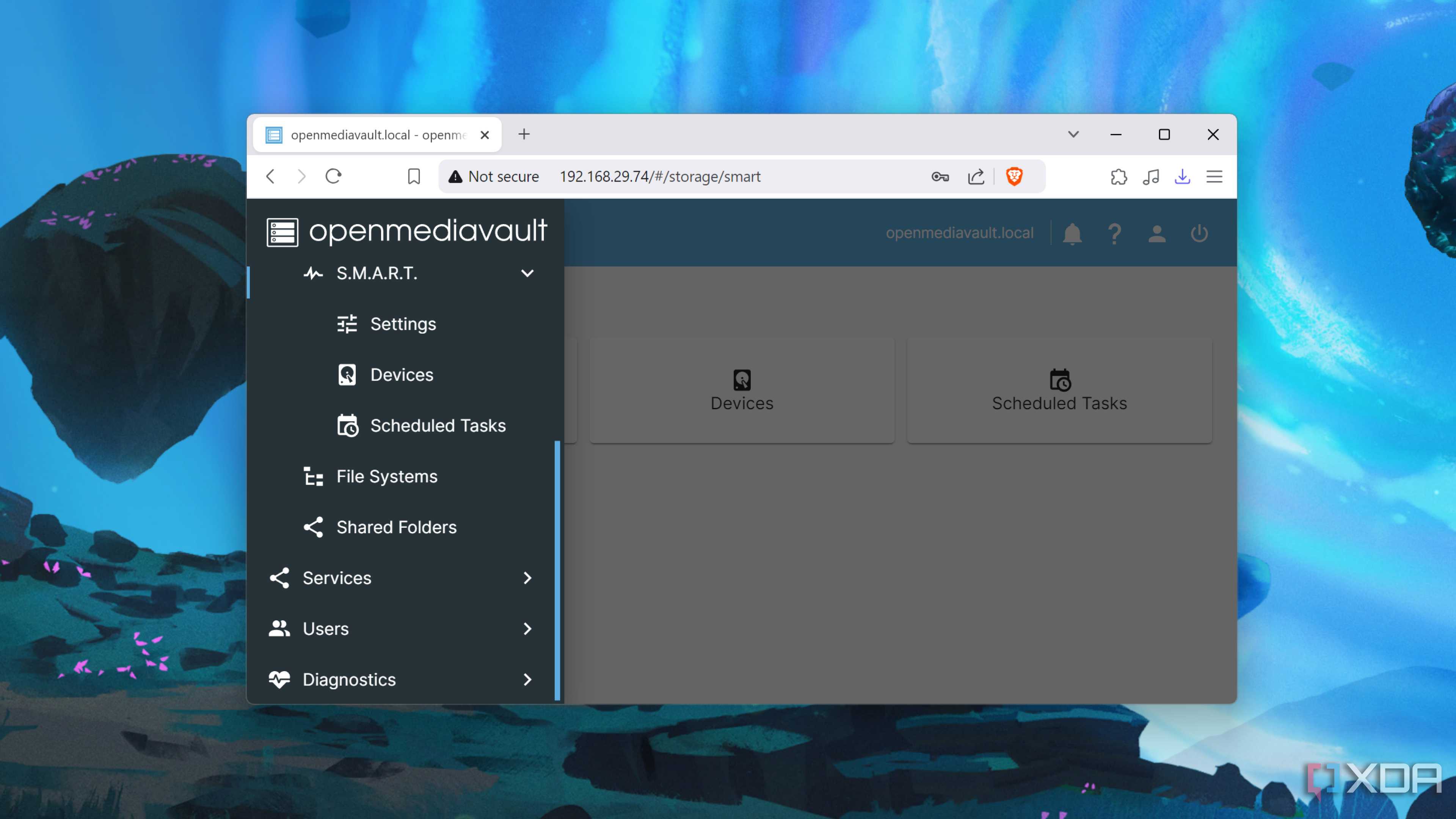
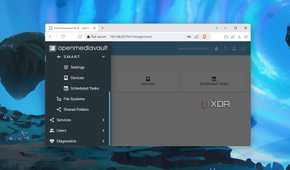
Nevertheless, the rest of the steps are similar to how you’d configure OMV on a normal x86 desktop. We have a dedicated guide covering each aspect of OMV, but here’s a brief overview of the overall process:
- Enter the IP address of the SBC into the web browser on another PC connected to the same network.
-
Type admin as the Username and openmediavault as the Password.

-
Head to the Disks tab, select the USB drive you want to use as the storage device and tap the Wipe button.

-
Press the Confirm checkbox, tap Yes, and choose the Quick option.

-
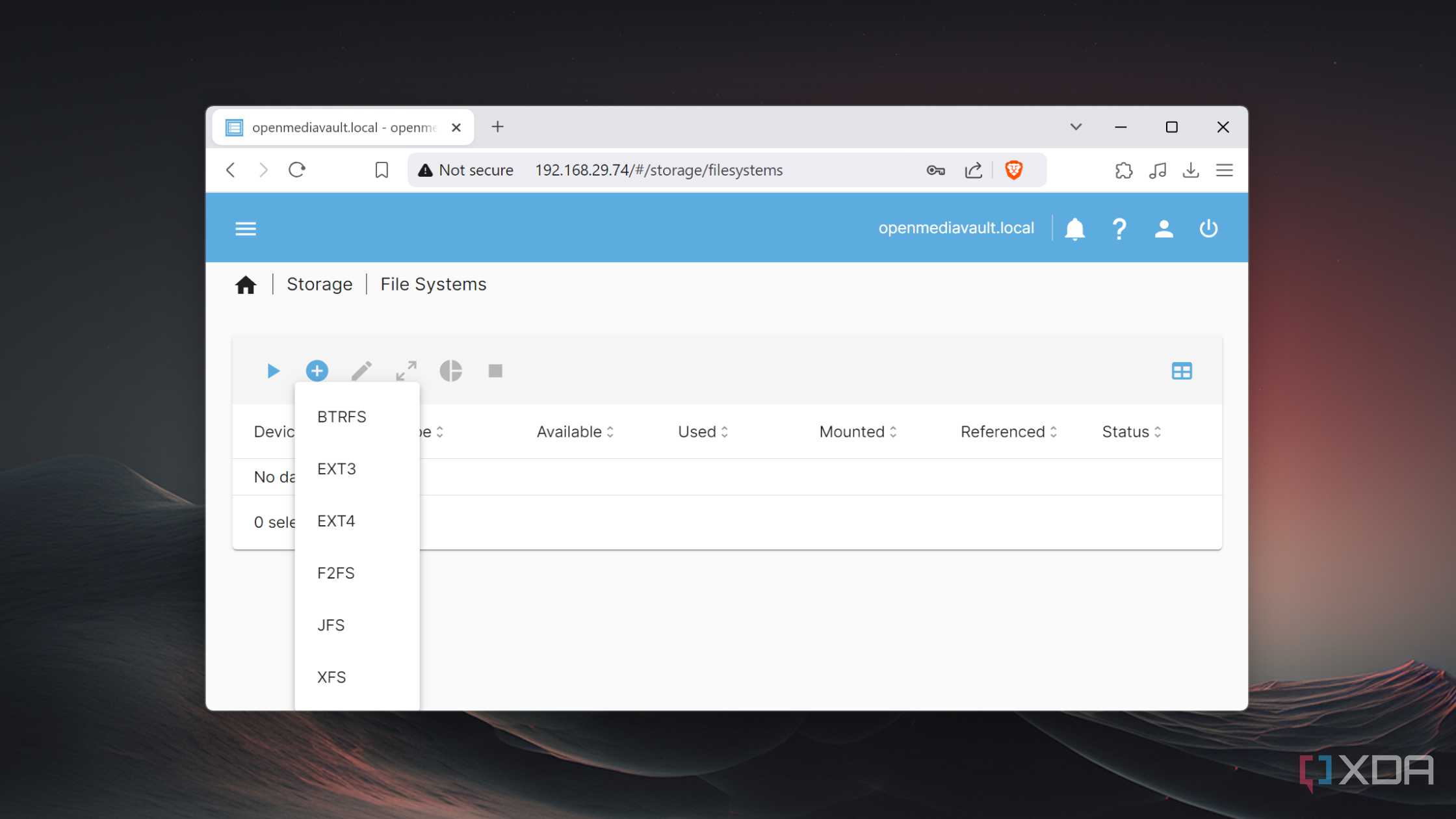
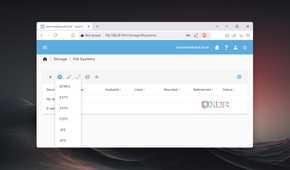
Switch to the Storage tab, click on the + button, and pick the ideal File System for your NAS operations.

-
Choose the Profile (RAID configuration) and make sure the correct Device is chosen before tapping Save.

-
Inside the Mount section, select the volume you just created as the File System and click on the Save button.

-
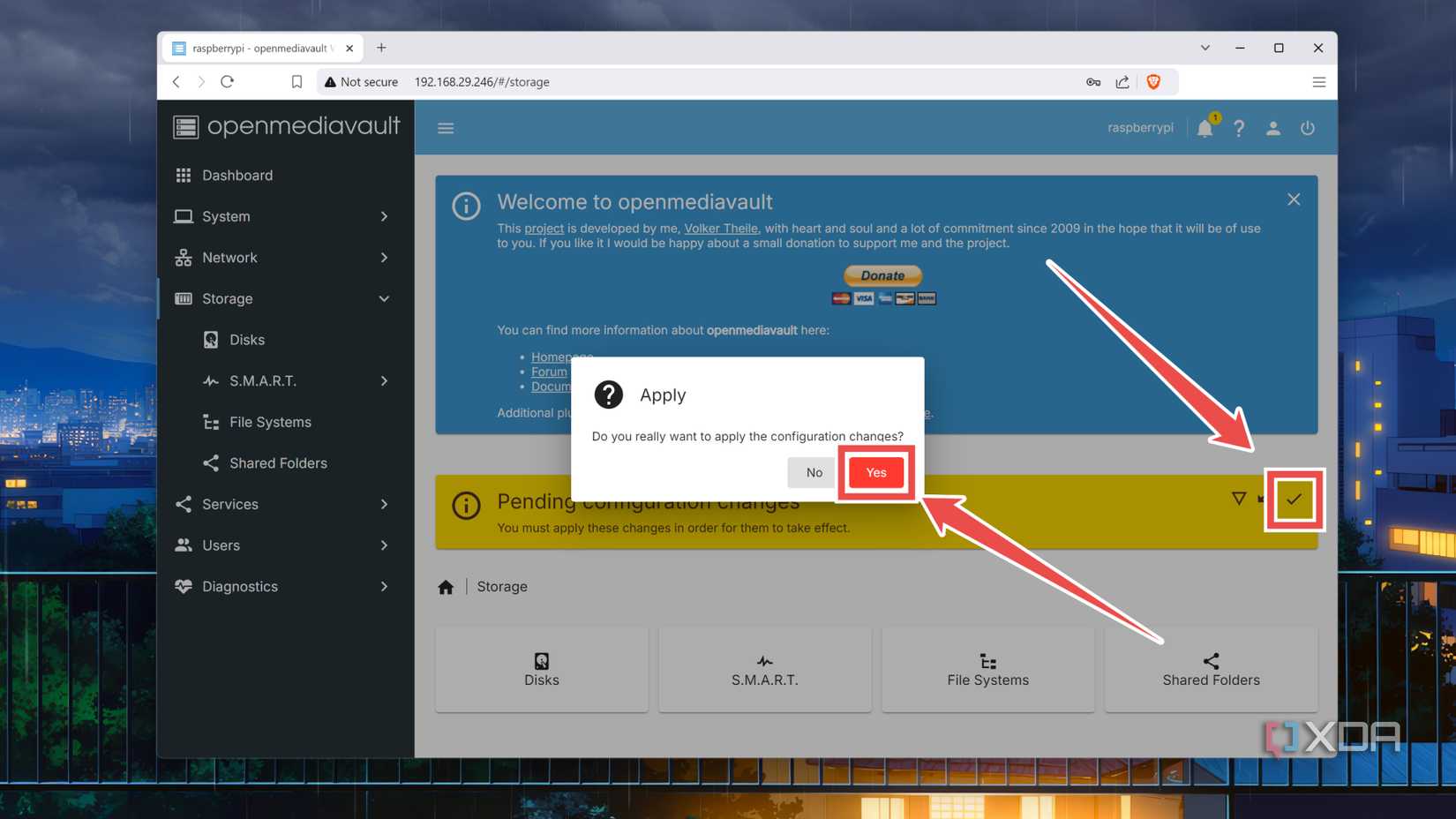
Press the Apply button followed by OK to save the changes.
You’ll have to repeat this after each step.
-
Navigate to the Shared Folders section, hit +, and click Save after entering the Name and File System of your network share.

-
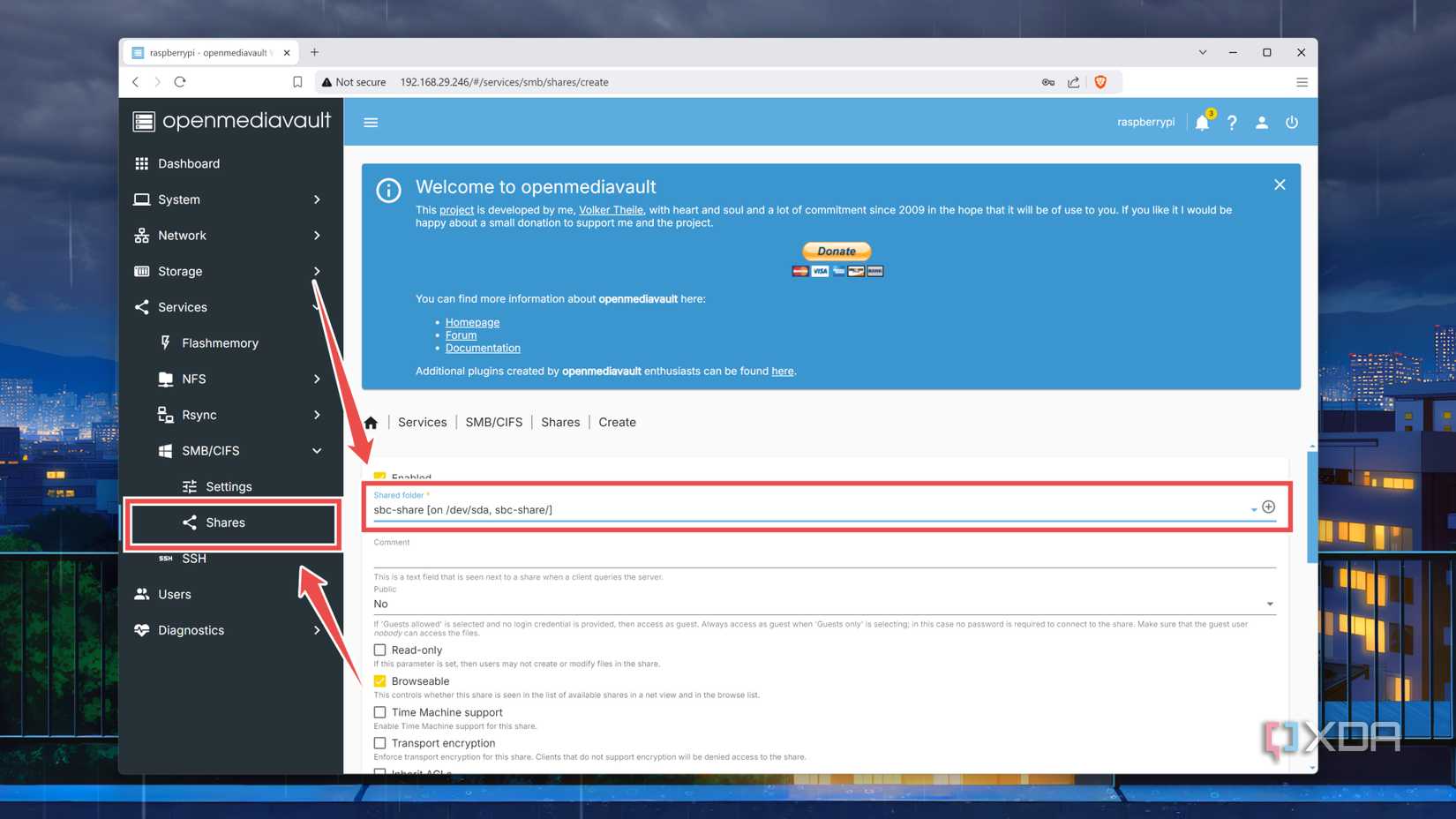
Go to the Create section within the Shares tab, click on +, pick the Shared folder you just set up, and tap Save.
-
Switch to the Settings section and Enable your SMB share.

-
Head to the Users tab, select +, and choose Create.

-
Enter the Username and Password for your OMV user and tap Save.

-
Select the User you just created and click on the Permissions tab.

-
Select the Read/Write privileges for your SMB share and tap Save.

-
To access the SMB Share, open the File Explorer on your PC, type the IP Address of your SBC into the Address Bar, and log in with the Username and Password of your NAS user.


Turning your adorable SBC into a beast of a NAS server


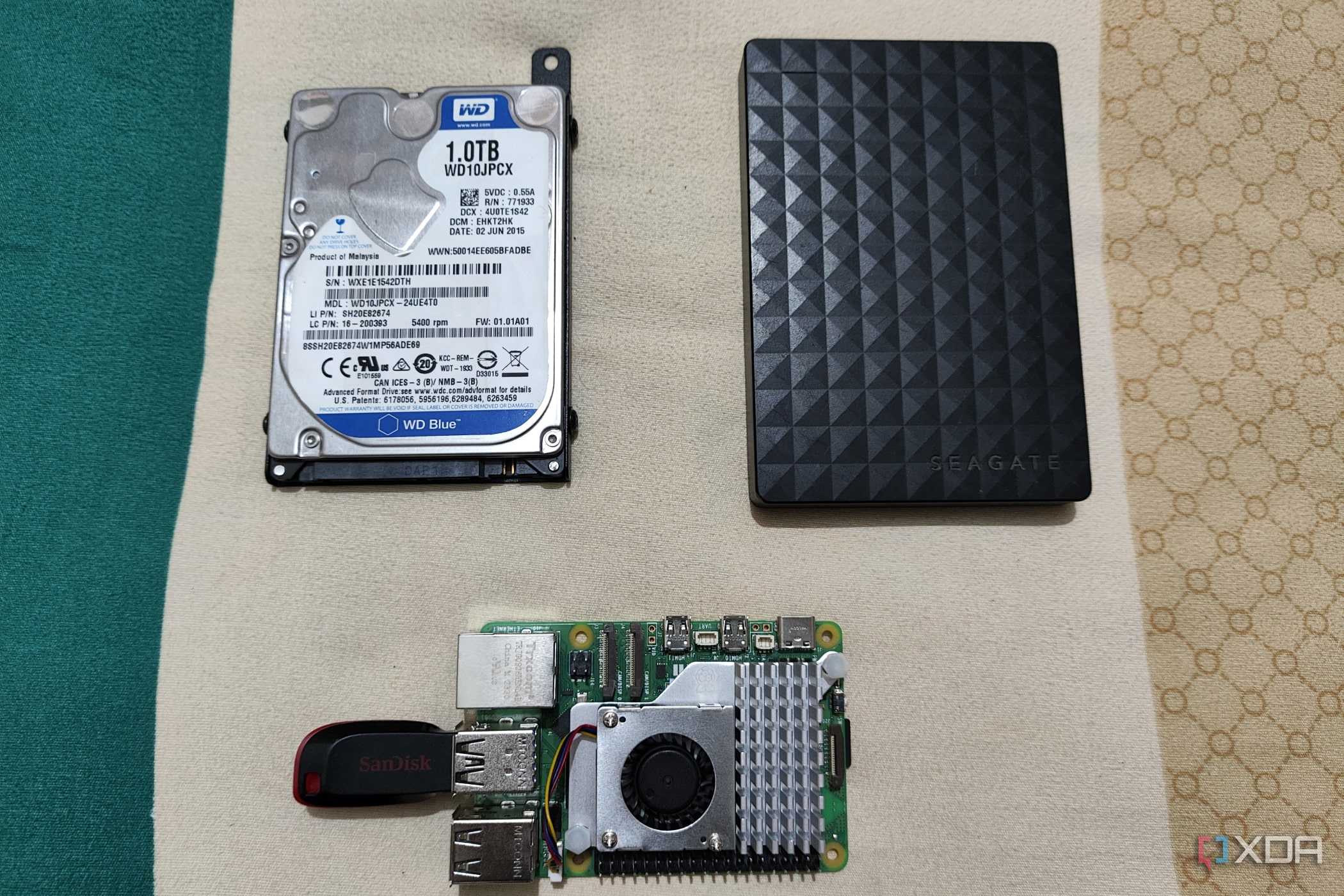
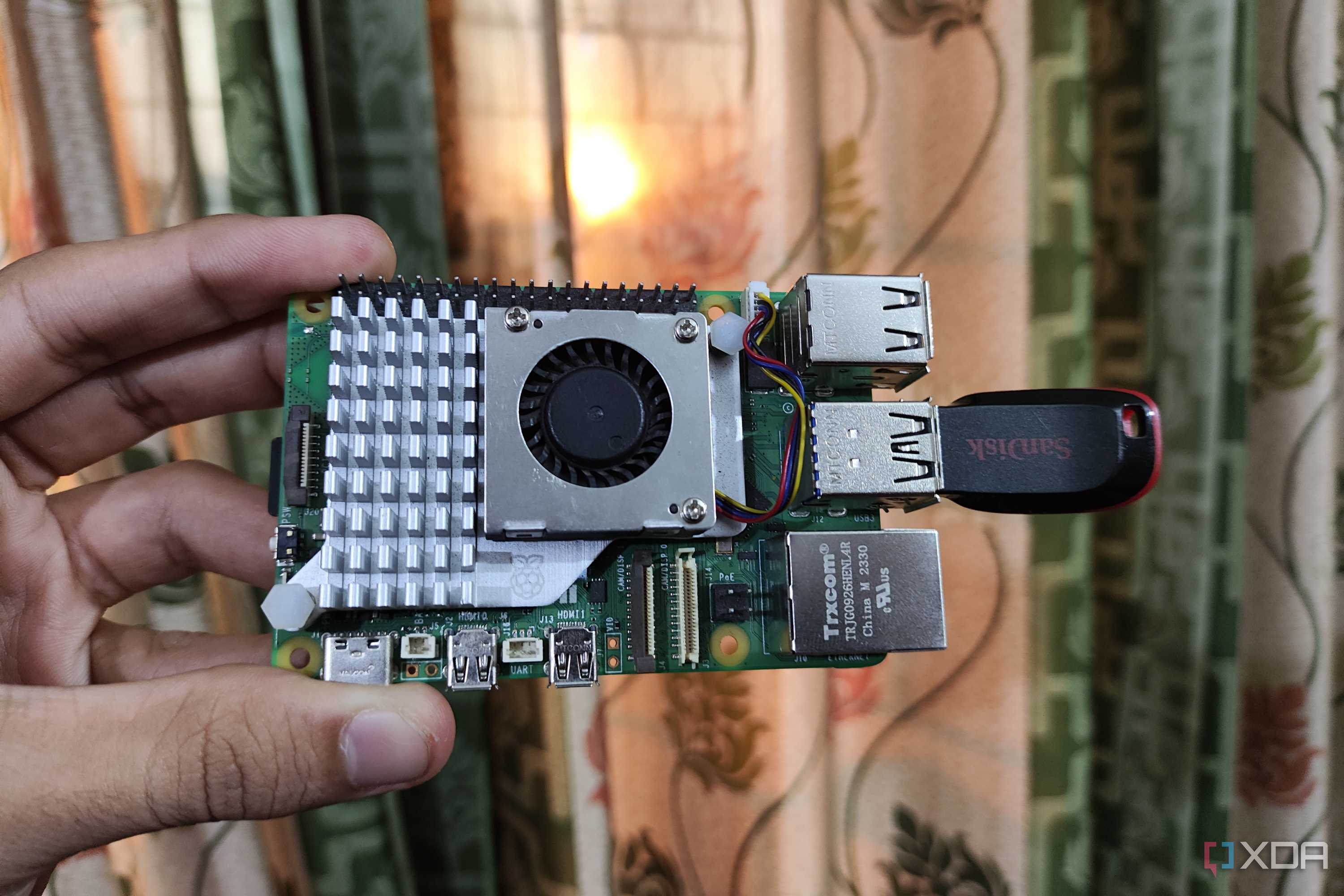

With that, you’re free to use your SBC-powered NAS setup for all your file-sharing and storage needs. If you want even more functionality out of your NAS, you can install the add-ons from the Plugins and omv-extras tabs. Thankfully, most of them are compatible with ARM and x86 processors, so you won’t encounter any issues when running iSCSI shares, Docker containers, Kubernetes environments, or a handful of other useful facilities on your SBC-turned-NAS server.
