


Setting up home internet is something anyone can do now, with a dollar-store router and an appointment with the ISP. Most service providers handle the entire setup for you as well, but there's a massive difference between setting up home networking, and doing a good job at it. It's a difference I see my friends suffer with every day, but the mistakes seem so simple and repetitive, I thought it's best to collate them here.
The immediate instinct is to blame the ISP or assume you need to spend $500 on a new router that looks like an upside-down spider. But before you drop half a paycheck on "enthusiast-grade" gear, I have to stop you. In my years of troubleshooting networks for friends and family, I’ve found that the hardware is seldom the primary culprit. Home networking has become surprisingly complex, yet we treat it like a toaster. Thankfully, watching out for these problems is quite easy.
Sticking with the ISP router
It's not cheap or efficient

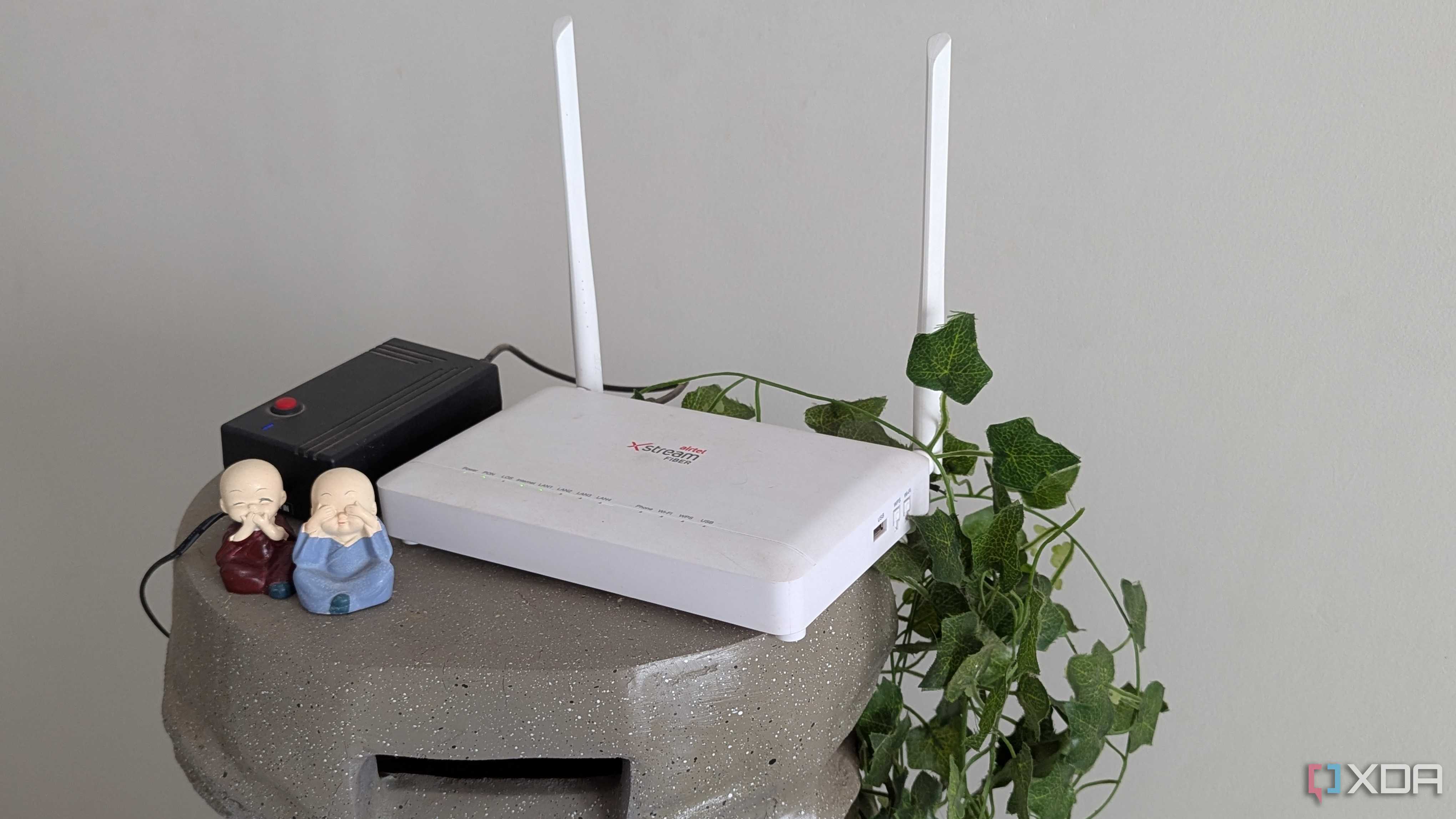
The most pervasive mistake I see is an unwavering loyalty to the free router the ISP provided. The convenience is certainly there, because a technician installs it, Wi-Fi sure works, and your connection is up and running in minutes. Even debugging is remote and doesn't take too long in case of issues. However, the ISP gateway is a bigger bottleneck than most people realize.
These devices are mass-produced by the lowest bidder, designed with just the basic settings to reduce support calls, and seldom updated to handle the requirements of a modern home. I always tell my friends to stick with the ISP modem if needed, but switch to a third-party wireless AP. You need to log into that ISP box and enable Bridge Mode, turning it into a modem and letting your own capable router handle the heavy lifting without affecting usability. It unlocks a world of personalization features, timely firmware updates, and several other benefits.
For those sticking with the ISP-issued router just because it's bundled with their plan for free, I'd say no corporation ever hands stuff out for free, and its rental cost is already accounted for in what you're paying.
Wiring a mesh node and using it wirelessly
The one thing everyone messes up in mesh networks

Mesh router systems are a godsend for larger homes, killing dead zones with ease. My friends are smart enough to run an Ethernet cable to their satellite mesh nodes for that wired backhaul goodness, but they routinely forget to tell the router firmware about this change. A mesh system is essentially just a wireless access point (WAP) that uses a dedicated radio band to talk to the main router while broadcasting the same SSID. If I plug it in via Ethernet but leave the device in its default wireless mesh mode, I'm leaving performance on the table.
With a wired backhaul, that mesh node no longer needs RF to relay data to the main router. Without explicit instructions in firmware to prefer Ethernet backhaul or wired AP, the system might still be using valuable wireless airtime to transmit data between nodes that could travel instantly over the cable.
Some high-end routers switch to wired backhaul automatically, but you're always better off making sure it happens.
Separate guest Wi-Fi
Without much hassle, too


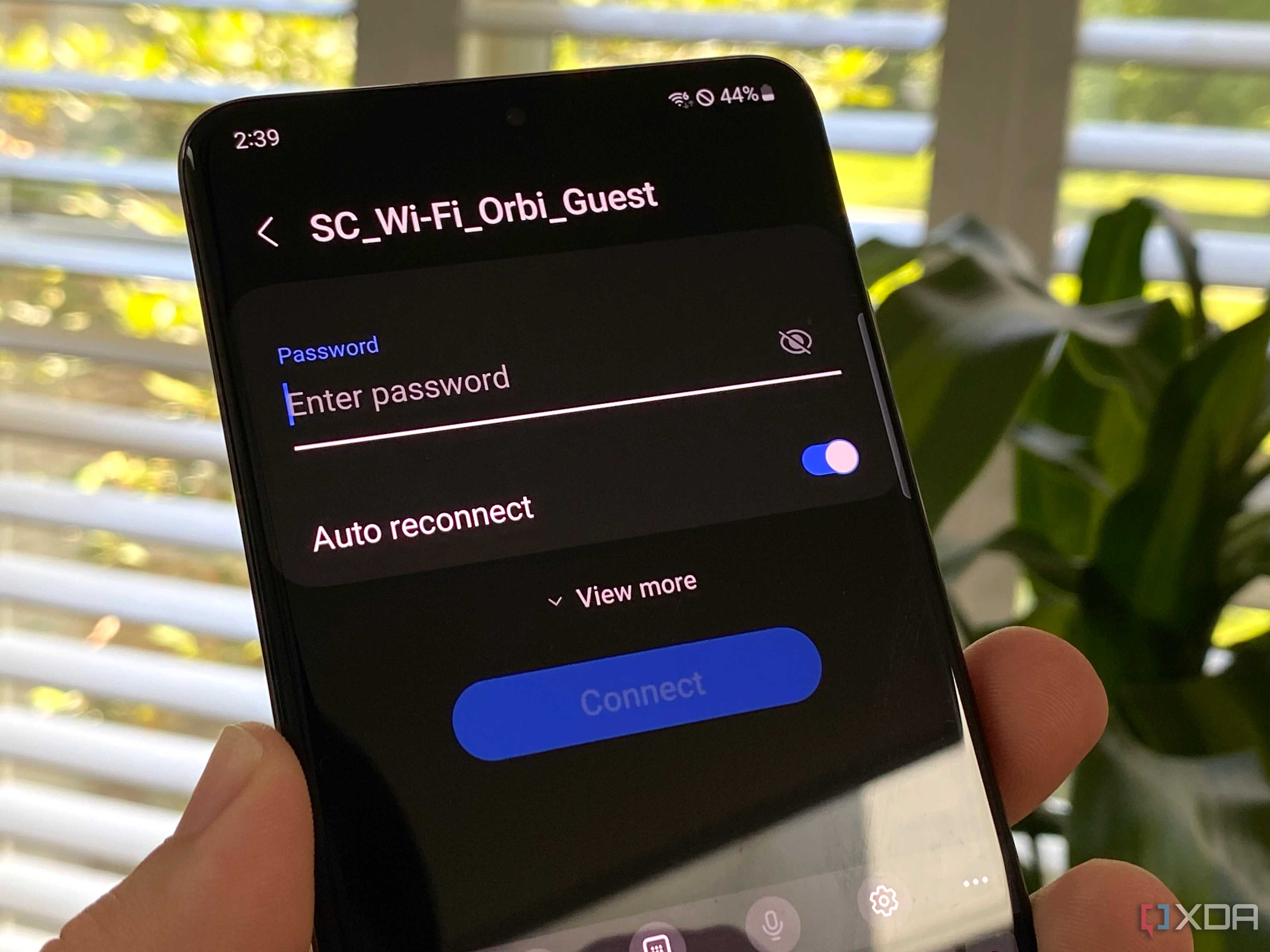

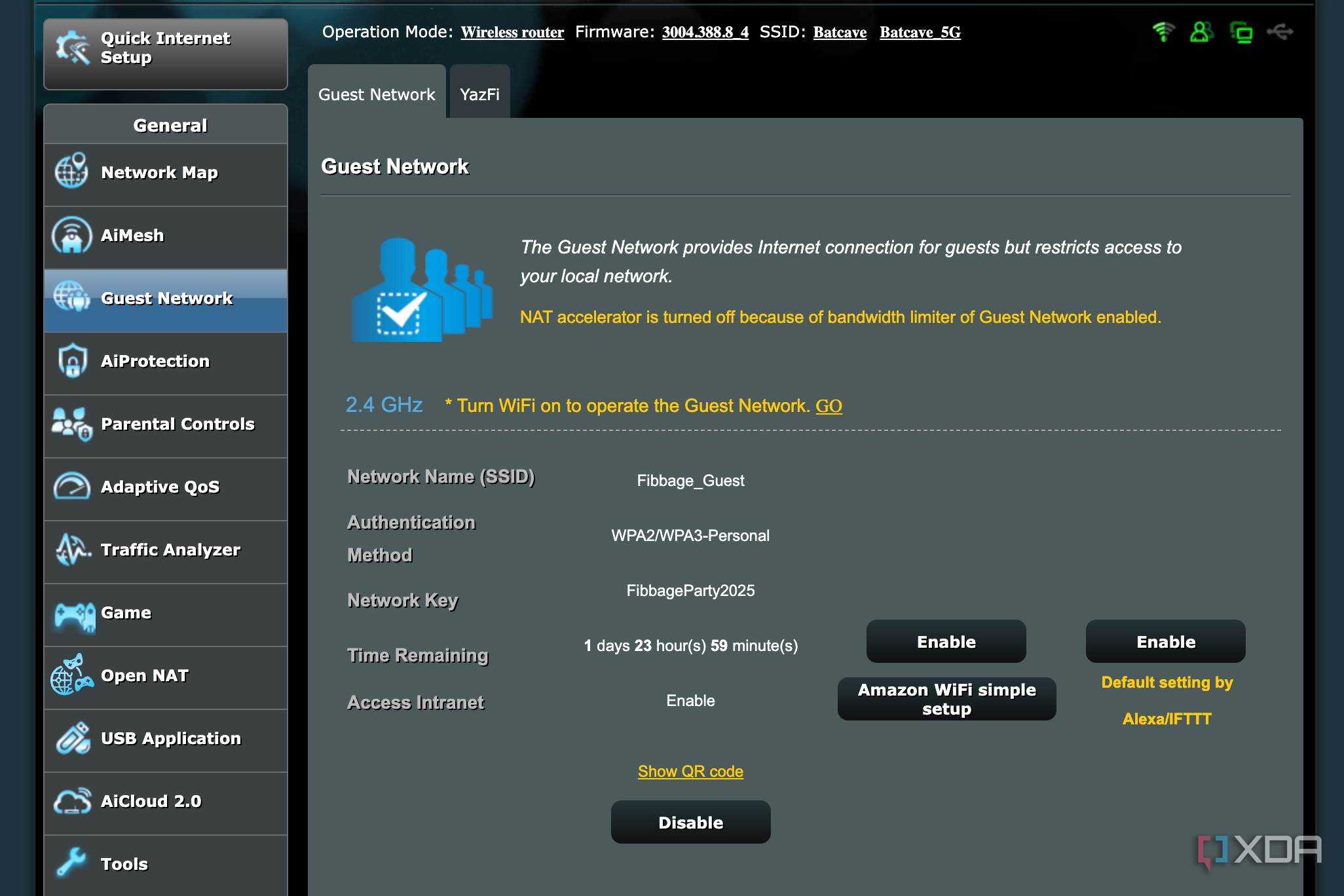






So long as my friends heed my advice about switching to their own router, setting up a guest network is one of the conveniences the minor inconvenience affords. Yet, I walk into homes with QR codes dangling, so I share the Wi-Fi network with my friend's family and smart home devices. This system is way too trusting of those with access, and some cheap IoT devices are notoriously insecure with infrequent firmware updates, and I wouldn't want my friends to suffer because their visitors messed up and granted cybercriminals access to the network.
Every modern router, even the mid-range ones, offers a Guest Network feature. It's not for when a random aunt visits, but to segregate all your IoT devices—smart plugs, cameras, thermostats—onto this guest network. Most routers enable client isolation by default for such setups, so devices on that network can talk to the internet, but they cannot talk to other devices on said network. This simple step ensures damage is contained when a cheap smart gadget is breached. It costs zero dollars and significantly hardens my friend's home security posture.
Buying a gaming router to fix latency
Throwing money at the problem

This one pains me the most because it involves the most wasted money. I have friends who complain about lagginess in Call of Duty or Valorant, and their solution is to buy a $400 "Gaming Router" with aggressive red antennas and marketing terms all over the box. However, the fundamental issue I see here is that gaming shouldn't be on Wi-Fi to begin with, if your PC, console, or smartphone can accept a hardline internet connection. The difference is just night and day.
No amount of "Game Boost" software or aggressive styling can change the laws of physics. Wi-Fi is a half-duplex medium, meaning devices can only send or receive data at one time, not both simultaneously. It is also subject to interference from your neighbor's Wi-Fi, your microwave, and even baby monitors. This introduces jitter and packet loss, the true enemies of online gaming. A gaming router might prioritize traffic, but it cannot stop a packet from getting garbled in the air, but a $10 Ethernet cable can and will mop the floor with overpriced gaming routers. If you want to fix your ping, put down the credit card and pick up a drill, or just a really long cable.
Poor placement
Don't try bending the laws of physics
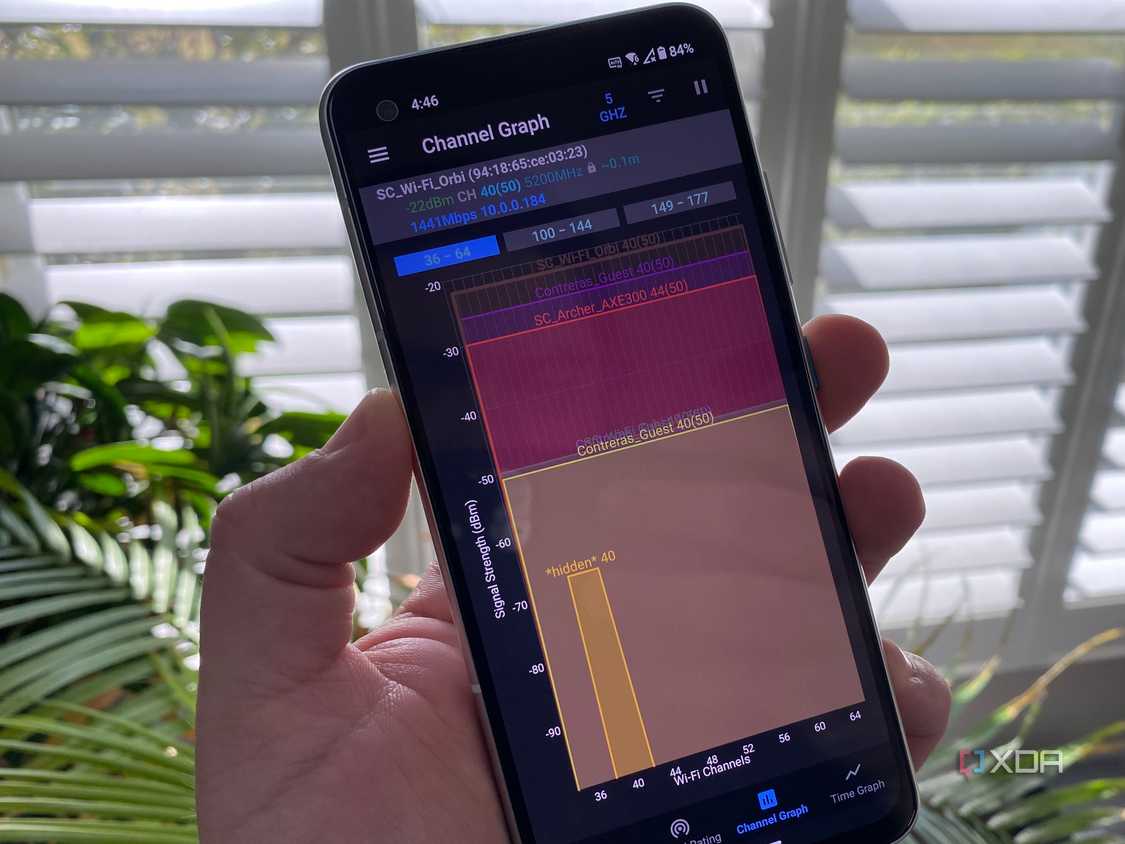


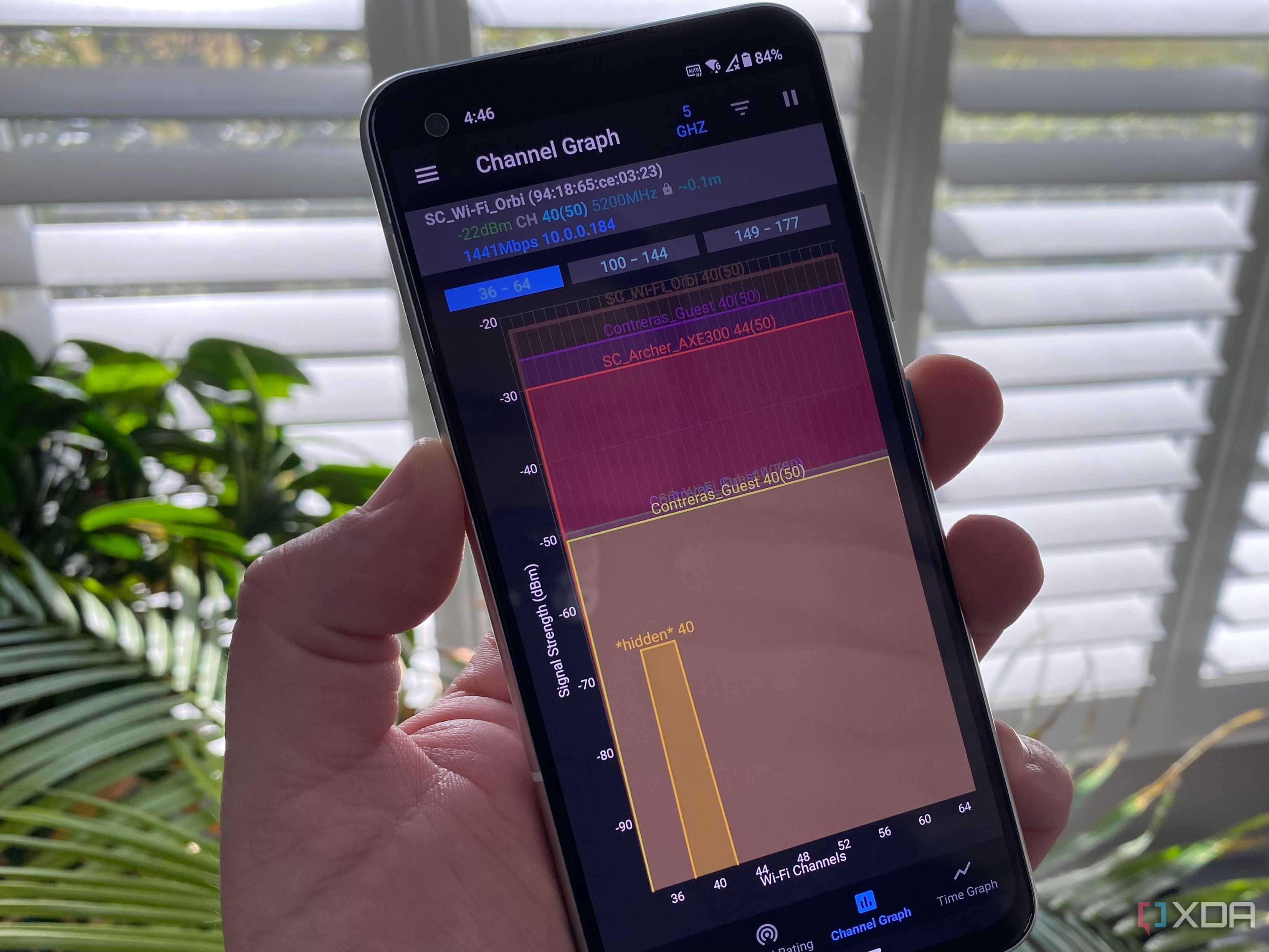
 Credit: NetSpot




Finally, we have to talk about where you put the box. Because routers are generally ugly, my friends tend to hide them in obscure corners. I’ve found high-end routers stuffed inside TV cabinets, shoved behind 65-inch OLED screens, or banished to the basement closet where the cable line comes in. However, Wi-Fi signals are radio waves obstructed by dense objects with sheets of metal components inside, like in a TV. That just suffocates your Wi-Fi.
Moreover, blindly using the standard frequency bands is a rookie error that's way too common. Most routers default to channel 1, 6, or 11 on the 2.4GHz band. If you live in an apartment complex, everyone else is doing the same thing, creating radio interference. Once you address blind spots by placing routers in line of sight, cleaner channels help your network further. With a simple Wi-Fi analyzer app on my phone, I look at the spectrum and manually move the 5GHz channels to a less crowded space.
Fixing basic home networking mistakes is easy enough
These five fixes remedy the vast majority of the networking issues my friends face routinely. Configuration with intention is all it takes to avoid network breaches and everyday indignation.
Of course, experienced users might read this and scoff, thinking they are above such basic errors. Yet, I’ve seen seasoned pros overcomplicate their setups with unnecessary VLANs that break casting protocols or aggressive firewall rules that block legitimate traffic. There are several other things one could do wrong, from double NATs to misconfigured DNS servers. Networking is a deep rabbit hole, and there is no shame in asking before messing up.
