


If your living space is filled with the latest smart devices and IoT devices, you can create a Home Assistant server to manage all the finer aspects of your smart home setup. In addition to a wide collection of useful add-ons, Home Assistant also lets you create automation events and keep tabs on the status of your devices.
What’s more, this nifty platform supports voice control, meaning you can interact with your Home Assistant setup without lifting a finger. While it sounds (pun intended) really cool, setting up your own voice assistant can get rather complex. So, I’ve put together a guide to build a voice-controlled smart home!
What you’ll need
Before you begin, it's worth noting that this tutorial will assume you have a working instance of Home Assistant on your home lab. If you haven't set up a Home Assistant server yet, you can follow my guide on how to install it on the Raspberry Pi. The procedure is more-or-less the same if you’re on a spare x86/x64 computer, and the only variation is that you’ll have to flash a different ISO file on a USB drive instead of a microSD card.
While you can replicate this project on a virtual machine-powered Home Assistant server, you can’t set up the voice control facility when running HA on a container. That’s because the containerized version of Home Assistant doesn’t let you access the add-on store, which is precisely what we’ll be using to get the necessary plugins for this project.
It's true that you can run the voice assistant on SBCs like the Raspberry Pi. But you’ll notice long delays in the response if you attempt to use the more powerful speech-to-text models on weaker systems. Finally, you’ll need a device that can capture and playback the audio from your Home Assistant server. To keep things simple, I’ve used a standard mic + (monitor) speakers combo for this guide, but you can also use an ESP32-S3 Box with the help of other add-ons.
-
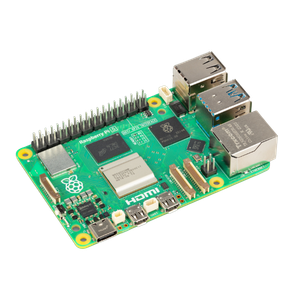
Raspberry Pi 5
- CPU
- Arm Cortex-A76 (quad-core, 2.4GHz)
- Memory
- Up to 8GB LPDDR4X SDRAM
- Operating System
- Raspberry Pi OS (official)
- Ports
- 2× USB 3.0, 2× USB 2.0, Ethernet, 2x micro HDMI, 2× 4-lane MIPI transceivers, PCIe Gen 2.0 interface, USB-C, 40-pin GPIO header
- GPU
- VideoCore VII
- Starting Price
- $60
-

Enabling the Advanced mode on Home Assistant
Once you’ve configured Home Assistant on a PC/SBC/virtual machine and are able to log into the web UI, it’s time to put your DIY gloves on. First, you’ll have to turn on the Advanced mode inside the Home Assistant UI. To do so,
-
Click on the Username in the bottom-left corner of the web UI.

-
Inside the General section, scroll down and enable the toggle next to Advanced mode.


Installing the necessary add-ons
With the Advanced mode enabled, you can start installing the necessary plugins.
-
Click on the Settings tab and head to the Add-ons section.

-
Press the Add On Store button in the bottom-right corner of the screen.

-
Search for Whisper and tap the Install button when you spot the add-on.

- Be sure to install the Piper, openWakeWord, Duck DNS, Dnsmasq, Studio Code Server, and Assist Microphone plugins while you’re at it.
-
Enable the Start on boot and Watchdog toggles before tapping on the Start button to initialize the Whisper server.

- Repeat the process for Piper and openWakeWord.
-
Head back to the Settings page and click on Devices & services.

-
Tap the Configure button under the Piper add-on.

-
Choose Submit and press the Finish button in the pop-up box.

- Repeat the last two steps for the Whisper and openWakeWord integrations.


Adding an audio source for the voice assistant
You’ll need to configure the Assist Microphone add-on to accept (and send) audio from your voice assistant server.
- Inside the Add-ons section of the Settings page, locate the Assist Microphone plugin you downloaded earlier and launch it by clicking on the Start button.
-
Head to the Configuration tab and choose the Input and Output sources under the Audio section.

- Hit the Save button afterward.

Initializing the voice assistant pipeline
Now that the three essential add-ons are up and running, it’s time to create a new voice assistant pipeline.
-
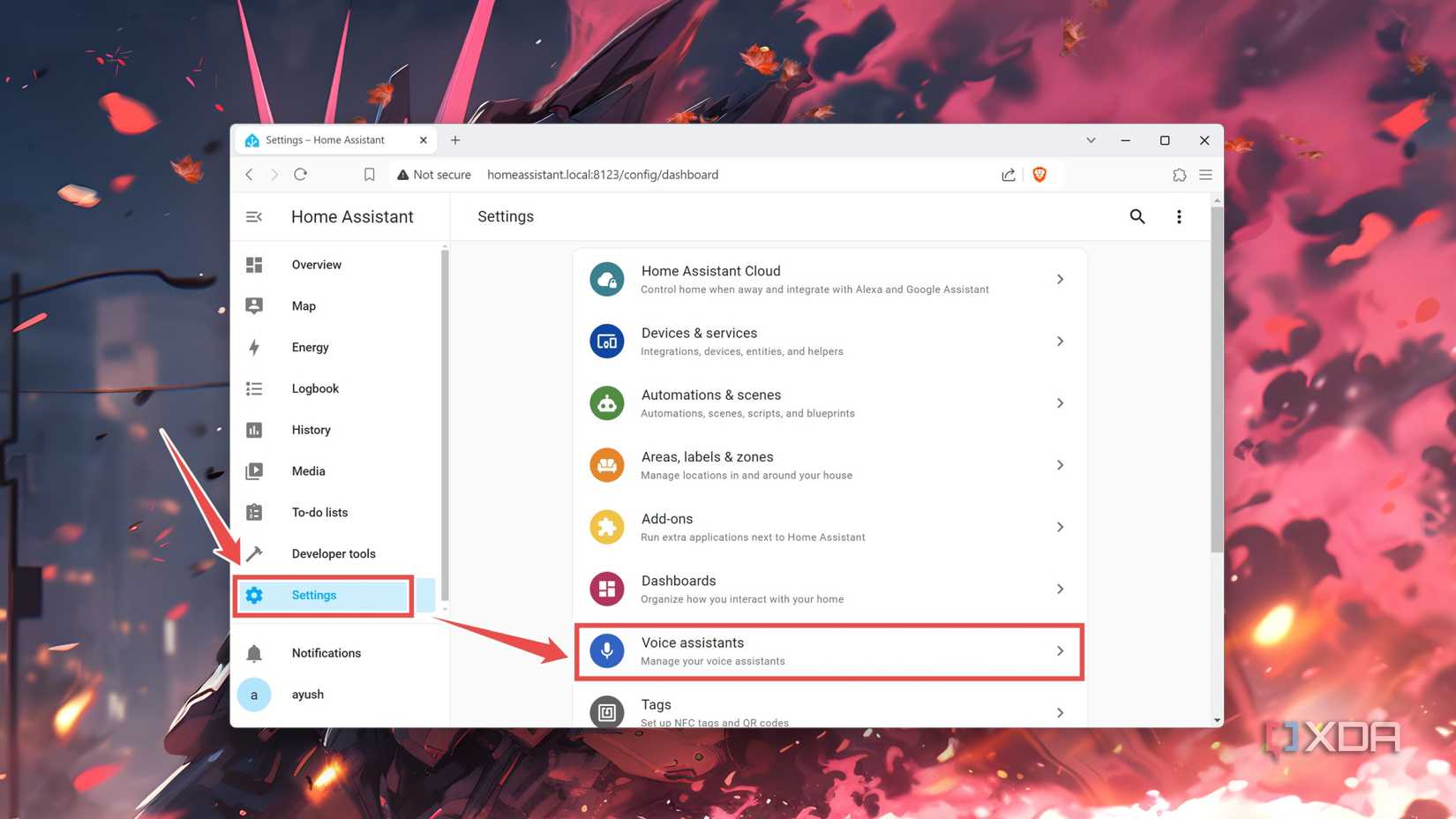
Navigate to the Voice assistants page from the Settings tab.
-
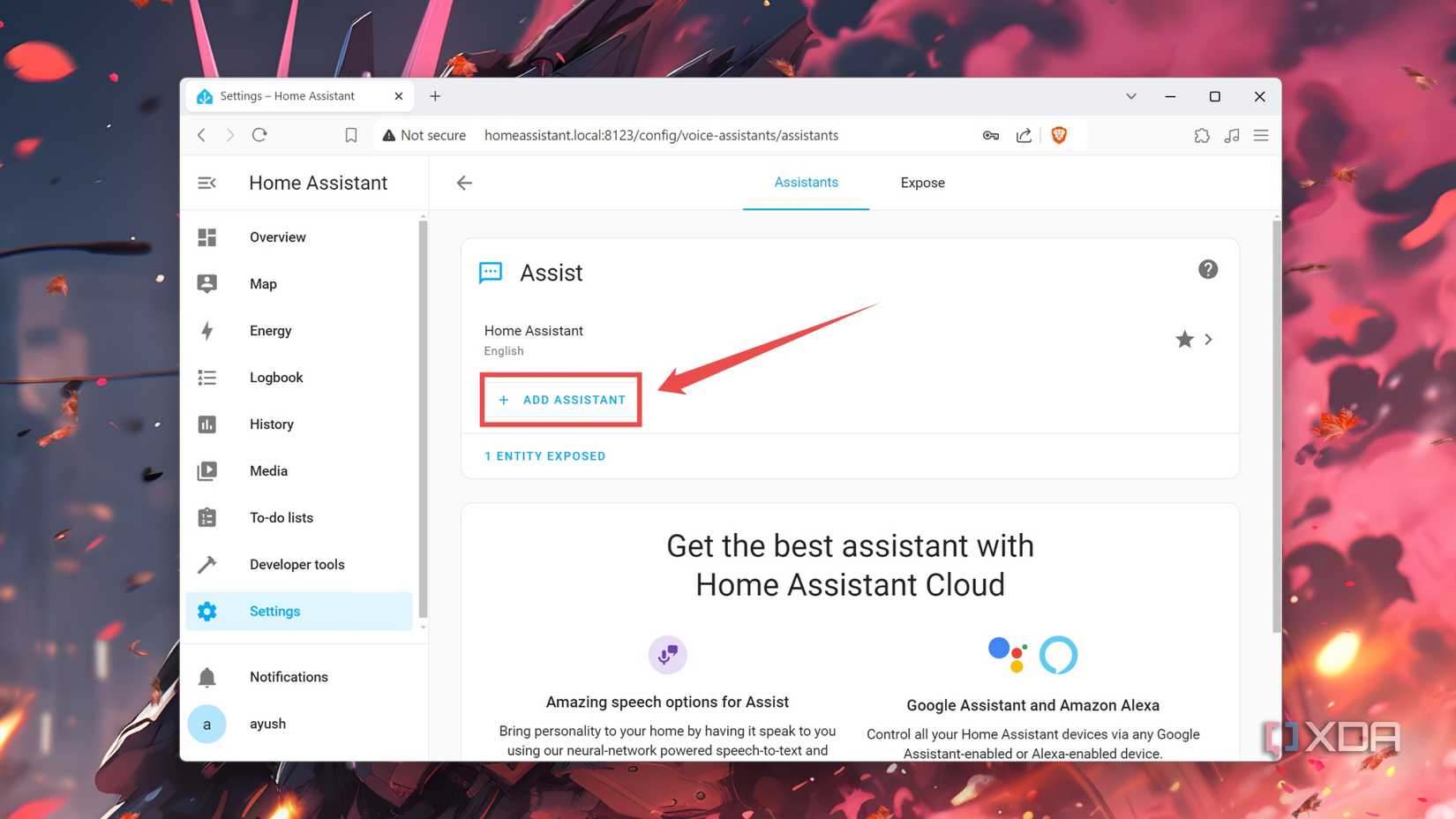
Hit the Add Assistant button.
-
Give a new Name to your voice assistant.

-
Set faster-whisper as the add-on under Speech-to-text, piper as the plugin for the Text-to-speech facility, and openWakeWord as the Wake Word Engine.

- Press the Create button.
-
Select the Entities Exposed option.

-
Tap the + Expose Entities button before selecting the checkbox for all the services associated with Piper, Whisper, Assistant Microphone, and openWakeWord.


Accessing Home Assistant via the HTTPS protocol
In an ideal world, you would be able to control your smart gadgets after configuring the voice assistant. But you may have noticed that yelling the wake-up word does nothing, while the Microphone button in the Assist section of the Dashboard gives an error message.
That’s because most web browsers require you to log in to the Home Assistant server via the secure HTTPS protocol before you can use the voice assistant facility. There are a couple of ways to do this, but we’ll go with the shortest method (at least, out of everything I tried) that involves using a free domain from DuckDNS.
- Start the Duck DNS, Dnsmasq, and Studio Code Server plugins via the Add-ons page.
- Head to the official DuckDNS website and sign in with your email.
-
Enter a unique domain name and press the Add Domain button.

-
Switch to Duck DNS’ Configurations tab and paste the domain name and token you acquired from the Duck DNS website under the domains and tokens options, respectively.

-
Change the accept_terms to true and algo to prime256v1 before pressing the Save button to update the changes.

- Navigate to the Configuration tab of the Dnsmasq add-on.
-
Type - hosts: followed by your newly acquired domain name before adding ip: alongside the private IP address of your Home Assistant server in the next line.
Be sure to tap the Save button afterward.

- Using the Studio Code Server, open the configurations.yaml file.
-
Enter the following values under the default config section with the same indentation as the accompanying screenshot.
-
http:
-
ssl_certificate: /ssl/fullchain.pem
-
ssl_key: /ssl/privkey.pem

-
-
Go to the Developer tools section and tap the Restart button.

- Choose the Restart Home Assistant option.


When the Home Assistant system restarts, the web UI won’t be accessible from the usual IP address. So, you’ll need to open it by typing https:// before the usual homeassistant.local:8123 URL or the local IP address of the HA server.
Making your smart home more convenient with a self-hosted voice assistant

Assuming you followed all the steps correctly, you can toggle the voice assistant with the help of the wake-up word. Alternatively, you can use the Microphone button inside the Assist section of the Home Assistant Dashboard. If the latter throws an error, you may be running an older version of Home Assistant and will have to update to the latest release. For those tired of receiving delayed responses, you can head to the Configurations tab of Whisper add-on and switch to a different transcription model.
I must admit that I've had a mixed experience with a USB microphone. For example, I had to redo the entire process when Home Assistant unexpectedly crashed after I installed some plugins for another project. Plus, there have been a few instances where the voice assistant was unresponsive even after I yelled the wake-up call near the microphone. Nevertheless, it's still a fun way to control your Home Assistant server with just your voice, and I intend to work on a follow-up guide featuring the ESP32-S3 Box, M5Stack Atom Echo, or a similar smart speaker if and when I get my hands on one in the future.
