

Dell has plenty of experience making great monitors, and that prowess has led to the creation of the UltraSharp 34 Curved Thunderbolt Hub Monitor. The monitor was first revealed at CES 2024 last month, but officially debuted today. It puts together a few great features that Dell has shipped separately on a few monitors, but not together. The newest UltraSharp 34 Thunderbolt monitor offers a 34-inch IPS Black display, a Thunderbolt hub, KVM switch functionality, and a curved ultrawide form factor.
The company is targeting productivity as the primary use case for the UltraSharp 34 Thunderbolt. There are plenty of great ultrawides out there for productivity, but the best ones — like the LG UltraWide 49WQ95C — don't offer many ports. Dell fixes this with the integrated Thunderbolt hub and KVM switch, making the UltraSharp 34 Thunderbolt a powerhouse for managing setups complete with two computers. Plus, it does offer 120Hz refresh rates with VRR support over HDMI, so you can throw some gaming in there as well.
Overall, if you're willing to pay around $1,000 for an ultrawide monitor that can clean up your desk setup, the UltraSharp 34 Thunderbolt is a great choice.
About this review: Dell sent us the UltraSharp 34 for review. The company did not have input in this article, and did not see its contents before publishing.


Dell UltraSharp 34 Curved Thunderbolt Hub Monitor
It could be the key to a simple and productive desk setup

- Screen Size
- 34 inches
- Display Technology
- IPS Black
- Resolution
- 3440 x 1440
Dell's new UltraSharp 34 Curved Thunderbolt Hub Monitor aims to replace numerous items on your desk with just one monitor. Aside from including a 120Hz, 3440×1440 display panel, this monitor also serves as a Thunderbolt hub. That means you get plenty of USB ports, an Ethernet jack, and power delivery straight from the UltraSharp 34 monitor. As a bonus, the monitor has KVM switch functionality, perfect for setups with multiple PCs.
- It looks great and offers plenty of adjustment options
- The Thunderbolt hub adds a lot of ports in exchange for one cable
- Included KVM switch functionality is excellent for connecting two PCs
- The matte display finish won't be for everyone
- Connecting a PC over regular USB results in slower speeds
- Only supports 90W of power delivery over Thunderbolt
Pricing and availability
Dell announced the UltraSharp 34 Curved Thunderbolt Hub Monitor at CES earlier this year, and it is available starting today (Feb. 27, 2024). The monitor retails for $1,020, and is available directly from Dell for now. However, we'd expect the UltraSharp 34 Curved Thunderbolt Hub Monitor to show up at other retailers shortly.
There's also a larger, 5K model in this series, the UltraSharp 40 Curved Thunderbolt Hub Monitor. However, it costs more than double the price of the smaller version. For simplicity, I'll refer to the UltraSharp 34 Curved Thunderbolt Hub Monitor as the UltraSharp 34 Thunderbolt throughout this review.
Specs
Dell UltraSharp 34 Curved Thunderbolt Hub Monitor
- Resolution
- 3440 x 1440
- Refresh Rate
- 120Hz
- Screen Size
- 34 inches
- Ports
- 1x USB 3.2 (Type-C, upstream), 4x USB 3.2 (Type-C, downstream), 5x USB 3.2 (Type-A, downstream), 1x Ethernet, 1x HDMI 2.1, 1x DisplayPort 1.4, 1x Thunderbolt 4 (Type-C, upstream), 1x Thunderbolt 4 (Type-C, downstream), 3.5mm jack
- Display Technology
- IPS Black
- Screen Brightness
- 350 nits
- Weight
- 17.15 lbs. without stand, 23.83 lbs. with stand
- Mounting Options
- VESA 100mm x 100mm
- Sound
- 2 x 5W speakers
- Tilt
- Yes, 150mm maximum
- Variable Refresh
- HDMI only
- Curve
- 1900R
- PIP/PBP
- Yes
- KVM
- Yes
Design
It looks like a standard ultrawide monitor, and offers plenty of adjustment


Dell's UltraSharp 34 Thunderbolt monitor looks, well, like many of the other monitors in the company's UltraSharp lineup. That isn't necessarily a bad thing, though. The silver and metallic finish on the back of the monitor and the stand looks good and should blend in with just about any desk setup. Since this monitor was designed with office and home use in mind, you won't find any of the flashy elements here that you might see on a high-end gaming monitor. Again, this is preferred — you won't want the design of your monitor to be distracting.
The silver and metallic finish on the back of the monitor and the stand looks good and should blend in with just about any desk setup.
The built-in stand features a massive base, which is necessary due to the overall size and weight of the UltraSharp 34 Thunderbolt. It weighs just over 17 pounds, and is pretty thick compared to standard monitors. The base is flat, so you should be able to stick an accessory on top of it to make use of that space. However, for the best experience, you'll probably want to use a monitor arm. The UltraSharp 34 Thunderbolt supports the VESA mounting standard with 100mm x 100mm holes.

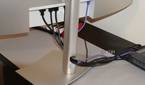
The included stand does have plenty of adjustment options available, such as height, tilt, and swivel adjustments. However, the cable management solution here is lacking. At normal heights, you'll see the cables connected to your monitor and Thunderbolt hub running through the monitor stand. This is a bummer, because the UltraSharp 34 Thunderbolt is otherwise a great way to declutter your desk. Due to the vast amount of I/O on this monitor, things can get out of hand quickly. I didn't use all the ports on my UltraSharp 34 Thunderbolt review sample, and things were still a mess in terms of cable management.
Thunderbolt hub
Connectivity is superb, but you'll definitely want to use Thunderbolt


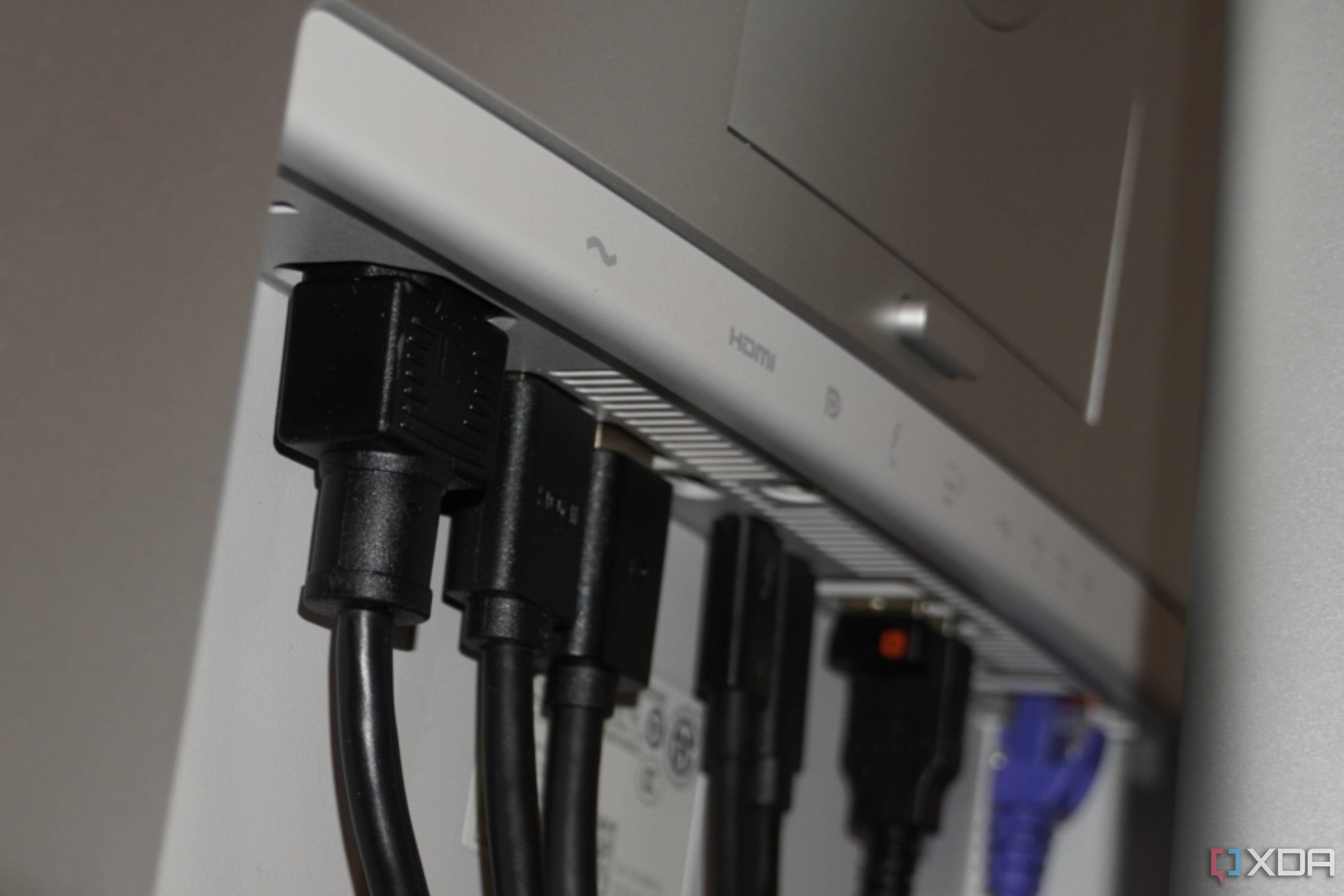
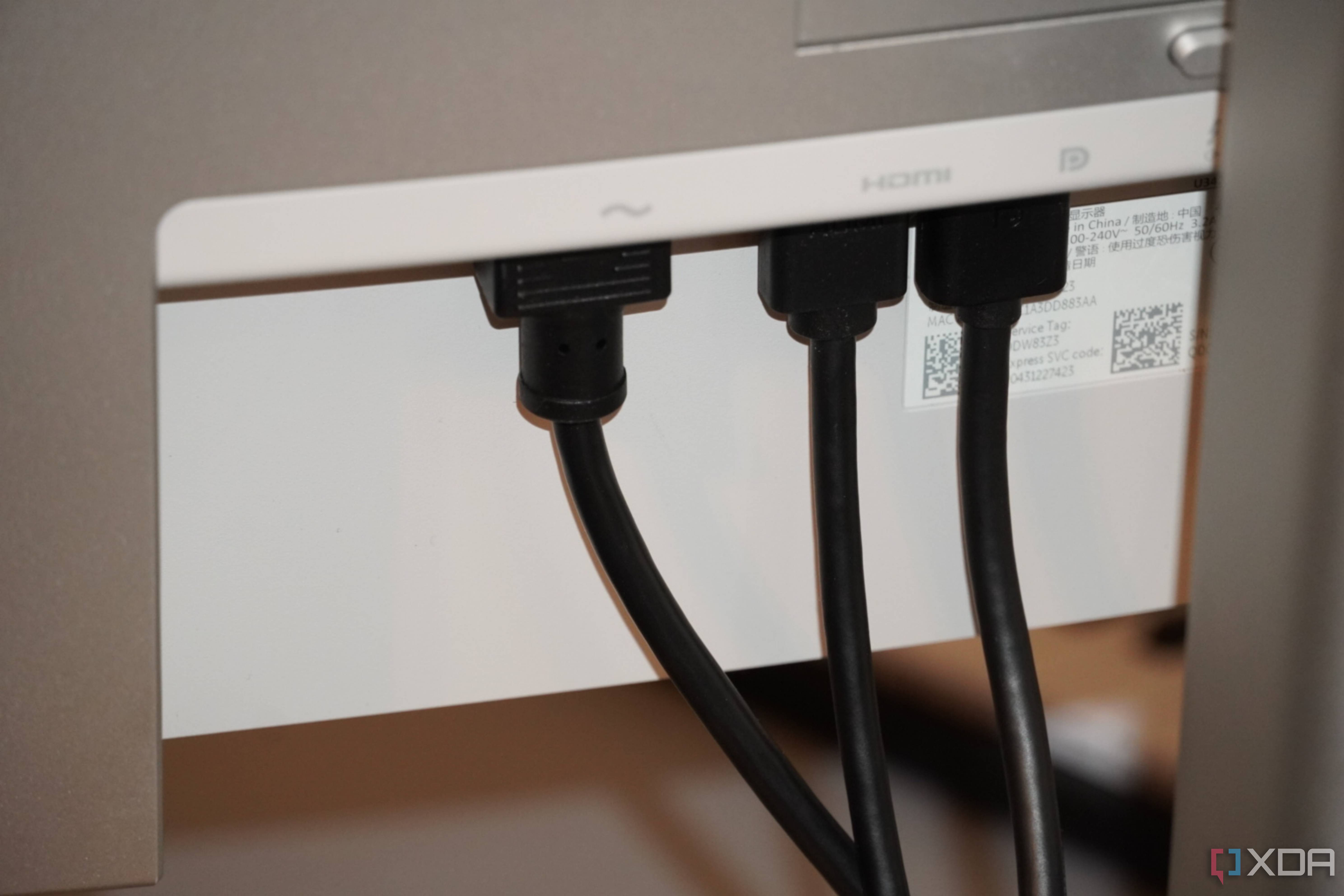
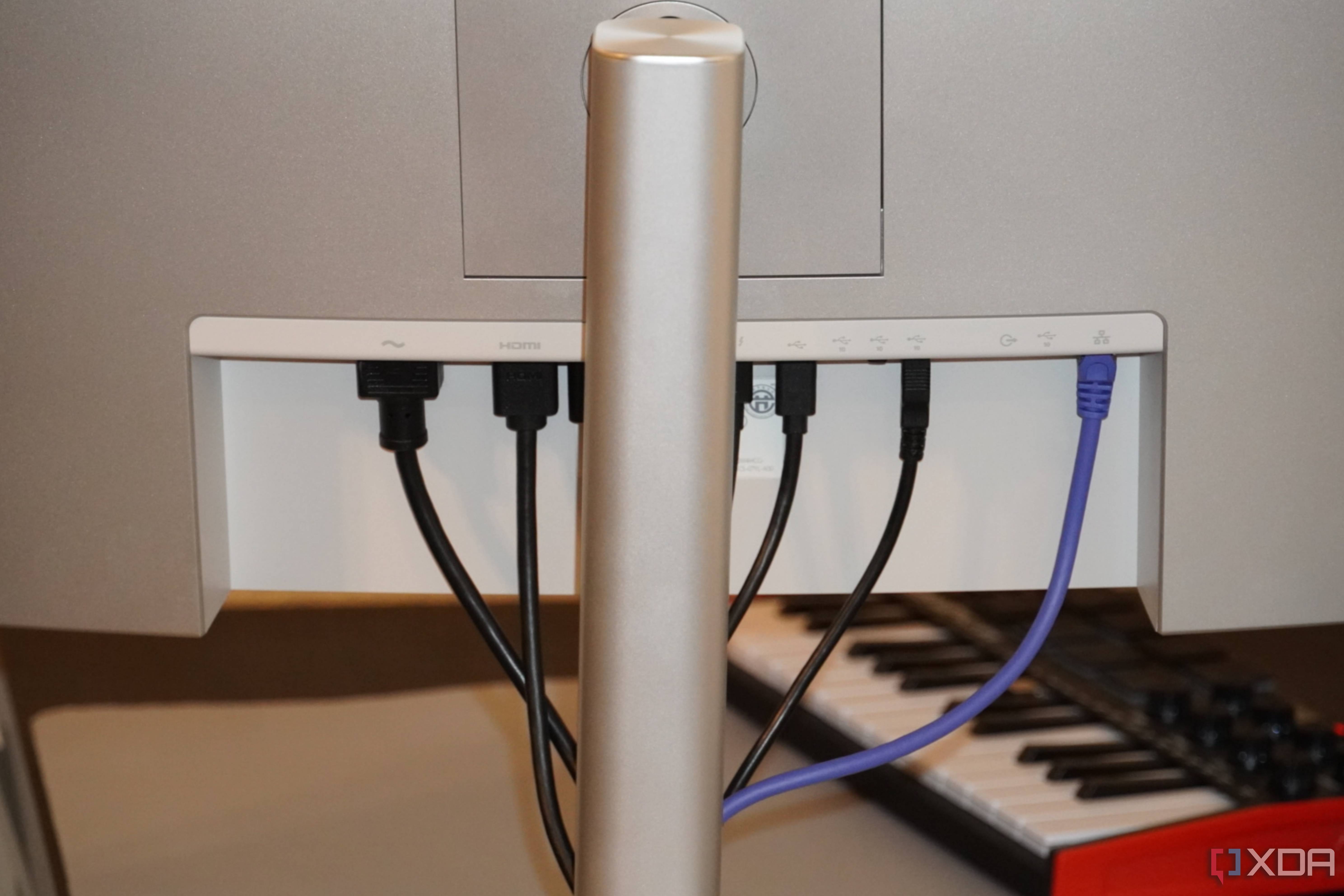
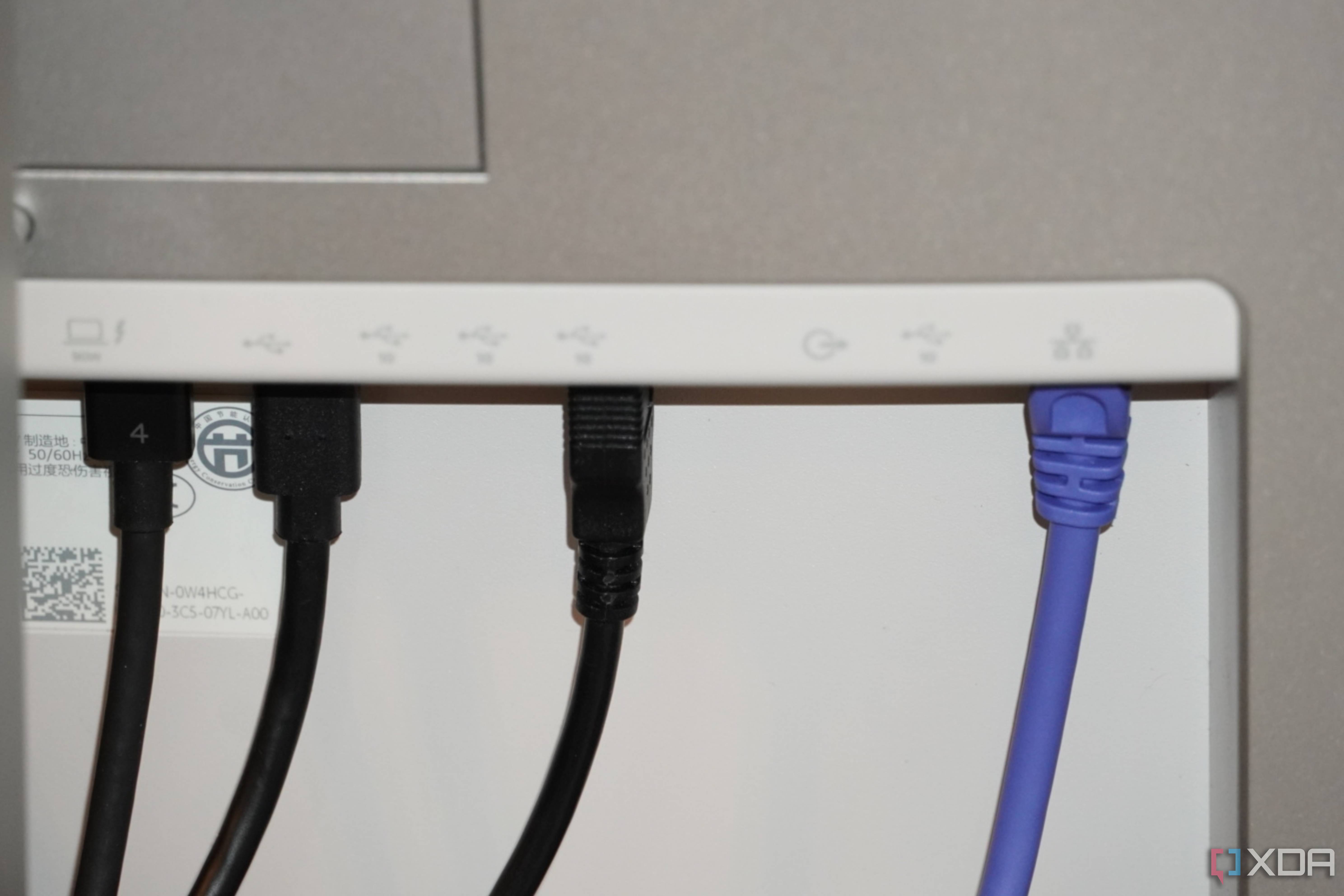
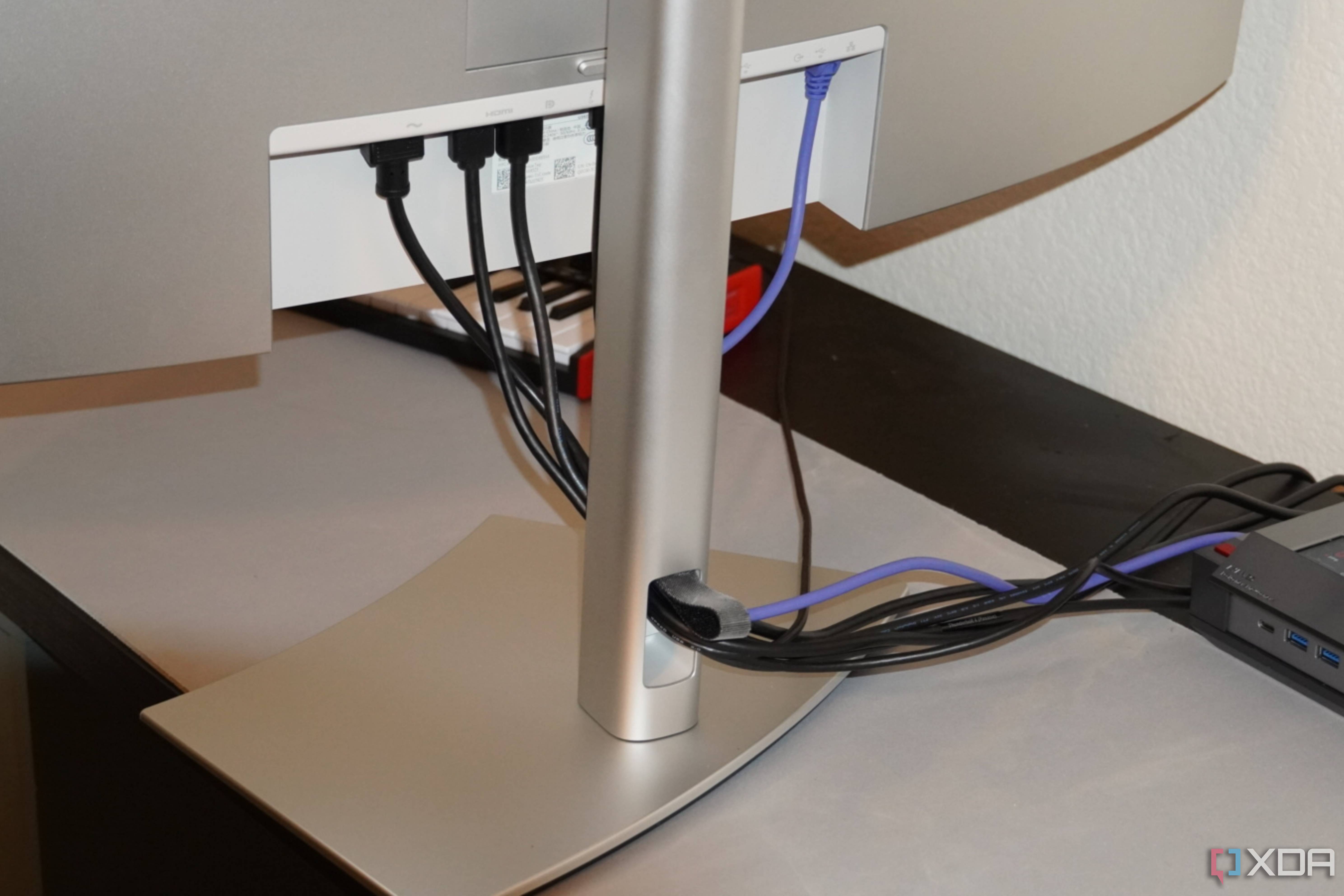
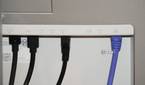
The flagship feature of the UltraSharp 34 Thunderbolt, as the name suggests, is the integrated Thunderbolt hub. I think Dell is slightly underselling the UltraSharp 34 Thunderbolt's connectivity with this name, though. The monitor's available I/O options firmly put it in competition with the best docking stations you can buy, such as the $400 Ugreen Revodok Max that I recently reviewed. When evaluating the UltraSharp 34 Thunderbolt monitor, it's important to remember just how pricey Thunderbolt docks are. They cost a few hundred dollars on their own, at a minimum.
So, it's safe to say that connectivity on the UltraSharp 34 Thunderbolt monitor is superb. However, you'll see a big dropoff in bandwidth and supported speeds if you choose to connect your computer over USB 3.2 instead of Thunderbolt. Dell gives you the choice of using either upstream Thunderbolt or USB 3.2 ports, but many great PCs still don't support Thunderbolt. You'll get the most out of the UltraSharp 34 Thunderbolt if you're using a Mac, a Windows laptop with Thunderbolt, or the rare Thunderbolt-equipped desktop PC.
You'll see a big dropoff in bandwidth and supported speeds if you choose to connect your computer over USB 3.2 instead of Thunderbolt.
In exchange for one Thunderbolt cable, the UltraSharp 34 Thunderbolt offers a total of nine downstream USB 3.2 ports. Five of those are Type-A, while four of them are Type-C. Three ports are really easy to access, while the rest are hard to reach on the back. There's also a 2.5-Gigabit RJ45 Ethernet jack, as well as a 3.5mm headphone jack. For display input, you get DisplayPort 1.4 and HDMI 2.1 ports. Notably, only the HDMI 2.1 port supports variable refresh rate with the 120Hz display.
Using the upstream USB 3.2 port to connect the UltraSharp 34 Thunderbolt monitor to my Ayaneo Retro Mini PC AM02, performance was more than good enough for connecting to USB accessories. Ethernet was a different story. I only got between 200 and 300 Mbps over Ethernet from the UltraSharp 34 Thunderbolt monitor while using USB 3.2. That's about as good as connecting over Wi-Fi, in my testing. For what it's worth, I maxed out my Ethernet speeds over Thunderbolt, so you don't need to worry about this issue if you have a Thunderbolt computer.

By far, my favorite parts about the UltraSharp 34 Thunderbolt monitor are the KVM switch features. For those unfamiliar, a KVM switch allows you to connect an assortment of peripherals to multiple computers. In this case, I connected everything to the UltraSharp 34 Thunderbolt, and then connected the monitor to my Mac Mini and Ayaneo Retro Mini PC AM02. Using the buttons on the display, I could switch between monitor inputs, thus transferring my entire set of peripherals over to each PC. I've used dual PC desk setups for a long time, and it's never been as easy as it was with the UltraSharp 34 Thunderbolt monitor.
I've used dual PC desk setups for a long time, and it's never been as easy as it was with the UltraSharp 34 Thunderbolt monitor.
Display
It's more than enough for productivity, and can hold its own in gaming

As for the display panel, it's excellent for productivity applications and sports a 3440 x 1440 resolution. That's not quite 4K, so you have to be alright with a lower resolution to be satisfied with the UltraSharp 34 Thunderbolt monitor. It looked great while connected to a Windows PC, but definitely wasn't as sharp on macOS. Macs historically have display scaling issues with nonstandard third-party monitors, so this isn't exactly a surprise. With an ultrawide, you're also getting the screen real estate of two smaller monitors in one immersive setting.

The settings menu is about as good as one can get with single-button navigation. There are some great features found within the UltraSharp 34 Thunderbolt's monitor settings, though. Aside from KVM switch controls, you can also choose split-screen or picture-in-picture modes for your display inputs. Essentially, this allows you to use two computers side-by-side on the same ultrawide monitor. With this feature, you won't be missing out on versatility by not going with a dual-monitor setup.
It offers good color accuracy and great contrast for an LCD panel
Dell has made some bold claims about the color accuracy of the UltraSharp 34 Thunderbolt monitor, and we've put these to the test. The company says that the UltraSharp 34 Thunderbolt supports 100% of the sRGB color gamut and 98% of the DCI-P3 color gamut. In our display testing, the UltraSharp 34 Thunderbolt monitor covered 100% sRGB, 84% of NTSC, 88% of AdobeRGB, and 94% of DCI-P3. So, this display is indeed very color-accurate. While our review unit was a bit behind Dell's claims for DCI-P3 coverage, the UltraSharp 34 Thunderbolt still performed well.

This display is indeed very color-accurate. While our review unit was a bit behind Dell's claims for DCI-P3 coverage, the UltraSharp 34 Thunderbolt still performed well.
Dell uses wide-LED backlighting on the UltraSharp 34 Thunderbolt monitor, and IPS Black display technology. In simple terms, that means the UltraSharp 34 Thunderbolt monitor will provide better contrast ratios and deeper blacks than typical non-OLED displays. It won't look as great in terms of black levels and contrast as the newest QD-OLED display panels, of course.

Our testing confirmed that this monitor isn't the brightest on the market, with our unit peaking at 225 nits. However, it was definitely bright enough while daily-driving the monitor; I even kept it at 75% brightness for the duration of the review period without issue.
Can you game on the UltraSharp 34 Thunderbolt?

This is firmly a productivity-oriented monitor, but the UltraSharp 34 Thunderbolt monitor's support for 120Hz refresh rates means that it can be used for gaming. As a casual gamer with a mid-tier PC, this monitor was plenty for my gaming needs. However, if you're planning to use this monitor primarily for gaming, you can certainly do better. I do think the UltraSharp 34 Thunderbolt will be good enough for a casual dual-use desk setup, though.
Should you buy the Dell UltraSharp 34 Curved Thunderbolt Hub Monitor?

You should buy the Dell UltraSharp 34 Curved Thunderbolt Hub Monitor if:
- You want a 34-inch ultrawide that can connect to multiple PCs
- You value an integrated Thunderbolt hub
- You have computers that support Thunderbolt to use with this monitor
You should NOT buy the Dell UltraSharp 34 Curved Thunderbolt Hub Monitor if:
- You want to use this monitor with computers that don't have Thunderbolt
- You need support for VRR over DisplayPort and Thunderbolt
- You need more power delivery over Thunderbolt than 90W
Dell's UltraSharp 34 Thunderbolt is a pretty great pick for a productivity-centric ultrawide monitor priced at around $1,000. However, you are paying for all of this monitor's feature set, which includes the 120Hz ultrawide panel, Thunderbolt dock, and KVM switch. If you don't plan to use most — if not all — of these features, there's probably another better-value monitor for you out there. But due to this monitor's extensive functionality, it has the potential to seriously declutter your desk, replacing a monitor, dock, and KVM switch. For people craving the ultimate, cleanest productivity setup, the UltraSharp 34 Thunderbolt is an excellent buy.
Dell UltraSharp 34 Curved Thunderbolt Hub Monitor
It could be the key to a simple and productive desk setup
- Screen Size
- 34 inches
- Display Technology
- IPS Black
- Resolution
- 3440 x 1440
- Refresh Rate
- 120Hz
- Variable Refresh
- HDMI only
Dell's new UltraSharp 34 Curved Thunderbolt Hub Monitor aims to replace numerous items on your desk with just one monitor. Aside from including a 120Hz, 3440×1440 display panel, this monitor also serves as a Thunderbolt hub. That means you get plenty of USB ports, an Ethernet jack, and power delivery straight from the UltraSharp 34 monitor. As a bonus, the monitor has KVM switch functionality, perfect for setups with multiple PCs.
