


Emulating Android games on PC has been a thing for a long time. However, the reverse is quite difficult to achieve. In the past, even the most powerful smartphones had trouble running old-school Windows games without suffering from major issues on the compatibility and performance fronts.
But thanks to the rapid development of apps such as Winlator, Horizon-Emu, and Mobox, it’s possible to run Windows-based games on phones. While Winlator and Horizon-Emu are easy to set up, the same can't be said about Mobox. Even if you are an emulation veteran, you’ll have a tough time installing the emulator and calibrating its settings. So, we’ve compiled this step-by-step guide to help you set up Mobox for the best gaming experience.
What you’ll need

Mobox, like most emulators and PC apps, prefers the pixel-pushing Snapdragon processors over MediaTek and Exynos CPUs. Sure, you could run games on non-SD chips with the help of VirGL graphics drivers, but you shouldn’t expect rock-solid FPS in modern titles.
Fortunately, Mobox is compatible with pretty much every Snapdragon mobile chip from the last decade, including the all-powerful SD 8 Gen 3 processor that Qualcomm released last year. Even ignoring the emulator’s superior performance, Mobox is pretty much the only proper way to run PC titles on the latest and greatest Snapdragon chips (unless you don’t mind spending hours configuring modded Winlator to work at a blazing-fast speed).
Depending on the types of games you wish to emulate, you may need more than a few GBs of RAM. Ideally, your device should possess at least 6GB of memory, though you might need anywhere between 8-12GB of RAM to run the more recent 3D titles. Storage-wise, you should be fine with 128GB, unless you plan to run expansive open-world games that occupy multiple GBs of storage space.
Installing Mobox

Setting up mobile apps is typically a straightforward procedure where you need to download some APK files before installing them on your system. Mobox requires a more unorthodox approach, as you need to set up a terminal emulator and run certain commands to fetch the packages for the emulator.
- Download the APK files for Termux, Termux-X11, and InputBridge from their respective F-droid links.
- If you haven’t already allowed the File Manager to Install apps from unknown sources, use the Settings utility to grant this permission to the app.
- Inside the File Manager, head to the Downloads folder, and install the three APK files you downloaded earlier.
-
Launch Termux and paste the following code before pressing Enter:
curl -s -o ~/x https://raw.githubusercontent.com/olegos2/mobox/main/install && . ~/x

-
Press 2 to pick the new WoW variant of Mobox when Termux prompts you to choose the emulator's version.

-
Once Termux has finished downloading the essential packages, you’ll need to enter mobox into the terminal.
Be sure to set your phone to Portrait orientation for this step. Otherwise, Termux may display a warning claiming that the window size is too small for Mobox.

-
Choose the Start Wine option and press OK to launch the Mobox container inside Terminal-X11.


Installing GOG games on Mobox

Since GOG’s entire catalog consists of DRM-free titles, it’s recommended that you grab the game files from the platform. To do so,
- Install the GOG Galaxy application on your PC using the setup.exe file from this link.
- Run the application as an administrator and sign in to your GOG account.
- Head to the Library tab and pick the game you want to run on your phone.
-
Navigate to the Extras section and click on the Download button under Offline Backup Installers.

-
After GOG Galaxy has finished downloading the game files, select the Folder icon, and transfer the setup.exe file to the Downloads folder on your phone.

- Switch to your phone and launch the Mobox container.
-
Head to the D: drive, and install the game like you would on a PC.


Installing Steam games on Mobox

Besides its amazing performance and better compatibility with the new Snapdragon processors, Mobox has another ace up its sleeve: the emulator can run a modified version of the Steam client, allowing you to play your favorite Steam games on the phone. Of course, the client app will consume some resources in the background, but it’s a fair trade-off if you have your entire game library on Steam.
- Download the Steam setup app from the official website and install the Steam client inside the Mobox container.
-
When the installation wizard has finished setting up Steam, make sure the Run Steam option is disabled before you click the Finish button.

- Download the SteamExagear.7z folder from this Google Drive link before extracting it inside the Downloads folder on your phone.
- Once again, launch the Mobox container.
-
Copy all the files from the extracted folder and paste them inside the Steam folder within the Program Files (x86) directory of the C: drive.

-
Run the 1.bat file to open a barebones version of the Steam client and proceed as you would on a PC.


Although I’ve used the modified version of Steam with my primary account over the last few weeks, it’s worth noting that this isn’t a foolproof solution. Since the Steam client requires you to sign in every time you use it, Valve might flag your account for suspicious activity. In the worst-case scenario, you could end up getting banned. So, I recommend proceeding with caution if you’re using your main Steam account on Mobox.
Optimizing performance on Mobox

On its own, Mobox provides rock-solid frame rates for most 2D titles and even modern 3D games. However, if you’re facing issues with the performance, there are a couple of settings you calibrate to increase the FPS.
-
Type mobox into Termux and instead of clicking OK at the Start Wine option, navigate to Settings.

-
Inside the Dynarec Settings, set 455 as the Preset compatibility flag and press Enter.
Alternatively, if you notice frequent crashes or glitches, choose 2 as the preset.

-
Navigate to System settings, click on Change fallback resolution and enter 1280x720.
You can set a lower resolution like 800x600 if you want better performance at the cost of reduced visual fidelity.

-
Click on the Change primary cores option and set the number to one less than the maximum number of cores on your phone.


Besides these settings, there are a handful of settings you can modify within the Mobox container itself.
-
Once you’ve launched the container, click on the Start button, and hover your mouse over the Install menu before choosing dxvk-async-2.0 as the dxvk version.

-
Next, hover the cursor over the Turnip driver tab and pick Turnip Zink v6.5 if your phone has an Adreno GPU.
Alternatively, you can choose the latest VirGL Mesa variant if you’re on a non-Adreno system.

- Finally, you can download the latest version of Visual C++ Redistributable and install it inside the Mobox container if you encounter certain issues when running certain Steam games.


Setting up the controls

Unlike Winlator, Mobox doesn’t have control mapping functionality built into the emulator. As such, you’ll need to use InputBridge to calibrate the on-screen controls and/or external gamepads.
- Once you’ve installed InputBridge, grant the app the privilege to Display over other applications via Settings.
-
Launch InputBridge and click on the + button to add a new profile.

-
If you’re using an external gamepad, select the Controllers tab and click on the gamepad connected to your phone.

-
I recommend choosing the WASD configuration since XInput doesn’t work with most Mobox games.

-
You can change InputBridge’s default configuration by tapping on a button, picking the Type, and selecting a Key code.

- Click on the Save button once you’re done configuring the controller.
-
For the on-screen gamepad, navigate to the Touch Controls tab and click on Edit Controls.

- Select the Create Control Element option to add a new button to your screen.
-
You can pick the Shape, Type, and Key code you want for the button.

-
Once you launch the Mobox container, you can click on the Cog icon in the top-right corner of the screen and tap the Visibility button to make the on-screen display appear on the screen.


Emulating full-fledged PC titles… on an Android device


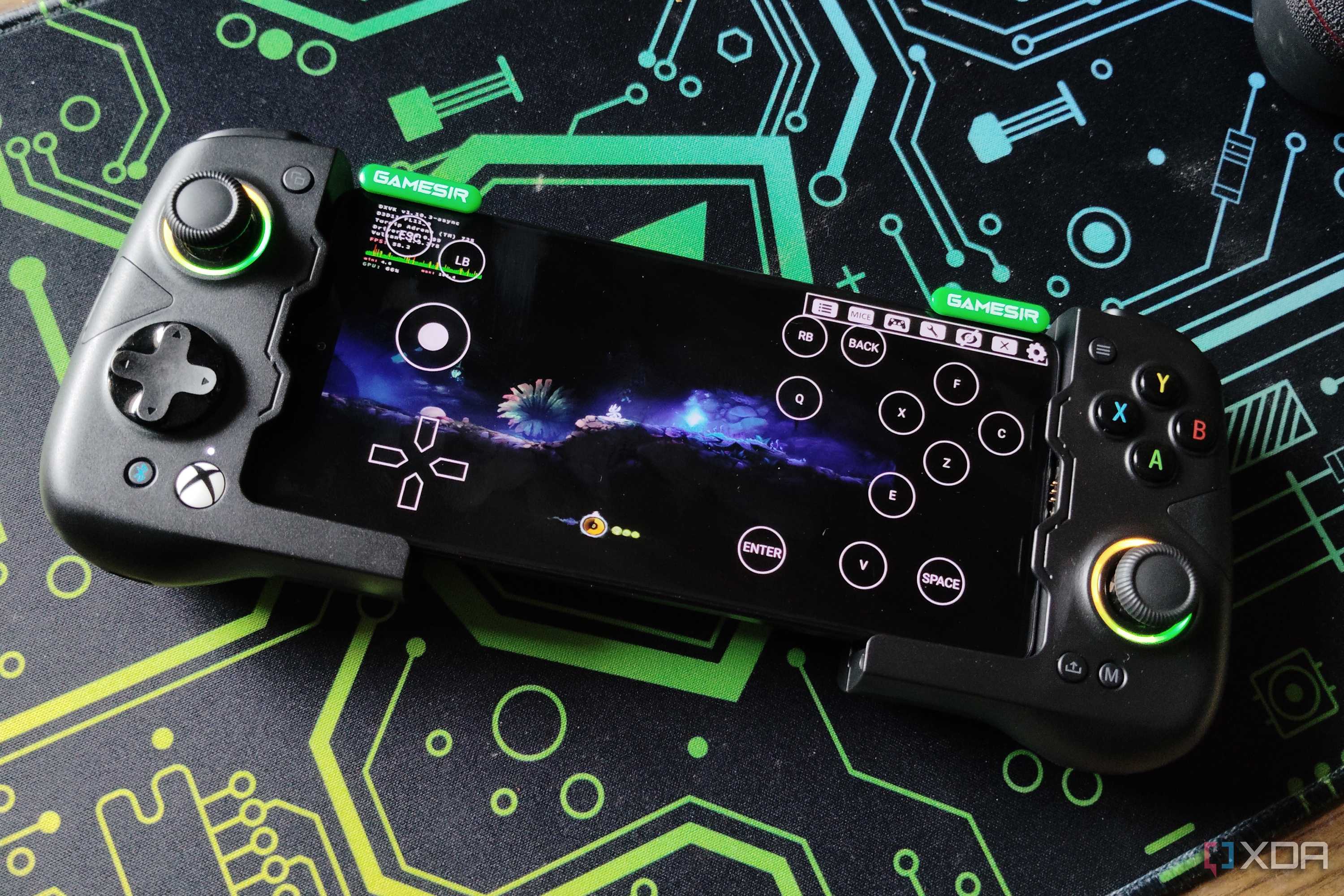
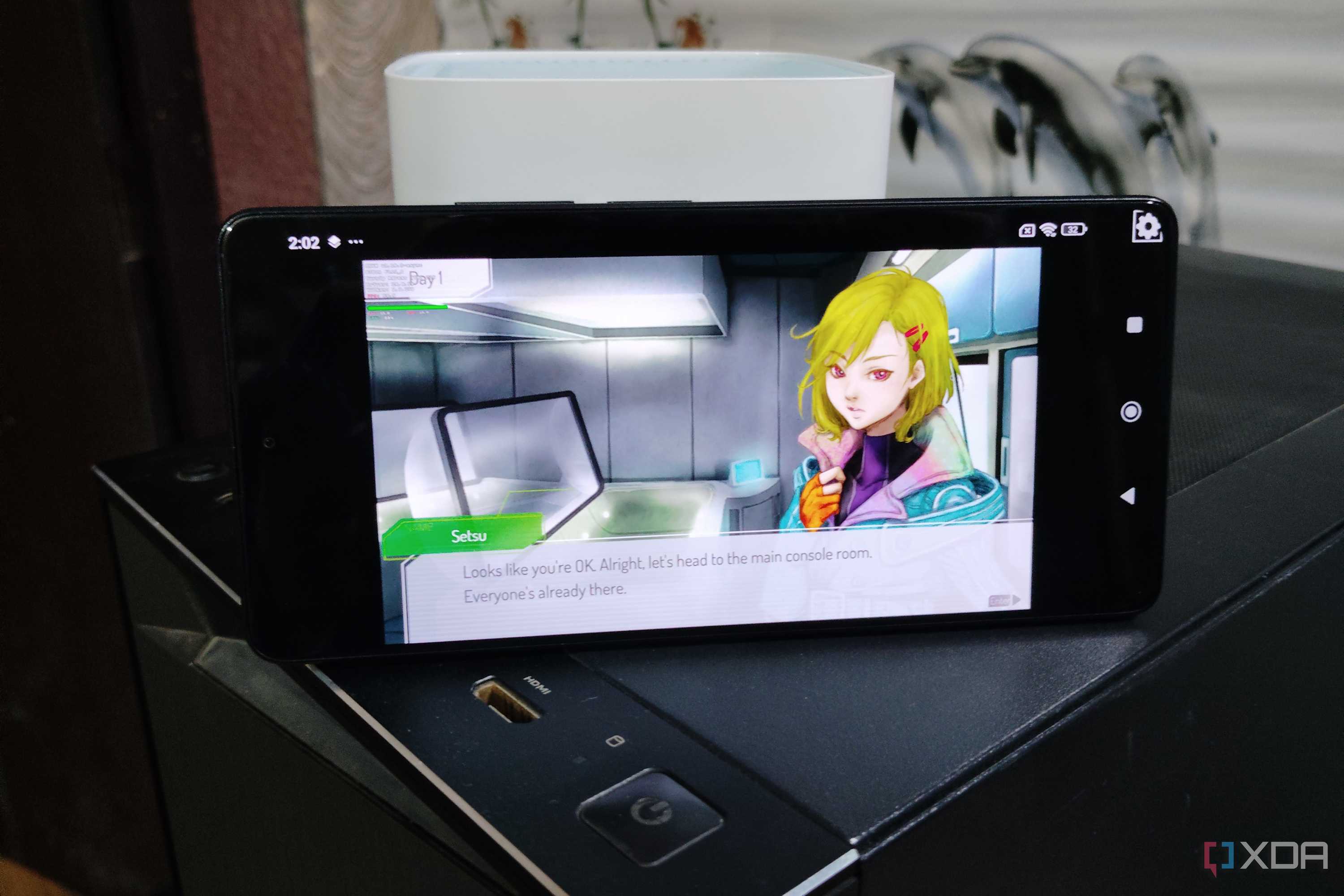
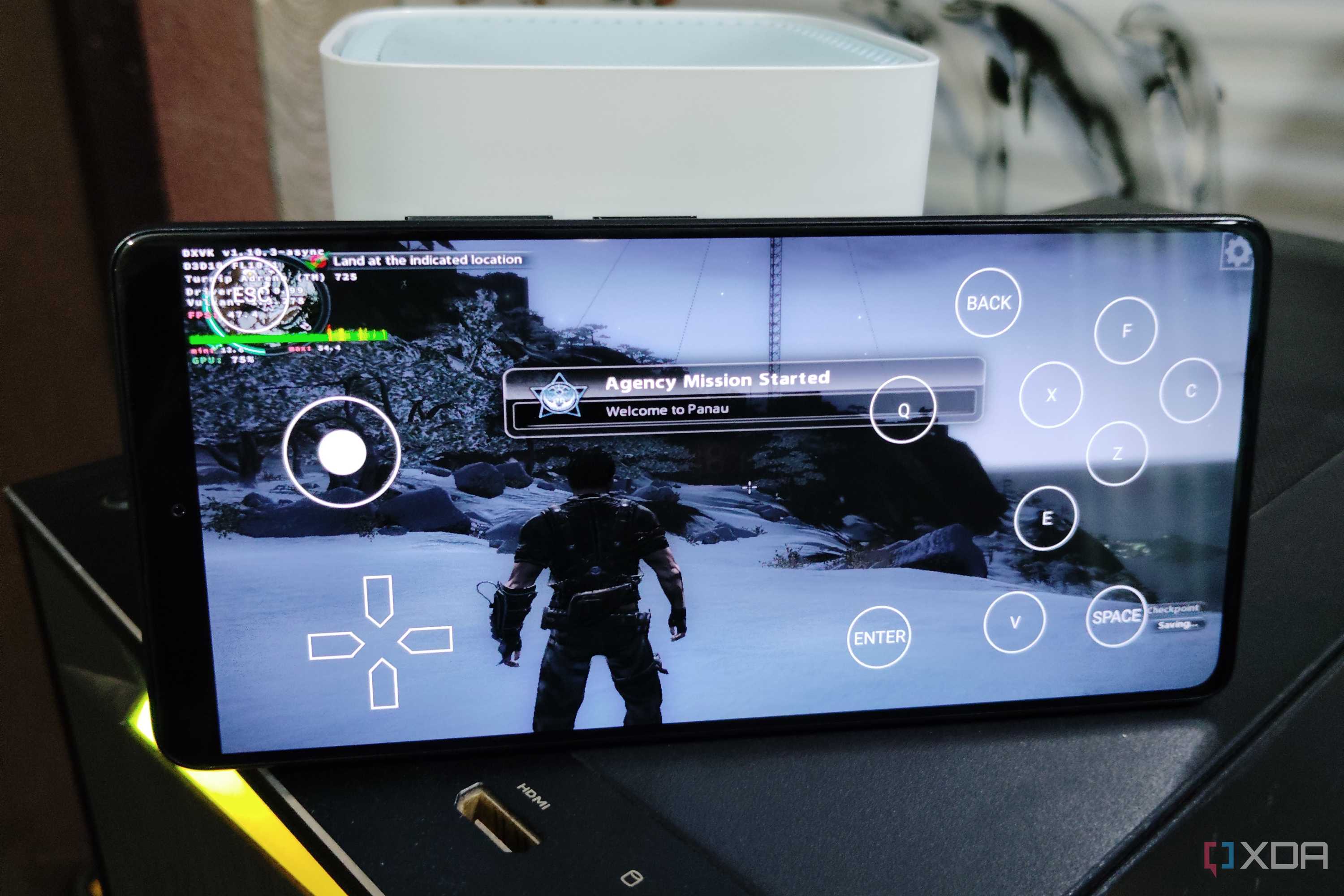
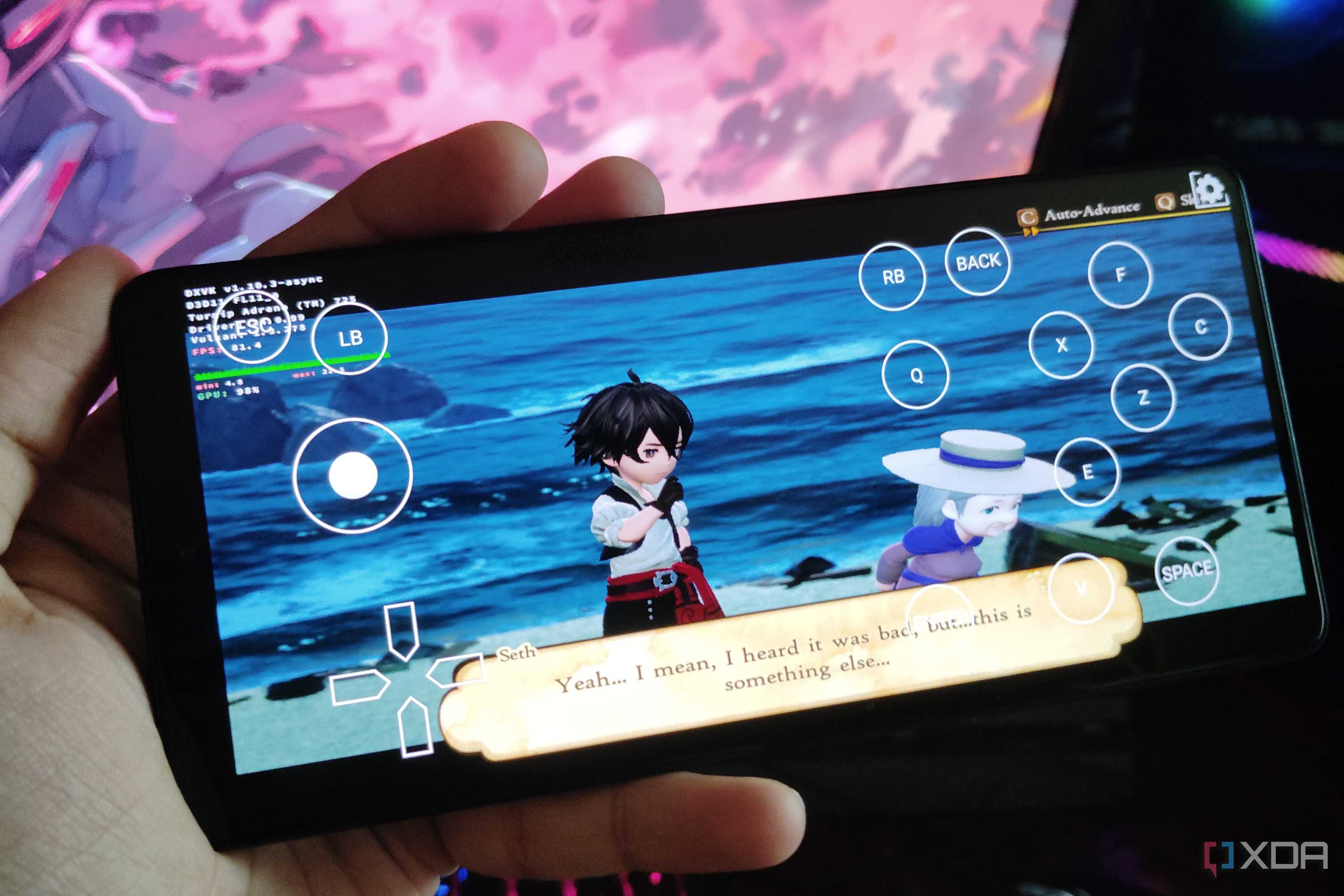
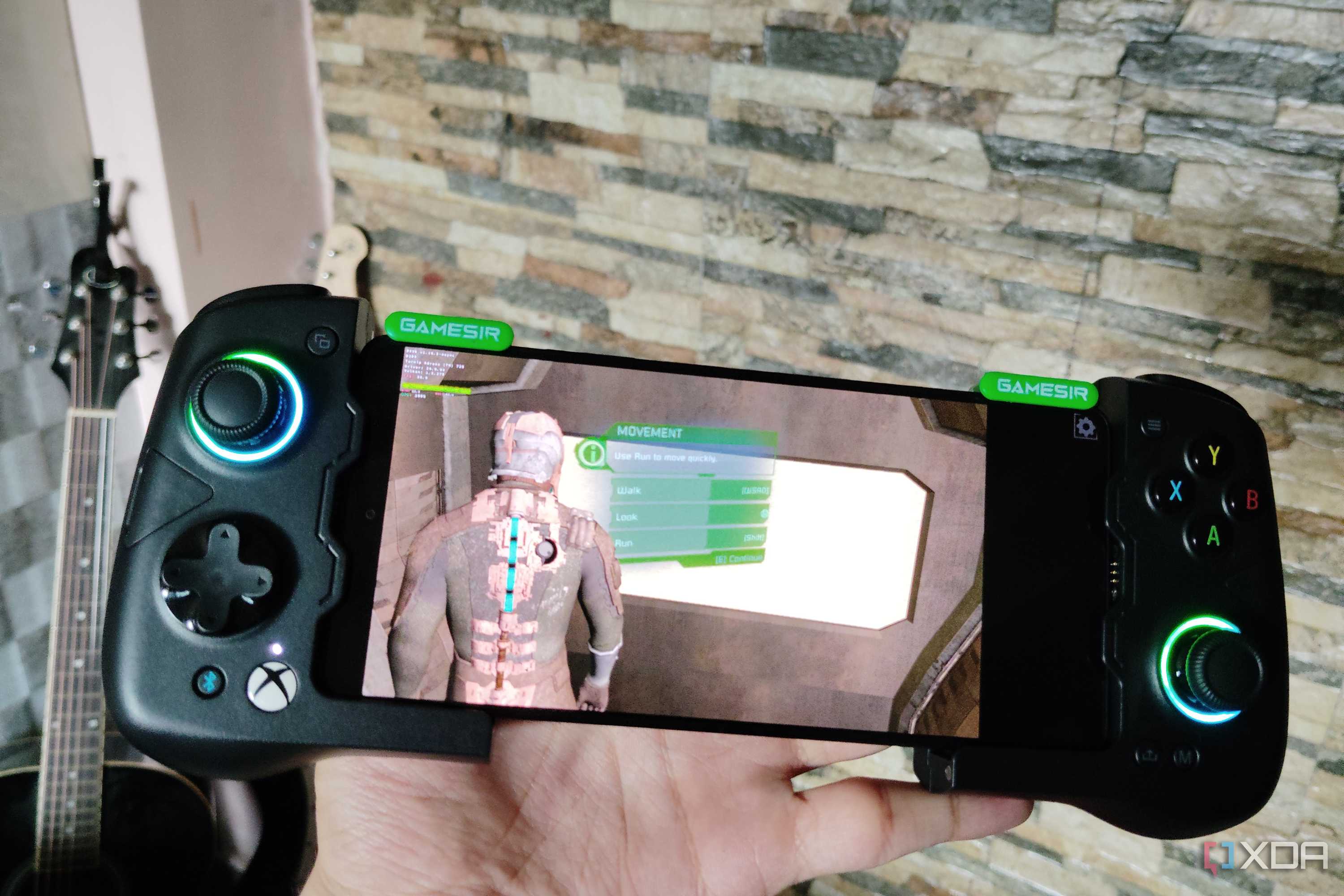

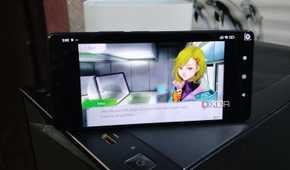
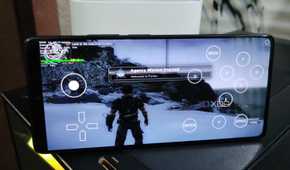

With that, you’re free to play your favorite Windows games on your phone. Clearly, just configuring the emulator takes a lot of effort, and that’s before you include all the time you’ll have to spend fine-tuning the Mobox container to run games at playable frame rates.
So, if you want a relatively painless method to run PC games on your phone, you might want to look into Winlator instead. While it’s not as fast as Mobox, it’s still a decent emulator if all you want to do is play low-demanding 2D titles on a smartphone. Horizon-Emu is another decent alternative that can even surpass Mobox when running Crysis. However, performance is a bit of a mixed bag in other titles, and it's afflicted with the same curse of terrible controller support as Mobox.

Mobox
Mobox is a free emulator capable of running Windows titles, including Steam games, at high frame rates. Unfortunately, the app isn't very intuitive to configure, and it can take a few hours to get everything up and running.
