


There's been a lot of expectation around Windows 12 ever since it was first believed to be coming in 2024. That excitement kind of came and went when Microsoft confirmed the 2024 update was going to be called Windows 11 version 24H2 and there wasn't as much of a break from the existing OS as some had hoped for.
But earlier this month, hope was reignited by a report that Nvidia may be waiting for Windows 12 to launch its rumored N1X processor for Windows laptops, and with that, my mind started racing as to what could change in this upcoming version of Windows (if it exists). I then started thinking about all the things Windows 12 could stand to learn from its competitors, whether it's macOS or Linux. So let's talk about some of these things.
7 The menu bar (from macOS)
Well, part of it, anyway


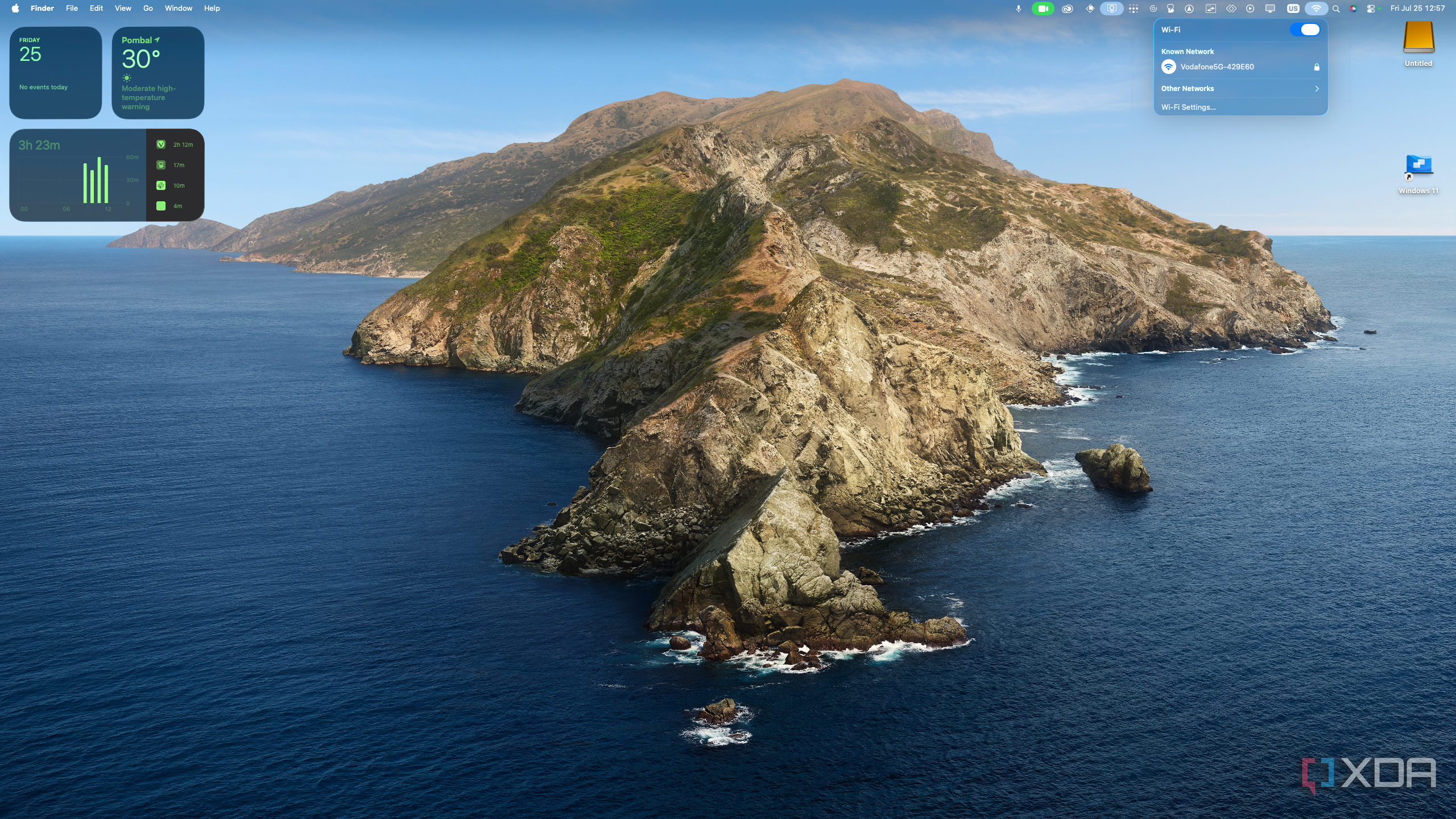


Admittedly, I'm not a fan of the "menu" part of the menu bar on macOS, but when I do like is the other half of it. Having ba ar at the top of the screen that houses application menus makes it a lot harder to use windowed apps, so I don't want Microsoft to copy that part.
However, having this very small bar with all the icons for things like the notification center, control center, and all your apps with running services makes a lot of sense, and it's presented far more elegantly here than it is on the Windows taskbar. I've actually copied this setup on a couple of Linux machines I've used in the past, and I love the way it looks and works, as it saves me some extra screen real estate while looking very nice.
I know Microsoft is even tempted to do something similar because a few years ago, the company showed off a concept Windows desktop that used this exact design philosophy. It just never came to fruition, but it's never too late. As for what the rest of the bar would be used for, maybe more of a system-wide menu or a replacement for the typical Start menu could work, with quick links to major apps and settings. The Droptop Four skin for Rainmeter on Windows also achieves something like this, and I think it could work well as a native solution.
6 Pinned taskbar files (from ChromeOS)
Quick access to important files

Sometimes, it's good to have quick access to files you might need for a current project, and ChromeOS has an interesting approach to this. There's an area on the dock where you can see pinned files, so if you need to quickly access or share those files, they're always ready to go.
This is a fairly simple feature, but it's easy to see how it can be useful when you're working on specific projects. The ability to quickly grab files you might need without having to navigate to the original folder makes it much easier to get things done, and it can be a big time saver since you can pin multiple files from different source locations.
5 Preview (from macOS)
Easily preview files in full size


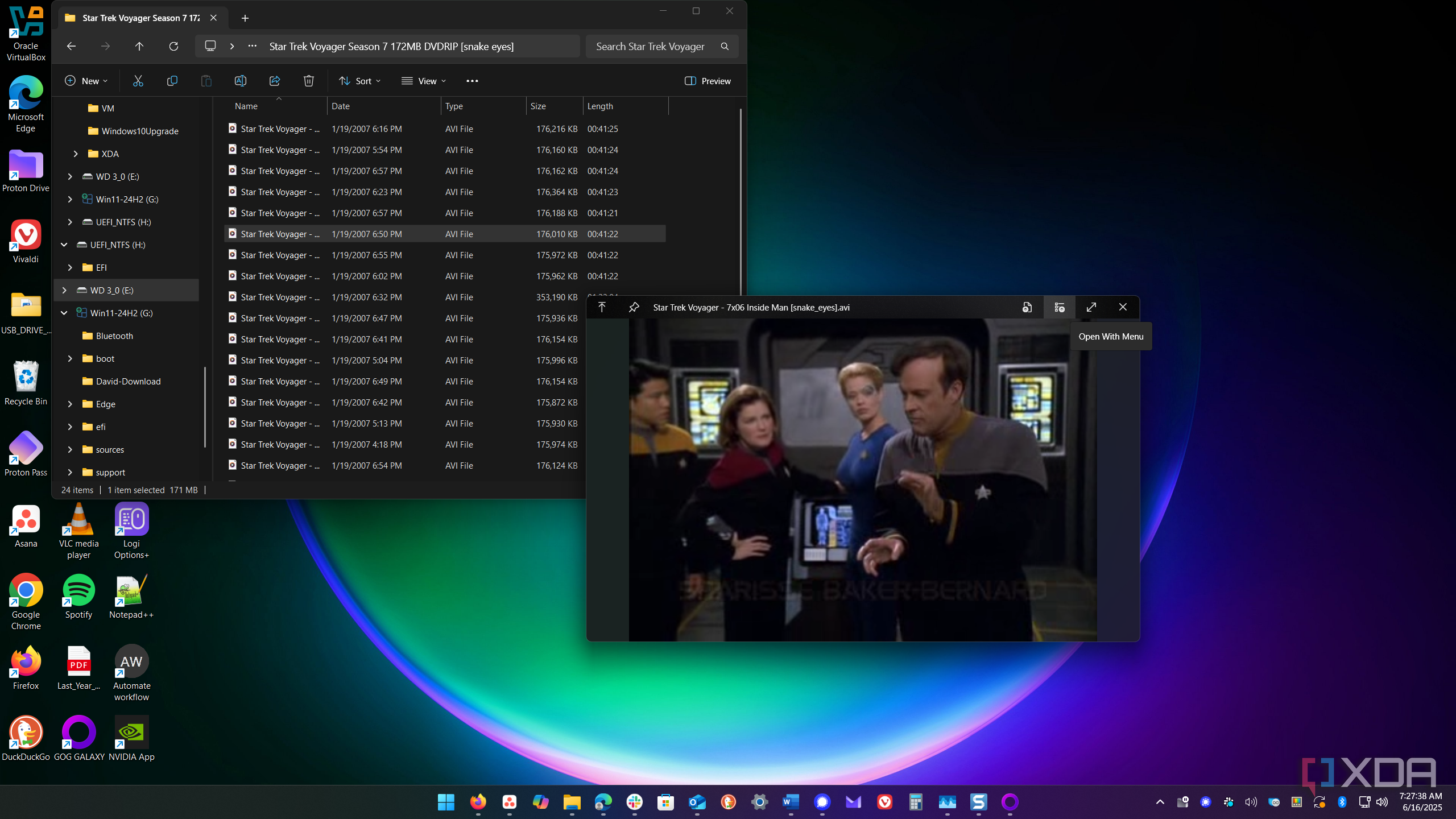
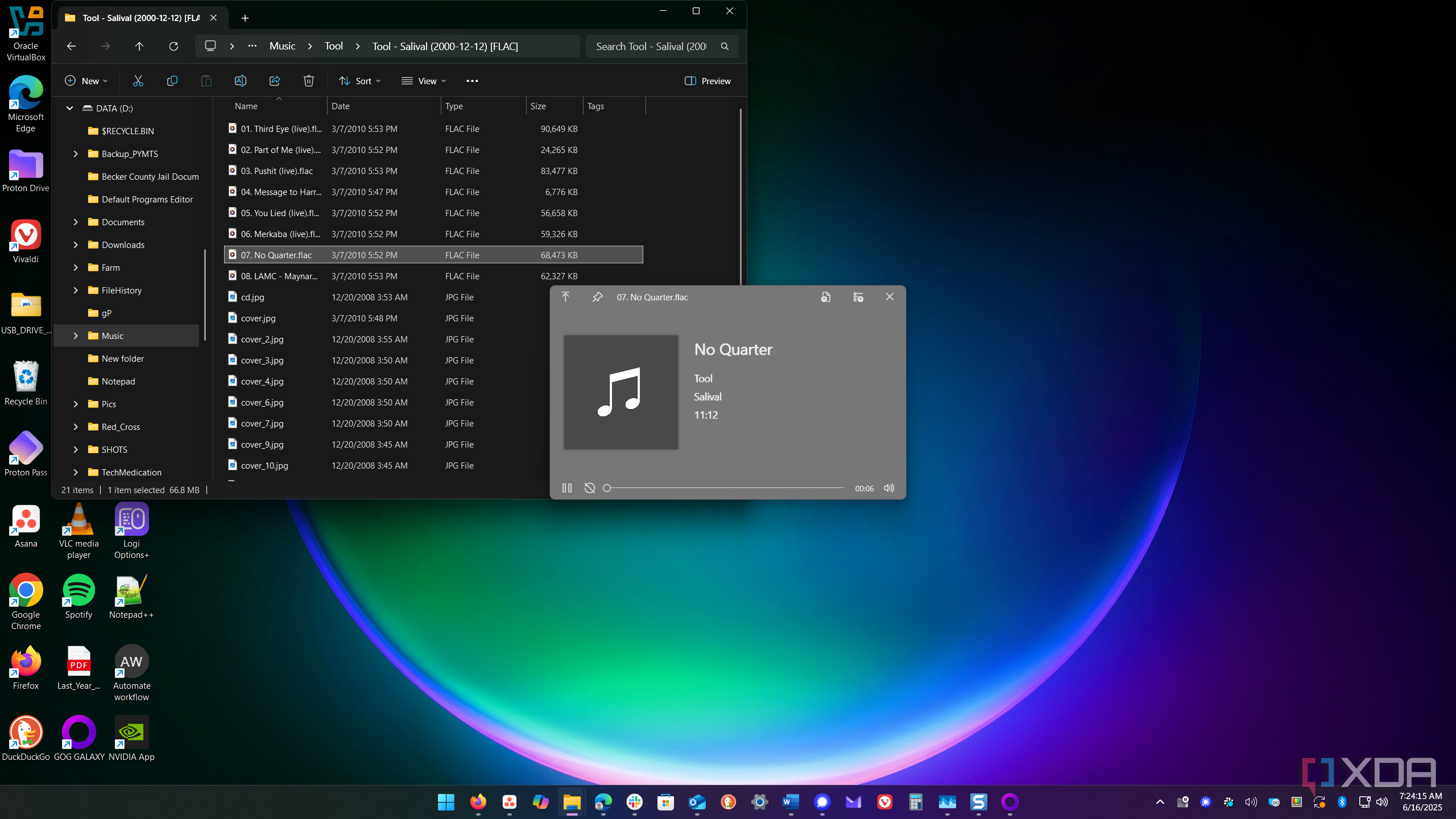
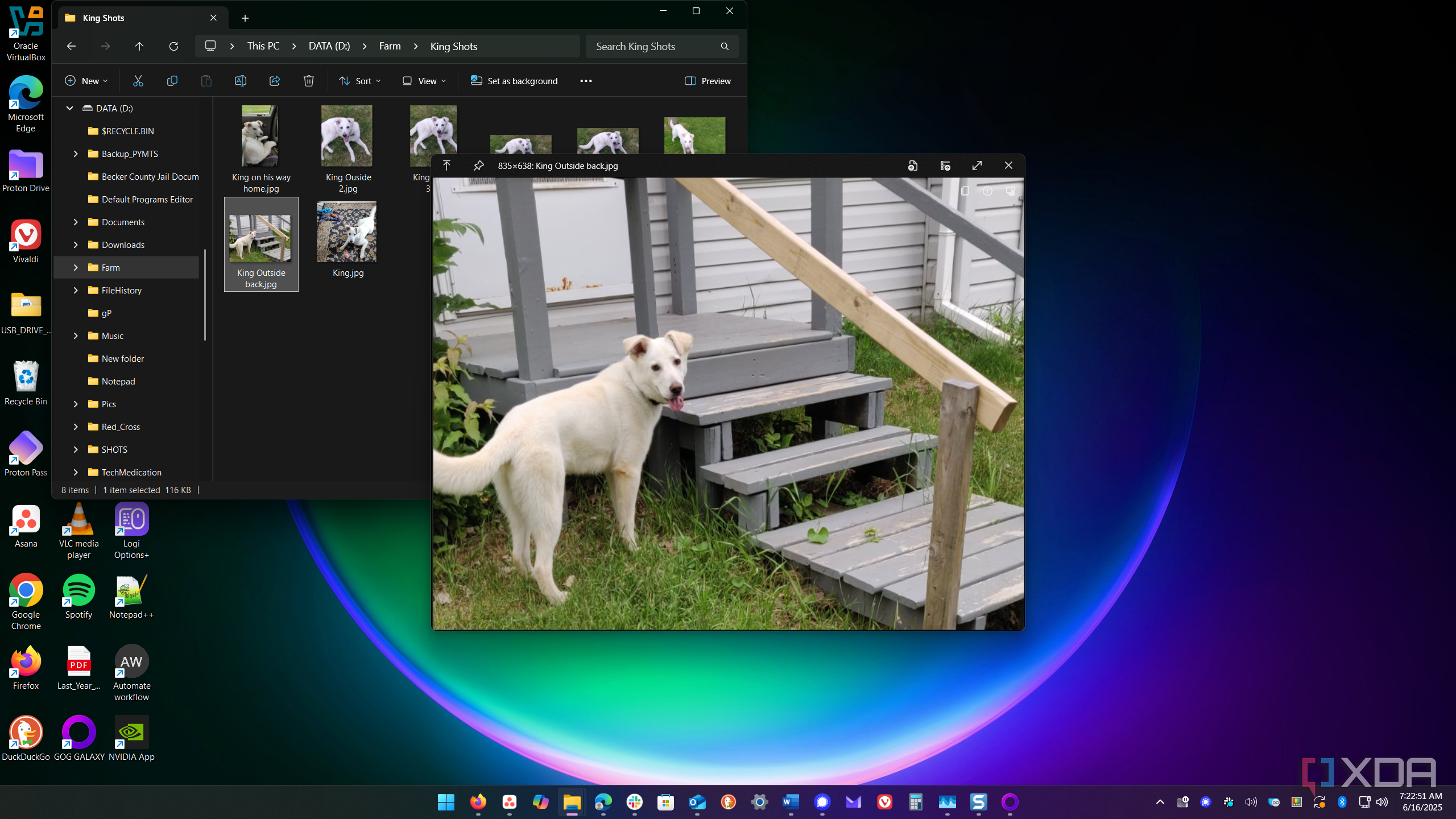


Another great, yet simple feature in macOS is Preview, which gives you the ability to quickly view a file without having to open the full app you would need to properly edit it. Simply by selecting a file in a file manager (you don't even have to use Finder) and pressing the Space bar, you can immediately get a full-size preview of the file, with the ability to zoom in or scroll for files that support it. It's incredibly easy to use.
And it's obvious Microsoft sees value in this feature, too, because the company has built a clone of Preview into its PowerToys suite, called Peek. This does pretty much the same thing, but compatibility is a bit more limited and it doesn't feel quite as native, because it isn't. But building something like this straight into Windows 12 would be a fantastic addition.
4 The Quick Insert menu (from ChromeOS)
A truly clever use of Google integrations

I have to credit my colleague Madeline Ricchiuto for bringing my attention to this one, because I didn't know this feature existed until very recently. In a somewhat recent update, Google added a feature called Quick Insert to its Chromebooks, which you can access by pressing the Launcher + F keys.
The Quick Insert menu is very interesting because it lets you add different kinds of content to whatever text you're currently writing. You'll see suggestions from your clipboard, but also emoji that might suit the text, and even recent files such as images. When I was testing this feature for the above screenshot, I had just created a new Google Docs document, and as you can see, that document is already being suggested as something I can insert using this panel, meaning this feature also makes fantastic use of Google's integration between services using your Google account.
It's such a well-thought-out feature that can easily make life easier for you when done right, and one can only hope Microsoft would be able to realize it as well as Google did. Either way, the company should at least try.
3 Offline setup (from Linux)
Why require an online account?

One of the many annoying things about Windows 11 today is that Microsoft is forcing users to have an internet connection during the initial setup process. That may not sound too bad, and sure, for a lot of people, it isn't. but this requirement is really a vehicle for Microsoft to also require you to sign in with your Microsoft account, which then enables things like ad personalization and features like OneDrive syncing which are kind of forced onto users.
Even without that, needing an internet connection for the initial setup just isn't always convenient. You may be away from home, or in a hurry to use something that doesn't need the internet in the first place.
Most Linux distros understand this, and you can go through the setup process without an internet connection. In fact, there's nothing the OS tries to shove down your throat that requires an internet connection, let alone some kind of online account. Everything just works, and you only use the internet when you truly need it. That freedom needs to return to Windows.
2 Customization (from Linux Mint and others)
Windows is surprisingly rigid


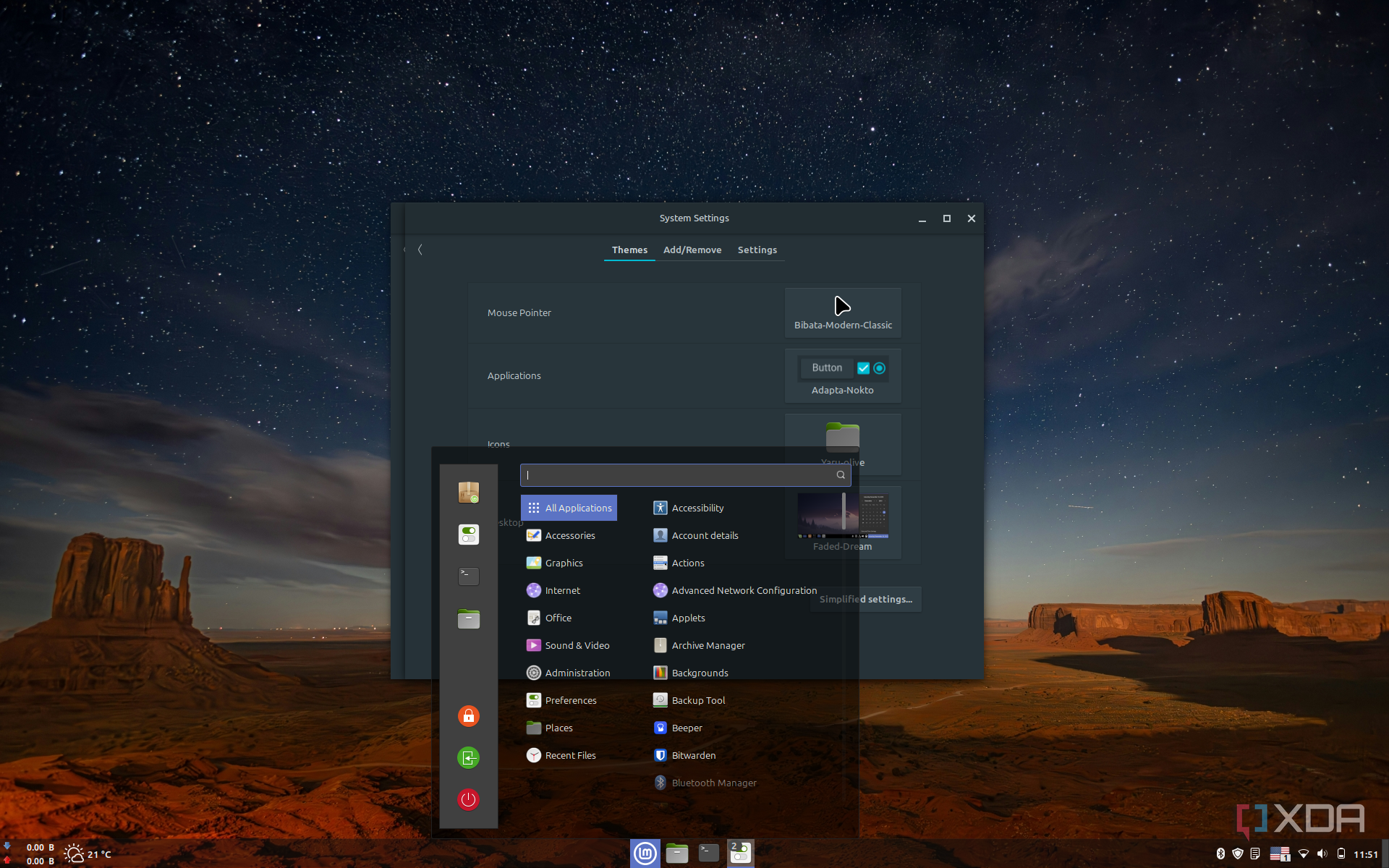


Windows is a huge ecosystem with tons of support from developers that enable all kinds of customization options. But out of the box, this operating system is actually quite restrictive, and it's not designed in a way that encourages customization. I didn't realize just how true that is until recently, when I tested out Linux Mint for the first time and I was blown away by the customization options that are just built into the operating system.
Linux Mint, as well as many other Linux distros, offer an incredible range of customization options that you simply can't get on Windows through any official means. Right out of the gate, I can change the themes for the taskbar equivalent, the look of buttons and checkboxes, and even set a color for folders shown in the file manager. That's before you even get into things like applets and desklets, which can add all-new features like network monitoring or an emoji panel, while being natively endorsed parts of the OS, with their own pages in OS settings.
I'm only calling out Linux Mint because that's what I have the most experience with, but it's not too different with Ubuntu and its desktop environment, GNOME. Through GNOME Extensions, you can make your PC look like a completely different beast — so much so that AnduinOS, a Linux distro that's directly based on Ubuntu, looks almost exactly like Windows 11.
I don't think Windows will ever reach the heights of Linux in terms of customization, but any step that gets us closer to that level of user freedom will be a win in my book. This is genuinely one of the best parts of Linux.
1 Spotlight (from macOS)
Fast, effective search


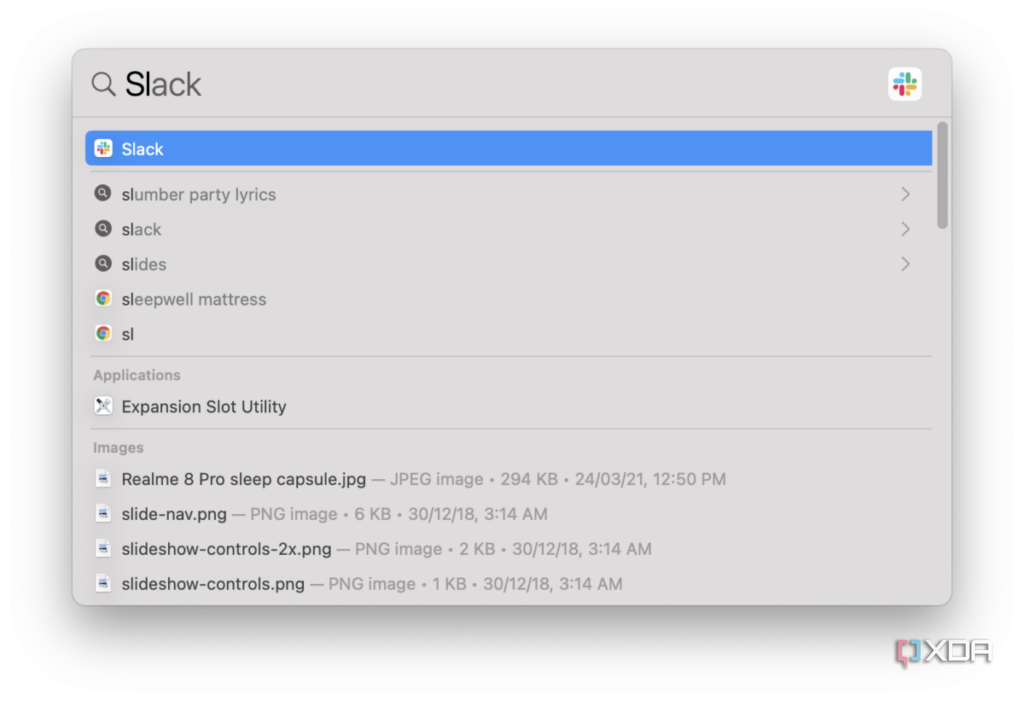
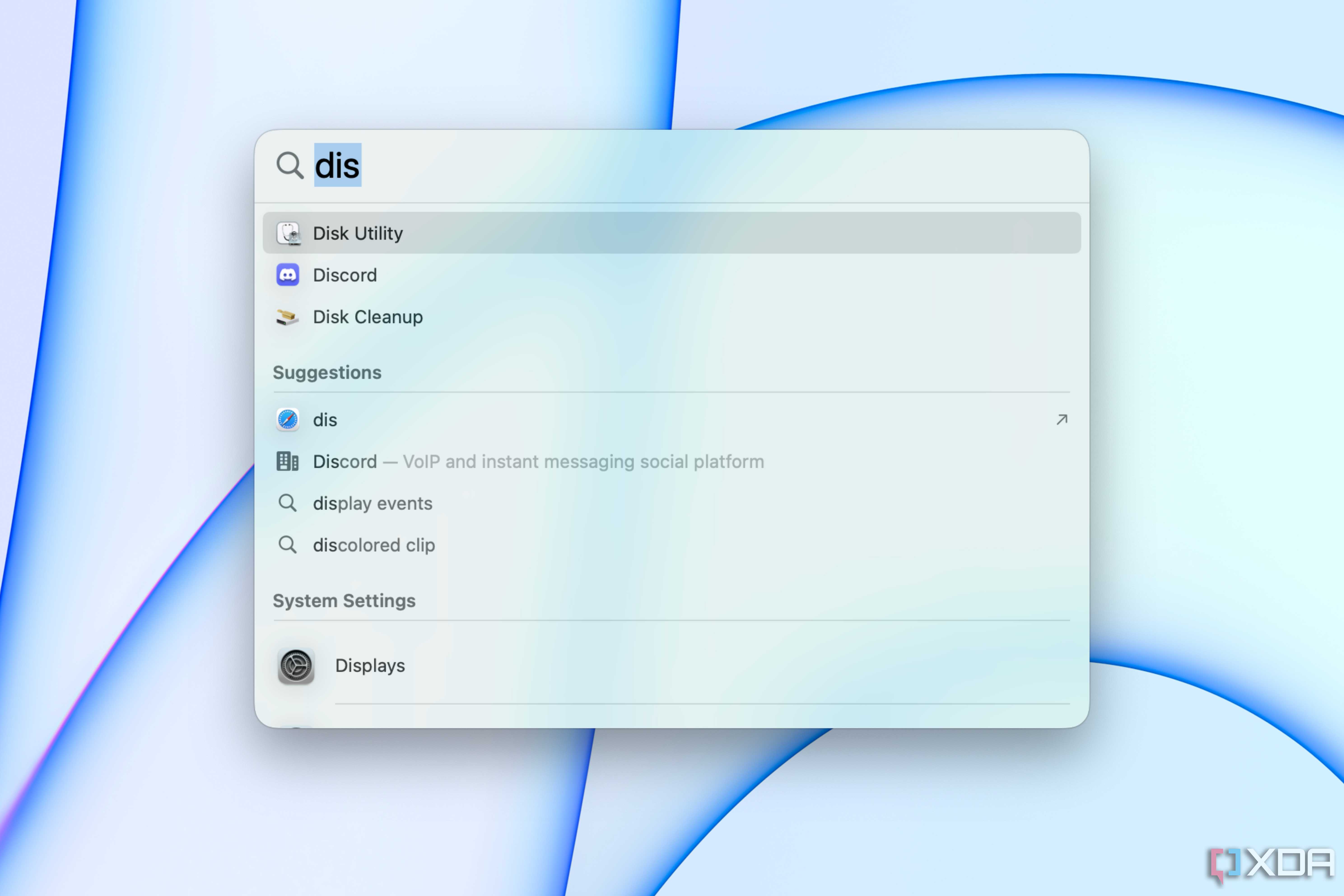
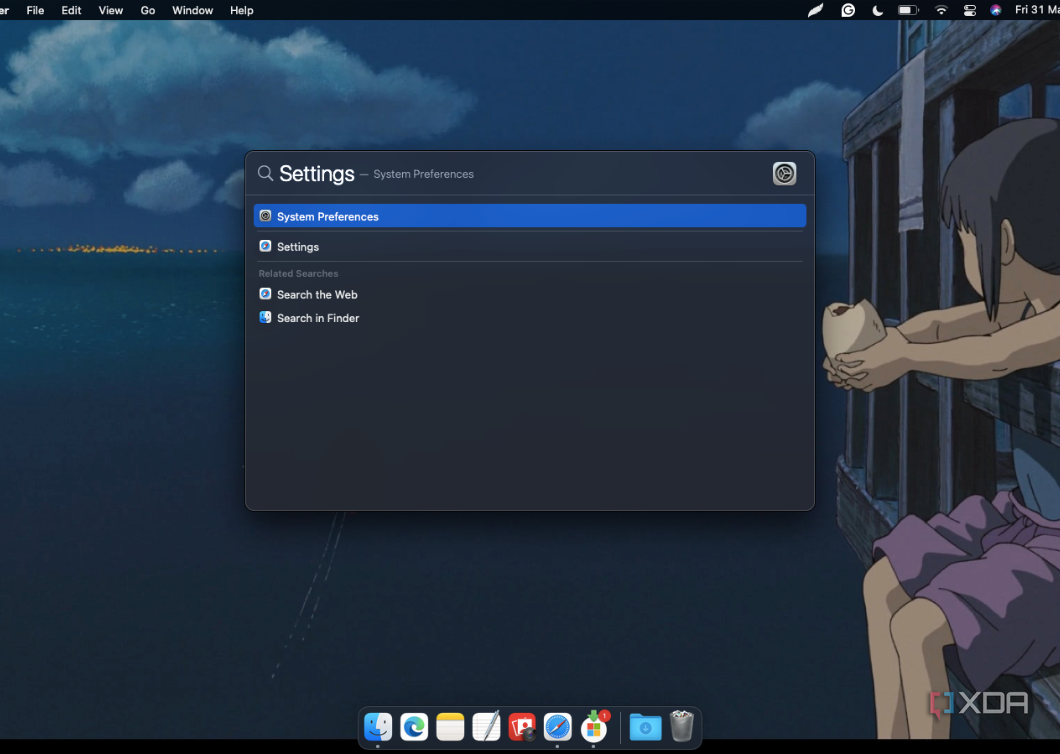

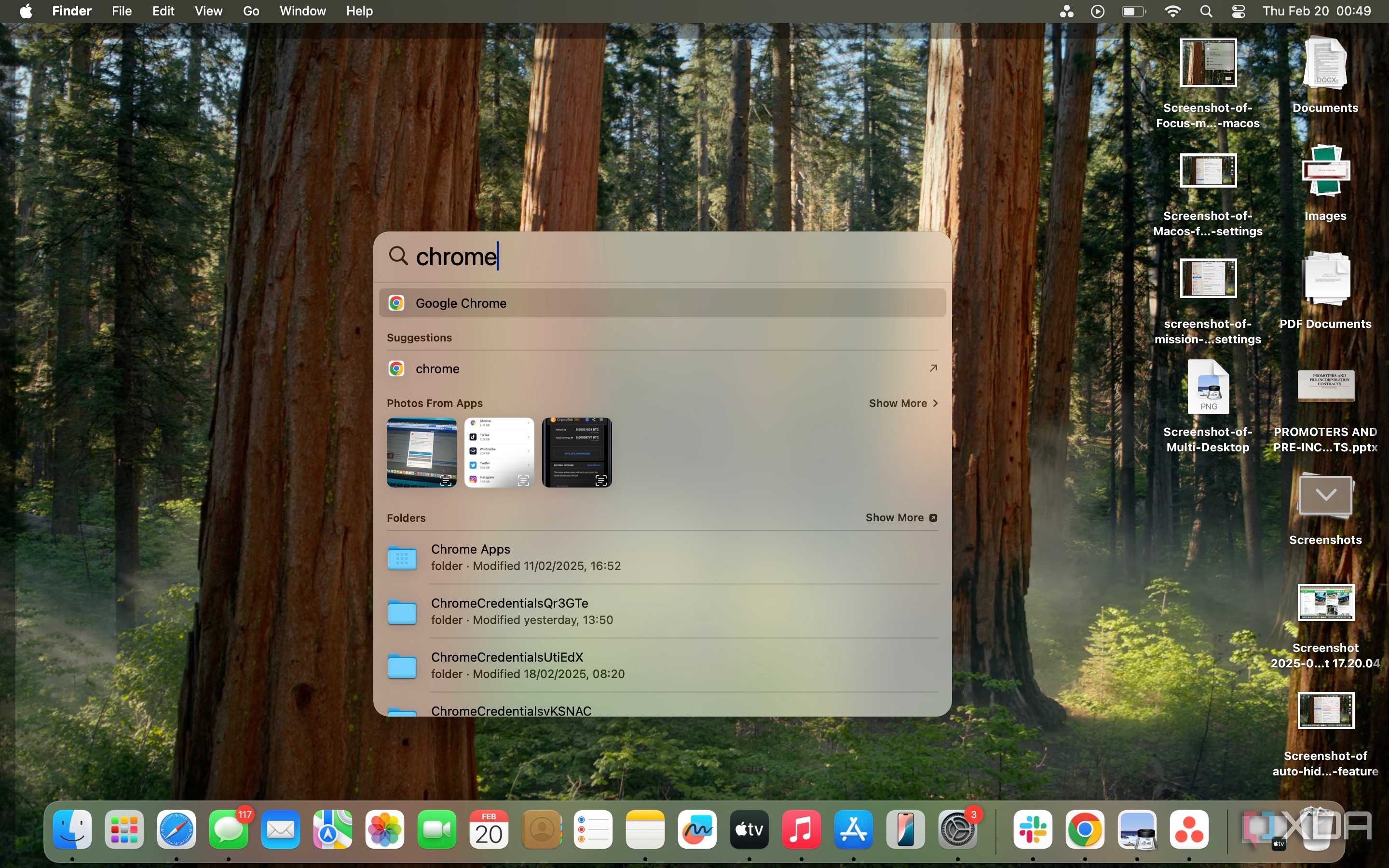
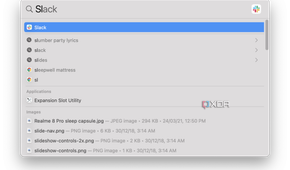
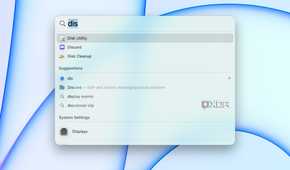
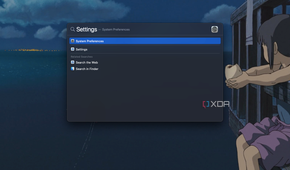


Finally, what I'd argue is the biggest of the bunch, Spotlight from macOS. Or, more accurately, fast and responsive search, which you can actually get on most Linux distros, too.
Windows 11 has a search bar in the Start menu, but it's notoriously annoying to use. The inclusion of web results and bad search logic means results sometimes takes an extra split second to appear, or they might update at the last second just before you hit Enter, making you open the wrong thing. It's very easy to accidentally open web searches, too, and typically, those web searches force you to use Bing and Microsoft Edge, which makes it all the more annoying.
Apple's Spotlight, and the search tools in most Linux distros I've tried, are instantly responsive to input, and they make it very easy to launch the thing you need quickly. Aside from typos, you can confidently type in what you're looking for and press Enter to open it without having to look too closely at what's on screen. What's more, in the case of Spotlight, web searches will return results that open in your default browser, rather than trying to force you to use Safari.
Windows Search needs polish and (like much of Windows) to stop trying to force users to use specific Microsoft services and apps. If Apple can do it, I see no reason why Microsoft can't.
Windows 12 needs to level up
As much as I enjoyed Windows 11 when it came out, experiencing macOS and Linux in recent times has shown me that there are a ton of ways in which Microsoft can improve Windows to make for a radically better experience. I'm not as willing to deal with its problems as I once was, and I've even switched to macOS for the majority of my computer usage. If Microsoft wants to stop bleeding users, it needs to change its approach and learn from its rivals.
