


As great as Windows 11 is, it's a very complex piece of software that's prone to the occasional issues, which can appear in different parts of the operating system. One such issue has to do with the search bar on the taskbar, which can sometimes just stop showing results for seemingly no reason. If this is happening to you, we have a few fixes you can try before you chuck your PC out the window.
For this guide, we'll assume you've the tried-and-true fix of restarting your PC, and that you've also tried checking for Windows updates that may fix the problem. If that didn't do it, try the solutions below.
Restart the Windows Font Cache Service
An unexpected solution
The Windows Font Cache Service helps ensure that fonts are rendered properly and efficiently across the operating system, but surprisingly, it can sometimes cause issues with Windows Search. If you're not seeing any results when using the search bar, try these steps:
- Press Windows + R on your keyboard to open the Run dialog.
-
Enter services.msc to open the Services dialog.

- Scroll down the list to find the Windows Font Cache Service.
-
Right-click it and choose Stop.

- Try to search on the taskbar again.
- Go back to the Services window, right-click Windows Font Cache Service, and select Start.


Restart Windows Search
A simple fix
If Windows Search is not responding properly, a relatively simple solution may be to restart the process. Do the following:
-
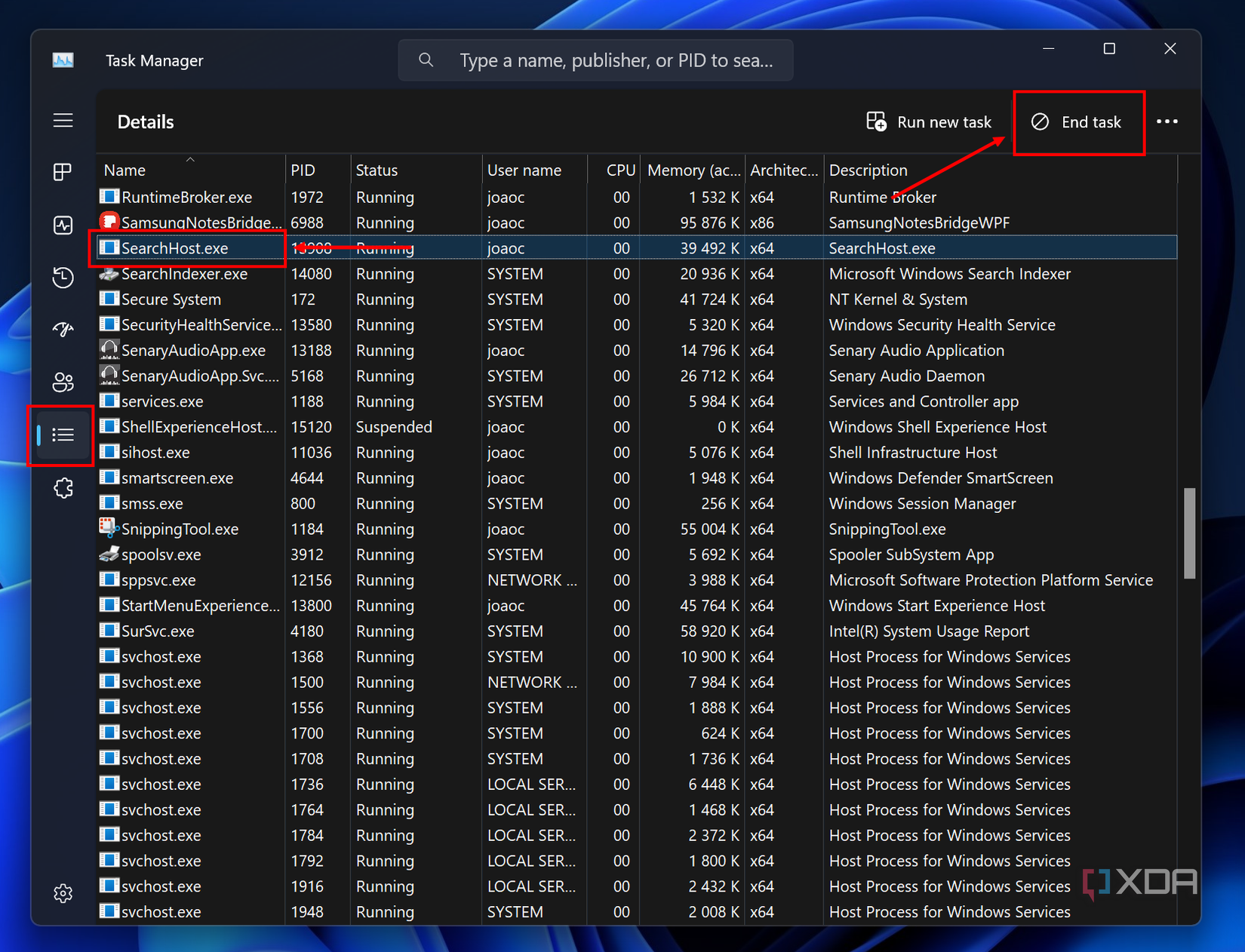
Right-click an empty area of the taskbar and choose Task Manager.

- Switch to the Details tab.
-
Scroll down to find the SearchHost.exe process and click it, then choose End task in the top right corner.
- Try opening search again and search for what you want.


Run the Windows Search and Indexing troubleshooter
Let Windows fix itself
Another relatively easy solution to try is running the included troubleshooter for Windows Search. The easiest way to do this is as follows:
-
Right-click the Start icon on your taskbar and choose Terminal. It may also show as Windows Terminal or Windows PowerShell.

-
Enter the following command:
msdt.exe -ep WindowsHelp id SearchDiagnostic
- Click Next and follow the steps to troubleshoot your problems.

Once you've concluded the troubleshooting steps, searching should work again.
Reset Windows Search
A fresh start should help
Another option you have is resetting Windows Search entirely. This is a more involved process, and you'll first need to make sure you have permissions to do it. Here's how it goes:
- Right-click the Start icon on the taskbar and choose Terminal (Admin) or Windows PowerShell (Admin).
-
Type in the following command and press Enter:
Get-ExecutionPolicy

-
If the command shows your execution policy is set to unrestricted, skip to step 4. If not, enter the following command to change the execution policy:
Set-ExecutionPolicy -Scope CurrentUser -ExecutionPolicy Unrestricted
- Close PowerShell and download Reset Windows Search Windows PowerShell script from Microsoft.
-
Once it's downloaded, right-click the file in File Explorer and choose Run with PowerShell.

- If prompted, choose Yes.
-
Once you see the word Done, you can close PowerShell. If you want to revert the execution policy from step 3, use the following command:
Set-ExecutionPolicy -Scope CurrentUser -ExecutionPolicy Restricted


If you have an earlier version of Windows (Windows 10 version 1809 or earlier), this is actually much simpler. Just do the following:
- Open the Start menu and right-click Cortana, then choose More > App settings
- Scroll down to the Reset option and click the Reset button.
Rebuild the Windows Search index
Going deeper
If that still doesn't do it, you may need to rebuild the index for Windows Search. This is thankfully relatively easy to do as well:
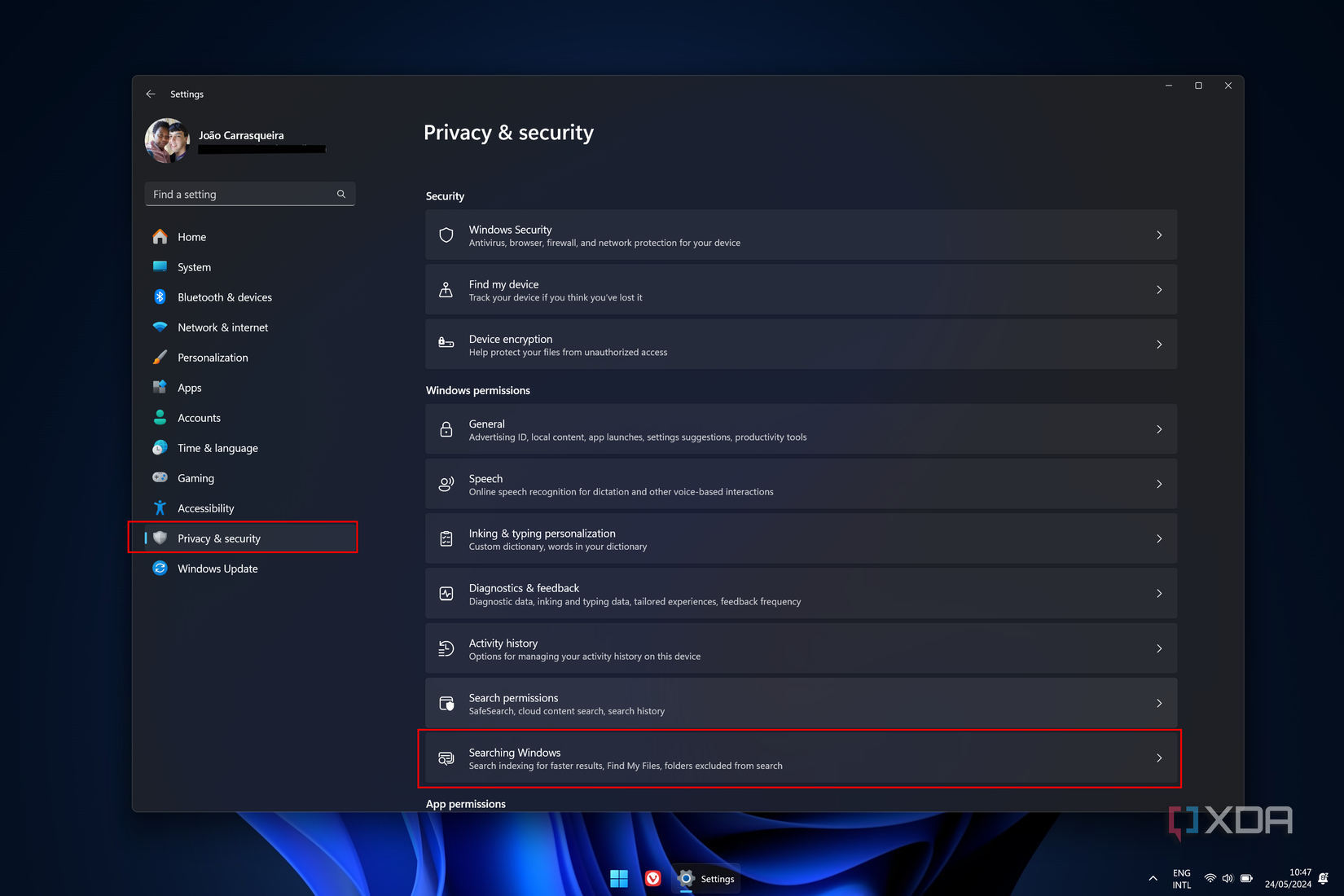
- Open the Settings app.
-
In the Privacy section on the left, scroll down and choose Searching Windows.
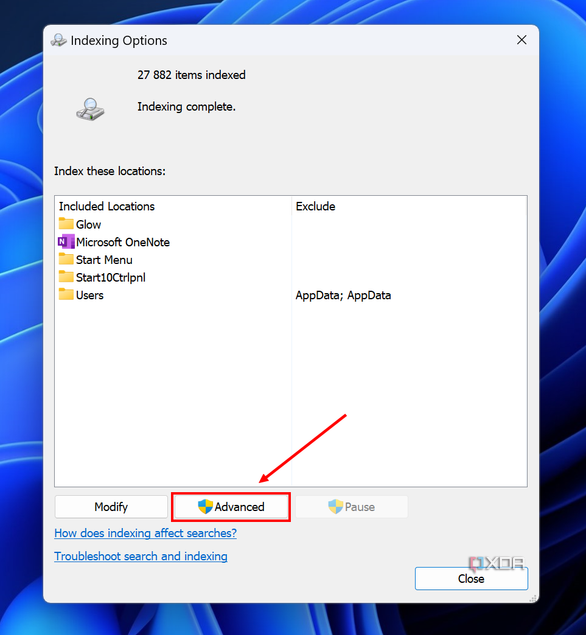
- Scroll down and choose Advanced indexing options.
-
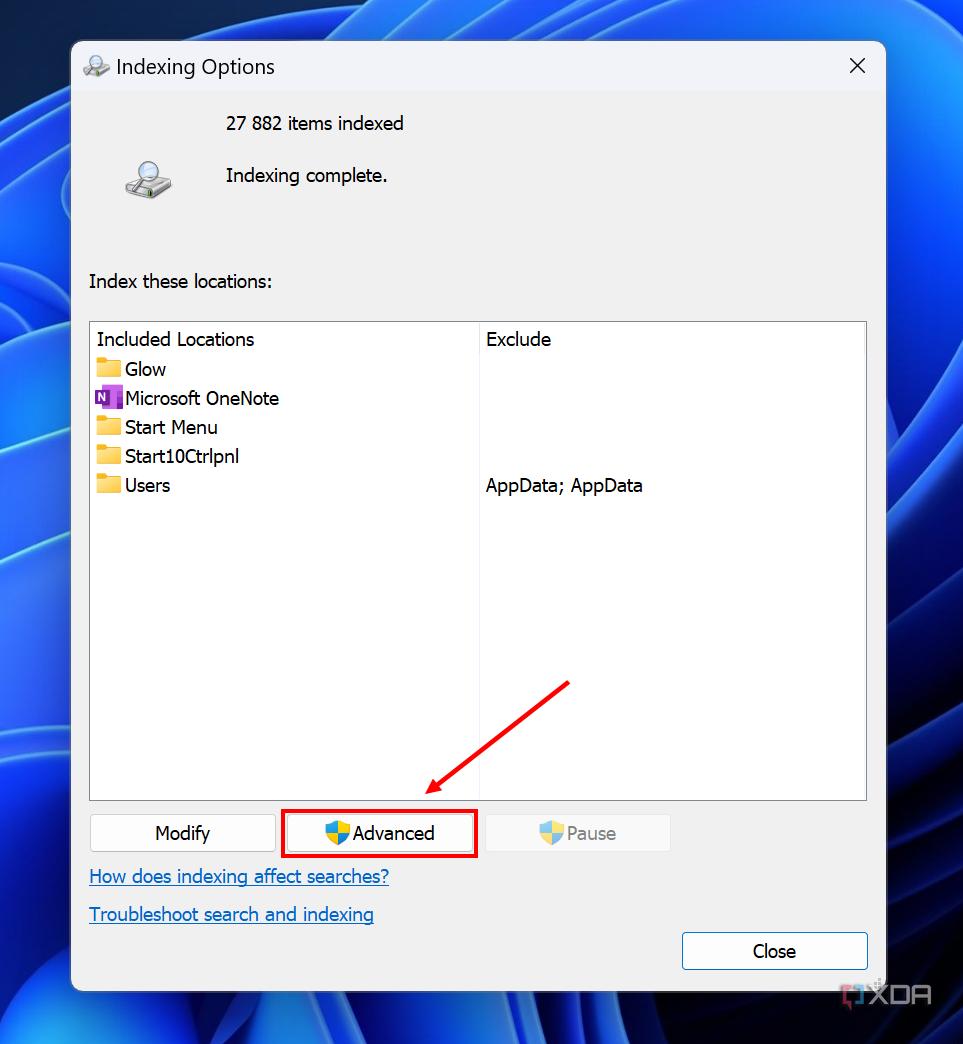
In the window that opens, click Advanced.
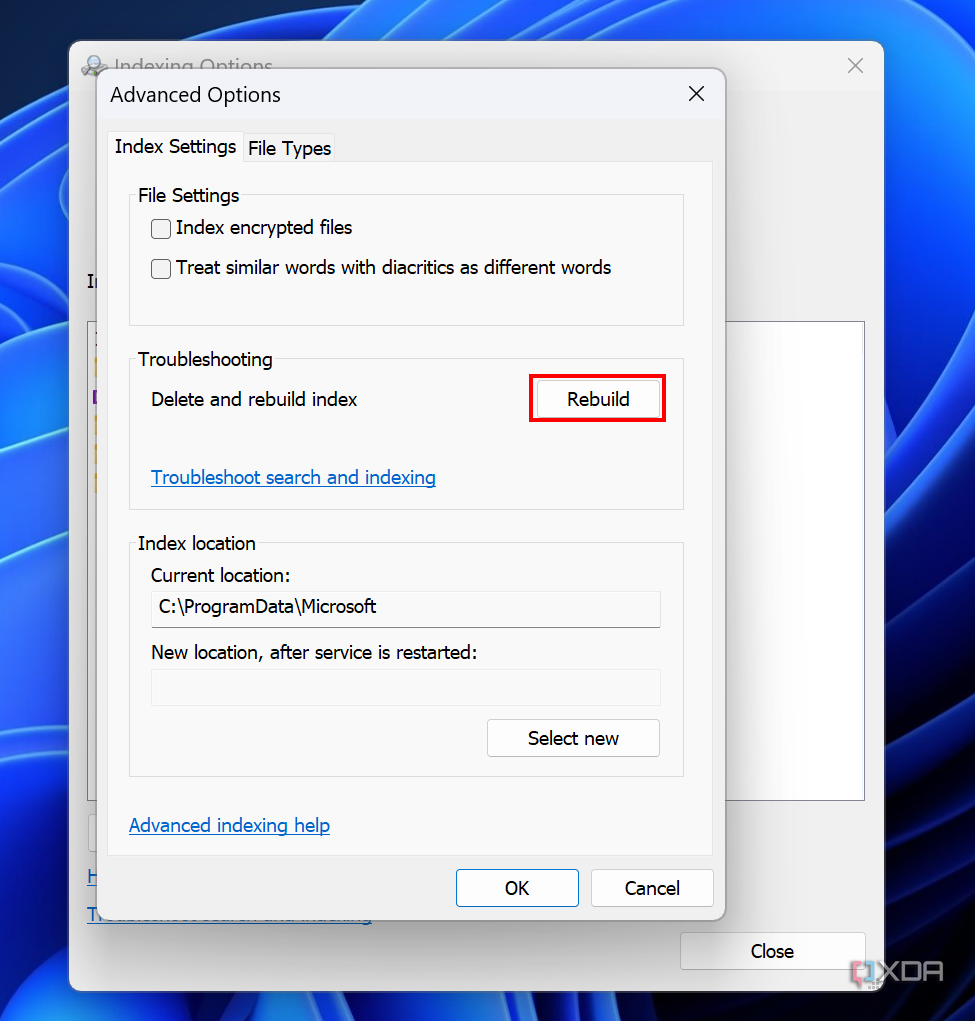
- Click the Rebuild button next to Delete and rebuild index.

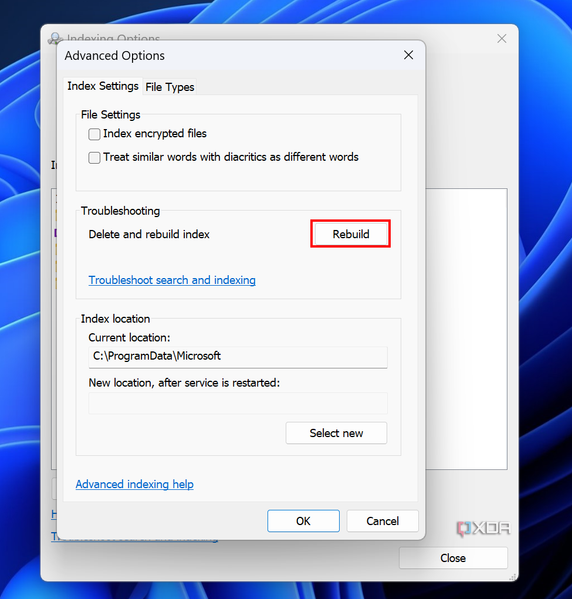


This process will take some time, so wait a few minutes before trying to search again.
More extreme solutions
At this point, if you haven't managed to fix Windows Search, it's possible there's something wrong with the system in general, so you might have to try more extreme fixes. One potential option is running the SFC and DISM commands to repair your Windows image in case anything is wrong with it. Alternatively, you may have to reset Windows to its factory defaults, though this will come at the expense of losing all your programs and having to reinstall them.
