


There are several reasons you might find yourself wanting to clone your Raspberry Pi filesystem to a larger storage device. Maybe you started with a smaller microSD card and realized you need more storage. You also might want to transfer everything to your NNVMe SSD after installing it. Whatever the case, this is an easy process. In many cases, you’ll even be able to clone your Raspberry Pi microSD card right from the Pi itself.
Cloning your Raspberry Pi microSD card to another SD card or NVMe SSD
With the availability of PCIe NVMe solid-state storage for the Raspberry Pi 5, one of the most common reasons to clone your microSD card is to transfer everything to the faster SSD. Once you’ve successfully installed your SSD, here’s how you can clone your microSD card to the NVMe device.
Cloning the microSD card under Raspberry Pi OS Desktop
The desktop version of Raspberry Pi OS includes a handy tool for copying SD cards. It’s called, aptly enough, SD Card Copier. Here’s how to use it to copy the contents of your microSD card to another card or an NVMe SSD.
Note: If you want to clone a microSD card to a larger microSD card, you’ll also need a USB SD card reader and your microSD-to-SD card adapter.
- Click the Raspberry Pi applications menu, then choose Accessories > SD Card Copier.
-
Choose the current microSD card, usually /dev/mmcblk0, in the Copy From Device dropdown menu.
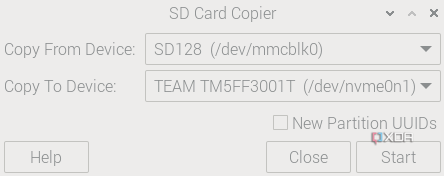
- Next, select the new microSD card or NVMe SSD from the Copy To Device dropdown menu. An NVMe SSD will usually be named /dev/nvme0n1 in this menu.
- Click Start to begin copying your microSD card.
How to clone the microSD card using Raspberry Pi OS Lite
If you’re running Raspberry Pi OS Lite, you won’t have the SD Card Copier application. Instead, you’ll need to use the built-in disk duplicator command dd.
-
Confirm your microSD card is /dev/mmcblk0 as well as the device name of your NVMe SSD or larger microSD card. You can do this by inspecting the output of the command sudo lsblk. Again, the most common scenario here is cloning to an NVMe device, which will be named /dev/nvme0n1.

-
Begin the cloning process with the terminal command:
sudo dd if=/dev/mmcblk0 of=/dev/nvme0n1 status=progress.

Once complete, you will be able to boot from the larger microSD card as if nothing had changed—except that you’ll have more storage available.
Setting the boot order on your Raspberry Pi
If you cloned the card to an NVMe SSD, just shut down your Raspberry Pi and remove the microSD card. When you boot up again, the Raspberry Pi should boot from the NVMe automatically.
If you want to boot from the SSD but still keep the microSD card inserted, follow these steps.
- Boot the Raspberry Pi from the microSD card.
- Open a terminal window and launch the Raspberry Pi configuration tool with sudo raspi-config.
-
Scroll to the Advanced Options menu item and press Enter.

-
Select Boot Order, then press Enter.

-
Next, choose NVMe/USB Boot and press Enter.

-
Press Enter on the confirmation screen.

-
Select Back or press Esc to return to the main menu. Then navigate to the Finish option and press Enter.

-
When the tool asks if you want to reboot, choose Yes.
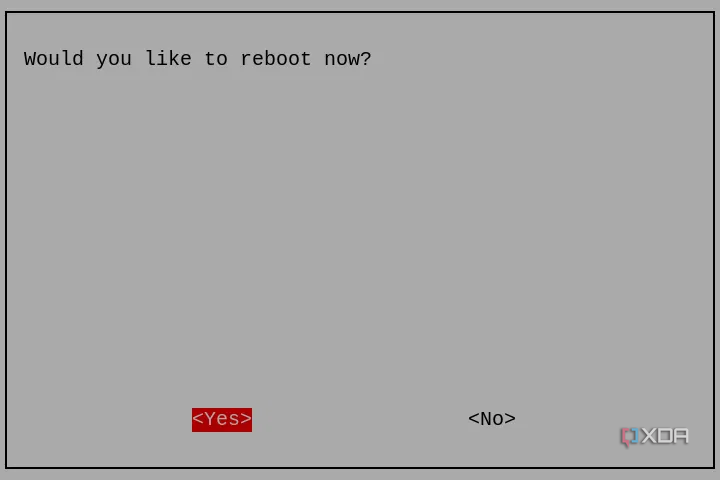


After these steps, your Raspberry Pi will boot from the NVMe SSD by default, even if a bootable microSD card is inserted.
Make the most of your Raspberry Pi
By this point, you’ll be up and running with the additional disk space you wanted. This will allow you to install more applications on your Pi, run more Docker containers from the computing device, or hold the music, movies, and TV shows for your home media server.
These steps can also prove useful if you’ve got a Raspberry Pi install that you want to clone to additional computers. Simply follow the same steps above to clone your installation to as many microSD cards as your needs require.
