


DLSS 4.5 Super Resolution is out, and it's already making headlines across the PC gaming space. Introduced just a couple of weeks ago at CES 2026, it is one of Team Green's greatest leaps forward in their approach to upscaling and frame generation, and naturally, gamers can't wait to give it a go.
The good news is that you don't need the latest and greatest hardware to try it. If you're running any RTX GPU, DLSS 4.5 can be enabled right now with just a few simple steps. Before diving straight in, there are just a couple of things you need to know.
Getting started with DLSS 4.5 Super Resolution
The pre-requisites




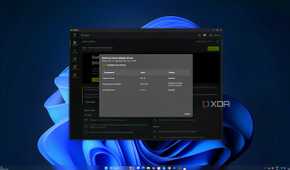
Before enabling DLSS 4.5, there are just a few basic requirements you need to meet. Nvidia has kept the support fairly broad, but this update does benefit from newer driver infrastructure and the updated Nvidia App.
Check if you have a compatible GeForce GPU

DLSS relies on Tensor cores, so any RTX GPU qualifies. DLSS 4.5 is supported across the entire RTX lineup, including:
- RTX 50-series (Blackwell): Fully supported with the best in class execution.
- RTX 40-series (Ada Lovelace): Fully supported with strong performance.
- RTX 30-series (Ampere): Supported, although a small performance overhead can be expected.
- RTX 20-series (Turing): Supported, but similar overhead as can be expected as on Ampere GPUs.
Update your Nvidia App

Since DLSS 4.5 is managed through the Nvidia App, it is recommended to get the latest version. Features like global overrides and model presets that you'll need to experience the new transformer model are only accessible from here. The latest version of the app at the time of writing is v11.0.6.
Making sure your drivers are up-to-date

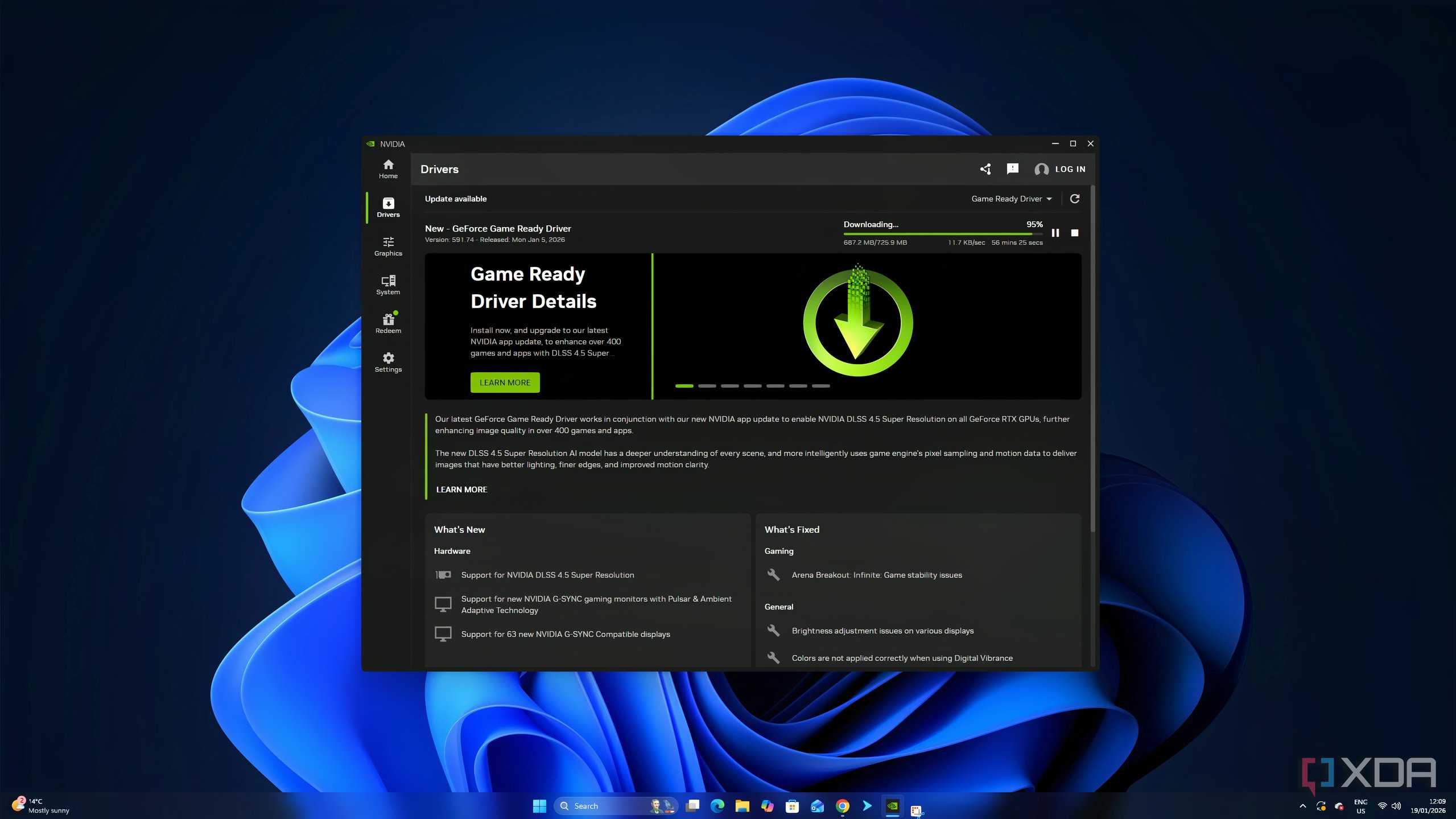
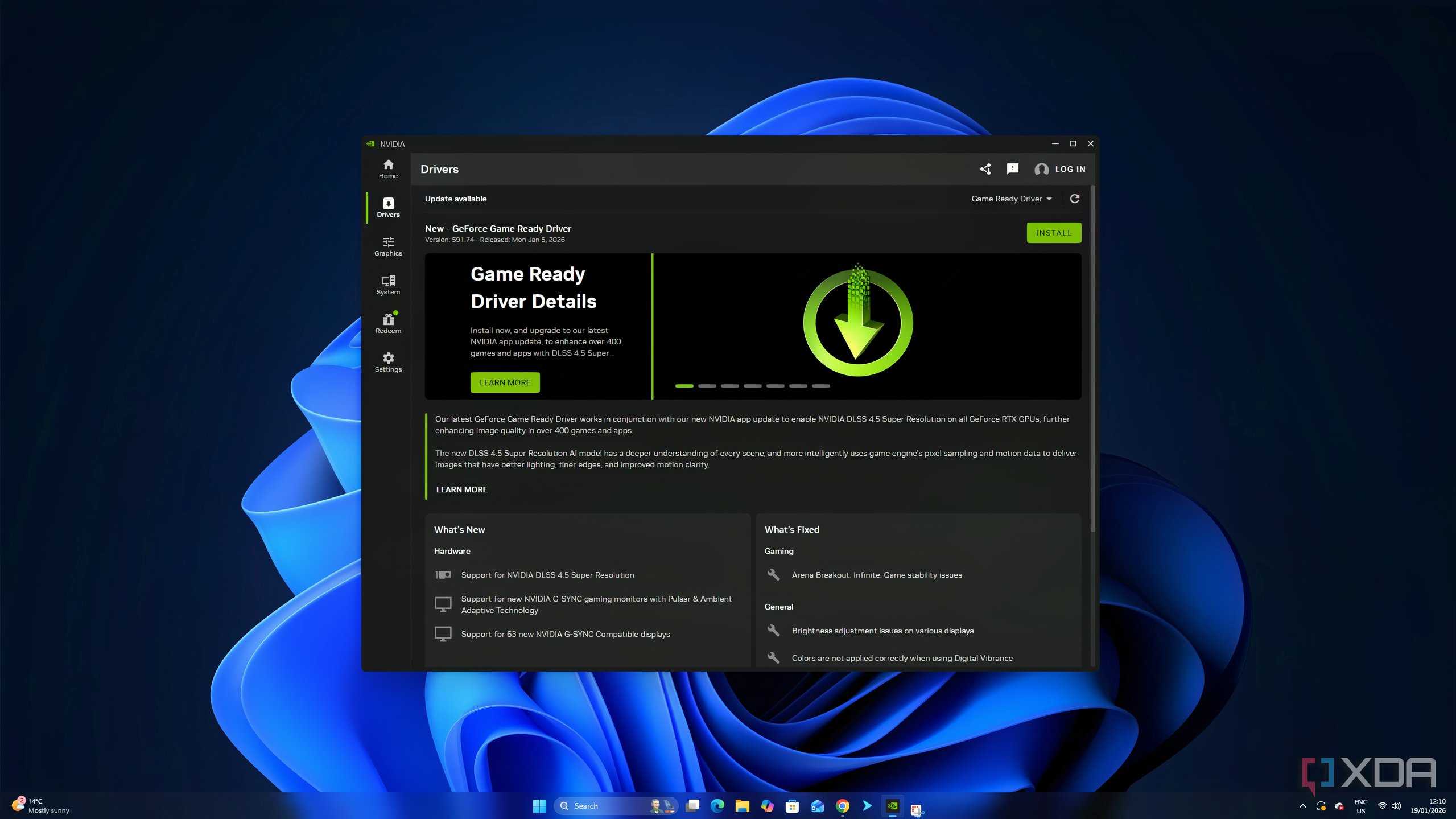
You'll also need a recent Game Ready driver to enable DLSS 4.5 support.
To update your driver, simply:
- Open the Nvidia App.
- Go to the Drivers tab.
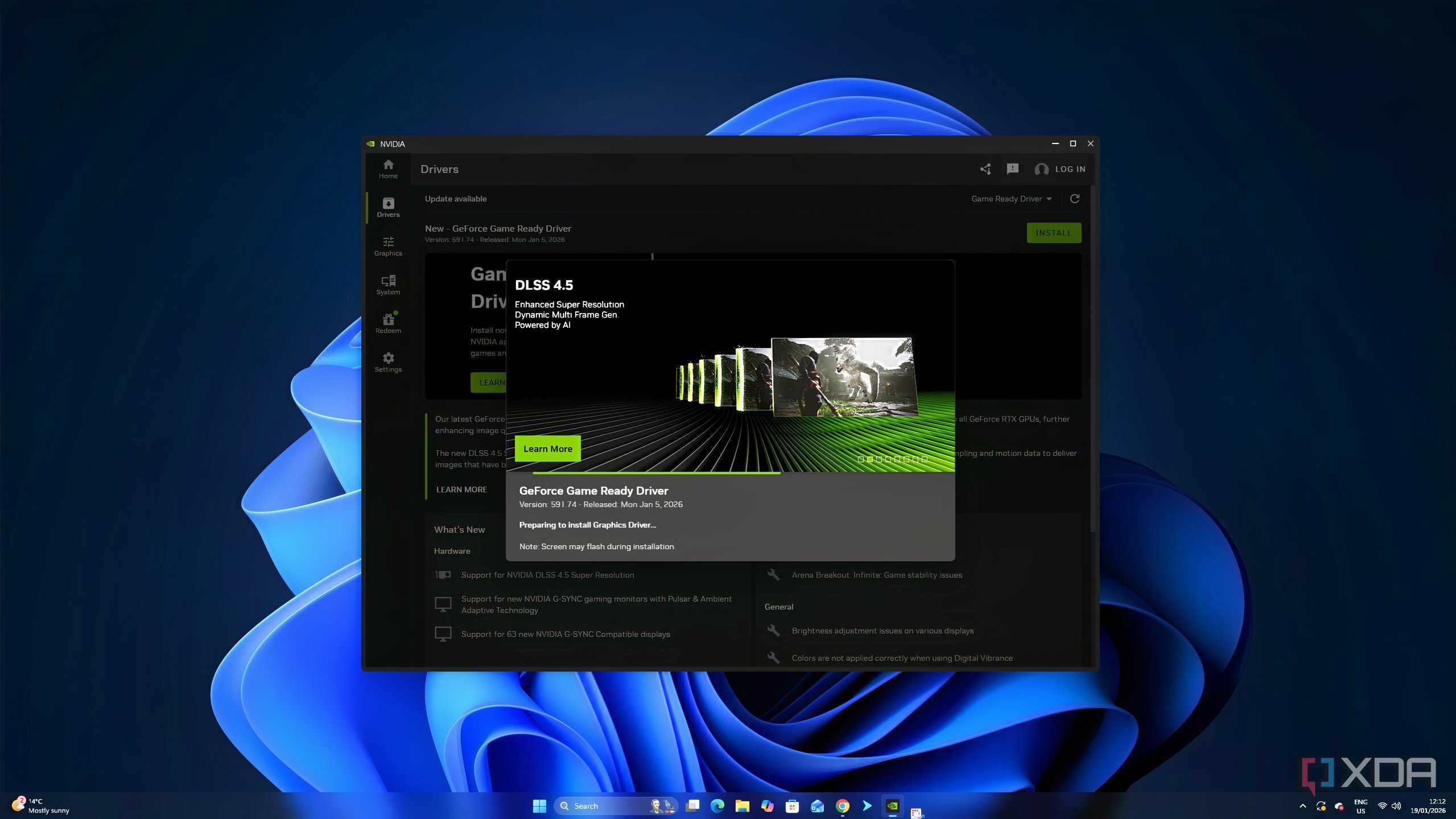
- Download and install the latest available Game Ready Driver.
At the time of launch, DLSS 4.5 support was introduced with driver version 591.74, but if you're reading this at a later date, simply install the newest driver available to you.
How to enable DLSS 4.5
Made simple

Now that you're all set, it's time to put Nvidia's new model to work. To do this, navigate to the Graphics tab on the left-hand-side navigation bar, indicated by the tuning logo.

Here, you'll see two tabs: Program Settings and Global Settings. You can choose to apply DLSS 4.5 model presets on a specific game or application, or just simply choose to apply it universally. Nvidia has recommended individual tuning for now until more games become capable of supporting the new model.

If you choose to apply the model universally, click on Global Settings. From here, scroll down through the list of driver-level enhancements until you find DLSS Override - Model Presets. The default option should be Use 3D app settings. Click the option to open the new window.

You will now see three tabs that include Use 3D app setting (Default), Recommended, and Custom. Using the Recommended option will automatically match the relevant DLSS 4.5 model to complement the quality that you have selected for your software.
Understanding the presets
Each one will feel a little different

If you'd rather pick the model yourself, you can do so. Just click on Custom, and then click on Super Resolution. This should reveal a dropdown menu of presets listed in alphabetical order, from Preset A to Preset M. This is where you get to choose the DLSS 4.5 model. NVIDIA hasn't made it obvious to know which one to pick and choose, so we'll simplify it.
Selecting "Custom" under the override menu allows you to manually pick your model preset. Here's a breakdown of what each preset does and feels like.
- Preset M is the flagship DLSS 4.5 model. It is optimized for Performance modes, which uses the second-generation transformer to upscale high-quality images from lower base resolutions. This means that while the model will support Quality and Balanced DLSS and DLAA modes, you'll see the best uplift in Performance mode.
- Preset L is tailored specifically for 4K and 8K Ultra Performance. If you're playing your titles on a high-resolution display that can benefit from extreme upscaling at UHD output, your gameplay can benefit from this scaling. This model does impart a fair bit of compromise on quality when compared with Model M, but nonetheless, it is still an improvement over DLSS 4.0.
If you're running a 1080p or a 1440p display, it is recommended to stick to Preset M for the best balance between quality and performance in Performance mode.
Is DLSS 4.5 worth trying?
If your rig is housing an RTX card, there's basically no reason not to give it a go. The early consensus among reviewers and enthusiasts is that DLSS 4.5 is a tangible improvement over 4.0 in terms of graphical fidelity, and is certainly making for a better in-game experience. Since this transformer-heavy approach is clearly Nvidia's roadmap for the future of rendering, it's worth seeing it in action on your own monitor before you decide where you stand on the hype.
