


OneNote has been my trusty companion for jotting down meeting notes, brainstorming project ideas, and organizing my chaotic thoughts for years. But recently, Notion, with its sleek interface, block-based editor, and powerful database features, has been making headlines. Intrigued, I decided to take the plunge and replace OneNote with Notion for an entire month to see if it could truly handle my note-taking workflow.
In this post, I will share my honest experience, complete with the highs, the lows, and the unexpected challenges I encountered along the way.
Benefits of using Notion for note-taking
Here are some of the advantages I found during my one-month experiment with Notion.
A block-based editor

While OneNote has containers to organize your content, Notion takes it to the next level with a block editor. It’s quite intuitive, and you can create and arrange blocks using a drag-and-drop editor. Each Notion page also lets you add an icon and a custom banner at the top. Overall, Notion's esthetics are on point, and the block editor feels modern, minimalist, and powerful with the slash (/) command. I definitely prefer it compared to OneNote’s standard toolbar.
Integration with third-party apps

As expected, OneNote’s integration is limited to Microsoft’s apps and services. Notion has nailed it here. The service works seamlessly with third-party tools like Google Drive, X, Google Maps, GitHub, Figma, Framer, Miro, Sketch, Loom, Typeform, and more. You can embed files from such services and view them directly from your Notion workspace. Unlike OneNote, you no longer need to switch between different services to get the job done.
Advanced databases

Here is where Notion truly shines over OneNote. With Microsoft’s note-taking app, I can only create simple tables for my data, which is very limiting at times. Notion offers a range of database types like lists, galleries, charts, boards, timelines, and more.
It also supports formulas, automation, and multiple column types to create effective databases for your workflow in no time. It does require a learning curve, though, and it took me a while to get comfortable with them. Notion recently announced forms and different charts to take your databases to the next level.
If you want to explore such databases within Microsoft’s ecosystem, you must use Microsoft Loop, which is not convenient at all.
Built-in templates gallery
Notion templates 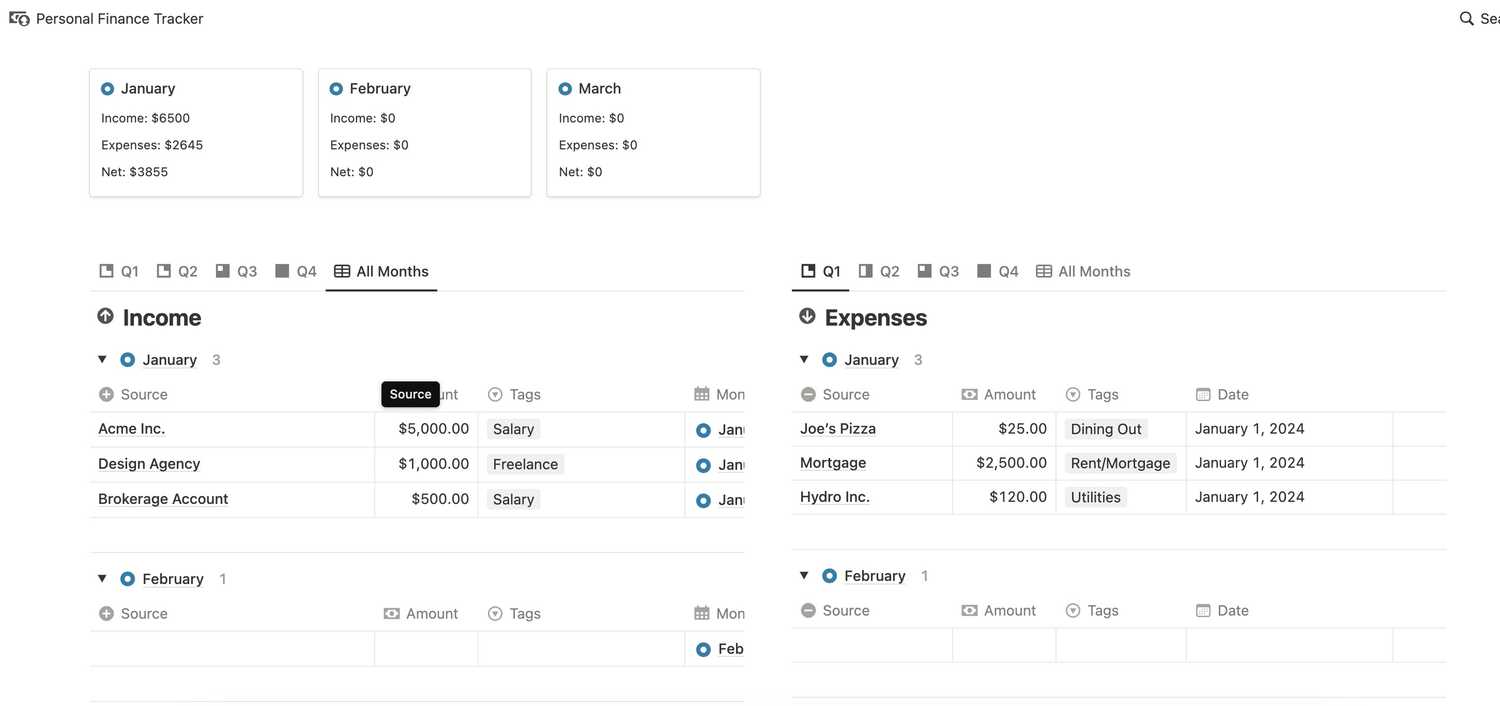



Notion templates 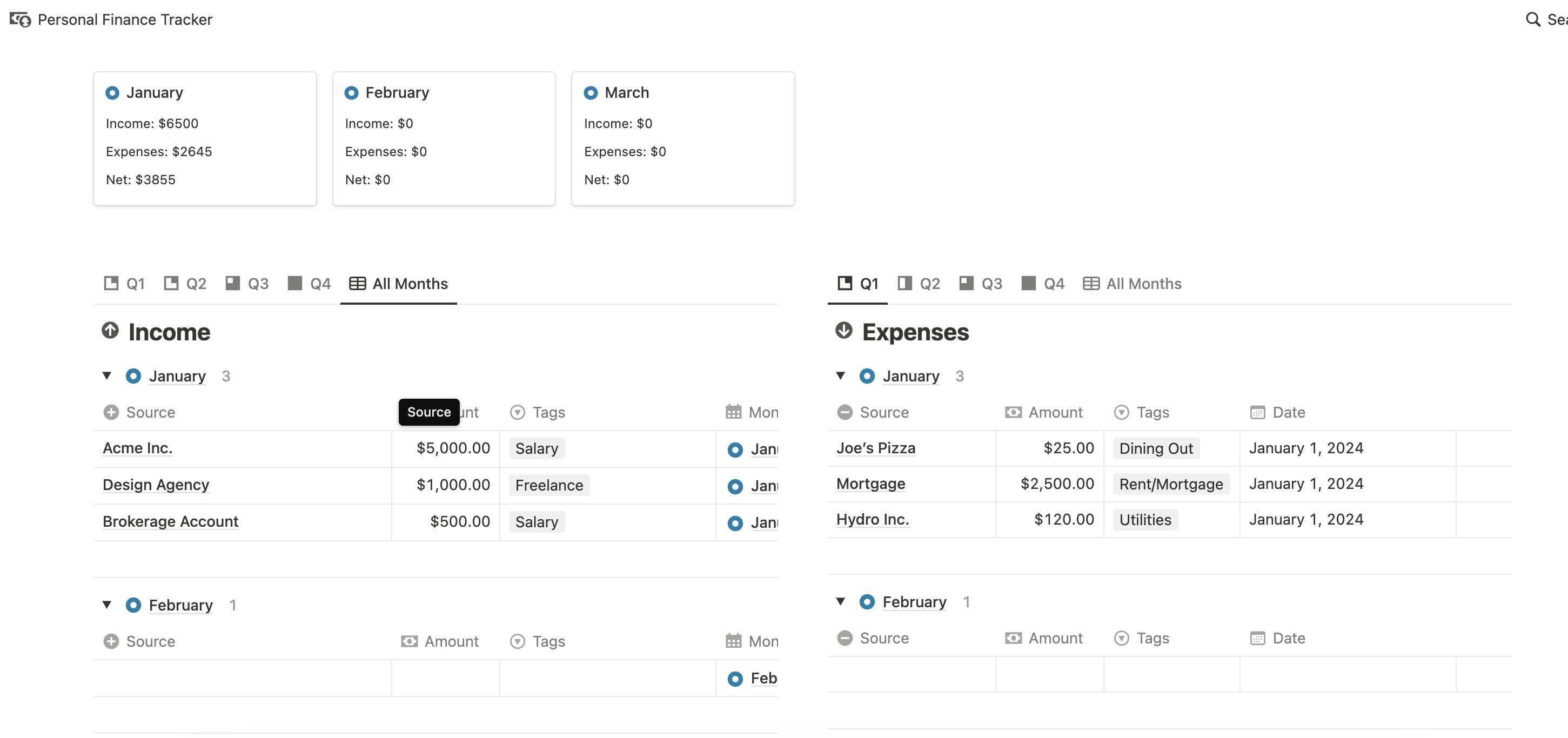

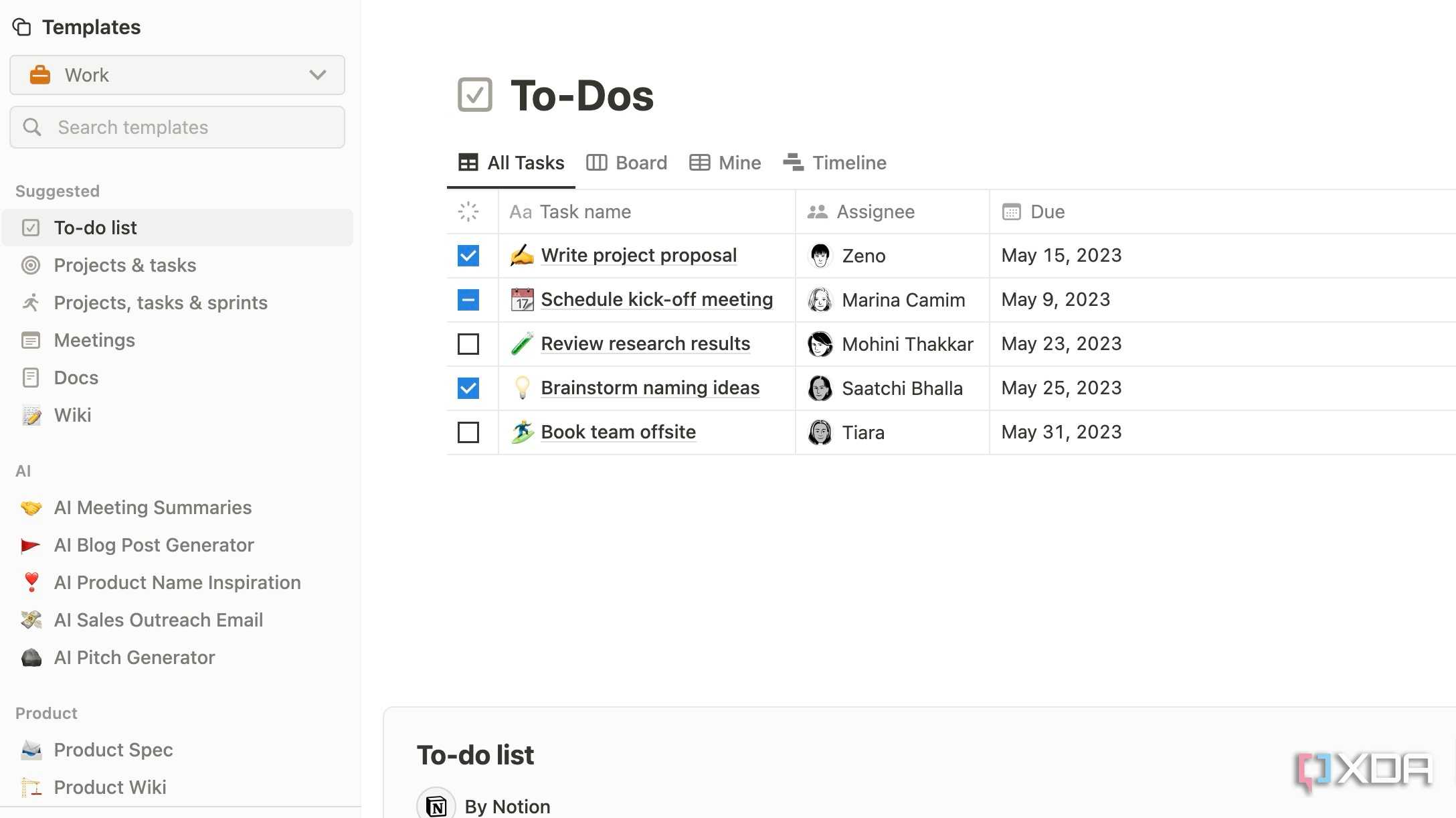
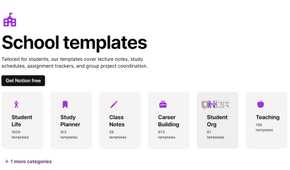



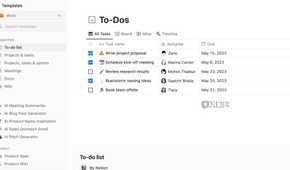
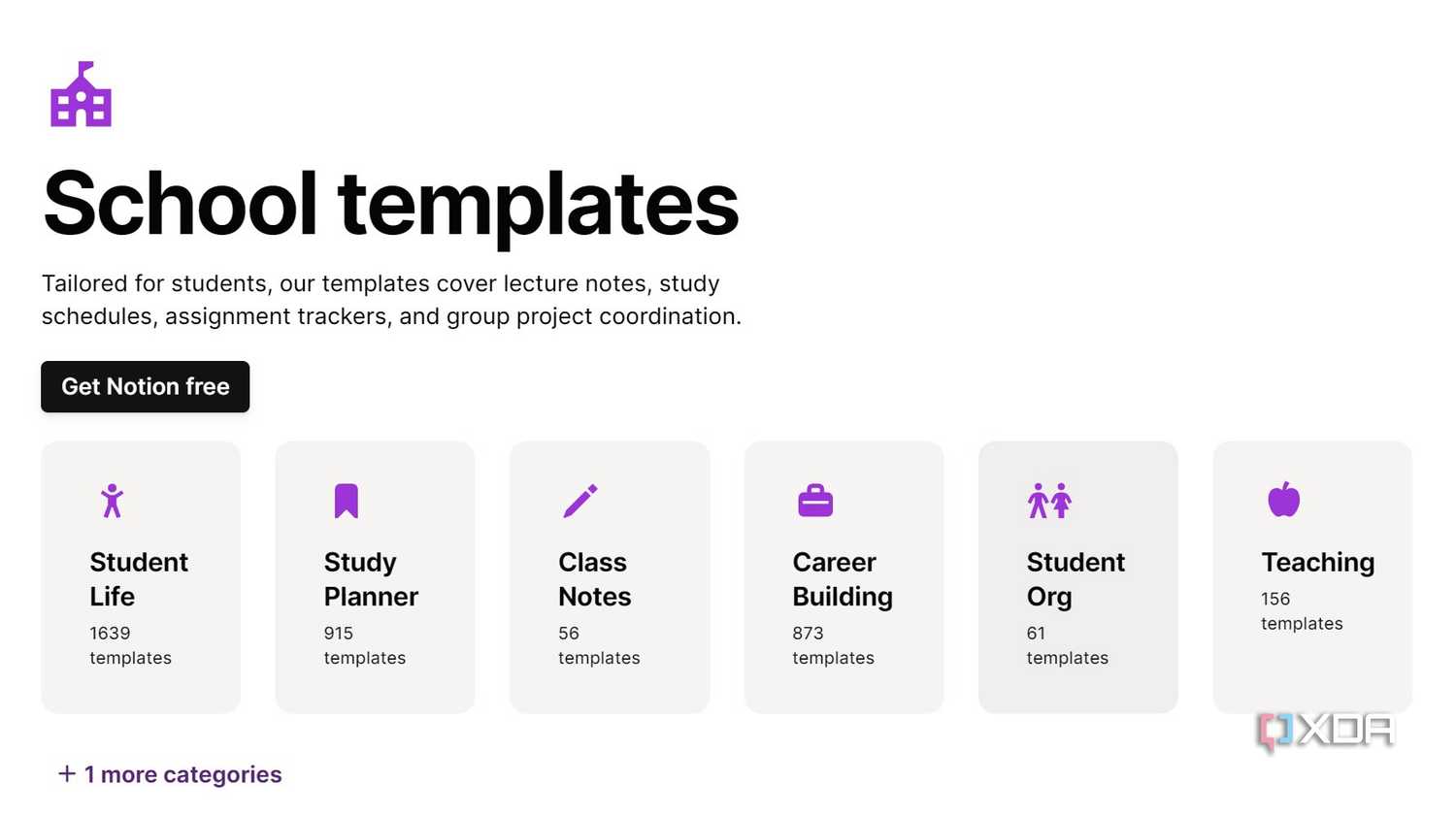
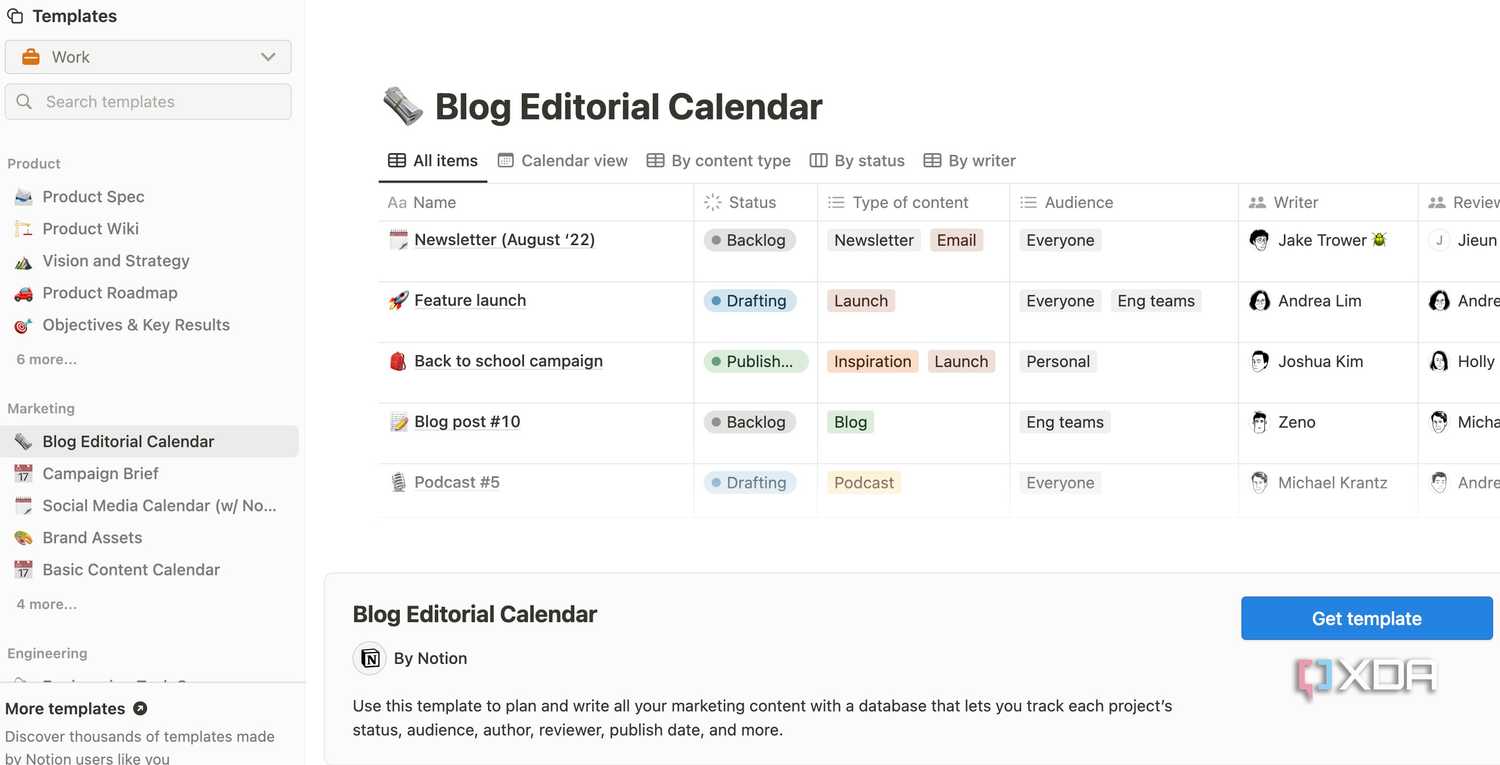
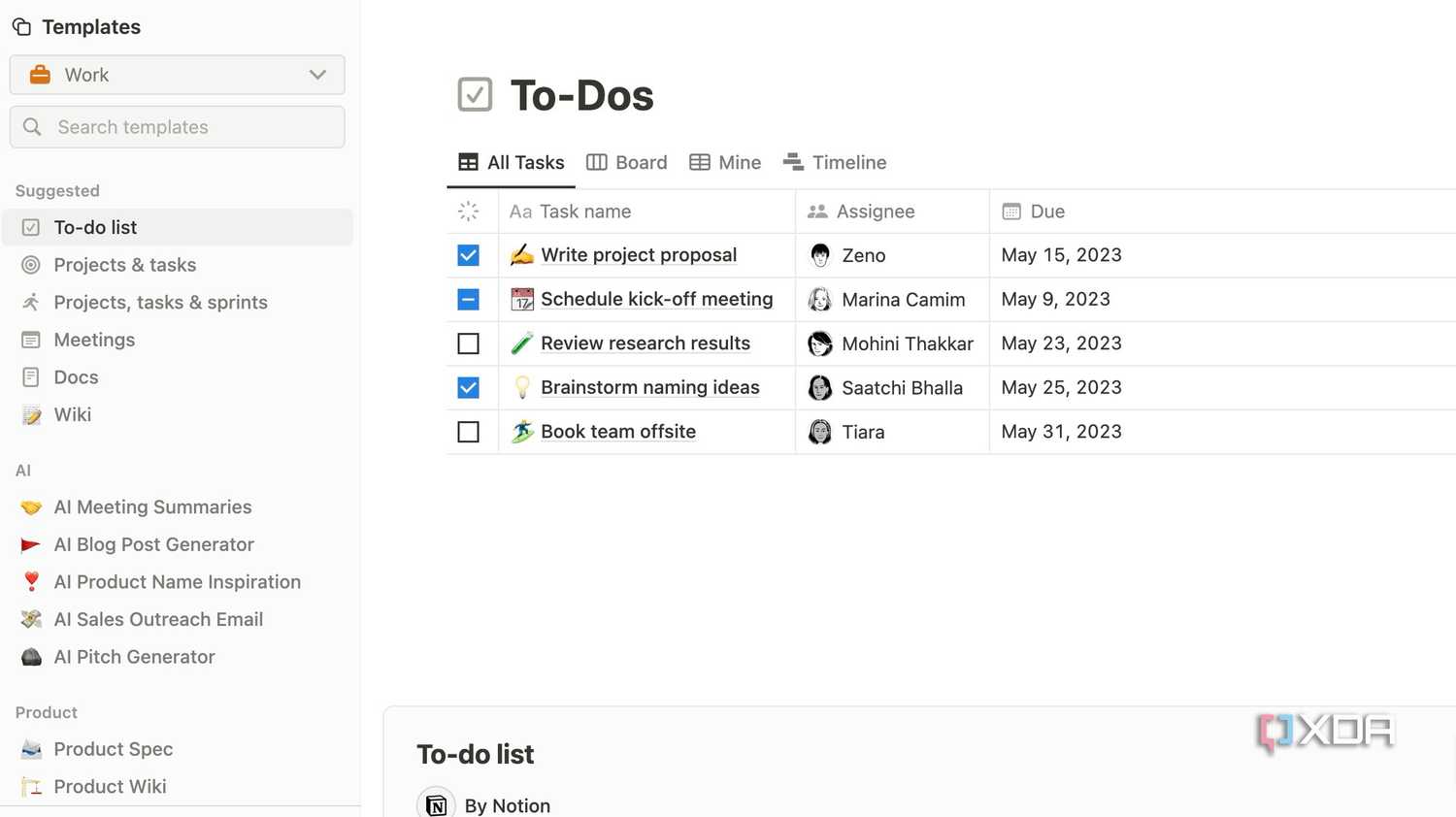
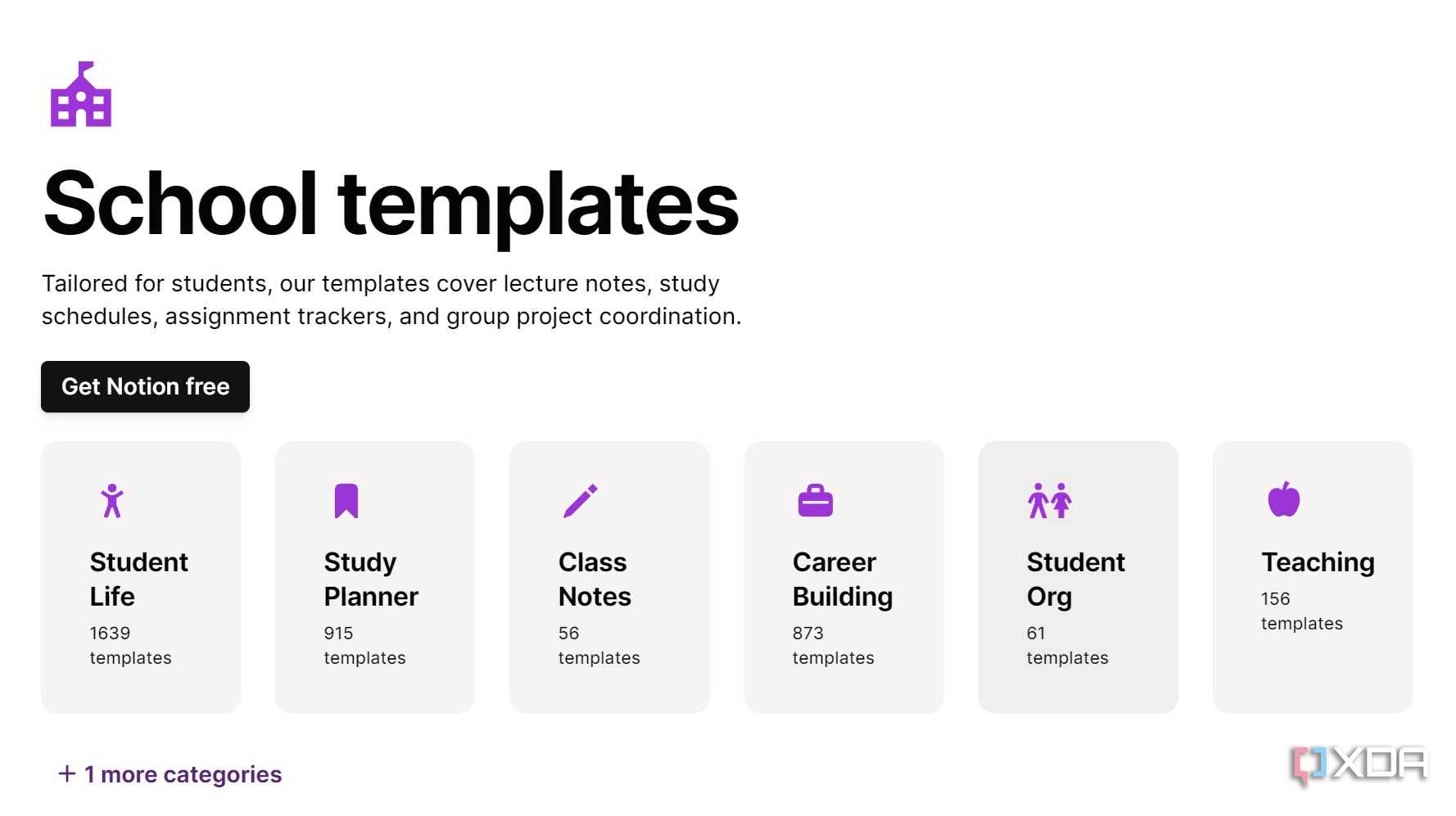
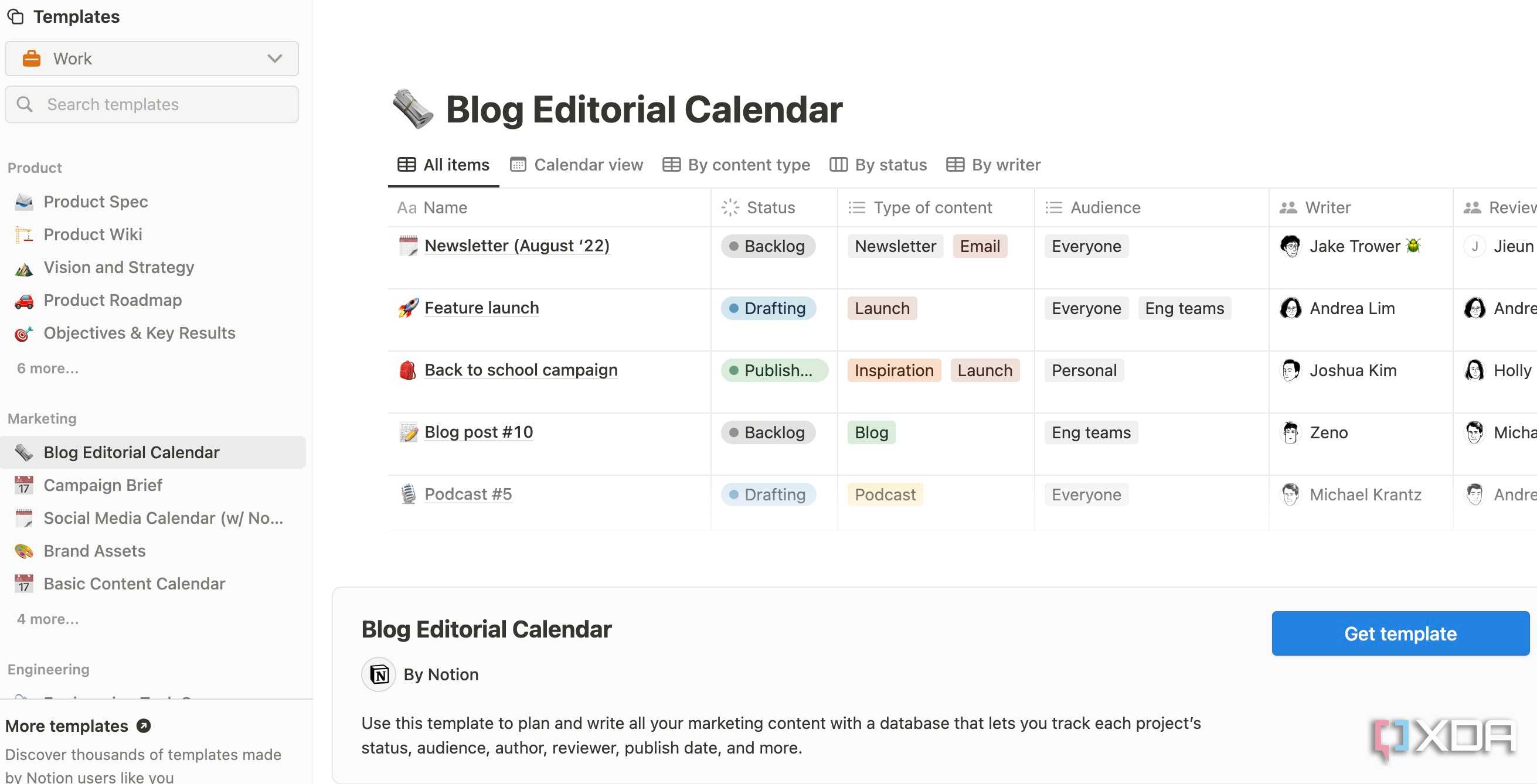
Notion offers hundreds of built-in and third-party templates from a dedicated gallery. Whether you want to manage projects, create a subscription tracker, student schedule, meeting notes, a life planner, or a digital journal, you won’t have a hard time finding a suitable template. OneNote’s templates collection feels slim and outdated.
It’s unfortunate that Microsoft hasn’t paid any attention to improving the template collection.
Limitations of replacing OneNote with Notion for taking notes
Now, let’s glance over some of the challenges I faced during my transition from OneNote to Notion.
No offline support

OneNote is designed to work seamlessly offline. I can access, edit, and create notes even without an internet connection. This is a huge plus for those who frequently work on the go, travel, or often wind up in areas with spotty internet. Notion lacks an offline mode and requires a constant internet connection to access and edit the workspace.
There were times when I wanted to jot down thoughts or review notes during my commute or while working from a café with unreliable Wi-Fi, and Notion's limitations were noticeable.
Lack of quick notes
Notion is not ideal for quick notes. Creating a new note in Notion often involves a few extra steps. You might need to navigate to the right workspace, page, or database before you can start typing. With OneNote, I can simply use one of the widgets or explore Sticky Notes integration to type a quick note. Notion, while powerful, felt less immediate for those fleeting thoughts.
Below-average mobile apps
While Notion offers mobile apps, they are simply web-wrappers and don’t feel intuitive to use. In contrast, OneNote mobile apps are native and deliver a much better experience.
Lacks drawing tools and math calculations

Notion lacks drawing tools and quick math calculations, which can be deal-breakers for many. I frequently use OneNote’s iPad app to jot down some quick lecture notes using a stylus, and I definitely missed this flexibility during my brief period with Notion.
My transition to Notion: Success or epic fail?
So, has Notion dethroned OneNote as my note-taking champion? Well, it’s complicated. While Notion’s flexibility and advanced databases are game changers, OneNote still holds on its own with offline mode, native apps, and inking capabilities. I will be sticking with Notion for now, but I won’t be deleting OneNote anytime soon.
My experiment ultimately shows that there is no one-size-fits-all solution in note-taking space. The ‘best’ note-taking app depends on individual needs and preferences. Check out our separate guide if you want to learn about all the differences between OneNote and Notion.


