


Plex has been the default choice for anyone who wants to stream their personal media library across devices. It works just as expected, the experience is polished, and it’s got one of the best cross-platform app lineups. But Plex has gone down a path that doesn’t sit well with everyone now. It’s marred by a bloated interface, aggressive upselling tactics, and features locked behind a subscription. That’s exactly where Jellyfin comes in.
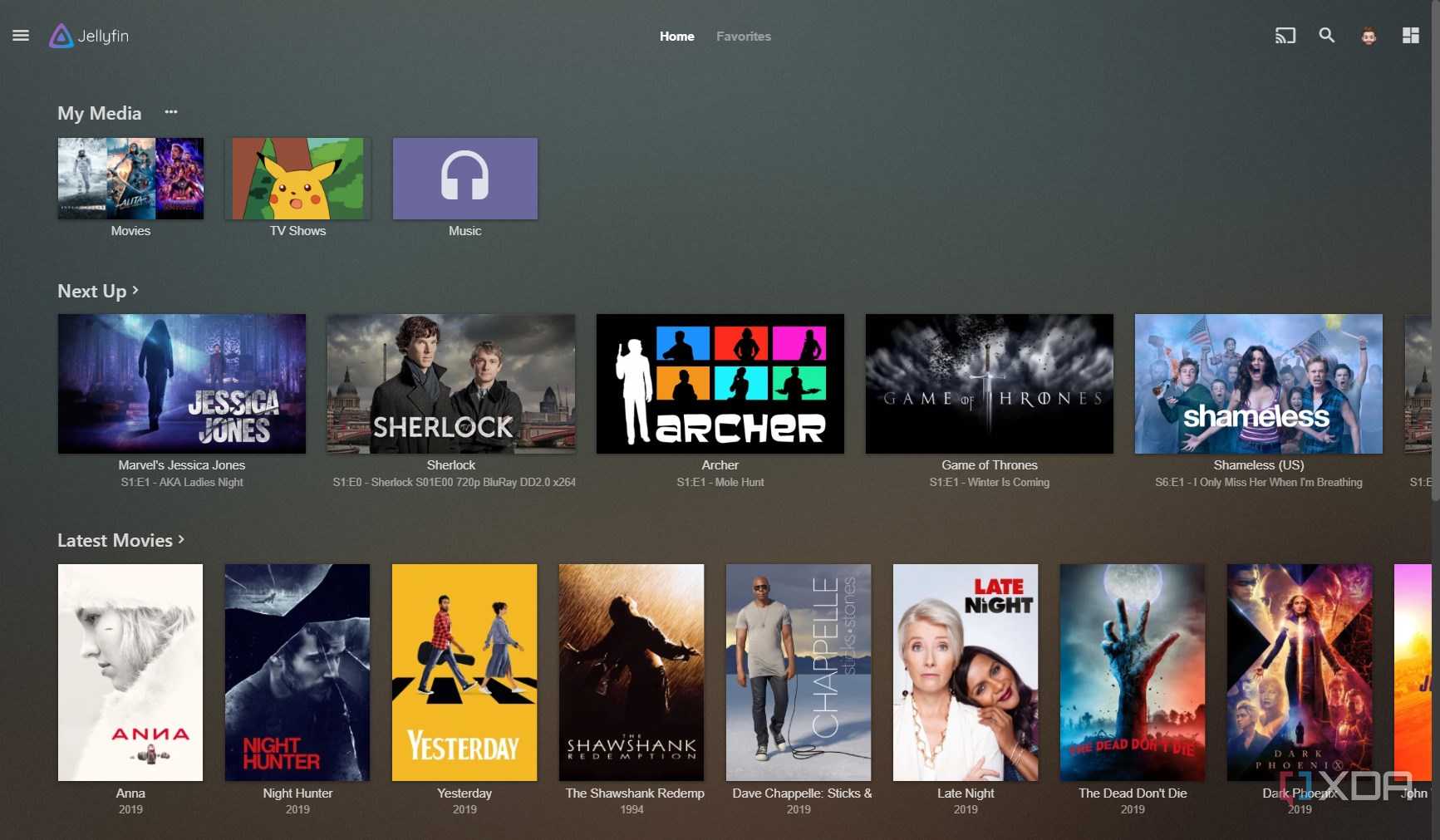
Jellyfin is a free and open-source alternative to Plex, and it's surprisingly simple. It doesn’t nag you to sign up for a premium plan to watch your own movies on the device of your choice. It has a sizable community that is eager to help you find your way around, and it ticks nearly every box that Plex does. In short, it’s a clean, user-first media server that everyone should be using instead of Plex.
But there’s a catch. If you’ve just set it up and are running it with default settings, you may bump into frequent performance hiccups that sour the experience. But there exists an easy fix.
Jellyfin's default performance hurdles
Have you noticed CPU usage skyrocket?


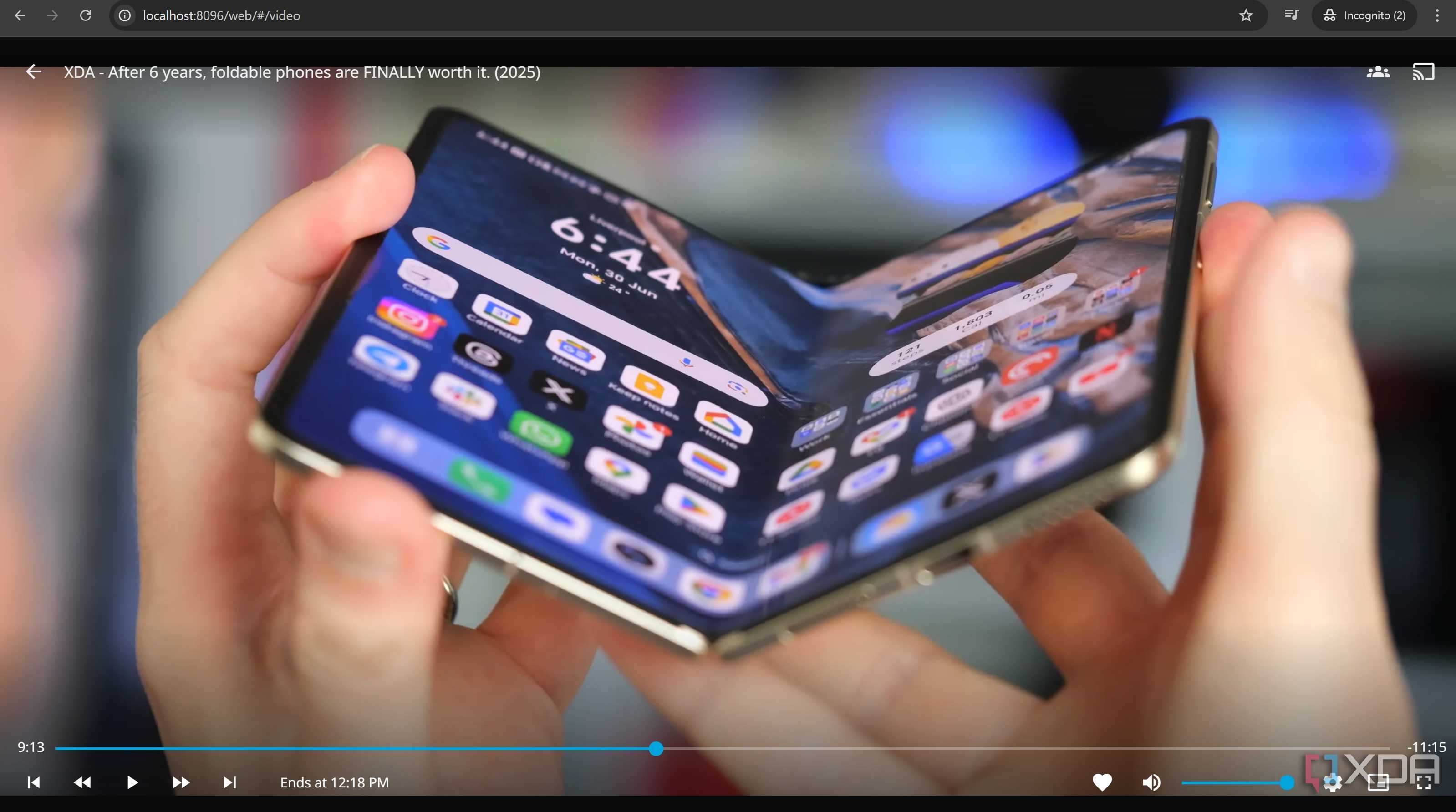
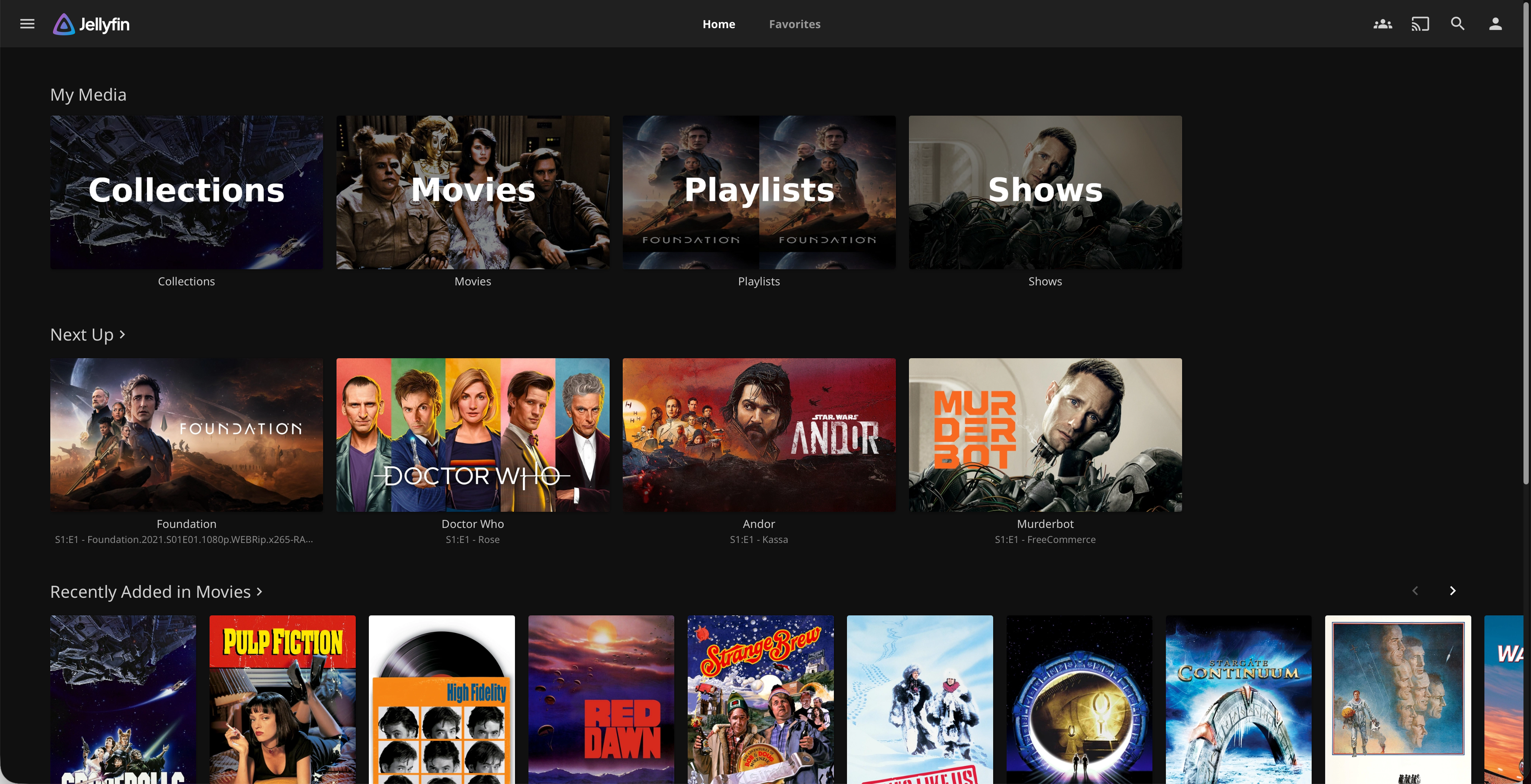


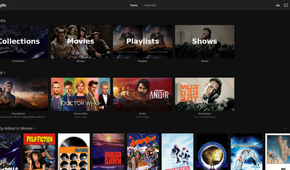


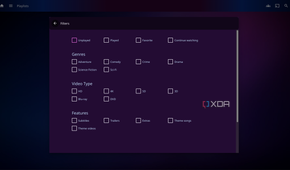
Anyone who has run Jellyfin for a fair bit knows the usual pain points. You fire up a movie and suddenly the CPU usage shoots through the roof. Maybe your playback starts fine, but after about ten minutes, it starts to buffer terribly, ruining everyone’s experience. And then you hear the server fans spin up like jet engines, even though you’re watching a simple 4K movie.
The reason behind this is transcoding. It often happens that I come across an obscure movie that everyone in the film industry is talking about. The only problem is that I find it in a format that doesn’t play nice with my NAS or TV. So, to stream that movie, Jellyfin has to transcode the file on the fly so that the TV can play it. Now, on top of that, add more users in the house trying to back up files, save photos, move projects between devices, and whatnot.
Doing all that takes a solid toll on my home NAS. And having a beefier CPU wouldn’t change that behavior. What it needs to fix this is already built right in.
Hardware acceleration is what you’re looking for
It’s a solid fix to a lot of performance woes



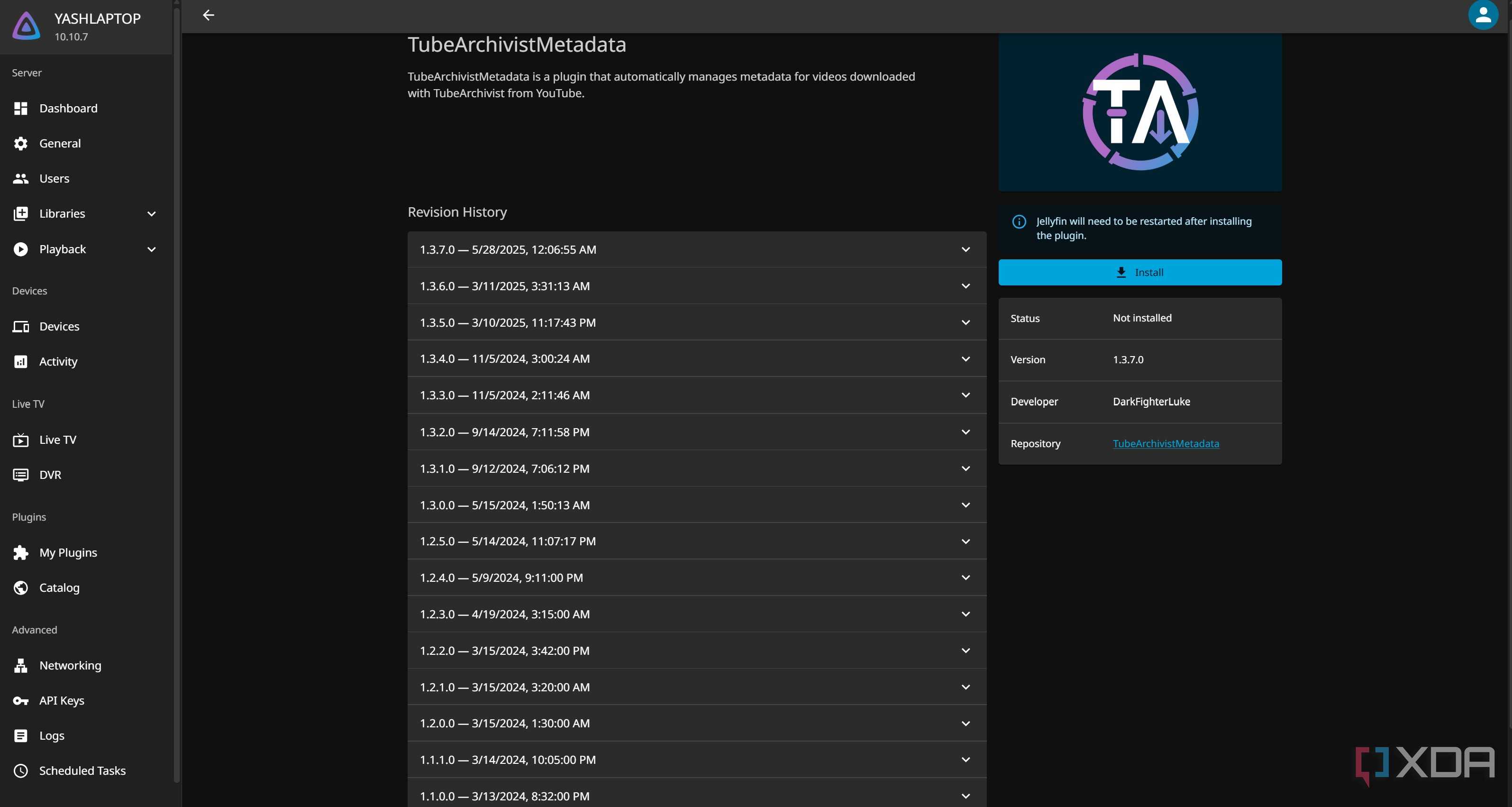
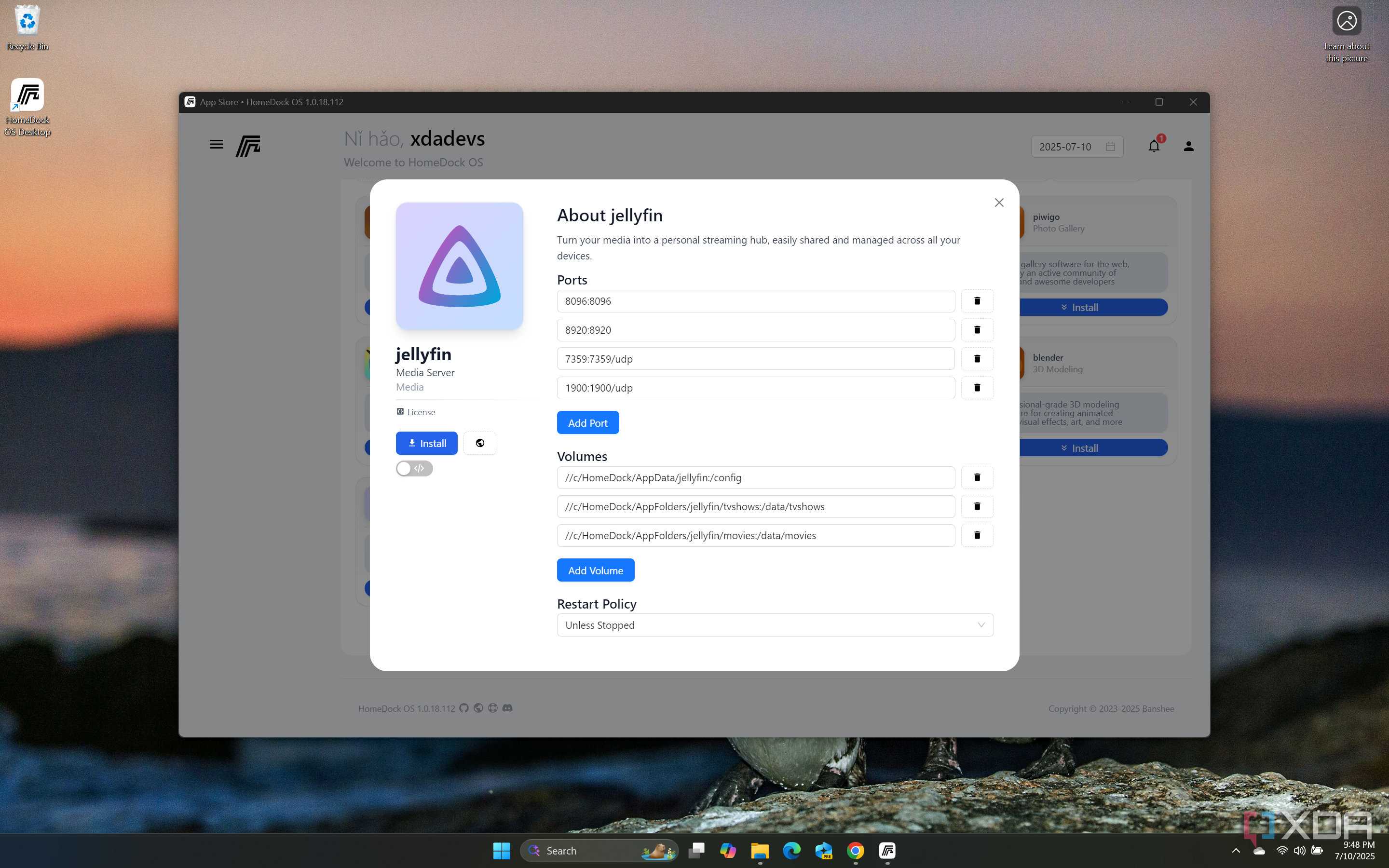



Here’s the single most important change you can make to fix everything: turn on hardware acceleration for transcoding.
GPUs and integrated graphics aren’t just for playing games — they come with dedicated media engines designed to decode and encode video far more efficiently than a CPU. They are designed specifically for that. Using the CPU instead of the GPU is like taking a Prius to the racetrack when you also have a Ferrari sitting in your garage.
Once you’ve activated hardware acceleration, Jellyfin will offload transcoding tasks to the GPU instead of using the inefficient CPU for it. When I enabled it on my own system, the impact was massive. Transcoding even a full HD, high bitrate video would often push my CPU to 90%, but after the switch, it stays under 10%. Fans stay quiet too, with rare streaming issues, even if I am playing a file that my TV or phone doesn’t directly support.
It was a huge jump from Jellyfin feeling like a hobby project to a reliable and polished Netflix replacement media server.
Where to find it

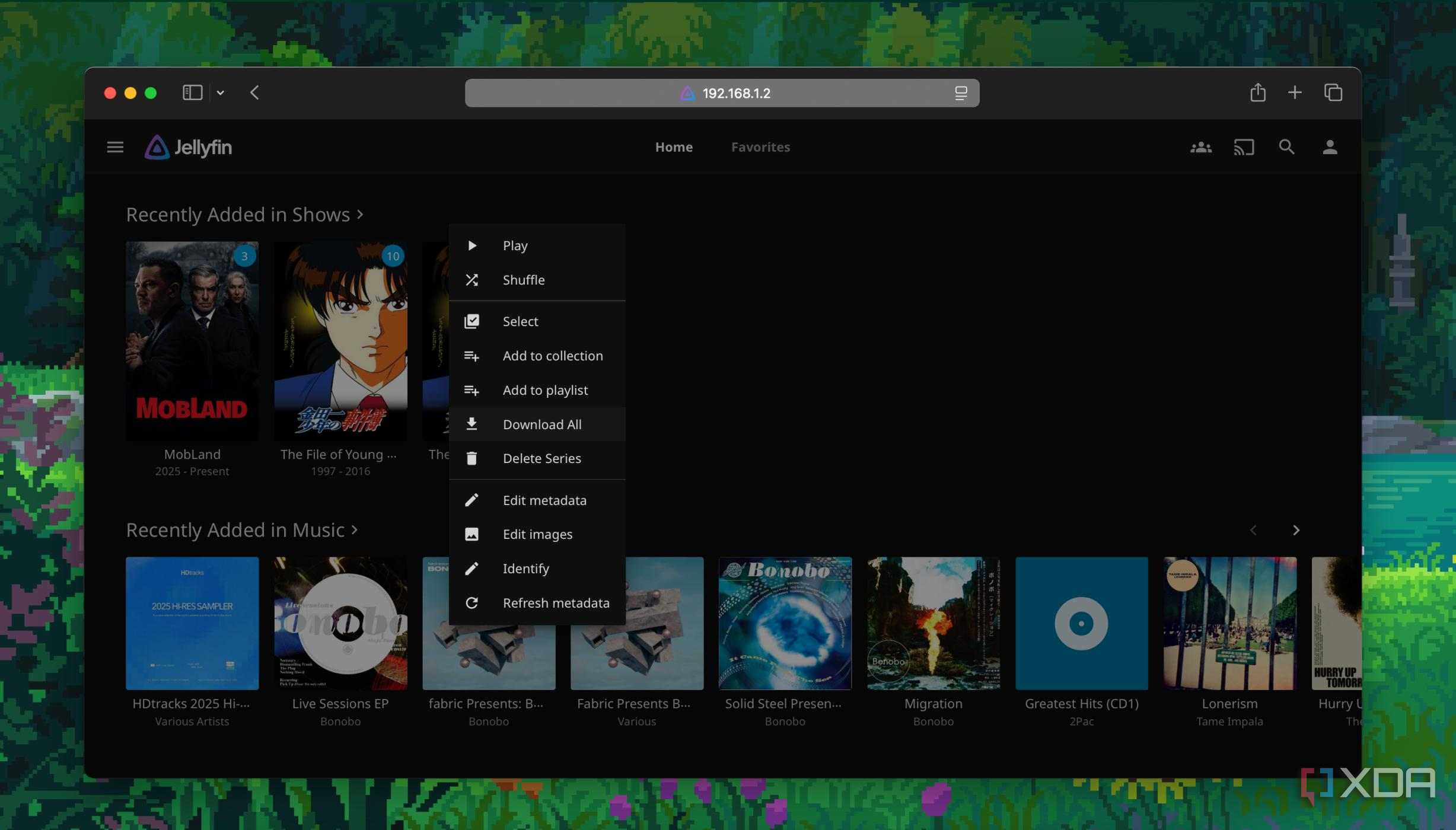
Find Transcoding under Playback from your Jellyfin Dashboard. There, you will have to pick an option under Hardware acceleration depending on the hardware you are running. You will find something like Intel QuickSync (VAAPI or DXVA2), Nvidia NVENC, or AMD AMF. After you have selected the one that suits your hardware, simply hit Save and restart your system; it will turn out much better on the other side.
Note that if you’re running Jellyfin inside Docker, you will also need to pass the GPU throughto the container. Besides that, ensure beforehand that your GPU drivers are up to date before enabling hardware acceleration.
Other tweaks worth considering

While hardware acceleration will solve 90% of the performance complaints you might have, there are a couple of additional things you can do to make the experience even better.
For instance, you can configure your client devices to Direct Play files instead of forcing transcodes. That way, your system can skip transcoding entirely if the files are in a commonly used format. Additionally, you can disable automatic image extraction during library scans and set it to run on demand. This reduces the load on your drives and the CPU during imports. Finally, increasing the buffer size and lowering the max allowed bitrate per stream helps quite a bit with less reliable connections.
Planning is the best way out
Avoid hardware woes from the get-go



Hardware acceleration is powerful, sure, but it isn’t magic. Direct Play is the better way out on most occasions, but it requires a bit of planning if you want to squeeze the most out of Jellyfin. The process will start even before you move your files to the server. Make sure you’re downloading and saving your media in a format that both your NAS or PC and your TV can natively handle without relying on transcoding.
However, for everyone who is facing playback issues with their current media and Jellyfin setup, hardware acceleration will transform Jellyfin from a CPU-hogging project to a reliable Plex alternative.
