


Google Photos has, for ages, been my and my family’s default place to store our photos. It now has more than a decade’s worth of memories — from all the trips we took together to all the random photos of us goofing around the house. It’s easy to forget how much convenience Google Photos offers until I decided to move my entire photo library to my self-hosted solution using Synology Photos. The move was far from a simple download-and-dump job as I had earlier believed it to be. It took me weeks to get everything in order — the process was so grueling that I even began questioning my decision to move.
So, here are the surprises that hit me in the process that now let me appreciate both sides.
Indexing pain
One you must endure
Link Image 


Link Image 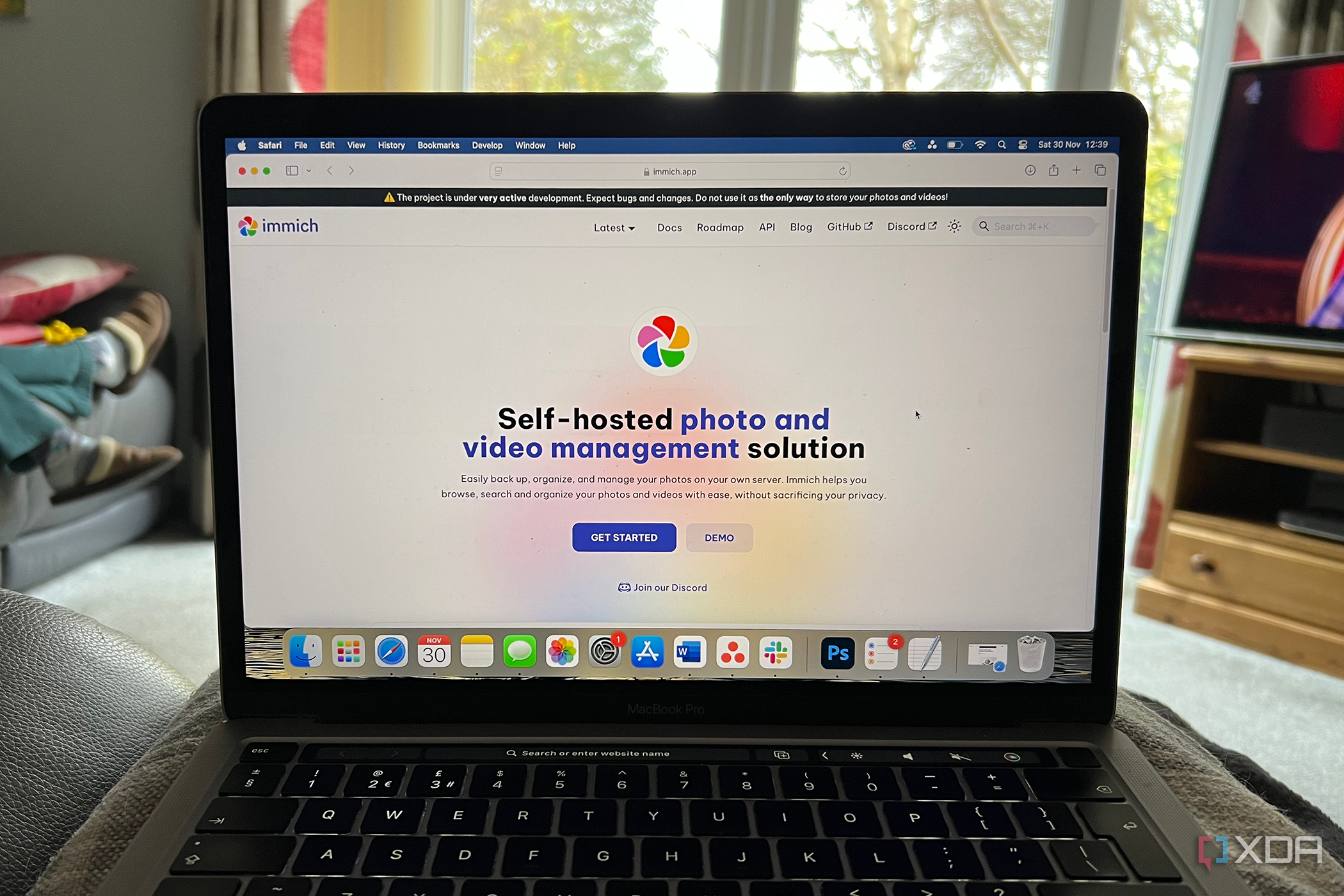

When you upload thousands of photos into a new app or server, the first thing it does is process them. It scans every file, reads its metadata, generates thumbnails, and tries to bring order to chaos. On Google Photos, this happens invisibly in the background; you never get to see the gears running. And since Google’s enterprise-class servers are more capable, the task is done swiftly.
On my self-hosted NAS and using alternative services, I noticed everything. It took the NAS days to index years of photos and videos, and during that time, the NAS was mostly unusable. I couldn’t use anything else, and whatever did go through was super slow. Moments like these make you (sometimes) see the worth of Big Tech.
Sharing quirks
Community matters too

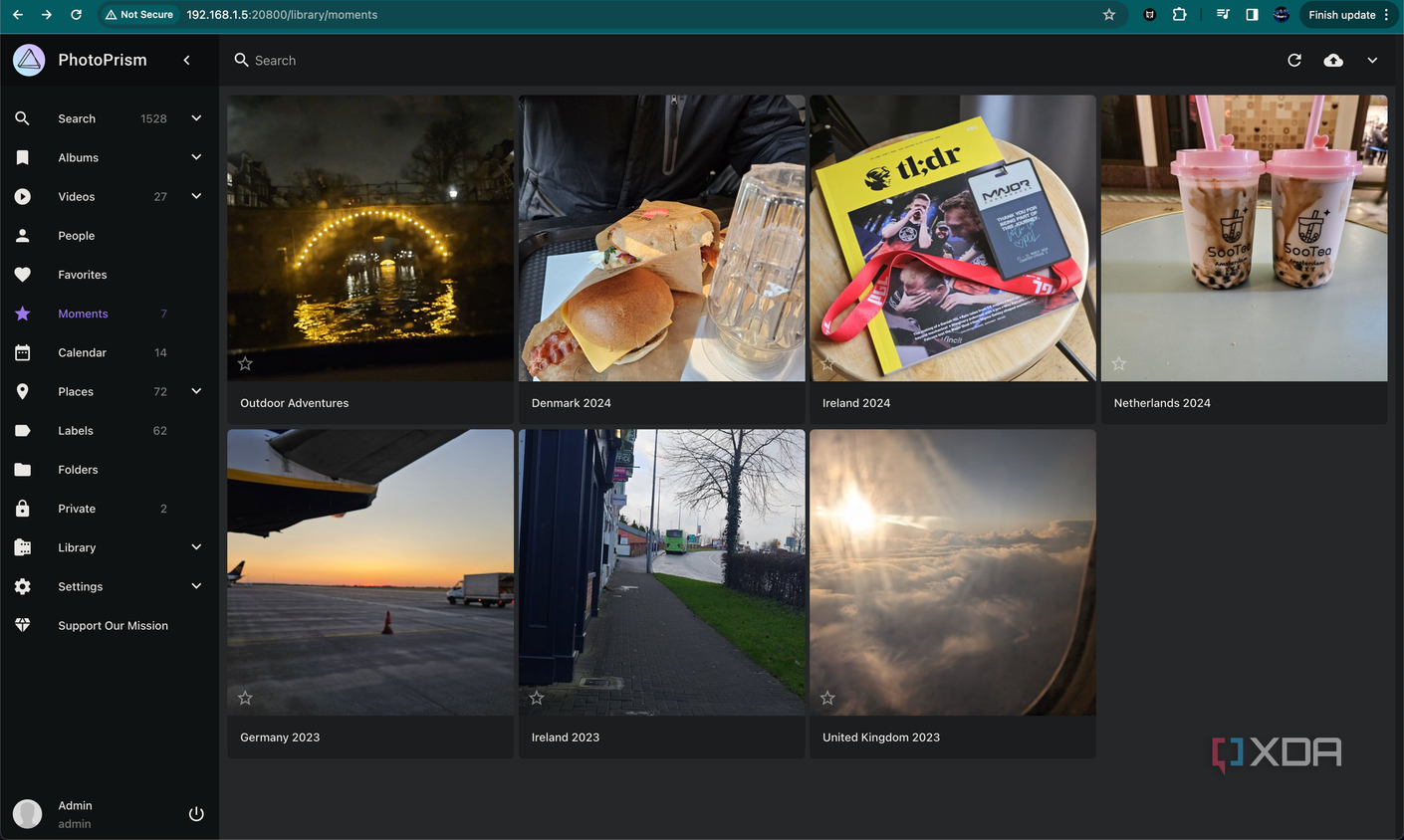
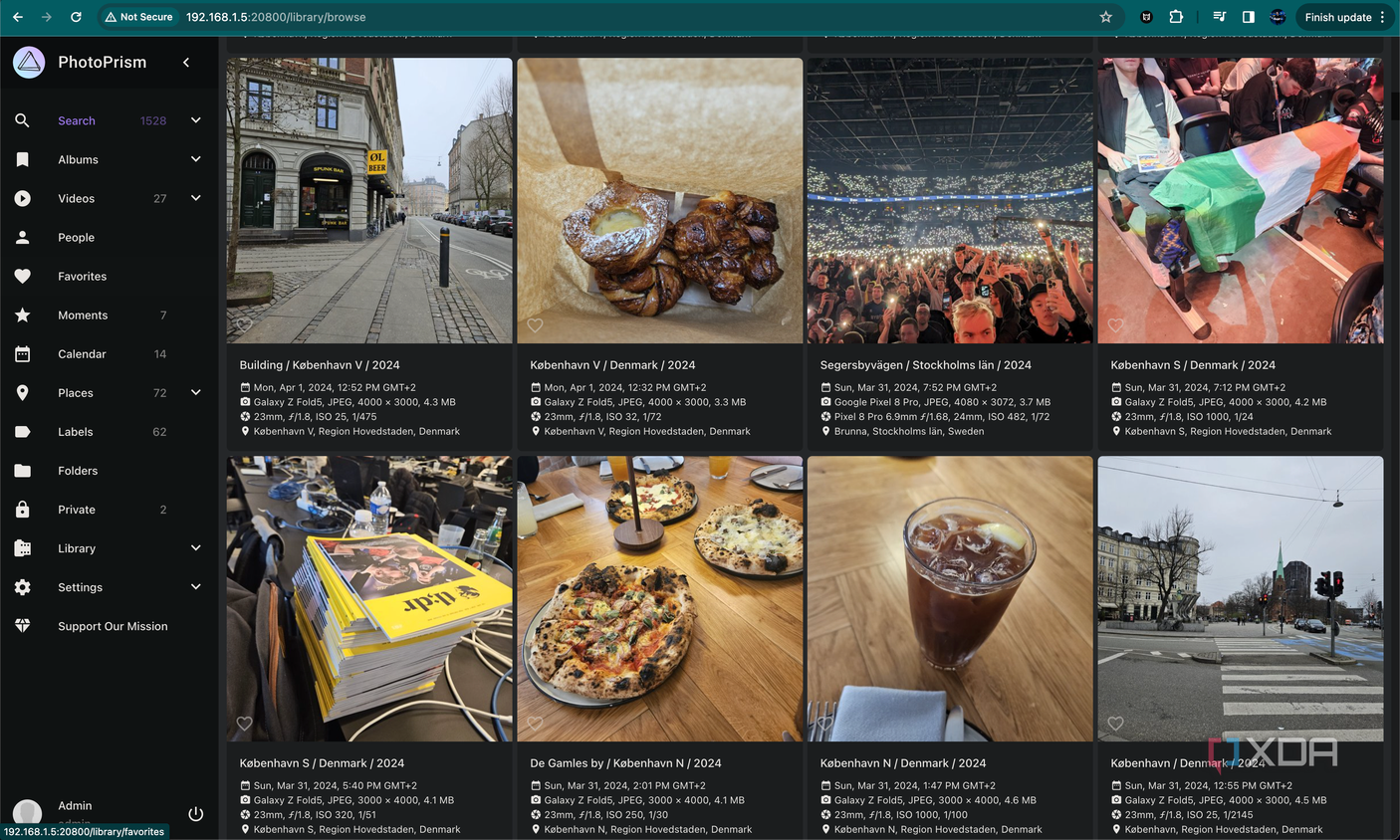


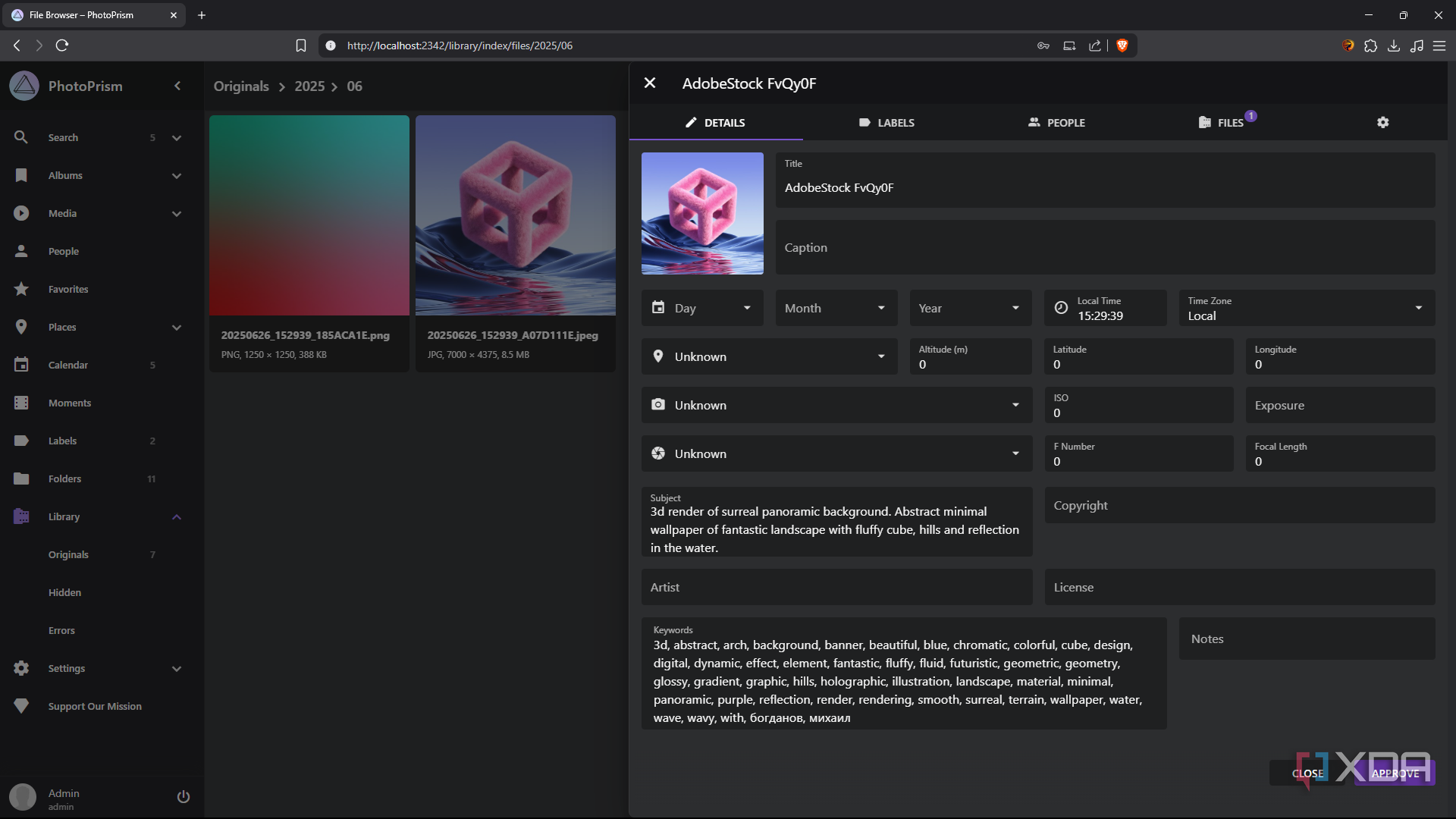
 Credit: Source: PhotoPrism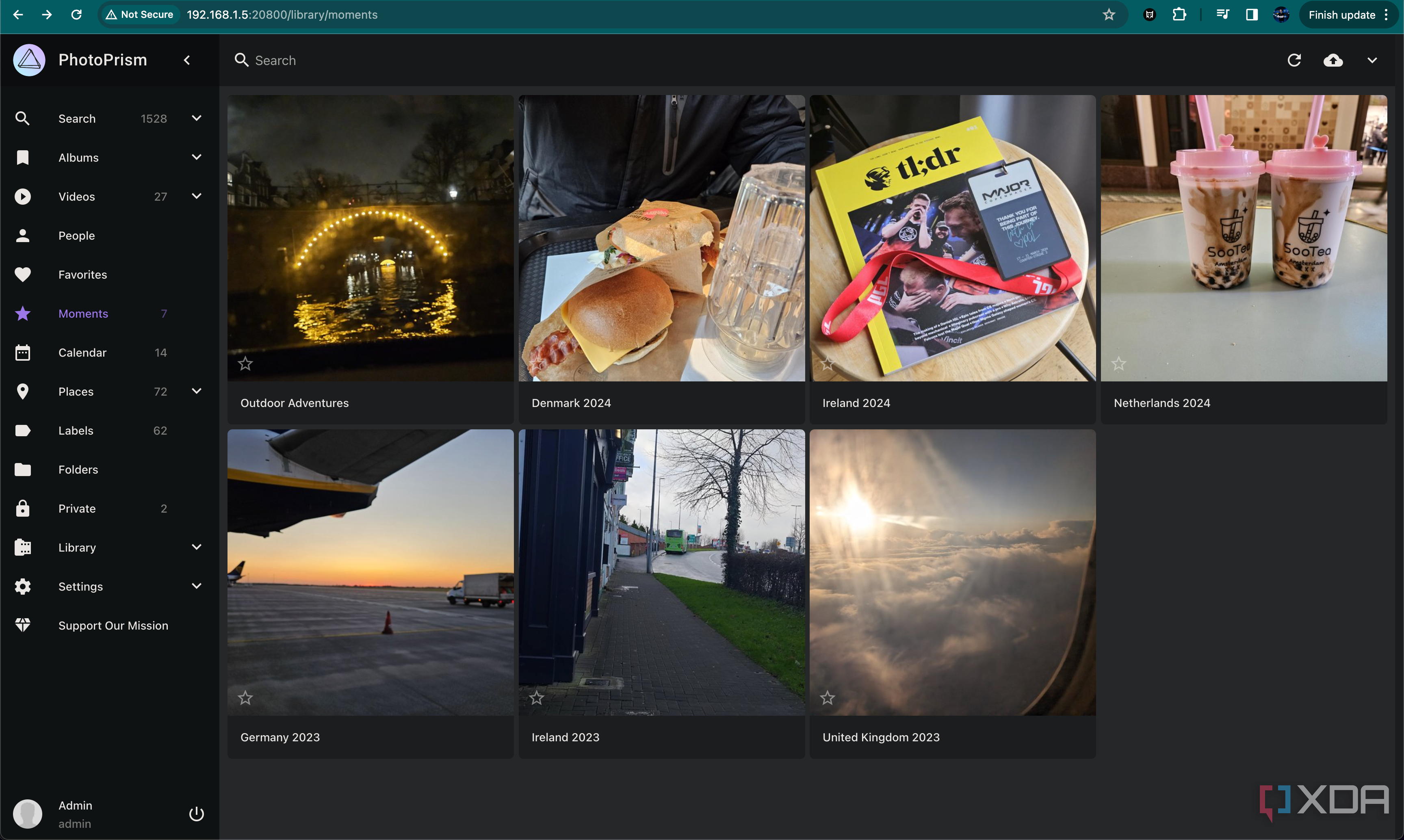
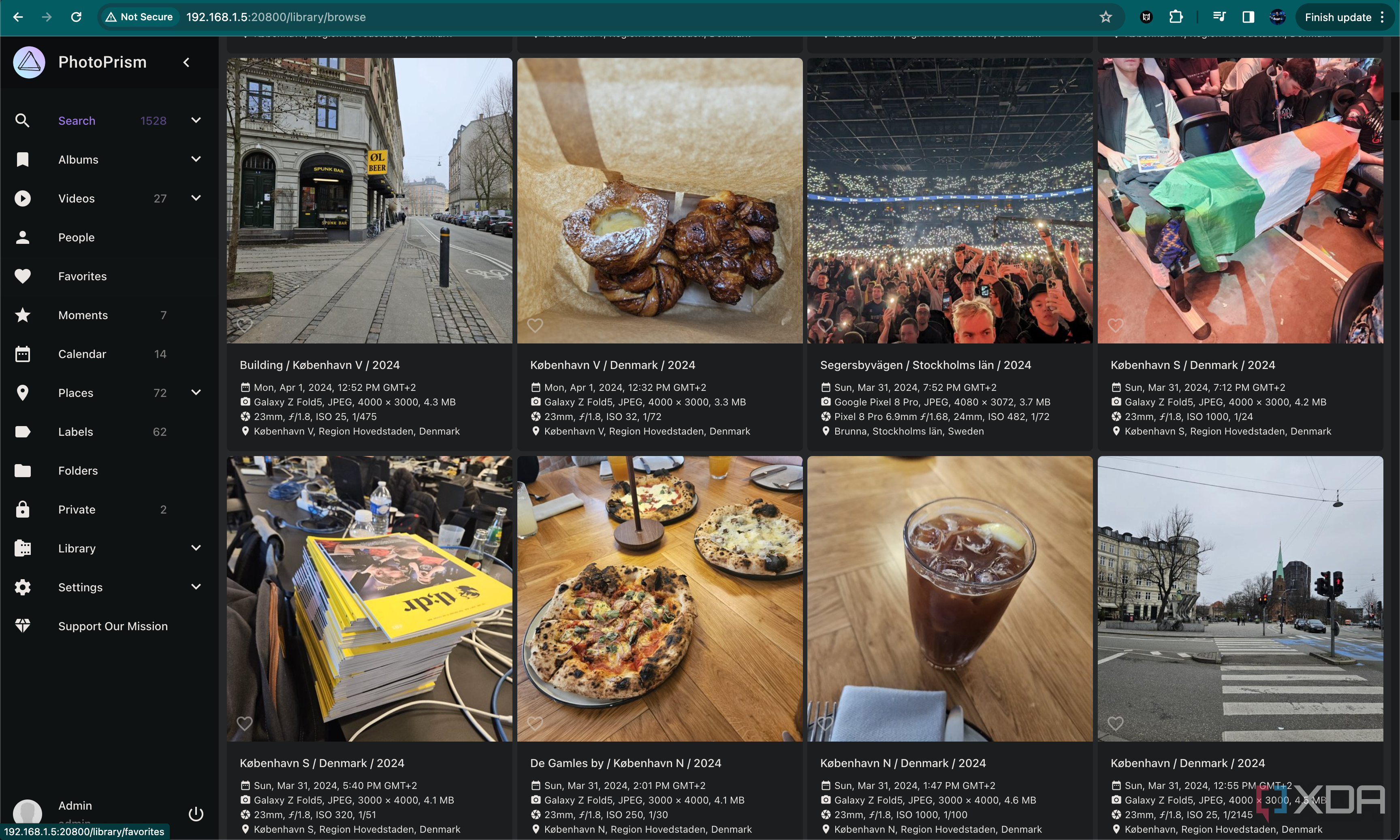
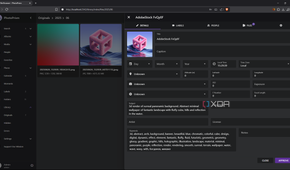

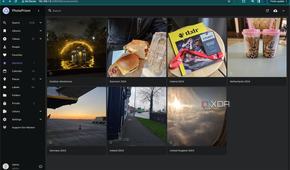
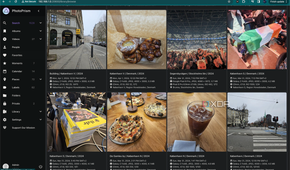
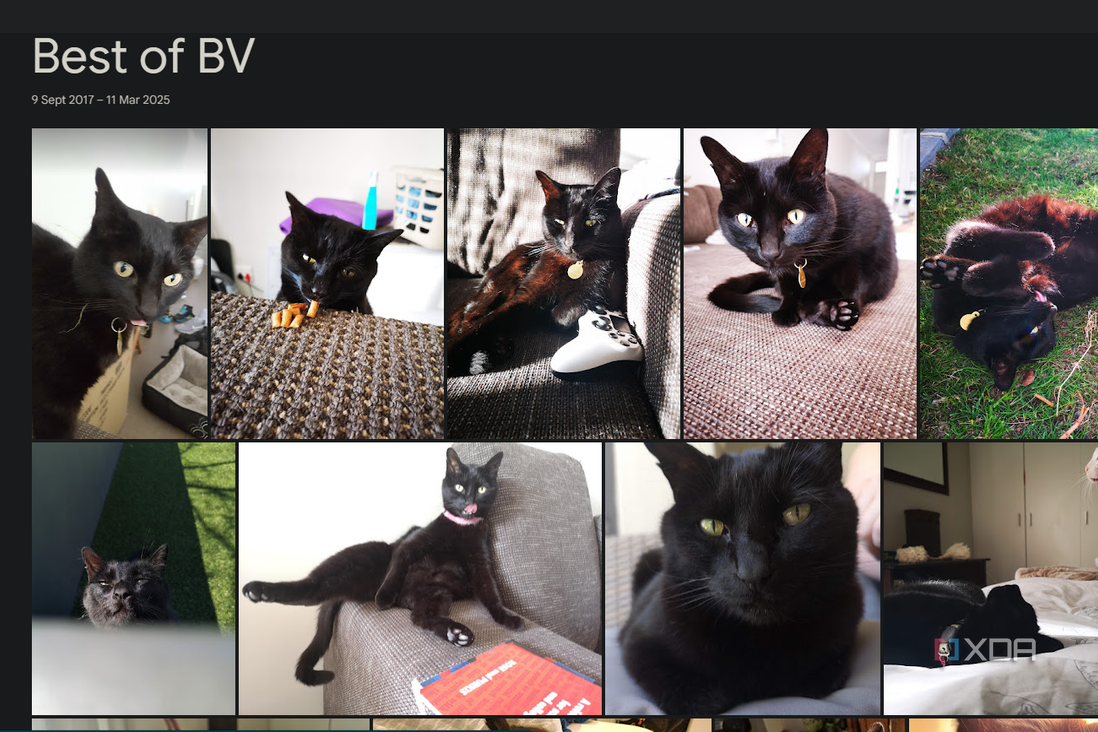
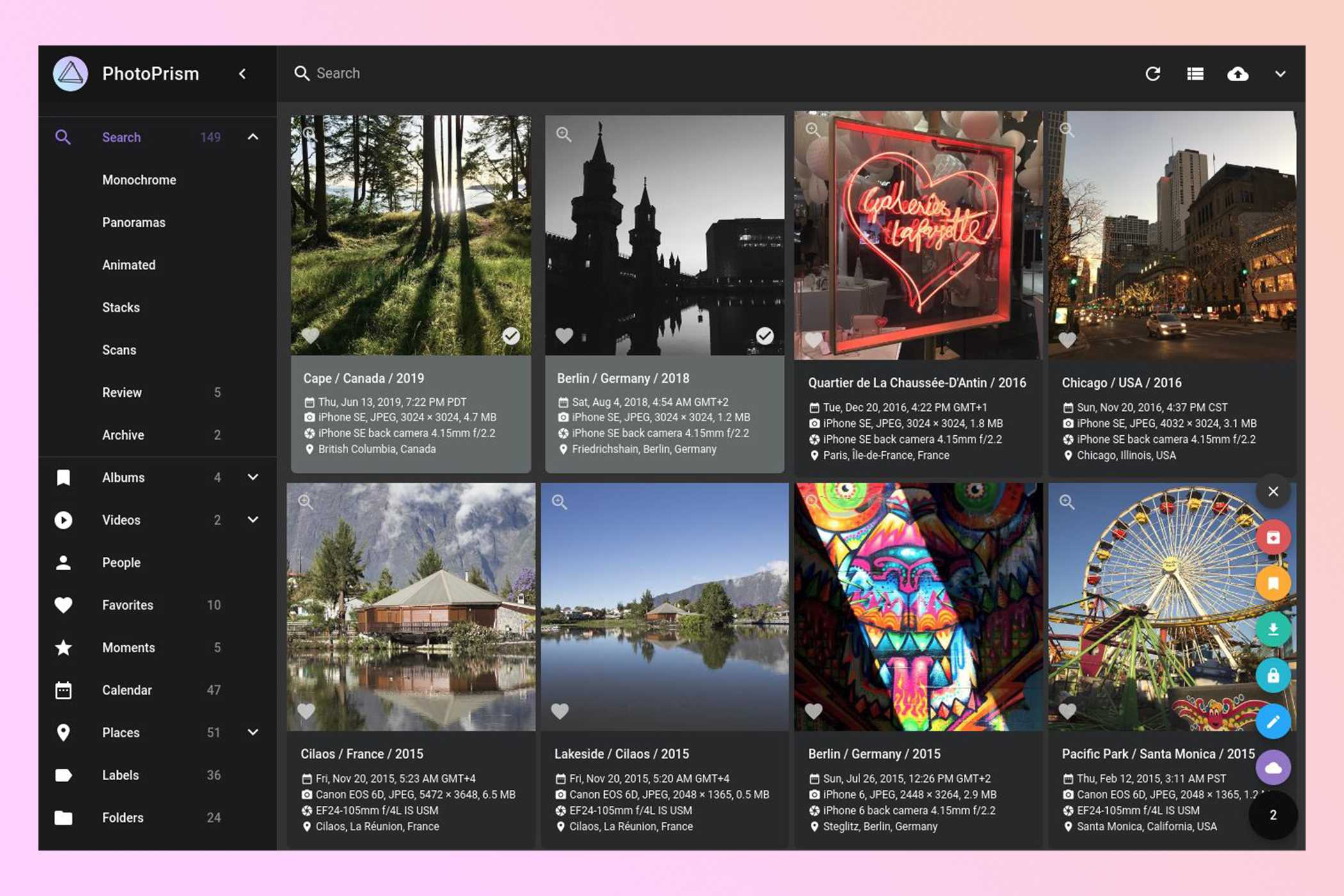
I didn’t realize how spoiled I was by Google Photos’ super-easy sharing tools until I switched over to Synology Photos. Sure, Synology has a bunch of sharing tools built in, but the problem is that not everyone I know has a Synology NAS (or even knows what that is), though they all have a Google account. On Google Photos, I could create and share albums with my friends with just a couple of taps.
On my NAS’s solution, the process was certainly not as seamless. Some alternatives I tried required them to create a user profile, others broke links if I moved something on my end, while some just didn’t let me work with large albums without giving any reason. What was once an invisible part of the process suddenly became apparent and confusing.
Mobile uploads became iffy
You must keep an eye out


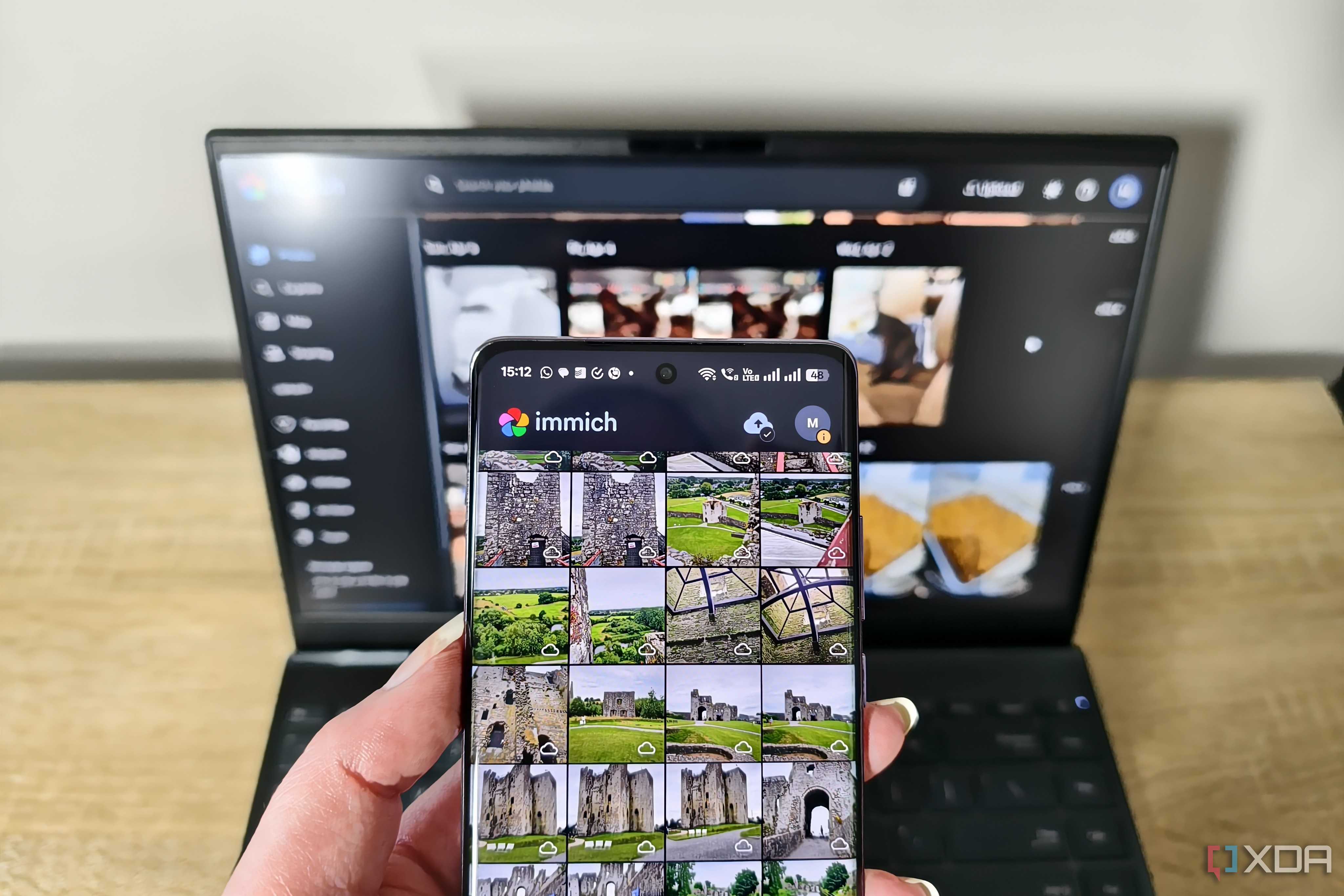



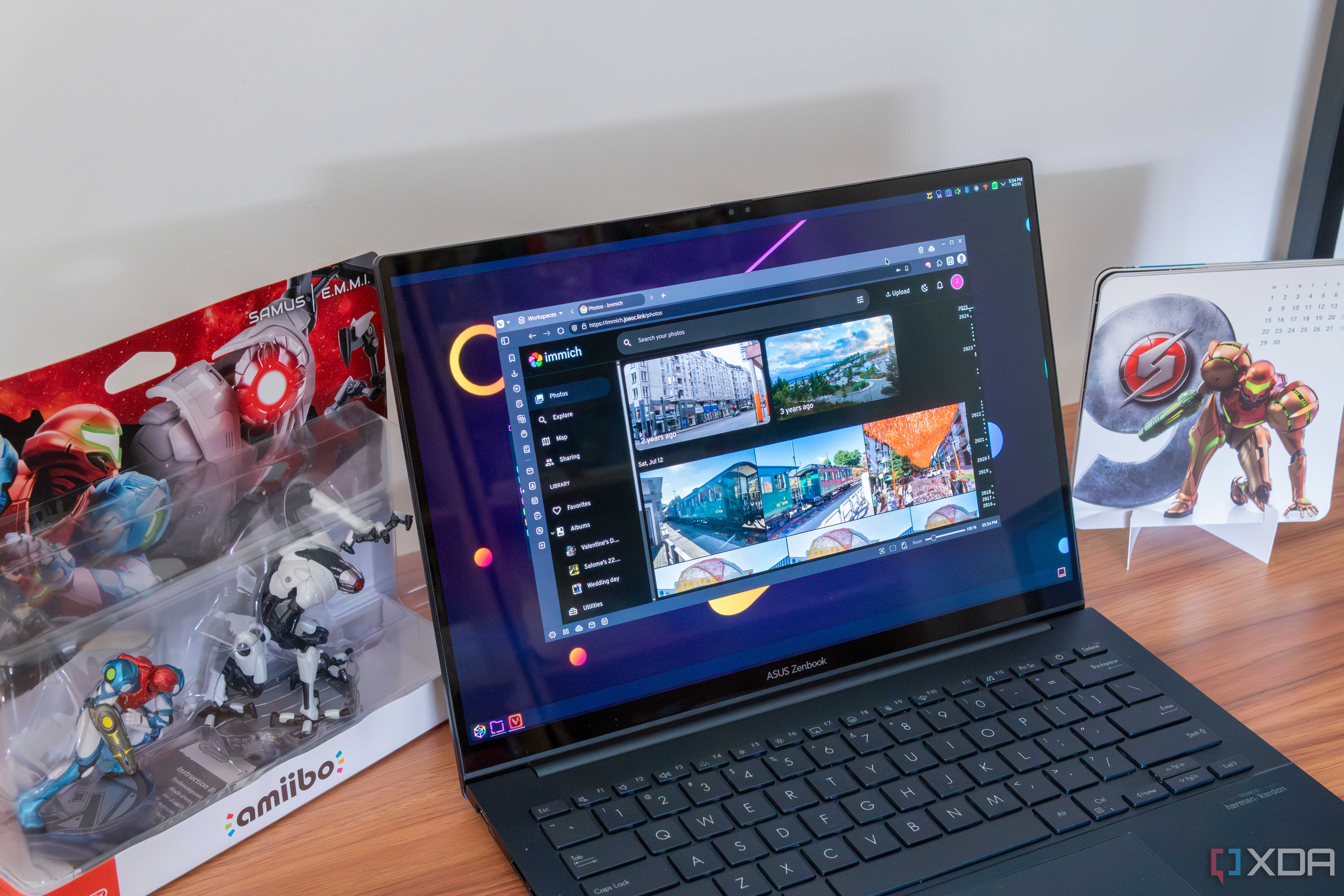
On Google Photos, backups are set-and-forget. The app works especially well on Android and Pixels, where you just don’t have to worry about backups, and I’ve never had a problem on iPhones either. I never needed to keep the app open on the screen or even in the background — it just worked. However, not all apps are built the same.
Many self-hosted apps struggle with something as basic as backups. I have to keep an eye on them, checking every few weeks to ensure my media is getting backed up, so that I don’t get a shock when I need them the most, say if I lose my phone. I had to find my way around backups, randomly pausing overnight, or requiring me to stare at the screen for them to go through.
Deduplication hell
When sources are aplenty

So, when I say that I moved away from Google Photos, I also mean a lot of other cloud services, different phones, portable drives, thumb drives — all of which were collectively my ‘system’ to store my photos. When there are so many sources, the chances of duplicates go up manifold. And you realize that only when you start fiddling with your media archive.
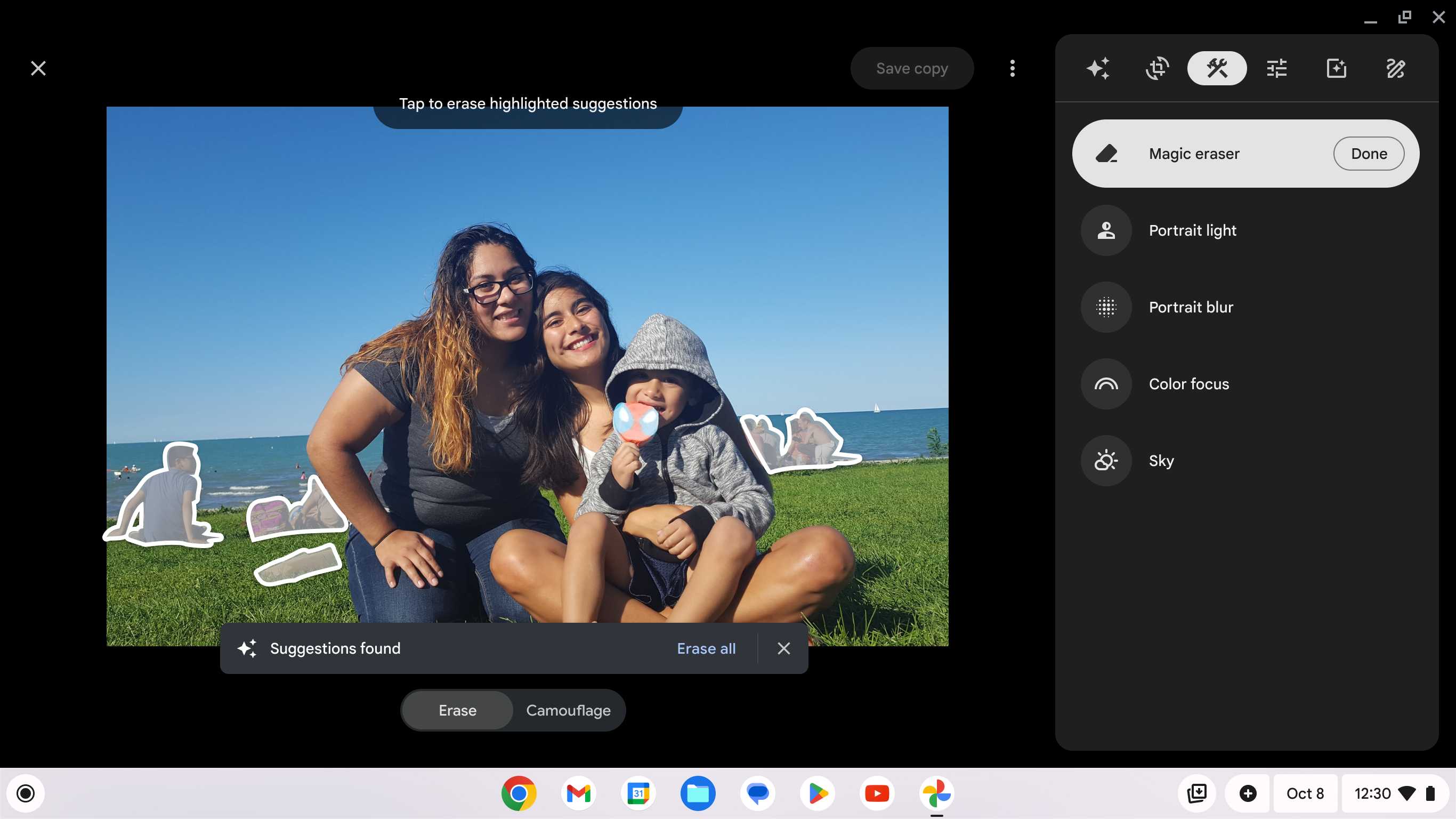
Google Photos’ AI chops make everything seem easy. It automatically identifies and surfaces any duplicates and even suggests deleting the blurry ones, keeping the clear ones. From the tools I have tried, a lot offer this feature, but it works at varying success rates. Nothing is as dependable as Google Photos’ automation. So, at long last, you get your hands dirty and start weeding out duplicates manually.
Metadata surprises
What a headache they are!


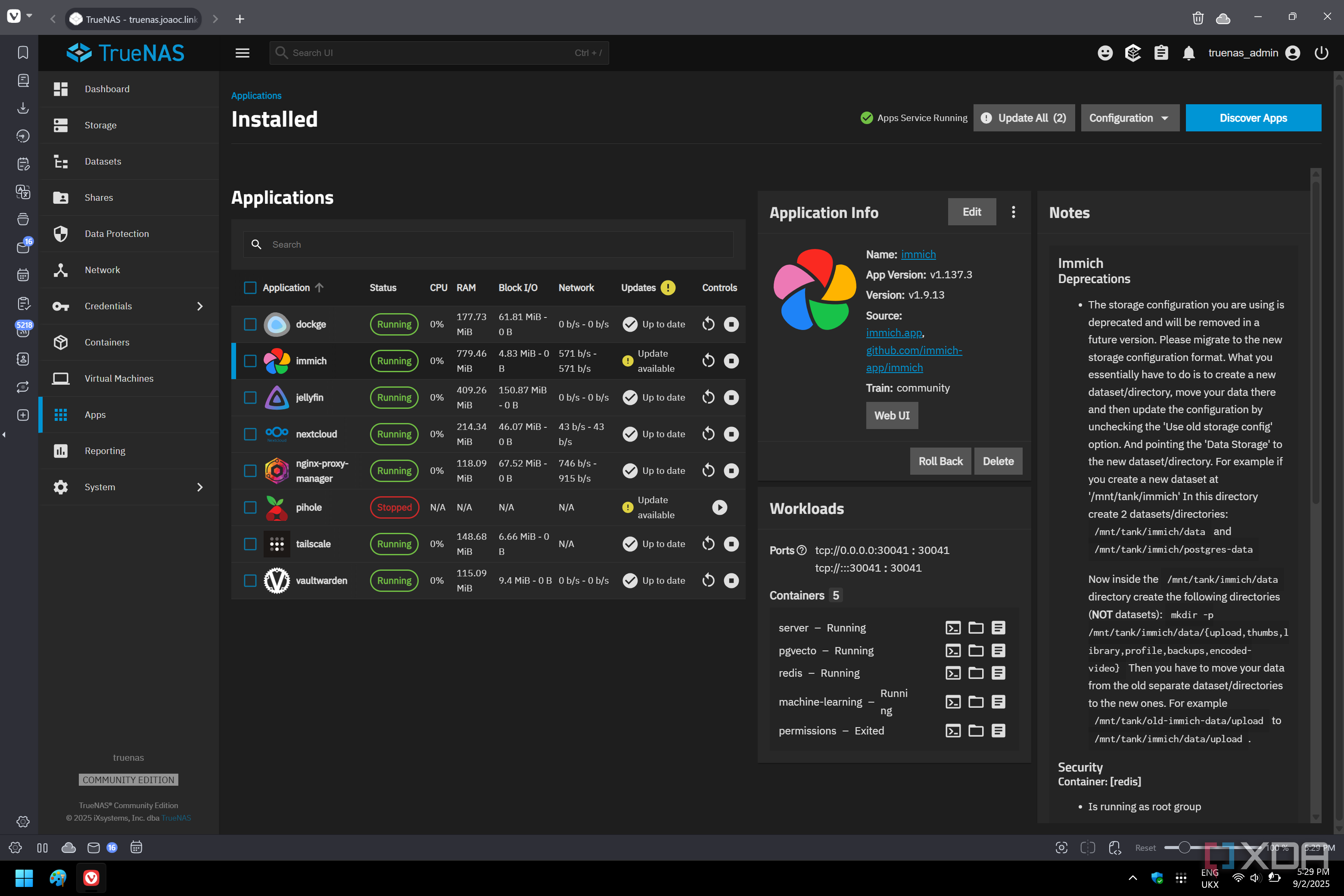
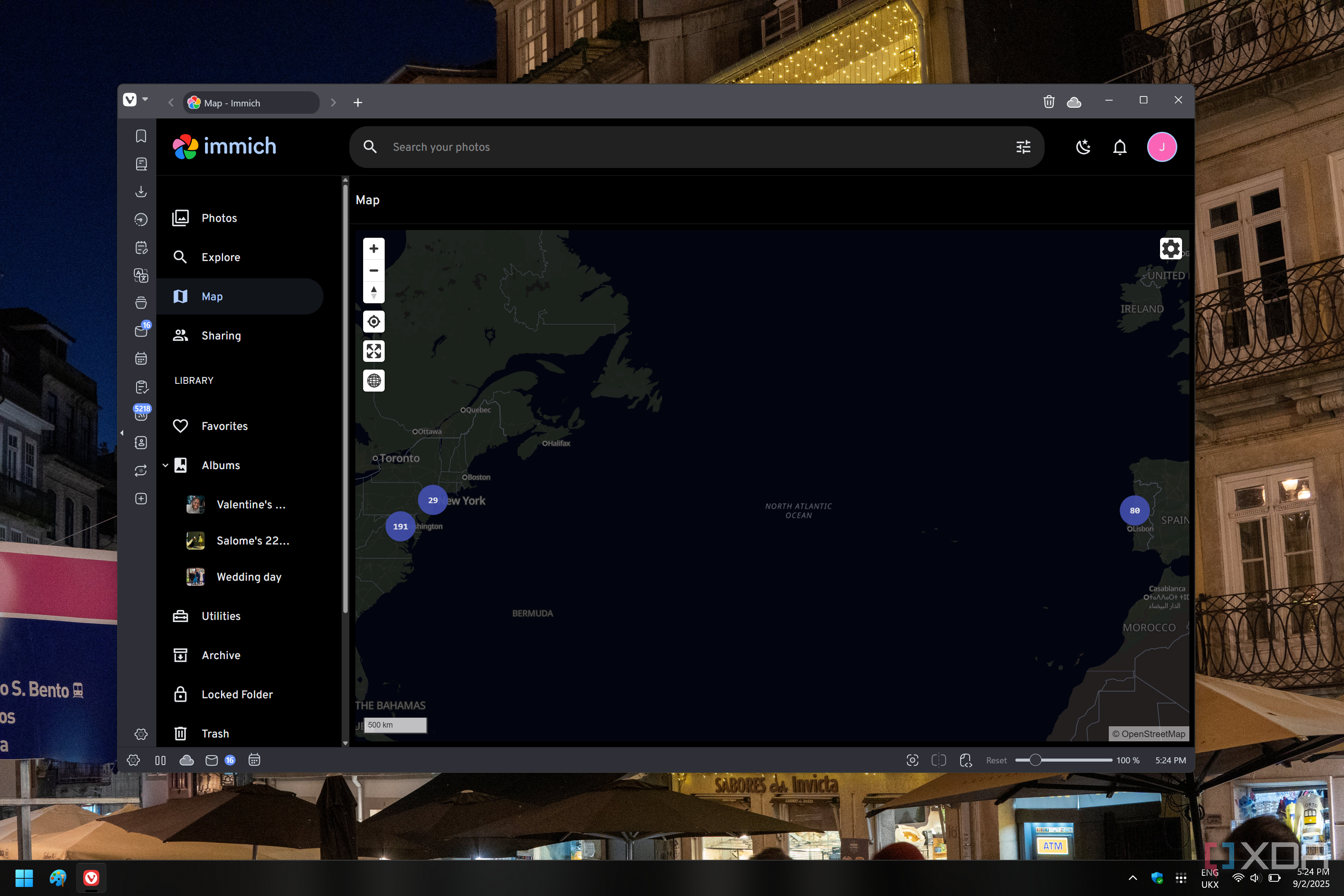
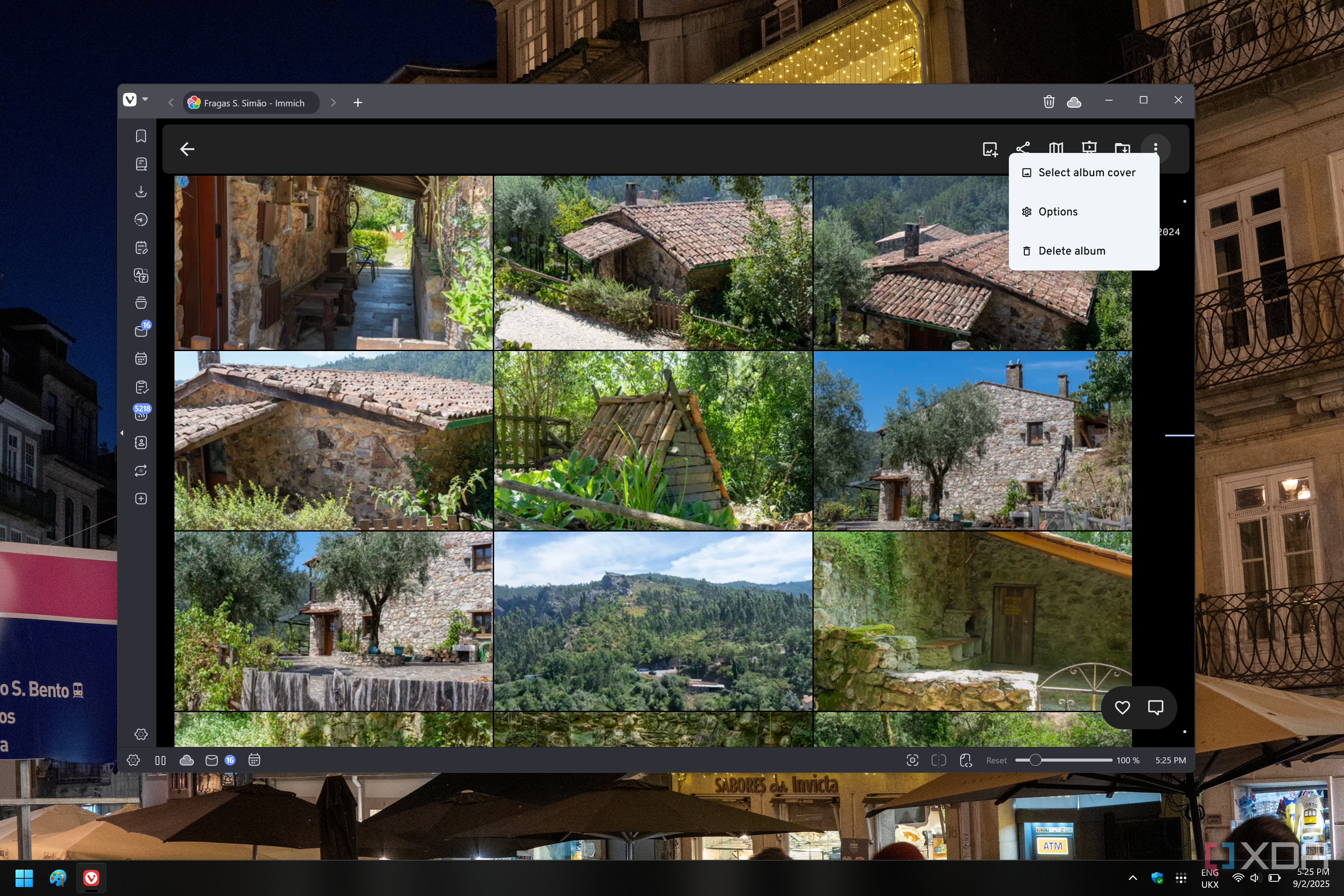
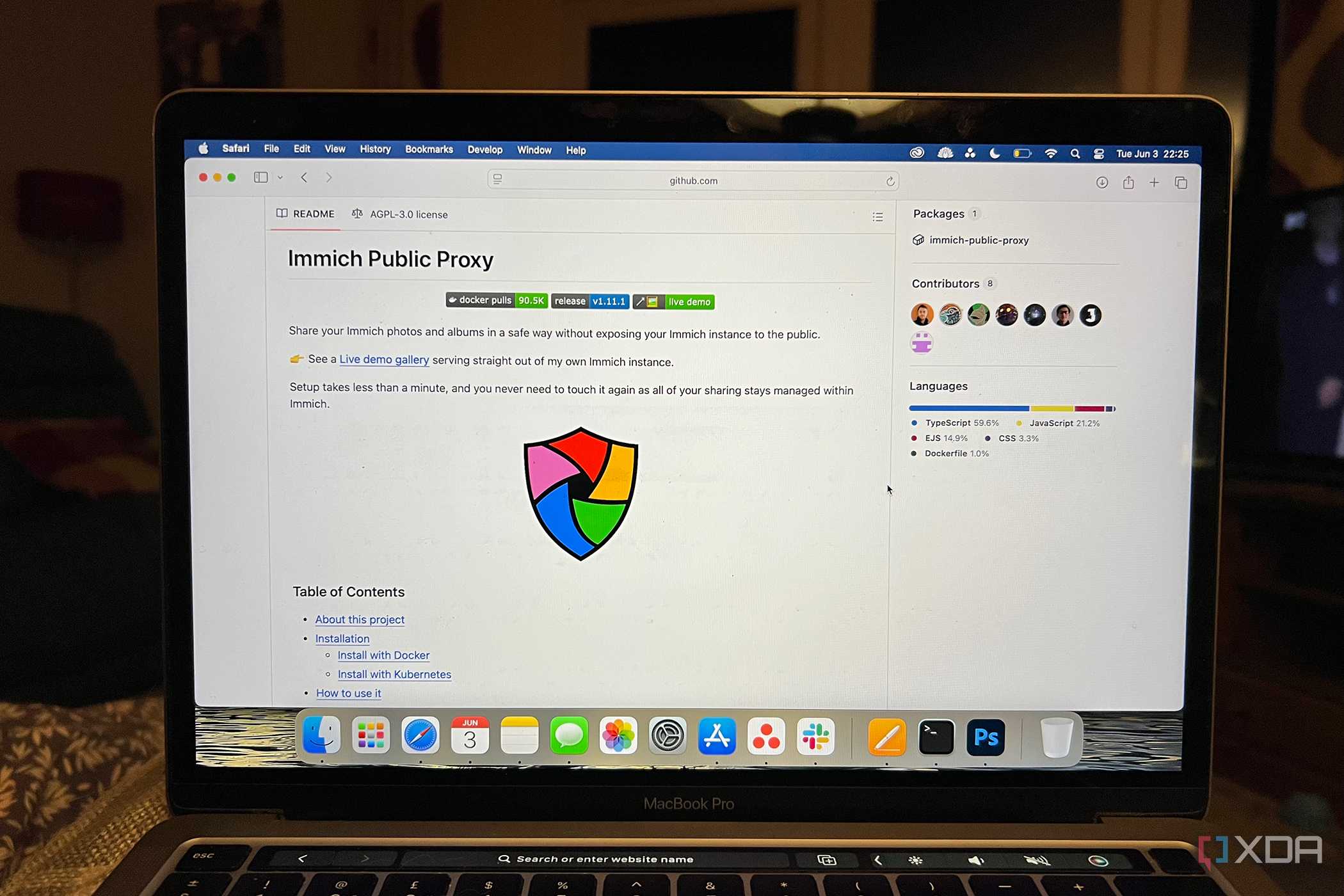

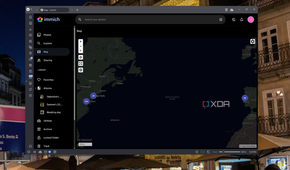
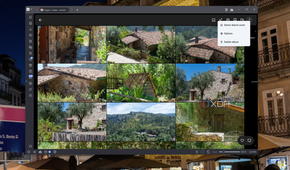
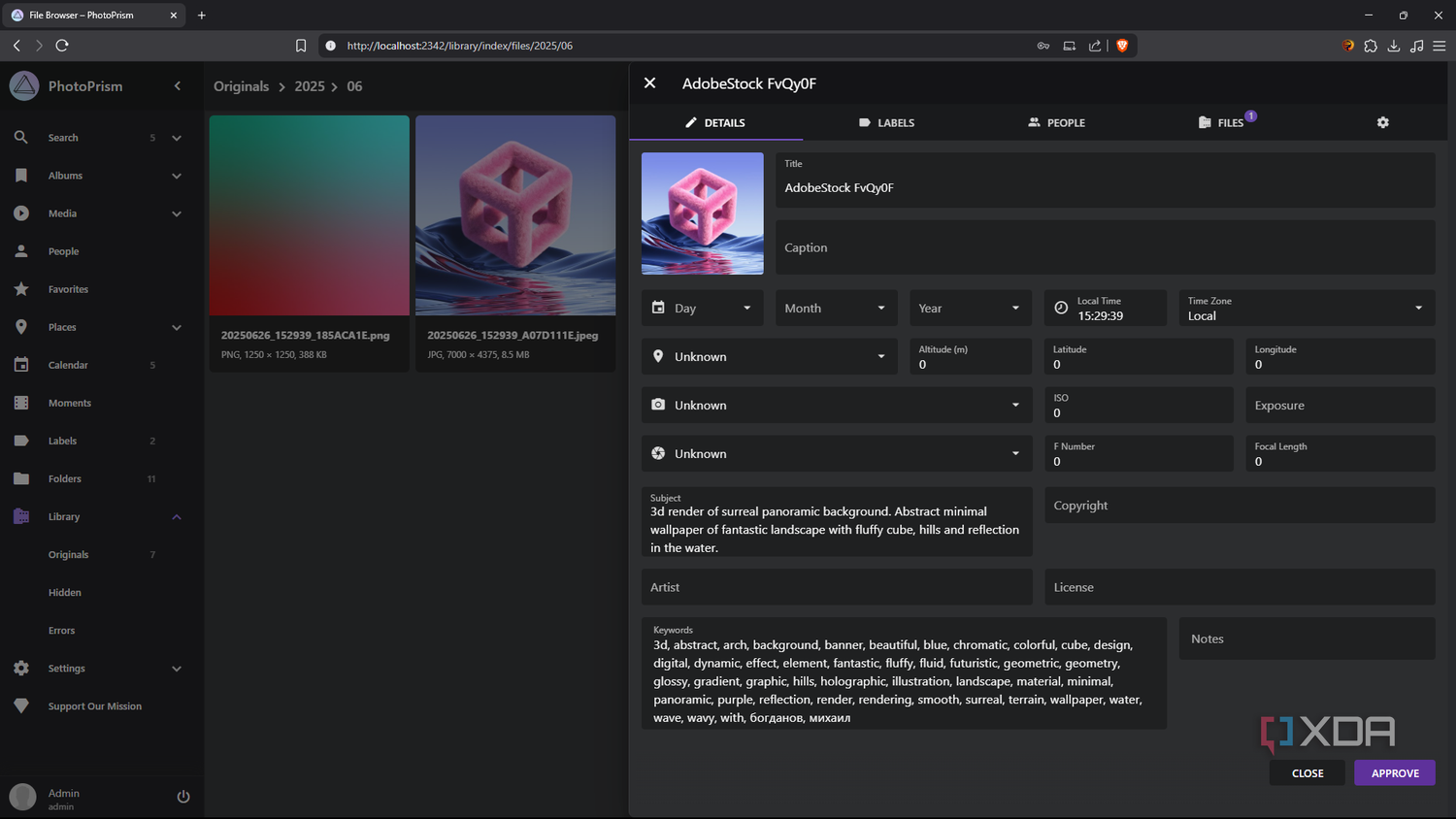
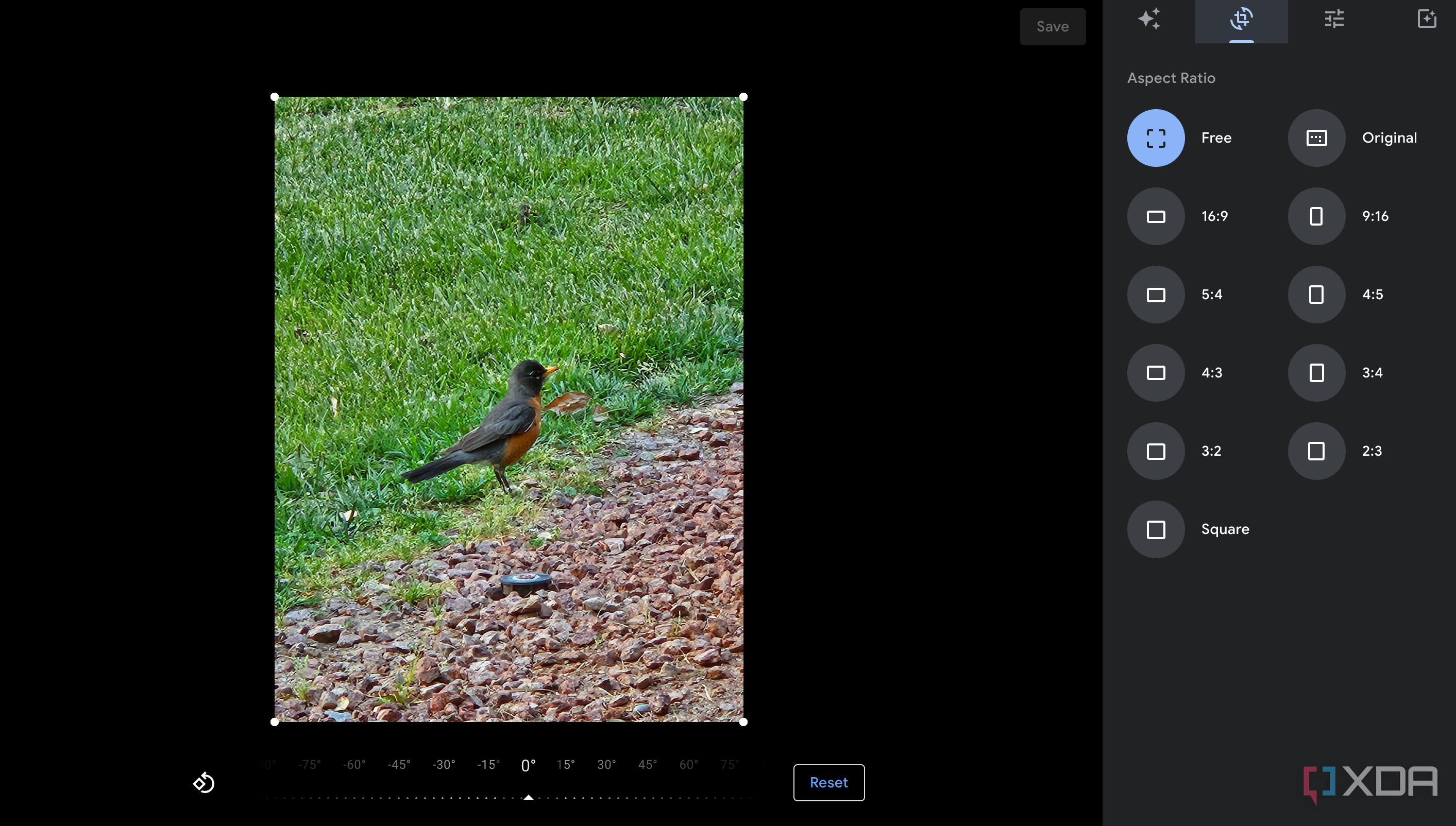
Not all apps handle metadata the same way. Some care more about the ‘date modified’ field than the ‘date created’ — and as you can guess, this confusion creates heaps of chaos. Some photos and videos get incorrectly tagged, and if the tool you’ve migrated to doesn’t allow batch metadata edits, you’re stuck staring at your screen, fixing every single photo one by one.
And it doesn’t help either that Google’s Takeout tool downloads the metadata files in a separate folder, adding another point of failure if the target app doesn’t link the two corresponding files correctly. As a result of this, the albums I have created over the years didn’t move properly, while the face recognition information is proprietary and can’t be ported over from Google.
Dependency on smarts
I admit, I got addicted
Source: Google 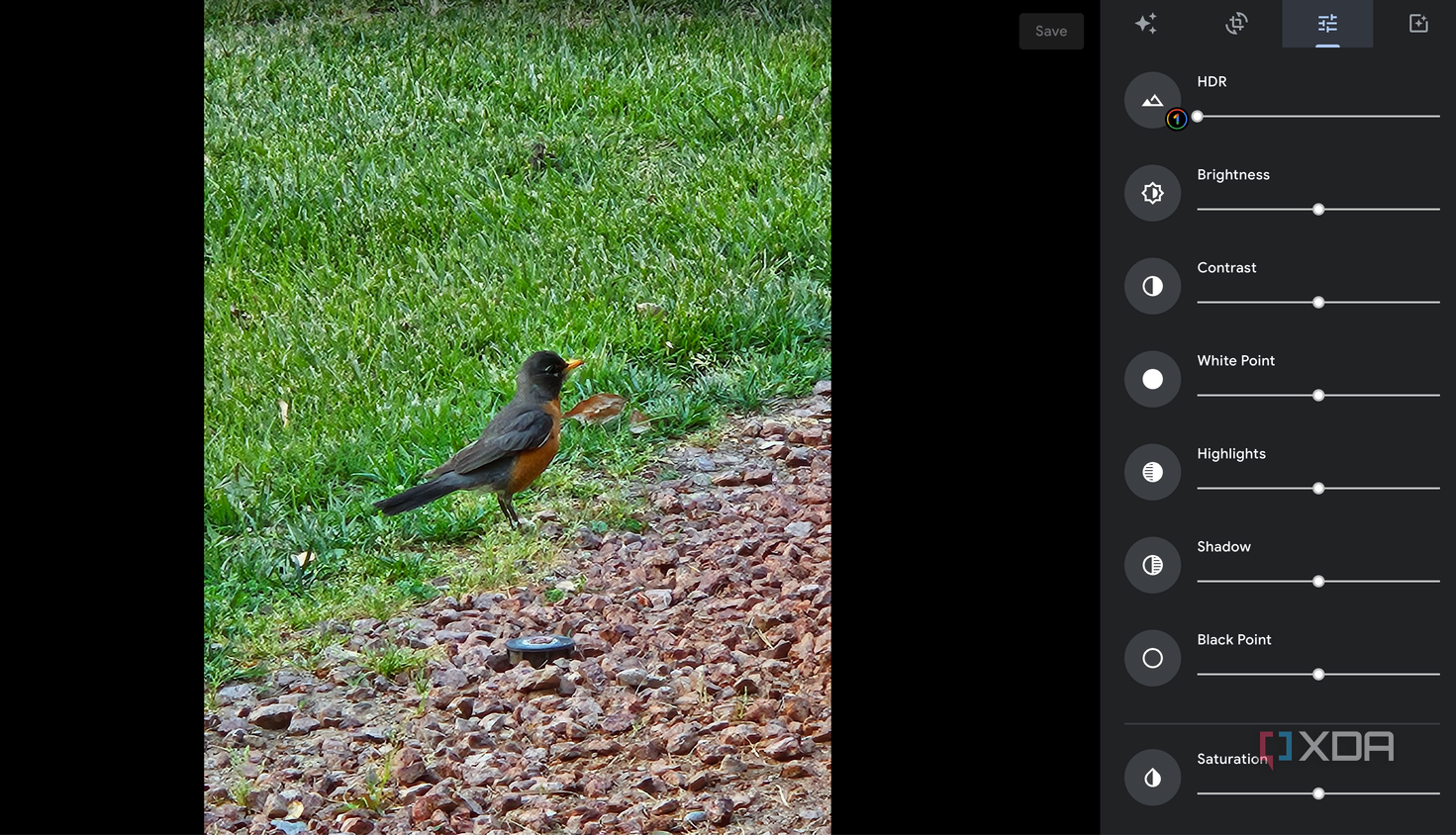



Source: Google 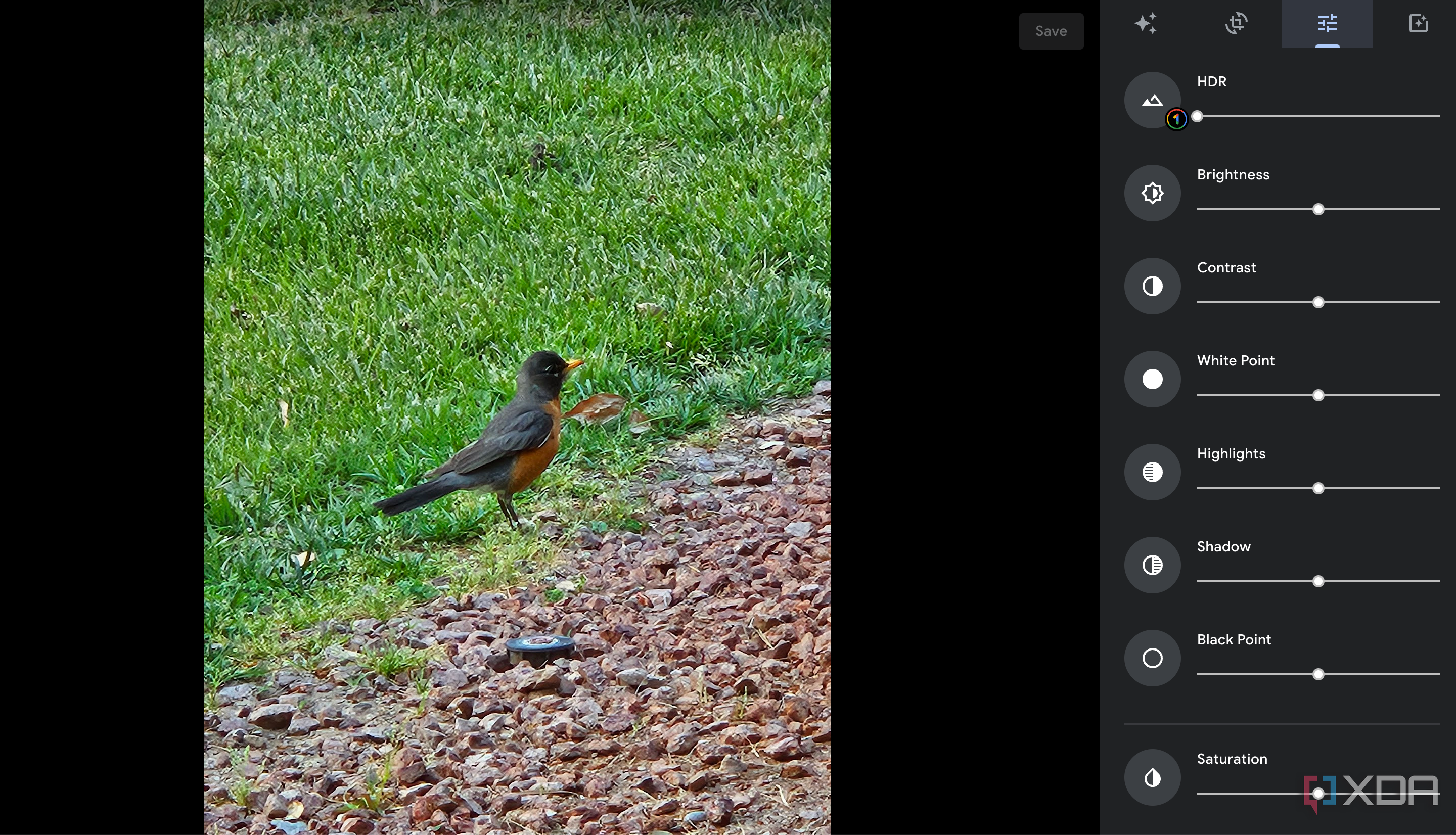

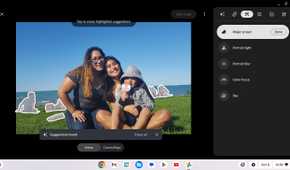
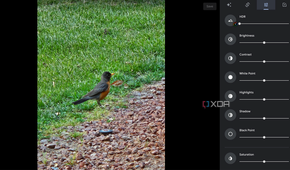
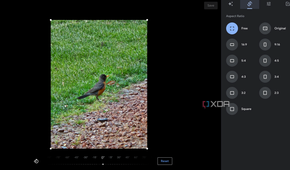

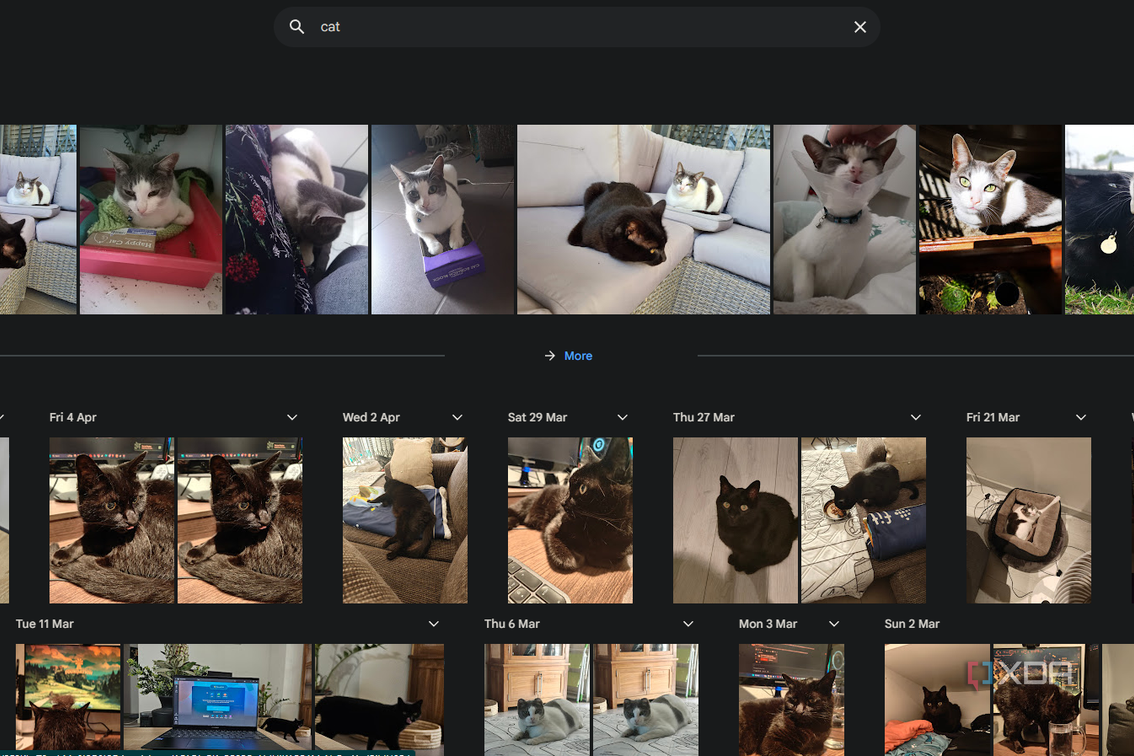
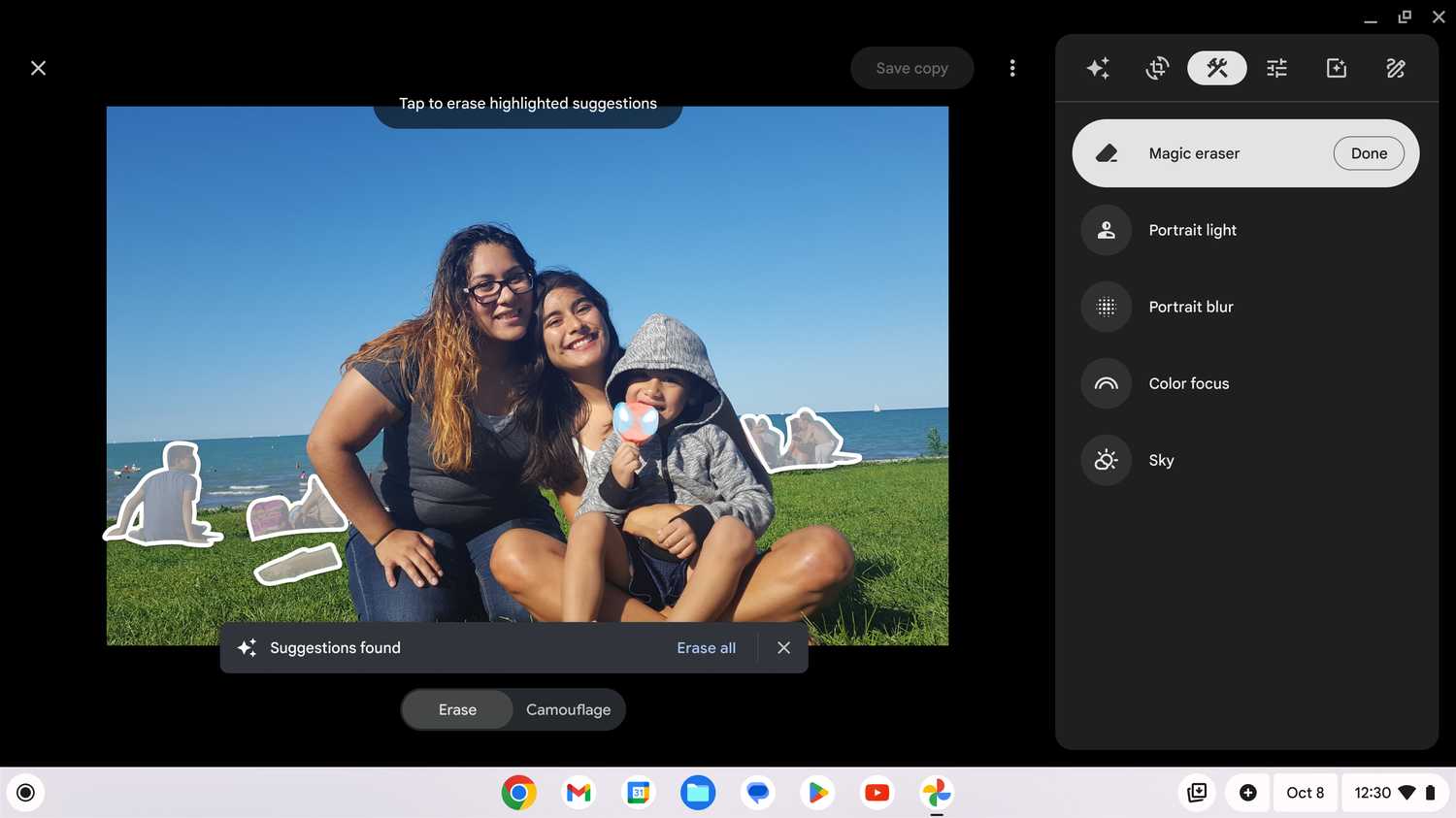
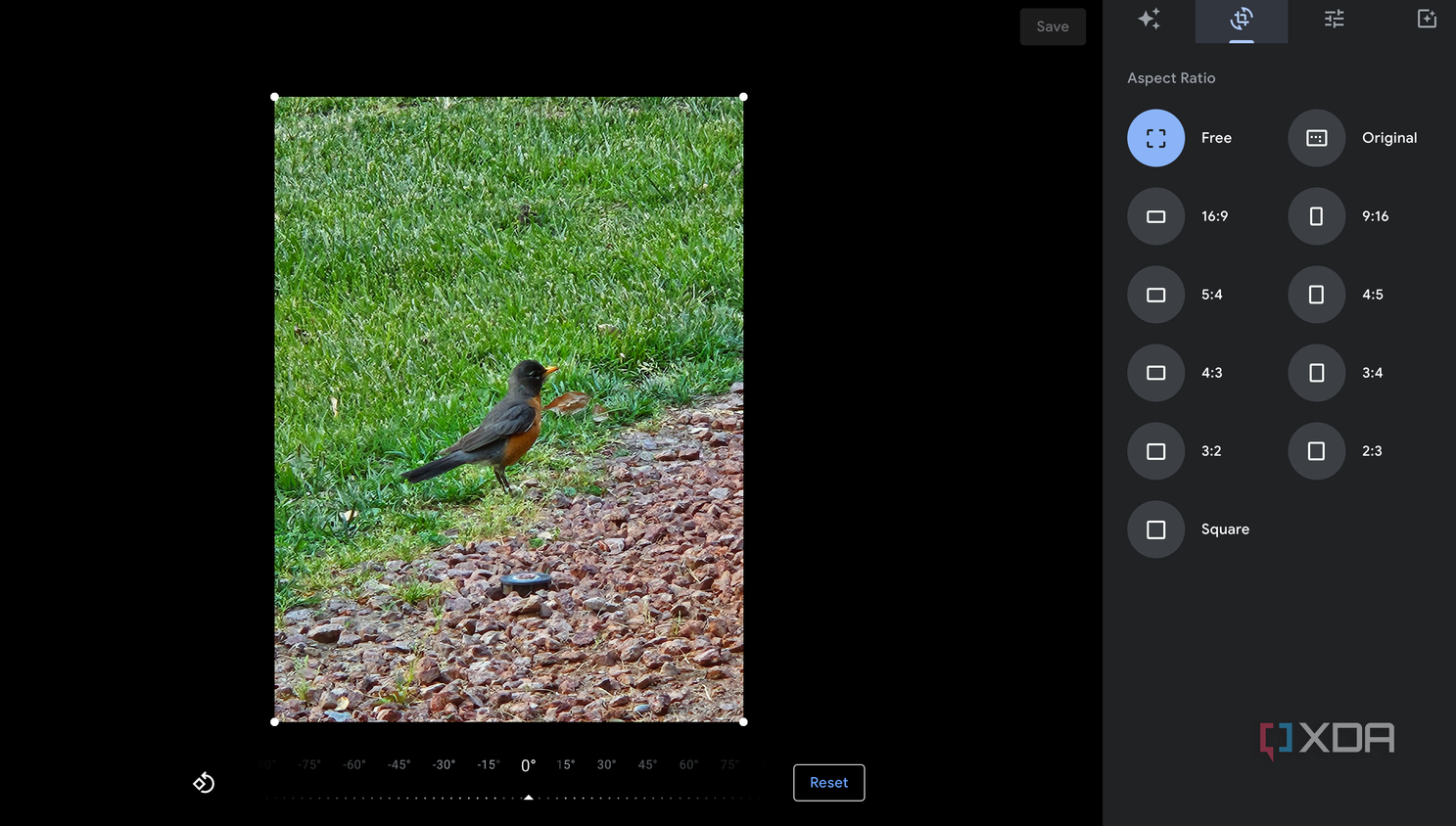
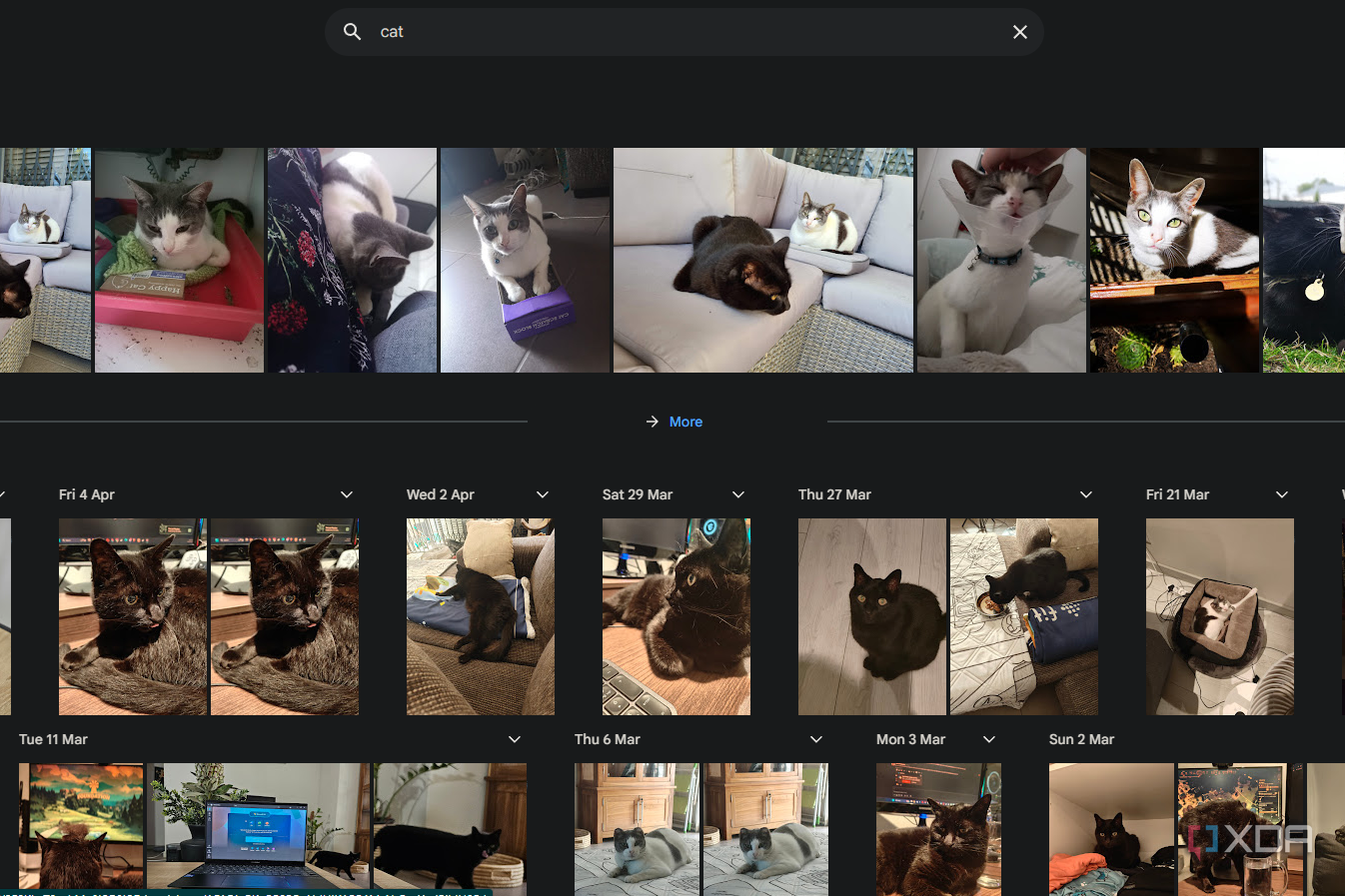
The biggest surprise of them all wasn’t technical but psychological. I had gotten so used to searching things like ‘2017 beach videos’ and the exact photos showing up that everything else seemed like a downgrade. Sure, you can do that with apps like Synology Photos, too, but with recent natural language processing improvements to Google Photos, the gap is only widening, and these NAS photo management apps aren’t innovating at the same pace. Living without Google’s AI layer felt so inconvenient that I had to consciously find my own alternative ways.
I have found a middle ground
At first, I thought that I could completely ditch Google Photos for good, but after going through the gruesome process as I just detailed, I soon realized that it would be tough living without it. That’s not to say I don’t enjoy my NAS and its photo management capabilities. It has given me control over my data and the ability to store my photos and videos at full quality. But, at the same time, it’s not worth giving up the convenience of Google, so I now enjoy the best of both worlds. The NAS is a primary backup destination while Google Photos backs up my media in compressed format, allowing me to share my photos with everyone without splurging too much on a Google One subscription.

TerraMaster F4-424 Max

- CPU
- Intel Core i5-1235U
- Memory
- 8GB DDR5 non-ECC SODIMM (up to 64GB)
- Drive Bays
- 4 HDD bays + 2 NVMe SSD slots
- Ports
- 2x USB Type-A (10Gbps), 1x USB Type-C (10Gbps), 1x HDMI 2.0, 2x 10GbE RJ45
The TerraMaster F4-424 Max is a premium hybrid NAS enclosure that combines a solid Intel Core i5-1235U processor with ultra-fast 10GbE ports and ample storage capacity. It also supports up to 64GB RAM and is as amazing for home lab workloads as it is for storing your precious data,
