


While known for being a reputable PC component vendor, Micro-Star International has mostly only dabbled with mid-range computer monitors. But last year, the company started taking a stab at cutting edge tech, and now boasts two new QD-OLED models that cater to two slightly different demographics:
- MAG 321UPX, a 32-inch 4K QD-OLED for those wanting the finest picture quality
- MAG 271QPX, a 27-inch 1440p QD-OLED with a 360 Hz refresh rate for a more focused and fluid PC experience
To tell you the truth, I lied a bit — there are actually four models. The two SKUs listed above are also offered in a slightly more premium “MPG” variant for $50 USD more, which adds one extra USB-C port, greater power delivery through those ports (90W vs 15W), and the ability to update the panel firmware. There are a few other slight differences, but I don’t think they matter enough to sway a decision. On one hand, having firmware that can be upgraded seems important so that outstanding issues with the product may be remedied. But on the other hand, I don't think products should be bought with the prospect of updates fixing problems that exist at the time of purchase.
Because we’re not all made out of money, we’re going to take a closer look at the most affordable option in MSI’s latest monitor lineup, the MAG 271QPX. We want to help you determine whether its performance is good enough to be worth the slight savings, as-is.
About this review: The product in this review was loaned to us by MSI. The company had no involvement in the contents of this review. Testing was conducted on firmware version FW.002.

MSI MAG 271QPX QD-OLED

- Screen Size
- 26.5 inches
- Display Technology
- QD-OLED
- HDR
- Yes, DisplayHDR 400 True Black
- Resolution
- 2560x1440
- Ultra fluid refresh rate and virtually instantaneous response times
- Deep inky blacks** and super vibrant colors
- Strong HDR impact in darker content
- Perfect viewing angles
- The most affordable 27" QD-OLED
- Raised blacks in a lit room
- Oversaturated, hue-shifted colors in HDR
- Dim HDR experience in brighter content
- Color settings don't save between HDR and SDR
Pricing and availability


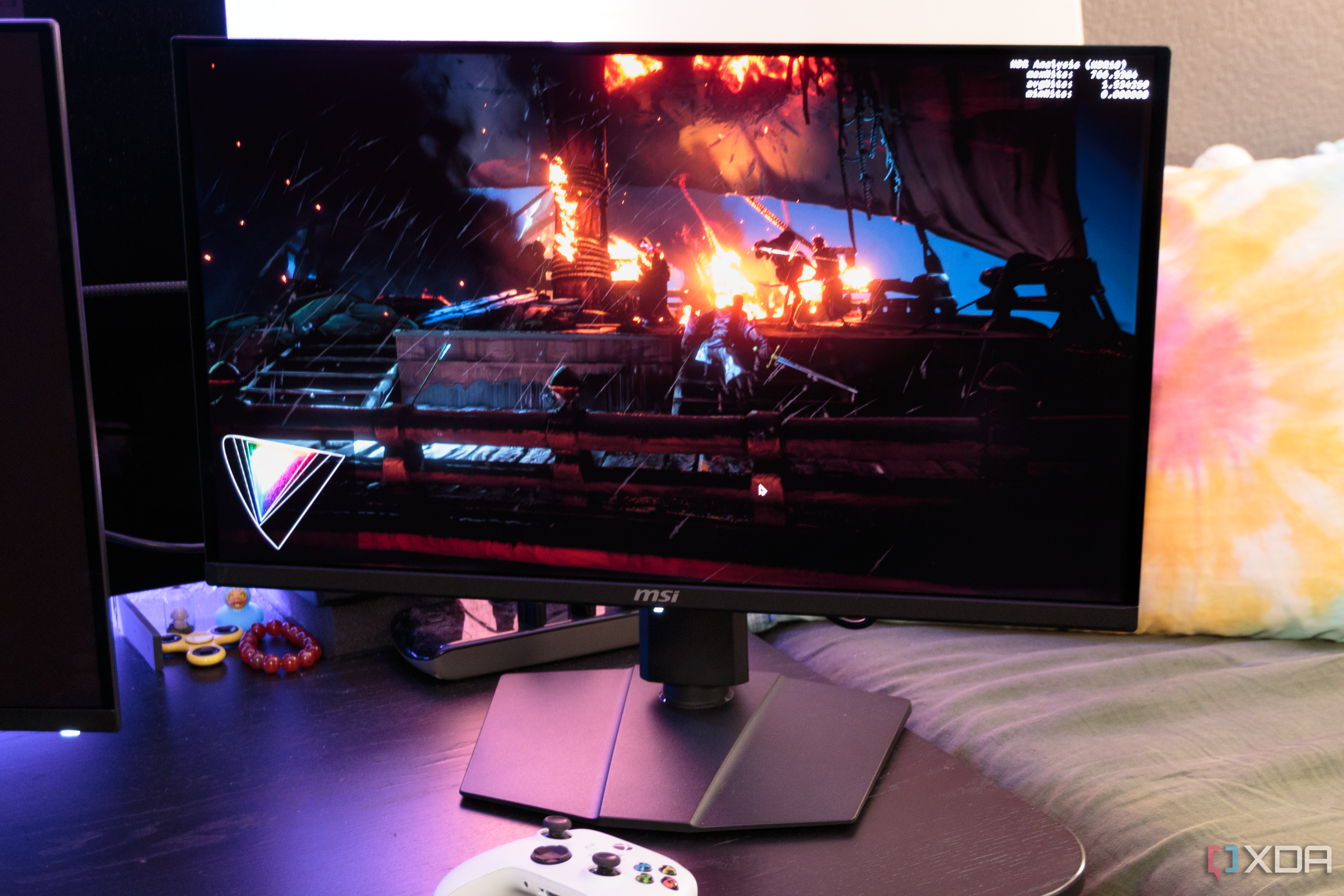


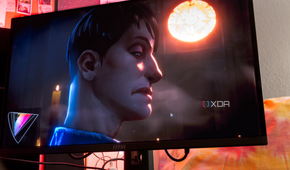
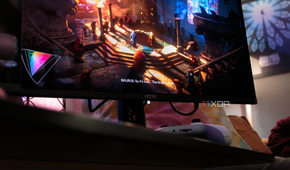
The MSI MAG 271QPX became available to order at the end of February this year for $750 USD. As mentioned, this particular model is the most economical of the bunch, yielding customers some slight savings if they're willing to forego a couple of features.
But like most third-gen QD-OLEDs recently released, finding them available for purchase can be difficult. These sorts of monitors are currently highly sought after by enthusiasts, and with this model's price, it may take some active effort to secure an order, depending on your location.
MSI MAG 271QPX QD-OLED
- Resolution
- 2560x1440
- Refresh Rate
- 360Hz
- Screen Size
- 26.5 inches
- Ports
- 1x DisplayPort 1.4a, 2x HDMI 2.1, 1x USB-C
- Display Technology
- QD-OLED
- Aspect Ratio
- 16:9
- Display coating
- Anti-reflective
- Screen Brightness
- 250 nits (typical)
- Dimensions
- Without stand: 609x72x362mm; With stand: 609x242x416mm
- Weight
- 17.6 pounds (8kg)
- Mounting Options
- Stand, 100x100 VESA mount
- Sound
- 3.5mm Headphone jack, no speakers
- HDR
- Yes, DisplayHDR 400 True Black
- Variable Refresh
- Yes
- Response Time
- 0.03ms
- Tilt
- Yes, -5 to 20 degrees
- Swivel
- Yes, -30 to 30 degrees
- Pivot
- Yes, bidirectional
- Curve
- No
- KVM
- No
- Price
- $750
Connectivity

Under the rear-left side of the display, you’ll get access to two HDMI 2.1 ports and one DisplayPort 1.4a where your machines can connect. That last part might be a bummer for those who want the updated 2.1 DisplayPort for future-proofing, which would allow the display to be driven at its native resolution and maximum refresh rate without engaging Display Stream Compression (DSC).
Despite DSC appearing visually lossless, it can have a few undesirable quirks on some machines, and certain GPU features such as NVIDIA’s DLDSR or RTX VSR usually don’t work with a compressed signal. On the MAG 271QPX, there is no way to disable DSC, even at resolution-refresh pairings that technically don’t require it. For instance, driving the display at native resolution at 240Hz should be feasible for DisplayPort 1.4a without DSC. MSI may add a toggle in the future, just don’t expect to have it on this model.
Features & on-screen display (OSD)


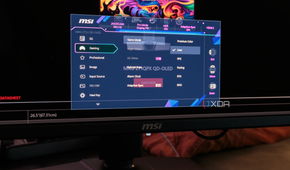
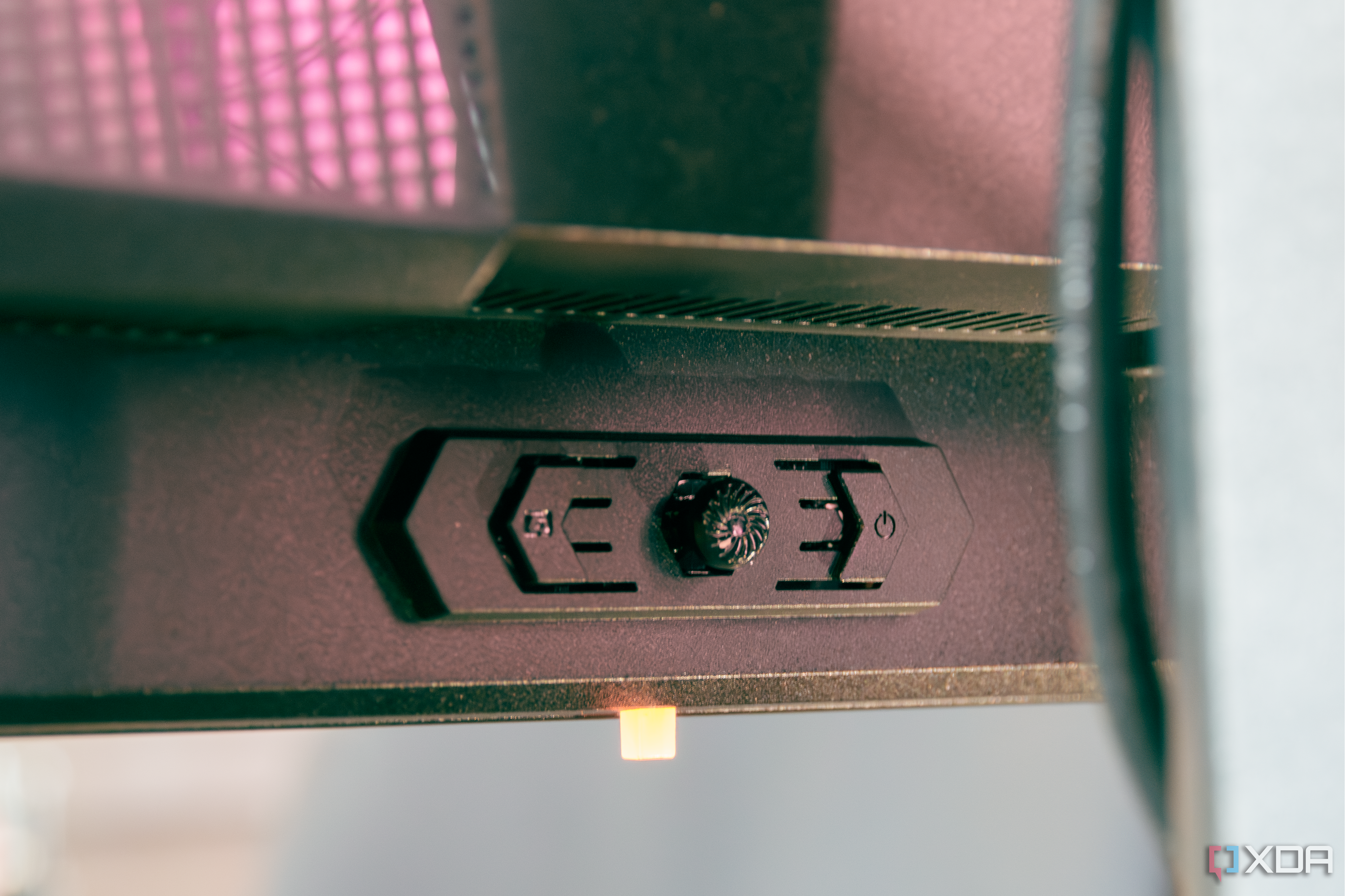
The OSD is accessible through a two-axis joystick located at the bottom rear of the monitor. On its left (facing the monitor) is a switch to power the monitor (or to set it on standby), and a non-programmable shortcut key on the right for the Night Vision feature. The 271QPX does support PIP/PBP through its multiple video ports, but sadly it does not offer a KVM switch.
“Gaming Intelligence”
MSI monitors come with a suite of gaming-related features, which the company dubs “Gaming Intelligence”. These are accessible in the OSD and can be assigned to one of the Navi Keys as a quick shortcut.
- Smart Crosshair: Inserts a crosshair in the middle of the screen for games that refuse to let you have one. The “smart” part is that it can vary its color so that it contrasts against the background, making sure it’s always visible.
- Optix Scope: A built-in magnifying glass for the middle of the screen.
- Night Vision: Increases the visibility of shadows and things that lurk among them.
Variable Refresh Rate (VRR)
As a monitor primarily aimed towards gaming, the MAG 271QPX is of course equipped with adaptive sync, enabled by AMD’s FreeSync and NVIDIA’s G-SYNC (although it is not validated as G-SYNC compatible). But as usual with OLEDs, a noticeable flicker occurs whenever there are hitches in the GPU frame time. I’ve found the flickering on this panel to be stronger than on other OLEDs I’m testing, regardless of what cable, refresh rate, or color mode is used. When measuring the difference in tone response at different frame rates with adaptive sync, the 271QPX’s shadows are shown to get slightly darker with lowering frame rates, even though the flickers appear to have significantly lighter shadows than the base calibration. There are also moments when flickering occurs despite having stable frame times. Both of these suggest the panel is mishandling frame time differences somewhere, at least more so than other panels. I’d suggest skipping the VRR feature on this particular model; from my usage, the 360 Hz refresh rate is fast enough for torn frames and frame (mis-)pacing not to be noticeable.
OLED protection
If you haven’t been in the loop with OLEDs, the technology poses a long-term risk of eventually burning in (with screen discoloration). In fact, it’s more of a matter of “when”, not “if”. Although other display types do deteriorate as well, you can expect them to last a bare minimum of about five years, with most enduring over a decade. No one knows exactly just how durable these third-generation QD-OLED monitors are, but it may be a bit reassuring that the MAG 271QPX comes with some additional safety measures to preserve the longevity of your investment, according to MSI they utilize the following:
- Pixel Shift: Moves pixels around the screen at set intervals (intervals are customizable). This allows for new images to rotate into previously static display areas, which helps minimize burn-in.
- Panel Protect: From time to time, you can opt to refresh your panel quickly (Pixel Refresh) or more thoroughly (Panel Refresh). OLED Care will notify users if your monitor has been in use for 4 continuous hours (can be declined up to 3 times) to start a quick Pixel Refresh.
- Static Screen Detection: If OLED Care 2.0 detects static elements on the screen for a set period of time, the monitor will automatically reduce brightness in those areas to prevent burn-in. This duration can be set by you in the monitor’s OSD menu.
- Multi Logo Detection: Detects static elements such as logos and dims them.
- Taskbar Detection: There’s always a taskbar on your screen if you’re staring at your desktop or using desktop apps regularly. OLED Care 2.0 automatically detects the taskbar and dims luminance in that area to prevent burn-in.
- Boundary Detection: When consuming content like videos, you might’ve noticed black bars above and below it. OLED Care 2.0 automatically detects these black bars and dims luminance near the border. If the black bars are to the left and right of the content, a Pixel Shift will be performed instead.

By default, most of the OLED care features are disabled, except for pixel shifting and pixel cleaning. You may notice that the screen isn’t perfectly aligned with the monitor bezel, and that’s because the display actually has a few extra pixels specifically for the pixel shift functionality.

The Panel Protect notice will pop up every four cumulative hours, which you can delay up to three times before it forces a cleaning. In my experience, this became very intrusive, so I set it to notify every 16 hours. At this setting, the panel will pixel clean on standby after every four hours, but without the nagging, unless you somehow leave the monitor running for 16 straight hours. The bottom LED will flash orange while it’s running a pixel clean, and then the monitor will turn off once complete.
Impressions vs. W-OLED

Coming from an LG C2 W-OLED, one of my favorite things about QD-OLED monitors is their pristine, tintless viewing angles. Even when looking at the LG OLED straight-on, the sides will appear much colder than the middle, which makes photo editing and designing a pain when enlarging them on the big screen. With QD-OLED, I don’t have to worry about about readjusting my sights to make sure colors in the corners are consistent (except for in HDR mode, which I’ll cover later).


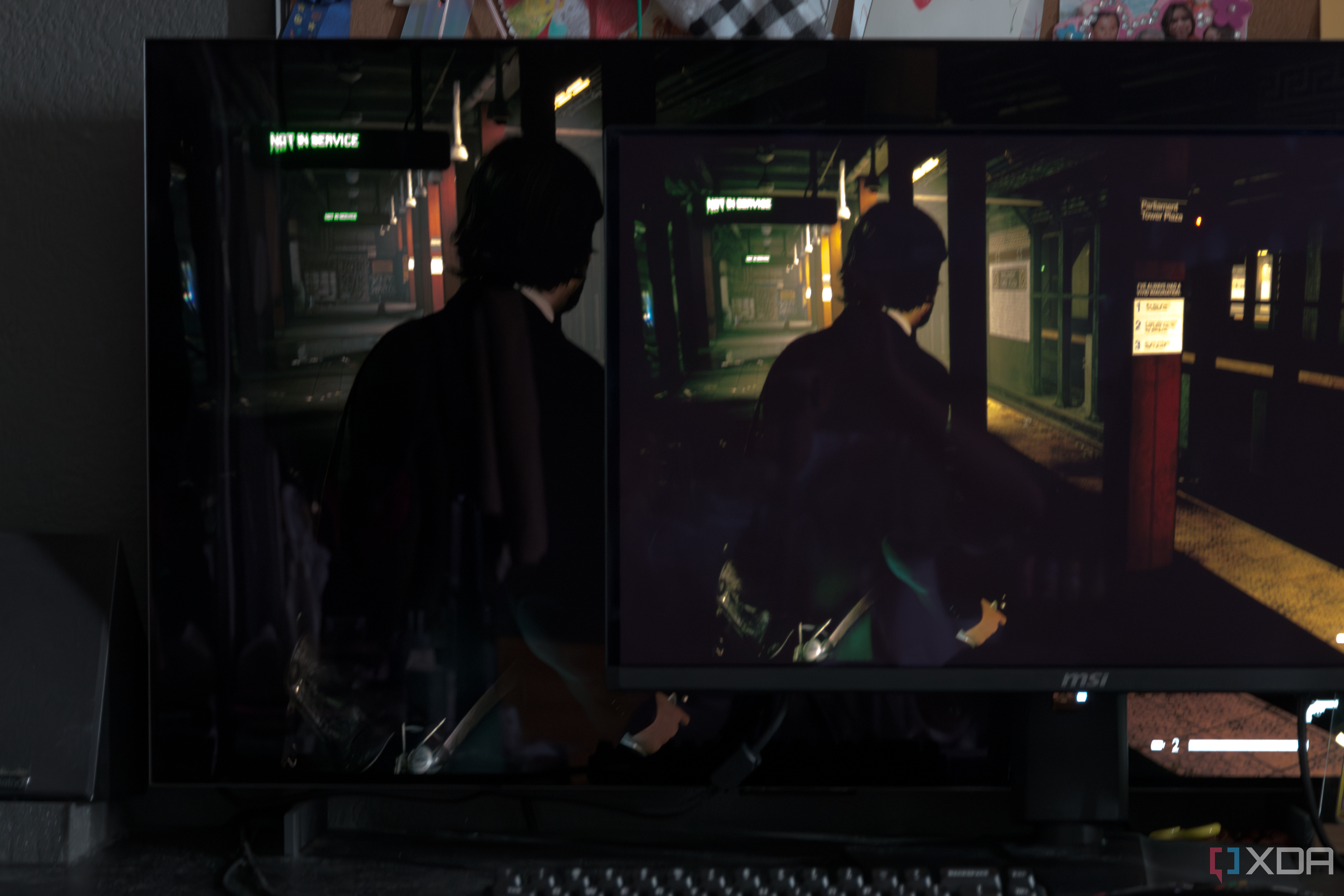
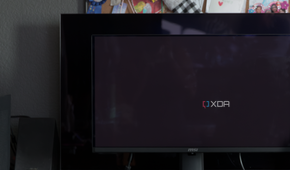
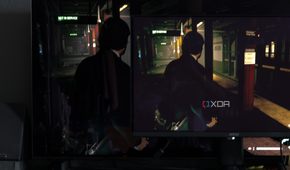
On the contrary, perhaps my least favorite thing about QD-OLED is its lack of a polarizer, which can significantly reduce the contrast of the OLED in any sort of room lighting. I generally keep my office rather dim without direct lighting in front of my displays. The pictures above are taken in my usual setting, with room lighting around 25 lux and a surround of about 5 nits, typical of a dim color grading suite. Since I don’t work or use my computer in the pitch black, I almost always notice the black level raise, though I’m not too sure how much I would if I hadn’t used my LG C2 for as long as I had. Even without it side-by-side to directly compare, I can notice how much darker the monitor bezel is relative to the actual QD-OLED screen.

These new third-gen QD-OLED monitors also come equipped with a new subpixel design which slightly alters the subpixel sizes. The vertical height of the green subpixel was made much thinner, reducing the appearance of green fringing on top edges. Having used a first-generation QD-OLED, I’d say the new layout does slightly improve text quality, though they’re still quite far off from the sharpness of a typical striped layout on LCDs. Compared to W-OLED, typefaces on QD-OLED look crisper, but there is still a vertical element to the edges that makes my eyes feel like they aren’t fully focused, whereas W-OLED has a subtle horizontal shadow to the edges.
Brightness
SDR
Out of the box, the SDR brightness of the MAG 271QPX measures about 200 nits in its default brightness and Eco color setting, increasing to 215 nits when Eco is disabled. The panel is rated up to 250 nits in SDR, which is spot-on when the display brightness is set to 100. While it doesn’t get as bright as many other LCDs, the 271QPX should still be adequate for most indoor environments. About 200 nits is typical for an office monitor, though personally I keep my monitors calibrated at 100 or 120 nits in more light-controlled rooms. On the bottom end, the 271QPX gets as low as 30 nits, similar to most other OLED monitors and TVs. In SDR, there is no brightness limiter (ABL) present, ensuring consistent luminance and calibration.
|
Brightness Setting |
0 |
7 |
26 |
34 |
70 (default) |
100 |
|---|---|---|---|---|---|---|
|
Measured Luminance |
30 nits |
50 nits |
100 nits |
120 nits |
215 nits |
250 nits |
HDR & ABL
Like with most other QD-OLED monitors, the 271QPX comes in two HDR drive options, TrueBlack 400 or Peak 1000. Out of the box, the monitor outputs TrueBlack 400, which limits the HDR peak brightness to about 450 nits but presents a more consistent picture. For the greatest HDR impact, most users will probably want to use the Peak 1000 mode, which outputs up to 1000 nits but comes with some tradeoffs. For the overall best experience, you’ll need to switch between the two modes depending on the average brightness of your content.
One of the most confusing topics in HDR is how OLEDs vary their brightness depending on the content. This is known as automatic brightness limiter (ABL) also known as peak luminance control (PLC). In short, OLEDs use substantially more power and generate more heat when displaying large sheets of white compared to LCDs, requiring OLEDs to throttle down in luminance when emitting large amounts of bright pixels.
In darker scenes where most of the pixels are emitting at low energy, the OLED panel has the electrical and thermal budget to drive a few of the pixels at a much greater intensity. With the MAG 271QPX, we’ve measured Peak 1000 mode to reach up to 1002 nits in very dim scenes. In most display reviews, you’ll see the peak brightness of an OLED expressed with respect to the size of the emitting white, also known as window size, such as the following:

|
3% |
5% |
10% |
25% |
50% |
100% |
|
|---|---|---|---|---|---|---|
|
TrueBlack 400 |
451 nits |
451 nits |
451 nits |
365 nits |
307 nits |
261 nits |
|
Peak 1000 |
1002 nits |
755 nits |
460 nits |
355 nits |
298 nits |
250 nits |
This sort of representation can be confusing though. For those who aren’t familiar with it, this might make it seem like the brightness of an OLED depends on the size of the highlights, which isn’t exactly true. To be more precise, the brightness potential actually depends on the average luminance of all the pixels being displayed. This metric is sometimes referred to as average picture level (APL), average display luminance (ADL), or frame-average light level (FALL). Technically, these three all have distinct meanings (which I won’t bother rambling about here), but I’d avoid using the term “APL” since it’s antiquated as well as inaccurate in describing how OLEDs vary their brightness.
Another common misconception is that ABL simply limits the peak brightness of the display while leaving the rest of the image intact. This is also not true. When ABL occurs, the entire image dims down proportionally with the highlights. This means that ABL has a direct impact on the EOTF calibration, and can lead to situations where SDR appears brighter than HDR when displaying bright scenes.
It is often believed that a 10% window or APL measurement is the most important metric for gauging HDR peak brightness, but most people can't imagine what that looks like in a real scene. The issue is that it actually varies depending on the peak brightness of the display, which is another reason why window size and APL aren’t useful when trying to interpret peak brightness. Instead, reporting peak brightness with respect to the average display luminance of the content establishes a baseline that’s directly comparable between displays.

|
<10-nit ADL |
25-nit ADL |
50-nit ADL |
100-nit ADL |
200-nit ADL |
|
|---|---|---|---|---|---|
|
TrueBlack 400 |
451 nits |
451 nits |
441 nits |
376 nits |
315 nits |
|
Peak 1000 |
1002 nits |
1002 nits |
755 nits |
460 nits |
376 nits |
In pretty much all conditions, the peak brightness of the Peak 1000 mode is greater than TrueBlack 400, but that doesn’t mean it’ll always appear brighter.

|
<10-nit ADL |
25-nit ADL |
50-nit ADL |
100-nit ADL |
200-nit ADL |
|
|---|---|---|---|---|---|
|
TrueBlack 400 |
100% |
100% |
98% |
83% |
70% |
|
Peak 1000 |
100% |
100% |
75% |
46% |
38% |
If we instead focus on the dimming factor rather than peak brightness, we can see the scale at which the Peak 1000 mode dims. For scenes that average about 50 nits, which can be very common in some games, the Peak 1000 mode loses about a quarter of its total brightness, whereas TrueBlack 400 is still practically at full strength. The gap grows even wider the brighter the content.
Take for example a scenario that averages about 100 nits across the screen, which I’ve measured the 271QPX to reach highlights up to 460 nits in Peak 1000 mode and 365 nits in TrueBlack 400. Despite Peak 1000 reaching up to 100 nits higher in this case, its aggressive ABL has dimmed the entire image to about 46% of its original brightness, while the TrueBlack mode has only dimmed to 83% of its original brightness. So while small highlights in this scenario can get up to 26% brighter for the Peak 1000 mode, the rest of the image on TrueBlack 400 is about 80% brighter.

Of course, most content isn’t going to constantly blast over 100 nits, but for games that do reach high average brightness from time to time, I prefer not having the screen intermittently dim. For those who prefer to leave HDR enabled on the desktop like myself, any light-themed applications appear far too dim when close to maximized in Peak 1000 mode. On a side note, there is a slight vignette to 271QPX that cannot be disabled when HDR is active, though it’s mostly only visible in white full-screen applications. Both of these traits push me to disable HDR on this monitor when not in use, which I don’t feel the need to do for other displays.
Color Performance
SDR: Out-of-the-box
The MAG 271QPX offers some sensible defaults, appearing to target 200 nits with a 2.2 gamma and a D65 (6504K) white point. The out-of-the-box calibration only slightly deviates from its target, with slightly lifted shadows that skew the measured gamma towards 2.08, and an average white point color temperature of about 6350 K. Grayscale precision however is excellent, with a standard deviation of 0.9 ensuring that the tint of gray and colors appear identical regardless of luminance. The result is perfectly smooth color gradients for this color mode.

For color reproduction, the default Eco and User modes use up the panel’s entire native wide gamut. It fully covers the P3 gamut (outlined in red), with reds that extend moderately past P3. These are the same primaries found on the first generation of QD-OLED monitors, though they don’t reach out as far as those found on existing QD-OLED TVs.
In non-color-managed applications, such as most games and applications in Windows (along with the entire desktop), this results in wildly oversaturated colors. Some users may enjoy the increased color vibrancy, but for those who want a more faithful screen depiction, you’ll need to either use a driver-level gamut map or one of the monitor’s dedicated gamut modes. Under the “Professional” settings, the 271QPX offers modes for sRGB, Adobe RGB, and Display P3.
SDR: sRGB mode
For sRGB, we set the white level of the MAG 271QPX at 120 nits before taking measurements, which is a typical monitor brightness for color-sensitive proofing. In its sRGB mode, monitor R/G/B adjustments are disabled though, and only brightness is adjustable. This is a bit of a shame since monitors often vary from unit to unit, and dialing in the white point RGB is crucial for overall color accuracy.
Rather than targeting gamma 2.2, which is the pseudo-standard tone curve for computer monitors and the internet, the sRGB mode on the 271QPX targets the sRGB tone curve, which differs slightly. The latter produces brighter shadow tones than gamma 2.2, which can make things look washed out if they were meant to be viewed with gamma 2.2. The discrepancy between these two tone curves has only really begun to become serious with OLED monitors, since their deeper black levels allow the mismatch to become obvious. The topic of which tone curve is “correct” is a very contentious one, and I won’t get into that here. In the end, there is no one right answer, which is why panel makers should provide the option to select one or the other.

|
White point |
Grayscale Error |
Grayscale Spread |
Color Error |
|
|---|---|---|---|---|
|
sRGB mode |
6344 K (white) / 6382 K (avg) |
Avg. ΔETP = 2.1 |
σ = 1.0 |
Avg. ΔEITP = 4.4 / Max ΔEITP = 14 |
In terms of accuracy, the sRGB mode measures with very little deviation from the sRGB tone curve, and with minor color errors in highly saturated reds. Our color sweep measures an average ΔEITP of 4.4, which is decent, but a maximum ΔEITP of 14 for the red primary can be a bit of a concern for serious color work. The white point and grayscale precision remain just as accurate as they were in the default color setting at 200 nits, which is great to see.

A notable issue I’ve found with the mode’s calibration is that it crushes near-black colors earlier compared to the other modes, which is odd since the sRGB calibration uses a tone curve that’s supposed to be lighter in that region. Some banding in darker scenes may be noticeable as a result. Oftentimes, banding is expected when a panel’s native tone response is touched, such as when mapping gamma to sRGB, but near-blacks aren’t usually affected to this degree.
For optimal SDR accuracy, I recommend sticking to the User color mode and instead using a driver-level color clamp (using a tool such as novideo_srgb for NVIDIA cards, or enabling “Custom Color” and disabling “Color Temperature Control” for AMD). This ensures smooth gradients with slightly improved color accuracy, along with the ability to tune the white point RGB. The built-in sRGB mode of the 271QPX is not bad by any means, but this monitor is not cheap, and its tuning performance leaves room for improvement.
HDR
Since HDR covers a significantly larger range of colors and brightness, it’s impossible to define color performance in one representation. And because of OLED ABL, it’s necessary to take measurements at varying ADLs. We’ve gone through this process in detail to paint a clear picture of how HDR behaves on this panel.
TrueBlack 400 is the default HDR mode of the 271QPX, as well as on most other QD-OLED monitors. Its less aggressive ABL lends to a more consistent picture and calibration. Despite its name, TrueBlack 400 does reach up to about 450 nits, giving a little extra oomph. Like the sRGB mode, the white point R/G/B is not adjustable when HDR is active.
One annoying quirk is that the monitor maintains the same color mode both in SDR and HDR, which wouldn’t be too bad if it weren’t for an existing bug in the sRGB mode that breaks the HDR EOTF. It’s also not possible to select the sRGB mode as one of the shortcut profiles, so you actually need to go through the OSD menu just to toggle the profile if you want an accurate experience in both SDR and HDR.


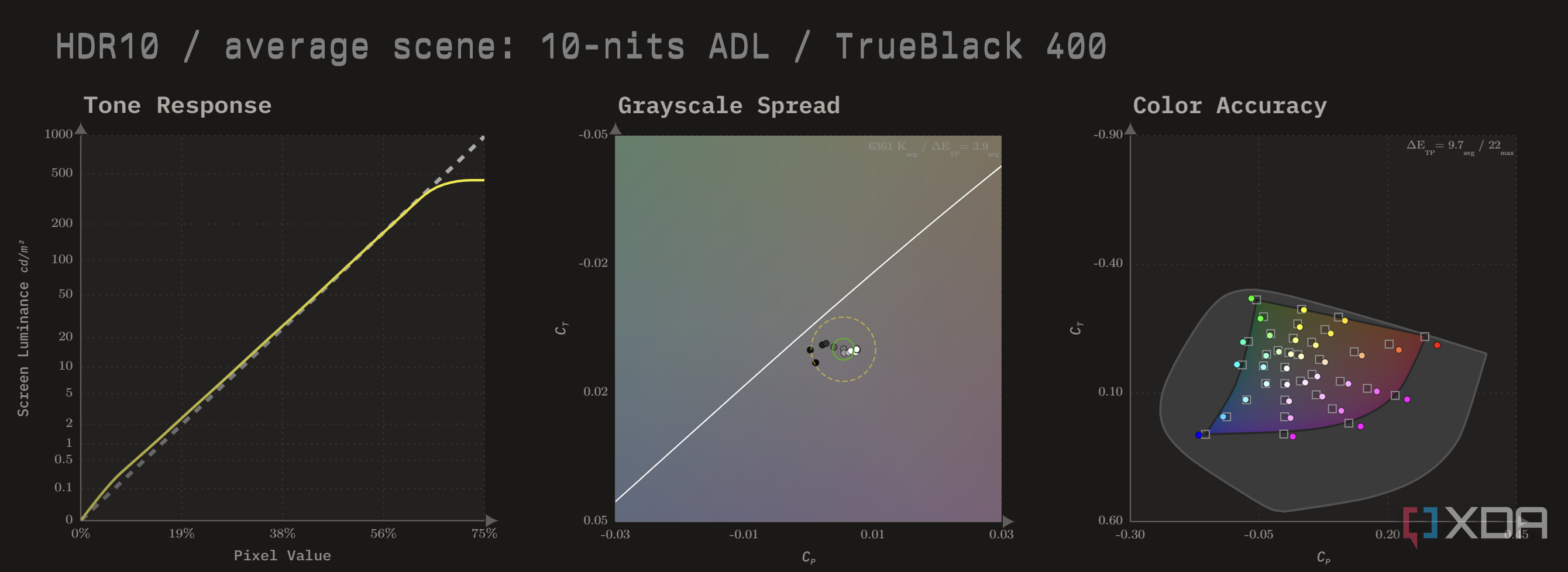
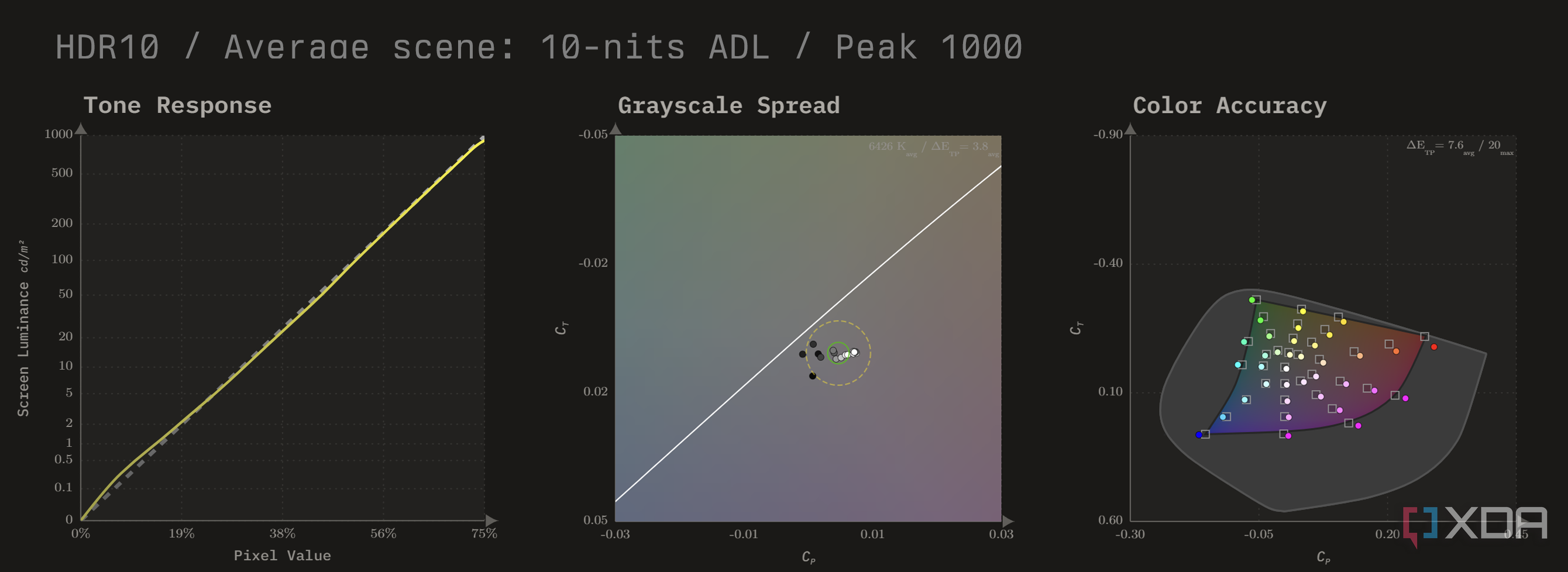
|
White Point |
Grayscale Error |
Grayscale Spread |
Color Error |
|
|---|---|---|---|---|
|
TrueBlack 400 |
6274 K (peak) / 6361K (avg) |
Avg ΔETP = 3.9 |
σ = 1.6 |
Avg ΔEITP = 9.7 / Max ΔEITP = 22 |
|
Peak 1000 |
6314 K (peak) / 6426 K (avg) |
Avg ΔETP = 3.8 |
σ = 2.0 |
Avg ΔEITP = 7.6 / Max ΔEITP = 20 |
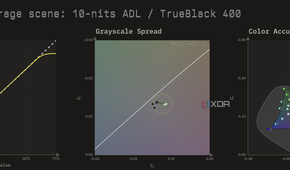
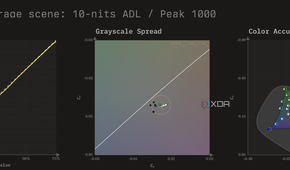
At a 10-nit ADL, which corresponds with an average scene in many films, the tone response (or EOTF) for both modes is commendable, with only a slight bump up in the shadows. In this scenario, the Peak 1000 mode unequivocally produces a better picture, showcasing the full potential of the OLED. Grayscale precision is again very good with no noticeable tinting, maintaining the same white point throughout.
Color is where things start to get worrisome. The color mapping of the 271QPX does not appear to working correctly, and P3 colors are instead getting mapped out to the native gamut of the panel. The result is oversaturated colors, pink-ish reds, and other hue shifts for color mixtures containing red, which includes some skin tones. At 10-nits ADL, which is where a panel should typically be its most accurate, the 271QPX has an average ΔEITP of 9.7 in TrueBlack 400, with a maximum error of 22. The various color modes have no effect on this, besides Premium Color which further increases the saturation, and the sRGB mode which breaks the EOTF due to its SDR tone curve being incorrectly applied in HDR.


|
White Point |
Grayscale Error |
Grayscale Spread |
Color Error |
|
|---|---|---|---|---|
|
TrueBlack 400 |
6289 K (peak) / 6359K (avg) |
Avg ΔETP = 3.8 |
σ = 1.5 |
Avg ΔEITP = 10 / Max ΔEITP = 29 |
|
Peak 1000 |
6353 K (peak) / 6468 K (avg) |
Avg ΔETP = 3.7 |
σ = 2.3 |
Avg ΔEITP = 22 / Max ΔEITP = 25 |
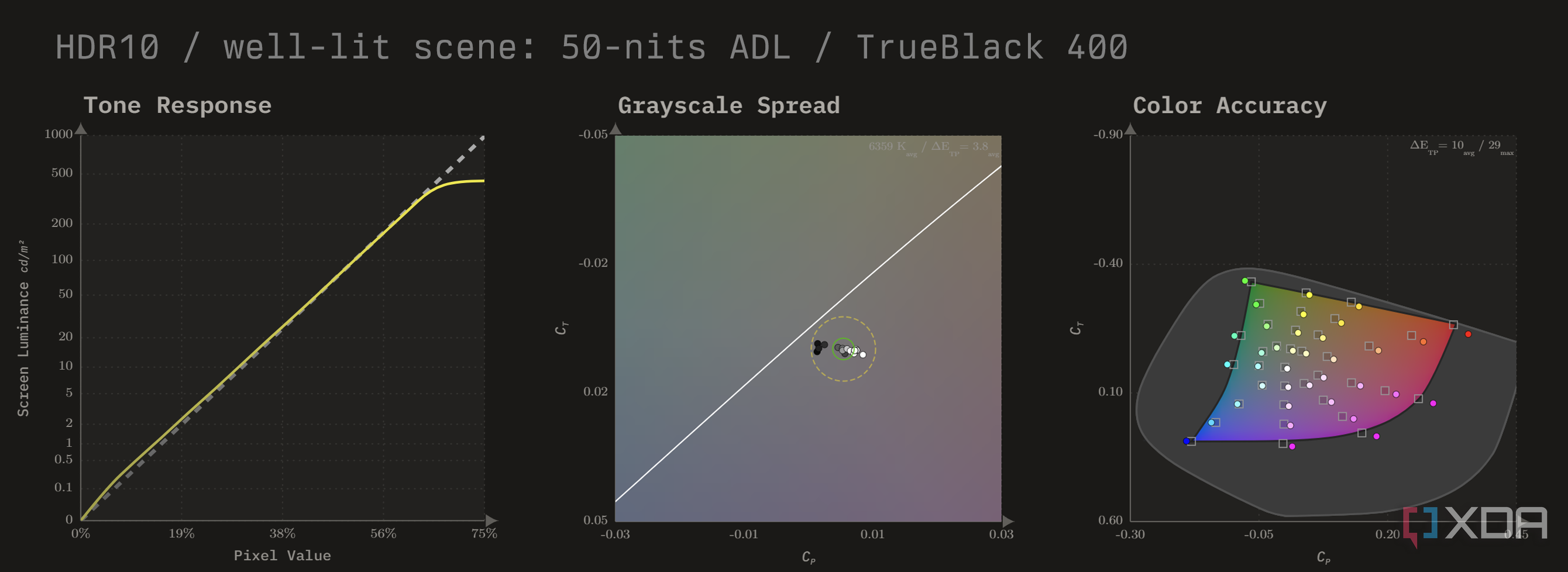
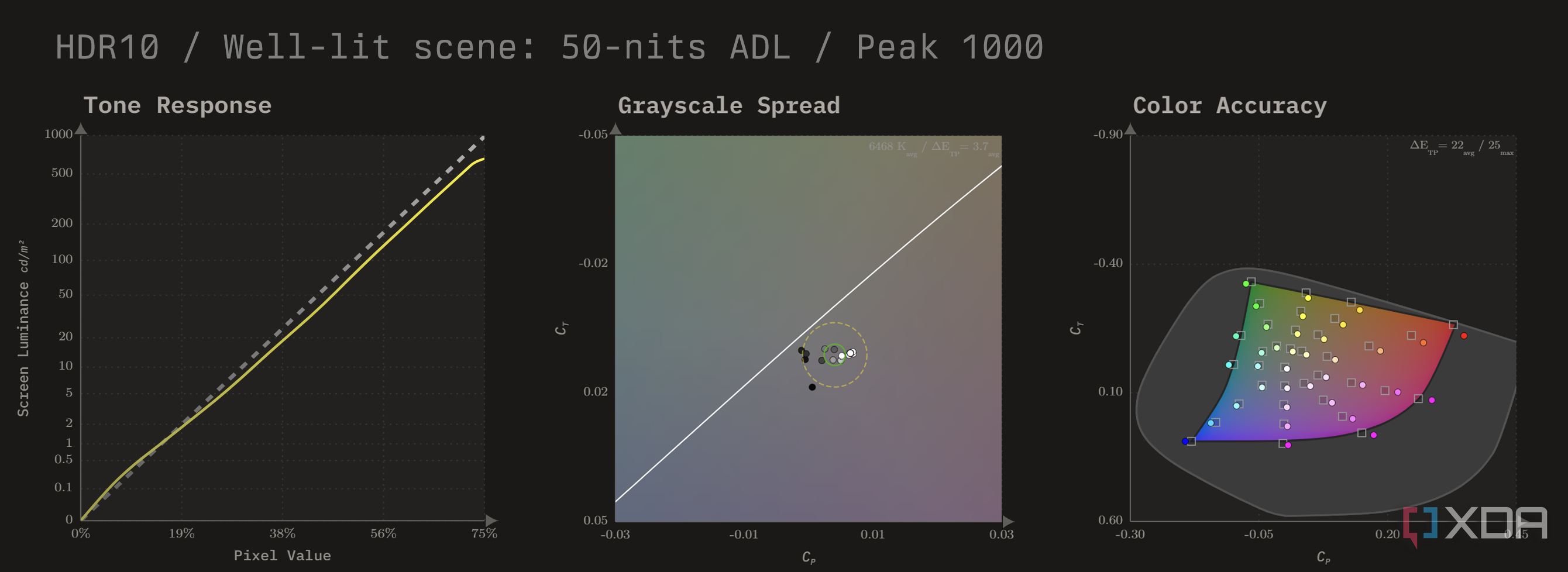
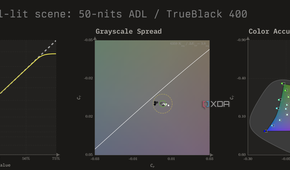
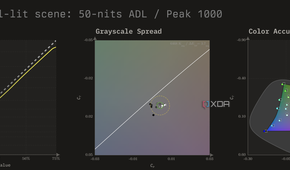
Moving on to brighter scenes, at 50 nits ADL the overall performance of TrueBlack 400 is largely identical to that of lower levels, while the Peak 1000 mode has started to noticeably dim. This is around the point where the TrueBlack 400 mode begins to truly shine. Once again, grayscale precision is great, but color accuracy is sadly just as bad if not a little worse. The color luminance for the blue primary here taps out for TrueBlack 400, only capable of reaching up to about 33 nits out of the expected 50, although this is expected from the given colorimetry. And due to dimming, the Peak 1000 mode doesn’t fare all that much better, averaging color luminances around 36 nits.


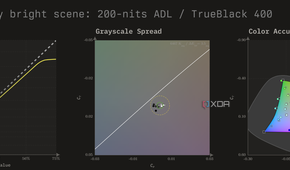
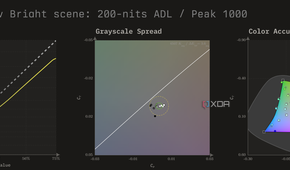
|
White Point |
Grayscale Error |
Grayscale Spread |
Color Error |
|
|---|---|---|---|---|
|
TrueBlack 400 |
6356 K (peak) / 6467 K (avg) |
Avg ΔETP = 3.5 |
σ = 1.4 |
Avg ΔEITP = 40 / Max ΔEITP = 162 |
|
Peak 1000 |
6370 K (peak) / 6507 K (avg) |
Avg ΔETP = 3.6 |
σ = 2.2 |
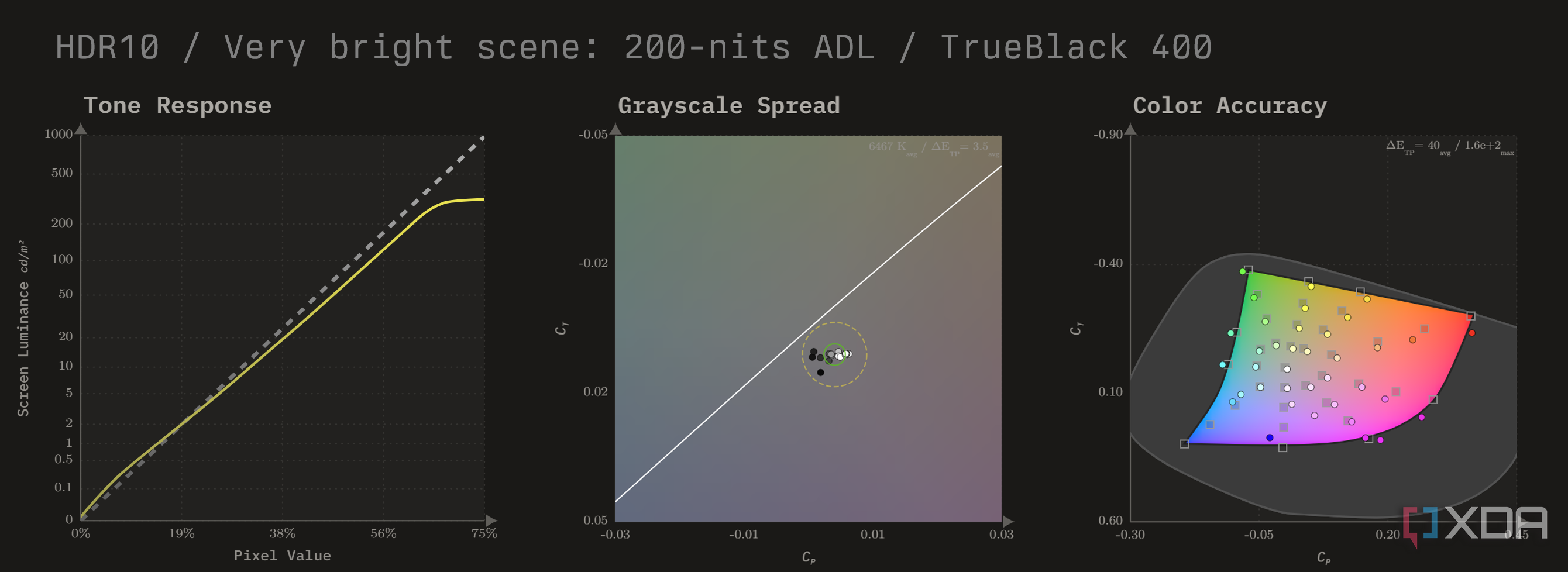
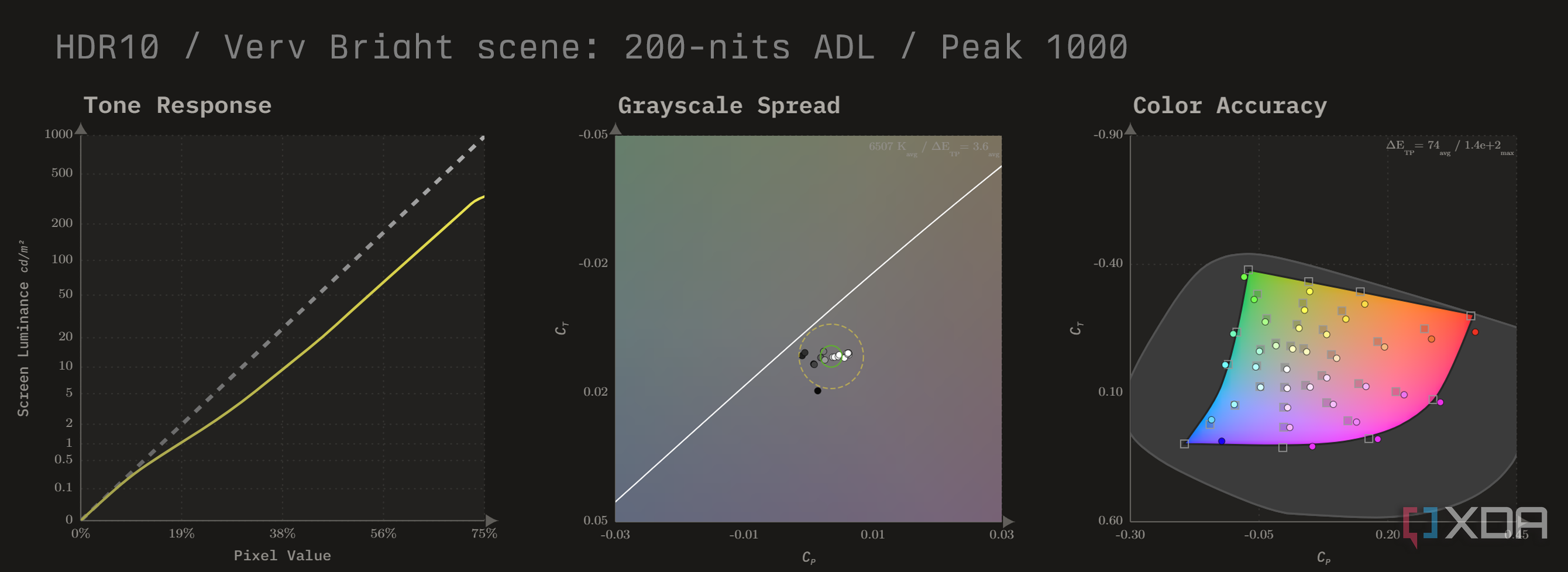
Avg ΔEITP = 74 / Max ΔEITP = 142 |
At a super-bright 200-nit ADL, which represents some of the brightest scenes, or desktop usage, we see the MAG 271QPX begin to struggle in both modes. However, it’s clear that TrueBlack 400 is holding much better, and the lead in peak brightness for Peak 1000 is virtually non-existent. HDR here is clearly not fit for reproducing these kinds of scenes, and they’re better represented using SDR.


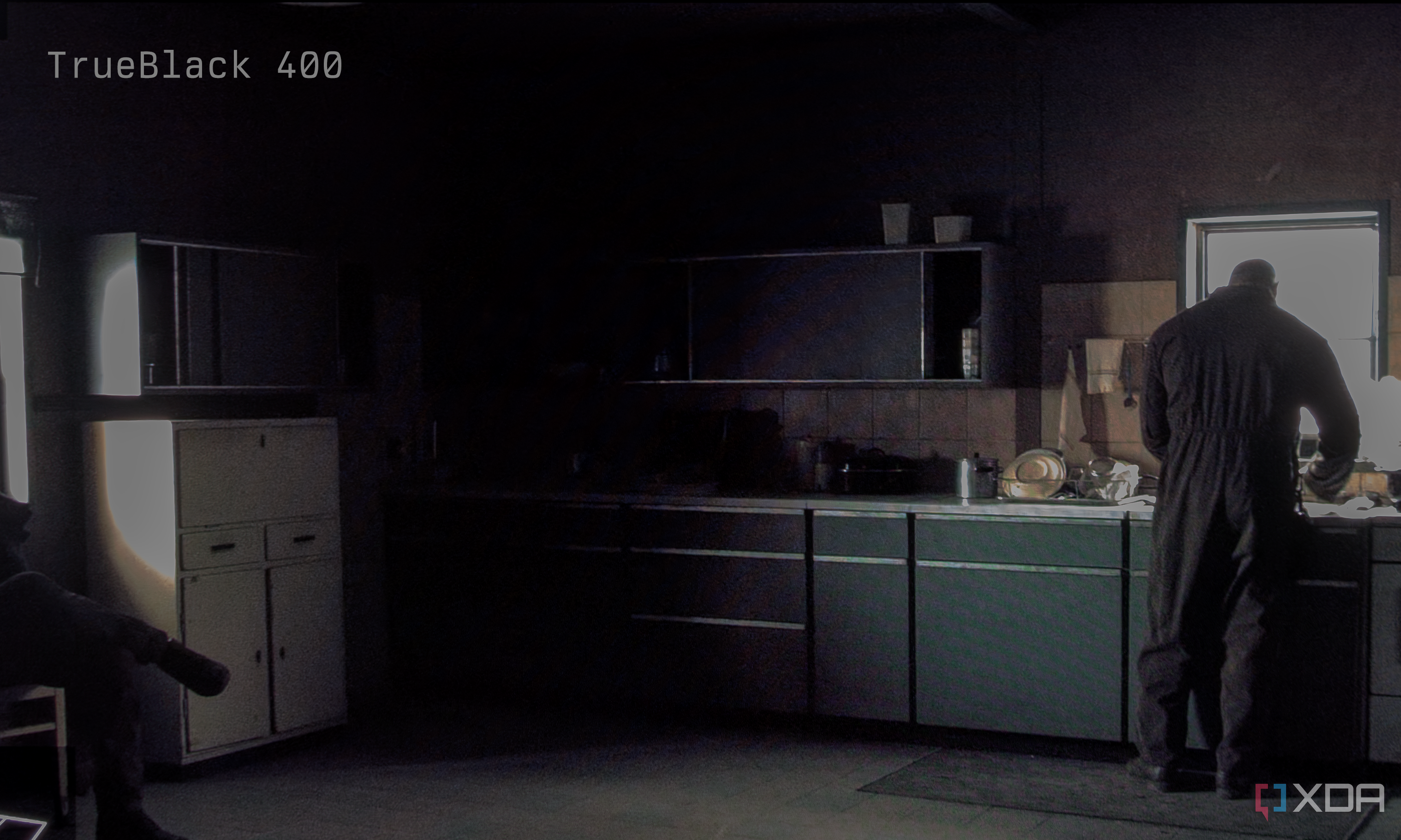
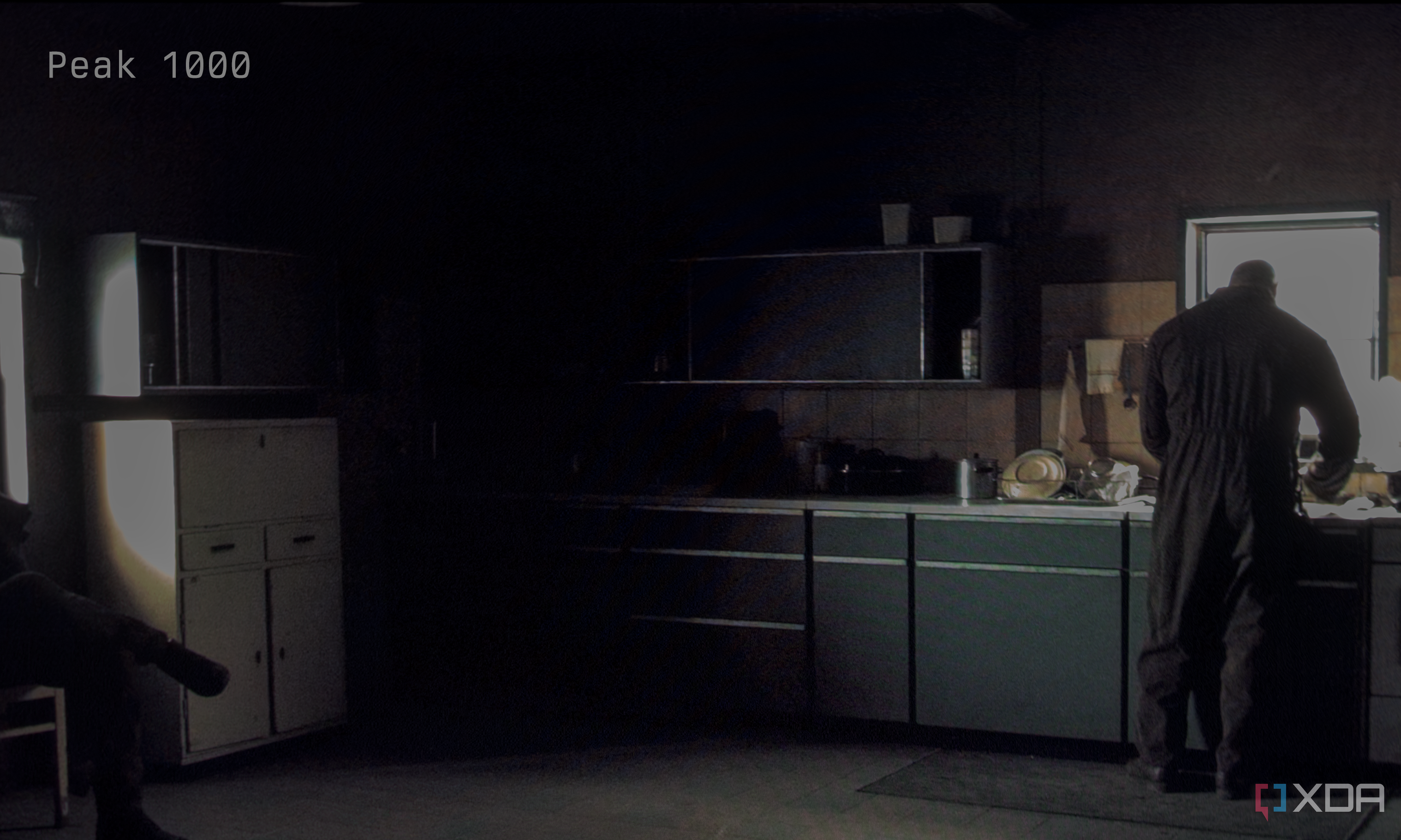
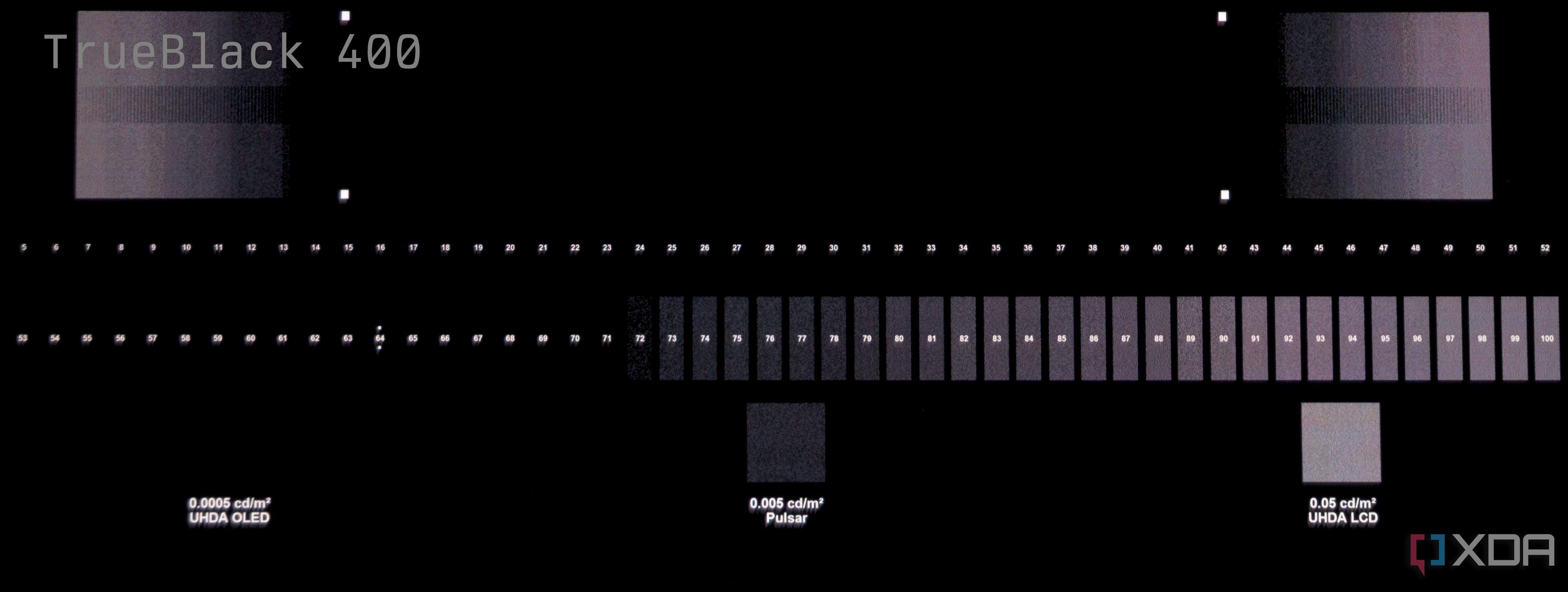
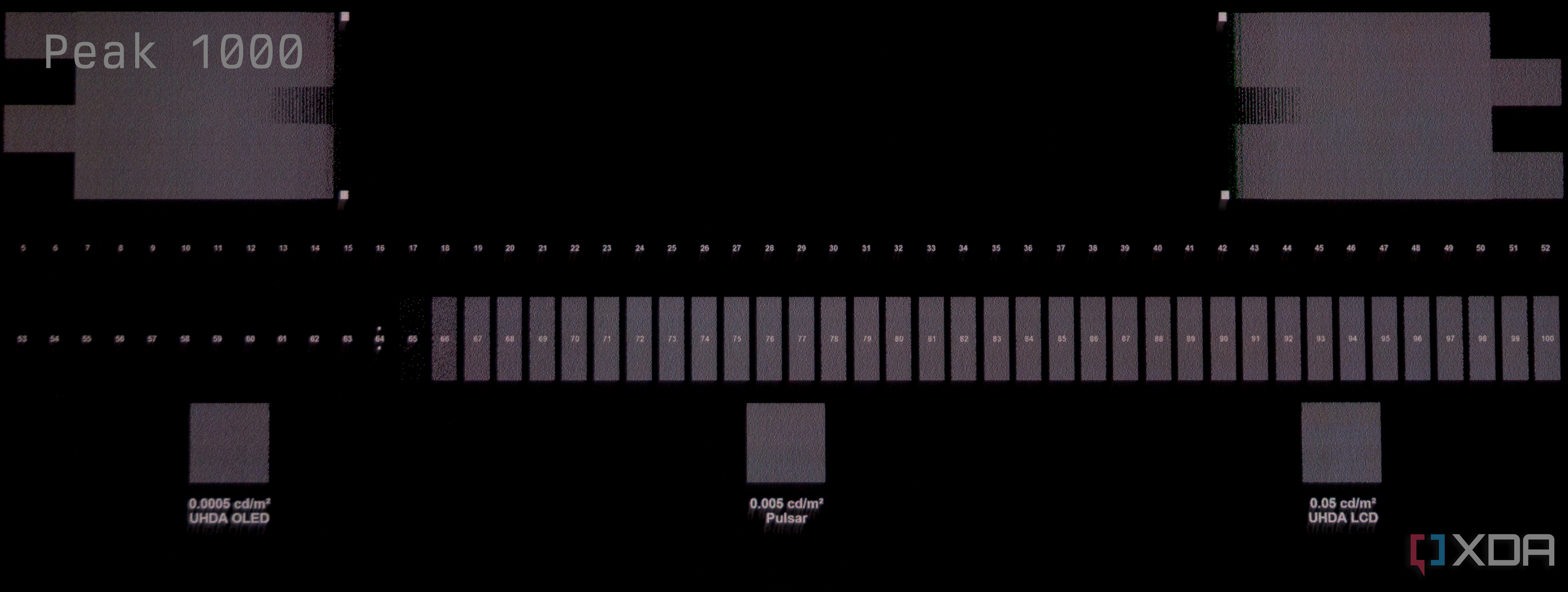
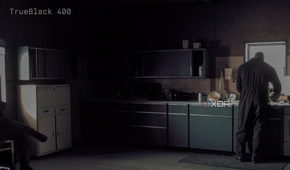
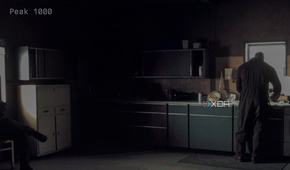
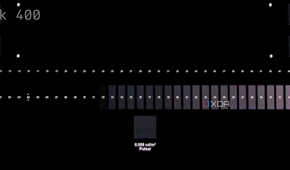
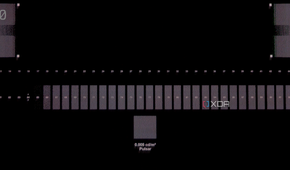
One final difference between the two HDR modes is that Peak 1000 has some trouble ramping gradually towards black, clumping up near-black details into the same dark-gray blob and making dark scenes less legible.
Verdict — should you buy this monitor?
The MAG 271QPX is a compelling product driven by some interesting decision-making from MSI. At its asking price of $750 USD, the 271QPX undercuts nearly all other QD-OLED monitors on the market, with its catch being that they don’t need to further update the product. Do I think it’s worth $50 more to upgrade? Only once MSI ships out a firmware update that addresses some of its existing issues.
Overall, I’d say that if you don’t care about absolute color accuracy, like most people, then this monitor seems worth it. There is definitely appeal in ringing up one of the most affordable 27-inch QD-OLEDs on the market that, to most users, offers 95% of the desired experience.
You should buy the MAG 271QPX if
- You’re a casual gamer who enjoys deep, vibrant colors
- You’re a competitive gamer who benefits from the refresh rate and response times
- You want the most affordable 27” QD-OLED monitor
You should NOT buy the MAG 271QPX if
- You care about accurate color and calibration
- You mostly use your computer in a well-lit room
- You’re expecting updates to address some bugs
