


If you’re into the server ecosystem, you may already have a couple of monitoring tools set up on your home lab. While Uptime Kuma and Prometheus + Grafana configurations have their perks, you’ll require something more advanced like ntopng to keep tabs on the network resources of your local server. Since ntopng can seem intimidating for newcomers, here’s a detailed guide on how you can deploy and use this neat utility to monitor every aspect of your home network.
What’s ntopng, anyway?
And why should you use it?


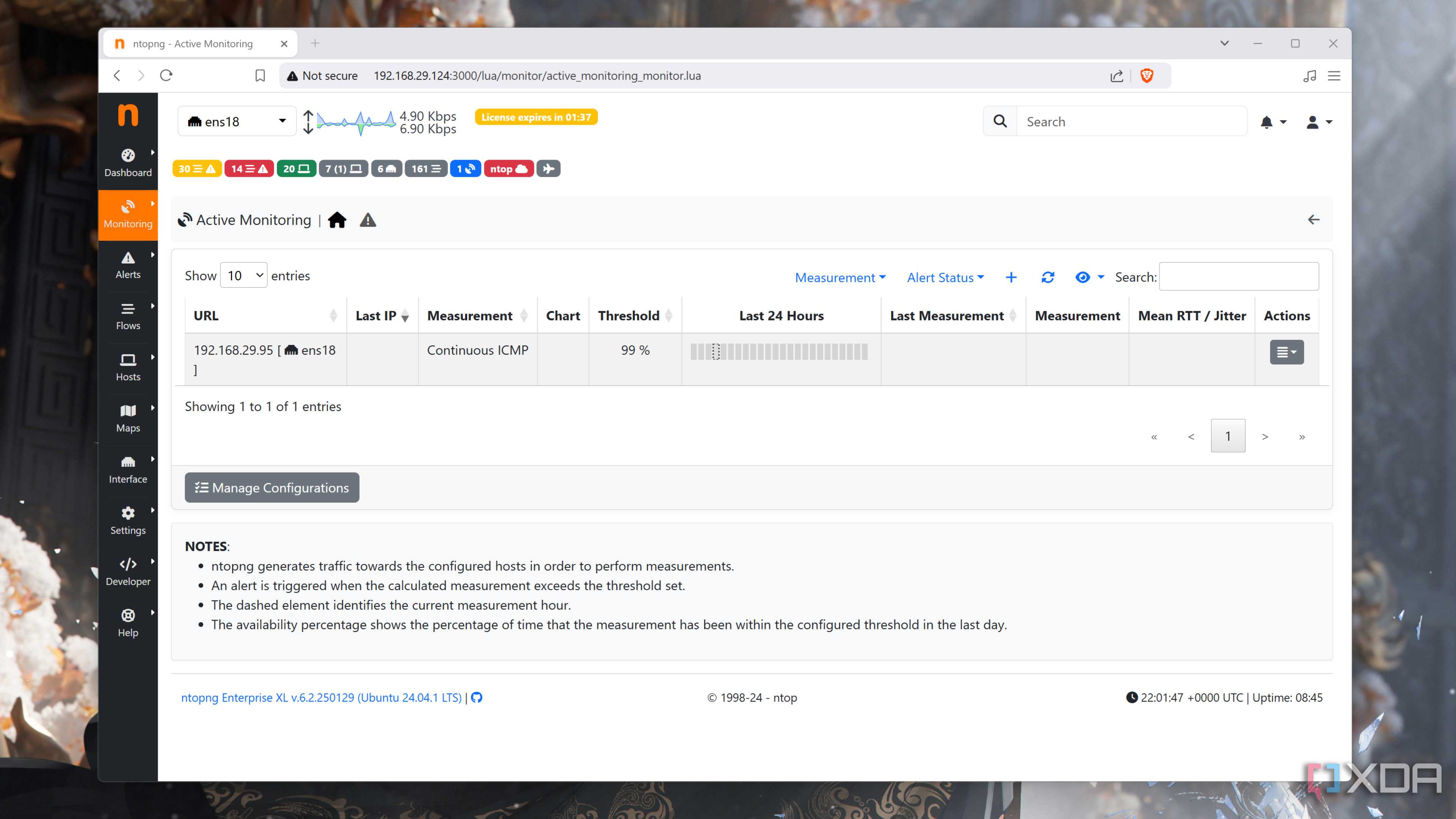
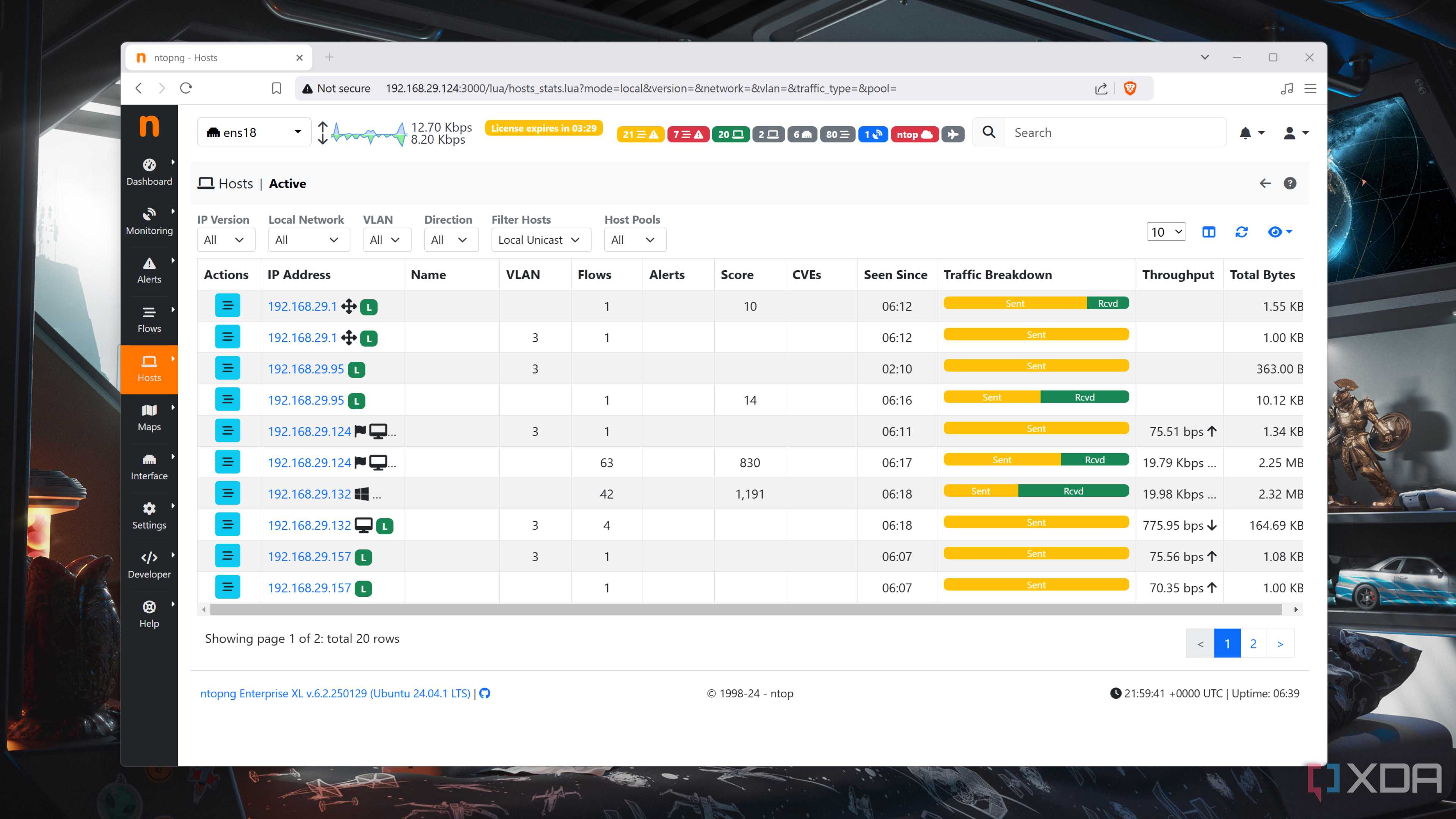
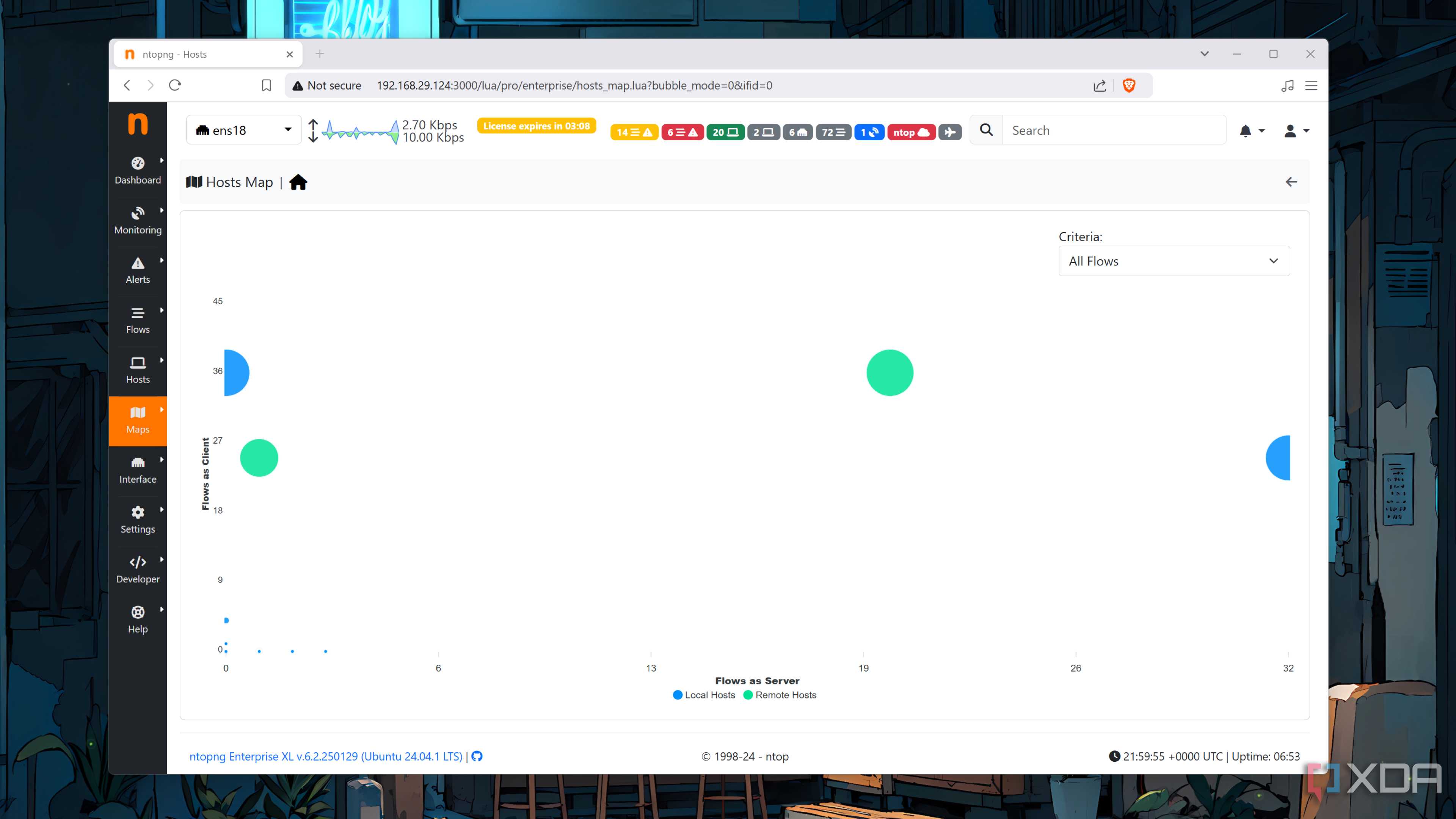
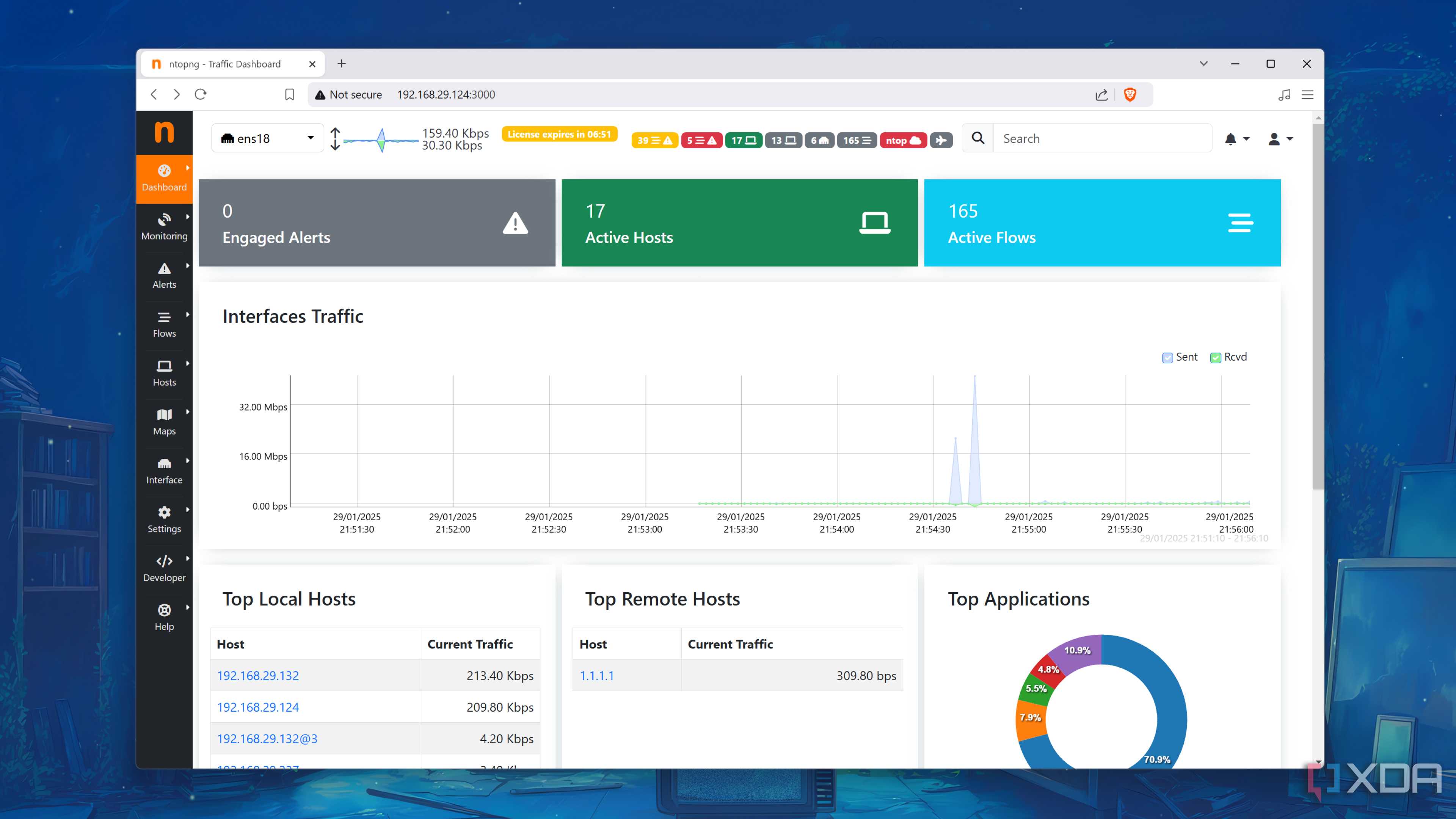
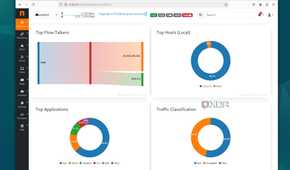
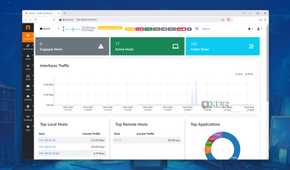
In contrast with typical uptime trackers and resource monitors, ntopng is a network-probing tool designed specifically for your LAN/WLAN equipment and services. While it’s not the most beginner-friendly utility for new home labbers, ntopng is a godsend for tinkerers who want real-time traffic monitoring. For starters, you can check the IP addresses, traffic breakdown, throughput, as well as the amount of data transmitted to and from every device on your home network.
Likewise, you can generate detailed reports containing the network traffic history for all your equipment. Then there’s the vulnerability scanner, which lets you check your network hosts for CVEs that can be exploited by hackers to break into your network. And that’s before you include the traffic flows, automatic alerts, and network discovery provisions available in ntopng.
Setting up the ntopng container
As with most self-hosted services, ntopng can be set up inside a container. Since Docker is easy to work with, we’ll use it as the container runtime environment. Ideally, you’d want to use a machine separate from your home server as the ntopng host. That way, your monitoring server wouldn’t go offline if (or rather, when) your home lab projects bring down your experimentation workstation. Assuming you’ve already installed Docker Engine on the system, you can follow these steps to deploy an instance of ntopng:
- Launch the terminal app included in your Linux distro.
-
Run the ip addr command and note the name of the Ethernet adapter that’s connected to the same network as the rest of your home lab equipment.
ip addr

-
Execute the docker run command with these parameters to deploy ntopng on your system.

docker run -it -p 3000:3000 -v $(pwd)/ntopng.license:/etc/ntopng.license:ro --net=host ntop/ntopng:latest -i Ethernet_adapter_name
Remember to replace the Ethernet_adapater_name string with the Ethernet adapter you noted earlier.


Configuring the ntopng web UI
Once the Docker Engine has deployed the ntopng container, the next step involves accessing its web interface.
-
If you wish to run ntopng on the same PC, type localhost:3000 into the Address bar of your favorite browser.

-
Alternatively, you can replace the localhost string with the IPv4 address of your system to open the ntopng web UI on another device on the same network.

-
At the login screen, type admin as the Username and Password.

- Replace the default Password with a stronger one when ntopng prompts you to do so.


With that, the Dashboard will appear and you’ll be free to tinker with ntopng to your heart’s content. But if you’re struggling with its UI, here are a couple of pointers:
-
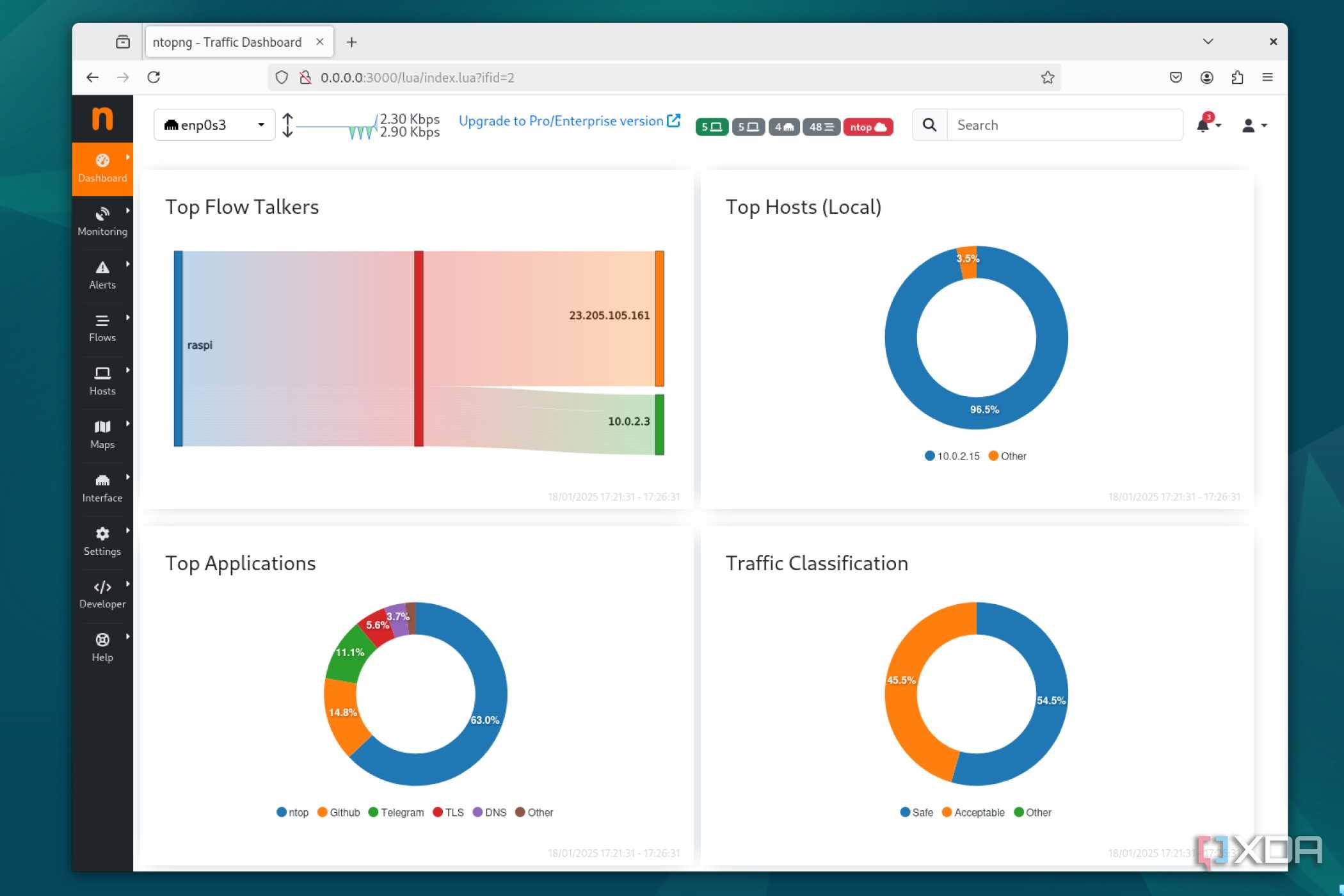
By default, the ntopng Dashboard will display a quick overview of the active hosts, traffic speeds, and network protocols used by your devices.

-
A fresh installation of ntopng has the Network Discovery and Active Monitoring tabs disabled, and you’ll need to enable them inside the Preferences section of the Settings.

-
Speaking of, the Network Discovery tab shows the IP address, MAC address, OS, and other details of the hosts connected to your home LAN/WLAN.

-
Meanwhile, the Active Monitoring tab lets you run ICMP, HTTP(s), Throughput, and other tests on your local devices.

-
The Vulnerability Scan section inside the Monitoring tab is another useful utility, as it lets you run several scans on your local devices (and their ports) to check for vulnerabilities that can be exploited.

-
Finally, you’ve got the Flows tab, where you can view the live packet exchange of all the devices on your local network.


Maintain a vigilant eye on your network with ntopng

While ntopng is a solid tool on its own, you’ve got a ton of other tools that mesh well with it. For instance, you can pair it with an OPNsense/pfSense firewall to further secure your home network. Or you can deploy a DNS caching server to reduce the time needed to load your oft-accessed websites. There are also reverse-proxy services like nginx and Caddy, which work well when you want to access your battalion of self-hosted services without forcing yourself to remember their port numbers every time you need to access them.
