


When it comes to doing a fresh installation of Windows or getting a new PC, there is always one setting that I change immediately. The feature I turn off is the OneDrive sync setting, which is enabled by default. It backs up the key user folders, like Pictures, Documents, Downloads, and others. The latter is one of the more irksome folders it downloads. OneDrive sync drives me crazy.
When I have a fresh install or new PC, I don’t want a bunch of ISOs and other large downloads clogging up bandwidth by syncing to a new laptop with limited storage. The Desktop folder syncing is also annoying since it loads up the desktop on my PC with a bunch of files and shortcut icons I don’t need on that specific machine. So, with that said, let’s explore the reasons I don’t enjoy OneDrive running on my PC and why it’s one of the settings I always change first.
Why do I turn the OneDrive sync setting off
It syncs files I don’t want

I sign into a new Windows install with a Microsoft account. It is helpful since the Windows experience is designed to work best with one. It provides a convenient method to sync Outlook, Office, Store apps, and other data. Licensing is also another benefit. I can’t recall the last time I had to enter a long, complicated product key to get my system going.
Now, you might think I should just set up my PC with a local account. Sure, you can make that case; however, there are reasons I want to use my Microsoft account for. For instance, I can sync access to data via the Files On-Demand feature. It uses a placeholder for your files, but doesn’t download them to your system until you click on them. Additionally, the process of signing in with a local account is cumbersome. In fact, it takes some doing, but luckily, users are fighting back to still sign in with a local account.
Disable OneDrive
This is how I turn off the OneDrive sync setting


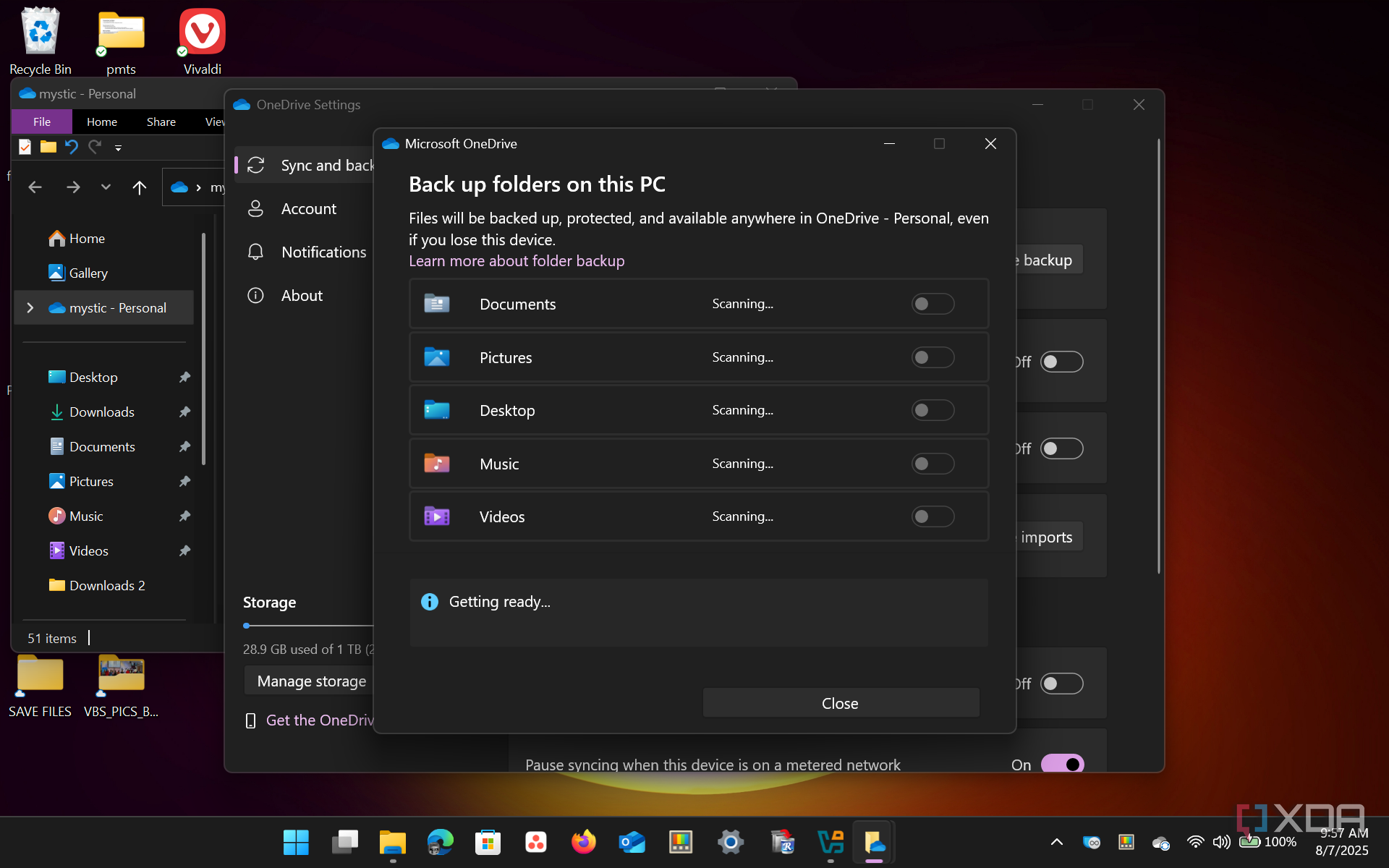




I don’t disable OneDrive on Windows entirely, but I change the sync setting so it’s paused. While OneDrive is syncing default folders, it is wasting drive space and hogging bandwidth, which slows Windows updates and my entire network. I live in a rural location and have limited bandwidth anyway. With OneDrive syncing, I've noticed a significant slowdown in my network speed. Web browsing is slow, and downloading files is painfully slow. Streaming Netflix or anything else is out of the question.
So, I use the pause setting on OneDrive until I get the necessary updates and set up Windows quickly. It also allows me to take a moment to breathe and decide which files I actually want to sync across machines. Once you sign in with your Microsoft account, OneDrive syncs rapidly, so you need to pause it right away. Luckily, doing so is straightforward.
I click the OneDrive icon from the Notification area on the taskbar, click the settings button (gear icon), select the Pause syncing dropdown, and choose the amount of time to pause it for (usually 24 hours). This gives me plenty of time to assess the situation and decide how I want to proceed. Of course, if you don’t use it and prefer another privacy-focused alternative like Proton Drive, you can always disable OneDrive altogether. Or, even if you want to use an alternative like Google, you can safely turn off OneDrive and never think about it again.
Choosing files I want to back up to OneDrive
I tailor my OneDrive backup for specific files

While the situation I am in varies between PCs, once the syncing of unwanted files has stopped and my bandwidth isn’t being hogged, I manage the folders to back up. However, there is always a constant: I promptly turn off the Desktop folder to avoid old desktop icons and files.
Since I prefer Proton Drive for most of my sensitive files, I will typically turn off sync for documents and pictures. I may also disable sync for the Downloads folder depending on the situation, especially if it has become unmanageable. Turning sync for default system folders is a cinch by going to OneDrive -> Settings -> Manage backup and toggling off the folders you don’t want to sync with other systems.

Microsoft OneDrive
OneDrive folder sync is a gift and a curse
While it makes sense to have your files synced between your Windows PCs, it’s not always ideal. The main culprit in my eyes is the Desktop folder, and not having complete control over syncing is not perfect. You might get lost in the flashiness of a new Windows PC and eventually find that your desktop is cluttered with blank icons from apps you haven’t even installed yet.
Additionally, if your Downloads folder is packed full of ISOs, numerous documents, and large software programs, it can consume a significant amount of space on a low-density drive, and that doesn’t count the bandwidth it wastes (if you need to worry about that). There isn't much I sync with OneDrive, but when I need it, it's nice to have. So, while the sync feature makes sense, it doesn’t offer me the amount of control I want, and it’s one setting I constantly change first.
