


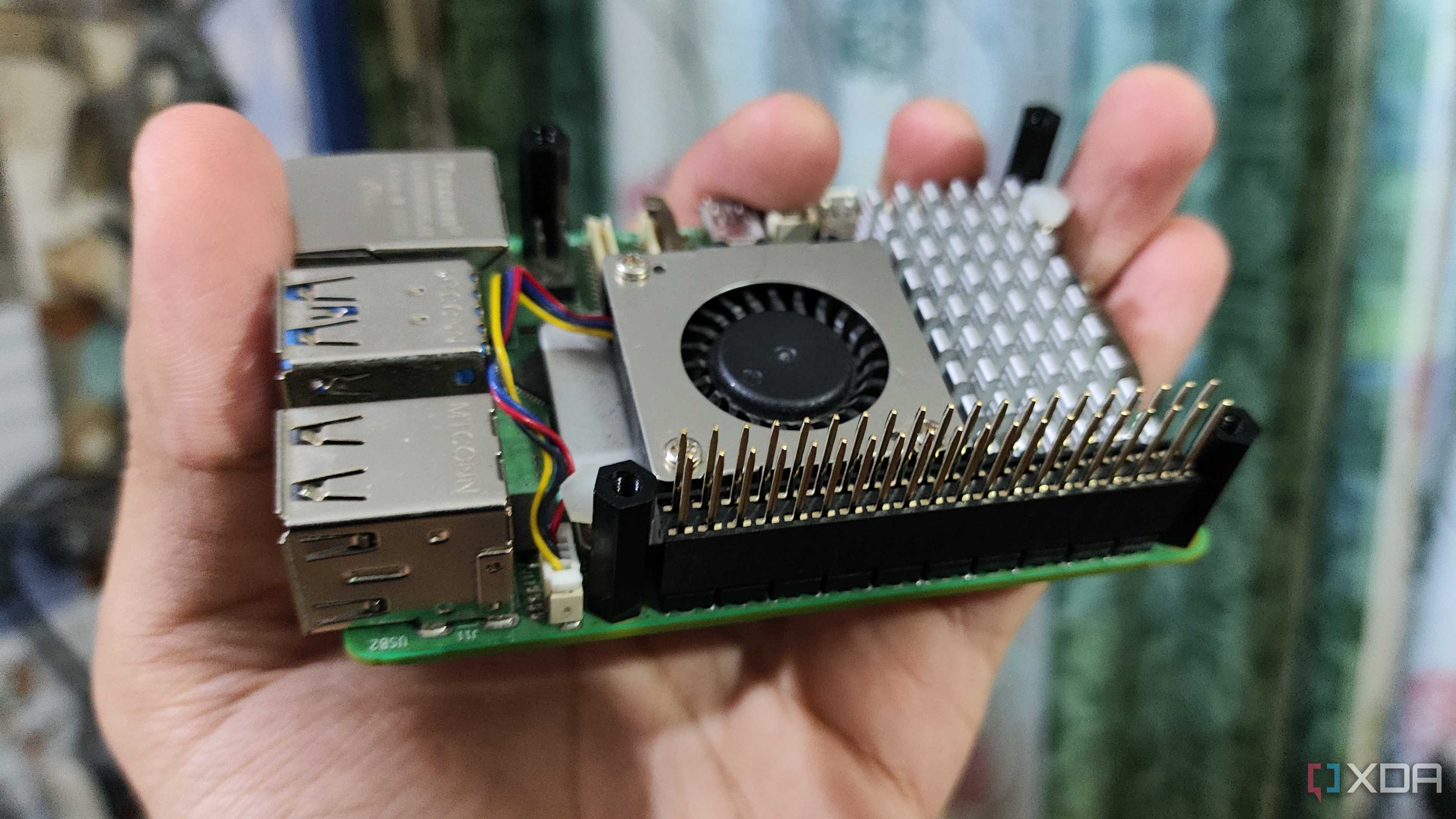
One of the biggest differences between microcontrollers and Single-Board Computers is that the latter can be outfitted with a full-fledged desktop operating system. This means that you can use your adorably sized SBC as a normal PC, provided your essential apps and services are compatible with the board’s architecture.
But what about using an SBC like the Raspberry Pi to build codes for your Arduino boards? As luck would have it, it’s entirely possible to do so, and this article will help you create, debug, and run your complex DIY projects on an Arduino using nothing more than a Raspberry Pi, some peripherals, and a little bit of patience.
Pairing the Arduino with the Raspberry Pi
Armed with multiple libraries, samples, and tools, the Arduino IDE is the platform of choice for most Arduino owners. Since the Raspberry Pi OS supports the app, we’ll use it to connect the RPi board to the Arduino MCU.
-
Launch the Raspberry Pi terminal.

-
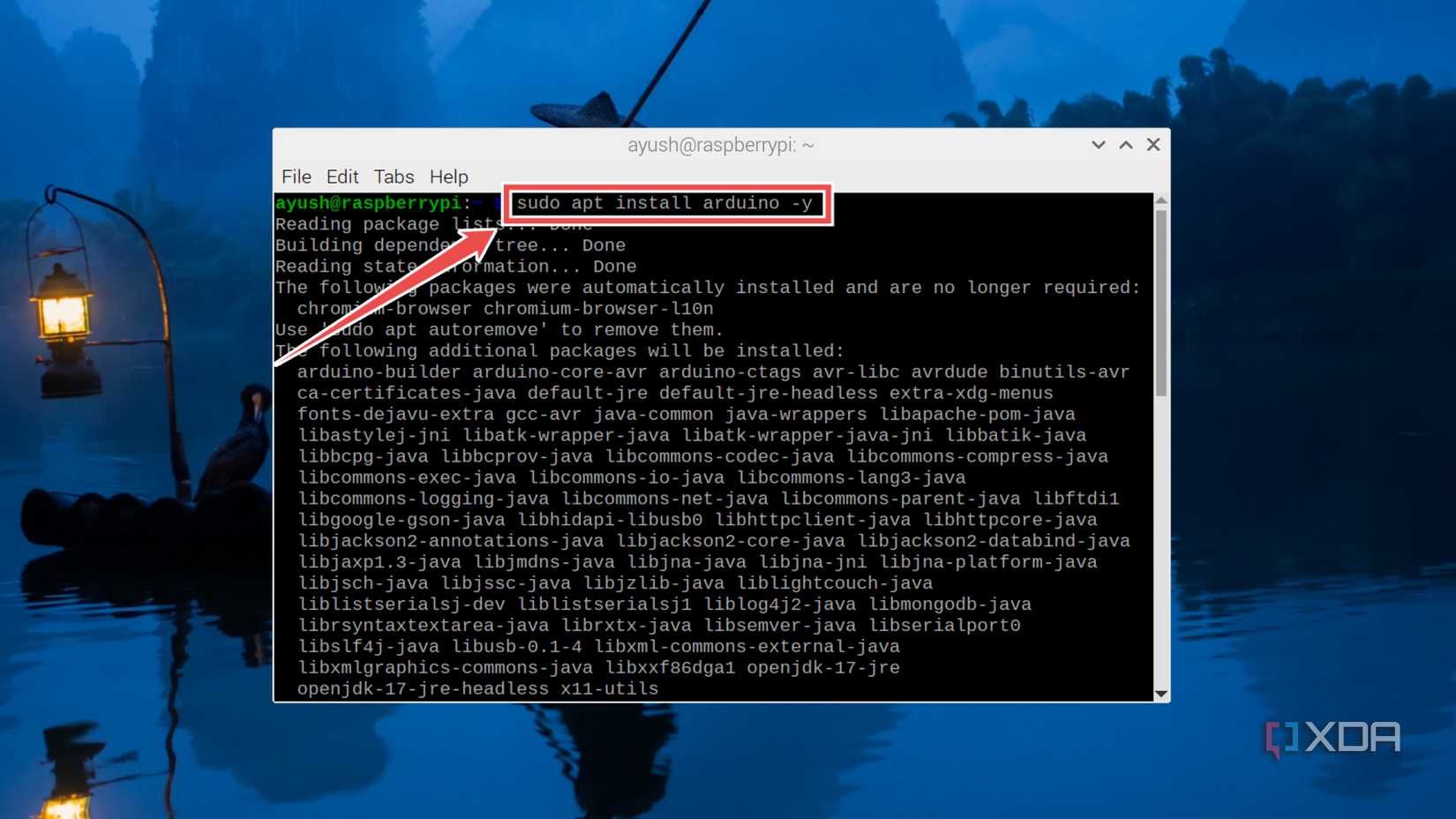
Use the apt package manager to grab the Arduino package.
sudo apt install arduino -y
-
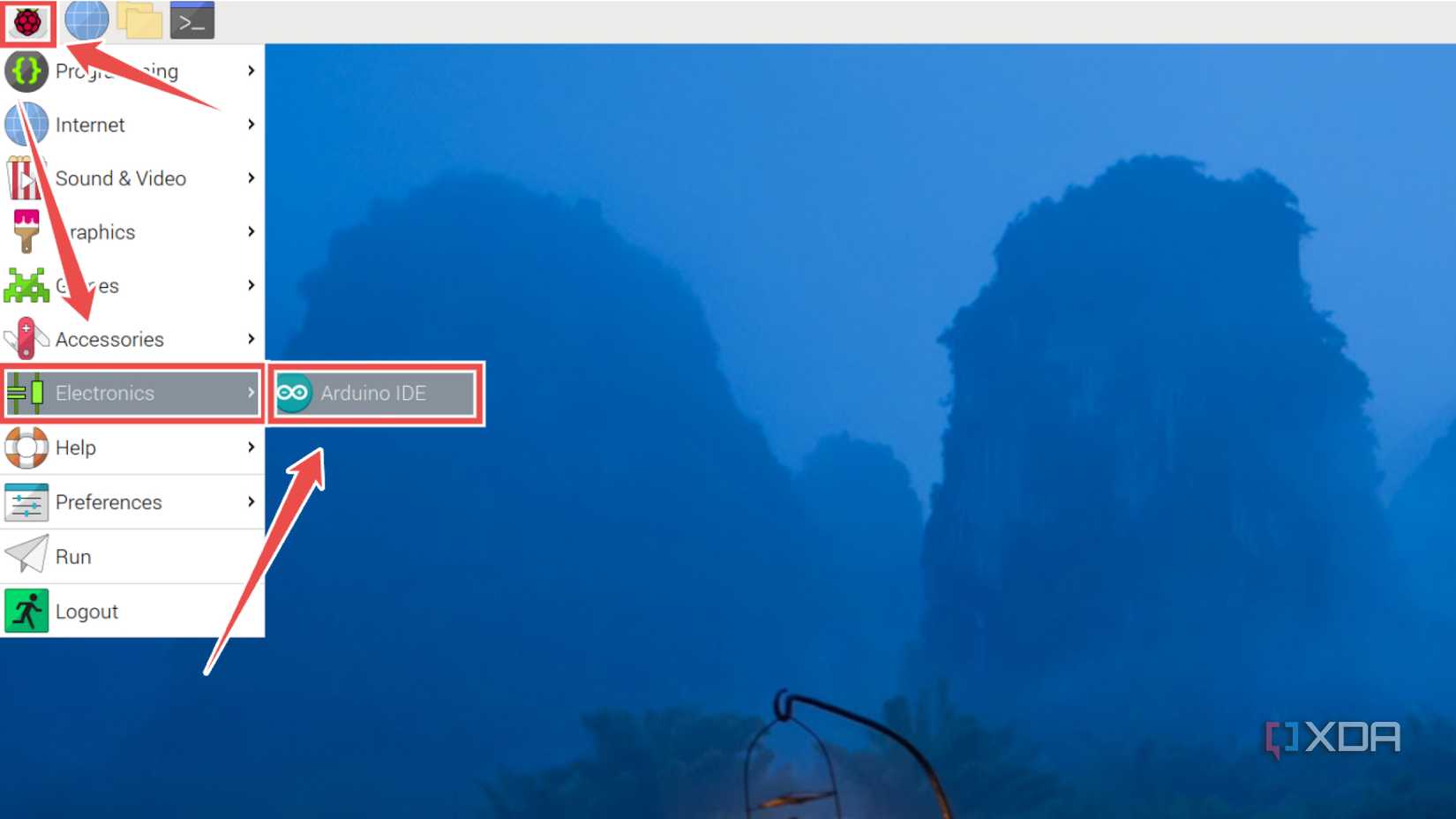
Press the Start (Raspberry logo) button, hover your cursor over the Electronics menu, and select Arduino IDE.
-
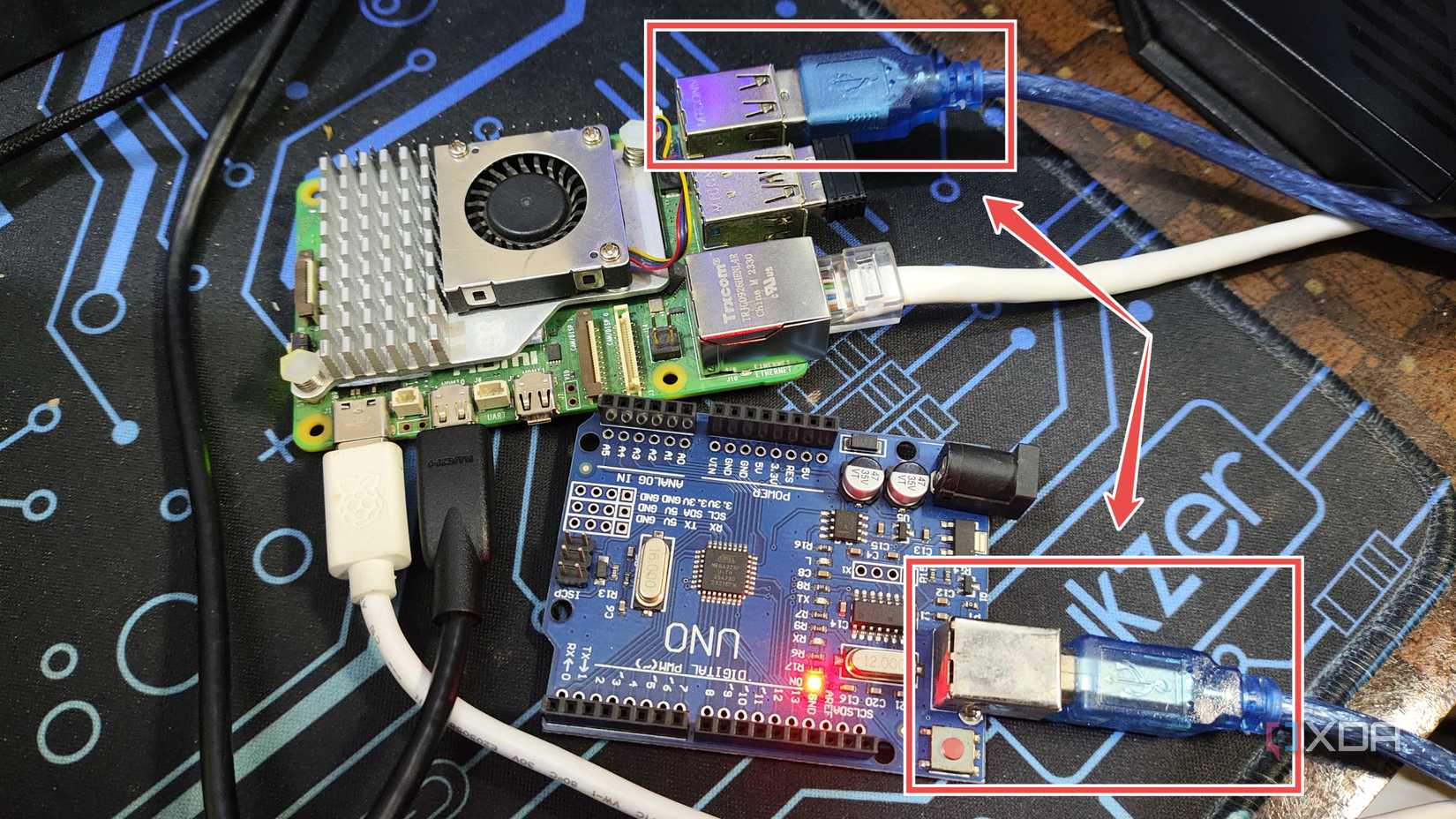
Plug the barrel/micro USB end of a cable into the Arduino microcontroller and insert the other end into the USB port of your Raspberry Pi.
-
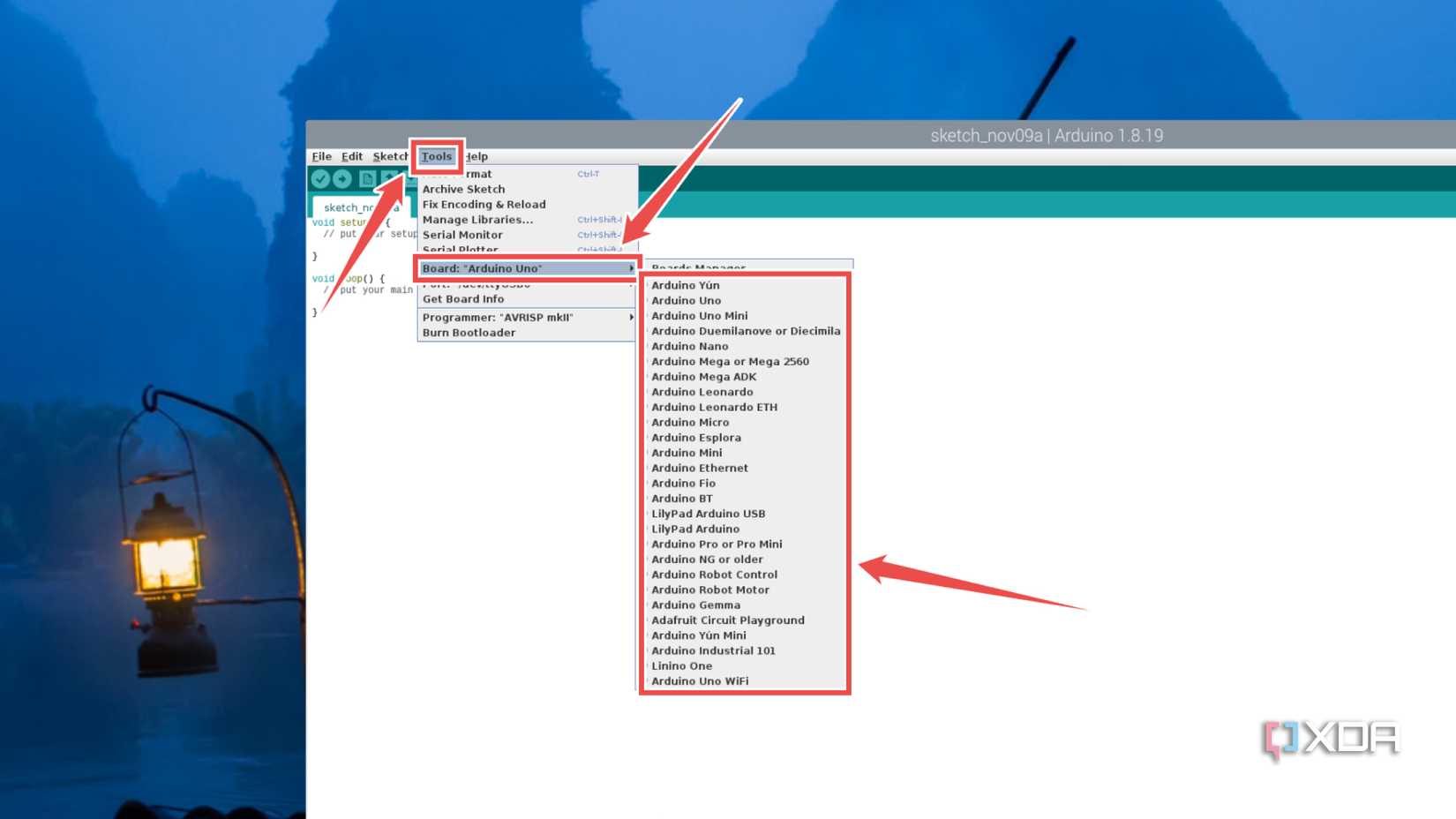
Once the app boots up, click on the Tools tab, and select your particular Arduino model inside the Board sub-menu.
-
Likewise, pick /dev/ttyUSB as the Port.
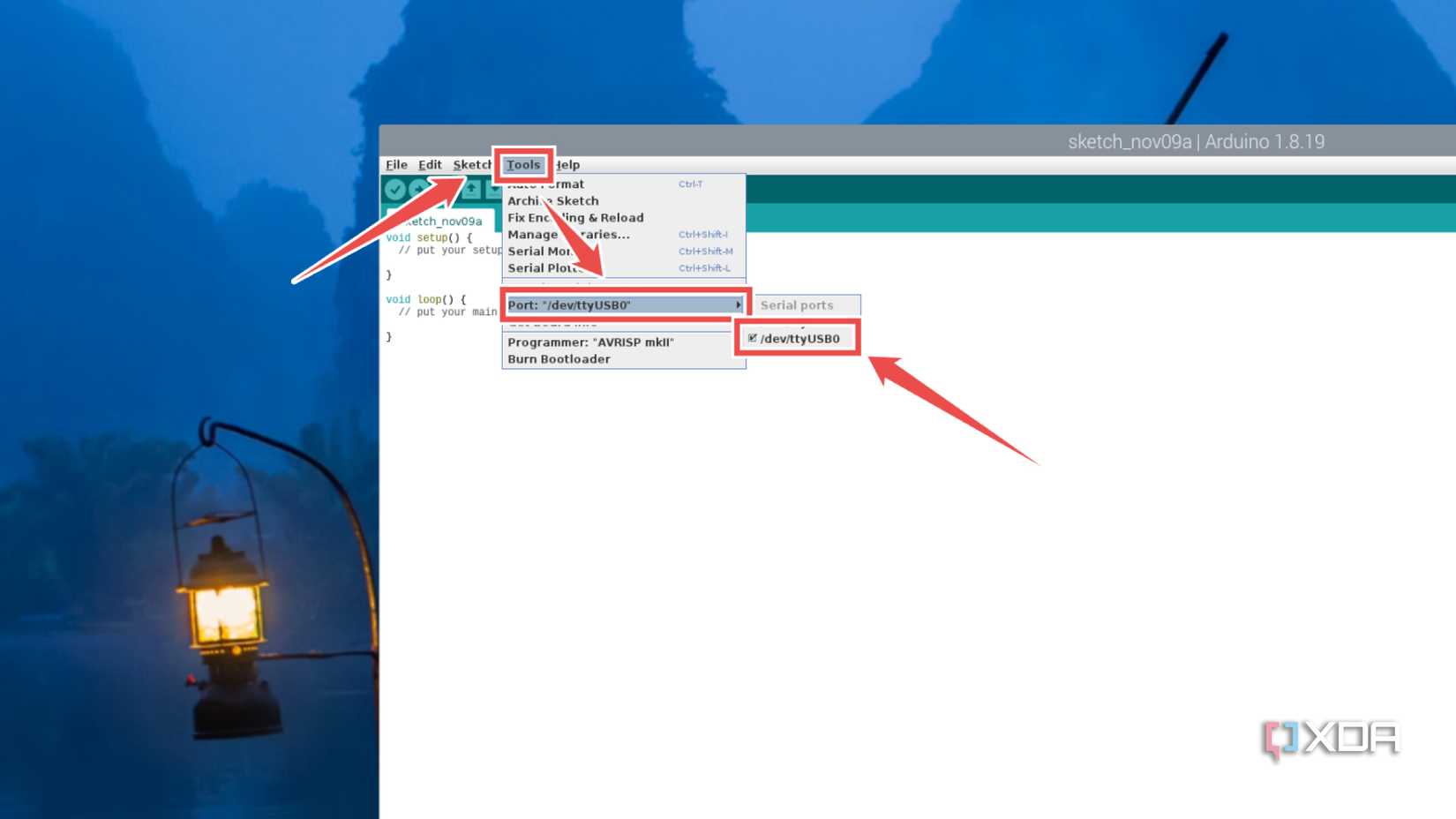
-
To confirm whether the connection was successful, click on the File tab and select Blink inside the Basics sub-menu of the Examples section.
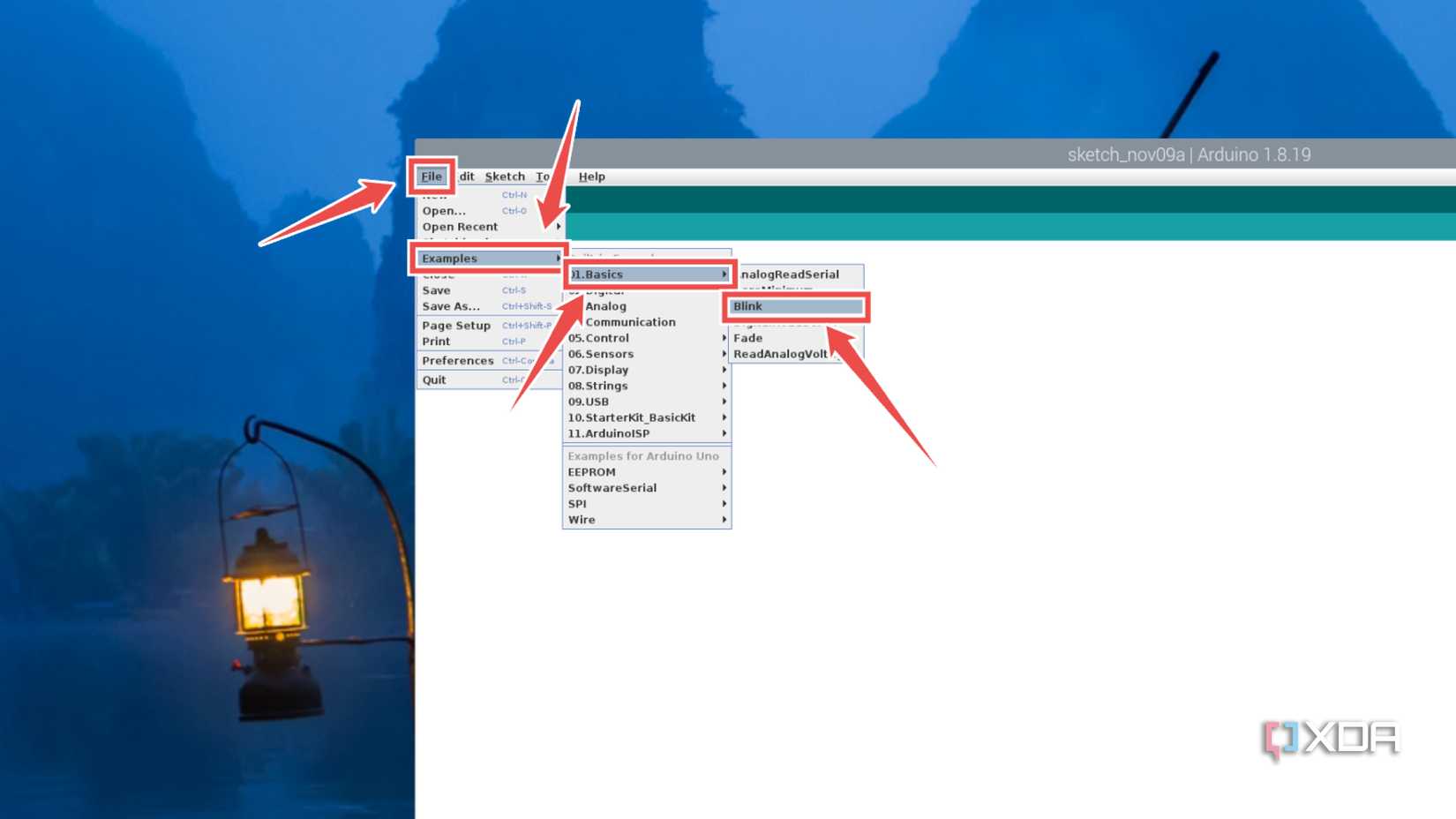
-
Inside the new Blink file, select Sketch and hit the Upload option.
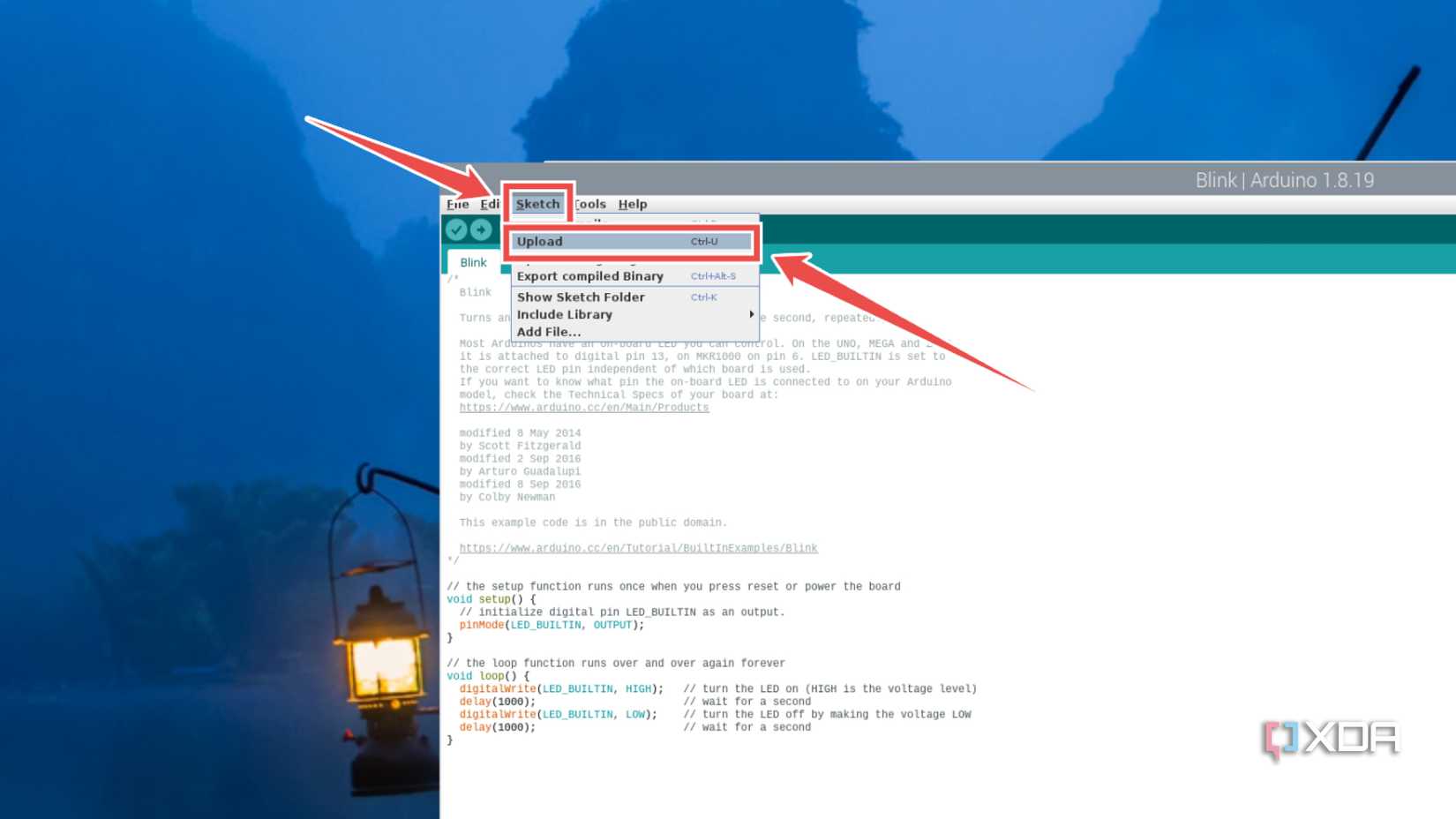


Turning your Raspberry Pi into an MCU programming hub
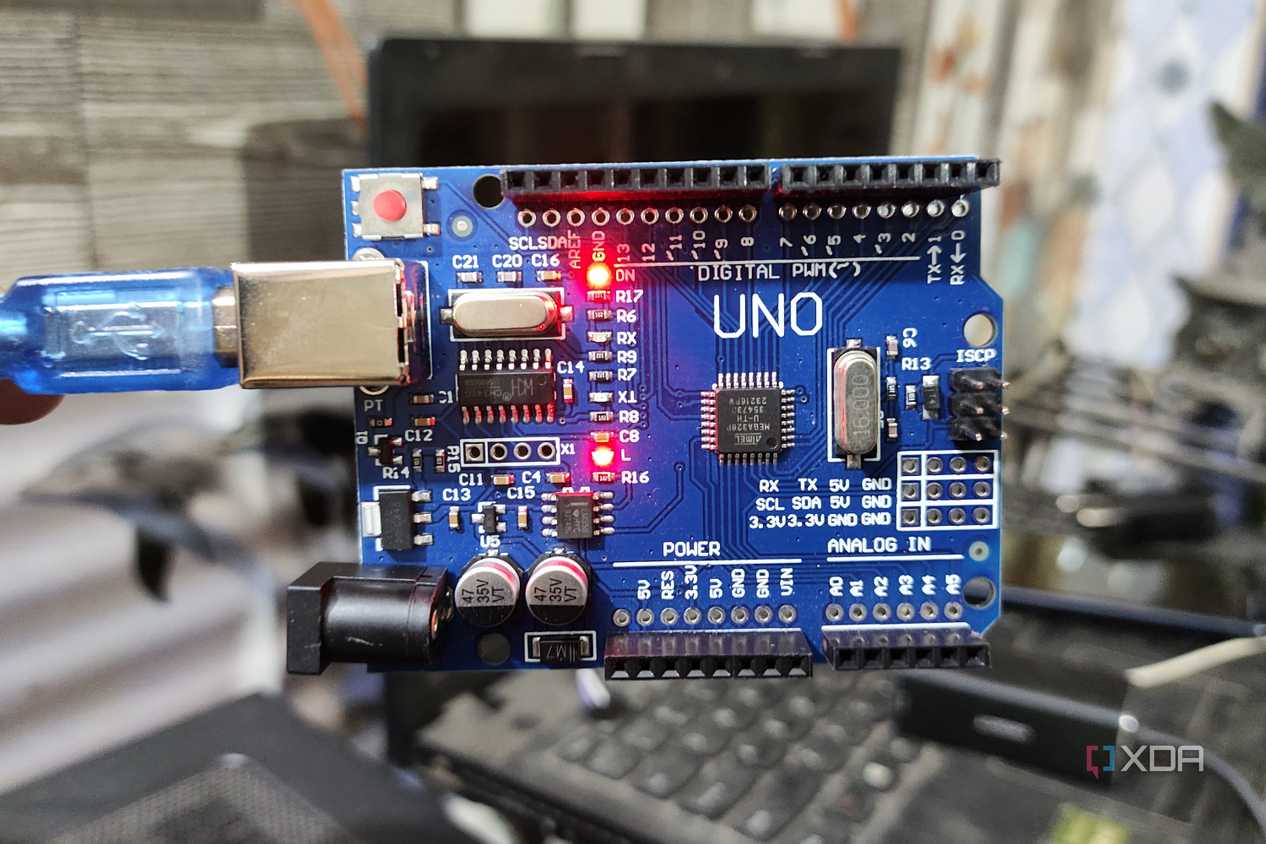
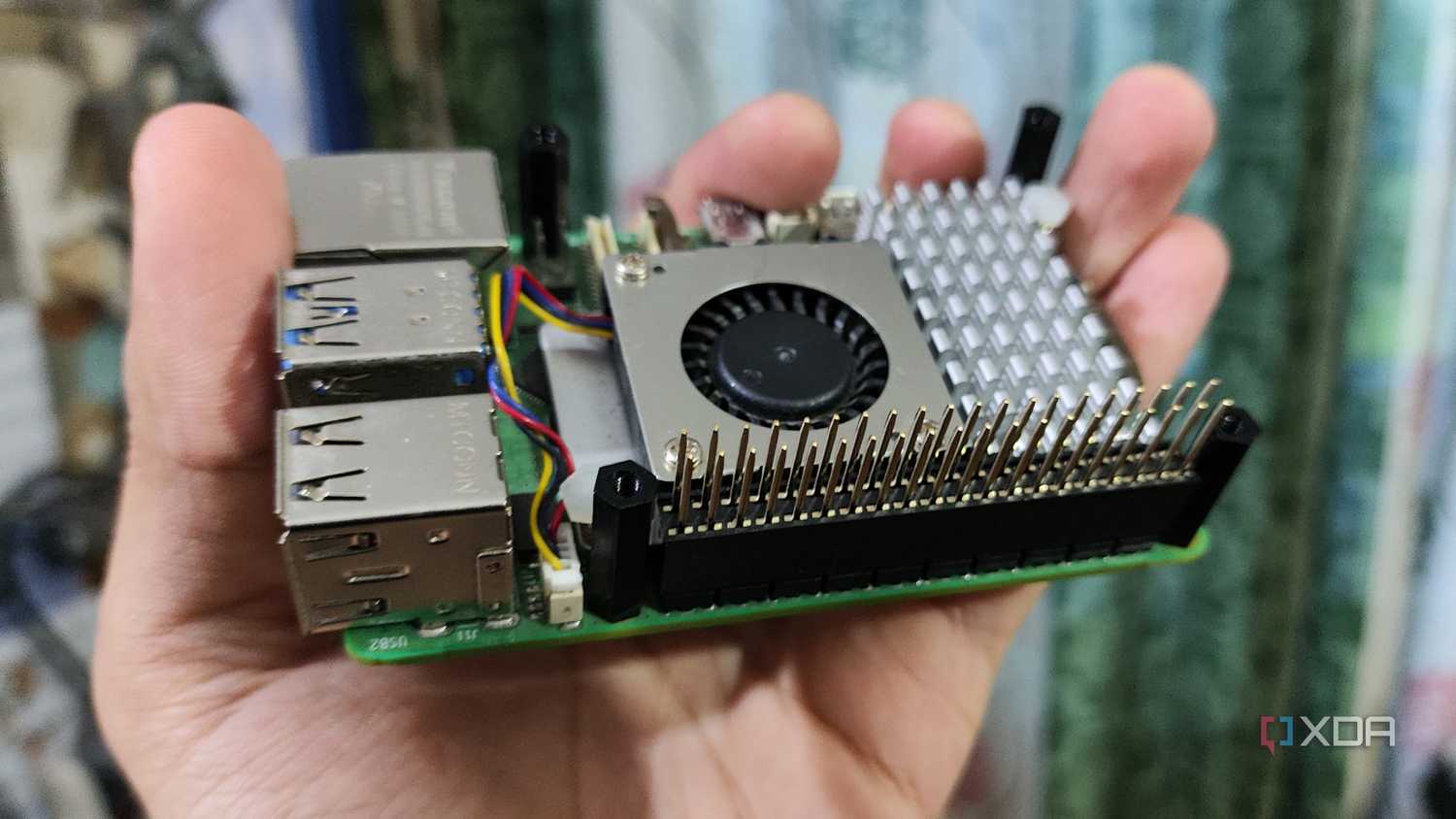

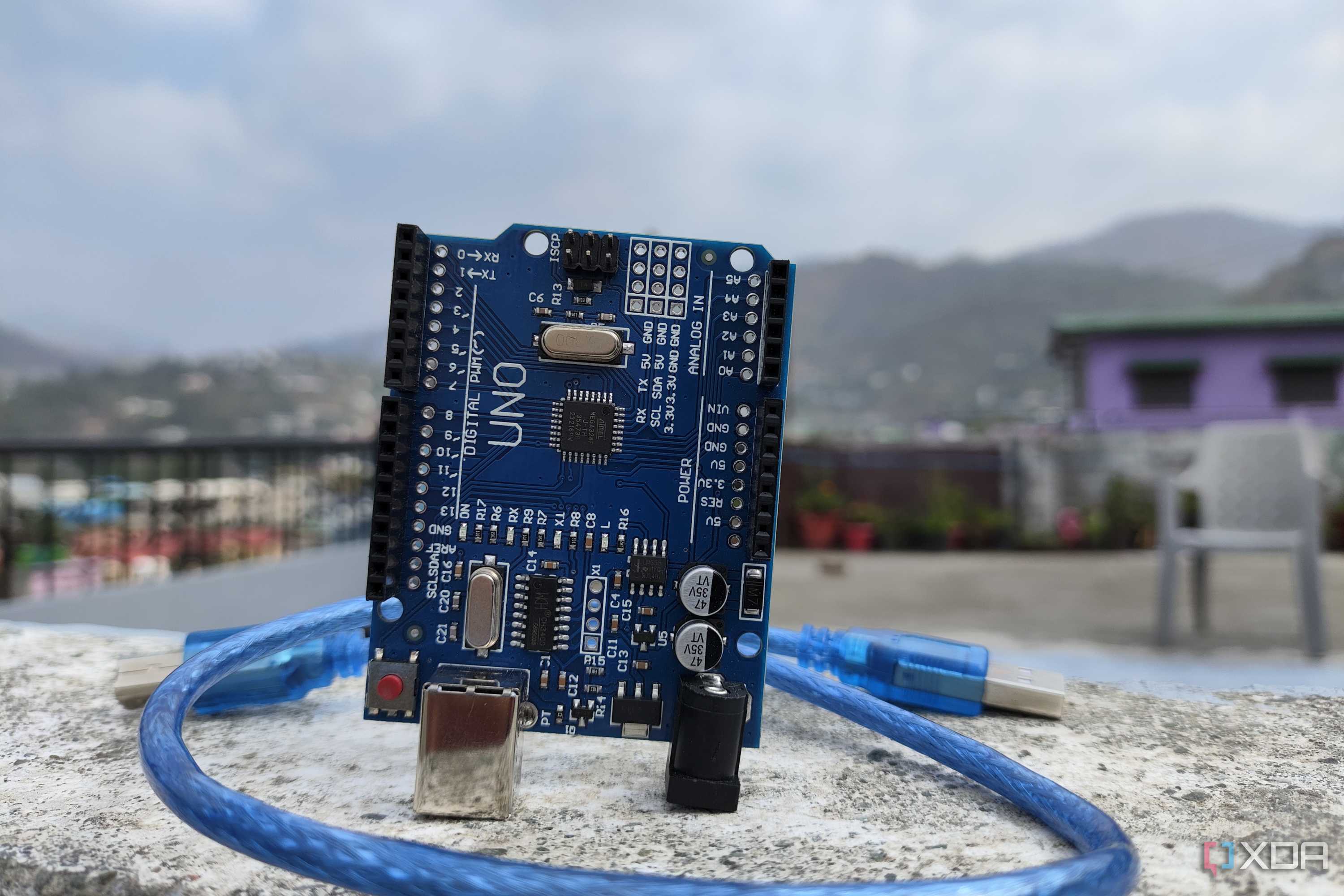
The Arduino Uno is a great way to get your feet wet in embedded computing. 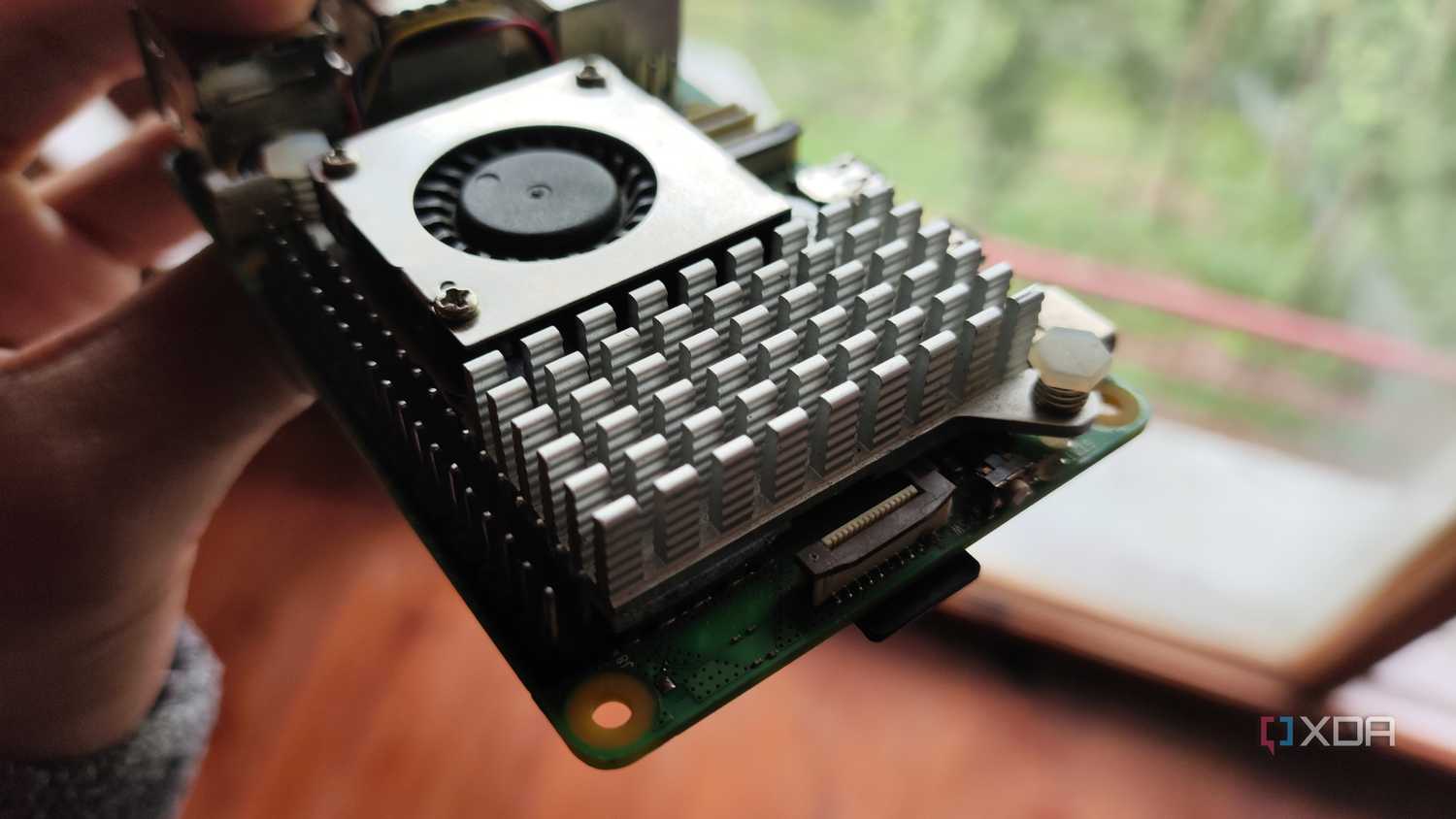
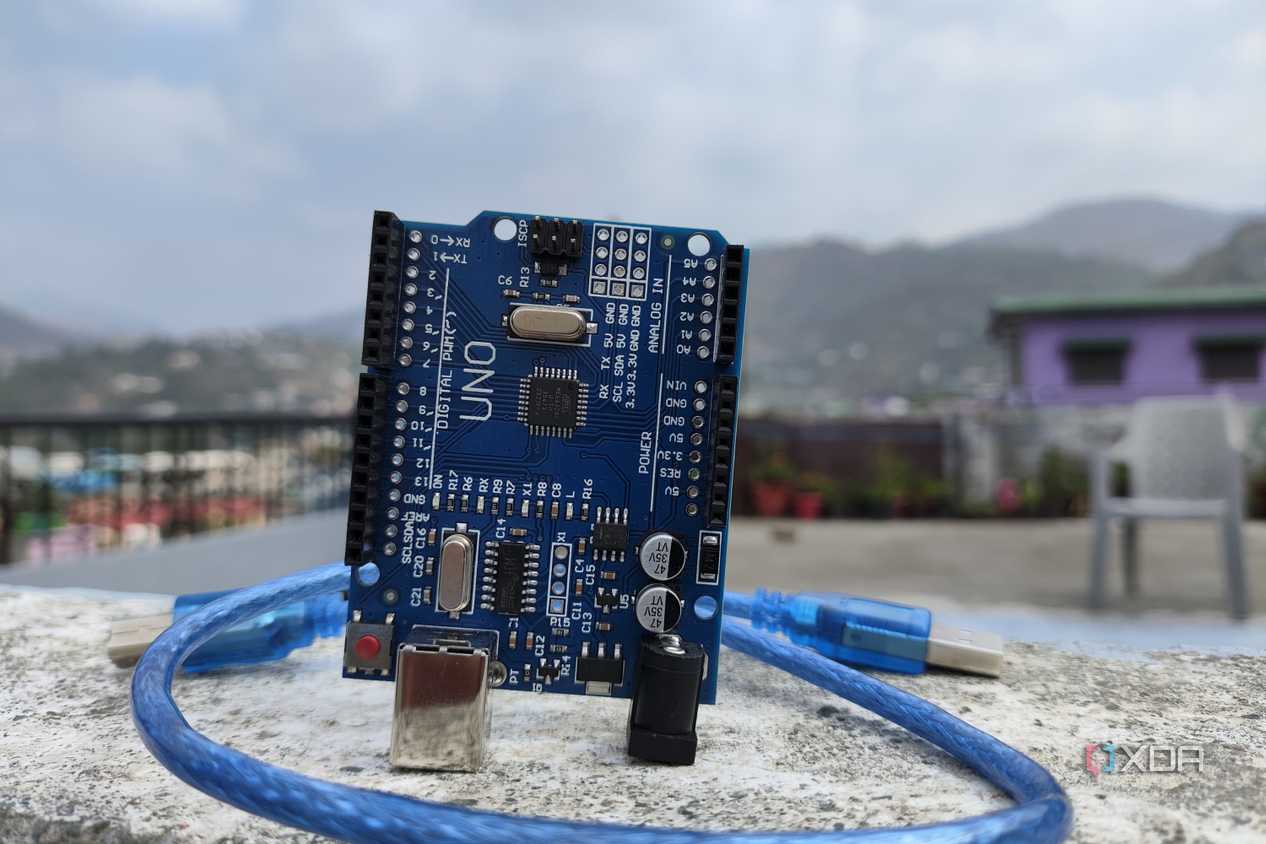


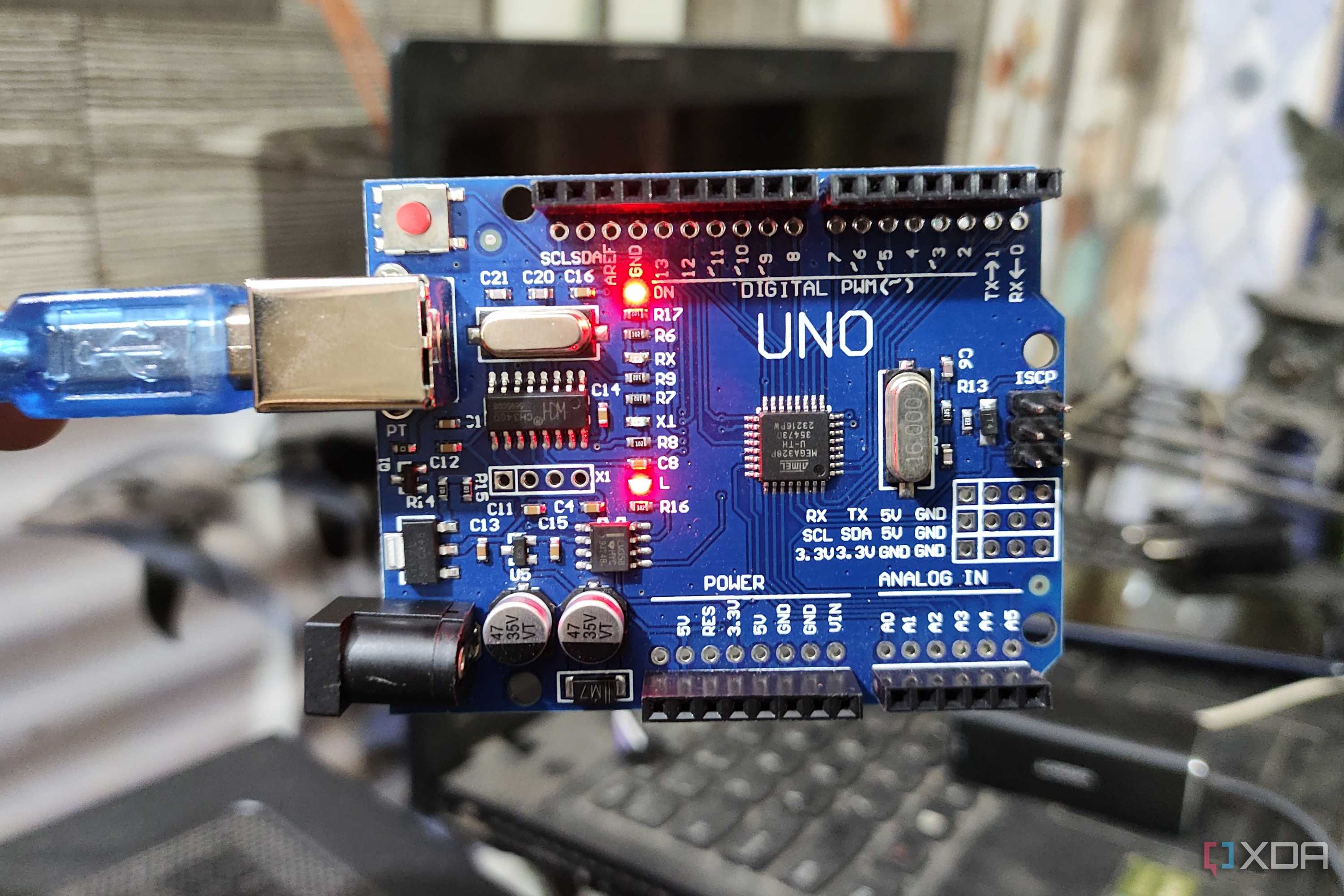

The Arduino Uno is a great way to get your feet wet in embedded computing. 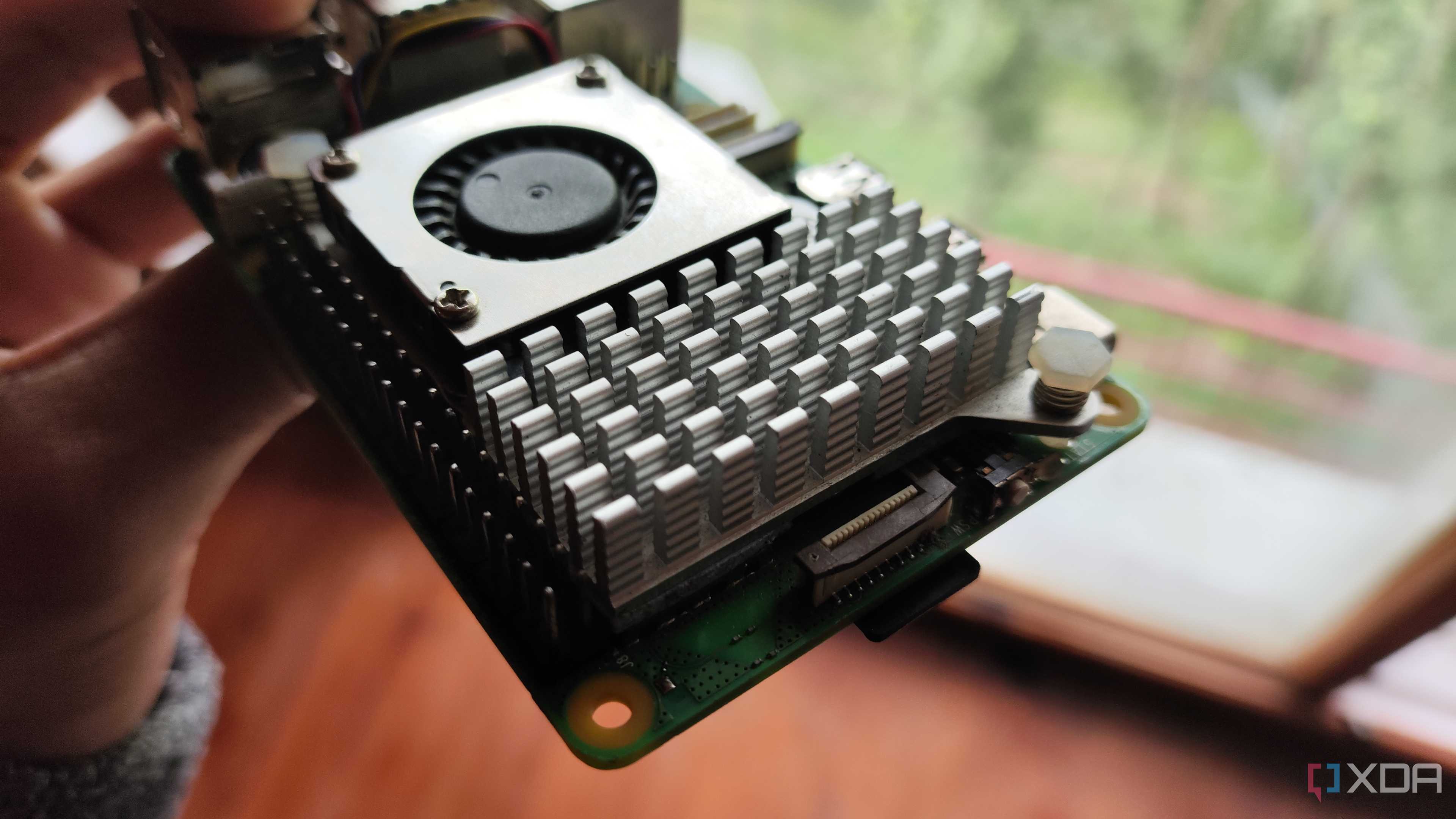
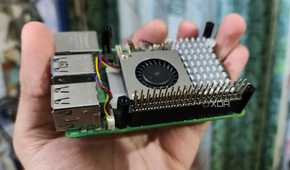

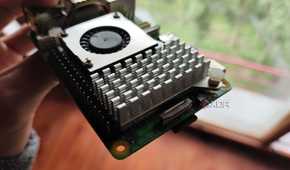
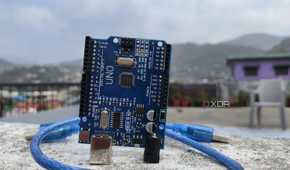
If all goes well, you’ll spot the Done uploading… message in the Console output, and the Arduino will start blinking the LED every second. With that, you’re free to try out the other sample projects, and I’d actually recommend doing so if that’s the first time you’ve used a microcontroller.
Despite sounding rather basic, the sample programs built into the Arduino IDE can help you with the board. Once you’re done with those, I recommend browsing through other function libraries by tapping the Manage Libraries… button within the Tools tab.
