


With its customizable LCD buttons, Stream Deck is an amazing accessory for increasing your productivity. Whether it’s recording your oft-used actions in Photoshop, adding a shortcut to launch your favorite apps, or even binding useful OS macros, there’s a staggering number of ways you can put a Stream Deck to good use. But if you’re the proud owner of a Raspberry Pi, you can put together a DIY Stream Deck by combining the SBC with a touchscreen display.
What you’ll need for this project
To nobody’s surprise, a Raspberry Pi SBC will serve as the core of this project. For the best performance, you’d want to pick at least a Raspberry Pi 3, though you’re free to go with a Zero 2 if you’re willing to deal with slight performance issues.
Plus, you’ll need a touchscreen display for the makeshift Stream Deck, one that’s big enough to house all your shortcuts and macros. We’ll also assume you’ve already flashed an operating system on the Raspberry Pi. If you want to set up the Stream-Pi Client using the simple curl method, you’d want to go with the 32-bit version of your favorite Linux distro (preferably the Raspberry Pi OS). We have a dedicated guide on setting up a Raspberry Pi that you can consult if you're having trouble installing the OS.
-
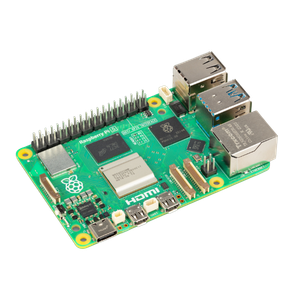
Raspberry Pi 5
- CPU
- Arm Cortex-A76 (quad-core, 2.4GHz)
- Memory
- Up to 8GB LPDDR4X SDRAM
- Operating System
- Raspberry Pi OS (official)
- Ports
- 2× USB 3.0, 2× USB 2.0, Ethernet, 2x micro HDMI, 2× 4-lane MIPI transceivers, PCIe Gen 2.0 interface, USB-C, 40-pin GPIO header
- GPU
- VideoCore VII
- Starting Price
- $60
-
-


Setting up the Stream-Pi Server on your PC
Before you can start tinkering with the Raspberry Pi, you’ll want to configure the Stream-Pi Server on the PC that you seek to pair with the DIY Stream Deck.
- Head to the official Stream Pi-Server GitHub page, download the installer file that’s compatible with your PC’s OS and use it to set up the app.
- Launch Stream-Pi Server.exe once it has finished installing.
-
Tap Next on the Welcome screen and hit the Agree and Continue button when the app prompts you to accept the license agreement.

- Grant a Nickname and Port number to your Stream-Pi Server before tapping Confirm.
-
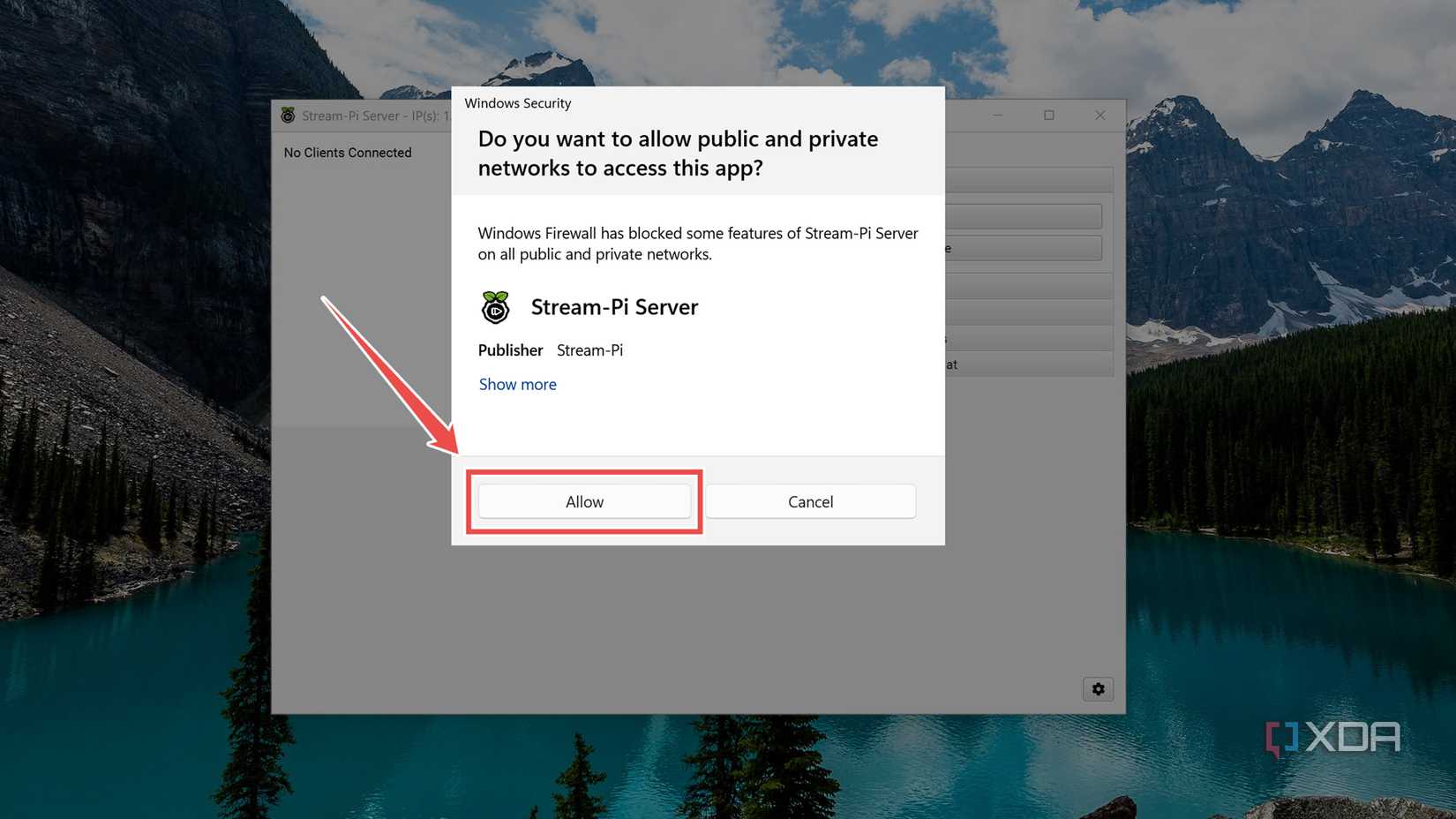
Hit Allow if your Firewall blocks the app from accessing your local network.


Setting up the Stream-Pi Client on your Raspberry Pi
With the Stream-Pi Server up and running, it’s time to install the Client app on the Raspberry Pi. As I mentioned earlier, you can use a simple installation script if you’re on a 32-bit Linux distro.
-
Launch the terminal app.

-
(Optional) If your distro doesn’t ship with the curl utility, you can install it from the apt repository.
sudo apt install curl -y

-
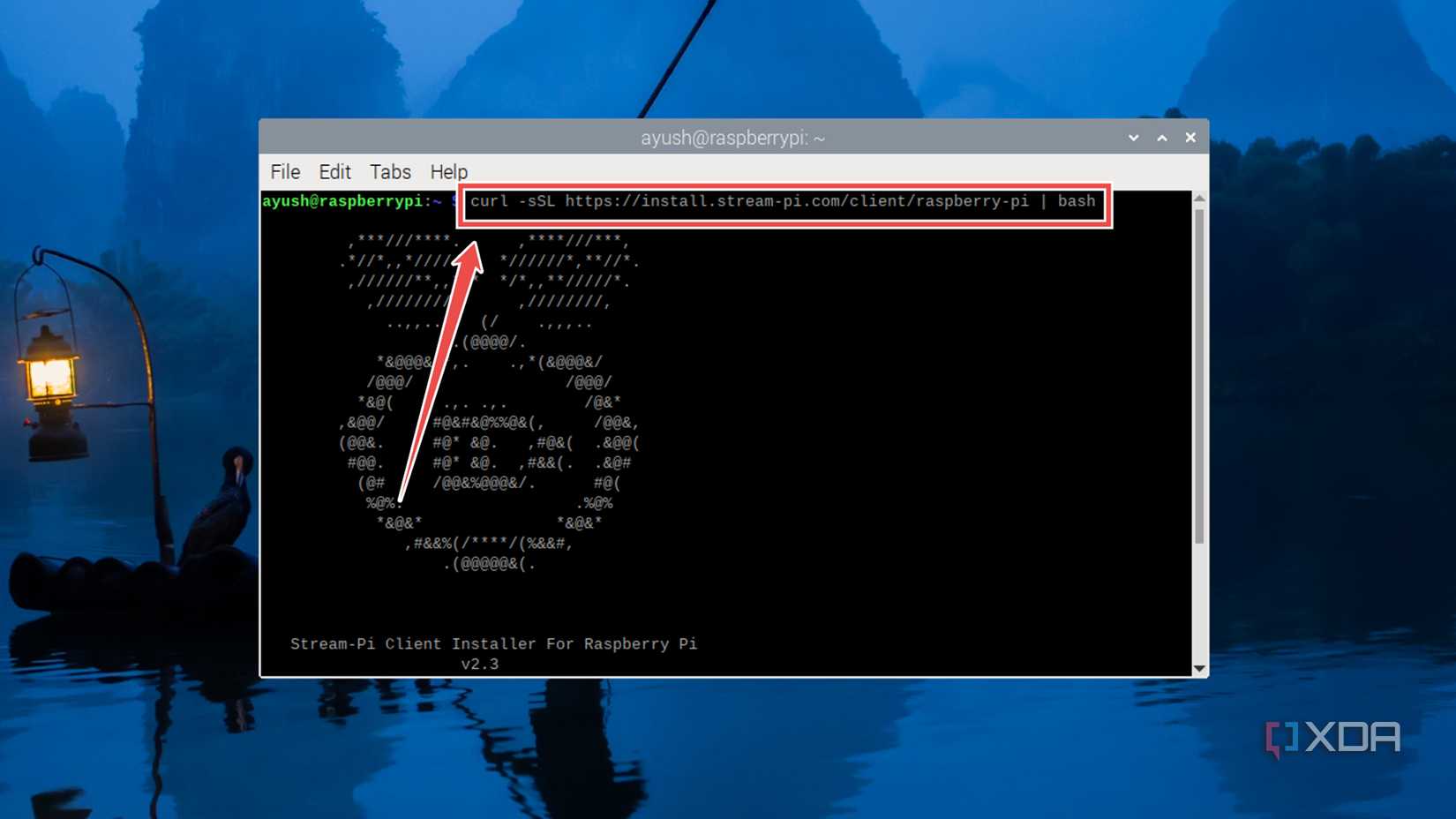
Use the curl command to grab and execute the following script:
curl -sSL https://install.stream-pi.com/client/raspberry-pi | bash
-
Tap y once the script has finished installing Stream-Pi Client to reboot your SBC.

-
Once the Raspberry Pi restarts, you can launch the app by double-clicking on its icon and selecting Execute in terminal.

- Skip the Welcome screen by tapping Next before selecting Agree and Continue, like you did in its Server counterpart,
-
Enter the Nickname, Server IP, and Server Port you’d set up in the previous section.
Remember to hit Confirm to pair the Stream-Pi Client and Server apps together.

-
Switch to the Stream-Pi Server, and choose the Client Name and Default Profile.

-
To configure the on-screen buttons for your Stream Deck, you can grab your favorite macros from the Plugins tab of the Server app.


Building a useful Stream Deck from your Raspberry Pi

Assuming you’ve followed all the steps correctly, you’ll see the macros and shortcuts appear on your Raspberry Pi’s touchscreen display, and tapping them will execute the actions you’ve set for each button. The Stream-Pi Server has OBS and Twitter integrations built into the app by default, though you can use the Hotkeys option under the Essentials tab to use your custom-built Stream Deck with other applications.
