


The biggest benefit of the Apple TV 4K is its plug-and-play experience. Set it up with your Apple account, sign in to your favorite streaming apps, and you’re greeted with a tvOS' slick, fluid UI. More importantly, the Apple TV 4K lets you control video settings that can quietly affect picture quality if left misconfigured.
Chances are, you’ve tweaked those video settings to get the best picture out of the box. But that often leaves you with a synthetic-looking image that isn’t true to the source, and a lot of people don't even realize it. Fortunately, the Apple TV 4K lets you avoid forced tone-mapping and up-conversion, so the UI stays spiffy and content plays as it was actually mastered. These are the best video settings for Apple TV 4K to strike that balance.
Setting a correct video format for the UI
Eliminate the choppy experience


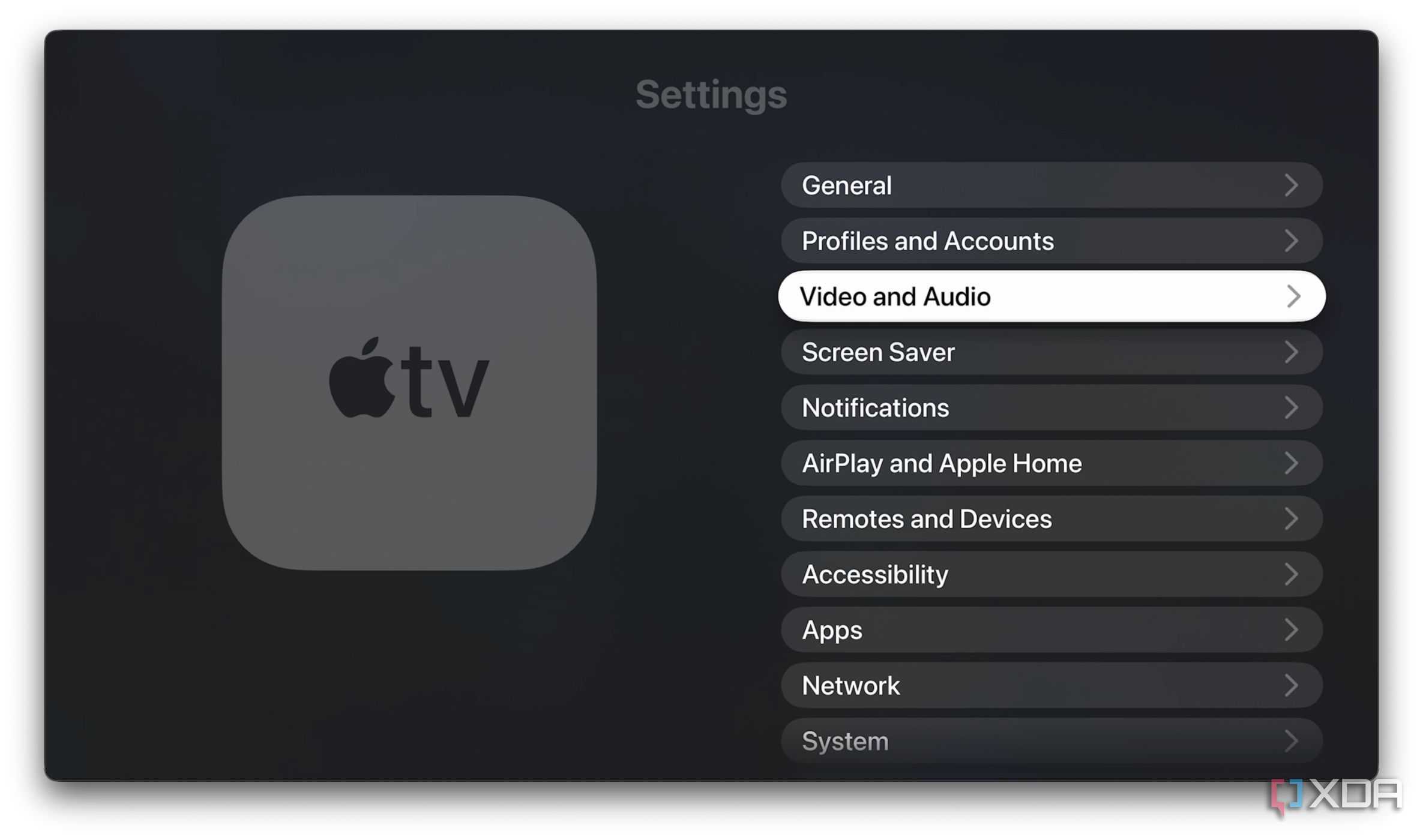
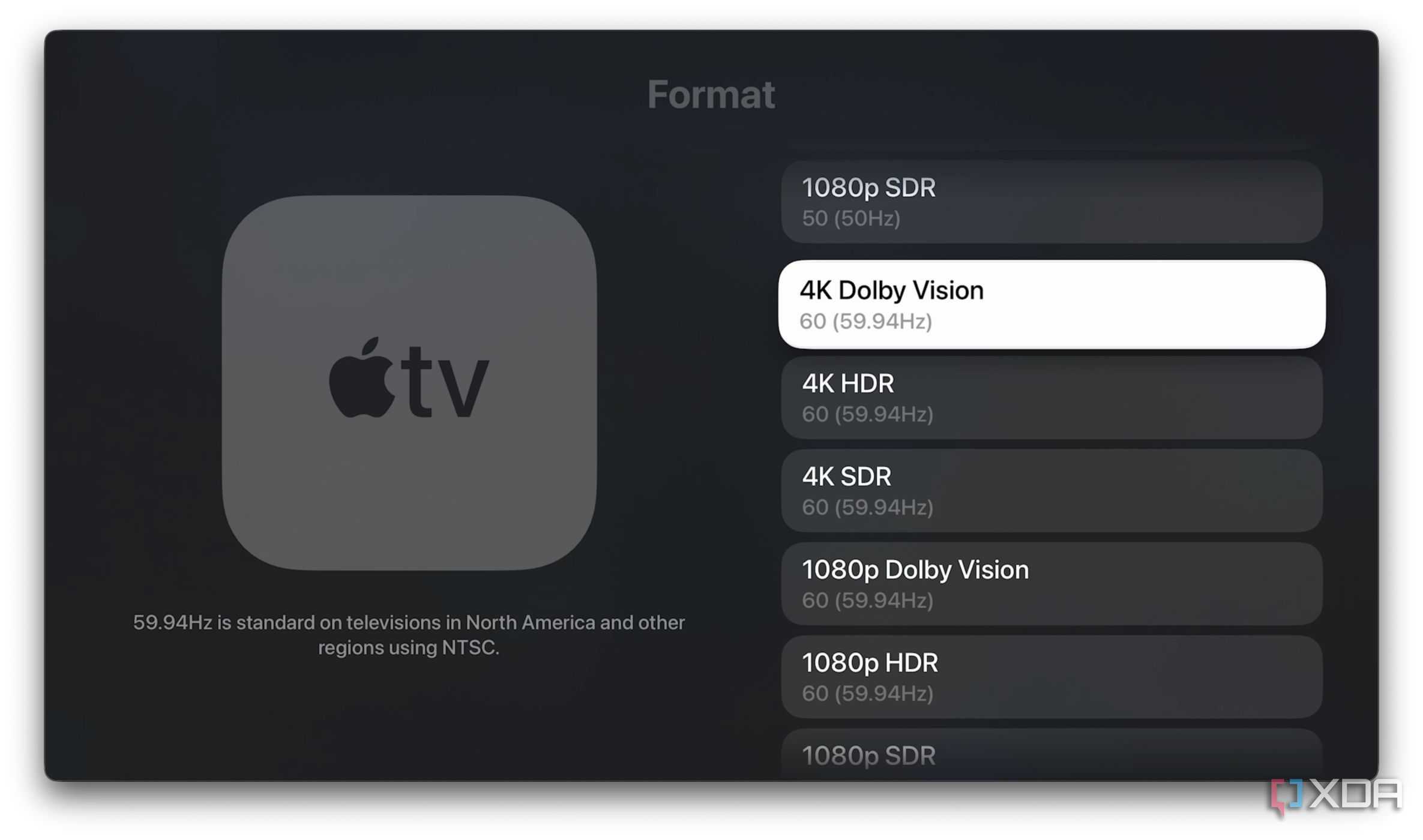
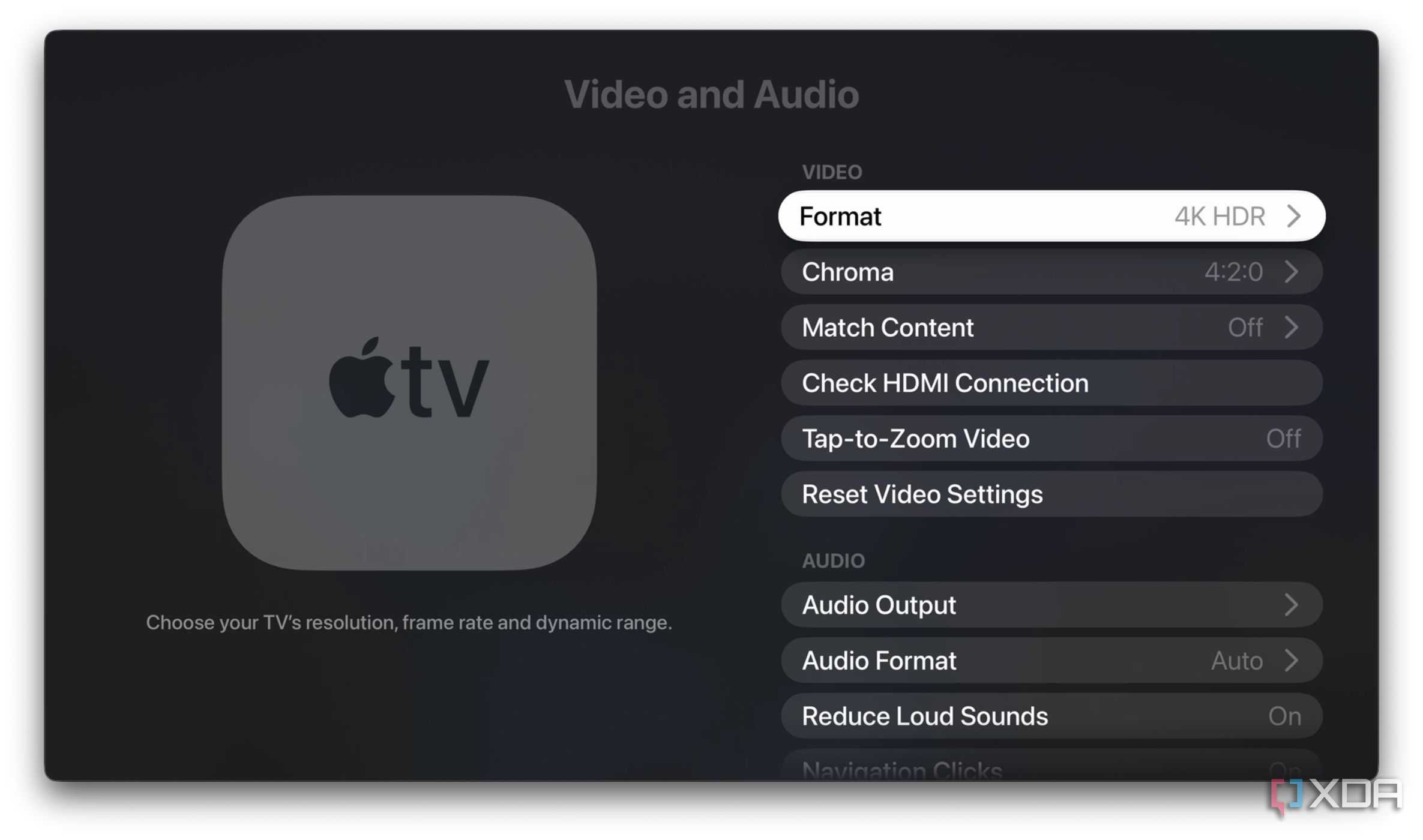
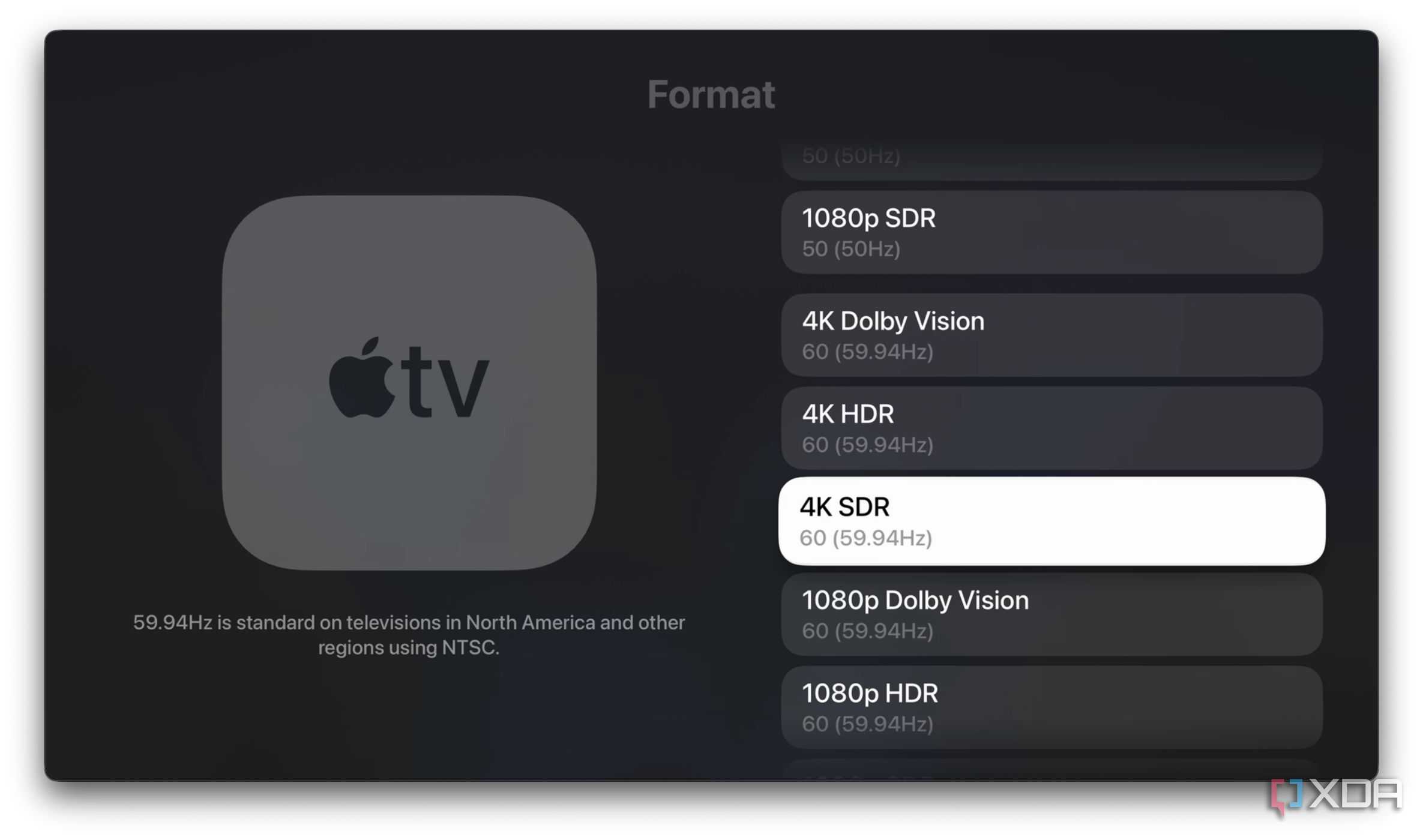
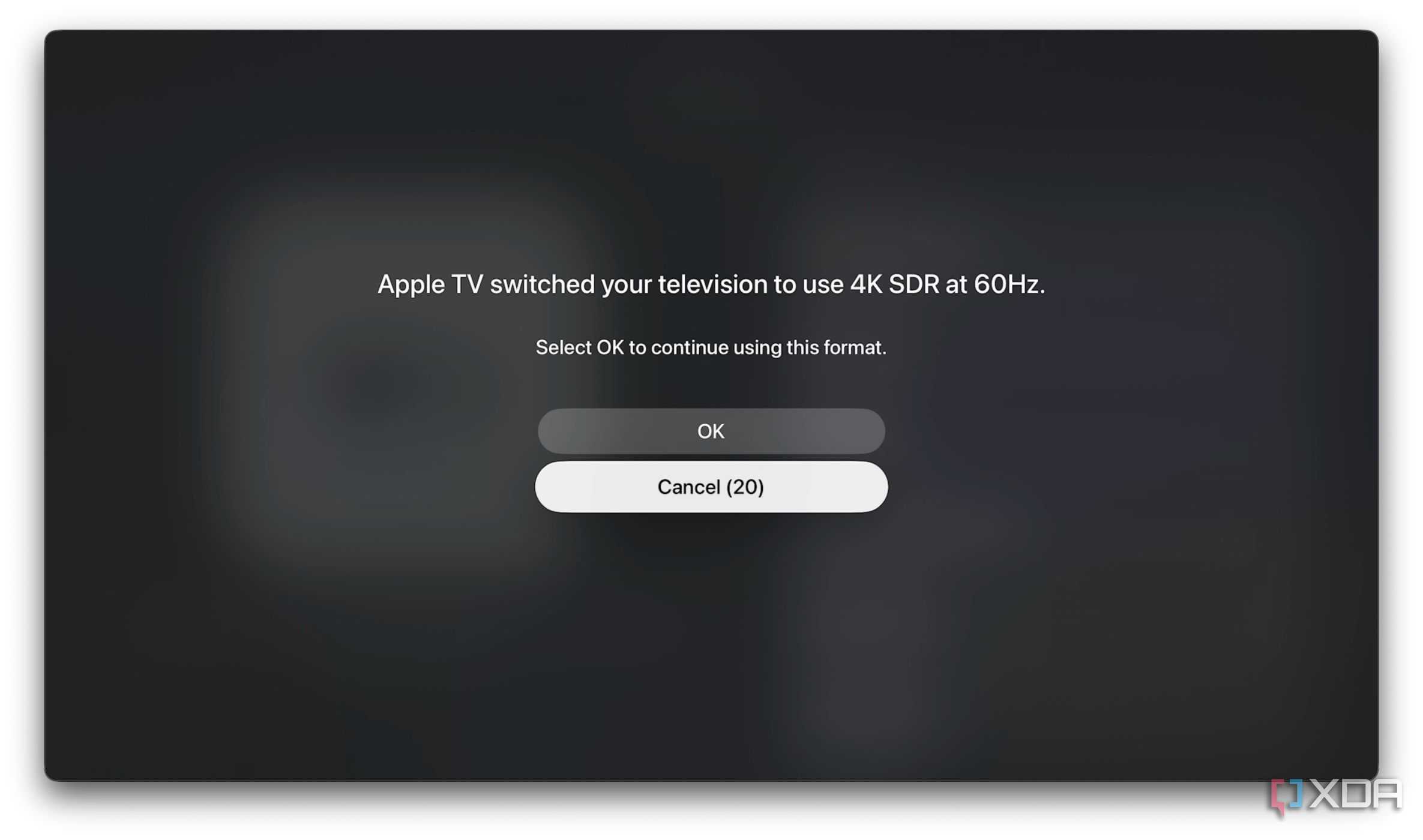


The Apple TV 4K’s slick interface can get unintentionally marred by picking the wrong video format. For example, you might have selected 4K HDR or 4K Dolby Vision. And that forces every interface element, like app icons, menus, and settings screens, to appear in HDR. It applies HDR tone-mapping to those elements, making lighter elements appear unnecessarily bright or washed out. That often leads to eye strain.
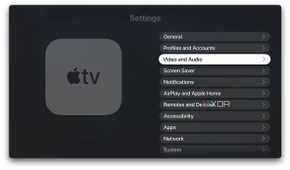
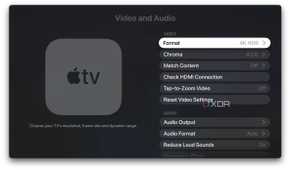
To keep Apple TV 4K’s interface true to SDR, it’s best to pick a video format that avoids unwanted HDR processing. For that, head to Settings > Video and Audio > Format, and select the 4K SDR at 60Hz option.
Picking 60Hz with base format ensures optimal UI performance with smooth scrolling, fluid animations, and minimal input lag.
If you route Apple TV 4K through an AV receiver, select the same video format. That’ll minimize HDMI resyncing and handshake inconsistencies, resulting in a more stable behavior.
Making format work to match content automatically
Ensure transparent content playback

While choosing 4K SDR at 60Hz ensures a smooth interface experience, all movies and shows will play in SDR unless Match Content options are enabled. To watch the content as it was mastered, you can make Apple TV 4K play it in its original dynamic range and frame rate. Ideally, Apple TV 4K should deliver the content in its native format and let the TV handle the processing.
For that, head to Settings > Video and Audio > Match Content, and turn ON the options for Match Dynamic Range and Match Frame Rate.
Enabling Match Dynamic Range allows Apple TV 4K to read the original mastering metadata and switch the HDMI output accordingly -- SDR titles play in SDR, HDR titles in HDR, and Dolby Vision content in Dolby Vision.
Matching the frame rate prevents Apple TV 4K from “guessing” and playing videos at their original frame rate. Most movies are shot at 24fps, and forcing them to display on a 60Hz panel makes the motion feel off, especially during camera pans. With Match Frame Rate enabled, Apple TV 4K simply sends the content at its original frame rate and lets your TV handle the rest -- smooth on 120Hz displays and as close to the original on 60Hz panels.
Picking the right HDMI cable
Not all cables are built equal

For most setups, a certified high-speed HDMI 2.0 cable with 18Gbps bandwidth is enough to run Apple TV 4K at 4K HDR/Dolby Vision at 60Hz. But once you enable Match Content, you’ll notice black screens briefly when switching between titles. That happens because your TV and Apple TV need a few seconds to resync the HDMI signal for changes in dynamic range and frame rate.
You can eliminate those black screens with Quick Media Switching (QMS), which requires an Ultra High-Speed HDMI 2.1 cable. QMS is built on HDMI 2.1’s VRR and allows TVs to switch formats without going blank. To use QMS, all three elements must support it:
- Apple TV 4K (2022)
- Ultra High-Speed HDMI 2.1 cable
- QMS-compatible TV (select LG or Samsung TV models from 2023 and later)
Besides enabling QMS, the HDMI 2.1 cables also facilitate Enhanced Audio Return Channel (eARC) for smooth, reliable playback of high-quality, lossless audio -- though HDMI 2.1 isn’t strictly required for eARC alone.
Sending the correct color information to the TV
Fine-tuning is optional

By default, Apple TV 4K sets the color output format and Chroma subsampling for the interface and the content. In most cases, you can leave these settings alone. If the text appears blurry or soft, you can switch the Chroma subsampling (Settings > Video and Audio > Chroma) to 4:4:4. It provides full color detail for subtitle text, menu text, and app icons.
Most HDR and Dolby Vision content is mastered in the YCbCr color space. So, leaving the HDMI output to YCbCr is the best choice unless you notice crushed or incorrect colors. These settings will deliver pixel-perfect colors and sharpness, but are best left untouched if everything looks right.
Better picture with less processing
Your TV might be fine, but Apple TV 4K’s video settings are often the culprit. When you stop forcing HDR or Dolby Vision, the picture quality looks natural and closer to the original master. The interface stays smooth, and streaming apps work consistently. Set video settings once, and you’ll never have to touch them again.
