


I’ve tried out numerous home server operating systems and virtualization platforms over the past year. While each distro has certain useful things to bring to the table, Proxmox remains the undisputed winner for home labs, and for good reason. It offers everything from high-availability clusters and Ceph storage to native ZFS support, TurnKey LXC templates, and SDN facilities – all without charging a dime.
However, community support is a large part of what makes Proxmox my favorite virtualization platform. Among the myriads of guides, templates, and toolkits created by the community, the Proxmox VE Helper-Scripts repository stands out as the best resource for managing your PVE server. Initially developed by brilliant developer tteck (who sadly passed away from cancer last year), Proxmox VE Helper-Scripts is an amazing repository that includes everything you'll need to kick-start your self-hosting journey.
While it’s famous for its rich set of LXC and virtual machine scripts, the repository also includes a handful of shell commands that can modify certain aspects of your PVE server.
1 Proxmox VE Post Install
bash -c "$(curl -fsSL https://raw.githubusercontent.com/community-scripts/ProxmoxVE/main/tools/pve/post-pve-install.sh)"

The vanilla installation of Proxmox has a couple of minor quirks that get annoying over time. For instance, the virtualization platform nags you about the lack of a subscription every time you log into the server. Likewise, Proxmox has the enterprise repository enabled by default, and you’ll need to replace it with the community repo when you want to update the packages on your Proxmox node.
Thankfully, the Proxmox VE Post Install can complete all these steps in one fell swoop. All you have to do is paste the Post Install command inside the Shell and watch the script take care of those pesky issues. I run the script every time I perform a fresh installation of Proxmox on my home lab devices (and inside nested virtualization environments).
2 Proxmox Clean Orphaned LVM
bash -c "$(curl -fsSL https://raw.githubusercontent.com/community-scripts/ProxmoxVE/main/tools/pve/clean-orphaned-lvm.sh)"

Over the course of my Proxmox journey, I’ve created and deleted several LXCs and virtual machines. However, simply deleting a virtual machine doesn’t free up all the storage used by it. If you forget to enable the option to clear the LVM data when removing a virtual guest, its virtual volumes can continue to occupy gigabytes of space on your storage drives.
The Proxmox Clean Orphaned LVM script comes in really handy - I can just run the script and wait while it clears out the extra storage volumes left behind by non-existent virtual guests.
3 PVE Privilege Converter
bash -c "$(curl -fsSL https://raw.githubusercontent.com/community-scripts/ProxmoxVE/main/tools/pve/pve-privilege-converter.sh)"

Unprivileged containers are a better option for security-conscious home labbers who want to prevent privilege escalation risks. After all, if a hacker were to break into your privileged container, they would be able to access the host Proxmox environment with root-level permissions. However, there are times when you might want to go with a privileged container. Perhaps you want an easier way to bind network shares to your server. Or maybe you want a simple and straightforward method to enable GPU passthrough for your containerized services.
But once you’ve deployed a service inside an unprivileged container, converting it into a privileged model (or vice versa) isn’t as simple as toggling a checkbox. Instead, you’ll have to manually back up the container and restore it with the right access privilege. The PVE Privilege Converter script automates this entire process, and you can use it to switch between privileged and unprivileged modes as often as you want.
4 Proxmox VE Cron LXC Updater
bash -c "$(curl -fsSL https://raw.githubusercontent.com/community-scripts/ProxmoxVE/main/tools/pve/cron-update-lxcs.sh)"

Cron is the job scheduler built into Linux distributions, and is by far one of the best ways to automate your Linux projects. While it can take a while to get accustomed to their syntax, Cron expressions are great when you want to run certain tasks repeatedly at fixed intervals – and you can even harness this neat utility in your Proxmox server using the Cron LXC Updater script.
As you may have already guessed from the name, running this script causes Proxmox to create a new Cron task that grabs the updated LXC images and uses them to redeploy your containers. By default, the script runs at 12 am every Sunday and pulls new images for all your containers. But I’ve configured mine to check for updates every month and excluded certain high-priority LXCs from the automation, as I don’t want to risk losing them due to a broken image. While we’re on the subject…
5 Proxmox Update Repositories
bash -c "$(curl -fsSL https://raw.githubusercontent.com/community-scripts/ProxmoxVE/main/tools/pve/update-repo.sh)"

If you’ve used Linux in the past, you may have dealt with broken package repositories. Whether it’s due to invalid links, faulty packages, or other minor issues on your own machine, it's not uncommon to encounter errors when attempting to install or update your packages.
The same holds true for Proxmox, which is essentially Debian packaged with some neat features and wrapped inside a convenient web UI. As such, you can run the Proxmox Update Repositories script should you encounter any issues while working with the LXCs on your PVE server.
6 Proxmox VE LXC IP-Tag
bash -c "$(curl -fsSL https://raw.githubusercontent.com/community-scripts/ProxmoxVE/main/tools/pve/add-lxc-iptag.sh)"

Managing the IP addresses of your virtual guests doesn’t sound too complicated when you’ve only got a handful of services deployed on your Proxmox machine. But once your army of LXCs starts to grow out of control, you’ll have a hard time keeping track of each container’s network details.
That’s where the LXC IP-Tag script becomes extremely useful. Once you execute the script in your Proxmox Shell, it will append the IP address as a tag on each LXC service, making it easier to manage your container suite.
Don't forget about the container LXCs



Aside from these useful commands, the repository also has a couple of other scripts that deserve a shout-out. There's the Proxmox VE Processor Microcode, which adds some useful bug fixes and performance patches for a wide range of CPUs, while LXC Filesystem Trim runs the fstrim command to get rid of unused blocks from your virtual guests.
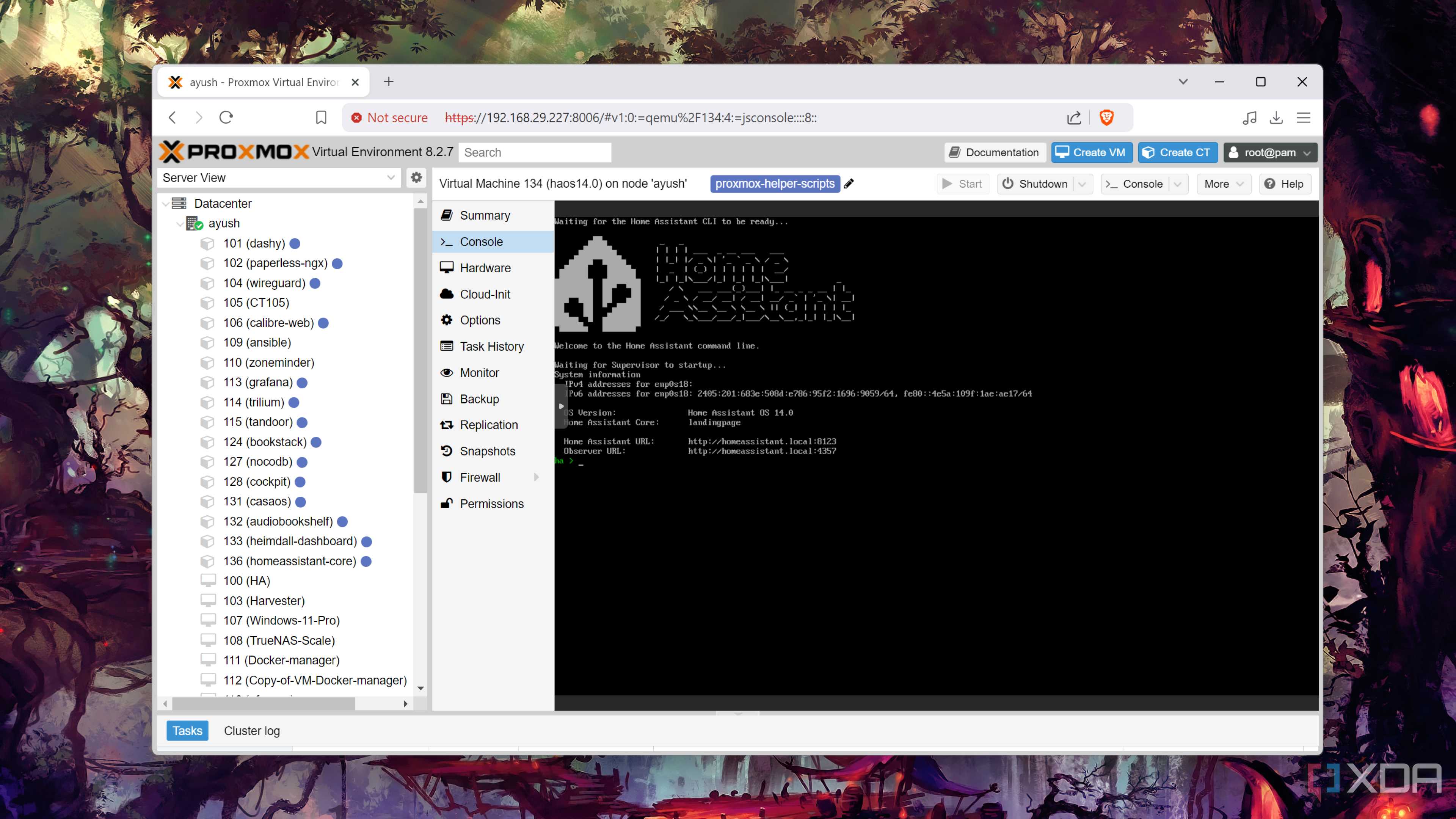
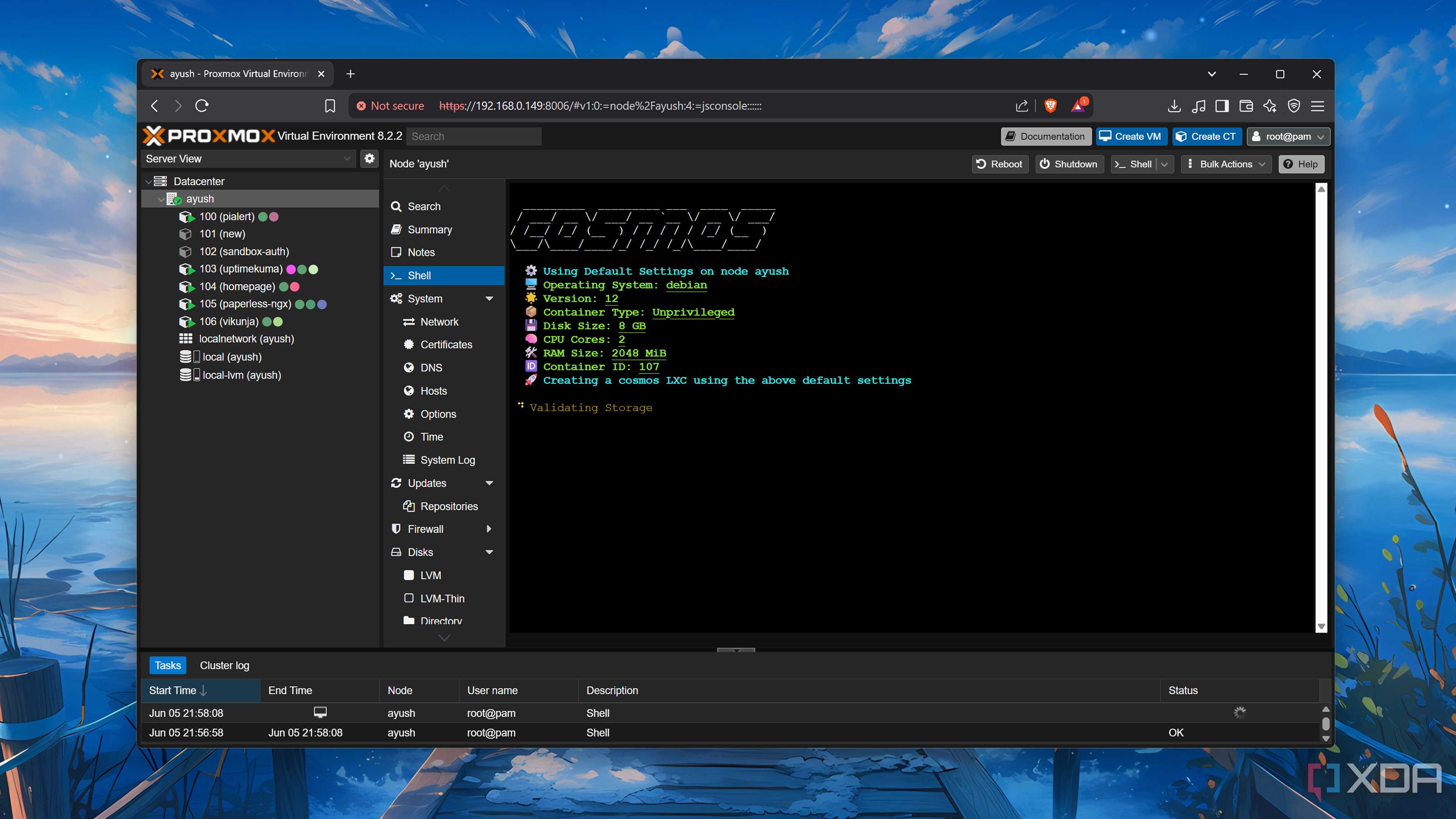
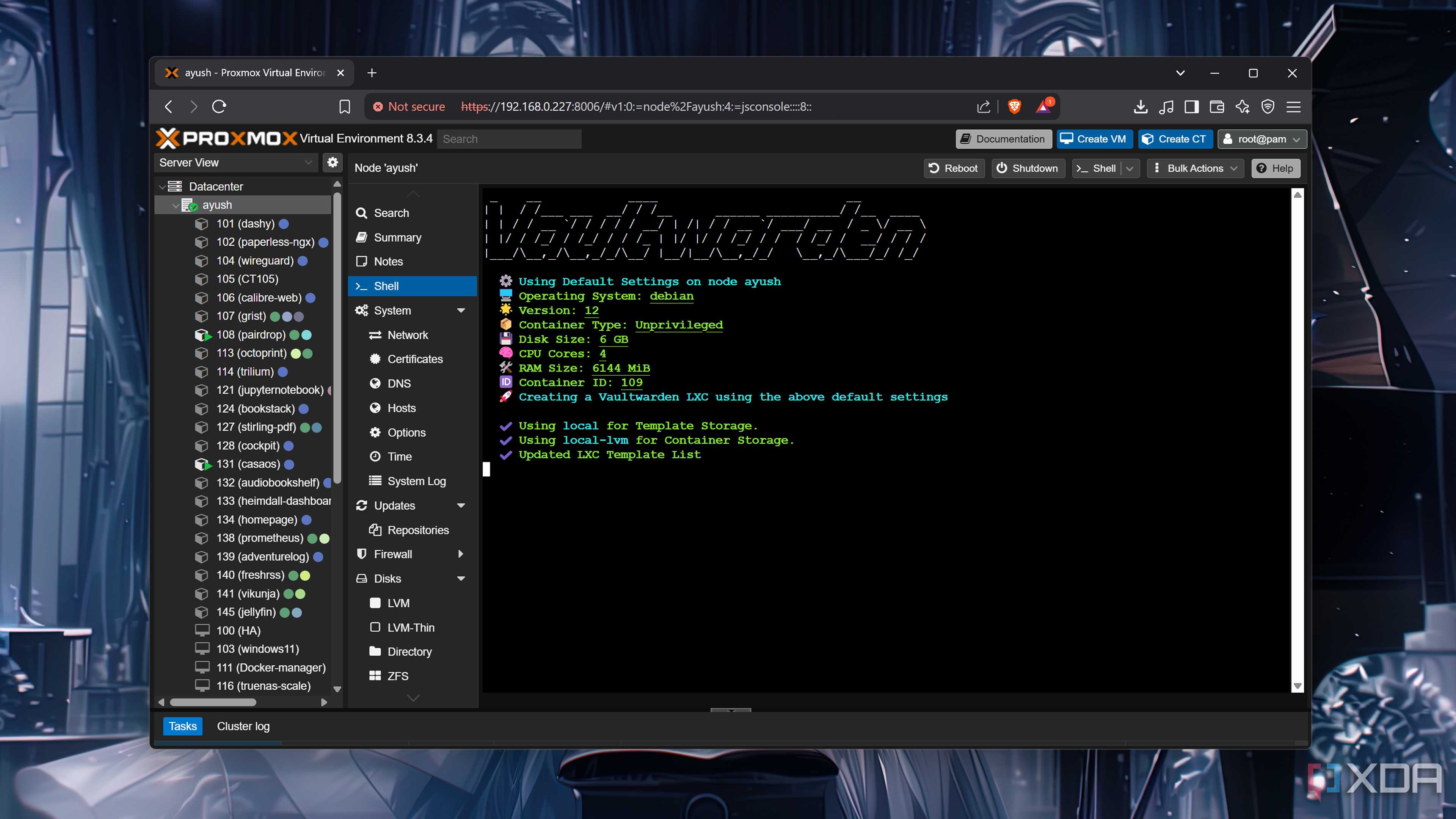
Then you've got the rest of the container scripts, which can deploy applications inside LXC environments. While I use a majority of these scripts in my home lab, the one for Vaultwarden deserves a special mention. If you were to deploy the password manager conventionally, you'd have to go through a long process just to set up HTTPS access for the container's web UI. Meanwhile, the Proxmox VE Helper-Script for Vaultwarden automatically creates a self-signed certificate, so you can save your passwords without too much hassle.
