


We all love the feeling of a new TV. You unbox it, then plug in a new PS5, or maybe a Fire TV Stick or an Apple TV 4K. You've mounted it, peeled the plastic, dimmed the lights, and pressed Play. Now, you're enjoying it.
Only you're convincing yourself that you do, because it just doesn't look that good. Something feels... off. The graphics are sharp, the colors are "fine," but depending on the money you spent, you can't shake the feeling that something's wrong.
However, the culprit might not be your panel. It's probably not your settings, either. Instead, it's likely your HDMI signal. Straight out of the box, most TVs ship with their HDMI ports set to a standard or compatible state. Even though that's a great setting to keep angry customer returns to a minimum, it leaves performance on the table.
Manufacturers prioritize compatibility over peak image quality
A safer signal means fewer handshake errors

Most TVs ship with their HDMI ports tuned for a "standard" or more compatible signal. This ensures that no matter what HDMI-based device you plug into it — a PlayStation 5, Xbox Series X, Apple TV 4K, or even your PC — everything works fine, and the HDMI handshake goes over smoothly, without black screens or flickering.
This "safe mode" exists for a reason, too. HDMI handshakes are rather fragile. When you connect a device, the TV and source negotiate resolution, refresh rate, color depth, chroma format, HDR metadata, audio passthrough, and HDCP encryption as well. That's a lot of moving parts that could all fall apart with one weak cable, older streaming stick, or marginal port.
So, manufacturers take the conservative route, and understandably so. By limiting bandwidth out of the box, they reduce HDMI compatibility issues, minimizing handshake errors and preventing the dreaded "No Signal" screen that sends folks back to the store for returns. It's safer from the TV maker's perspective, but compromised from a user standpoint.
Turning on enhanced HDMI signal is non-negotiable
You've paid for all that quality, why not actually see it?

With the default HDMI signal, you often won't get proper HDR metadata passthrough. Plug a PS5 into a new TV, and chances are that you're getting 4K 60Hz with 8-bit SDR. In fact, many standard modes do actually allow HDR10 as well, but they still use Chroma Subsampling (4:2:0) to fit the data into the lower bandwidth.
Switch to Enhanced signal, and the same setup could unlock 4K HDR with 10-bit color, assuming the panel supports it. HDR highlights will suddenly begin to pop, and UI text will look cleaner. This difference is measurable, visible, and immediate.
Enhanced HDMI is almost always a per-port toggle in modern TVs. That means enabling it once doesn't magically apply to every input. You need to head into your TV's HDMI settings and look for something like Enhanced Format, Input Signal Plus, HDMI Deep Color, or 4K Signal Format. It depends on what brand of TV you just got, but the function remains the same.
Enable it either for all ports one by one, or specifically for the ports your Apple TV, PS5, or PC are connected to. Then, double-check your cable. If you're pushing high-bandwidth 4K HDR at 120Hz, full Chroma 4:4:4, or VRR — you need a certified High-Speed or Ultra-High-Speed HDMI cable. Otherwise, you'll introduce instability and assume the TV is at fault when it isn't.
Leaving HDMI in its standard signal mode is like keeping a sports car locked in eco-mode. You've bought the horsepower and paid for the torque, but you're leaving so much performance on the table that it almost defeats the whole point.
Change a few more settings while you're at it
Why not get the most out of a new TV?


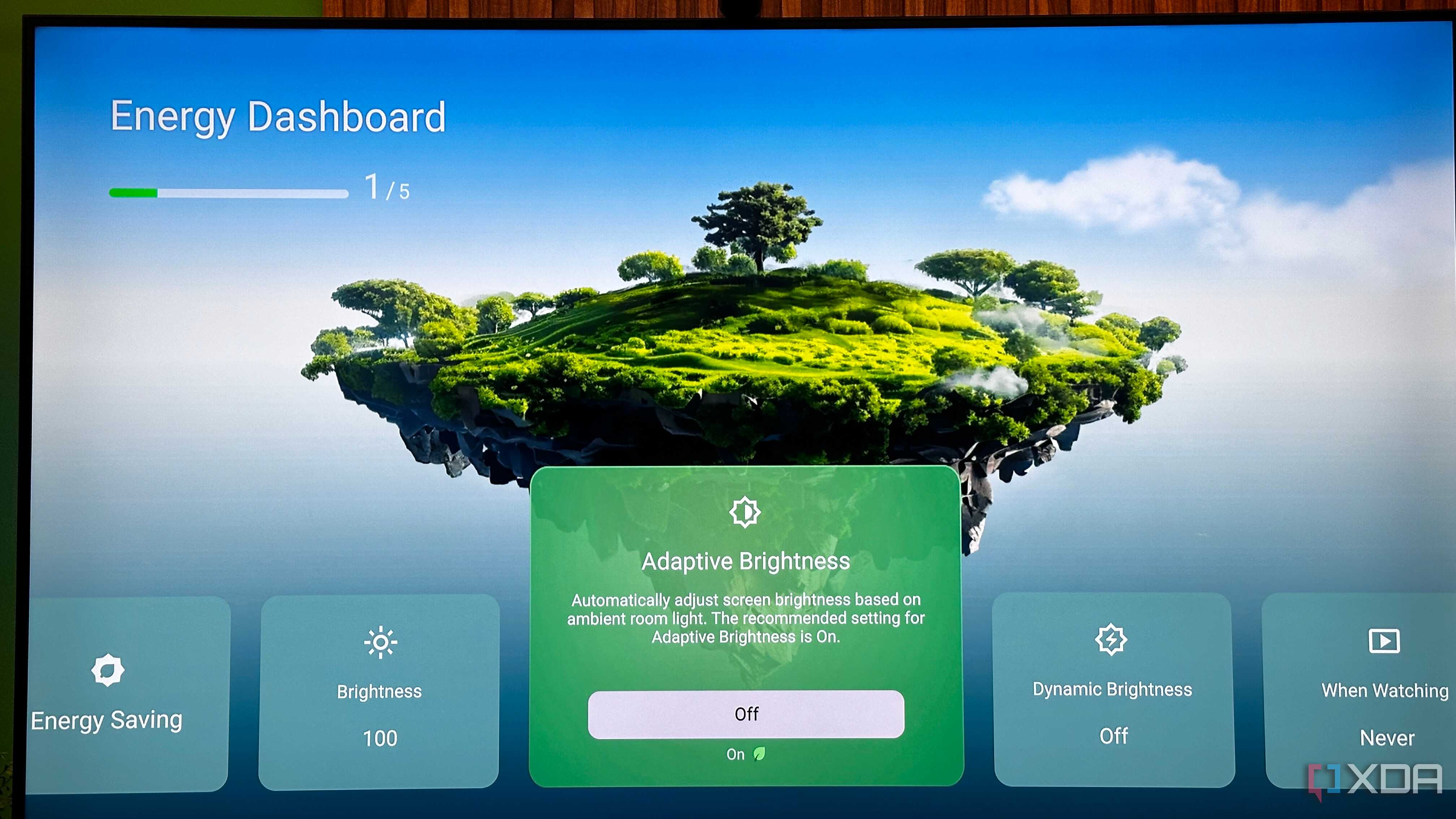
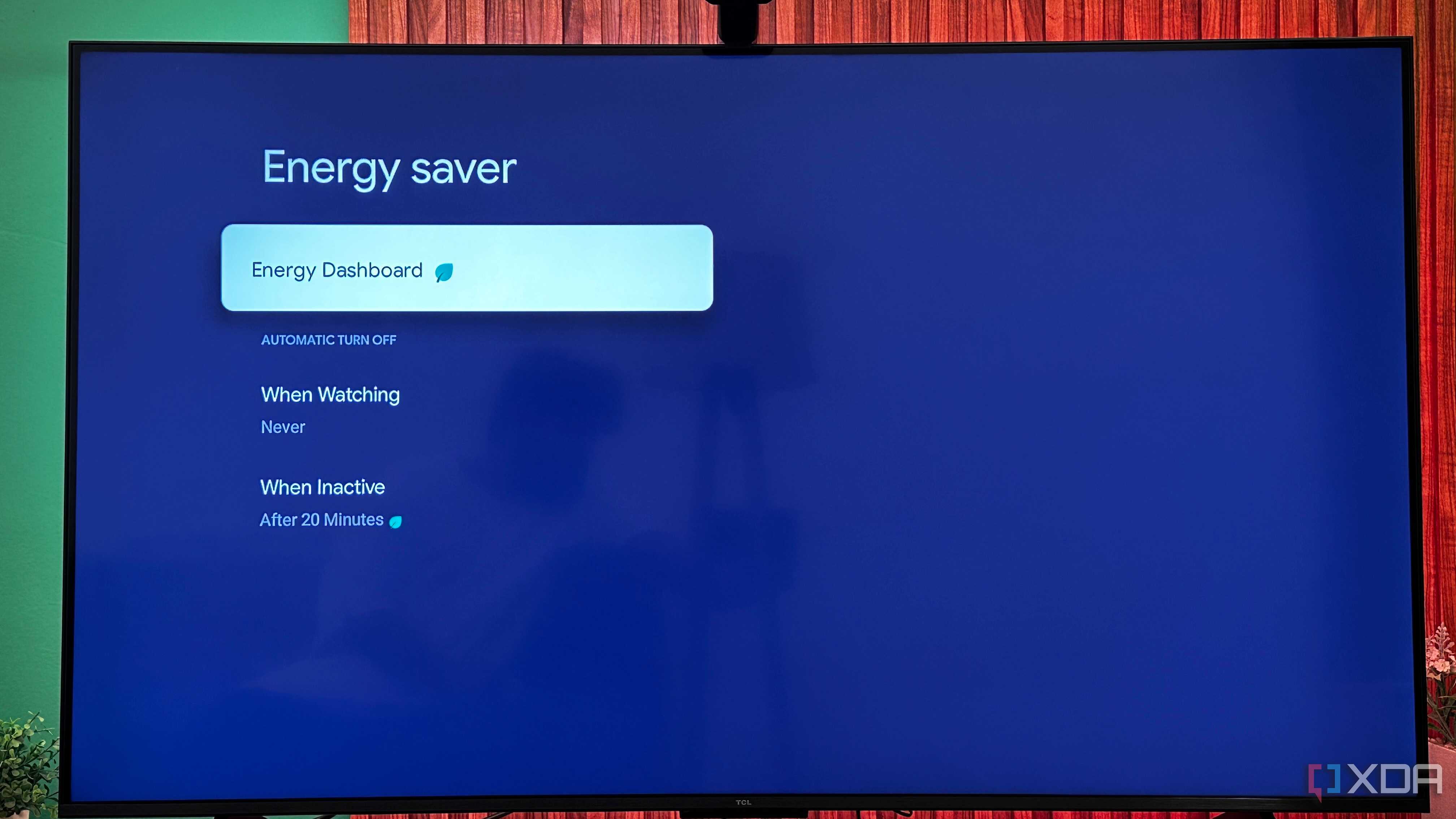
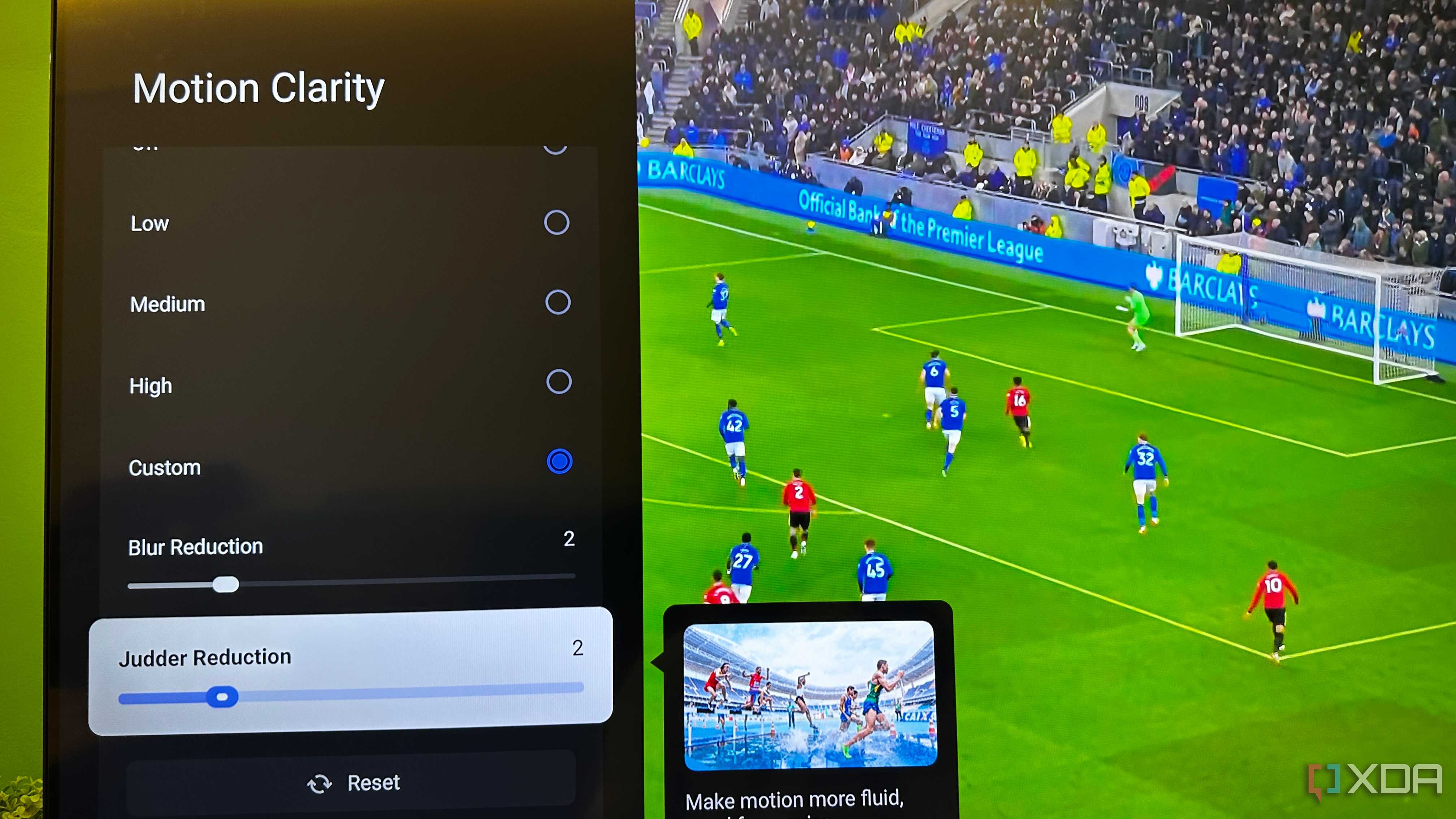

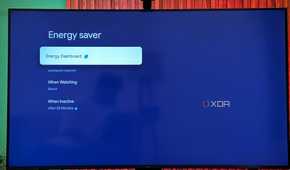
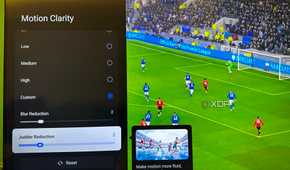
Once you've changed your HDMI signal to its enhanced state, you'll realize that your new TV has a lot of out-of-the-box settings that are limiting the panel's full potential. There's the built-in power-saver mode, which limits the TV's maximum brightness, and on mini-LED, QD mini-LED, or OLED panels, that's half the battle. There's also adaptive brightness, which might work great on our phones, but on TVs, there's a very high chance it's implemented poorly. That's another toggle to switch off.
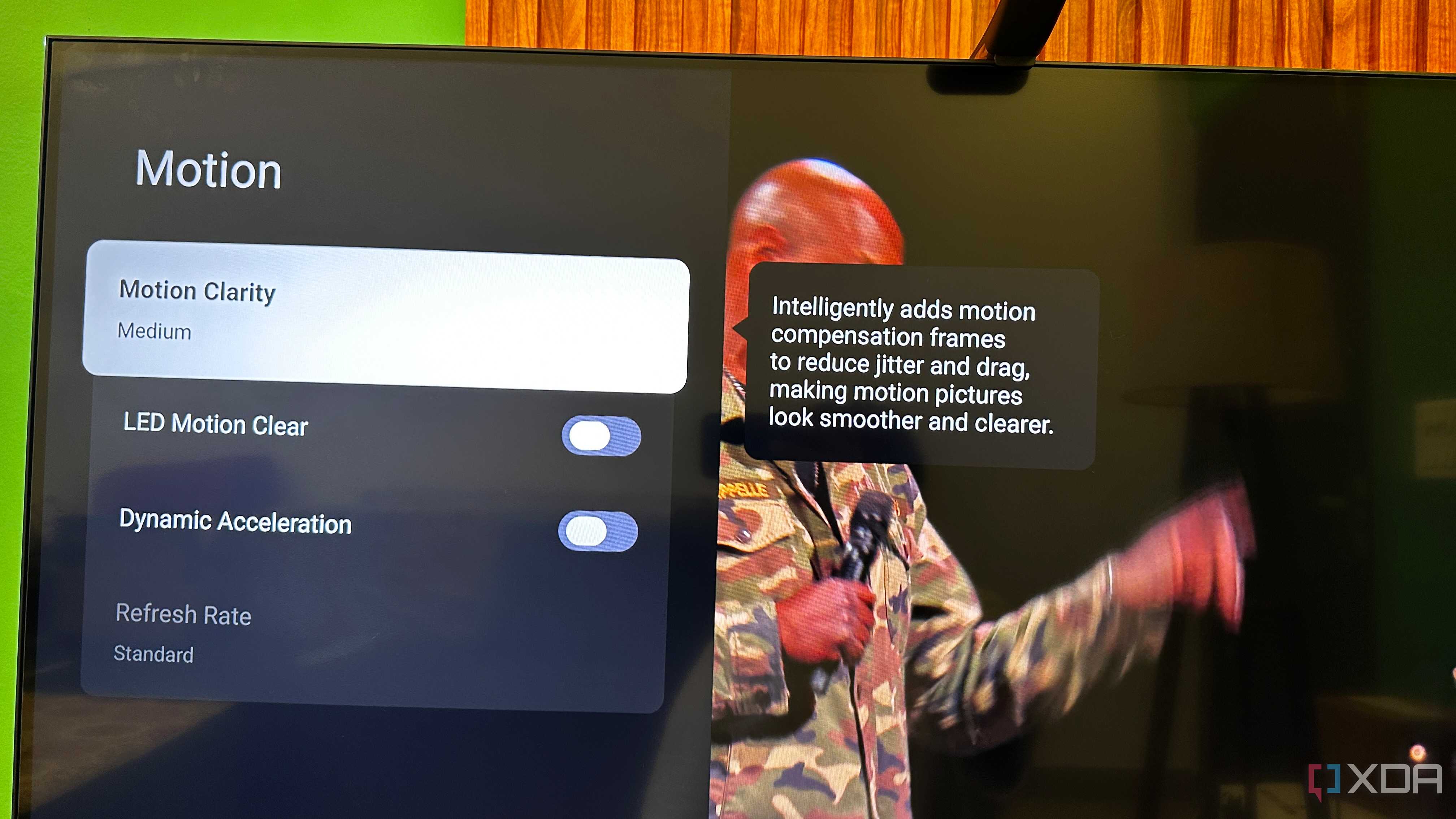
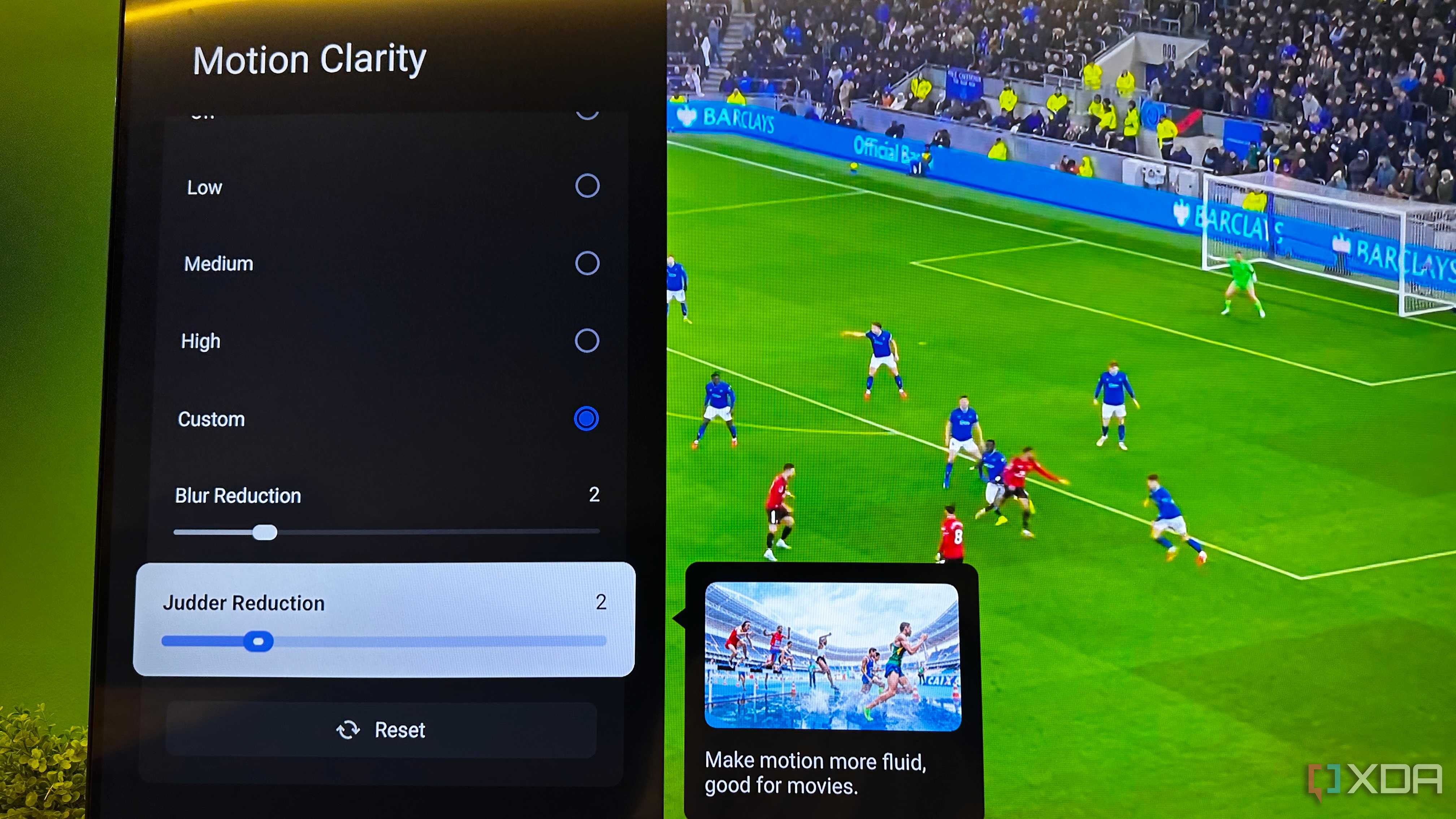
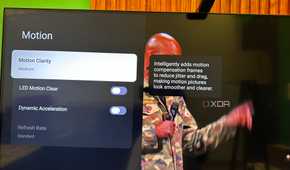
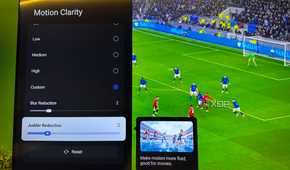
While you're at it, consider toning down any Motion Smoothing, Motion Clarity, or TRUmotion settings as well. The setting creates fake frames between each native frame, but often gives your movies and live telecasts the "soap opera effect," where everything begins to look fake, pushing into the uncanny valley. However, turning it completely off makes live sports look jarring, so tone the motion clarity settings down to a minimum. If custom values are allowed, set Blur and Judder reduction to two each, and see if you want to go up from there.
Either way, you'll experience enhanced signal, picture, and motion quality from your TV, and all three are things you wouldn't get out of the box.

Your TV could be underfed instead of underperforming
We assume that if a new TV turns on and displays an image, it must be operating at its best. Modern TVs reinforce that illusion since they're bright, sharp, and colorful even in their most restricted state. So many users end up accepting "good enough" without realizing they're actually seeing a throttled version of what the hardware can do.
The HDMI signal setting is one of those invisible gates. It protects manufacturers from support calls while protecting you from ever seeing the panel at full stride. The fix isn't complicated, either. It just requires a little bit of awareness. If you've invested in a high-refresh 4K TV, a current-gen console, or a premium streaming device, make sure they're actually communicating at full bandwidth.
