


From retro gaming machines, Steam Link devices, and Minecraft servers to network-wide firewalls, IDS systems, and self-hosting workstations, there’s a staggering number of projects you can build with an inexpensive Raspberry Pi. This includes full-on music streaming platforms, with moOde Audio serving as an amazing option for audiophiles who require a FOSS alternative to Spotify. So, we’ve compiled a step-by-step guide to help you deploy an audio playback server on your Raspberry Pi.
What you’ll need
Thanks to the low hardware requirements of moOde Audio, you don’t need to invest in a high-end Raspberry Pi – and can easily set up the 32-bit image of the OS on the weaker RPi Zero boards.
While we’re on the subject, you don’t have to worry about installing an operating system beforehand, as moOde Audio runs bare-metal on the Raspberry Pi SBCs. Just make sure your microSD card has enough space for all your audio files before you attempt this project.
-
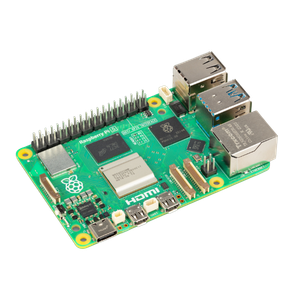
Raspberry Pi 5
$75 $80 Save $5- CPU
- Arm Cortex-A76 (quad-core, 2.4GHz)
- Memory
- Up to 8GB LPDDR4X SDRAM
- Operating System
- Raspberry Pi OS (official)
- Ports
- 2× USB 3.0, 2× USB 2.0, Ethernet, 2x micro HDMI, 2× 4-lane MIPI transceivers, PCIe Gen 2.0 interface, USB-C, 40-pin GPIO header
- GPU
- VideoCore VII
-
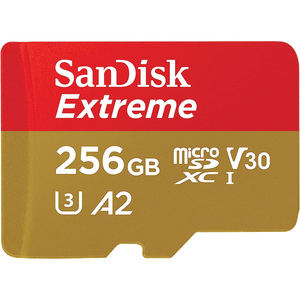
Installing moOde Audio on the microSD card
Once you've gathered all the tools for this project, you'll need to use an image flashing tool to write the moOde Audio img files onto the microSD card. The Raspberry Pi Imager gets my vote, as it’s not only simple to use, but it can also download the moOde Audio file to save some of your time.
- Download the latest version of the Raspberry Pi Imager setup file and use it to install the tool on your PC.
- Launch the Raspberry Pi Imager with administrator privileges.
-
Click on the Choose Device button and select your Raspberry Pi model from the list.
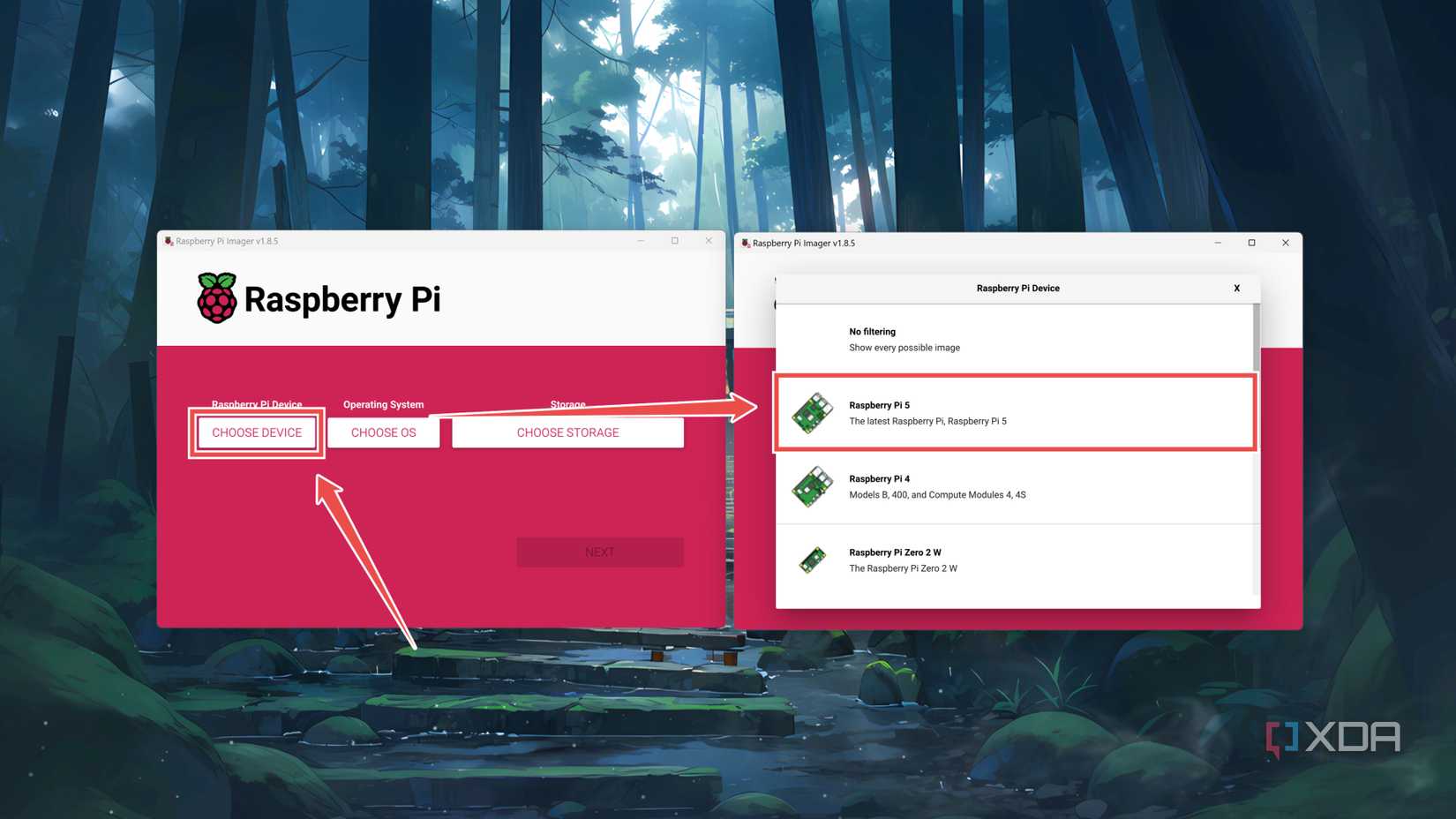
-
Press Choose OS, scroll past the Raspberry Pi OS versions, and tap Media player OS.

-
Click on moOde audio player and pick the latest version of the OS.

-
Hit the Choose Storage button and pick the microSD card where you wish to set up the operating system.

-
Hit Next and press Edit when the Raspberry Pi Imager prompts you to apply the OS customization settings.

-
Enter the Hostname, Username, and Password for your moOde Audio server.

-
(Optional) If you wish to use your Wi-Fi network instead of Ethernet for moOde Audio, feel free to Configure the wireless LAN settings.

-
(Optional) Switch to the Services tab and check the box next to the Enable SSH option before tapping the Save button.

-
Hit Yes twice and press Continue once the Raspberry Pi Imager has finished flashing the moOde Audio image on the microSD card.


Setting up moOde Audio on your Raspberry Pi
With the microSD card ready, it’s time to use it with your Raspberry Pi and deploy the moOde Audio server.
-
Slot the microSD card into your Raspberry Pi and connect the power, keyboard, and micro HDMI cables to it.
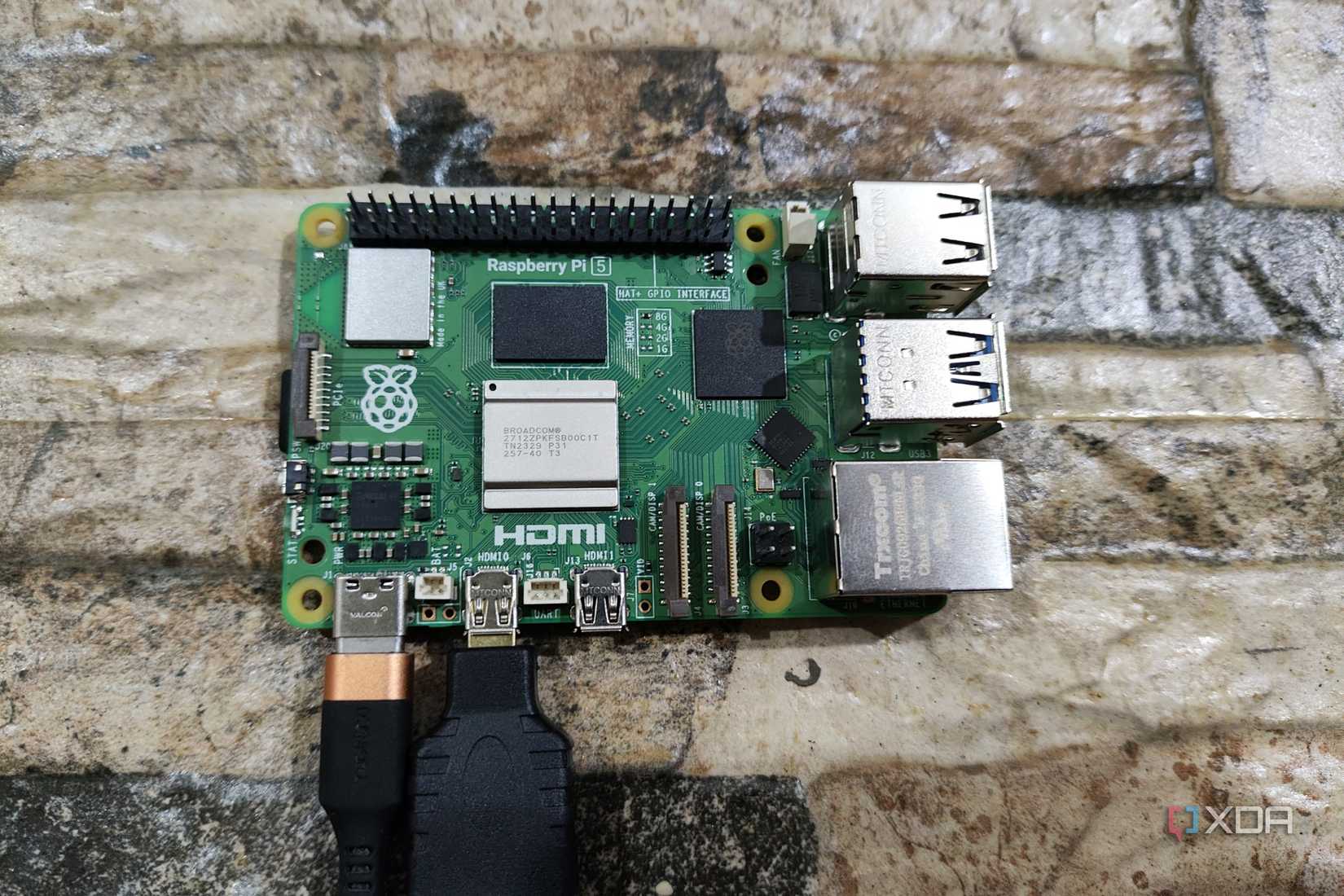
- Log into the command-line interface of moOde Audio with the credentials you set up in the Raspberry Pi Imager.
-
Enter ifconfig into the terminal and use the first numeric string after the inet string to access the moOde Audio server from another system on the same network as your Raspberry Pi.

- To transfer your song library, connect a flash drive containing all your audio files to your Raspberry Pi.
-
Inside the moOde Audio dashboard, click on the m button and choose Update library.


Making the most of your moOde Audio machine


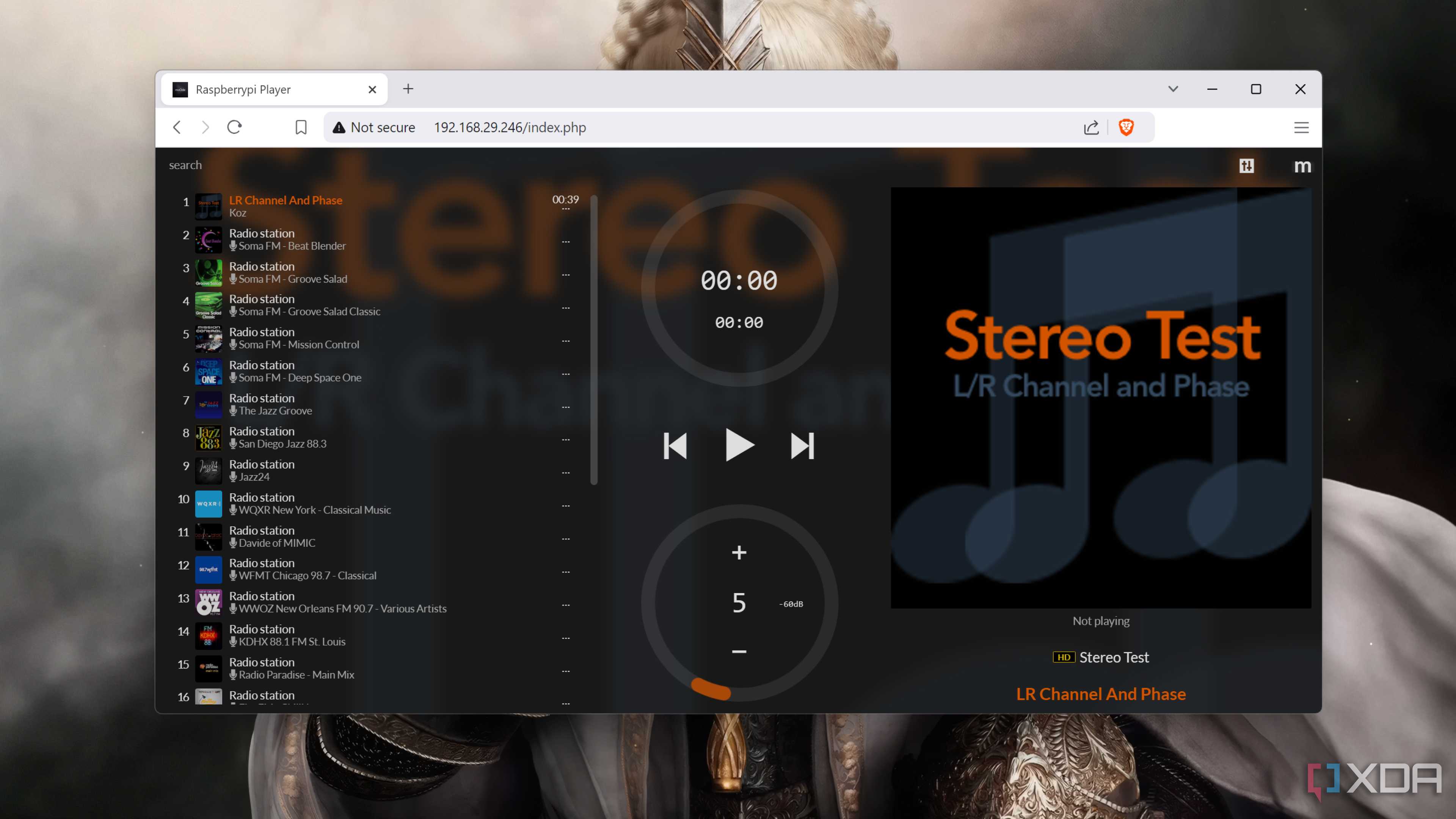




If you’re an avid audiophile, there are a couple of other moOde Audio features you might want to check out. For example, the AirPlay and Spotify Connect sections in the Renderers tab are perfect for enthusiasts with huge song playlists, though you’ll need a Spotify Premium account for the latter. Then there’s the Audio tab, which includes everything from Shuffle and HTTP streaming settings to advanced Equalizer and DSP options. Speaking of DSP settings, you can further fine-tune your music streaming experience by heading to the CamillaDSP tab of the Configuration Settings menu.
