


The convenience of Wi-Fi can't be understated, but even the best routers sometimes struggle to cover our homes with signal. When that happens, we get what's known as a dead zone, where wireless devices have low signals or can't even connect to the network. Imagine how annoying it would be if you lost signal partway through a video call or couldn't connect to your video doorbell to see who's at the door.
It might be a common problem, but it's also relatively straightforward to sort out. Checking your Wi-Fi signal around your home with a signal analyzer app will help you narrow down where any dead zones are, and once you know that, you can fix things. You might only need to move your existing router slightly to fix coverage issues or run an Ethernet cable, or you might need to invest in some new equipment, especially if your home is multi-level or spread out over a wide area.
9 Run cable
Banish that dead zone with reliable wired networking

Sometimes, the best solution is also the simplest, especially if it's just one device or area in your home that has a Wi-Fi dead zone. Running an Ethernet cable from the router to that position will reliably serve a network connection to that device, assuming it has an Ethernet port to plug in to. If it doesn't, you can still run a cable and then add a wireless access point to that area, which will increase your wireless signal for everyone in that part of the building.
8 Add access points
Spread more consistent Wi-Fi while supporting more devices


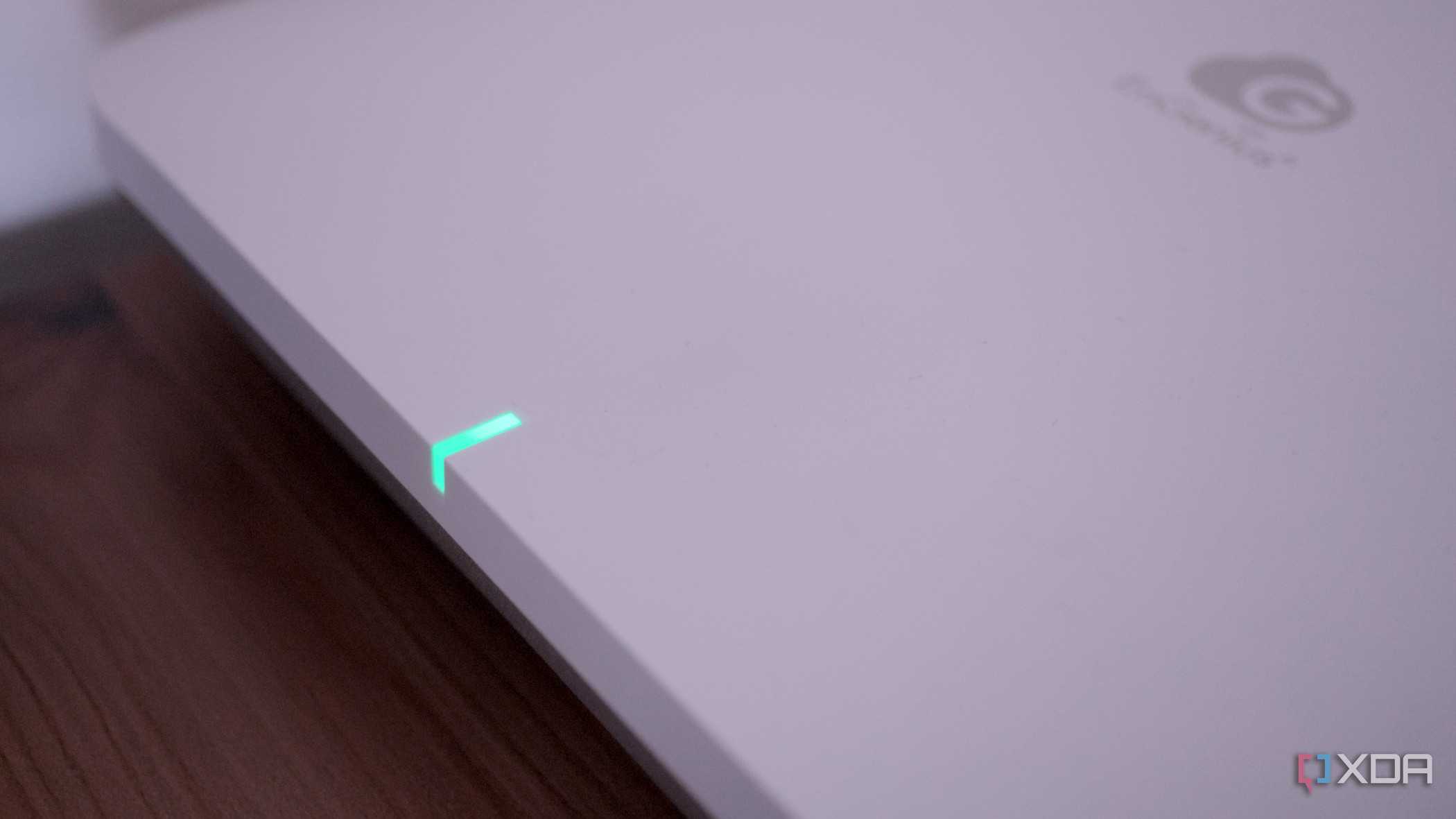
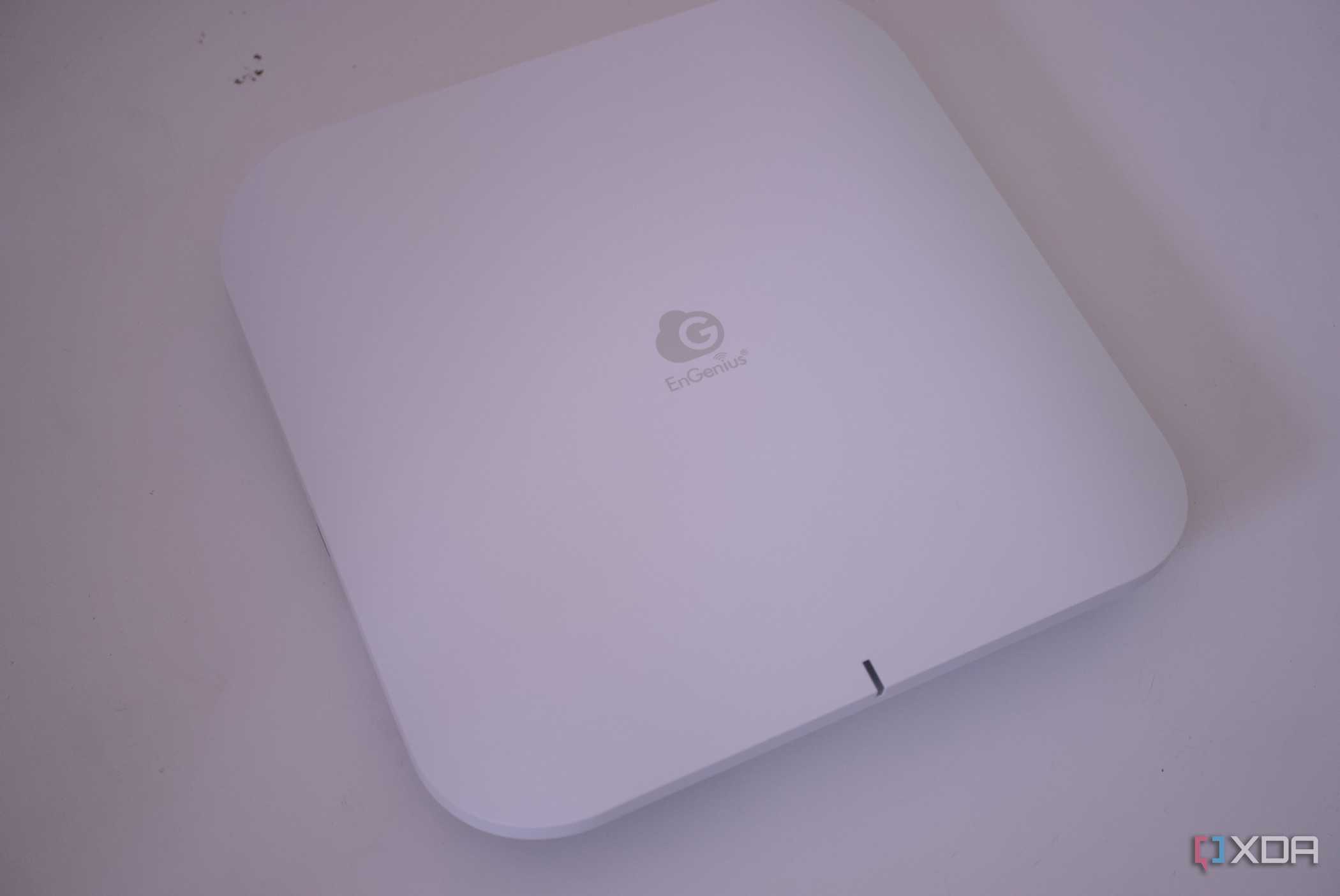
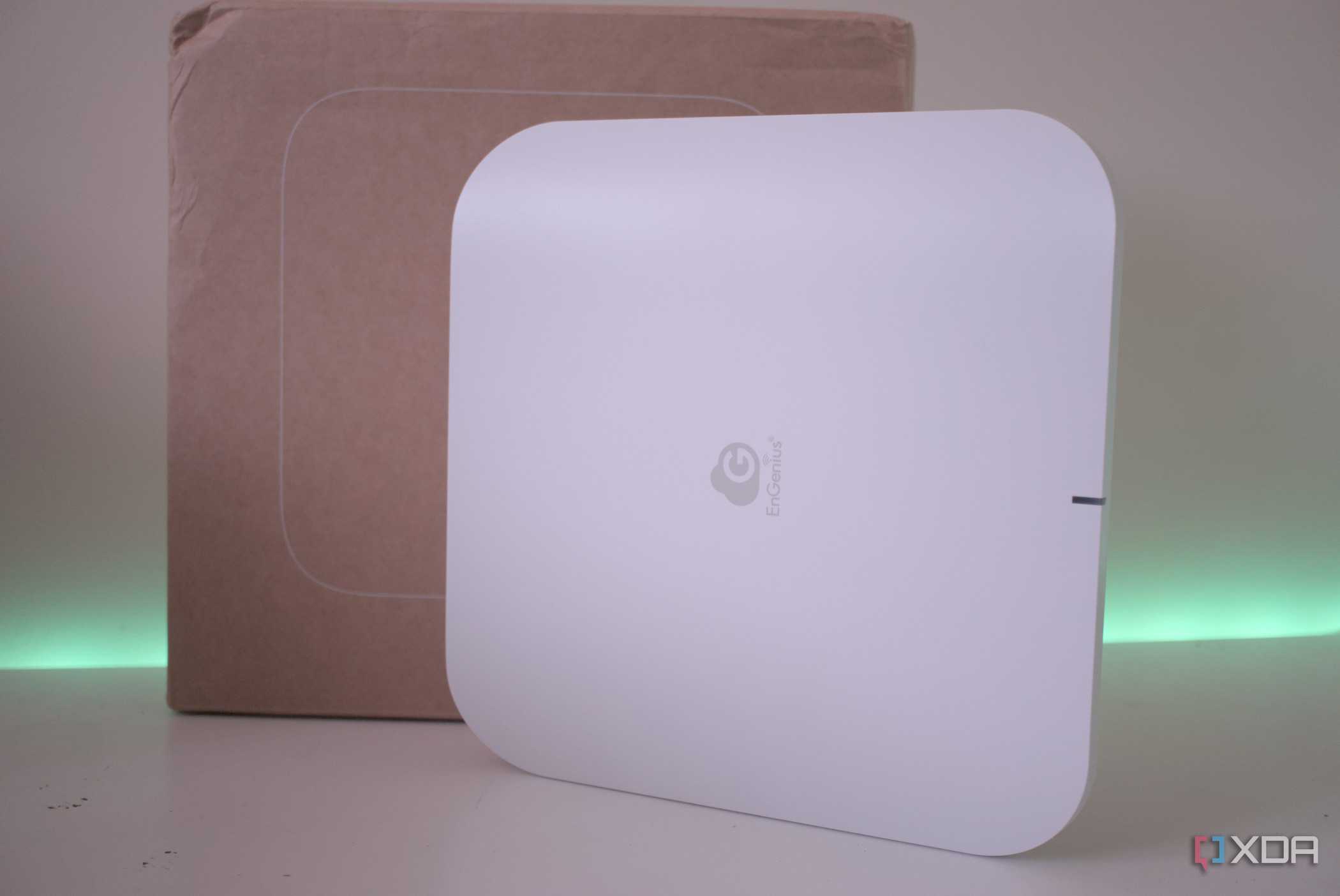
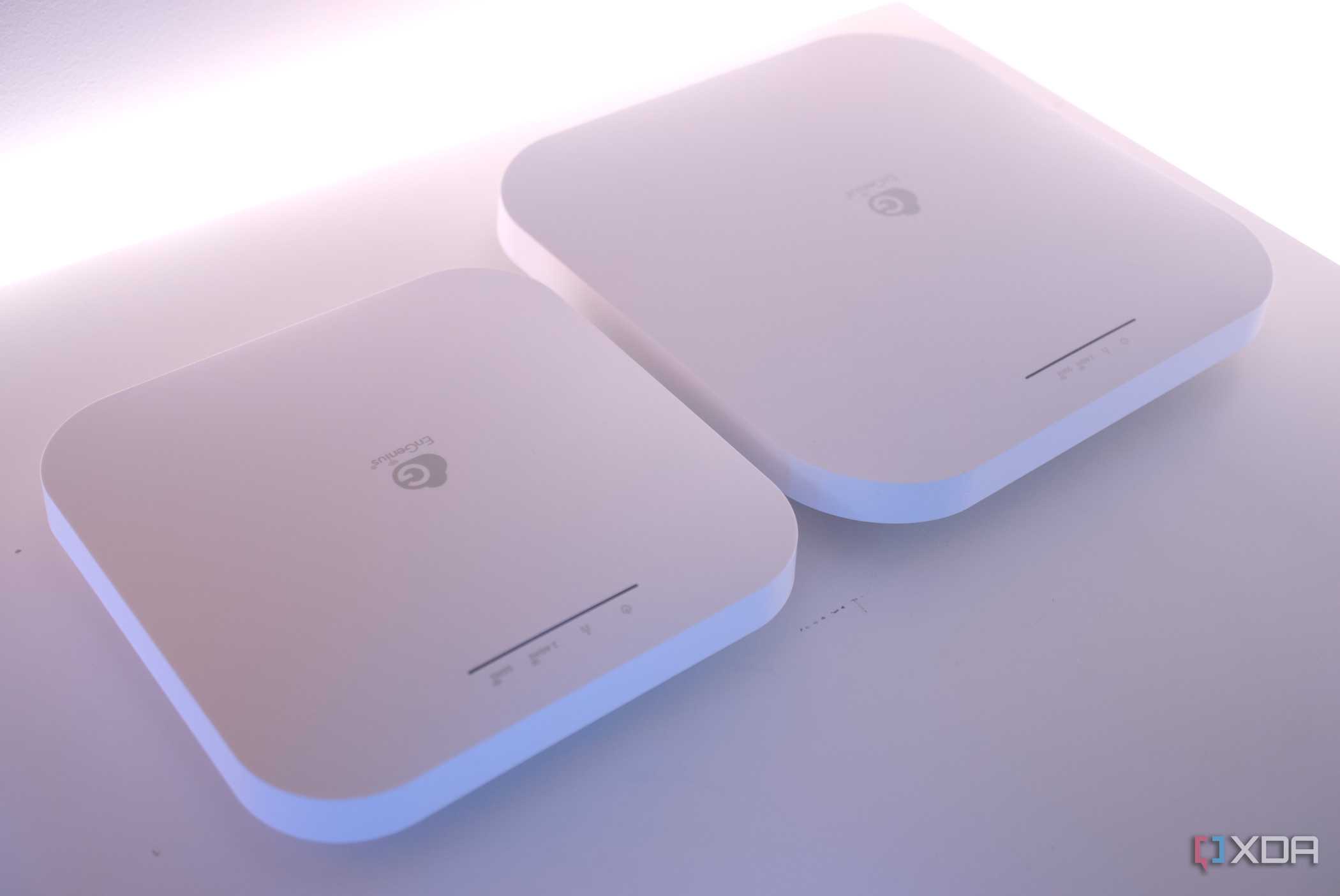
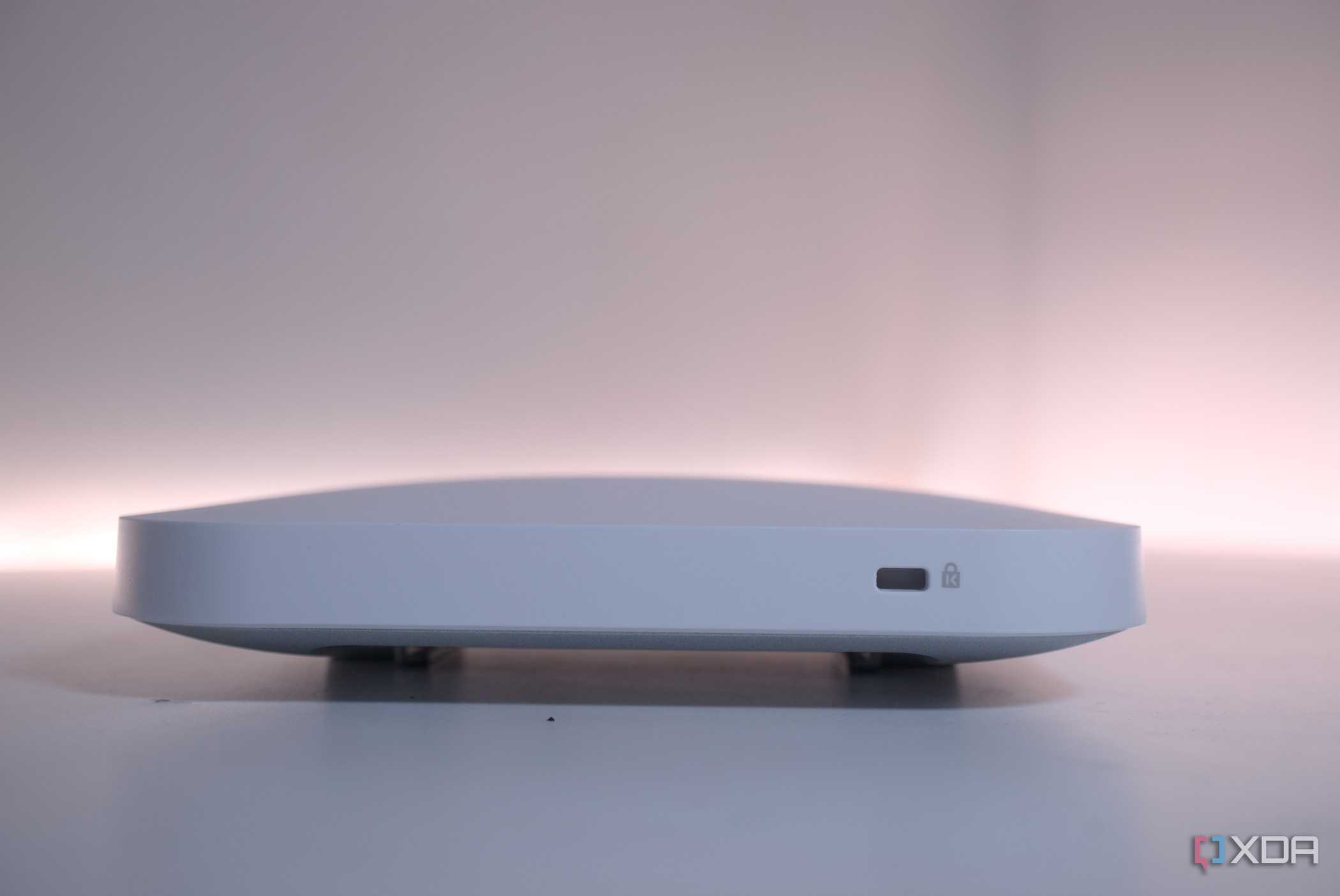



Wi-Fi has gotten better over the generations to the point where it's now very speedy, but one thing hasn't changed: the physics involved in wireless range. The 2.4GHz band is your best bet for distance without modifying your router, but you can increase the coverage area by running Ethernet to another part of your home and connecting to a wireless access point. If you set the SSID and security details to the same as your main router, devices should be able to figure out which one has a stronger signal and move between them, hopefully eliminating dead zones completely, as you've got two sources of Wi-Fi for coverage.
7 Switch to a mesh network
A single Wi-Fi router might not be enough for your home


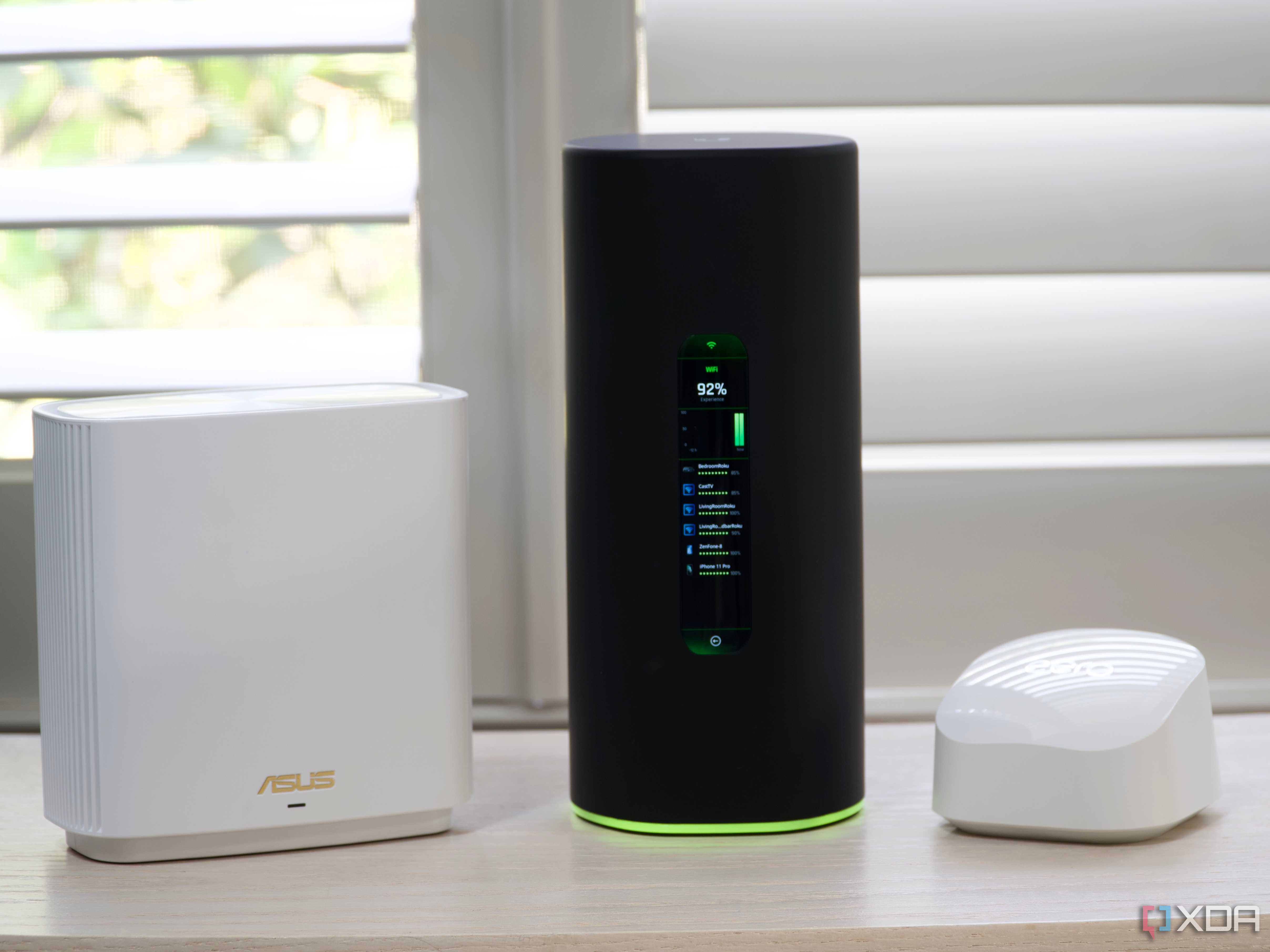
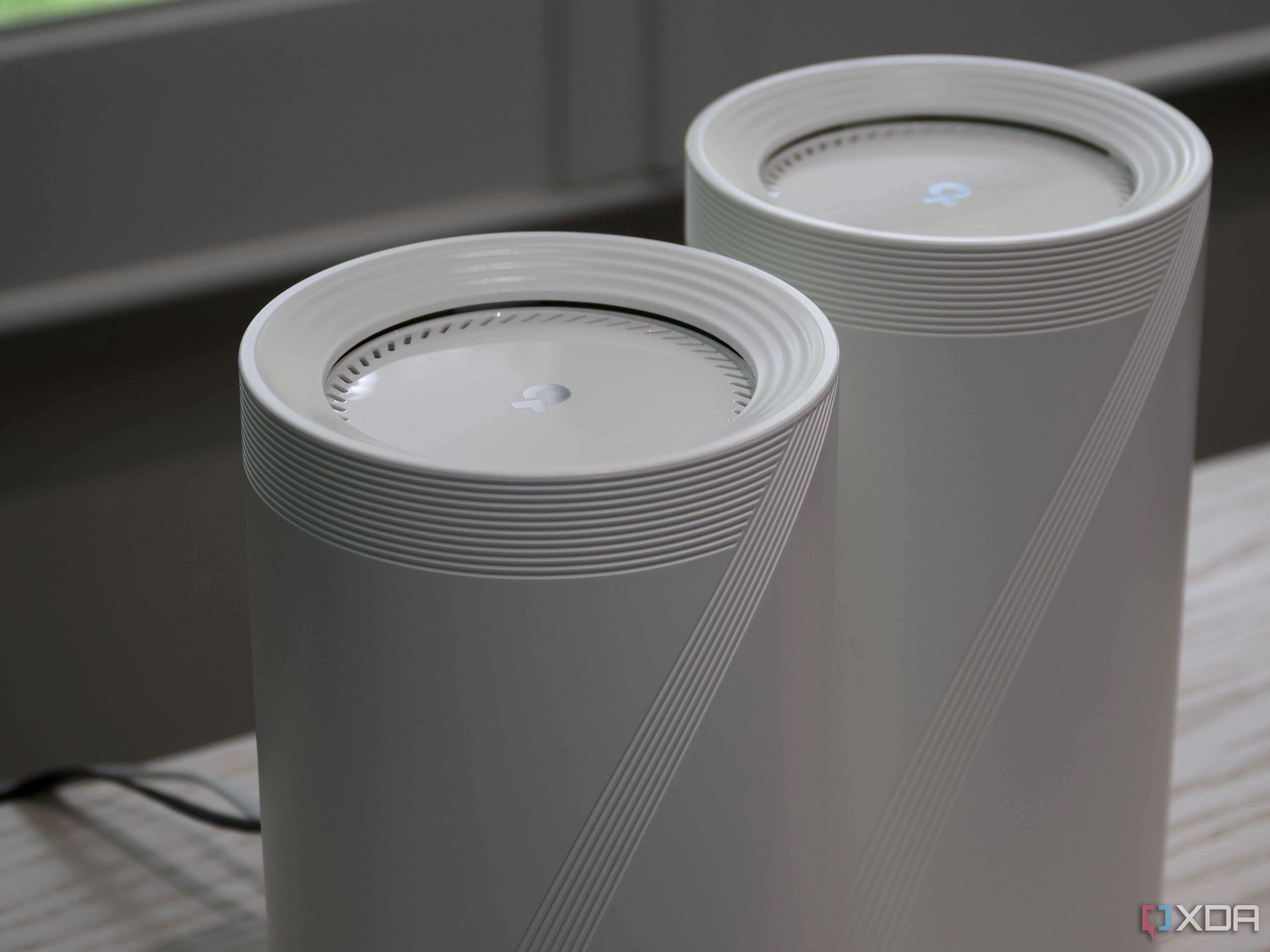

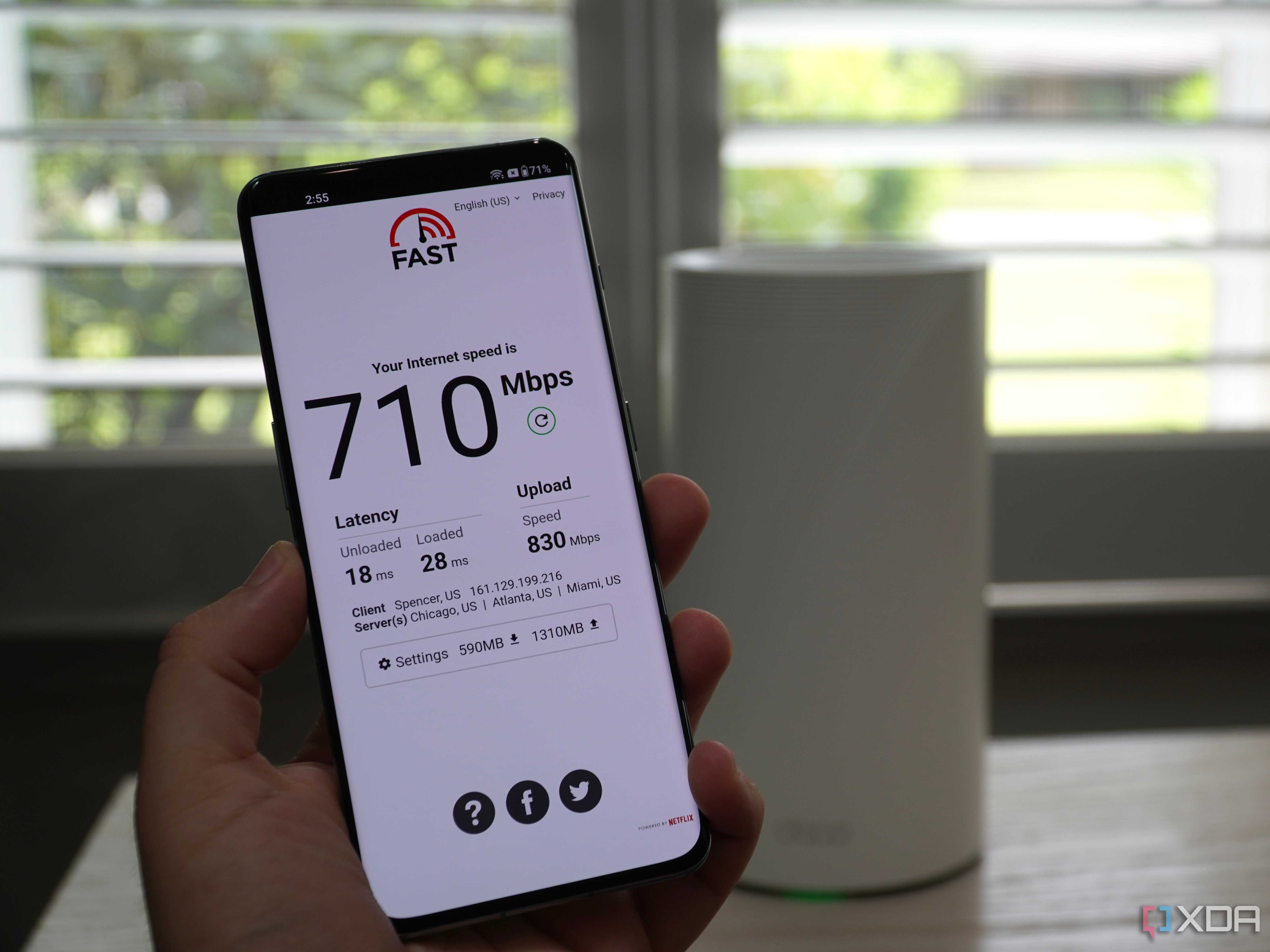





While adding an access point can solve the problem, it requires you to run a cable to wherever it's going, and that's not possible for some people. Instead, upgrading your home network to a mesh does the same thing in effect by putting multiple Wi-Fi broadcasting routers around your home, but they don't necessarily need to be wired in to anything but power.
In my experience, it's better to go for Wi-Fi 6E for mesh kits because that guarantees three radios. One of those three will be used for the backhaul between the nodes, while the other two are left to handle your wireless devices. Mesh nodes work best when they're about 30-45ft apart, so they're not interfering with each other while still being close enough for 5GHz or 6GHz backhaul, and the best part is that they only need a power connector to work.
6 Move your router
A more central location means better coverage everywhere


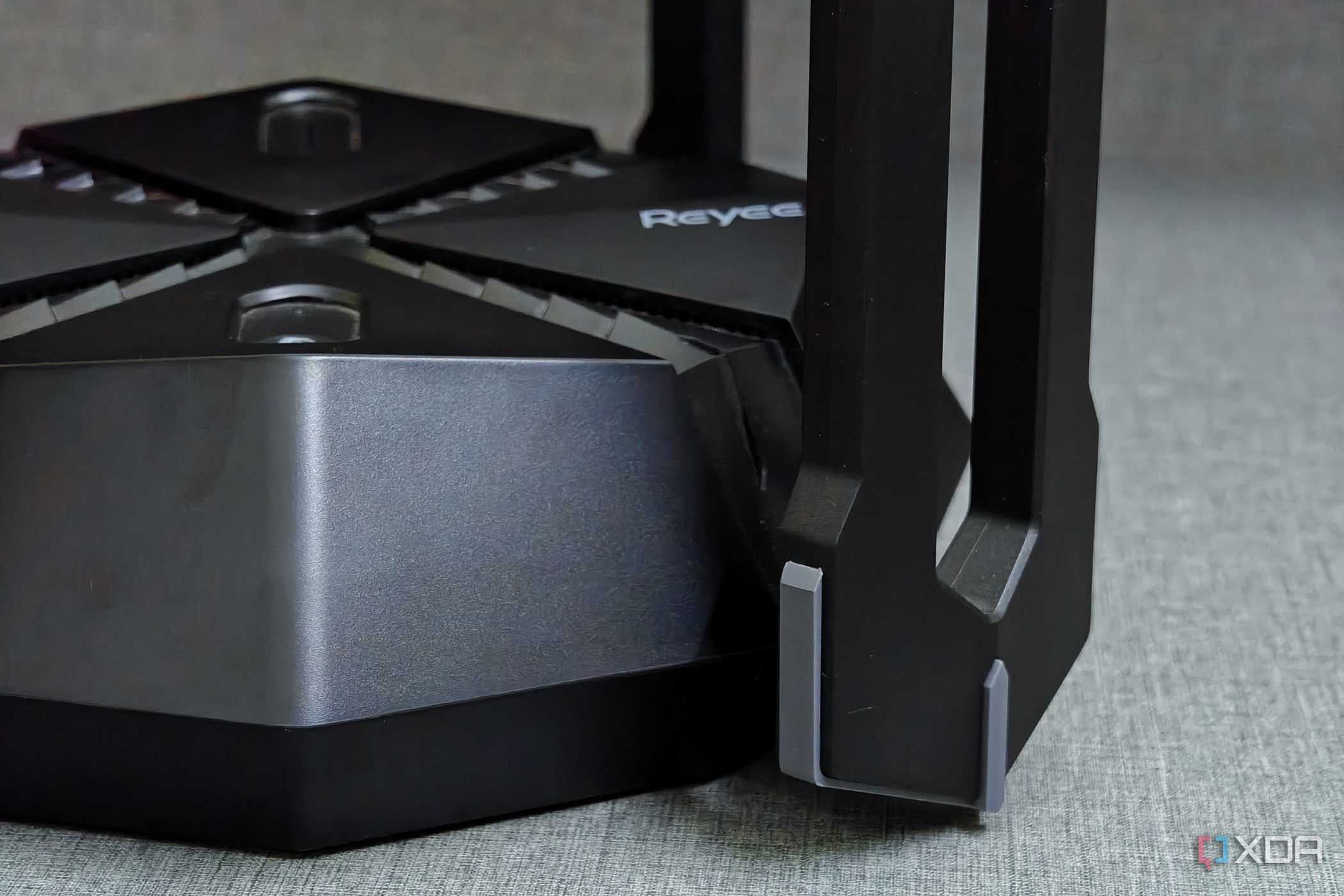
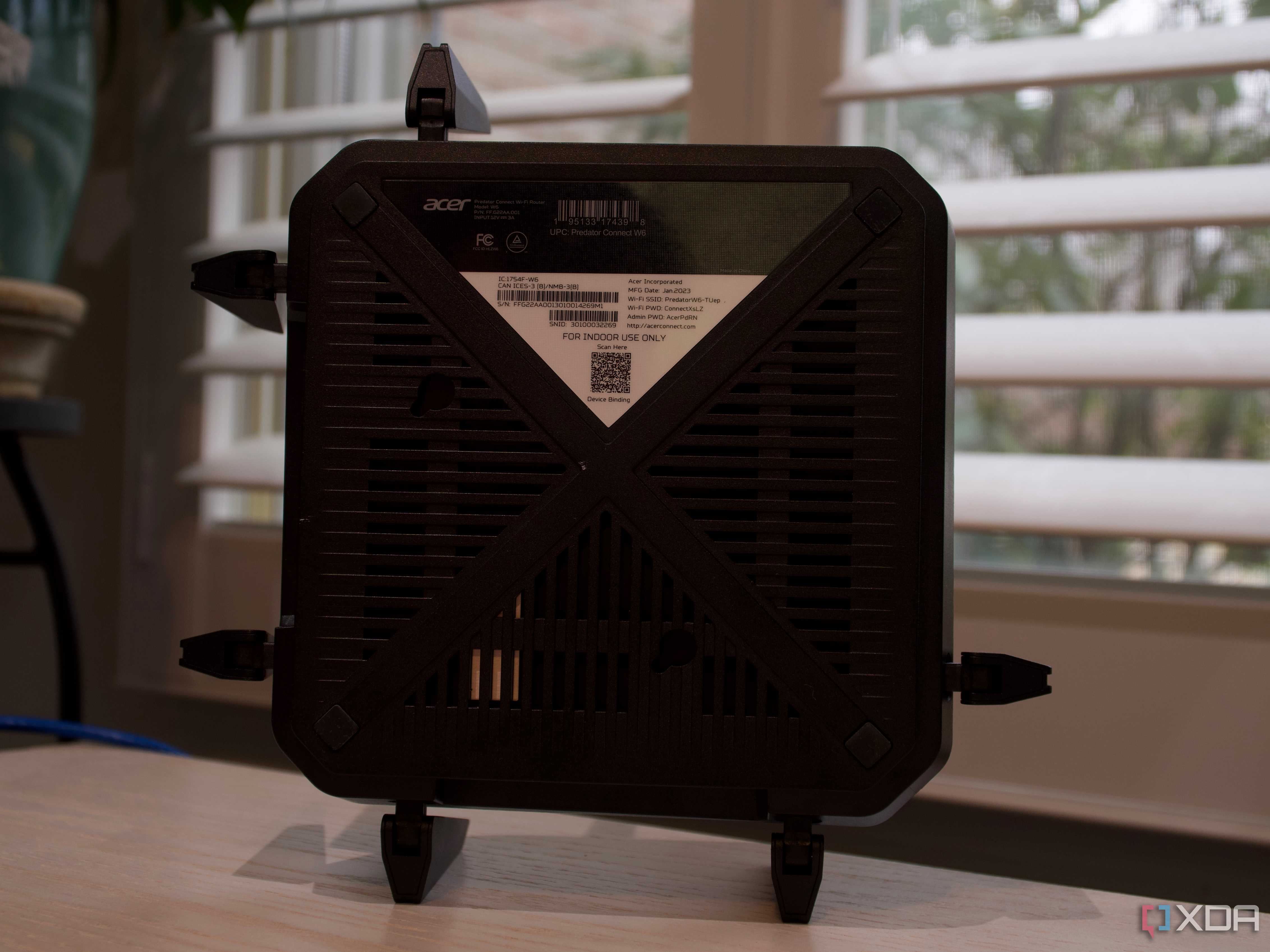
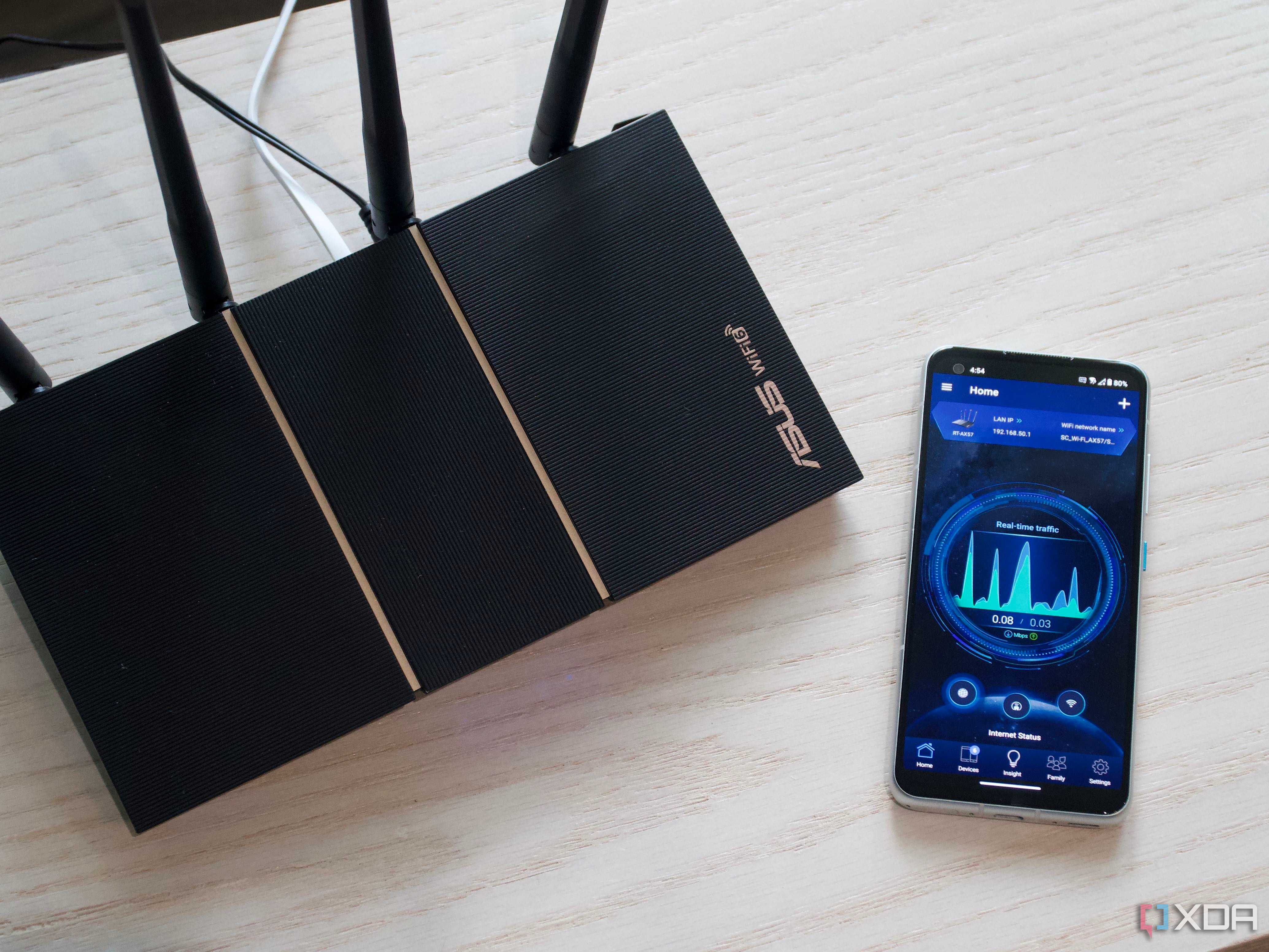

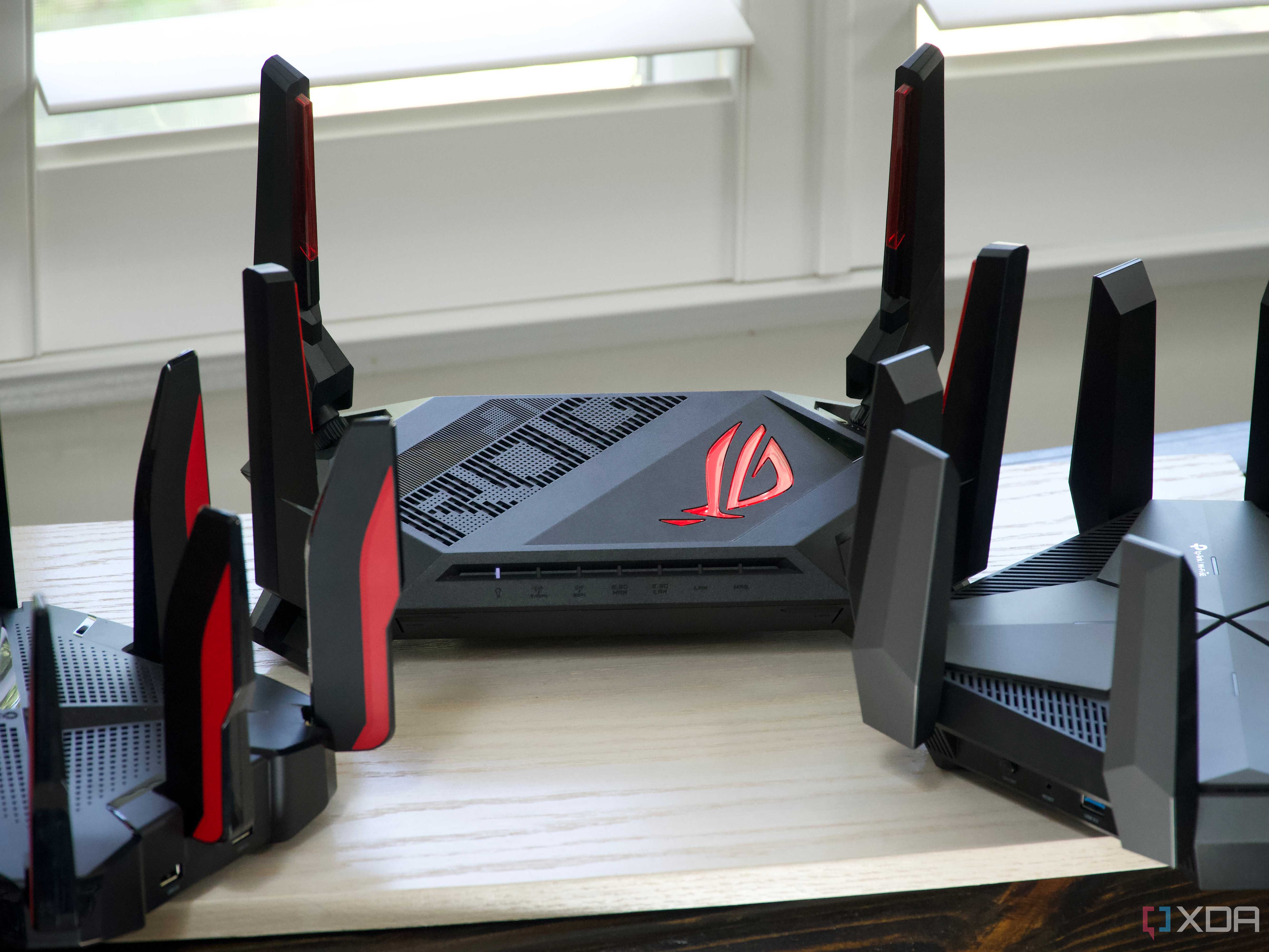



For the majority of consumer Wi-Fi routers, the wireless signal gets spread out in a kind of donut shape from each antenna. That means if your router is at one end of your home, half of your signal is being broadcast through the outside wall, which isn't terribly helpful unless you have a large backyard you like to sit in. If at all possible, your router should be near the center of your home, and that includes vertical distance as well.
It's not always that simple, depending on where the utility company brought the cable into your home, but it's worth trying, even if it's moving the router to the other side of the room it's currently in.
5 Limit interference
Other wireless signals can make your Wi-Fi less reliable


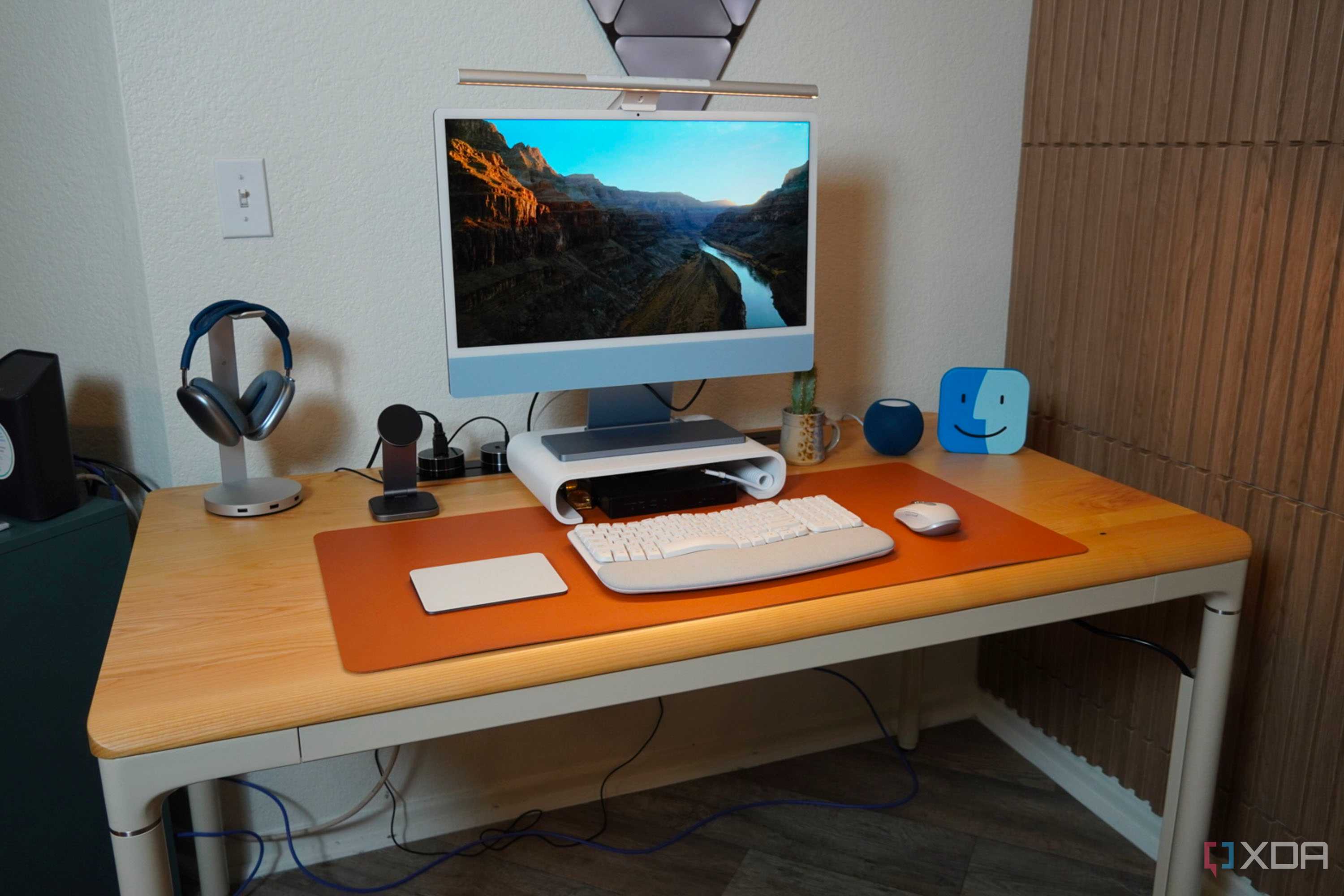


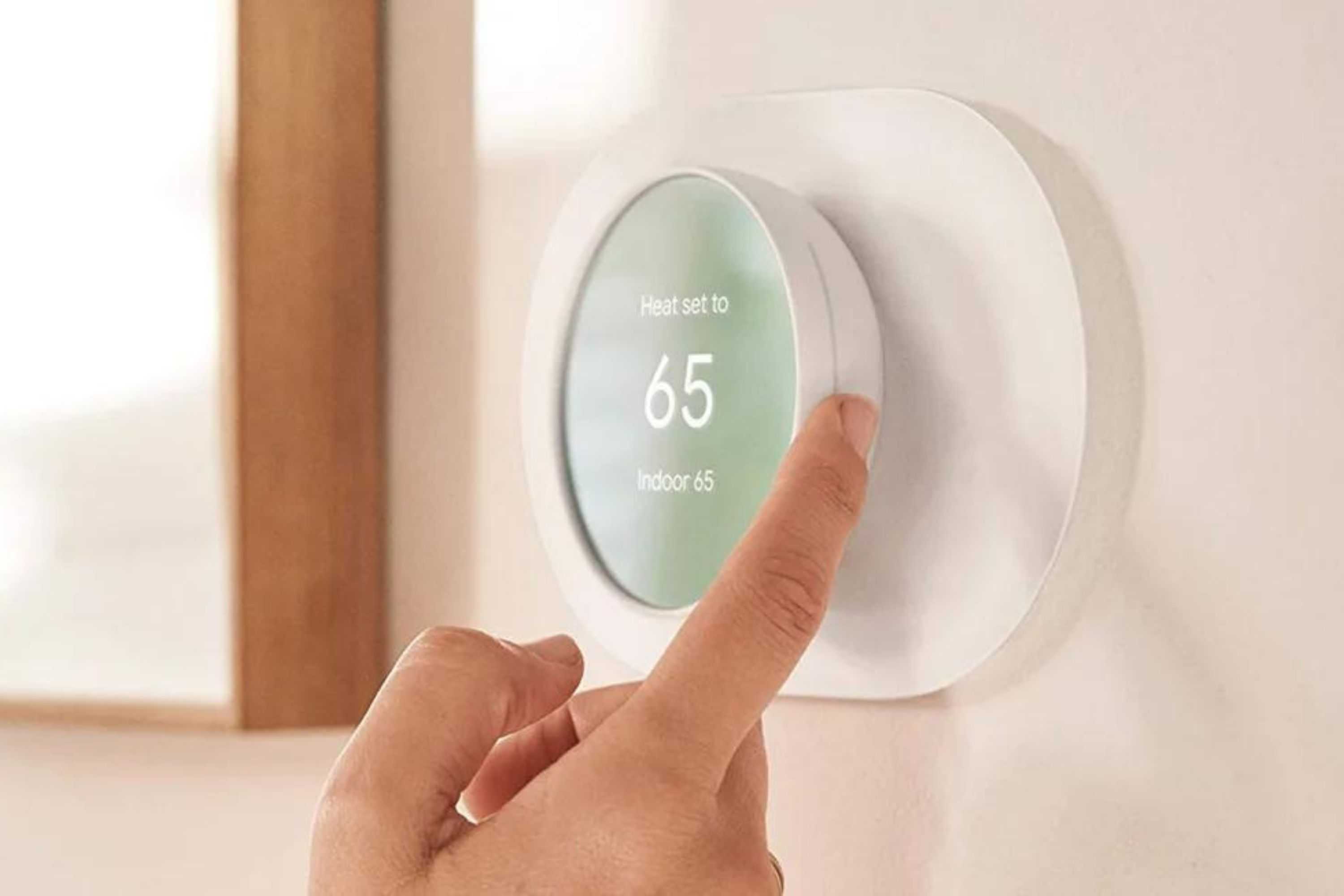





Every wireless device that broadcasts a signal can interfere with your Wi-Fi network, and that includes devices that you might not think of, like your microwave, some types of lighting, and other electronics. If you've already gone around your home to map out where Wi-Fi dead zones are, see which devices in that area could be causing interference.
Turning those off and checking the places where you previously had no Wi-Fi signal will show if it's that device that's causing the issue. If so, it's a case of moving that device around to see if you can get a consistent signal or deciding if that device needs to be connected to Wi-Fi. Also, keep your router away from any electrical panels because that's a sure-fire source of interference.
4 Use powerline adapters
If you can't run cables, use the ones already inside your walls instead

Source: XDA/Netgear
Instead of running Ethernet, which can be a problem for renters or those with walls that aren't wood and plasterboard, powerline adapters are an alternative to getting a network signal to another section of your home. The adapters use the electrical wires in your walls to transmit data and can be a solution for some homes. If going this route, buy a kit of two adapters, as there are several different powerline protocols, and they're incompatible.
When setting them up, it's a matter of connecting one to your router via Ethernet and then plugging the other adapter into the area where you need connectivity. Some powerline adapters can also function as wireless APs, so you don't need Ethernet at the other end. They do come with some caveats, though, like if your home has modern circuit breakers with GCFI, the network signal might get filtered out, and they won't work.
3 Adjust access point spacing
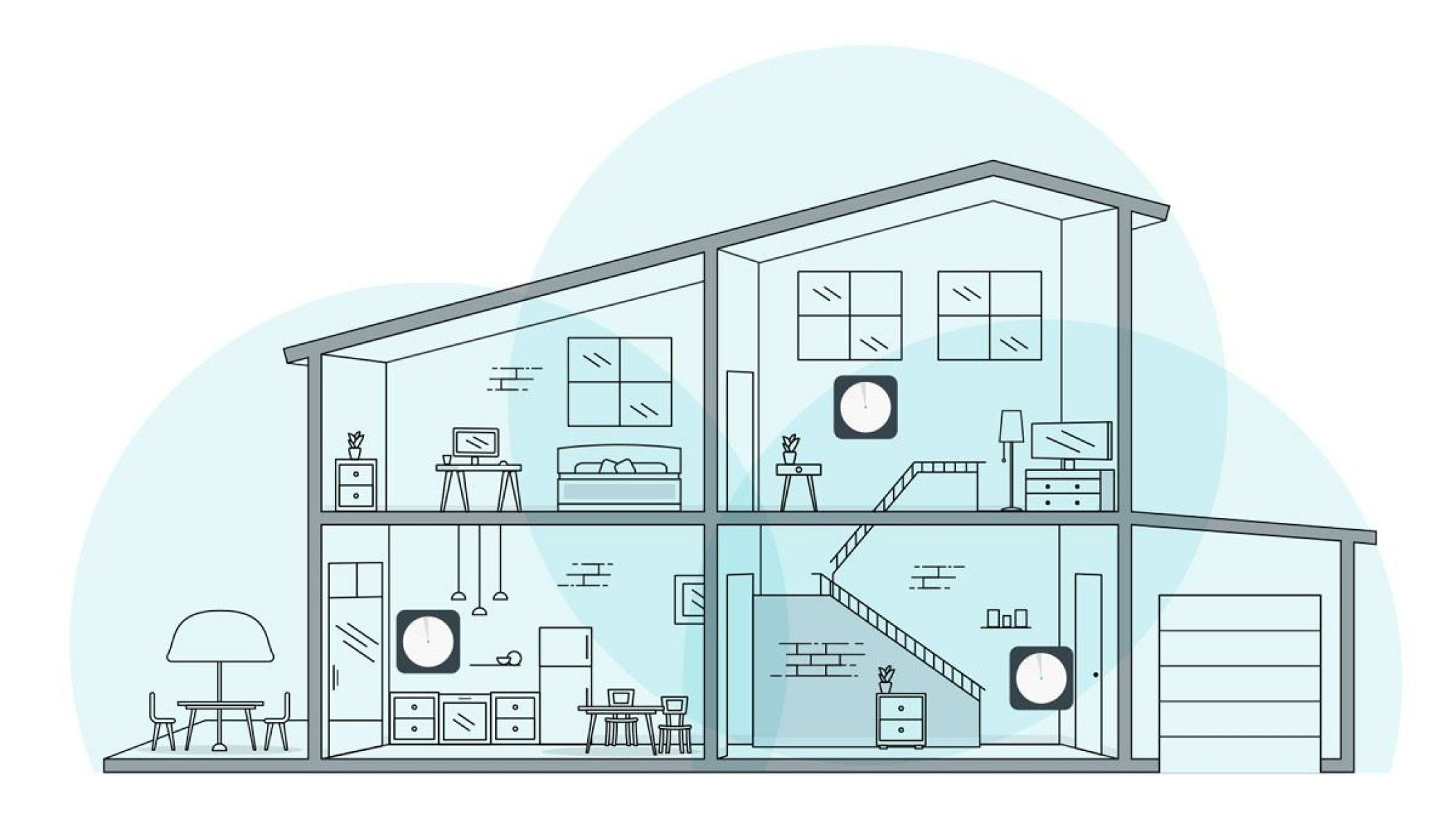
Adding more access points or mesh nodes doesn't always mean you'll get consistent Wi-Fi everywhere in your home. It's also important to space them correctly so that the Wi-Fi radios aren't interfering with each other. There's a sweet spot for most mesh kits where around 30 feet is the correct spacing, but it depends on the manufacturer, so do check your device's manual.
Single-family homes will likely need three nodes, but if you're using prosumer APs, you might only need one on each floor. Townhomes will also likely need one per floor, spaced out so that they're not all in a vertical line. The materials your home is built with will also change this equation, as wood-framed homes are easier for Wi-Fi to penetrate, while brick or concrete might struggle.
2 Use directional antennas
Router antennas tend to be omnidirectional but you can change that

If you can't easily move your router, and it's on an outside wall, you can get directional antennas, which will send more signal strength in the direction they're pointed. But before you go and buy anything, you can try using a piece of aluminum foil. Basically, you're going to put a curved piece of foil between your router and the outside wall, with the shiny side pointing at the router. This will bounce the radio signal back into your home, increasing its throughput. You'll have to fiddle around with the curve and size of the piece of foil, but it can fix your issue temporarily while you figure out a more permanent solution.
1 Add a cellular booster
It's not just Wi-Fi that might have dead zones

The coverage of your Wi-Fi network helps with internet access, but that's not the only wireless connectivity that can get dead zones in your home. Buildings also reduce cellular signals, and if your home is in a low signal area to begin with, it can cause issues with phone calls. Wi-Fi calling only solves part of the problem if your smartphone and cellular carrier work together properly. But you can banish those dead zones with a cellular signal booster, which essentially puts one antenna outside your house and another inside to increase the signal strength slightly. Large office buildings and mass transit do similar things to ensure cellular connectivity inside concrete or below the ground, and the home versions are just as good.
Wi-Fi dead zones are annoying but can be fixed
Having networking dead zones in your home is a pain, especially given how convenient wireless connectivity is when it's working correctly. With a little troubleshooting, you can identify the dead zones and determine the best way to increase wireless connectivity in that area. Each of these options will work, but the method you choose depends on your home's layout, the materials used in its construction, and if you can do things like run cables easily.
