


In recent years, OLED monitors have gained significant popularity, particularly among gamers and creative professionals. When I pulled the trigger on the Alienware AW3423DW, I was sure it wouldn't disappoint, especially since I had used a couple of OLED TVs before. But soon enough, I realized that OLED technology on a monitor isn't quite the same as it is on a TV. Yes, you still get stunning visuals with perfect blacks and vibrant colors, but for everyday tasks like web browsing, photo or video editing, and viewing documents, the experience comes with a few caveats.
Most OLED reviews you find on the internet rave about picture quality and HDR performance while gaming or watching videos, but they rarely go into detail about using these displays for extended desktop work. From text clarity issues to underwhelming SDR brightness levels, some of their quirks have caught me off guard. These aren't necessarily reasons to avoid OLED monitors altogether. In fact, I've learned to live with these drawbacks over time. However, they're definitely things you won't hear much about until you've spent hundreds of hours working on one.
3 Text clarity issues
Text just isn’t as sharp as on traditional LCD panels

If you're switching from a conventional IPS or TN monitor, one of the first things you'll notice as soon as you start using an OLED monitor for desktop use is its inferior text clarity. I noticed it within minutes of powering on my AW3423DW for the first time. The closer you sit to the monitor, the more noticeable the issue becomes. After a bit of digging on the internet, I learned that this is a well-known quirk with OLED panels because they don't use the traditional RGB subpixel layout like LCDs, and as a result, they don't align perfectly with Windows' font rendering.
You'll notice text clarity issues on both LG's WOLED and Samsung's QD-OLED panels, but they tend to appear differently. For instance, LG's panels use a WRGB subpixel layout in a stripe configuration, which demonstrates faint shadows along the edges of text content. Samsung's panels, on the other hand, use a triangular RGB layout, which showcases color fringing at the top and bottom of text. This is not something you'll notice while gaming or watching videos, but when you're reading articles on the web or typing emails, it becomes hard to overlook.
2 Mediocre SDR brightness
It just doesn't get as bright as my old IPS monitor


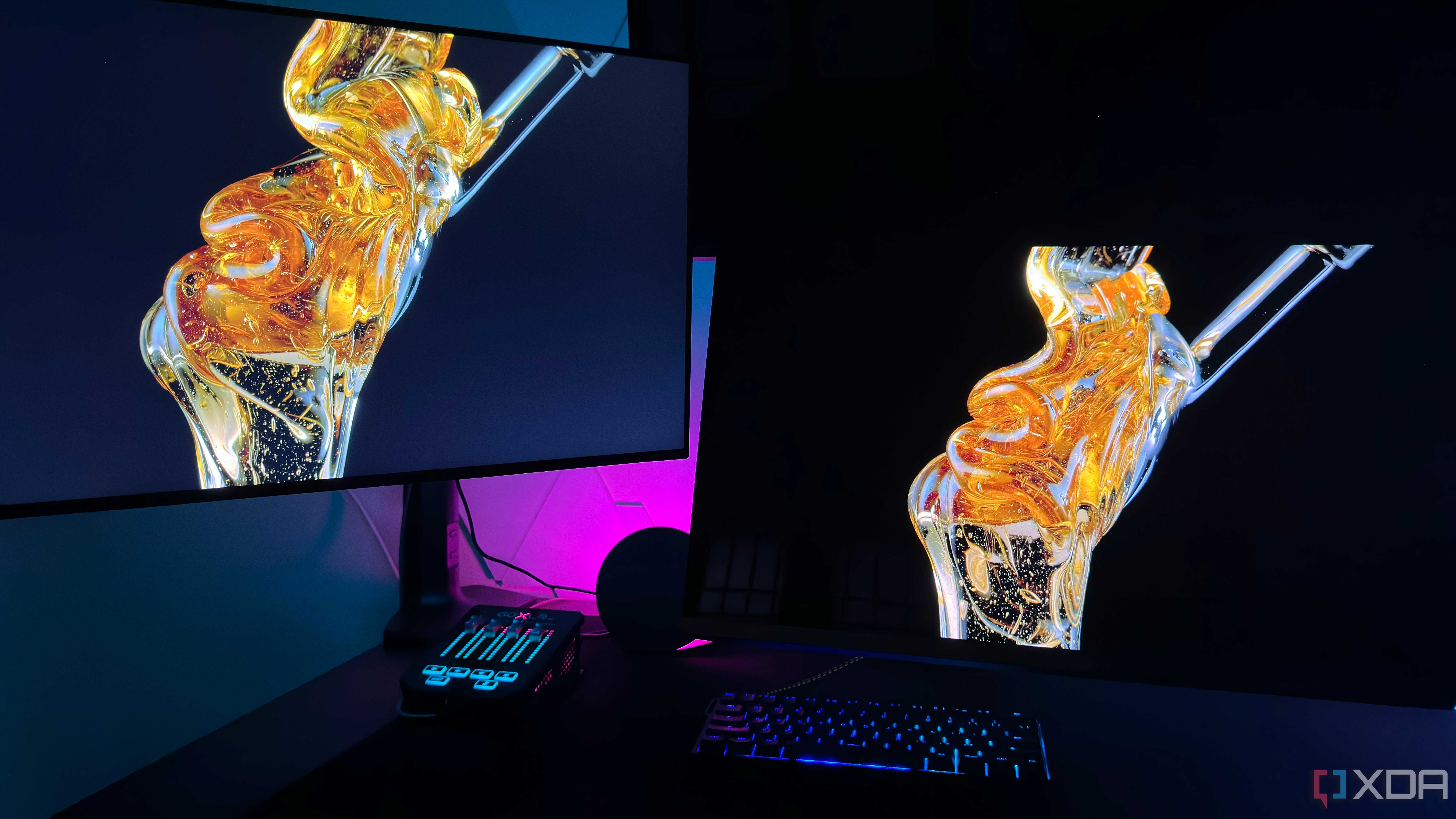
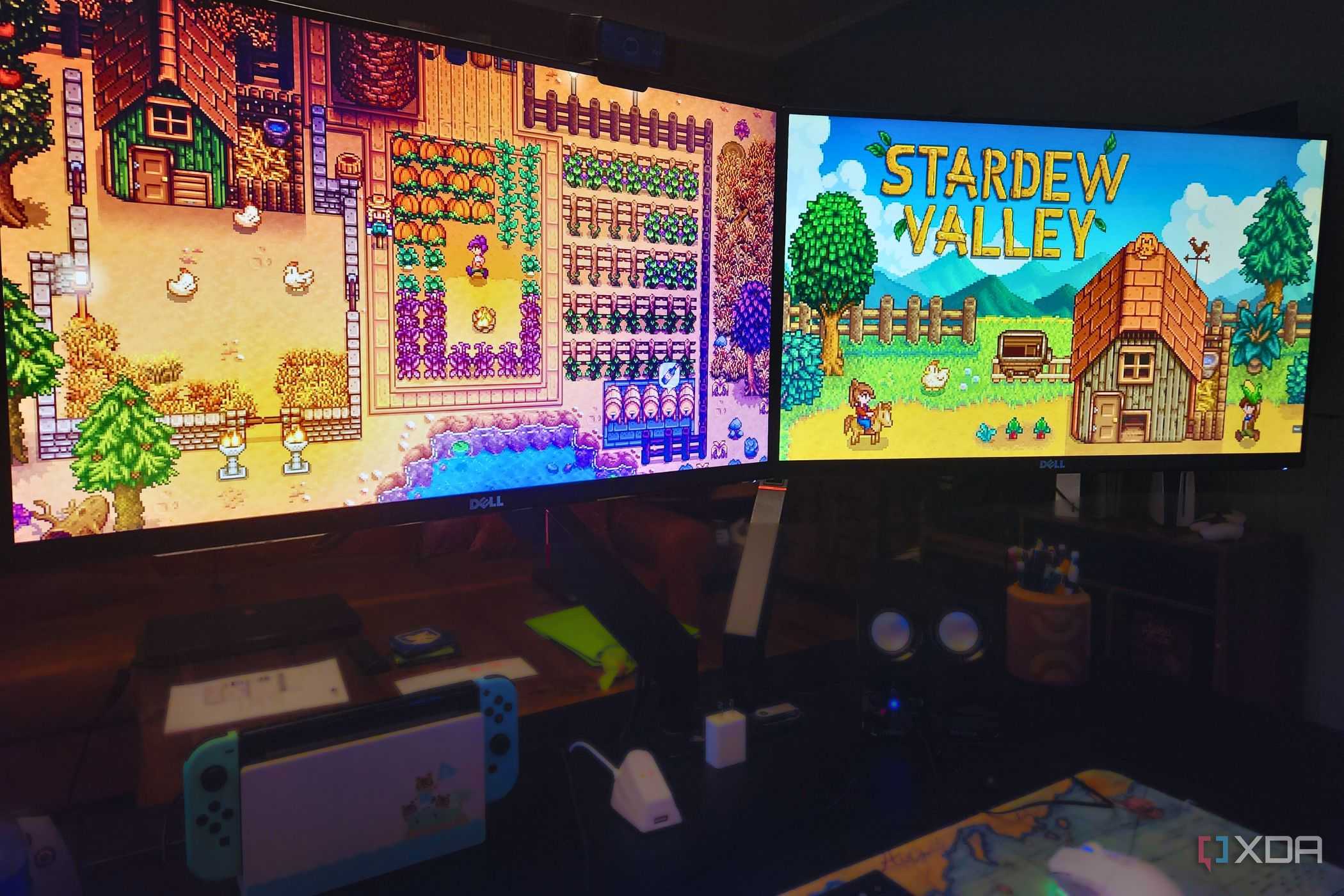
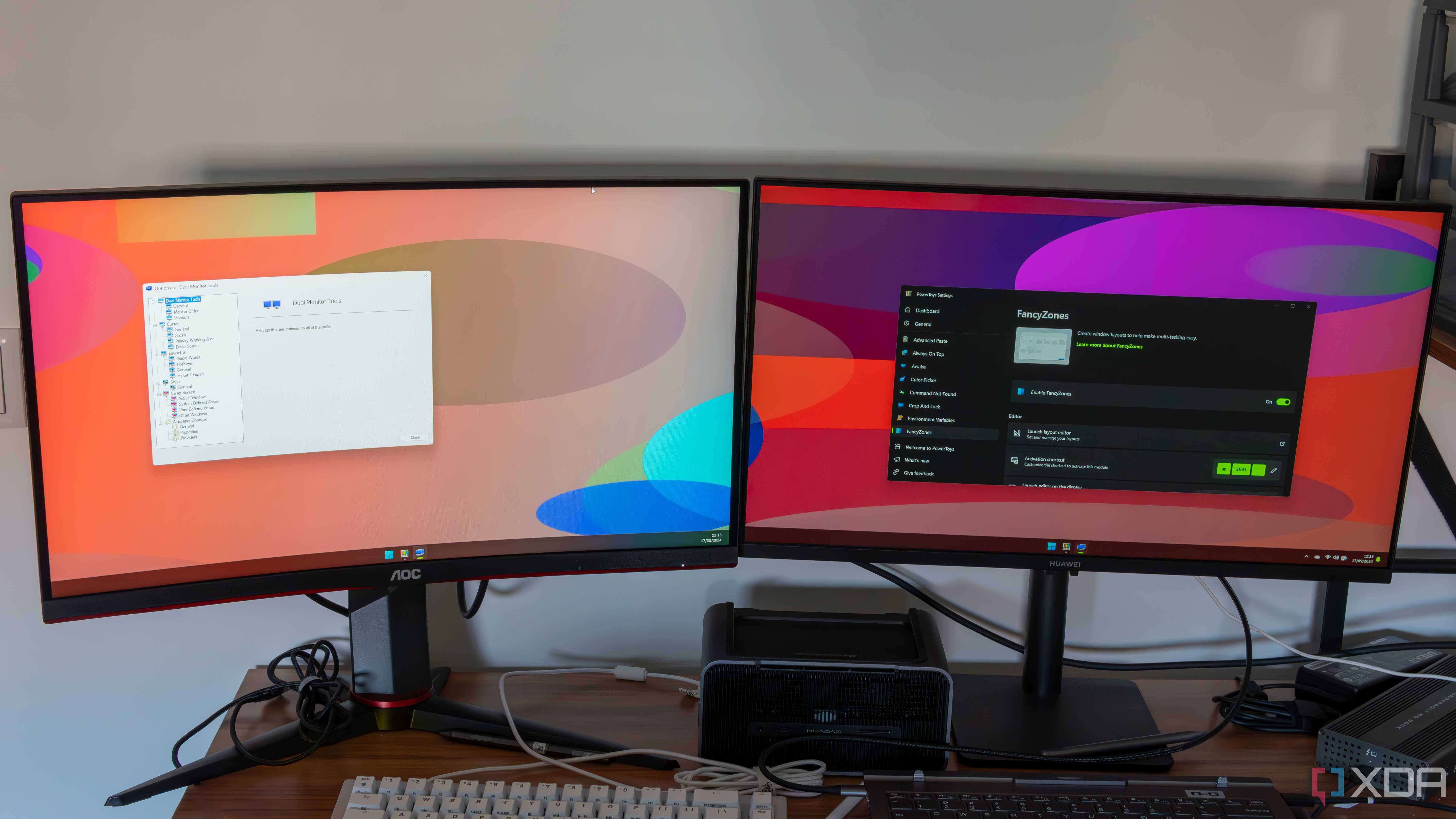



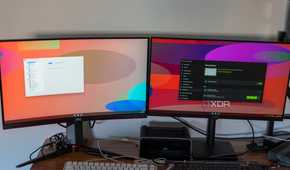
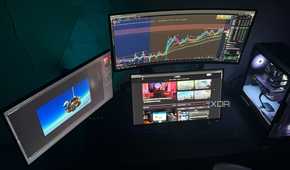

OLED monitors are in a league of their own for watching HDR content, with perfect blacks and vibrant highlights that pop in a way most LCDs can't match. This is why they're often considered the "holy grail" of gaming monitors by reviewers and PC enthusiasts. But the reality is, most of us aren’t gaming on our monitors all the time. As much as I love gaming, I spend most of my day writing articles for XDA, browsing the web, messaging on Discord, and editing photos. And for that kind of use, SDR brightness matters more.
Unfortunately, both of my OLED monitors, the AW3423DW and AW2725DF, don't get as bright as my LN 27GN950, which I now use as my third monitor. The brightness gap isn't even close; in fact, I've had to lower the brightness of my IPS monitor to 50% to match the maximum brightness level of my AW2725DF. Sure, OLEDs are bright enough for nighttime use, but during the day when I'm working, the monitor definitely looks a bit dim for my liking, especially when it's sitting next to a premium LCD panel. And lastly, let's not forget that the brightness levels of OLED displays gradually deteriorate over time, as the individual pixels have a limited lifespan.
1 Annoying panel care pop-ups
Pixel Refresh prompts can be very distracting

Most modern OLED monitors come with panel care features to mitigate long-term issues like image retention and screen burn-in. While that's incredibly useful, the way they're implemented often gets in the way. By default, the pixel refresh feature is set to run automatically after four hours of cumulative use. When you reach that threshold, the monitor interrupts your workflow with a pop-up asking whether you want to run the feature now or later. Sure, it only takes a couple of seconds to dismiss the message, but it still feels intrusive.
I've seen these pop-ups multiple times in a single day, especially during long work sessions. I've also noticed that it keeps coming back until you actually run the feature. And if you step away from your PC and let your monitor go idle, the pixel refresh cycle will run automatically for 5-10 minutes. At this point, you can either wait or interrupt the process using the physical buttons on your monitor. Some monitors let you disable the pixel refresh prompt, whereas others don't, but either way, this is definitely not something I expected to deal with when I switched to OLED.
Owning an OLED monitor is not without its quirks
There's no doubt that OLED monitors are far superior to traditional LCD panels for gaming and media consumption, thanks to their color production, perfect black levels, and HDR performance. But even the best OLED monitors come with baggage, and the more you use them for productivity, the sooner you'll notice the quirks. After using OLED monitors for roughly three years now, I've learned that the day-to-day experience isn't nearly as flawless as the marketing would have you believe. Still, I don't regret buying an OLED monitor at all because the benefits far outweigh these minor drawbacks. As long as you know what you're signing up for, I'd say an OLED panel is still a worthwhile upgrade for most people.
