Note
Access to this page requires authorization. You can try signing in or changing directories.
Access to this page requires authorization. You can try changing directories.
Microsoft Defender for Cloud works with Microsoft services and partner solutions. You can add partner solutions to improve your security posture. These solutions help protect your resources in multicloud setups.
Each integration offers different benefits. Some help simplify deployment. Others extend detection, monitoring, or management.
You can review the available integrations.
Prerequisites
Before you begin, ensure you have the following:
An Azure subscription. If you don't have an Azure subscription, you can sign up for a free subscription.
Defender for Cloud enabled on your Azure subscription. Enable Microsoft Defender for Cloud on your Azure subscription.
Create the partner application
Complete the following steps to create the app. Some partners might require extra setup on their side.
Sign in to the Azure portal.
Search for and select Microsoft Entra ID.
Select + Add > App registration > New registration.

Enter a name.
Select Accounts in this organizational directory only (Microsoft only - Single tenant).
Select Register.

Create a client secret
After you create the app, add a client secret.
Select the application you created.
Go to Manage > Certificates & secrets.

Select Client secrets > + New client secret.
Enter a name.
Select Add.
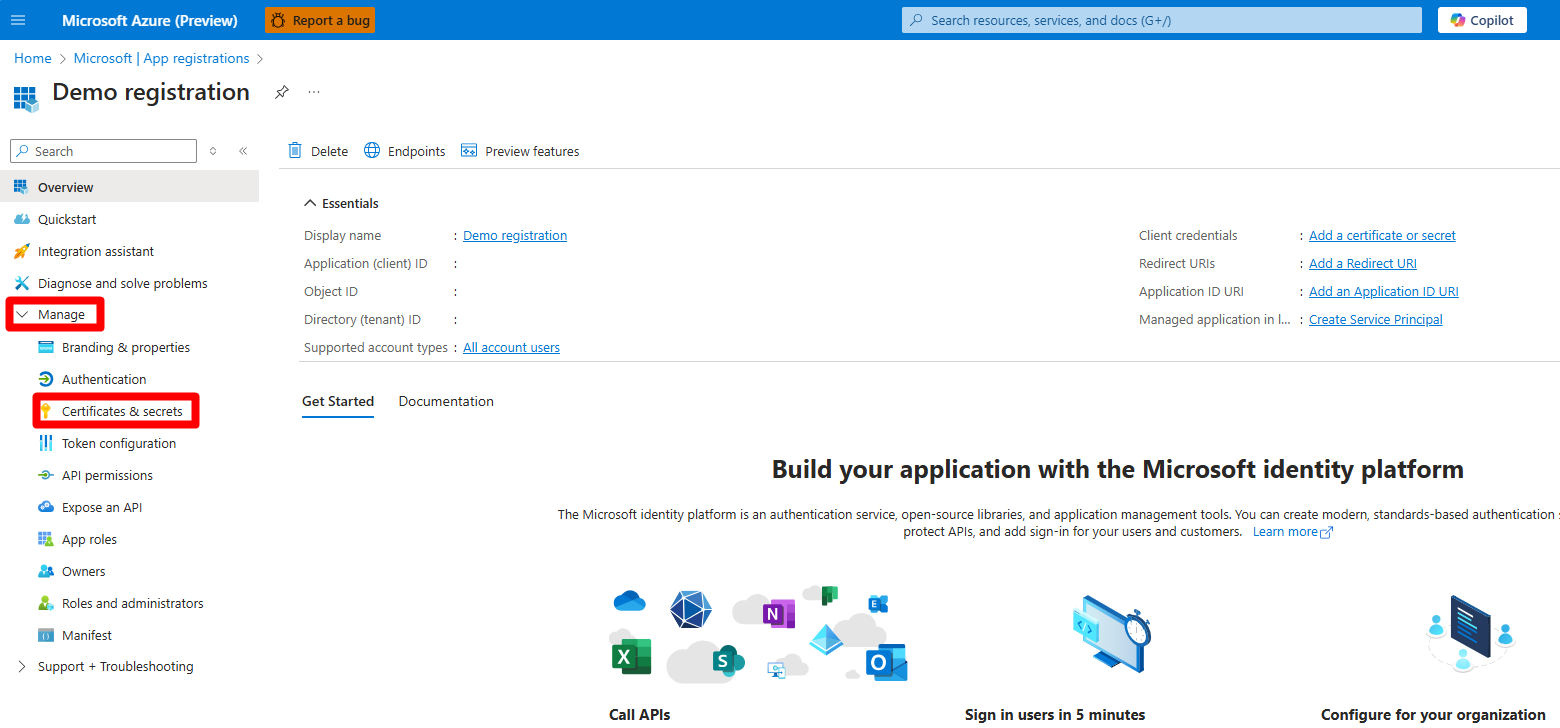
Grant subscription permissions to the application
Next, give the app access to your subscription.
Search for and go to Subscriptions.
Select the relevant subscription.
Select Access control (IAM) > + Add > Add role assignment.

Select Security Reader.
Select Next.
Select + Select members.
Search for and select the application you created.

Select Select.
Select Review + assign.
Follow the preceding steps again to add the Reader role.


Repeat the role-assignment steps to assign the Security Reader and Reader roles for any other relevant subscriptions.
