Note
Access to this page requires authorization. You can try signing in or changing directories.
Access to this page requires authorization. You can try changing directories.
How Premium SSD v2 aligns availability set fault domains
Premium SSD v2 managed disks are supported with Azure Virtual Machines in availability sets to enhance the high availability of your applications. When VMs using Premium SSD v2 are part of an availability set, the platform ensures that their disks are automatically distributed across multiple storage fault domains. This distribution minimizes the risk of a single point of failure.
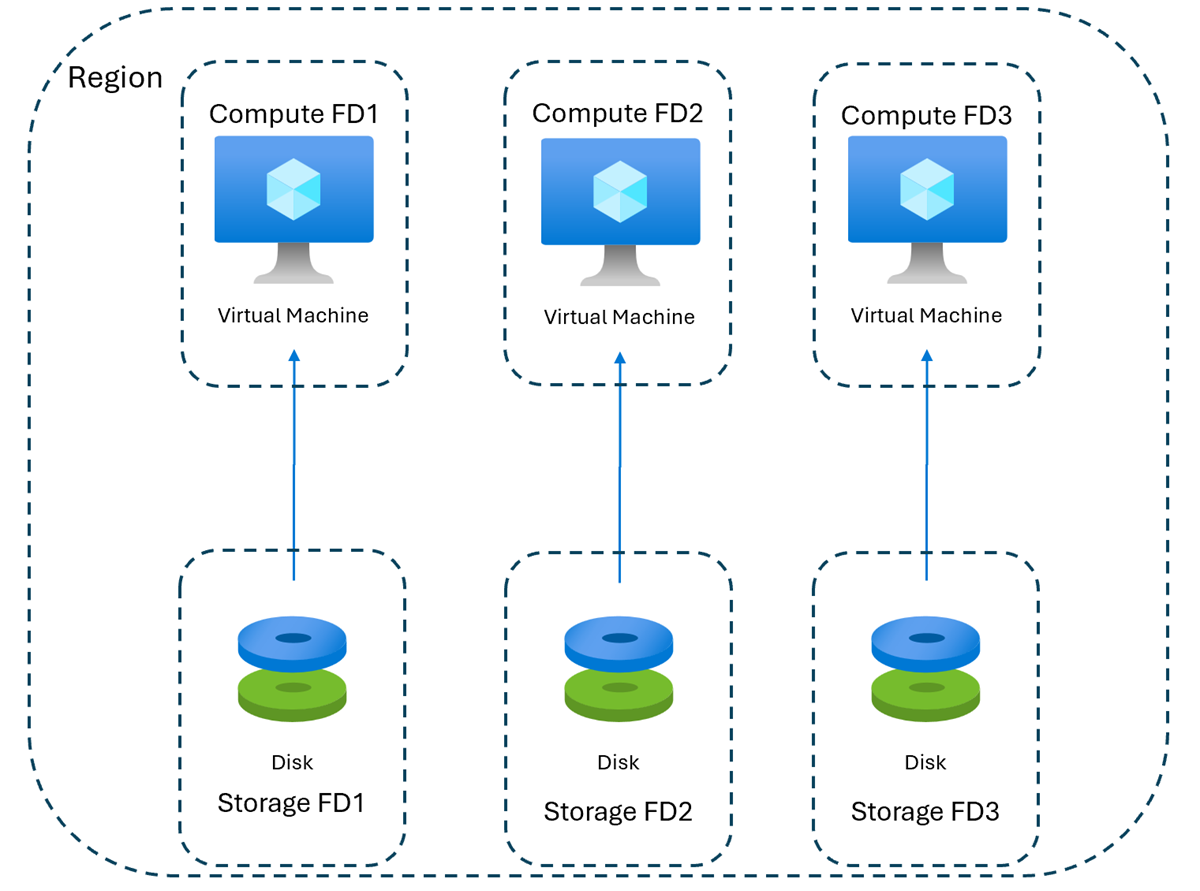
Availability sets have fault isolation for many possible failures, to minimize single points of failure and to offer high availability. If there's a failure in one storage fault domain, only the virtual machine (VM) instances with Premium SSD v2 disks on that specific fault domain are affected. Other VM instances, whose disks are placed on separate fault domains, remain unaffected and continue to operate normally. Availability sets are susceptible to certain shared infrastructure failures, like datacenter network failures, physical hardware failures or power interruptions which can affect multiple fault domains.
When a Premium SSD v2 located in one fault domain is attached to a VM in another fault domain, the system triggers a background copy. This process moves the disk to match the VM’s fault domain, helping ensure consistent alignment between compute and storage for better reliability and availability.

As the previous diagram illustrates, if a disk located in fault domain 1 is attached to a VM in fault domain 1 and is later detached and attached to a VM in fault domain 2, the system automatically triggers a background copy of the disk to move it from fault domain 1 to fault domain 2 for compute and storage fault domain alignment. This background move process can take up to 24 hours to complete.
Regional availability
Premium SSD v2 support for VMs in an availability set is currently limited to the following regions that lack availability zone support:
- Australia Southeast
- Canada East
- North Central US
- UK West
- West Central US
- West US
Limitations
- Premium SSD v2 supports VMs in an availability set in select regions without availability zones.
- You must register your subscription to use this feature. Follow the steps in Register Premium SSD v2 for availability sets in regions without availability zones.
- Only one background data copy can run per disk at a time. When attaching a disk to a VM in an availability set, the system might start a background copy to align with the fault domain. If you try to detach and reattach the disk while this move is in progress, the operation fails with an error. To prevent operation failure, wait until the move finishes, or set the OptimizedForFrequentAttach property on the disk. This setting skips fault domain-alignment background copies for future attachments. For more information on OptimizedForFrequentAttach, follow the instructions Optimize background data copy of the disk.
- You can’t attach a disk created from a snapshot to VMs in an availability set while it’s still copying data in the background. Wait until the copy process finishes before attaching the disk. To check the status of background data copy from a snapshot, follow the instructions here.
- Disk size increase and changing customer-managed key aren't supported while a background data copy for fault domain alignment is in progress.
- Premium SSD v2 managed disks have their own separate set of limitations, as well.
Register Premium SSD v2 for availability sets in regions without availability zones
This feature is only available in regions that don't support availability zones. If you're targeting a supported region without availability zones, ensure your subscription is registered for the required feature.
To proceed, register the feature manually:
- Use the following command to register the feature with your subscription:
az feature registration create --namespace Microsoft.Compute --name PV2WithAVSetRegionWithoutZone - Use the following command to verify whether the feature is registered:
az feature registration show --provider Microsoft.Compute --name PV2WithAVSetRegionWithoutZone
Deploy a VM and a Premium SSD v2 within an availability set
- Create a resource group:
rgName="myResourceGroup"
location="westus"

az group create --name $rgName --location $location
- The number of storage fault domains varies by region. The following command retrieves a list of maximum supported fault domains per region:
az vm list-skus --resource-type availabilitySets --query '[?name==`Aligned`].{Location:locationInfo[0].location, MaximumFaultDomainCount:capabilities[0].value}' -o Table
- Create an availability set. Set
faultDomainCountto theMaximumFaultDomainCountvalue returned for your region in the previous step:
rgName="myResourceGroup"
availabilitySetName="myAvailabilitySet"
faultDomainCount=2
updateDomainCount=5

az vm availability-set create -n $availabilitySetName -g $rgName --platform-fault-domain-count $faultDomainCount --platform-update-domain-count $updateDomainCount
- Create a VM:
rgName="myResourceGroup"
availabilitySetName="myAvailabilitySet"
vmName="myVM"
vmCount=1

az vm create -n $vmName -g $rgName --availability-set $availabilitySetName --image Win2016Datacenter --count $vmCount
- Attach a new Premium SSD v2 to existing VMs in an availability set
rgName="myResourceGroup"
vmName="myVM"
diskName="myDataDisk"
diskSizeGiB=128

az vm disk attach -g $rgName --vm-name $vmName --name $diskName --new --sku PremiumV2_LRS --size-gb $diskSizeGiB
- Attach an existing Premium SSD v2 disk to existing VMs in an availability set:
rgName="myResourceGroup"
vmName="myVM"
diskName="myDataDisk"

az vm disk attach -g $rgName --vm-name $vmName --disks $diskName



Optimize background data copy of the disk
Change optimized-for-frequent-attach disk property
If your workload often moves disks between VMs in the same or different availability sets, turn on the optimized-for-frequent-attach property. Setting this property to true prevents the system from triggering a background copy of the disk for fault domain alignment during reattachments. You can set optimized-for-frequent-attach when you create a new unattached disk or update it later for an existing disk. If the disk is currently attached to a VM, first detach the disk. Update the optimized-for-frequent-attach disk property, and then reattach the disk to the VM.
To set the property while creating a new unattached disk:
az disk create --name myDiskName --resource-group myResourceGroup --location myLocation --sku PremiumV2_LRS --size-gb myGB --optimized-for-frequent-attach true
To update the property on an existing unattached disk:
az disk update --name myDiskName --resource-group myResourceGroup --set optimizedForFrequentAttach=true
