命令行管理文件
文章目录
文件系统层次结构
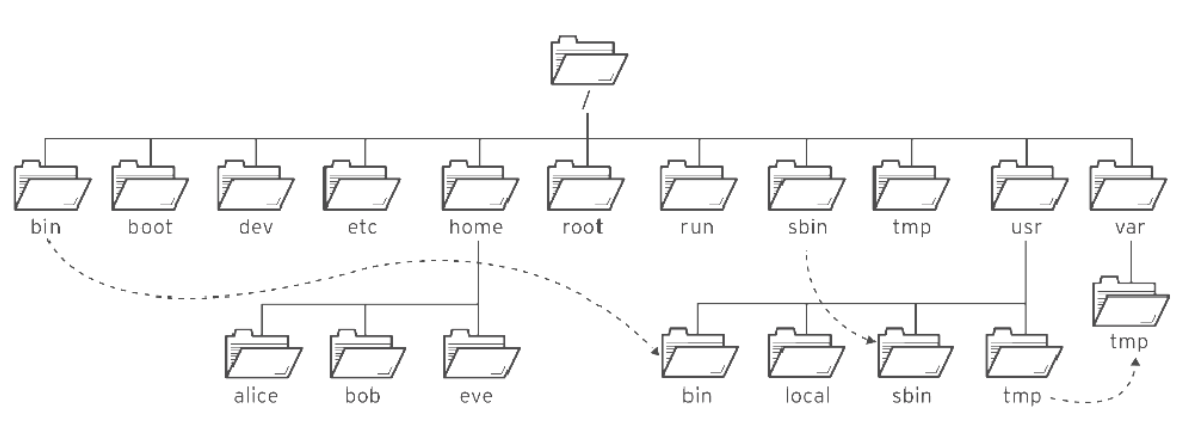
Linux 属于开源操作系统,任何人都可以基于内核源码二次开发、定制并发布发行版本。如果开发者、用户随意自定义根目录下的文件夹结构与文件存放规则,会导致不同 Linux 系统目录混乱、互不通用,极大提升使用和维护成本。为统一规范,业界制定了 FHS 文件系统层次标准(Filesystem Hierarchy Standard),统一所有 Linux 发行版的目录布局规则。
FHS 采用标准的树形目录结构,明确界定了系统各级目录的功能用途、必备文件与目录组成,同时规范了特殊场景的冲突处理规则,让所有 Linux 系统目录结构统一、兼容性更强。
FHS 核心包含两层规范:
- 根目录层级规范:严格规定 / 根目录下所有一级子目录的用途与存放文件类型,例如 /etc 专属存放系统配置文件,/bin、/sbin 专门存放系统可执行命令。
- 二级目录细化规范:重点约束 /usr、/var 两大核心目录的子目录规则,例如 /var/log 固定存放系统日志,/usr/share 用于存放系统共享资源数据。
补充:USR全称 Unix System Resource,是系统软件与资源的核心存放目录。各核心目录详细用途如下:
| 位置 | 用途 |
|---|---|
| /usr | 系统安装的软件、共享的库。重要的子目录有:/usr/bin: 用户命令。/usr/sbin: 系统管理命令。 /usr/lib、/usr/lib64:应用程序可调用的通用库文件。 /usr/local: 本地自定义软件。 |
| /etc | 系统配置文件。 |
| /var | variable,系统可变数据,在系统启动之间保持永久性,如数据库、 缓存目录、日志文件、打印机后台处理文档和网站内容。 |
| /run | 自本次系统启动以来运行中的进程的运行数据,包括进程ID文件和锁定文件,等等。此目录中的内容在重启时重新创建。此目录合并了早期版本的Linux 中的/var/run和/var/lock。 |
| /home | 主目录是普通用户存储其个人数据和配置文件的位置。 每个用户有自己的位置,例如 /home/laoma。 |
| /root | 管理员root的主目录。 |
| /tmp | 供临时文件使用的全局可写空间。 10天内未访问、未更改或未修改的文件将自动从该目录中删除。 还有一个临时目录/var/tmp,该目录中的文件如果在30天内未曾访问、更改或修改过, 将被自动删除。 |
| /boot | 开机启动过程所需的文件。 |
| /dev | device,包含特殊的设备文件,供系统用于访问硬件。 |
文件路径导航
导航路径 cd 和 pwd
常见路径说明:
- 绝对路径:以根(/)开头的路径,用于指定文件的确切位置。
- 当前工作路径:当前所处的位置。
- 相对路径:不是以根(/)开头的路径,相对当前工作目录的路径。
# 显示当前工作目录
[yy@centos7 ~ 19:07:09]$ pwd
/home/yy

# 切换路径
[yy@centos7 ~ 19:11:31]$ cd /usr/bin
[yy@centos7 bin 19:11:44]$ pwd
/usr/bin
[yy@centos7 bin 19:11:46]$ ls
[                                    gvfs-copy                    pyinotify
a2p                                  gvfs-info                    python
abrt-action-analyze-backtrace        gvfs-less                    python2
... ...

# 切换到其他目录
[yy@centos7 bin 19:12:18]$ cd /usr/share/doc
[yy@centos7 doc 19:12:35]$ pwd
/usr/share/doc

# 切换上一次所在目录
[yy@centos7 doc 19:12:36]$ cd -
/usr/bin
[yy@centos7 bin 19:12:41]$ pwd
/usr/bin

# 切换到家目录
[yy@centos7 bin 19:12:43]$ cd
# 或者
[yy@centos7 ~ 19:12:47]$ cd ~
[yy@centos7 ~ 19:12:49]$ pwd
/home/yy

# 上一级目录(父目录),用..表示
[yy@centos7 ~ 19:12:52]$ pwd
/home/yy
[yy@centos7 ~ 19:12:57]$ ls /home
jeong  yy
[yy@centos7 ~ 19:13:09]$ cd ..
[yy@centos7 home 19:13:14]$ pwd
/home

# 当前目录用.表示,通常不写.
[yy@centos7 ~ 19:14:54]$ file ./.bash_history
./.bash_history: UTF-8 Unicode text
[yy@centos7 ~ 19:15:23]$ file .bash_history
.bash_history: UTF-8 Unicode text


[yy@centos7 doc 19:17:03]$ cd ~
[yy@centos7 ~ 19:18:02]$ cd /usr/share/doc/at-spi2-core-2.28.0/
# 使用相对路径切换到/usr/share/
[yy@centos7 at-spi2-core-2.28.0 19:18:05]$ cd ../../
[yy@centos7 share 19:18:22]$ pwd
/usr/share


[yy@centos7 ~ 19:19:03]$ cd /usr/share/doc/at-spi2-core-2.28.0/
# 使用相对路径切换到      /etc/yum
[yy@centos7 at-spi2-core-2.28.0 19:19:09]$ cd ../../../../etc/yum
[yy@centos7 yum 19:19:17]$ pwd
/etc/yum
**思考:**什么时候使用相对路径?什么时候使用绝对路径?
答案:一般情况是怎么方便怎么来。但是在变量定义文件的路径时候,尽量使用绝对路径。
ls 命令补充
# -1单列显示
[yy@centos7 ~ 10:24:28]$ ls -1
公共
模板
视频
图片
文档
下载
音乐
桌面


[yy@centos7 ~ 10:33:24]$ ls -l
总用量 0
drwxr-xr-x. 2 yy yy 6 7月  14 10:38 公共
drwxr-xr-x. 2 yy yy 6 7月  14 10:38 模板
drwxr-xr-x. 2 yy yy 6 7月  14 10:38 视频
drwxr-xr-x. 2 yy yy 6 7月  14 10:38 图片
drwxr-xr-x. 2 yy yy 6 7月  14 10:38 文档
drwxr-xr-x. 2 yy yy 6 7月  14 10:38 下载
drwxr-xr-x. 2 yy yy 6 7月  14 10:38 音乐
drwxr-xr-x. 2 yy yy 6 7月  14 10:38 桌面
[yy@centos7 ~ 10:33:37]$ ls /etc/yum
fssnap.d  pluginconf.d  protected.d  vars  version-groups.conf
[yy@centos7 ~ 10:33:57]$ ls -R /etc/yum
/etc/yum:
fssnap.d  pluginconf.d  protected.d  vars  version-groups.conf

/etc/yum/fssnap.d:

/etc/yum/pluginconf.d:
fastestmirror.conf  langpacks.conf

/etc/yum/protected.d:
systemd.conf

/etc/yum/vars:
contentdir  infra
[yy@centos7 ~ 10:34:07]$ ls /etc/hosts
/etc/hosts
[yy@centos7 ~ 10:35:12]$ ls -l /etc/hosts
-rw-r--r--. 1 root root 158 6月   7 2013 /etc/hosts
[yy@centos7 ~ 10:35:21]$ ls -l
总用量 0
drwxr-xr-x. 2 yy yy 6 7月  14 10:38 公共
drwxr-xr-x. 2 yy yy 6 7月  14 10:38 模板
drwxr-xr-x. 2 yy yy 6 7月  14 10:38 视频
drwxr-xr-x. 2 yy yy 6 7月  14 10:38 图片
drwxr-xr-x. 2 yy yy 6 7月  14 10:38 文档
drwxr-xr-x. 2 yy yy 6 7月  14 10:38 下载
drwxr-xr-x. 2 yy yy 6 7月  14 10:38 音乐
drwxr-xr-x. 2 yy yy 6 7月  14 10:38 桌面
[yy@centos7 ~ 10:35:27]$ ls -l /etc | less
[yy@centos7 ~ 10:36:04]$
[yy@centos7 ~ 10:36:04]$ ls -rtl /etc | less
[yy@centos7 ~ 10:37:08]$ ls -tl
总用量 0
drwxr-xr-x. 2 yy yy 6 7月  14 10:38 公共
drwxr-xr-x. 2 yy yy 6 7月  14 10:38 模板
drwxr-xr-x. 2 yy yy 6 7月  14 10:38 视频
drwxr-xr-x. 2 yy yy 6 7月  14 10:38 图片
drwxr-xr-x. 2 yy yy 6 7月  14 10:38 文档
drwxr-xr-x. 2 yy yy 6 7月  14 10:38 下载
drwxr-xr-x. 2 yy yy 6 7月  14 10:38 音乐
drwxr-xr-x. 2 yy yy 6 7月  14 10:38 桌面
[yy@centos7 ~ 10:37:49]$ ls -ld /etc/yum
drwxr-xr-x. 6 root root 100 7月  14 10:27 /etc/yum
[yy@centos7 ~ 10:38:02]$ ls -l /etc/yum
总用量 4
drwxr-xr-x. 2 root root   6 10月  2 2020 fssnap.d
drwxr-xr-x. 2 root root  54 7月  14 10:29 pluginconf.d
drwxr-xr-x. 2 root root  26 7月  14 10:28 protected.d
drwxr-xr-x. 2 root root  37 10月  2 2020 vars
-rw-r--r--. 1 root root 444 10月  2 2020 version-groups.conf
tree 命令
以树形格式查看目录结构
# 配置仓库
curl -s -o /etc/yum.repos.d/CentOS-Base.repo http://mirrors.aliyun.com/repo/Centos-7.repo
curl -s -o /etc/yum.repos.d/epel.repo http://mirrors.aliyun.com/repo/epel-7.repo

# 安装tree工具
[root@centos7 ~ 10:40:06]# yum install -y tree

[root@centos7 ~ 10:43:15]# 登出
[yy@centos7 ~ 10:43:47]$ tree /etc/yum
/etc/yum
├── fssnap.d
├── pluginconf.d
│   ├── fastestmirror.conf
│   └── langpacks.conf
├── protected.d
│   └── systemd.conf
├── vars
│   ├── contentdir
│   └── infra
└── version-groups.conf

4 directories, 6 files
stat 命令
查看文件的元数据属性。
# 查看状态,提供更完善的信息
[yy@centos7 ~ 10:43:55]$ stat /etc/fstab
  文件:"/etc/fstab"
  大小:541       	块:8          IO 块:4096   普通文件
设备:fd00h/64768d	Inode:67160130    硬链接:1
权限:(0644/-rw-r--r--)  Uid:(    0/    root)   Gid:(    0/    root)
环境:system_u:object_r:etc_t:s0
最近访问:2026-07-15 10:38:02.335978290 +0800
最近更改:2026-07-14 10:26:36.292652920 +0800
最近改动:2026-07-14 10:35:04.065647254 +0800
创建时间:-
touch 命令
文件不存在则创建空白文件;文件已存在则刷新访问、修改时间。
常用参数:
-a:仅修改访问时间-m:仅修改内容修改时间-c:文件不存在时不新建文件
[yy@centos7 ~ 10:47:30]$ touch --help
用法:touch [选项]... 文件...
Update the access and modification times of each FILE to the current time.

A FILE argument that does not exist is created empty, unless -c or -h
is supplied.

A FILE argument string of - is handled specially and causes touch to
change the times of the file associated with standard output.

Mandatory arguments to long options are mandatory for short options too.
  -a			只更改访问时间
  -c, --no-create	不创建任何文件
  -d, --date=字符串	使用指定字符串表示时间而非当前时间
  -f			(忽略)
  -h, --no-dereference		会影响符号链接本身,而非符号链接所指示的目的地
				(当系统支持更改符号链接的所有者时,此选项才有用)
  -m			只更改修改时间
  -r, --reference=FILE   use this file's times instead of current time
  -t STAMP               use [[CC]YY]MMDDhhmm[.ss] instead of current time
      --time=WORD        change the specified time:
                           WORD is access, atime, or use: equivalent to -a
                           WORD is modify or mtime: equivalent to -m
      --help		显示此帮助信息并退出
      --version		显示版本信息并退出

请注意,-d 和-t 选项可接受不同的时间/日期格式。

# 更新现有文件时间戳:包括访问时间,更改时间和修改时间。
[yy@centos7 ~ 10:47:01]$ ls -l yy.txt
ls: 无法访问yy.txt: 没有那个文件或目录
[yy@centos7 ~ 10:47:53]$ touch yy.txt
[yy@centos7 ~ 10:49:31]$ ls -l yy.txt
-rw-rw-r--. 1 yy yy 0 7月  15 10:49 yy.txt
[yy@centos7 ~ 10:49:38]$ touch yy.txt
[yy@centos7 ~ 10:49:46]$ ls -l yy.txt
-rw-rw-r--. 1 yy yy 0 7月  15 10:49 yy.txt
[yy@centos7 ~ 10:49:53]$ date
2026年 07月 15日 星期三 10:50:07 CST
[yy@centos7 ~ 10:50:07]$ stat yy.txt
  文件:"yy.txt"
  大小:0         	块:0          IO 块:4096   普通空文件
设备:fd02h/64770d	Inode:5577        硬链接:1
权限:(0664/-rw-rw-r--)  Uid:( 1000/      yy)   Gid:( 1000/      yy)
环境:unconfined_u:object_r:user_home_t:s0
最近访问:2026-07-15 10:49:46.476975801 +0800
最近更改:2026-07-15 10:49:46.476975801 +0800
最近改动:2026-07-15 10:49:46.476975801 +0800
创建时间:-

# 如果文件不存在,则创建文件
[yy@centos7 ~ 10:50:18]$ ls yy-1.txt
ls: 无法访问yy-1.txt: 没有那个文件或目录
[yy@centos7 ~ 10:57:55]$ touch yy-1.txt
[yy@centos7 ~ 10:58:12]$ ls yy-1.txt
yy-1.txt

# 使用-c选项时候,如果文件不存在,则不会创建文件。
[yy@centos7 ~ 10:58:20]$ ls yy-2.txt
ls: 无法访问yy-2.txt: 没有那个文件或目录
[yy@centos7 ~ 10:58:30]$ touch -c yy-2.txt
[yy@centos7 ~ 10:58:42]$ ls yy-2.txt
ls: 无法访问yy-2.txt: 没有那个文件或目录
命令行管理文件
| 操作 | 单一来源 | 多来源 |
|---|---|---|
| 复制文件 | cp file1 file2 | cp file1 file2 file3 dir |
| 移动文件 | mv file1 file2 | mv file1 file2 file3 dir |
| 删除文件 | rm file1 | rm -f file1 file2 file3 |
| 创建目录 | mkdir dir | mkdir -p dir1/dir2/dir3 |
| 复制目录 | cp -r dir1 dir2 | cp -r dir1 dir2 dir3 dir4 |
| 移动目录 | mv dir1 dir2 | mv dir1 dir2 dir3 dir4 |
| 删除目录 | rm -r dir1 或 rmdir dir1 | rm -rf dir1 dir2 dir3 |
mkdir 命令
# 创建目录
[yy@centos7 ~ 11:06:12]$ mkdir lab
[yy@centos7 ~ 11:06:22]$ mkdir lab1 lab2
[yy@centos7 ~ 11:06:34]$ ls
lab  lab1  lab2  test  yy-1.txt  yy.txt  公共  模板  视频  图片  文档  下载  音乐  桌面

# -p 选项级联创建目录
[yy@centos7 ~ 11:15:31]$ mkdir dir1/dir2/dir3
mkdir: 无法创建目录"dir1/dir2/dir3": 没有那个文件或目录
[yy@centos7 ~ 11:16:08]$ mkdir -p dir1/dir2/dir3
[yy@centos7 ~ 11:16:26]$ tree dir1
dir1
└── dir2
    └── dir3

2 directories, 0 files
cp 命令
注意:复制目录必须加
-r;生产环境推荐-R,可完整保留软链接、设备文件。
复制文件
# 复制单个文件到目标位置
[yy@centos7 ~ 11:16:38]$ cd lab
[yy@centos7 lab 11:17:13]$ cp /etc/hosts .
[yy@centos7 lab 11:17:16]$ ls
hosts

# 复制并重命名
[yy@centos7 lab 11:17:19]$ cp /etc/hosts ./hosts-1
[yy@centos7 lab 11:17:41]$ ls
hosts  hosts-1

# 当前目录下有同名称文件,不会提示直接覆盖
[yy@centos7 lab 11:17:43]$ cp /etc/hosts ./hosts-1
[yy@centos7 lab 11:18:13]$ cp -i /etc/hosts ./hosts-1
cp:是否覆盖"./hosts-1"? yes

# 复制多个文件,目标只能是目录
[yy@centos7 lab 11:18:23]$ cp /etc/passwd /etc/host.conf ./hosts-all
cp: 目标"./hosts-all" 不是目录
[yy@centos7 lab 11:18:49]$ cp /etc/passwd /etc/host.conf .
[yy@centos7 lab 11:19:04]$ ls
host.conf  hosts  hosts-1  passwd
复制目录
# 使用 -r 选项复制目录
[yy@centos7 lab 11:19:06]$ cp /etc/yum .
cp: 略过目录"/etc/yum"
[yy@centos7 lab 11:19:31]$ cp -r /etc/yum .
[yy@centos7 lab 11:19:42]$ ls
host.conf  hosts  hosts-1  passwd  yum

# 复制过来,并使用新的名称
[yy@centos7 lab 11:19:45]$ cp -r /etc/yum ./yum-1
[yy@centos7 lab 11:20:06]$ ls
host.conf  hosts  hosts-1  passwd  yum  yum-1

# 当前目录下有同名称目录,则将源目录放到相同目录下面,而不是覆盖当前目录
[yy@centos7 lab 11:20:07]$ ls yum
fssnap.d  pluginconf.d  protected.d  vars  version-groups.conf
[yy@centos7 lab 11:20:11]$ cp -r /etc/yum ./yum
[yy@centos7 lab 11:20:31]$ ls
host.conf  hosts  hosts-1  passwd  yum  yum-1
[yy@centos7 lab 11:20:32]$ ls yum
fssnap.d  pluginconf.d  protected.d  vars  version-groups.conf  yum
# 复制多个目录,目标必须是已经存在的目录
[yy@centos7 lab 11:20:46]$ cp -r /etc/home ./mydir
cp: 无法获取"/etc/home" 的文件状态(stat): 没有那个文件或目录
[yy@centos7 lab 11:21:04]$ cp -r /etc /home ./mydir
cp: 目标"./mydir" 不是目录
[yy@centos7 lab 11:21:45]$ cp -r /etc /home .
cp: 无法打开"/etc/crypttab" 读取数据: 权限不够
cp: 无法访问"/etc/grub.d": 权限不够
cp: 无法访问"/etc/pki/CA/private": 权限不够
cp: 无法访问"/etc/pki/rsyslog": 权限不够
cp: 无法打开"/etc/ppp/peers/wvdial" 读取数据: 权限不够
cp: 无法打开"/etc/ppp/chap-secrets" 读取数据: 权限不够
... ...

[yy@centos7 lab 11:21:52]$ ls
etc  home  host.conf  hosts  hosts-1  passwd  yum  yum-1
[yy@centos7 lab 11:21:59]$ ls etc home
etc:
abrt                        favicon.png   krb5.conf.d               PackageKit        scl
adjtime                     fcoe          ksmtuned.conf             pam.d             security
aliases                     festival      ld.so.cache               papersize         selinux
aliases.db                  filesystems   ld.so.conf                passwd            services
alsa                        firefox       ld.so.conf.d              passwd-           sestatus.conf
alternatives                firewalld     libblockdev               pbm2ppa.conf      setroubleshoot
asound.conf                 flatpak       libibverbs.d              pinforc
... ...
mv 命令
mv 兼具移动文件和重命名功能,目录操作无需加递归参数。
# 使用前面创建的lab1目录
[yy@centos7 lab 18:36:03]$ ls -dl ../lab1
drwxrwxr-x. 2 yy yy 6 7月  15 18:32 ../lab1

# 移动单个文件
[yy@centos7 lab 18:36:42]$ ls
hosts  hosts-1  hosts.allow  passwd
[yy@centos7 lab 18:36:46]$ mv hosts-1 ../lab1
[yy@centos7 lab 18:37:01]$ ls
hosts  hosts.allow  passwd
[yy@centos7 lab 18:37:04]$ ls ../lab1
hosts-1

# 移动多个文件,目标位置只能是目录
[yy@centos7 lab 18:37:17]$ mv passwd hosts /home/yy/lab1
[yy@centos7 lab 18:37:43]$ ls
hosts.allow
[yy@centos7 lab 18:37:45]$ ls ../lab1
hosts  hosts-1  passwd

# 重命名文件
[yy@centos7 lab 18:37:55]$ ls
hosts.allow
[yy@centos7 lab 18:37:59]$ mv hosts.allow hosts.allow-new
[yy@centos7 lab 18:38:23]$ ls
hosts.allow-new

# 移动单个目录
[yy@centos7 lab 18:38:25]$ mv etc ../lab1

# 移动多个目录
[yy@centos7 lab 18:40:05]$ mv home/ yum/ yum-1/ ../lab1
rmdir 命令
仅能删除无任何文件的空目录,非空目录会报错。
#删除空目录
[yy@centos7 lab 18:40:47]$ rmdir ../lab2

[yy@centos7 lab 18:43:52]$ rmdir etc
rmdir: 删除 "etc" 失败: 目录非空
rm 命令
rm -rf 无任何确认直接强制删除,生产环境谨慎使用!
[yy@centos7 lab 18:44:01]$ cd ../lab1
[yy@centos7 lab1 18:46:04]$ ls
hosts  hosts-1  passwd

# 删除文件
[yy@centos7 lab1 18:46:06]$ rm hosts
[yy@centos7 lab1 18:46:14]$ ls
hosts-1  passwd

# 强制删除具有写保护的文件
[yy@centos7 lab1 18:46:16]$ cp /etc/pki/ca-trust/extracted/java/cacerts .
[yy@centos7 lab1 18:47:08]$ rm cacerts
rm:是否删除有写保护的普通文件 "cacerts"?yes
[yy@centos7 lab1 18:47:24]$ ls cacerts
ls: 无法访问cacerts: 没有那个文件或目录

# 使用-f选项,直接删除
[yy@centos7 lab1 18:47:32]$ cp /etc/pki/ca-trust/extracted/java/cacerts .
[yy@centos7 lab1 18:48:37]$ rm -f cacerts

# -r选项递归删除目录
[yy@centos7 lab1 18:48:45]$ rm -r yum

# 递归强制删除目录 -fr选项
[yy@centos7 lab1 18:48:53]$ rm -fr etc
[yy@centos7 lab1 18:49:25]$ ls
hosts-1  passwd

# 删除多个目录
[yy@centos7 lab1 18:49:27]$ rm -fr home/ yum-1/
[yy@centos7 lab1 18:49:49]$ ls
hosts-1  passwd

# 清理实验环境
[yy@centos7 lab1 18:49:50]$ cd ..
[yy@centos7 ~ 18:49:55]$ ls
dir1  lab  lab1  公共  模板  视频  图片  文档  下载  音乐  桌面
[yy@centos7 ~ 18:49:57]$ rm -fr lab lab1 lab2 dir1
[yy@centos7 ~ 18:50:14]$ ls
公共  模板  视频  图片  文档  下载  音乐  桌面
软链接&硬链接
软链接
soft link,也成为 symbolic link(符号链接)。
软链接等同于 Windows 快捷方式,文件内部仅存储目标文件路径。
优点:
- 支持跨分区、跨磁盘创建;
- 文件体积极小,仅保存路径,几乎不占用磁盘;
- 可以对目录创建链接,快速访问深层目录;
- 删除软链接不会影响原始文件,风险低。
[yy@centos7 ~ 18:50:15]$ ls -dl /bin
lrwxrwxrwx. 1 root root 7 7月  14 10:26 /bin -> usr/bin

# 创建软链接
[yy@centos7 ~ 18:56:27]$ ln -s /var/tmp/ mytmp
[yy@centos7 ~ 18:56:43]$ ls -l mytmp
lrwxrwxrwx. 1 yy yy 9 7月  15 18:56 mytmp -> /var/tmp/

[yy@centos7 ~ 18:56:51]$ ls mytmp
abrt
myfile
systemd-private-443d421419014723b4db86045fe44e5a-bolt.service-Z3gVhA
systemd-private-443d421419014723b4db86045fe44e5a-colord.service-nF5U0j
systemd-private-443d421419014723b4db86045fe44e5a-cups.service-GVOG8E
systemd-private-443d421419014723b4db86045fe44e5a-fwupd.service-P5A9CY
systemd-private-443d421419014723b4db86045fe44e5a-rtkit-daemon.service-2wPuDo
systemd-private-6a69789489614cb1a10376973340a8f6-bolt.service-2Om3fr
systemd-private-6a69789489614cb1a10376973340a8f6-colord.service-qTUF5L
systemd-private-6a69789489614cb1a10376973340a8f6-cups.service-6qW6zM
systemd-private-6a69789489614cb1a10376973340a8f6-fwupd.service-Axzy8O
systemd-private-6a69789489614cb1a10376973340a8f6-rtkit-daemon.service-ekDqcw
tmp

[yy@centos7 ~ 18:57:00]$ touch mytmp/myfile
[yy@centos7 ~ 18:57:12]$ ls /var/tmp/myfile
/var/tmp/myfile

# 错误示范
[yy@centos7 ~ 18:57:22]$ ls -l /home/yy/tmp1 -> .
-bash: .: 是一个目录
[yy@centos7 ~ 18:58:32]$ ls /home/yy/tmp1
mytmp  tmp1  公共  模板  视频  图片  文档  下载  音乐  桌面
[yy@centos7 ~ 18:57:50]$ ls /home/yy
mytmp  tmp1  公共  模板  视频  图片  文档  下载  音乐  桌面
硬链接
硬链接就是一个普通文件。
硬链接是 Linux 文件系统中同一文件的多个入口,多个硬链接共享同一个 inode 节点与磁盘数据块,修改任意一个硬链接内容所有链接都会同步变化,仅删除全部硬链接文件后磁盘数据才会真正清除;它不能跨分区、无法对目录创建,且文件本身不额外占用存储空间。
优点:
-
不占用额外磁盘空间,仅新增文件名入口;
-
删除其中一个硬链接,原文件数据不会丢失,具备数据备份效果;
-
读写速度快,直接指向 inode,无路径解析开销。
[yy@centos7 ~ 18:58:48]$ cp /etc/hosts ./hosts-1
# 创建硬链接
[yy@centos7 ~ 19:04:08]$ ln hosts-1 hosts-2
[yy@centos7 ~ 19:04:22]$ ls -l hosts-1 hosts-2
-rw-r--r--. 2 yy yy 158 7月  15 19:04 hosts-1
-rw-r--r--. 2 yy yy 158 7月  15 19:04 hosts-2

# 两个文件的inode是相同的
[yy@centos7 ~ 19:04:45]$ ls -i1 hosts-1 hosts-2
5575 hosts-1
5575 hosts-2

# 更新hosts-1时间,hosts-2也跟着一起变动
[yy@centos7 ~ 19:05:01]$ touch hosts-1
[yy@centos7 ~ 19:05:54]$ ls -l hosts-1 hosts-2
-rw-r--r--. 2 yy yy 158 7月  15 19:05 hosts-1
-rw-r--r--. 2 yy yy 158 7月  15 19:05 hosts-2

# 更新hosts-1文件内容,hosts-2也跟着一起变动
[yy@centos7 ~ 19:06:07]$ cat hosts-1
127.0.0.1   localhost localhost.localdomain localhost4 localhost4.localdomain4
::1         localhost localhost.localdomain localhost6 localhost6.localdomain6
[yy@centos7 ~ 19:06:14]$ cat hosts-2
127.0.0.1   localhost localhost.localdomain localhost4 localhost4.localdomain4
::1         localhost localhost.localdomain localhost6 localhost6.localdomain6
[yy@centos7 ~ 19:06:21]$ echo hello world >> hosts-1
[yy@centos7 ~ 19:06:59]$ cat hosts-1
127.0.0.1   localhost localhost.localdomain localhost4 localhost4.localdomain4
::1         localhost localhost.localdomain localhost6 localhost6.localdomain6
hello world
[yy@centos7 ~ 19:07:04]$ cat hosts-2
127.0.0.1   localhost localhost.localdomain localhost4 localhost4.localdomain4
::1         localhost localhost.localdomain localhost6 localhost6.localdomain6
hello world
练习
- 在用户的主目录中,创建三个子目录:Music、Pictures 和 Videos。
[yy@centos7 ~ 14:11:25]$ mkdir Music Pictures Videos
[yy@centos7 ~ 14:13:47]$ ls
dir1     hosts-2  lab1   mytmp     test    yy-1.txt  公共  视频  文档  音乐
hosts-1  lab      Music  Pictures  Videos  yy.txt    模板  图片  下载  桌面
- 在用户的主目录中:
创建六个文件,并以 songX.mp3 形式取名。
创建六个文件,并以 snapX.jpg 形式取名。
创建六个文件,并以 filmX.avi 形式取名。
在每一组文件中,将 X 替换为数字 1 到 6 。
[yy@centos7 ~ 14:55:54]$ touch song1.mp3 song2.mp3 song3.mp3 song4.mp3 song5.mp3 song6.mp3
[yy@centos7 ~ 14:57:24]$ touch snap1.jpg snap2.jpg snap3.jpg snap4.jpg snap5.jpg snap6.jpg
[yy@centos7 ~ 14:57:56]$ touch film1.avi film2.avi film3.avi film4.avi film5.avi film6.avi
[yy@centos7 ~ 14:58:06]$ ls
film1.avi  film5.avi  Music      snap2.jpg  snap6.jpg  song4.mp3  Videos  图片  桌面
film2.avi  film6.avi  mytmp      snap3.jpg  song1.mp3  song5.mp3  公共    文档
film3.avi  hosts-1    Pictures   snap4.jpg  song2.mp3  song6.mp3  模板    下载
film4.avi  hosts-2    snap1.jpg  snap5.jpg  song3.mp3  test       视频    音乐
-
将 songX.mp3 所有文件移动到 Music 目录。
将 snapX.jpg 所有文件移动到 Pictures 目录。
将 filmX.avi 所有文件移动到 Videos 目录。
[yy@centos7 ~ 14:58:27]$ mv song1.mp3 song2.mp3 song3.mp3 song4.mp3 song5.mp3 song6.mp3 Music/
[yy@centos7 ~ 14:58:47]$ ls Music/
song1.mp3  song2.mp3  song3.mp3  song4.mp3  song5.mp3  song6.mp3
[yy@centos7 ~ 14:58:53]$ mv snap1.jpg snap2.jpg snap3.jpg snap4.jpg snap5.jpg snap6.jpg Pictures//[yy@centos7 ~ 14:59:13]$ ls Pictures/
snap1.jpg  snap2.jpg  snap3.jpg  snap4.jpg  snap5.jpg  snap6.jpg
[yy@centos7 ~ 14:59:21]$ mv film1.avi film2.avi film3.avi film4.avi film5.avi film6.avi Videos/
[yy@centos7 ~ 14:59:45]$ ls Videos/
film1.avi  film2.avi  film3.avi  film4.avi  film5.avi  film6.avi
- 在用户的主目录中,创建三个子目录:friends、family 和 work。
[yy@centos7 ~ 14:59:49]$ mkdir friends family work
[yy@centos7 ~ 15:00:05]$ ls -d friends family work
family  friends  work
-
将所有序号是1和2的文件复制到 friends 目录。
将所有序号是3和4的文件复制到 family 目录。
将所有序号是5和6的文件复制到 work 目录。
[yy@centos7 ~ 15:00:13]$ cp Music/song1.mp3 Music/song2.mp3 Pictures/snap1.jpg Pictures/snap2.jpg Videos/film1.avi Videos/film2.avi friends/
[yy@centos7 ~ 15:01:22]$ ls friends/
film1.avi  film2.avi  snap1.jpg  snap2.jpg  song1.mp3  song2.mp3
[yy@centos7 ~ 15:01:28]$ cp Music/song3.mp3 Music/song4.mp3 Pictures/snap3.jpg Pictures/snap4.jpg Videos/film3.avi Videos/film4.avi family/
[yy@centos7 ~ 15:01:41]$ ls family/
film3.avi  film4.avi  snap3.jpg  snap4.jpg  song3.mp3  song4.mp3
[yy@centos7 ~ 15:01:46]$ cp Music/song5.mp3 Music/song6.mp3 Pictures/snap5.jpg Pictures/snap6.jpg Videos/film5.avi Videos/film6.avi work/
[yy@centos7 ~ 15:01:53]$ ls work/
film5.avi  film6.avi  snap5.jpg  snap6.jpg  song5.mp3  song6.mp3
- 复制 family 和 friends 目录到/tmp中。
[yy@centos7 ~ 15:01:57]$ cp -r family/ friends/ /tmp
[yy@centos7 ~ 15:02:19]$ ls -d /tmp/family/ /tmp/friends/
/tmp/family/  /tmp/friends/
- 删除 family 和 friends 目录。
[yy@centos7 ~ 15:02:36]$ rm -r family/ friends/
[yy@centos7 ~ 15:02:52]$ ls family/ friends/
ls: 无法访问family/: 没有那个文件或目录
ls: 无法访问friends/: 没有那个文件或目录
- 删除 work 目录中所有文件,然后再删除 work 目录。
[yy@centos7 ~ 15:03:21]$ cd work/
[yy@centos7 work 15:03:30]$ ls
film5.avi  film6.avi  snap5.jpg  snap6.jpg  song5.mp3  song6.mp3
[yy@centos7 work 15:03:32]$ rm film5.avi  film6.avi  snap5.jpg  snap6.jpg  song5.mp3  song6.mp3
[yy@centos7 work 15:03:47]$ cd ..
[yy@centos7 ~ 15:03:51]$ rmdir work/
- 在家目录下创建mytmp软连接指向/var/tmp,并验证。
[yy@centos7 ~ 15:03:59]$ ln -s /var/tmp mytmp/
[yy@centos7 ~ 15:04:13]$ ls -l mytmp/
总用量 0
drwxr-xr-x. 2 abrt abrt  6 7月  14 10:37 abrt
-rw-rw-r--. 1 yy   yy    0 7月  15 14:07 myfile
drwx------. 3 root root 17 7月  15 08:55 systemd-private-443d421419014723b4db86045fe44e5a-bolt.service-Z3gVhA
... ...
6a69789489614cb1a10376973340a8f6-rtkit-daemon.service-ekDqcw
lrwxrwxrwx. 1 yy   yy    8 7月  15 15:04 tmp -> /var/tmp
- 删除以上步骤中创建的所有文件和目录。
0[yy@centos7 ~ 15:04:20]$ rm -r  Music mytmp Pictures Videos
[yy@centos7 ~ 15:04:37]$ rm -r /tmp/family/ /tmp/friends/
shell 扩展匹配文件
| 模式 | 匹配项 |
|---|---|
| * | 由零个或更多字符组成的任何字符串。单独*不匹配隐藏文件。 |
| ? | 任何一个字符。 |
| [abc…] | 位于两个方括号之间中的任何一个字符。 |
| [**^abc…]或[!**abc…] | 不在括起的类中的任何一个字符。 |
| ~ | 当前用户的主目录。 |
| ~username | username用户的主目录。 |
| [[:alpha:]] | 任何字母字符,相当于[a-Z]。 |
| [[:lower:]] | 任何小写字符。 |
| [[:upper:]] | 任何大写字符。 |
| [[:alnum:]] | 任何字母字符或数字,相当于[a-Z0-9]。 |
| [[:punct:]] | 除空格和字母数字以外的任何可打印字符。 |
| [[:digit:]]或[0-9] | 从 0 到 9 的任何单个数字。 |
| [[:space:]] | 任何一个空白字符。这可能包括制表符、 换行符、回车符、 换页符或空格。 |
* 示例
匹配由零个或更多字符组成的任何字符串。单独*不匹配隐藏文件。
# 匹配/etc目录下所有ho开头的文件
[yy@centos7 ~ 15:04:43]$ ls /etc/ho*
/etc/host.conf  /etc/hostname  /etc/hosts  /etc/hosts.allow  /etc/hosts.deny

# 将/etc目录下所有ho开头的文件复制到/tmp
[yy@centos7 ~ 15:29:42]$ cp /etc/ho* /tmp
[yy@centos7 ~ 15:30:42]$ ls /tmp/ho*
/tmp/host.conf  /tmp/hostname  /tmp/hosts  /tmp/hosts.allow  /tmp/hosts.deny

# 删除/tmp目录下所有ho开头的文件
[yy@centos7 ~ 15:30:58]$ rm /tmp/ho*
[yy@centos7 ~ 15:31:13]$ ls /tmp/ho*
ls: 无法访问/tmp/ho*: 没有那个文件或目录
? 示例
匹配任何一个字符。
# 准备文件
[yy@centos7 ~ 15:31:37]$ touch file-1 file-2 file -a file-a1 file-a2 file-ab file-b
[yy@centos7 ~ 15:32:45]$ ls file-*
file-1  file-2  file-a1  file-a2  file-ab  file-b

# 查看文件名称是 file- 后跟1个字母的文件
[yy@centos7 ~ 15:32:58]$ ls file-?
file-1  file-2  file-b

# 查看文件名称是 file- 后跟2个字母的文件
[yy@centos7 ~ 15:33:13]$ ls file-??
file-a1  file-a2  file-ab

# 查看文件名称是 file- 后跟3个字母的文件
[yy@centos7 ~ 15:33:37]$ ls file-???
ls: 无法访问file-???: 没有那个文件或目录
[] 示例
匹配位于两个方括号之间中的任何一个字符。
[yy@centos7 ~ 15:33:41]$ ls file-?
file-1  file-2  file-b

[yy@centos7 ~ 15:33:55]$ ls file-?
file-1  file-2  file-b

[yy@centos7 ~ 15:34:29]$ ls file-[abc]
file-b

[yy@centos7 ~ 15:34:37]$ ls file-[12]
file-1  file-2

[yy@centos7 ~ 15:35:05]$ ls file-[^12]
file-b
集合示例
# 准备文件
[yy@centos7 ~ 15:35:16]$ touch file-9 file-A file-Z file-z

# 匹配所有数字
[yy@centos7 ~ 15:35:40]$ ls file-[0-9]
file-1  file-2  file-9
[yy@centos7 ~ 15:35:51]$ ls file-[[:digit:]]
file-1  file-2  file-9

# 匹配所有大写字母
[yy@centos7 ~ 15:36:15]$ ls file-[[:upper:]]
file-A  file-Z

# 匹配所有小写字母
[yy@centos7 ~ 15:36:28]$ ls file-[[:lower:]]
file-b  file-z

# 匹配所有字母
[yy@centos7 ~ 15:36:40]$ ls file-[a-z]
file-A  file-b  file-z
[yy@centos7 ~ 15:36:54]$ ls file-[[:alpha:]]
file-A  file-b  file-z  file-Z

# 匹配所有字母和数字
[yy@centos7 ~ 15:37:09]$ ls file-[[:alnum:]]
file-1  file-2  file-9  file-A  file-b  file-z  file-Z
~ 示例
匹配用户家目录。
[yy@centos7 ~ 15:40:12]$ echo ~
/home/yy
[yy@centos7 ~ 15:43:56]$ cd ~
[yy@centos7 ~ 15:44:02]$ pwd
/home/yy

[yy@centos7 ~ 15:44:05]$ echo ~root
/root
[yy@centos7 ~ 15:44:16]$ cd ~root
-shell: cd: /root: 权限不够
{} 示例
[yy@centos7 ~ 15:44:22]$ ls file-[abc]
file-b

[yy@centos7 ~ 15:46:31]$ ls file-{a,b,c}
ls: 无法访问file-a: 没有那个文件或目录
ls: 无法访问file-c: 没有那个文件或目录
file-b
# 相当于下面命令
[yy@centos7 ~ 15:46:43]$ ls file-a file-b file-c
ls: 无法访问file-a: 没有那个文件或目录
ls: 无法访问file-c: 没有那个文件或目录
file-b

# {1..5}表达一个范围
[yy@centos7 ~ 15:47:42]$ ls file-{1..5}
ls: 无法访问file-3: 没有那个文件或目录
ls: 无法访问file-4: 没有那个文件或目录
ls: 无法访问file-5: 没有那个文件或目录
file-1  file-2
练习
使用shell扩展匹配,完成以下练习。
- 在用户的主目录中,创建三个子目录:Music、Pictures 和 Videos。
[yy@centos7 ~ 16:47:38]$ mkdir ~/{Music,Pictures,Videos}
[yy@centos7 ~ 16:48:26]$ ls
Music  Pictures  Videos  公共  模板  视频  图片  文档  下载  音乐  桌面
-
在用户的主目录中:
创建六个文件,并以 songX.mp3 形式取名。
创建六个文件,并以 snapX.jpg 形式取名。
创建六个文件,并以 filmX.avi 形式取名。
在每一组文件中,将 X 替换为数字 1 到 6 。
[yy@centos7 ~ 16:51:07]$ touch song{1..6}.mp3
[yy@centos7 ~ 16:51:31]$ ls
Music     song1.mp3  song3.mp3  song5.mp3  Videos  模板  图片  下载  桌面
Pictures  song2.mp3  song4.mp3  song6.mp3  公共    视频  文档  音乐

[yy@centos7 ~ 16:51:54]$ touch snap{1..6}.jpg
[yy@centos7 ~ 16:53:02]$ ls
16:51:07]$  snap1.jpg  snap4.jpg  song1.mp3  song4.mp3  touch        公共  图片  音乐
Music       snap2.jpg  snap5.jpg  song2.mp3  song5.mp3  Videos       模板  文档  桌面
Pictures    snap3.jpg  snap6.jpg  song3.mp3  song6.mp3   视频  下载

[yy@centos7 ~ 16:53:05]$ touch film{1..6}.avi
[yy@centos7 ~ 16:55:04]$ ls
film1.avi  film4.avi  Music      snap2.jpg  snap5.jpg  song2.mp3  song5.mp3  公共  图片  音乐
film2.avi  film5.avi  Pictures   snap3.jpg  snap6.jpg  song3.mp3  song6.mp3  模板  文档  桌面
film3.avi  film6.avi  snap1.jpg  snap4.jpg  song1.mp3  song4.mp3  Videos     视频  下载
- 将 songX.mp3 所有文件移动到 Music 目录。
[yy@centos7 ~ 16:55:05]$ mv song* Music/
[yy@centos7 ~ 16:55:52]$ ls Music/
song1.mp3  song2.mp3  song3.mp3  song4.mp3  song5.mp3  song6.mp3
- 将 snapX.jpg 所有文件移动到 Pictures 目录。
[yy@centos7 ~ 16:55:56]$ mv snap* Pictures/
[yy@centos7 ~ 16:56:13]$ ls Pictures/
snap1.jpg  snap2.jpg  snap3.jpg  snap4.jpg  snap5.jpg  snap6.jpg
- 将 filmX.avi 所有文件移动到 Videos 目录。
[yy@centos7 ~ 16:56:17]$ mv film* Videos/
[yy@centos7 ~ 16:56:34]$ ls Videos/
film1.avi  film2.avi  film3.avi  film4.avi  film5.avi  film6.avi
- 在用户的主目录中,创建三个子目录:friends、family 和 work。
[yy@centos7 ~ 16:56:41]$ mkdir ~/{friends,family,work}
[yy@centos7 ~ 16:57:04]$ ls -d friends family work
family  friends  work
-
将所有序号是1和2的文件复制到 friends 目录。
将所有序号是3和4的文件复制到 family 目录。
将所有序号是5和6的文件复制到 work 目录。
[yy@centos7 ~ 16:57:12]$ cp */*[1,2]?* friends/
[yy@centos7 ~ 16:57:38]$ ls friends/
film1.avi  film2.avi  snap1.jpg  snap2.jpg  song1.mp3  song2.mp3

[yy@centos7 ~ 16:57:45]$ cp */*[3,4]?* family/
[yy@centos7 ~ 16:57:52]$ ls family/
film3.avi  film4.avi  snap3.jpg  snap4.jpg  song3.mp3  song4.mp3

[yy@centos7 ~ 16:58:01]$ cp */*[5,6]?* work/
[yy@centos7 ~ 16:58:09]$ ls work/
film5.avi  film6.avi  snap5.jpg  snap6.jpg  song5.mp3  song6.mp3
- 复制 family 和 friends 目录到/tmp中。
[yy@centos7 ~ 16:59:40]$ cp -r ~/{family,friends} /tmp
[yy@centos7 ~ 17:01:46]$ ls -d /tmp/{family,friends}
/tmp/family  /tmp/friends
-
删除 family 和 friends 目录。
删除 work 目录中所有文件,然后在删除 work 目录。
[yy@centos7 ~ 17:01:58]$ rm -r {family,friends}
[yy@centos7 ~ 17:03:27]$ ls {family,friends}
ls: 无法访问family: 没有那个文件或目录
ls: 无法访问friends: 没有那个文件或目录

[yy@centos7 work 17:06:22]$ rm work/*
[yy@centos7 ~ 17:07:09]$ rmdir work/
[yy@centos7 ~ 17:07:21]$ ls
Music  Pictures  Videos  公共  模板  视频  图片  文档  下载  音乐  桌面
- 在家目录下创建 mytmp 软连接指向 /var/tmp,并验证。
[yy@centos7 ~ 17:19:02]$ ln -s /var/tmp mytmp/
[yy@centos7 ~ 17:19:05]$ ls -l mytmp/
总用量 0
lrwxrwxrwx. 1 yy yy 8 7月  15 17:19 tmp -> /var/tmp
- 删除以上步骤中创建的所有文件和目录。
[yy@centos7 ~ 17:19:15]$ ls [a-z]*
Music:
song1.mp3  song2.mp3  song3.mp3  song4.mp3  song5.mp3  song6.mp3

mytmp:
tmp

Pictures:
snap1.jpg  snap2.jpg  snap3.jpg  snap4.jpg  snap5.jpg  snap6.jpg

Videos:
film1.avi  film2.avi  film3.avi  film4.avi  film5.avi  film6.avi

[yy@centos7 ~ 17:20:24]$ ls -d [a-z]*
Music  mytmp  Pictures  Videos

[yy@centos7 ~ 17:20:35]$ rm -r [a-z]*

[yy@centos7 ~ 17:20:43]$ ls
公共  模板  视频  图片  文档  下载  音乐  桌面





 扫一扫
扫一扫


 713
713

 被折叠的 条评论
为什么被折叠?
被折叠的 条评论
为什么被折叠?
 到【灌水乐园】发言