1.新建虚拟机硬盘
- 在关机状态编辑虚拟机设置
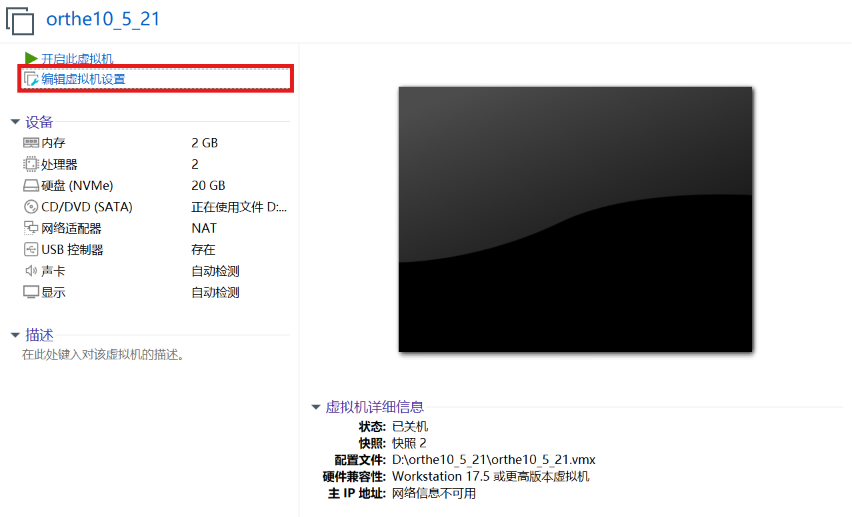
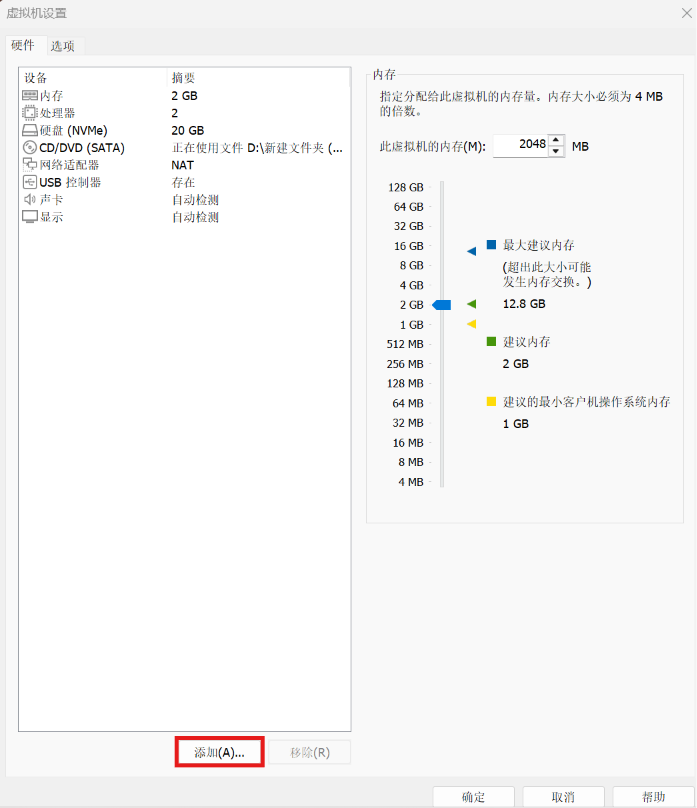
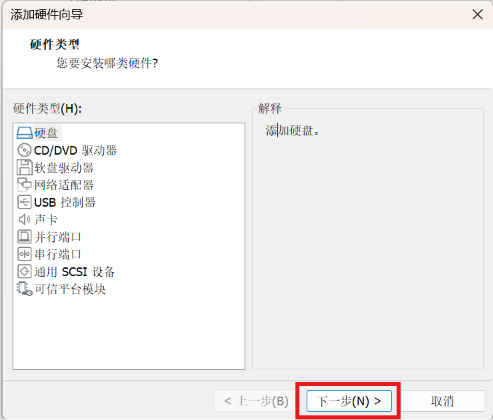
- 点击“硬盘”>下一步
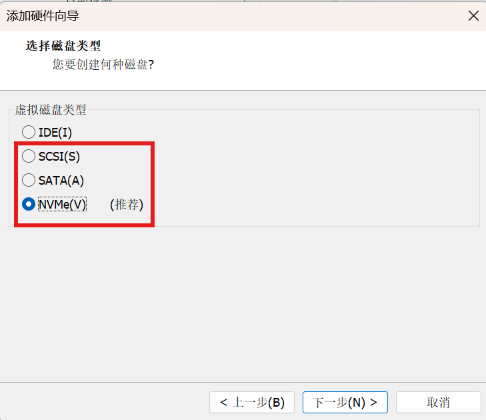
- 选择SCSI SATA MVMe 这三个硬盘类型,IDE硬盘类型已不适用
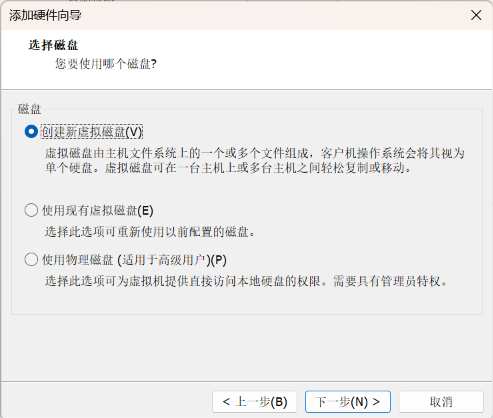
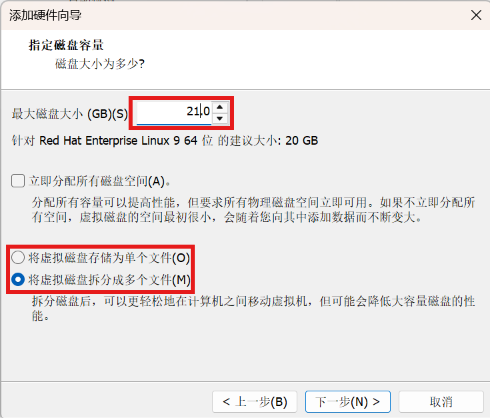
- 设置不同最大磁盘大小,便于区分
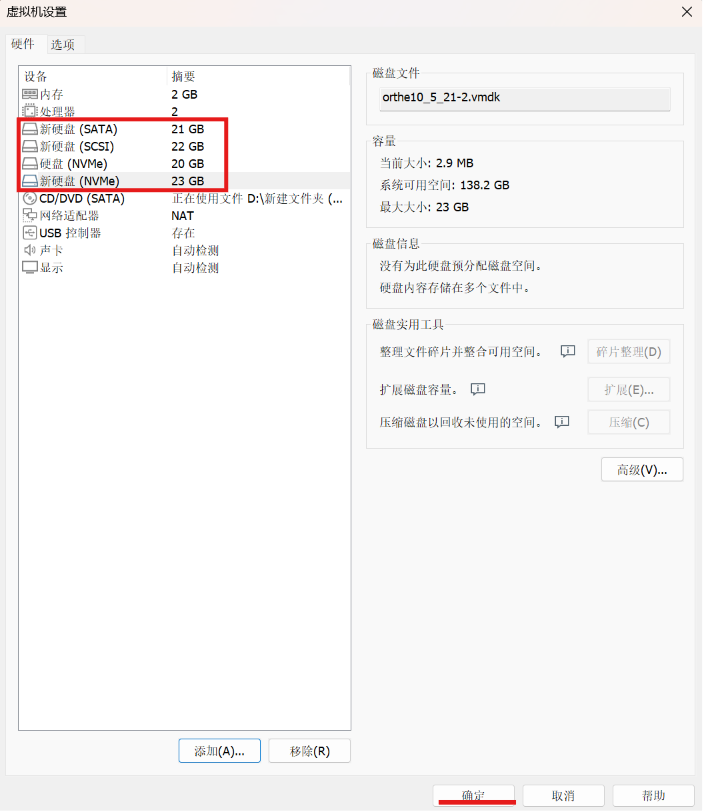
同理设置出三个不同类型、不同大小的磁盘,总共四个硬盘
2.磁盘分区
- fdisk 对磁盘进行分区
1.MBR格式
-
对 /dev/sda 磁盘进行分区:P+P+P+E(l+l+l),容量自定
[root@localhost ~]# fdisk /dev/sda
Welcome to fdisk (util-linux 2.40.2).
Changes will remain in memory only, until you decide to write them.
Be careful before using the write command.Device does not contain a recognized partition table.
Created a new DOS (MBR) disklabel with disk identifier 0x33a424cd.Command (m for help): o (新建 MBR格式 分区表)
Created a new DOS (MBR) disklabel with disk identifier 0xb1ee83bb.Command (m for help): n (新建分区)
Partition type
p primary (0 primary, 0 extended, 4 free)
e extended (container for logical partitions)
Select (default p): p (p:主分区 e:扩展分区)
Partition number (1-4, default 1): (分区号)
First sector (2048-44040191, default 2048): (起始扇区号)
Last sector, +/-sectors or +/-size{K,M,G,T,P} (2048-44040191, default 44040191): +2G (结束扇区号)Created a new partition 1 of type 'Linux' and of size 2 GiB.
Command (m for help): n (新建)
Partition type
p primary (1 primary, 0 extended, 3 free)
e extended (container for logical partitions)
Select (default p): p (主分区)
Partition number (2-4, default 2): (默认编号)
First sector (4196352-44040191, default 4196352):
Last sector, +/-sectors or +/-size{K,M,G,T,P} (4196352-44040191, default 44040191): +2GCreated a new partition 2 of type 'Linux' and of size 2 GiB.
Command (m for help): n
Partition type
p primary (2 primary, 0 extended, 2 free)
e extended (container for logical partitions)
Select (default p): p
Partition number (3,4, default 3):
First sector (8390656-44040191, default 8390656):
Last sector, +/-sectors or +/-size{K,M,G,T,P} (8390656-44040191, default 44040191): +3GCreated a new partition 3 of type 'Linux' and of size 3 GiB.
Command (m for help): n
Partition type
p primary (3 primary, 0 extended, 1 free)
e extended (container for logical partitions)
Select (default e): e (扩展分区)Selected partition 4
First sector (14682112-44040191, default 14682112):
Last sector, +/-sectors or +/-size{K,M,G,T,P} (14682112-44040191, default 44040191): (结束扇区号:直接回车表示默认,直接把剩余所有空间分配给该分区)Created a new partition 4 of type 'Extended' and of size 14 GiB.
Command (m for help): n
All primary partitions are in use.
Adding logical partition 5
First sector (14684160-44040191, default 14684160):
Last sector, +/-sectors or +/-size{K,M,G,T,P} (14684160-44040191, default 44040191): +3GCreated a new partition 5 of type 'Linux' and of size 3 GiB.
Command (m for help): n
All primary partitions are in use.
Adding logical partition 6
First sector (20977664-44040191, default 20977664):
Last sector, +/-sectors or +/-size{K,M,G,T,P} (20977664-44040191, default 44040191): +3GCreated a new partition 6 of type 'Linux' and of size 3 GiB.
Command (m for help): n
All primary partitions are in use.
Adding logical partition 7
First sector (27271168-44040191, default 27271168):
Last sector, +/-sectors or +/-size{K,M,G,T,P} (27271168-44040191, default 44040191):Created a new partition 7 of type 'Linux' and of size 8 GiB.
Command (m for help): p (打印当前分区信息)
Disk /dev/sda: 21 GiB, 22548578304 bytes, 44040192 sectors
Disk model: VMware Virtual S
Units: sectors of 1 * 512 = 512 bytes
Sector size (logical/physical): 512 bytes / 512 bytes
I/O size (minimum/optimal): 512 bytes / 512 bytes
Disklabel type: dos
Disk identifier: 0xb1ee83bbDevice Boot Start End Sectors Size Id Type
/dev/sda1 2048 4196351 4194304 2G 83 Linux
/dev/sda2 4196352 8390655 4194304 2G 83 Linux
/dev/sda3 8390656 14682111 6291456 3G 83 Linux
/dev/sda4 14682112 44040191 29358080 14G 5 Extended
/dev/sda5 14684160 20975615 6291456 3G 83 Linux
/dev/sda6 20977664 27269119 6291456 3G 83 Linux
/dev/sda7 27271168 44040191 16769024 8G 83 LinuxCommand (m for help): w (保存并退出)
The partition table has been altered.
Calling ioctl() to re-read partition table.
Syncing disks.
- 查看区分信息
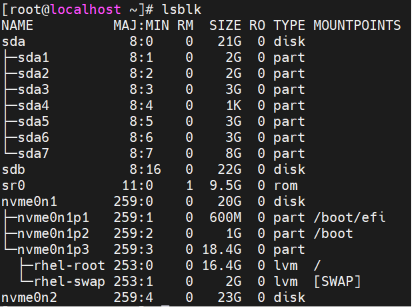
2.GPT格式
- 对 /dev/sdb 进行 fdisk 分区,3 个分区,容量自定
Command (m for help): g (创建 GPT 格式分区表)
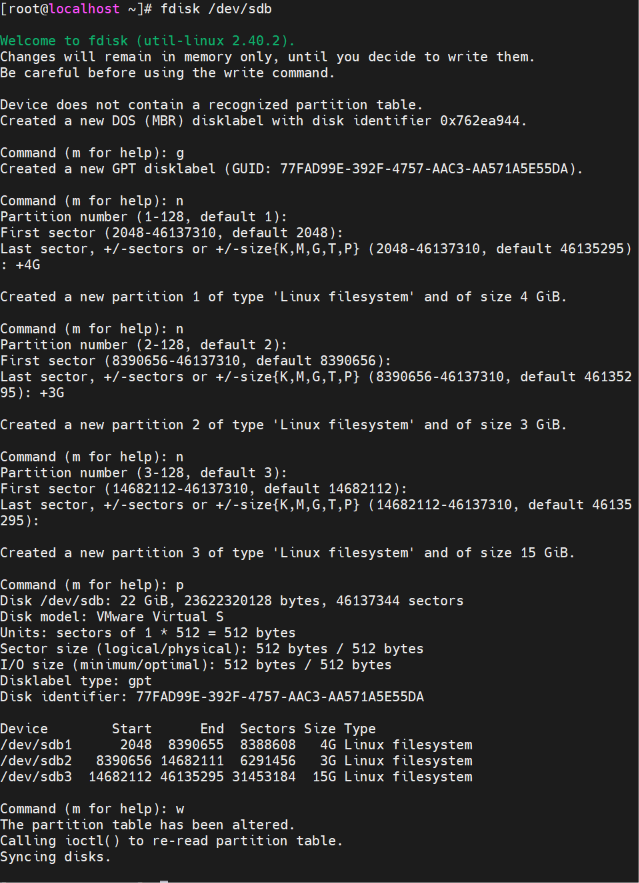
- 查看分区信息
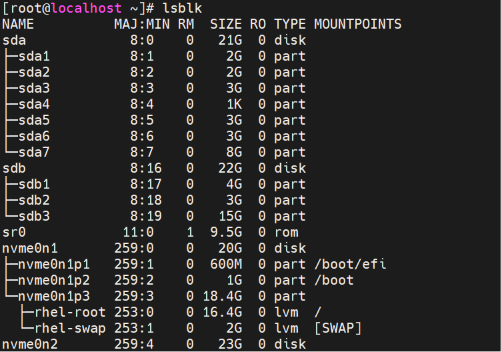
3.格式化
-
mkfs
- 查看文件系统格式
- 输入 mkfs 命令再点击两次 tab 键,即可显示系统支持的所有文件系统格式
[root@localhost ~]# mkfs (不要加空格,直接点两下 Tab 键)

- 对指定文件格式化
[root@localhost ~]# mkfs.xfs /dev/sda1
[root@localhost ~]# mkfs.ext4 /dev/sda2
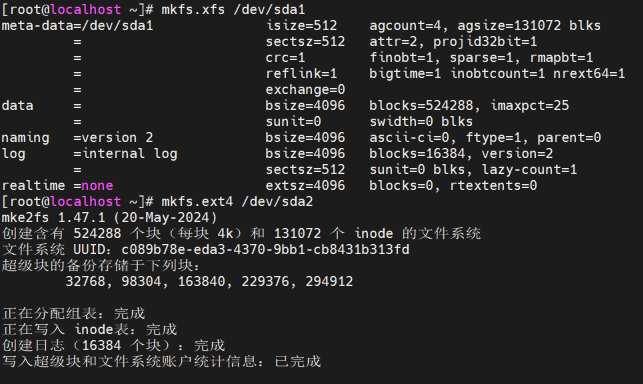
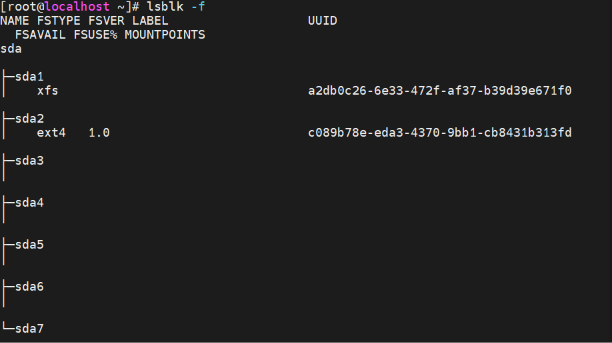
- 格式化成功后FSTYPE(文件系统)和UUID改变
[root@localhost ~]# lsblk -f ( -f 显示文件系统信息)
4.挂载
-
mount point:挂载点,是一个目录,该目录是进入磁盘分区(文件系统)的入口
-
挂载:将一个分区或者设备挂载至挂载点目录,建立连接,通过挂载点目录进入分区空间
1.mount
- 临时挂载
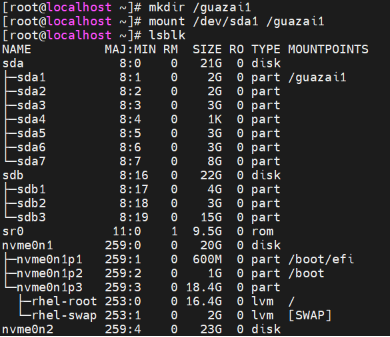
1.名称挂载 /dev/sda1
[root@localhost ~]# mkdir /guazai1 (创建挂载点)
[root@localhost ~]# mount /dev/sda1 /guazai1
[root@localhost ~]# lsblk
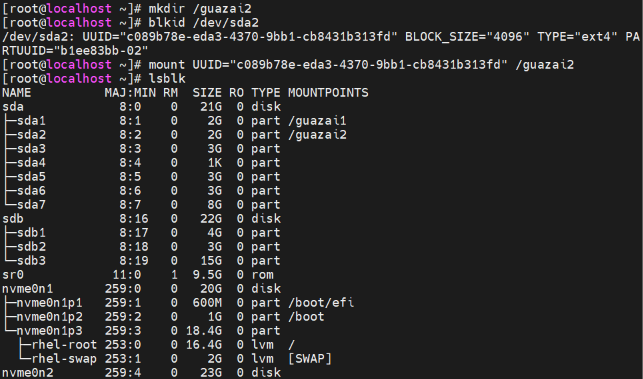
2.UUID挂载 /dev/sda2
[root@localhost ~]# mkdir /guazai2
[root@localhost ~]# blkid /dev/sda2 (查看指定文件的UUID)
[root@localhost ~]# mount UUID="c089b78e-eda3-4370-9bb1-cb8431b313fd" /guazai2
[root@localhost ~]# lsblk
3.挂载光盘 /dev/sr0
[root@localhost ~]# mount /dev/sr0 /mnt

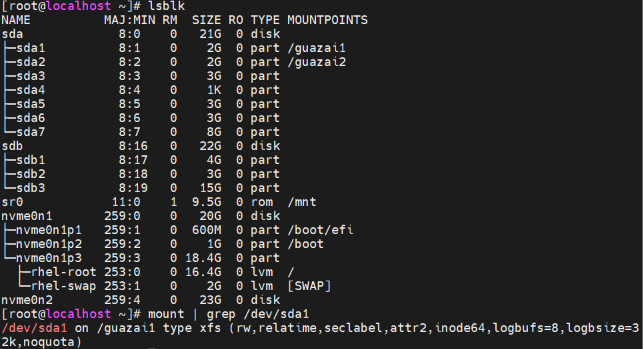
- 查看挂载信息
[root@localhost ~]# lsblk[root@localhost ~]# mount | grep /dev/sda1
注意:
- 挂载点(目录)应提前存在
- 单一文件系统不应该被重复挂载在不同的挂载点(目录)中(理论上不允许,实际不会报错)
-
单一目录不应该重复挂载多个文件系统
-
作为挂载点的目录,应为空目录,否则原有数据会隐藏
[root@localhost ~]# mkdir /guazai3
[root@localhost ~]# echo haha > /guazai3/file
[root@localhost ~]# ls /guazai3
[root@localhost ~]# mkfs.xfs /dev/sda3
[root@localhost ~]# mount /dev/sda3 /guazai3
[root@localhost ~]# ls /gauzai3
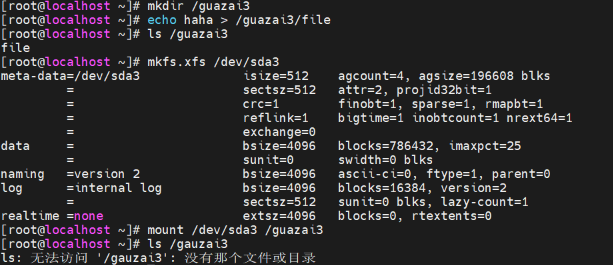
(原有的 file 文件被隐藏)
2.blkid
-
显示设备的 UUID 值和文件类型等信息
-
UUID:全局单一标识符(Universally Unique Identifier),Linux系统会给所有设备分配一个唯一 的 UUID 值,以方便挂载
[root@localhost ~]# blkid /dev/sda1
/dev/sda1: UUID="a2db0c26-6e33-472f-af37-b39d39e671f0" BLOCK_SIZE="512" TYPE="xfs" PARTUUID="b1ee83bb-01"
/dev/sda1:设备绝对路径UUID="a2db0c26-6e33-472f-af37-b39d39e671f0":文件系统全局唯一标识符,类似身份证
BLOCK_SIZE="512":文件系统块大小
TYPE="xfs":文件系统类型
PARTUUID="b1ee83bb-01":分区ID
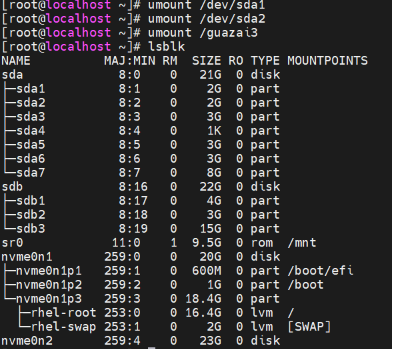
3.umount
- 临时取消挂载( -f 强制取消)
[root@localhost ~]# umount /dev/sda1
[root@localhost ~]# umount /dev/sda2
[root@localhost ~]# umount /guazai3
[root@localhost ~]# lsblk
4.开机自动挂载
-
由于 mount 命令为手动挂载,重启后就会自动取消挂载,则修改 /etc/fstab 配置文件,实现开机 自动挂载
手动挂载,开机后会自动取消挂载
[root@localhost ~]# mount /dev/sda1 /guazai1
[root@localhost ~]# lsblk
[root@localhost ~]# reboot[root@localhost ~]# lsblk


配置文件:/etc/fstab
-
编辑该文件,实现系统开机自动挂载分区设备
-
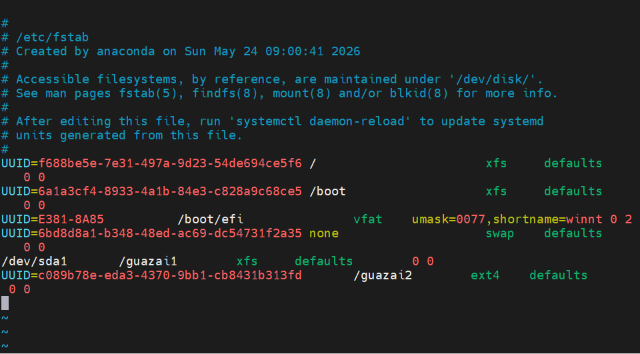
推荐:使用 UUID 的方式挂载设备
[root@localhost ~]# blkid /dev/sda1 /dev/sda2
[root@localhost ~]# vim /etc/fstab (在最后添加需要挂载的内容)
- 编辑完成后 Esc 推出编辑模式
- :wq 保存并退出

- 测试文件内容是否有误
加载 /etc/fstab 文件内容[root@localhost ~]# mount -a
mount: (hint) your fstab has been modified, but systemd still uses
the old version; use 'systemctl daemon-reload' to reload.
设备挂载成功,说明文件内容无误[root@localhost ~]# lsblk
重启测试是否配置成功且开机自动挂载
[root@localhost ~]# reboot
[root@localhost ~]# lsblk
挂载信息依然存在,开机自动挂载成功


5.特殊挂载
挂载大文件
-
当系统没有剩余磁盘进行分区,但现在已存在的分区有充足的空间,我们可以在已存在的分区上建 立一个大文件,将其格式化为文件系统,通过挂载为一个虚拟分区,从而实现空间灵活利用。
-
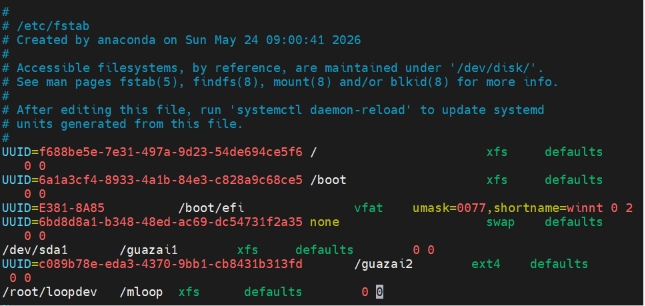
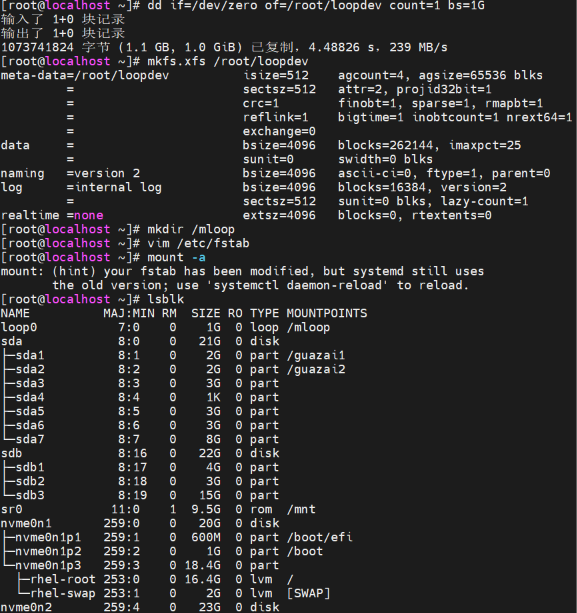
根目录下创建 1GB 大文件,开机自动挂载使用
[root@localhost ~]# dd if=/dev/zero of=/root/loopdev count=1 bs=1G[root@localhost ~]# mkfs.xfs /root/loopdev
[root@localhost ~]# mkdir /mloop
[root@localhost ~]# vim /etc/fstab/root/loopdev /mloop xfs defaults 0 0 (在最后输入此内容)
[root@localhost ~]# mount -a[root@localhost ~]# lsblk





 扫一扫
扫一扫


 499
499

 被折叠的 条评论
为什么被折叠?
被折叠的 条评论
为什么被折叠?
 到【灌水乐园】发言